
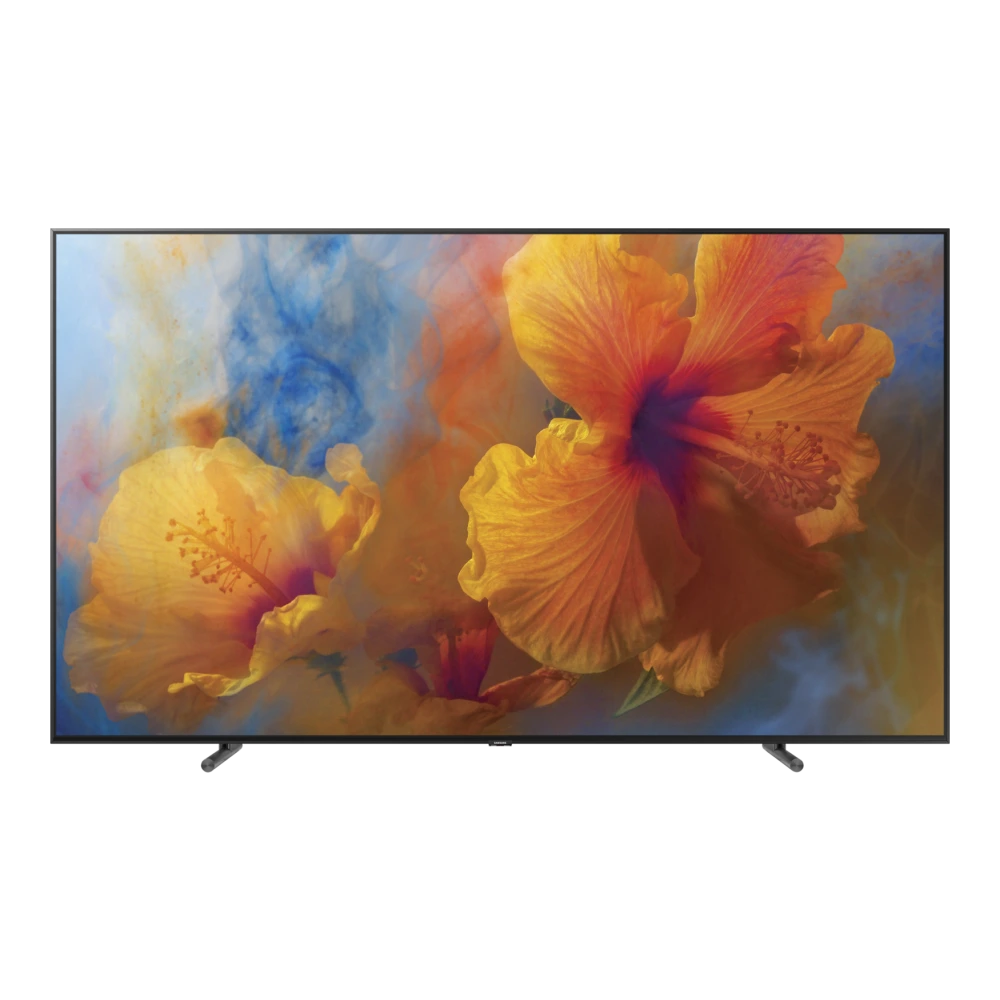
Samsung 223cm (88") Q9F 4K Smart QLED TV Downloads & Support Hub
Verified support repository for Samsung 223cm (88") Q9F 4K Smart QLED TV (QA88Q9FAMK) providing 4 database-indexed packages (3 User Manuals & Guides, 1 Firmware Package), supporting Tizen. All packages are verified with SHA-256 cryptographic signatures.
📦 Available Download Packages
Filter software packages by technical component category:
Upgrade File(USB type),MAIN (T-KTMUABC.zip)
User Manual (English)
e-Manual
e-Manual
🛠️ 223cm (88") Q9F 4K Smart QLED TV Diagnostics & Maintenance Guide
Hardware maintenance procedures, USB firmware flashing steps, and Smart Hub self-diagnosis for your Samsung Smart TV:
⚡ USB Firmware Upgrade Procedure (Tizen OS)
- Format a USB flash drive (8 GB – 32 GB) to FAT32 on your computer.
- Download the verified firmware ZIP from the repository table above.
- Extract the update folder directly to the root of the USB drive (do not place in subfolders).
- Insert the drive into the port marked USB (HDD) on your 223cm (88") Q9F 4K Smart QLED TV.
- Go to Settings > Support > Software Update > Update Now and select Yes to search USB.
📺 Hardware Self Diagnosis (Picture & Sound Test)
- Press the Home button on your remote and open Settings.
- Navigate to Support > Device Care > Self Diagnosis.
- Run Picture Test to inspect for panel banding, backlight bleeding, or dead pixels.
- Run Sound Test to verify stereo speaker calibration or eARC soundbar pass-through.
- Check Signal Information for HDMI handshake integrity and antenna SNR levels.
🔄 Smart Hub Reset & Power Cycle
- Reset Smart Hub: Go to Settings > Support > Device Care > Self Diagnosis > Reset Smart Hub (PIN:
0000). Clears app stalls without wiping display settings. - Factory Reset: Go to Settings > General & Privacy > Reset to return to initial out-of-box setup.
- Remote Cold Reboot: With the TV powered ON, hold the Power button on the remote for 5 seconds until the TV turns off and the boot logo reappears.
❓ Frequently Asked Questions for 223cm (88") Q9F 4K Smart QLED TV
How do I install USB firmware updates on 223cm (88") Q9F 4K Smart QLED TV?
Format a USB flash drive (FAT32), download the verified ZIP from the table above, extract it to the root of the USB drive, insert it into the TV's USB (HDD) port, and navigate to Settings > Support > Software Update > Update Now.
Where can I find user manuals and e-Manuals for 223cm (88") Q9F 4K Smart QLED TV?
All verified User Manuals, e-Manuals, Remote Control guides, and Quick Setup Guides are listed in the package table above. You can read them directly in the browser or download the verified PDF.
How do I run picture and sound diagnostics on 223cm (88") Q9F 4K Smart QLED TV?
Press the Home button on your Samsung SolarCell remote, select Settings > Support > Device Care > Self Diagnosis, then choose 'Picture Test' or 'Sound Test' to evaluate panel and speaker health.
How do I reset Smart Hub if apps freeze or refuse to load?
Go to Settings > Support > Device Care > Self Diagnosis > Reset Smart Hub and enter your PIN (default is 0000). This clears app cache and network sockets without erasing your picture calibrations.
Need Hardware Replacement for 223cm (88") Q9F 4K Smart QLED TV?
Compare original display panel, power supply board, main board, and remote replacement prices with standard labor tariffs, or locate an authorized walk-in Samsung service center in your city.
Ready to Repair 223cm (88") Q9F 4K Smart QLED TV?
Find verified Samsung service centers across 646+ Indian cities with genuine OEM parts inventory, express turnaround, and in-warranty zero-cost claims.