
Samsung Galaxy S9+ Downloads & Support Hub
Verified support repository for Samsung Galaxy S9+ (SM-G965F) providing 4 database-indexed packages (1 Firmware Package, 3 User Manuals), supporting Android. All packages are verified with SHA-256 cryptographic signatures.
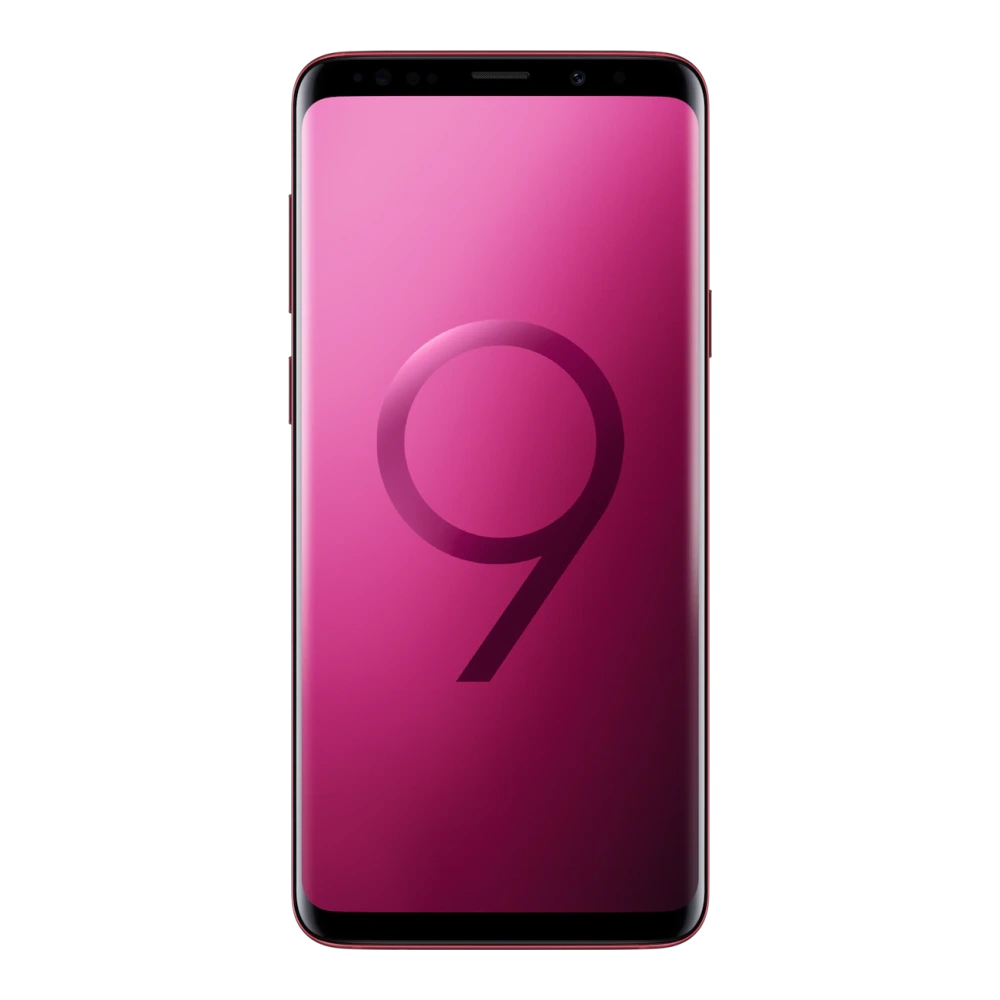
Device Overview & Connection Guide
Hardware summary, PC connection guide, and verified resources for Samsung Galaxy S9+The Galaxy S9+ (model SM-G965F) is a well-rounded Samsung smartphone engineered for balanced daily reliability. Running on Samsung's intuitive One UI software, it pairs smooth navigation with essential built-in security features to protect your personal data. The 6GB system memory keeps background apps ready without slowdowns.
To manage your device from a computer, install the official Samsung USB drivers available below. This ensures Windows or macOS properly recognizes your smartphone for transferring photos, documents, and media via USB. For full device backups, contacts migration, or upgrading to a new phone, Samsung Smart Switch is the recommended PC companion tool.
Browse the repository below to access official Samsung documentation, PC connection utilities, and verified firmware releases for your Galaxy S9+.
📦 Available Download Packages
Filter software packages by technical component category:
Galaxy S9+ Factory Stock Firmware (INS - G965FXXUHFVG4)
User Manual (English)
User Manual (English)
User Manual (English)
📋 Samsung Galaxy S9+ Technical Specifications
Authoritative technical specifications, performance metrics, and regulatory hardware details indexed directly from Samsung Electronics official servers (13 technical domains, 62 verified attributes).
🏭 Manufacturer, Regulatory & Import Information
| Manufactured by | Samsung |
|---|---|
| Country of Origin | India, Vietnam, China, Korea*Country of origin shall be as mentioned on the Product |
| Imported by | Samsung India Electronics Pvt. Ltd. having its Registered Office at: 6th Floor, DLF Centre, Sansad Marg, New Delhi-110001 |
| Contact us | For All Product Related Complaints/assistance, please contact Manager, Customer Care Samsung India Electronics Pvt. Ltd., 6th Floor, DLF Centre, Sansad Marg, New Delhi - 110001 Email us at: support.india@samsung.com Tel (Toll Free): 1800 40 7267864 (1800 40 SAMSUNG) |
ℹ️ Official Specification Footnotes, IEC Standards & Network Disclaimers
* Battery: Actual battery life varies by network environment, features and apps used, frequency of calls and messages, number of times charged, and many other factors.
* User Available Memory: Actual user memory will vary depending on the operator and may change after software upgrades are performed.
Memory: User memory is less than the total memory due to storage of the operating system and software used to operate the phones features. Actual user memory will vary depending on the mobile phone operator and may change after software upgrades are performed.
Network Band: The bandwidths supported by the device may vary depending on the region or service provider.
Display Size: Measured diagonally, the screen size is 15.80cm (6.2") in the full rectangle and 15.45cm (6.1") when accounting for the rounded corners.
CPU Clock: Based on maximum clock speed, the maximum clock speed of performance core and efficiency core respectively.
🛠️ Galaxy S9+ Diagnostics & Maintenance Guide
Key hardware combinations and maintenance procedures specific to your Samsung Galaxy smartphone:
⚡ Entering Samsung Download / Odin Mode
- Power off your Galaxy S9+ completely.
- Connect the USB-C cable to your PC (do not plug into phone yet).
- Hold down
Volume Up + Volume Downsimultaneously and plug in the USB cable. - When the teal Warning screen appears, press
Volume Upto confirm Download Mode.
🛡️ Recovery Mode & Wipe Cache Partition
- Connect device to a PC via USB cable while powered off.
- Press and hold
Side Key (Power) + Volume Upuntil the Samsung logo appears. - Release keys to enter Android Recovery menu.
- Use Volume keys to select Wipe cache partition to clear OS glitches without wiping user data.
🔒 Safe Mode Diagnostic Boot
To diagnose app battery drain or software conflicts on your Galaxy S9+:
- Press and hold the Power button to bring up the Power menu.
- Long-press the Power Off icon on screen until the green Safe Mode icon appears.
- Tap Safe Mode to restart your phone with third-party apps temporarily disabled.
❓ Frequently Asked Questions for Galaxy S9+
How do I connect Galaxy S9+ to a Windows PC if not recognized?
Install the Samsung Android USB Composite Driver on your Windows 11/10 PC. Then ensure your phone is unlocked and set USB configuration to 'Transferring files (MTP)' under notification settings.
Where can I find the user manual for Galaxy S9+?
All available user guides, quick start guides, and multilingual safety manuals are listed in the package table above. You can read them directly online in our browser viewer or download the PDF.
How do I perform a complete firmware update on Galaxy S9+ via PC?
Download and install Samsung Smart Switch on your PC or Mac. Connect your device via USB-C cable; Smart Switch will automatically detect your model and prompt you if a new One UI update is ready for installation.
How do I boot Galaxy S9+ into Download Mode for Odin flashing?
Turn off your device, connect a USB-C cable to your PC, hold Volume Up + Volume Down simultaneously, and plug the cable into the device. When the teal screen appears, press Volume Up to confirm.
Need Hardware Replacement for Galaxy S9+?
Compare original screen, battery, and motherboard replacement prices with standard labor tariffs, or locate an authorized walk-in Samsung service center in your city.
Ready to Repair Galaxy S9+?
Find verified Samsung service centers across 646+ Indian cities with genuine OEM parts inventory, express turnaround, and in-warranty zero-cost claims.