
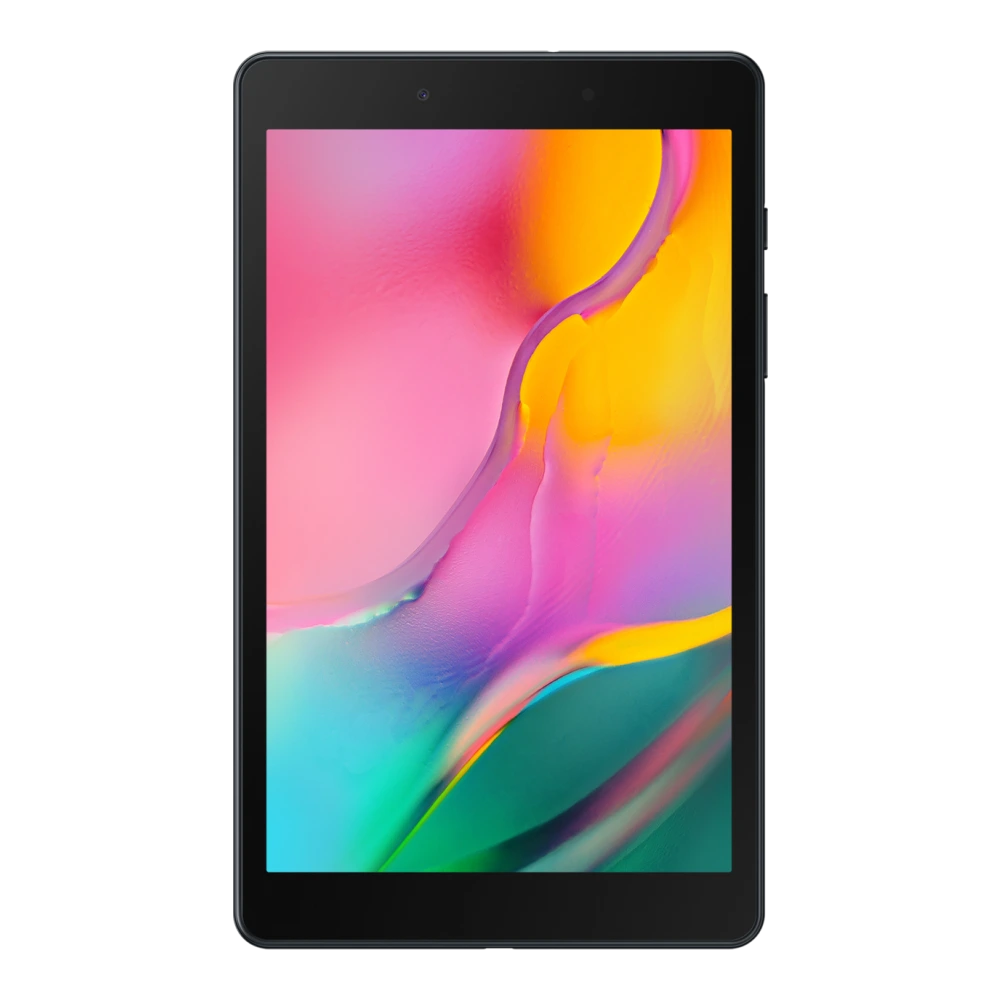
Samsung Galaxy Tab A 8.0 (Wi-Fi) Downloads & Support Hub
Verified support repository for Samsung Galaxy Tab A 8.0 (Wi-Fi) (SM-T290) providing 3 database-indexed packages (2 User Manuals & Guides, 1 Software Package), including cross-platform PDF documentation. All packages are verified with SHA-256 cryptographic signatures.
📦 Available Download Packages
Filter software packages by technical component category:
User Manual (Bengali)
Safety Guide
User Manual (English)
🛠️ Galaxy Tab A 8.0 (Wi-Fi) Diagnostics & Maintenance Guide
Maintenance procedures, recovery key combinations, and Samsung DeX optimization for your Galaxy Tablet:
🛡️ Tablet Recovery Mode & Wipe Cache
- Power off your Galaxy Tab A 8.0 (Wi-Fi) completely.
- Connect tablet to a PC or power charger via USB-C cable.
- Press and hold
Power + Volume Upuntil the Samsung Galaxy Tab logo appears. - Release keys to enter Android Recovery; select Wipe cache partition to clear temporary system glitches without data loss.
🖥️ Samsung DeX Desktop Windowing
Activate desktop productivity environment on your tablet:
- Swipe down from the top of the display with two fingers to reveal Quick Settings.
- Tap the DeX tile to launch desktop windowing mode directly on your tablet screen.
- Attach a Samsung Book Cover Keyboard or wireless mouse for full PC-like multitasking.
🔒 Safe Mode Diagnostic Boot
Isolate third-party app battery drain or stylus latency:
- Press and hold the Power button to bring up the Power menu.
- Long-press the red Power Off icon until the green Safe Mode icon appears.
- Tap Safe Mode to restart your tablet with third-party apps temporarily disabled.
❓ Frequently Asked Questions for Galaxy Tab A 8.0 (Wi-Fi)
How do I connect Galaxy Tab A 8.0 (Wi-Fi) to a PC or external monitor?
Connect your tablet via USB-C cable. For PC file transfer, select 'Transferring files (MTP)' on the tablet notification panel. To use Samsung DeX on an external display, connect via USB-C to HDMI adapter or compatible dock.
Where can I find the user manual for Galaxy Tab A 8.0 (Wi-Fi)?
All verified user guides and safety manuals are listed in the package table above. You can read them directly in your browser or download the PDF.
How do I boot Galaxy Tab A 8.0 (Wi-Fi) into Recovery Mode to wipe cache?
Power off the tablet, connect it to a PC or charger with a USB-C cable, then hold Power + Volume Up until the Samsung Galaxy Tab logo appears. Use volume keys to select 'Wipe cache partition'.
Need Hardware Replacement for Galaxy Tab A 8.0 (Wi-Fi)?
Compare original screen, battery, and motherboard replacement prices with standard labor tariffs, or locate an authorized walk-in Samsung service center in your city.
Ready to Repair Galaxy Tab A 8.0 (Wi-Fi)?
Find verified Samsung service centers across 646+ Indian cities with genuine OEM parts inventory, express turnaround, and in-warranty zero-cost claims.