
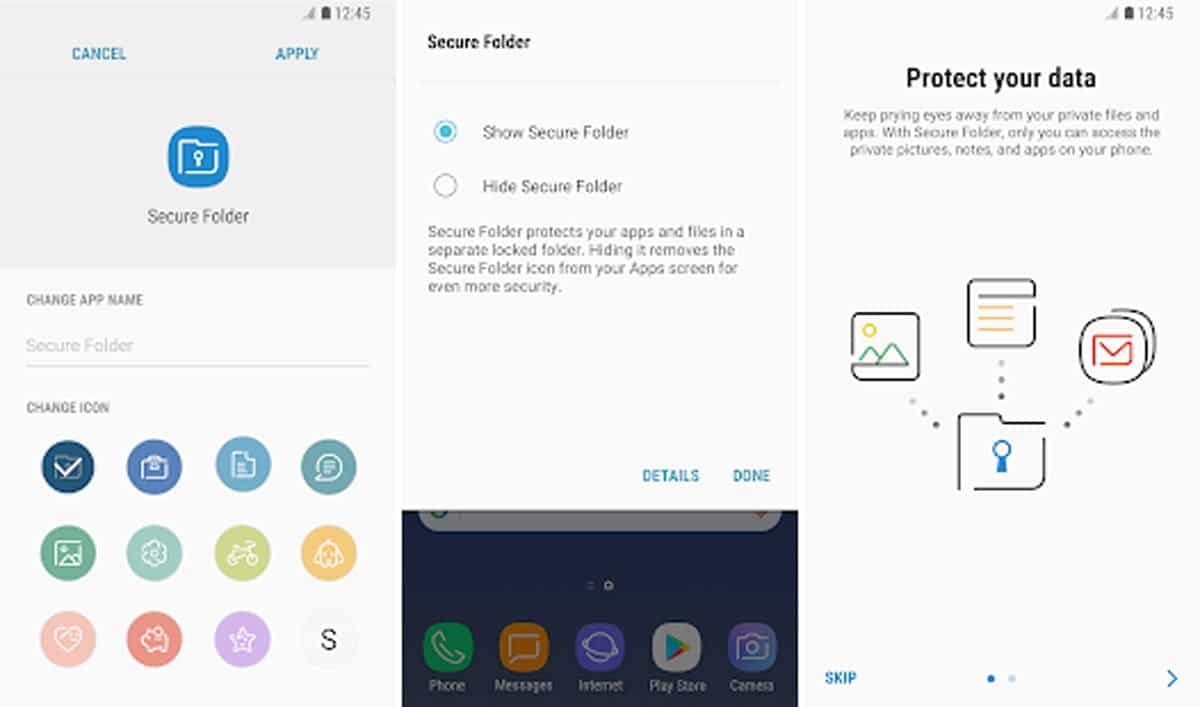
If you cannot find Secure Folder on your Samsung Galaxy phone, it does not always mean that the feature has been deleted. Secure Folder availability depends on the Galaxy device and its software version, and the location of the feature can also change between One UI versions.
Quick answer: First check whether Secure Folder is already available in your phone’s Settings. On newer Galaxy devices, look under Settings → Security and privacy → More security settings → Secure Folder. If your phone supports the feature but you cannot find it, update the phone software and check the Apps screen, Quick Settings, and Settings again. If Secure Folder is not available anywhere, your particular Galaxy model or software version may not support it.
Samsung Secure Folder is a protected area on supported Galaxy phones and tablets where you can keep private apps, photos, videos, documents and other personal information separate from the normal phone environment.
If you previously used Secure Folder and it has suddenly disappeared, there are several things worth checking before assuming that it has been removed from the phone.
Also Read: Samsung App Lock and Secure Folder
What Is Samsung Secure Folder?
Samsung Secure Folder is a separate protected space on supported Galaxy devices. It can be used to keep private apps and personal files away from the normal area of your phone.
Samsung describes Secure Folder as an additional privacy layer powered by Samsung Knox security. You can protect it with a PIN, password, pattern and, on supported devices, biometric authentication such as a fingerprint.
You can use Secure Folder for things such as:
- Private photos and videos
- Personal documents and files
- Apps that you want to keep separate from your normal apps
- Separate accounts inside supported apps
- Other personal information that you want to protect
For example, an app installed inside Secure Folder can have its own separate data and account from the same app outside Secure Folder. This can be useful when you want to keep personal and private use separate.
Secure Folder is a Samsung Galaxy feature. It is not intended to be installed as a normal Samsung application on phones from other manufacturers.
Samsung: What is Secure Folder and how can I use it?
Why Is Secure Folder Missing From My Samsung Phone?
There is no single reason why Secure Folder may appear to be missing. The most common possibilities are:
- Secure Folder is supported but has not been set up yet.
- The Secure Folder shortcut has been hidden from the Apps screen.
- Your Galaxy phone uses a different Settings menu layout.
- The phone software needs to be updated.
- The Secure Folder app or related component needs attention after a software change.
- Your particular Galaxy model or software version does not support Secure Folder.
Samsung specifically notes that if a device does not support Secure Folder, the feature will not appear in the relevant Security and privacy settings.
How to Check if Secure Folder Is Already on Your Samsung Phone
Before trying to download anything, check the phone itself. On recent Samsung software, the menu may be found under:
Settings → Security and privacy → More security settings → Secure Folder
On some older Galaxy phones and older One UI versions, the path may be different, for example:
Settings → Biometrics and security → Secure Folder
Samsung changes menu names and locations between software versions, so do not worry if your phone does not use exactly the same wording.
If you find Secure Folder in Settings, the feature is available and you normally do not need to download a separate APK.
How to Set Up Samsung Secure Folder
If Secure Folder is available but you have never configured it, you can set it up from Settings.
- Open Settings on your Samsung Galaxy phone.
- Open Security and privacy.
- Tap More security settings.
- Tap Secure Folder.
- Tap Continue when prompted.
- Sign in to your Samsung Account if required.
- Choose a security method for Secure Folder.
- Complete the on-screen setup.
On older Samsung devices, you may find Secure Folder under Settings → Biometrics and security instead.
Samsung recommends enabling the Reset with Samsung account option during setup when it is offered. This can provide a way to recover access if you forget your Secure Folder lock credentials.
Secure Folder Is Installed but the Icon Is Missing
This is one of the easiest problems to fix.
Secure Folder can be hidden from the Apps screen. If you previously hid it, the feature may still be working normally even though you cannot see its icon.
Try this:
- Open Settings.
- Go to Security and privacy → More security settings → Secure Folder.
- Look for the option related to Add Secure Folder to Apps screen.
- Turn the option on if you want the Secure Folder icon to appear in your Apps screen.
On supported devices, you can also use the Quick Settings panel to hide or show Secure Folder.
So, before downloading an APK, check whether the Secure Folder icon has simply been hidden.
Secure Folder Is Missing From Settings Too
If you cannot find Secure Folder either in the Apps screen or in Settings, work through the following checks.
1. Check your Samsung software version
Open:
Settings → About phone → Software information
Check your One UI and Android version.
This is useful because Samsung changes features and menu locations between software versions.
2. Install available software updates
Open:
Settings → Software update → Download and install
If an update is available, install it and restart the phone. After the update, check the Secure Folder setting again.
3. Search Settings
Samsung phones normally provide a search option inside Settings. Search for:
Secure Folder
If the feature is supported and available, this can be a quicker way to locate it than manually checking every security menu.
4. Check the Apps screen
Swipe up from the Home screen to open the Apps screen and search for Secure Folder.
If it is not there, check Settings as described above.
5. Restart the phone
A normal restart is worth trying if Secure Folder disappeared after an update, system change, or temporary software problem.
After restarting, check both Settings and the Apps screen again.
Can I Download Samsung Secure Folder?
Secure Folder is already integrated into supported Samsung Galaxy devices. You should therefore check the phone’s Settings first instead of downloading an APK from an unknown website.
Samsung does also distribute Secure Folder through its Galaxy Store for supported devices. The official Samsung Galaxy Store listing uses the package name com.samsung.knox.securefolder.
Download Samsung Secure Folder from Galaxy Store
Important: Do not assume that downloading the Galaxy Store package will make Secure Folder work on an unsupported Galaxy model. Samsung states that Secure Folder availability varies by device. If the feature is not supported by your phone, installing an APK is not a reliable way to add it.
I would also avoid third-party websites offering modified Secure Folder APK files. Secure Folder is a security feature, so installing a modified or unofficial version defeats the purpose of using a trusted Samsung security component.
What About the Google Play Store?
You may find applications named “Secure Folder” or similar names on Google Play. However, not every application with that name is Samsung’s Secure Folder.
For this reason, we recommend using Samsung’s own Galaxy Store listing for the Samsung Secure Folder component rather than downloading a similarly named third-party application.
A third-party secure-folder application may provide a different type of privacy vault, but it is not the same thing as Samsung Secure Folder and does not provide the same Samsung Knox integration.
Is Samsung Secure Folder Available on Every Samsung Phone?
No. Secure Folder availability depends on the Samsung device and software version.
Samsung’s current support documentation specifically states that if a device does not support Secure Folder, the option will not appear in the relevant security settings.
Because Samsung changes its device lineup and software support over time, it is better not to maintain a fixed list claiming that every particular Galaxy model supports Secure Folder unless Samsung specifically confirms it for that model and software version.
If Secure Folder is important to you, check the feature on your exact Galaxy model rather than relying only on the phone’s series name.
What Can I Store in Secure Folder?
On supported devices, Secure Folder can be used for more than just photos.
- Photos
- Videos
- Documents
- Other files
- Apps
- Private app accounts and app data
To add files, open Secure Folder and use Add files. Samsung also provides options such as moving selected files from supported apps into Secure Folder.
When you add an app to Secure Folder, Samsung creates a separate copy of the app inside the protected environment. This means the app inside Secure Folder can have separate data and account information from the same app outside Secure Folder.
How to Hide Secure Folder
If you want Secure Folder to stay out of your normal Apps screen, Samsung provides an option to hide it.
On supported versions, open:
Settings → Security and privacy → More security settings → Secure Folder
Then turn off the option that adds Secure Folder to the Apps screen.
You can also use the Quick Settings panel to show or hide Secure Folder on supported devices.
How to Add an App to Secure Folder
Once Secure Folder is set up:
- Open Secure Folder.
- Tap the + or Add apps option.
- Select the app you want to add.
- Tap Add.
The app will then appear inside Secure Folder as a separate installation environment.
How to Add Photos and Files to Secure Folder
There are several ways to move supported files into Secure Folder.
From inside Secure Folder:
- Open Secure Folder.
- Tap More options or the three-dot menu.
- Tap Add files.
- Select the type of file you want to add.
- Select the files.
- Choose whether to copy or move them when prompted.
You can also select supported files from apps such as Gallery or My Files and use the Move to Secure Folder option when it is available.
What Happens If I Forget My Secure Folder PIN or Password?
If you enabled the Reset with Samsung account option, you may be able to reset your Secure Folder lock using your Samsung Account.
- Open Secure Folder.
- Enter the PIN, pattern, or password you remember.
- If the option appears, tap Forgot PIN.
- Choose Reset.
- Sign in with your Samsung Account when asked.
- Create a new Secure Folder lock.
If you do not see the recovery option, the available recovery process can depend on your device and the settings that were enabled when Secure Folder was configured.
If you have lost both your Secure Folder credentials and Samsung Account access, contact Samsung Support for the options available for your device.
Can I Reinstall Secure Folder If It Is Not Working?
Do not immediately uninstall Secure Folder just because its icon has disappeared.
First check whether it is hidden, whether it is available in Settings, and whether your phone supports the feature.
If Secure Folder is already configured and contains important files or apps, be especially careful with uninstalling or resetting it. Removing the Secure Folder can affect the data stored inside it.
If you are considering uninstalling and reinstalling it as a troubleshooting step, make sure you understand what will happen to your Secure Folder data before continuing.
Samsung Secure Folder and Android Updates
Samsung changes Secure Folder’s menus and available options as Galaxy software develops.
For example, current Samsung documentation includes changes to Secure Folder behavior on devices running newer versions of Android and One UI. This means that an older guide may show menu names or options that no longer appear on a newer Galaxy phone.
For this reason, always follow the menu names shown on your own phone rather than expecting every Galaxy device to have exactly the same settings.
Secure Folder vs a Third-Party App Lock
A normal app-lock application and Samsung Secure Folder are not exactly the same thing.
Secure Folder creates a protected Samsung environment for supported apps and files, while a third-party app-lock application may simply place a password or biometric check in front of an existing app.
If your Galaxy phone supports Secure Folder, it is worth checking the built-in feature before installing a separate privacy application.
Also Read: Samsung App Lock and Secure Folder
Is Secure Folder Really Secure?
Secure Folder is designed as a protected area using Samsung Knox security. It provides a separate place for supported apps and personal data and adds authentication before the protected content can be accessed.
However, no security feature should be treated as a replacement for good device security. Use a strong screen lock, keep your Galaxy phone updated, protect your Samsung Account, and avoid installing unknown applications.
Also remember that Secure Folder does not make every activity on your phone private. Notifications, screenshots, sharing, backups, and other behavior can depend on the app, device and software version.
Common Samsung Secure Folder Problems
Secure Folder disappeared from my Apps screen
It may simply be hidden. Check Settings → Security and privacy → More security settings → Secure Folder and look for the option to add Secure Folder to the Apps screen.
Secure Folder is missing from Settings
Check your Samsung software version, install available updates, restart the phone, and search Settings for Secure Folder. If the option still does not appear, your Galaxy model or software version may not support the feature.
I downloaded an APK but Secure Folder still does not work
Installing an APK does not guarantee that Secure Folder will work on an unsupported Galaxy device. Secure Folder depends on Samsung’s supported device and software environment.
Secure Folder worked before but disappeared after an update
Restart the phone and search for Secure Folder in Settings. Also check whether the Secure Folder icon has been hidden from the Apps screen. Software updates can change the location and appearance of settings, so the feature may not be in the same place as before.
I forgot my Secure Folder PIN
If you enabled Samsung Account recovery for Secure Folder, use the Forgot PIN option when it appears and follow the Samsung Account verification process.
Can I install Secure Folder on a non-Samsung Android phone?
No. Samsung Secure Folder is a Samsung Galaxy feature and is not intended to be installed as a normal application on other Android brands.
Samsung Secure Folder Download
If your Galaxy device supports Secure Folder and the component needs to be installed or updated, use Samsung’s official Galaxy Store rather than an APK website.
| Item | Details |
|---|---|
| App | Samsung Secure Folder |
| Developer | Samsung Electronics |
| Official source | Samsung Galaxy Store |
| Package | com.samsung.knox.securefolder |
| Compatibility | Supported Samsung Galaxy devices |
Download Secure Folder from Samsung Galaxy Store
There is no need to provide a third-party APK mirror when Samsung’s own store provides the official listing.
Important Note About APK Downloads
Older versions of this article provided an APK download and a Google Drive link. I would remove that section rather than uploading an old Secure Folder APK to Google Drive.
Secure Folder is a security-sensitive Samsung component, and its compatibility can depend on the device and software version. A static APK file can become outdated and may not be suitable for every Galaxy phone.
If you want to provide a download option, the safer long-term approach is to link directly to the official Samsung Galaxy Store listing above.
Final Solution: Secure Folder Missing on Samsung
If Samsung Secure Folder is missing from your Galaxy phone, do not immediately download an APK. First check whether the feature is simply hidden or located somewhere else in Settings.
- Search your Apps screen for Secure Folder.
- Check Settings → Security and privacy → More security settings → Secure Folder.
- On older software, also check Settings → Biometrics and security → Secure Folder.
- Check whether Secure Folder has been hidden from the Apps screen.
- Install any available Samsung software updates.
- Restart the Galaxy phone and check again.
- If your phone supports Secure Folder and Samsung provides the component through Galaxy Store, use the official Samsung listing.
- If Secure Folder is not available anywhere, check whether your exact Galaxy model and software version support the feature.
The most important thing to remember is that Secure Folder is not a universal APK that can be added to every Samsung phone. Availability depends on the device and software version.
If your phone supports Secure Folder, using Samsung’s built-in feature or Samsung’s official Galaxy Store is preferable to downloading an APK from an unknown website.
Official Samsung Resources
- Samsung India: How to set up Secure Folder on your Galaxy smartphone
- Samsung India: What is Secure Folder and how can I use it?
- Samsung: Use Secure Folder on your Galaxy phone or tablet
- Samsung Galaxy Store: Secure Folder
Samsung A20 secure folder missing
I have an a11 and cannot get samsung secure Folder to install
All File was missing from Secure folder after A50 Auto update.
How to recover & fix