
Samsung Galaxy Tab S7 (LTE) Downloads & Support Hub
Available resources for Samsung Galaxy Tab S7 (LTE) (SM-T875): 6 listed packages (2 Firmware Packages, 3 User Manuals, 1 Safety Guide), supporting Android. Check the model, platform, source, and file details before downloading.
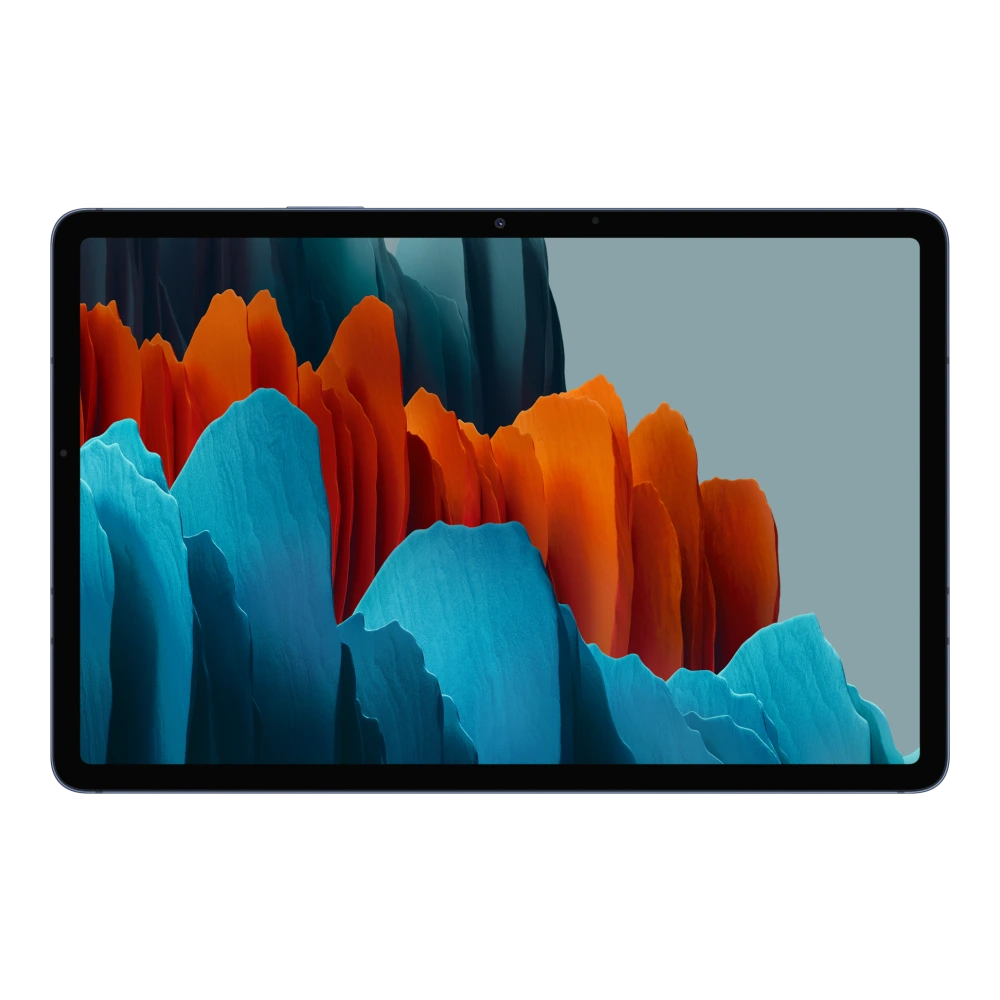
Device Overview & Connection Guide
Hardware summary, PC connection guide, and available resources for Samsung Galaxy Tab S7 (LTE)The Galaxy Tab S7 (LTE) (model SM-T875) pairs Samsung's sleek tablet design with a vibrant 12.4-inch display and long-lasting 10,090 mAh battery. The 4GB system memory keeps background applications ready and responsive without reloading.
Connecting this tablet to your PC or Mac is straightforward using the verified Samsung USB driver packages listed below. Proper driver setup guarantees stable high-speed transfers when moving coursework, media, or backups between devices. If you are creating a full local backup, Samsung Smart Switch provides a reliable, one-click solution on your computer.
Check the download library below to get the latest USB drivers, user manual, and verified firmware packages for model SM-T875.
📦 Available Download Packages
Filter software packages by technical component category:
Galaxy Tab S7 (LTE) USA Stock Firmware (TMB - T878USQS9DXG3)
Galaxy Tab S7 (LTE) Factory Stock Firmware (INU - T875XXS8DXH2)
User Manual (English)
User Manual (English)
User Manual (English)
Safety Guide
📋 Samsung Galaxy Tab S7 (LTE) Technical Specifications
Listed technical specifications for this model (13 categories, 41 attributes). Check the exact model code before relying on these details.
🏭 Manufacturer, Regulatory & Import Information
| Manufactured by | Samsung Electronics Vietnam Thai Nguyen Co., Ltd. Yen Binh Industrial Park, Dong Tien Ward, Pho Yen Town, Thai Nguyen Province, Vietnam |
|---|---|
| Country of Origin | Vietnam |
| Imported by | Samsung India Electronics Pvt. Ltd. having its Registered Office at: 6th Floor, DLF Centre, Sansad Marg, New Delhi-110001 |
| Contact us | For All Product Related Complaints/assistance, please contact Manager, Customer Care Samsung India Electronics Pvt. Ltd., 6th Floor, DLF Centre, Sansad Marg, New Delhi - 110001 Email us at: support.india@samsung.com Tel (Toll Free): 1800 40 7267864 (1800 40 SAMSUNG) |
| Launch date | September 2nd, 2021 |
ℹ️ Official Specification Footnotes, IEC Standards & Network Disclaimers
Network : The bandwidths supported by the device may vary depending on the region or service provider
All specifications and descriptions provided herein may be different from the actual specifications and descriptions for the product. Samsung reserves the right to make changes to this web page and the product described herein, at anytime, without obligation on Samsung to provide notification of such change. All functionality, features, specifications, GUI and other product information provided in this web page including, but not limited to, the benefits, design, pricing, components, performance, availability, and capabilities of the product are subject to change without notice or obligation. The contents within the screen are simulated images and are for demonstration purposes only.
*Measured diagonally as a full rectangle without accounting for the rounded corners. Actual viewable area is less due to the rounded corners.
*10,090mAh (typical) battery only available on Galaxy Tab S7 FE. Typical value tested under third-party laboratory condition. Typical value is the estimated average value considering the deviation in battery capacity among the battery samples tested under IEC 61960 standard. Rated (minimum) capacity is 9,800mAh. Actual battery life may vary depending on network environment, usage patterns and other factors.
**Video playback time is based on Samsung internal test results under controlled testing parameters on a fully-charged battery. Dependent on network, usage, mode settings, battery condition, and other surrounding factors and conditions.
Need Hardware Replacement for Galaxy Tab S7 (LTE)?
Compare original screen, battery, and motherboard replacement prices with standard labor tariffs, or locate an authorized walk-in Samsung service center in your city.
Ready to Repair Galaxy Tab S7 (LTE)?
Browse Samsung service-center listings and contact the provider to confirm services, parts and opening hours.