
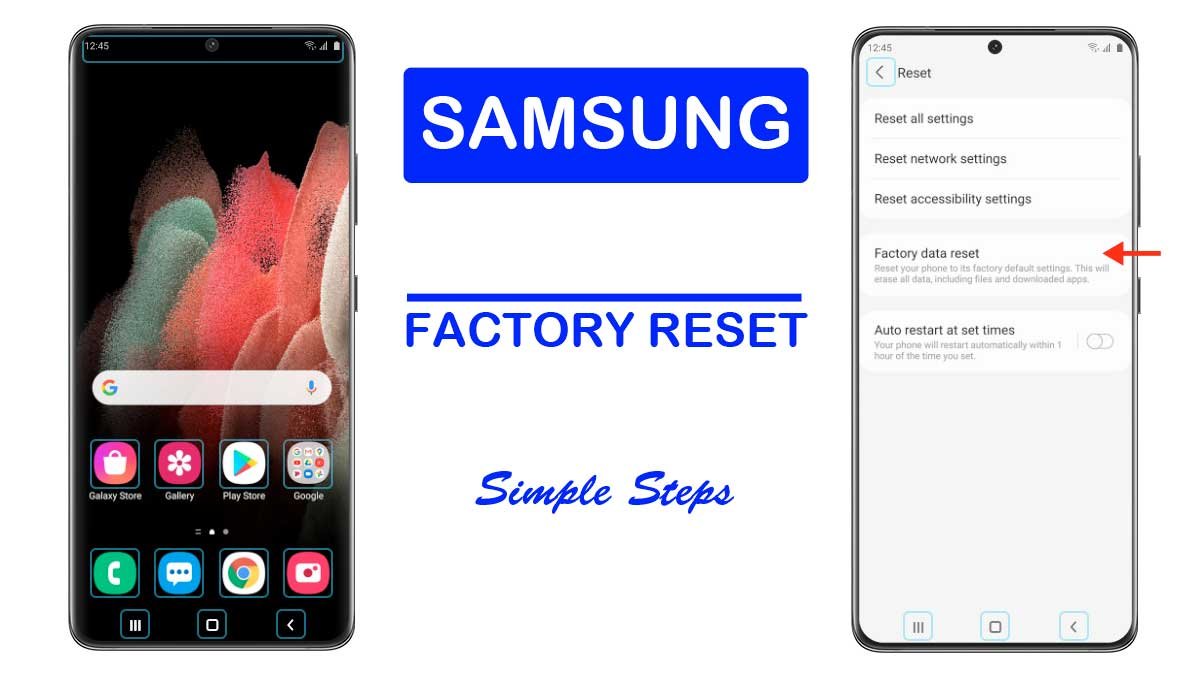
Forgetting your Samsung lock screen PIN, pattern, or password can leave you completely locked out of your device. Whether your phone is unresponsive, severely lagging, or you need to wipe it before selling or repairing, a factory reset (hard reset) restores your Samsung Galaxy phone to its original out-of-the-box state.
However, modern Samsung devices with One UI (Android 11 through Android 15+) present a major challenge: Samsung will not allow you to power off or restart the phone from the lock screen without entering your password.
In this complete troubleshooting guide Factory Reset Locked Samsung Phone Without Password, we cover the exact working methods to bypass the power-off lock, boot directly into Android Recovery Mode, or remotely wipe your locked Samsung phone.
⚠️ Critical Warning Before Proceeding
- All Data Will Be Erased: A factory reset deletes all photos, videos, contacts, messages, downloaded apps, and personal settings from internal storage.
- Google FRP (Factory Reset Protection): After resetting, Android will ask you to verify the Google Account credentials previously synced on the phone. Ensure you remember your Google username and password before proceeding.
- Battery Level: Ensure your phone has at least 50% battery or keep it connected to a charger or computer.
Quick Comparison: Which Method Should You Use?
| Method | Requirements | Works When Phone is Locked? | Requires a Computer? |
|---|---|---|---|
| 1. Recovery Mode (Hardware Keys) | USB cable connected to PC/Laptop | Yes (Best for forgotten PIN) | Yes (For modern One UI) |
| 2. Samsung SmartThings Find | Samsung Account logged in & connected to Wi-Fi/Data | Yes (Wipes remotely) | No (Can use another phone) |
| 3. Google Find My Device | Google Account logged in & connected to Internet | Yes (Erases remotely) | No (Can use any browser) |
| 4. Settings Menu | Phone must be unlocked with PIN | No (Standard reset) | No |
Method 1: Hard Reset Locked Samsung Phone via Recovery Mode (Recommended)
Because Samsung prevents you from turning off a locked phone normally, you must perform a force reboot directly into Recovery Mode.
Important Requirement for Modern Galaxy Phones:
On devices running Android 11 or higher (One UI 3.0 to 7.0+), including Galaxy S20, S21, S22, S23, S24, S25, and recent Galaxy A/M/F series, the phone MUST be connected via USB cable to a PC, laptop, or Type-C headphones. If it is not connected, the recovery menu will not open.
Step-by-Step Instructions:
- Connect to a Computer: Connect your locked Samsung phone to a running PC or laptop using a USB data cable.
- Force Shut Down:
- Press and hold the Volume Down button and the Power / Side Key simultaneously.
- Keep holding both buttons for about 7 to 10 seconds.
- Switch to Recovery Combo Immediately:
- As soon as the screen goes completely black (indicating the phone has shut down), immediately release the Volume Down button and quickly press and hold the Volume Up button while still holding the Power / Side Key.
- Enter Android Recovery:
- Continue holding Volume Up + Power / Side Key until the Samsung Galaxy logo appears, followed by the Android Recovery menu. Then release the buttons.
- Perform Factory Reset:
- Use the Volume Down key to highlight “Wipe data/factory reset”.
- Press the Power / Side Key to select it.
- Confirm Data Wipe:
- Press Volume Down to select “Factory data reset” (or “Yes” on older models).
- Press the Power / Side Key to confirm.
- Wait a few seconds until the bottom of the screen displays “Data wipe complete”.
- Reboot Phone:
- Highlight “Reboot system now” and press the Power / Side Key.
Your phone will now restart and begin the initial factory setup wizard.
Button Combinations for Older Samsung Models:
- Models with a Physical Home Button (Galaxy S7, J-series, older Note): Turn off the device, then press and hold Volume Up + Home Button + Power Button together until the recovery logo displays.
- Models with a Dedicated Bixby Button (Galaxy S8, S9, S10, Note 8, Note 9): Press and hold Volume Up + Bixby Button + Power Button simultaneously.
Also Read: 08 Ways to Reboot or Restart a Samsung Phone
Method 2: Reset Locked Samsung Phone Using Samsung SmartThings Find
If your phone is logged into a Samsung Account and connected to Wi-Fi or mobile data, you can reset or unlock it remotely without touching the hardware buttons.
- On a computer or secondary phone, visit the official Samsung SmartThings Find portal.
- Sign in with the same Samsung Account associated with your locked phone.
- Select your locked Galaxy model from the left-side device menu.
- From the action menu on the right, you have two choices:
- Unlock: If you had Remote Unlock enabled previously, this removes the lock screen PIN, password, or biometric lock while keeping your personal data intact.
- Erase Data: If Remote Unlock is unavailable, click Erase Data. Enter your Samsung account password and complete two-factor authentication.
- Samsung will remotely factory reset the device once it connects to the internet.
Also Read: How to Remove Samsung Account Without Password
Method 3: Erase Locked Samsung Phone via Google Find My Device
If you don’t have a Samsung account but have a Google account logged in on the device, Google’s Find My Device service can erase it remotely.
- Open google.com/android/find in any browser.
- Sign in with the Google Account synced on your locked Samsung device.
- Select your device from the top-left list.
- Click Erase Device (Factory Reset Device).
- Confirm your choice by clicking Erase Device again.
- The phone will immediately wipe all data and restore to factory default.
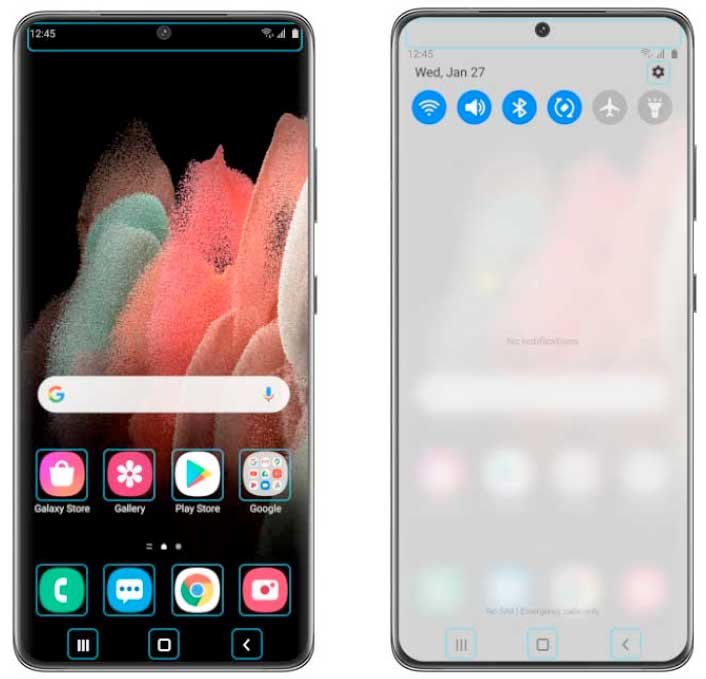

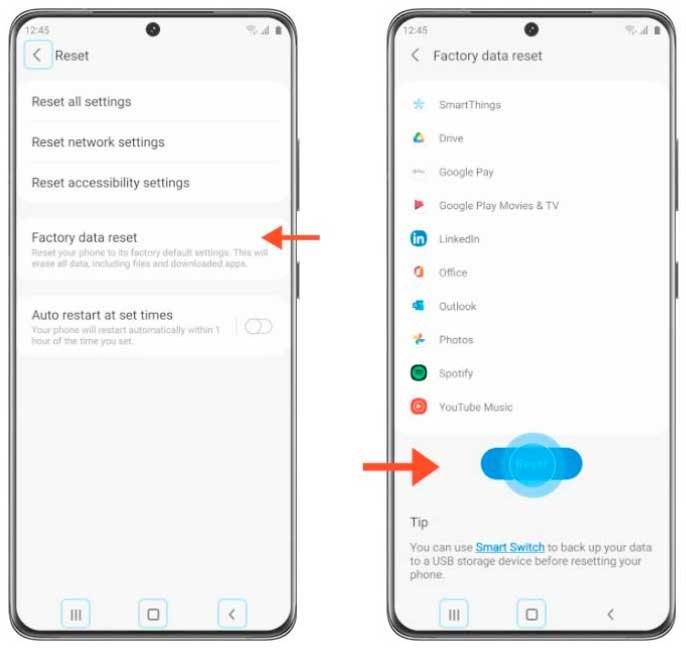
Method 4: Standard Factory Reset via Settings (When Phone Is Unlocked)
If you know your lock screen credentials or have unlocked your phone and want to perform a clean wipe to resolve performance issues, use the standard One UI settings menu:
- Open the Settings app on your Samsung phone.
- Scroll down and tap General management.
- Tap Reset.
- Select Factory data reset.
- Scroll to the bottom and tap the blue Reset button.
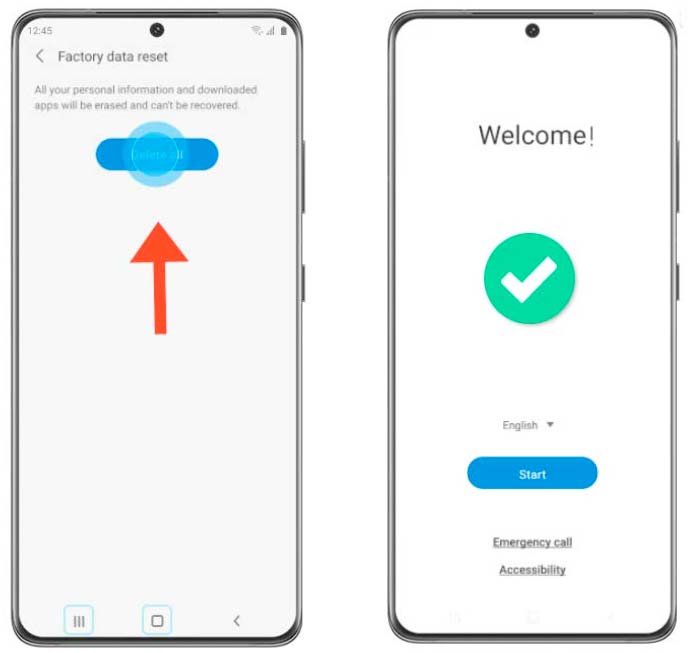
- Enter your lock screen PIN, pattern, or password when prompted.
- Tap Delete all (you may be asked to enter your Samsung account password).
- The phone will restart and complete the reset process in 3–5 minutes.
What Happens After Resetting? Understanding Google FRP Lock
Once the factory reset finishes, your Samsung phone will greet you with the standard “Welcome / Start” screen.
During the setup process, if your phone was previously signed into a Google account, Android will trigger FRP (Factory Reset Protection):
- You will be prompted: “Verify your account: This device was reset. To continue, sign in with a Google Account that was previously synced on this device.”
- You must enter the original Gmail address and password.
- If you do not know the Google account details, you will not be able to complete the initial setup.
Helpful Guide: How to Remove Google FRP Lock on Samsung Devices
Useful Related Guides
- Samsung Secret Codes (2026) – IMEI, Diagnostic & Reset Codes
- Samsung Touch Screen Test Code & Hardware Diagnostics
- How to Change Samsung Account Email Address
- Samsung Keypad Phone Master Reset Code
Frequently Asked Questions (FAQ)
Can I factory reset a locked Samsung phone without losing my data?
No. A factory reset completely deletes all user data, photos, contacts, downloaded apps, and settings. The only exception is if you previously turned on Remote Unlock inside Samsung’s SmartThings Find, which allows you to remove the lock screen without wiping your files.
Why won’t my Samsung phone turn off when it is locked?
Samsung Galaxy phones running modern One UI versions deliberately block users from powering off or restarting from the lock screen. This is a built-in security feature preventing thieves from turning off a stolen phone. To bypass this, hold Volume Down + Power for 7–10 seconds to force-restart the device.
Why is my Samsung phone not entering Recovery Mode?
On phones running Android 11 or newer (One UI 3 to One UI 7+), Samsung requires the device to be connected to a PC, laptop, or Type-C headphones via USB cable to trigger the recovery menu. If you attempt the button combination without a USB connection, the phone will bypass recovery and reboot normally.
Can I factory reset a locked Samsung phone with a secret dialer code?
No. While there are secret codes like *2767*3855# for older devices, you must be able to open the dialer app and dial out. On a locked phone, the emergency dialer blocks diagnostic and reset USSD codes for security.
What should I do if I am stuck on the Google FRP lock screen after reset?
If you are prompted for your Google account after resetting, enter the Gmail address and password previously used on that phone. If you forgot the password, reset it via Google’s Account Recovery page on another device before signing in.