
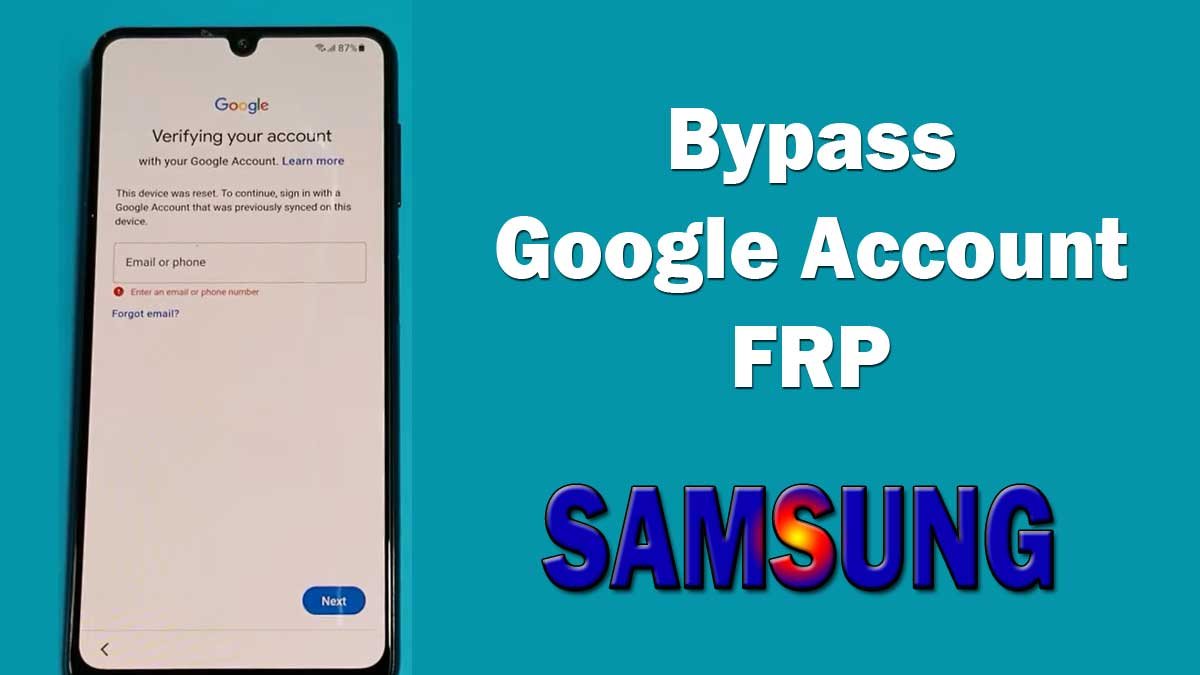
If your Samsung Galaxy phone is stuck on the Google account verification screen after a factory reset, you may be seeing Factory Reset Protection (FRP), which Samsung also refers to as Google Device Protection.
Quick answer: You normally do not need a PC to recover a Samsung phone protected by FRP. The usual solution is to sign in with a Google Account that was previously added and synced to the phone. Depending on the Samsung model and Android version, the phone may also allow you to verify ownership using the previous screen-lock PIN, password, or pattern.
FRP is a security feature. It is designed to make it harder for another person to use a phone after an unauthorized factory reset. Because of this, there is no official universal method that simply removes FRP without completing the required ownership verification.

This guide explains what FRP is, why it appears, what you can do without a PC, how to recover your Google Account, what to do after changing your password, and what options are available when you cannot recover the account.
Also Read: Samsung 2-step verification bypass
What Is Google FRP on a Samsung Phone?
FRP stands for Factory Reset Protection. It is an Android security feature that helps protect a device if it is lost, stolen, or reset without the owner’s permission.
When a Google Account is added to a compatible Android device and a screen lock is configured, Google Device Protection can become active. If the phone is later reset in a way that requires ownership verification, the setup process can ask for a Google Account that was previously added and synced to the device.
This is why a phone can look completely reset but still ask for the previous Google Account. The factory reset removes the user data from the phone, but it does not mean that the security verification itself has been removed.
Samsung documents Google Device Protection as a protection against unauthorized factory resets. Google also explains that a protected device may require the Google Account previously added and synced to the device, or the device’s screen-lock credentials, depending on the situation.
Official Google information about device protection
Why Is My Samsung Phone Asking for a Google Account After a Reset?
The most common reason is that the phone was reset while Google Device Protection was active.
For example, you may see a message similar to:
This device was reset.
To continue, sign in with a Google Account that was previously synced on this device.
The exact wording can vary by Samsung model, Android version, and software version.
This does not necessarily mean that your phone is damaged. In most cases, the phone is waiting for the ownership verification required by Android.
Can I Remove Samsung FRP Without a PC?
Yes, a PC is not normally required for legitimate FRP recovery.
If you know the Google Account that was previously used on the phone, you can usually complete the verification directly on the Galaxy phone.
If you forgot the password, you can recover the Google Account using another phone, tablet, or computer and then return to the Samsung phone.
The important part is that the account must meet the device’s ownership-verification requirements. Creating a completely new Google Account will generally not satisfy the FRP screen because it was not previously associated with that device.
How to Remove Google FRP Lock on Samsung Without a PC
Follow these steps in order. Start with the simplest solution before trying anything else.
Step 1: Connect the Samsung phone to the internet
Connect the phone to a working Wi-Fi network during the setup process.
Depending on the device and setup screen, a mobile data connection may also be available. An internet connection is important because the phone needs to communicate with Google’s account-verification services.
Step 2: Enter a Google Account previously used on the phone
Enter the email address and password of a Google Account that was previously added and synced with the Samsung device.
If you used more than one Google Account on the phone, try to identify the account that was actually used on that device.
Google states that, after a reset, you can sign in with a Google Account that was previously added and synced to the device as an account or user, rather than a guest account.
Step 3: Check whether the phone offers the previous screen-lock option
Some Samsung devices can offer a previous screen-lock verification option.
Depending on the device and Android version, this may be your previous:
- PIN
- Password
- Pattern
This option is not guaranteed to appear on every Samsung model, so use whatever verification method is actually shown on your phone.
Step 4: If you forgot your Google password, recover the account
Do not download a random APK or FRP tool just because you cannot remember your password.
Use Google’s official account recovery page:
Google may ask questions or request other information to confirm that the account belongs to you. Try to provide the information as accurately as possible.
Step 5: Wait if you recently changed the Google password
This is one of the common reasons people think that their correct Google password is not working.
Samsung states that Google may require a 24-hour cool-down period before a newly changed Google password can be used to unlock a device protected by Google Device Protection.
Therefore, if you changed or reset the Google password very recently, do not assume that the phone is rejecting the correct password permanently.
Give the account-change process time to take effect, then try again using the correct credentials.
What If I Forgot My Google Account Email Address?
Forgetting the Google Account email address is different from simply forgetting the password. If you have used several Gmail or Google Accounts over the years, it may not be immediately clear which account was previously used on your Samsung phone.
Start with Google’s account-recovery process and try to recover the account information you need.
You can also check your other phones, browsers, Gmail sessions, Google Photos, YouTube, Google Drive, or other Google services where you may still be signed in.
The goal is to identify the Google Account that was actually associated with the Samsung phone, rather than simply creating another account.
What If I Have Multiple Google Accounts?
This is common, especially if you have used several Gmail addresses for work, school, personal use, or older Android phones.
Try to identify the account that was previously used on the Galaxy device.
If you are still unsure, check each Google Account for relevant device information where available. Samsung also recommends checking the devices associated with your Google accounts when you do not know which account was originally used.
Do not keep guessing random accounts indefinitely. Focus on identifying the account that was actually used before the reset.
What If My Correct Google Password Is Not Working?
First, verify that the Google Account itself works.
From another phone or computer, open:
Sign in using the same email address and password.
If the login works on another device but the Samsung phone still does not accept the credentials, check these points:
- Make sure it is a Google Account previously used on the Samsung phone.
- Make sure there are no typing errors in the email address or password.
- Check that the phone has a working internet connection.
- Consider whether you recently changed the Google password.
- Check whether the phone offers a previous screen-lock verification option.
Can I Use a New Google Account to Remove FRP?
Normally, no.
FRP is specifically designed to verify that the person setting up the reset device has the appropriate account or ownership credentials.
A newly created Google Account was not previously associated with the phone, so simply creating another Gmail address is not a general solution to the FRP verification screen.
What If I Bought the Samsung Phone Second-Hand?
If you bought a used Galaxy phone and it is asking for the previous owner’s Google Account, do not assume that another factory reset will solve the problem.
The previous owner’s account may still be associated with the device.
The safest solution is to contact the seller and ask the legitimate previous owner to complete the required account-removal and handover process.
If you cannot establish ownership or cannot obtain the required account information, contact Samsung support or an authorized Samsung Service Center and keep your purchase documentation.
Important for second-hand phones: Be careful with sellers who tell you to use an unknown APK, remote service, or unofficial FRP tool instead of helping you establish legitimate ownership. A phone that cannot be properly transferred to you may become a continuing problem.
What If I Completely Forgot the Google Account?
If you have forgotten both the email address and password, start with Google’s official account recovery process.
Google provides account-recovery tools for people who forgot their username, password, or verification information.
Google: How to recover your Google Account or Gmail
When recovering the account, using a familiar device, browser, and location can help Google verify that the account belongs to you.
If Google cannot verify that you are the owner of the account, creating a new account does not restore access to the old protected device.
What If I Cannot Recover the Google Account?
If you have tried Google’s account-recovery process and still cannot complete the verification, Samsung recommends contacting an authorized Samsung Service Center.
Samsung’s support documentation states that if you cannot remember the required Google Account information, you can contact an authorized Samsung Service Center. Proof of purchase may be required for assistance.
If you are in India, use Samsung’s official service-center locator:
Find a Samsung Service Center in India
You can search for a Samsung service center by city, town, or PIN/postcode.
Can a Factory Reset Remove FRP?
No. A factory reset should not be treated as a way to remove FRP.
A factory reset removes the data stored on the phone, but Google Device Protection can still require ownership verification when the device starts again.
This is especially important when a phone has been reset through the Recovery menu or using the physical buttons.
Samsung explains that a reset performed through Recovery can result in the device requesting the Google Account information associated with the phone.
Samsung: Google Device Protection on Galaxy phones and tablets
How to Factory Reset a Samsung Phone Without Creating an FRP Problem
If the phone is still working and you are planning to sell it, give it to another person, or simply reset it for your own use, prepare it before starting the reset.
1. Make sure you know your Google Account
Before resetting the phone, confirm that you know the Google Account email address and password currently associated with the device.
Google recommends verifying the account credentials before a factory reset.
2. Back up your important data
A factory reset deletes the data stored on the phone.
Back up anything you need before continuing, such as:
- Photos and videos
- Contacts
- Documents
- Messages and other important app data
- Files stored in internal storage
3. Remove your Google Account before giving the phone to someone else
If you are selling or giving away the Galaxy phone, remove your Google Account from the device before performing the final reset.
On many Samsung devices, the general path is:
Settings → Accounts and backup → Manage accounts → Google Account → Remove account
The exact menu names can change depending on the Galaxy model and One UI version, so use the wording shown on your phone.
Google states that removing the Google Account from the device turns off device protection.
4. Factory reset from Settings when the phone is accessible
If you can still open the phone normally, use the built-in factory-reset option in Settings instead of unnecessarily using Recovery mode.
The exact path varies by device, but on many Samsung phones it is similar to:
Settings → General management → Reset → Factory data reset
The phone may ask for your current security credentials and, depending on your configuration, your Samsung Account password before the reset can continue.
Samsung FRP vs Samsung Account: What Is the Difference?
It is easy to confuse a Samsung Account lock with Google FRP because both involve account verification, but they are not the same thing.
| Feature | Google FRP / Device Protection | Samsung Account |
|---|---|---|
| Account involved | Google Account | Samsung Account |
| Main purpose | Helps prevent unauthorized use after a factory reset | Provides Samsung account-based services and features |
| Triggered after reset? | Can require verification after a protected reset | May request Samsung Account credentials depending on the device and setup |
| Does removing the Samsung Account automatically remove Google FRP? | No | Not applicable |
So, if the screen specifically asks for the Google Account previously used on the device, removing or changing your Samsung Account is not the solution.
Why You Should Be Careful With FRP Bypass APKs and Tools
You may find websites, videos, APK downloads, PC programs, or repair tools claiming that they can remove Samsung FRP in a few minutes.
The problem is that FRP behavior depends on the Samsung model, Android version, One UI version, security updates, and the exact setup state of the phone.
A method that worked on an older Galaxy phone may no longer work on a newer phone or after a security update.
There is also a separate security risk with downloading unknown APK files. An application obtained from an untrusted website can request permissions that have nothing to do with legitimate account recovery.
For this reason, account recovery and official Samsung support should be your first options.
Older Samsung FRP Bypass Methods in This Article
An older version of this article described a workaround involving TalkBack, YouTube, Chrome, Alliance Shield, application settings, and setup activities.
That type of procedure was dependent on particular software versions and device configurations. It was not a universal Samsung or Google recovery method, and changes to Android, One UI, application versions, or security updates can make individual steps stop working.
For that reason, the old step-by-step bypass procedure is no longer presented here as a current solution.
The useful part of that older information is still worth understanding: FRP is not a normal screen lock and cannot be reliably removed by repeating factory resets. The current approach is to recover the associated Google Account or establish legitimate ownership through Samsung support.
Common Samsung FRP Problems and Solutions
My Samsung phone says “This device was reset.” What should I do?
Connect the phone to the internet and enter a Google Account that was previously added and synced to the device. Depending on the phone, you may also see an option to use the previous screen lock.
Can I use another Gmail account?
Not normally. The account needs to satisfy the device’s previous-account verification requirements. Simply creating a new Gmail address does not normally remove FRP.
I changed my Google password but the phone still rejects it.
If you recently changed the password, wait for the applicable security cool-down period. Samsung documents a 24-hour period that may be required before the new password can unlock a device protected by Google Device Protection.
I know the email address but forgot the password.
Recover the account using Google’s official recovery page: accounts.google.com/signin/recovery.
I forgot both the email address and password.
Start with Google’s account-recovery process. Check other devices and browsers where you may still be signed in to identify the correct account.
I bought the phone used and it asks for someone else’s Google Account.
Contact the seller or previous owner and have the device properly transferred to you. If you cannot resolve the account issue, contact Samsung support and keep your proof of purchase.
Do I need a computer to remove FRP?
No. A computer is not required for legitimate account recovery. You can use another phone, tablet, or computer to recover the Google Account and then complete verification on the Samsung phone.
Will another factory reset remove the FRP lock?
No. Repeating the reset does not provide a general solution to FRP. The device is waiting for ownership verification, not another reset.
Can Samsung remove FRP if I cannot remember the Google Account?
Samsung’s support guidance says that if you cannot remember the required Google Account information, you can contact an authorized Samsung Service Center. Proof of purchase may be required.
How to Avoid FRP Problems in the Future
The easiest FRP problem to solve is the one you prevent before resetting the phone.
- Make sure you know which Google Account is being used on your Samsung phone.
- Make sure you know the current Google Account password.
- Keep your recovery phone number and recovery email up to date.
- Back up important photos, videos, documents, and other data.
- Before selling the phone, remove your Google Account from the device.
- After removing your accounts, perform the factory reset from Settings when possible.
- Keep the purchase invoice or other ownership documents for your device.
Important Things to Remember Before Resetting a Samsung Phone
A factory reset should be treated as a final data-erasing step, not as a troubleshooting shortcut.
Google recommends making sure that you know the Google Account username and password associated with the phone before a factory reset. It also recommends backing up important information first.
If the phone is being prepared for sale or transfer to another person, remove your accounts first. This reduces the chance that the next person will encounter an ownership-verification screen that is tied to your account.
Final Answer: How to Remove Google FRP Lock on Samsung Without a PC?
If your Samsung Galaxy phone is stuck on the Google FRP verification screen after a factory reset, start with the official recovery process rather than a third-party bypass tool.
- Connect the Samsung phone to the internet.
- Enter a Google Account that was previously added and synced to the phone.
- If necessary, use the previous screen-lock PIN, password, or pattern when the phone offers it.
- If you forgot your Google password, recover the account through Google.
- If you recently changed the password, allow the required security cool-down period.
- If you cannot recover the account, contact an authorized Samsung Service Center with proof of purchase.
No PC is required for the normal Google Account recovery process. The important part is completing the ownership verification required by the phone.
If a website or video promises a single APK, hidden setting, or universal trick that permanently removes FRP from every Samsung Galaxy model, be cautious. FRP behavior changes with Android, One UI, device models, and security updates, so old bypass instructions should not be treated as permanent or universal solutions.
Official Google and Samsung Resources
- Google: Help prevent others from using your device without permission
- Google: Reset your Android device to factory settings
- Google Account Recovery
- Samsung: Google Device Protection on Galaxy phones and tablets
- Samsung India: Find a Service Center
My problem is that when I download Alliance Sheild app, before I get to the part at the end where I click “install” it tells me to have Chrome install unknown apps but when I click settings on the pop up to change to installing unknown apps it literally just disappear and doesn’t let me end up downloading the app for that reason and I end up stuck. Can you please respond with some help I would really appreciate it!
I was able to turn on TalkBack to Open Google Assistant and Youtube. Got passed the Youtube settings to open Chrome. I searched for Alliance Shield and found the correct app, but how do I install it on my phone? The Google Playstore wants the password for the Google account previously on this phone… which defeats the purpose of trying to bypass the Google account verification. Any advice?
When trying to do frp bypass and I turn on talkback, I say “google assistant” and get nothing not even “can’t recognize this command?” Any help would be appreciated. Is there a code I can use with emergency calls or something?
How to change my phone number for Samsung account because my old phone number has been not active.
How to remove samsung account if i forgot my samsung id and pass.but my number is active
You can refer our dedicated post on How to remove Samsung Account without password from mobile on this blog.