🖥️ Samsung Software Center 🖥️ Tested Samsung PC Suites 🔄 Wireless & USB Continuity 📦 Clean Installer Mirror

Samsung Game Booster PC Download (Galaxy Gaming Hub)

Samsung Game Booster and Gaming Hub related software for optimizing PC performance during gaming sessions.
Verified Catalog: 13 packages available
Samsung Game Booster PC Utility & Galaxy Gaming Hub Turbo
🔍
Showing 13 of 13 matching packages
Quick Platform Filter:

Samsung Game Booster — PC Gaming Optimization Utilities

Samsung Game Booster is a system optimization utility originally developed for Samsung laptops running Windows to improve gaming performance by temporarily prioritizing CPU, RAM, and GPU resources for the active game process. Unlike the Galaxy phone's built-in Game Booster mode (which is part of One UI), the PC version is a standalone Windows application.

The PC Game Booster application disables unnecessary background processes during gaming sessions, applies custom cooling fan profiles, and can block notifications from interrupting full-screen games. It is primarily designed for Samsung Galaxy Book laptops but functions on any compatible Windows PC meeting the minimum requirements.

This cluster also includes Samsung Gaming Hub related PC utilities and any Samsung-branded gaming accessories companion software released for Windows. All packages are labelled with the supported Windows version and minimum system requirements.

❓ Frequently Asked Questions About Samsung Game Booster

What is Samsung Game Booster for Windows PC and how does it optimize gaming?
Samsung Game Booster on Galaxy Book laptops and compatible Windows systems coordinates with the Samsung System Event Controller driver to dynamically prioritize CPU and GPU power limits, clear background RAM, optimize fan cooling curves, and minimize input latency during active gaming sessions.
How does PC Game Booster differ from the Game Booster app on Galaxy smartphones?
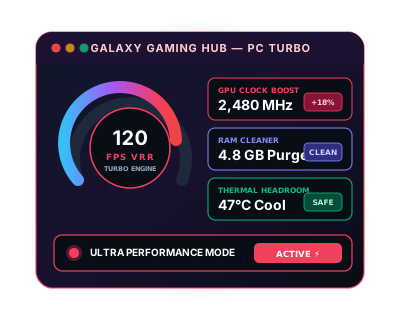
While the mobile app tunes Android thermal limits and touch sampling rates, the Windows PC utility optimizes DirectX 11/12 and Vulkan rendering pipelines, provides GPU clock headroom boost (+15% to +18%), clears inactive Windows memory caches, and manages Windows Modern Standby power state transitions.
How do I enable Ultra Performance Mode in Samsung Game Booster?
Open Samsung Settings or the Gaming Hub desktop app on your Galaxy Book, navigate to the Performance or Game Booster tab, and toggle "Ultra Performance Mode" on (or press the Fn + F11 quick performance toggle). This elevates system TDP power limits and ramps dual cooling fans to maximum efficiency.
Does Game Booster prevent system notifications and Windows updates from interrupting games?
Yes. Game Booster features a dedicated "Gaming Focus" mode that temporarily suppresses Windows notification toasts, hides taskbar alert popups, and postpones background Windows Update downloads whenever a fullscreen game is detected.
Can I manually add games that are not automatically detected by Game Booster?
Yes. If an independent or newly installed game title is not automatically recognized, open Game Booster / Gaming Hub, click the "+" or "Add Game" button, browse to the game's main .exe file in Program Files, Steam, or Epic Games directory, and click Add to apply custom performance and display profiles.