Galaxy Tab
SM-T111 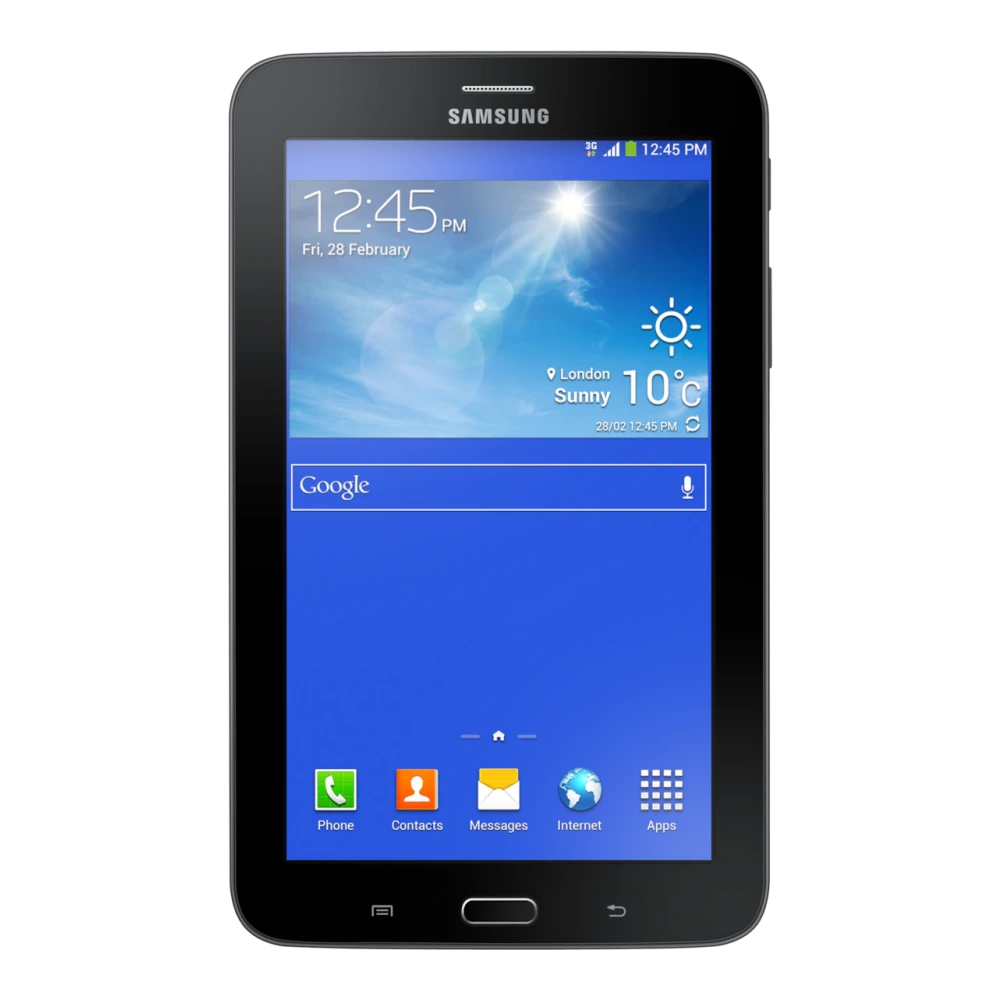
Galaxy Tab 3 Neo
✓ Build:
T111XXUBOC2

Firmware listings and One UI system-update references for Samsung Galaxy Tab S and Tab A series tablets with Wi-Fi and LTE/5G support. Confirm the exact model and version before installing.
SM-T111
SM-T116NY 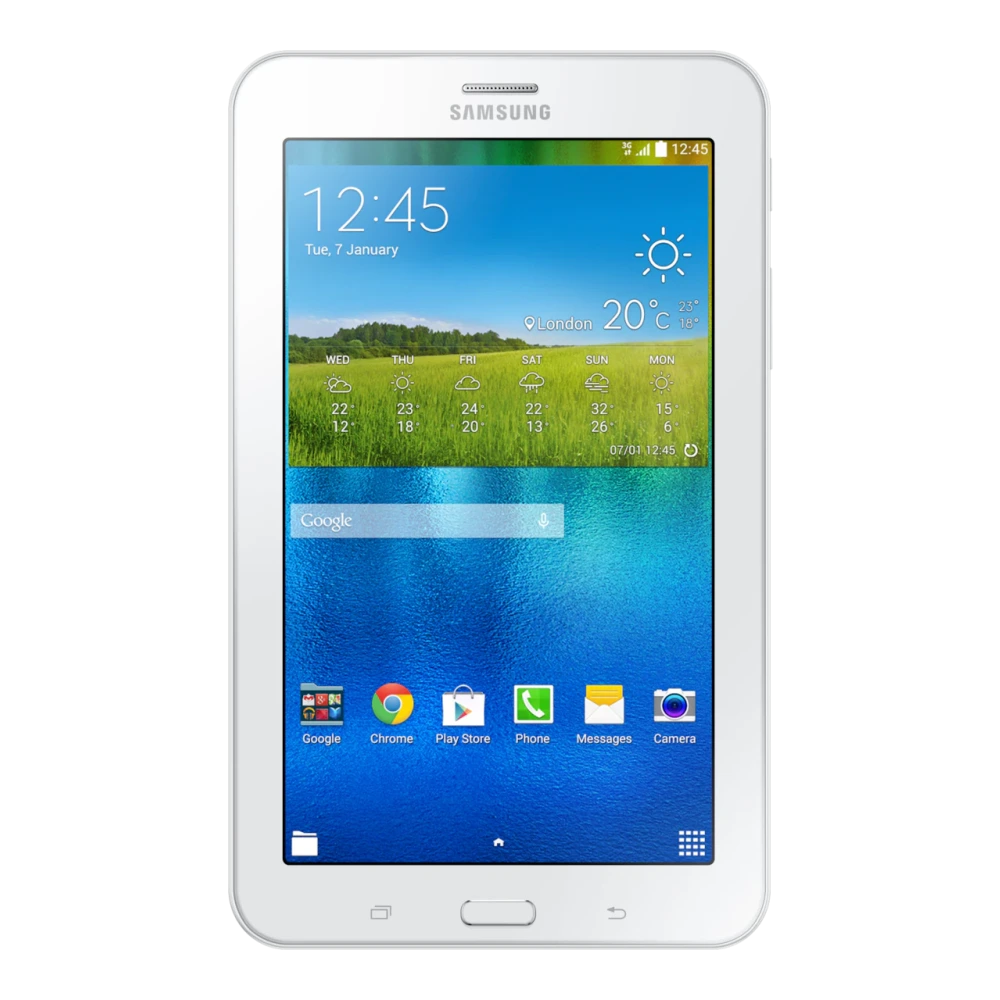
SM-T231 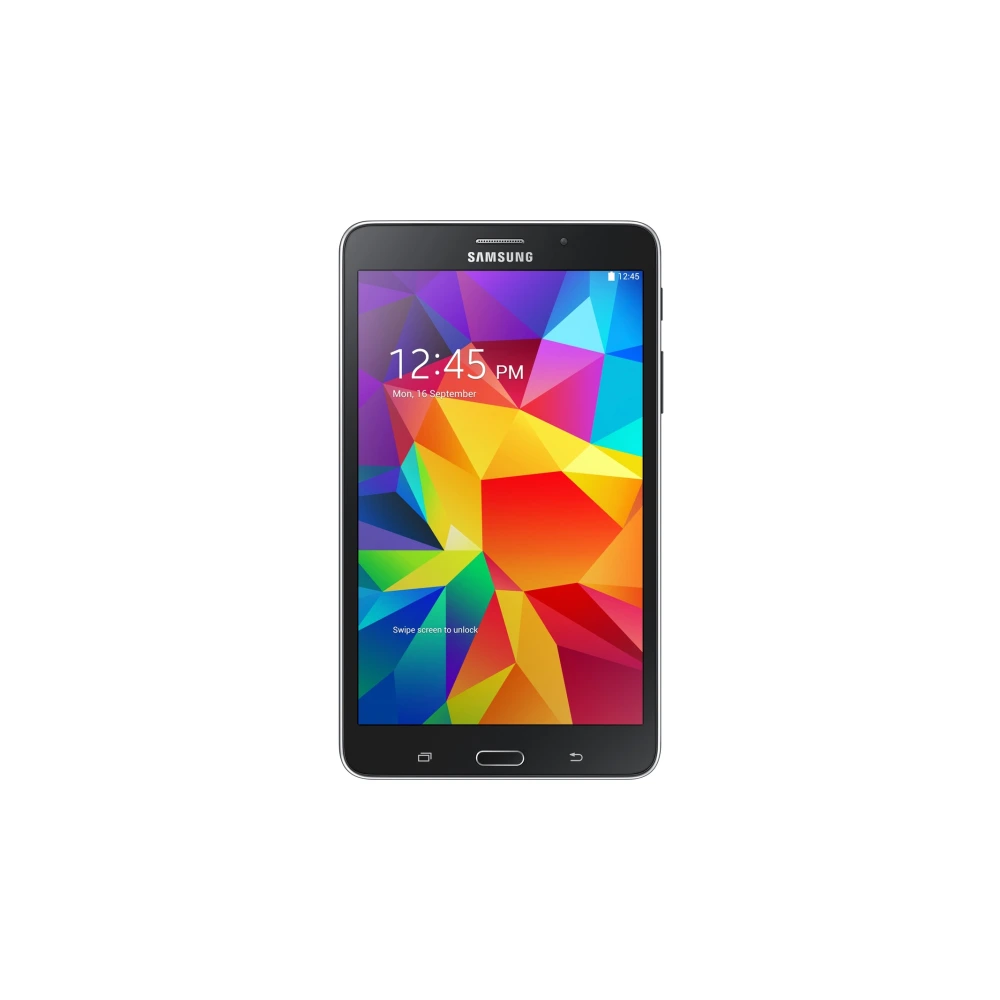
SM-T385 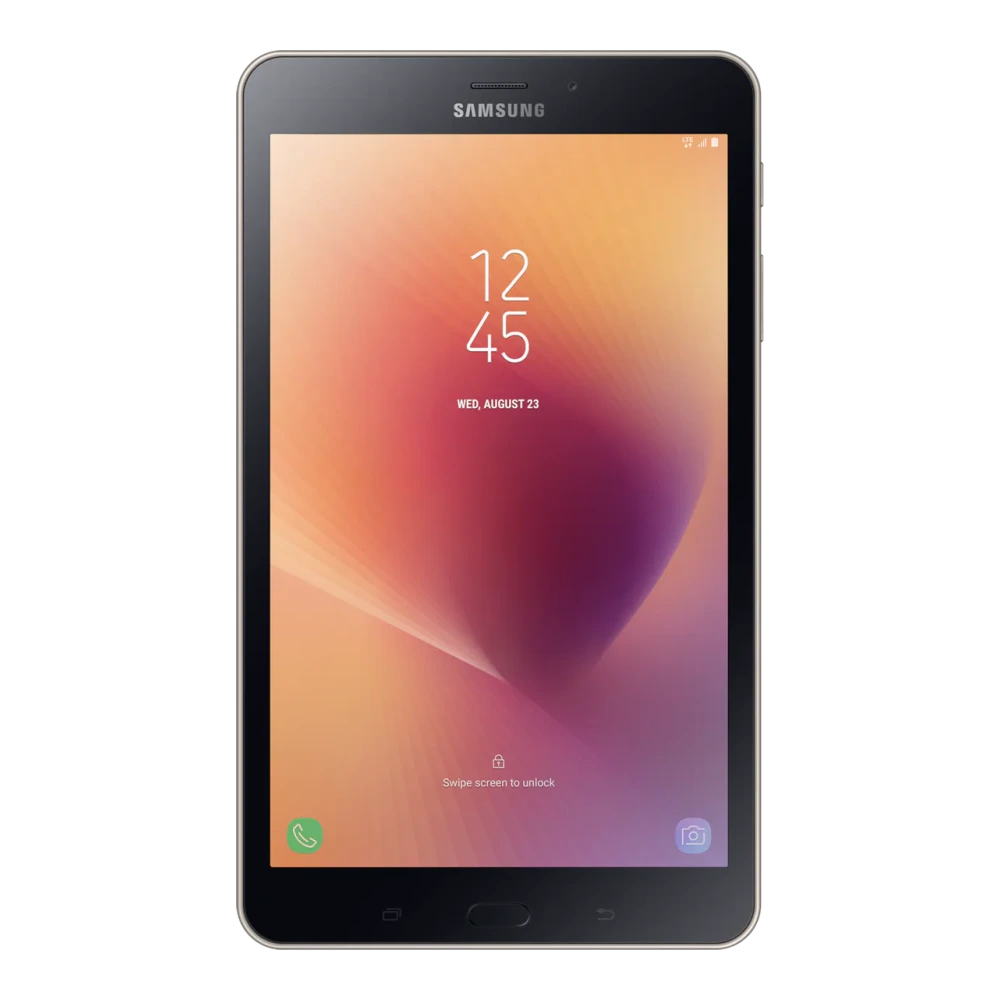
SM-T595 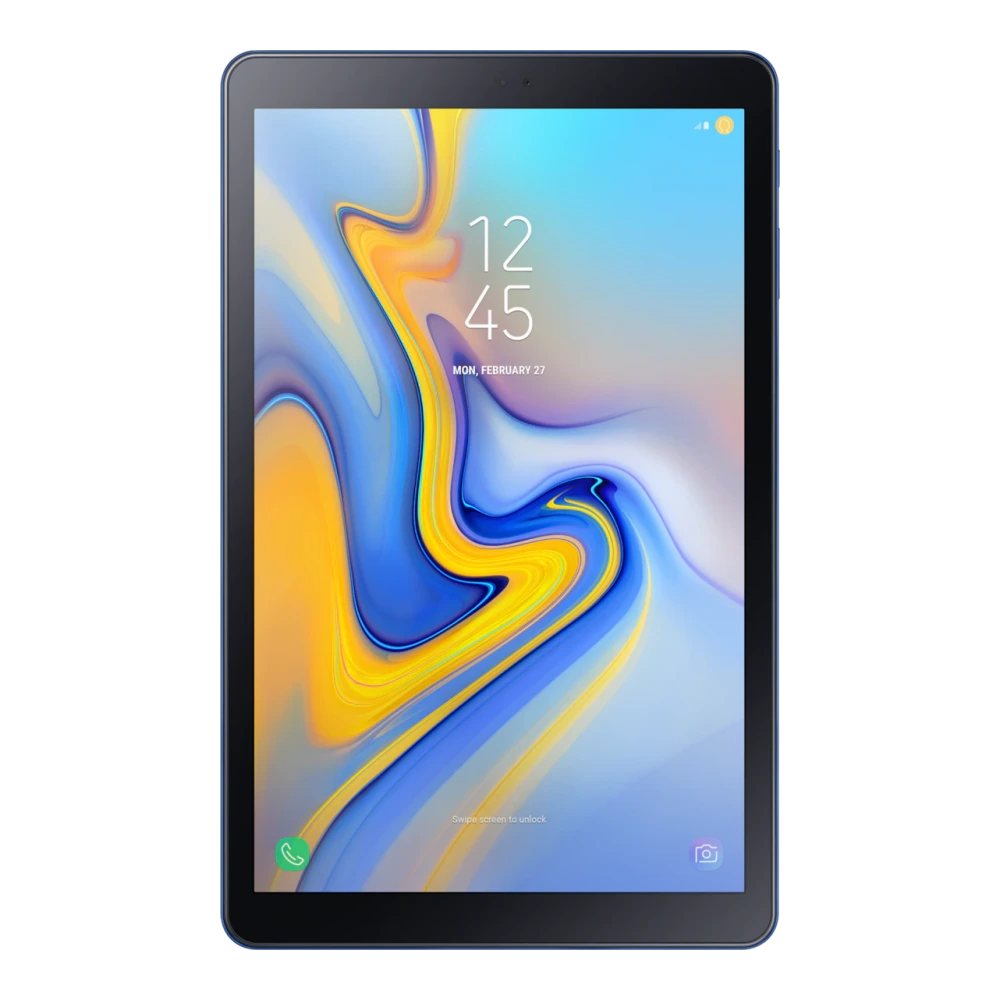
SM-T285 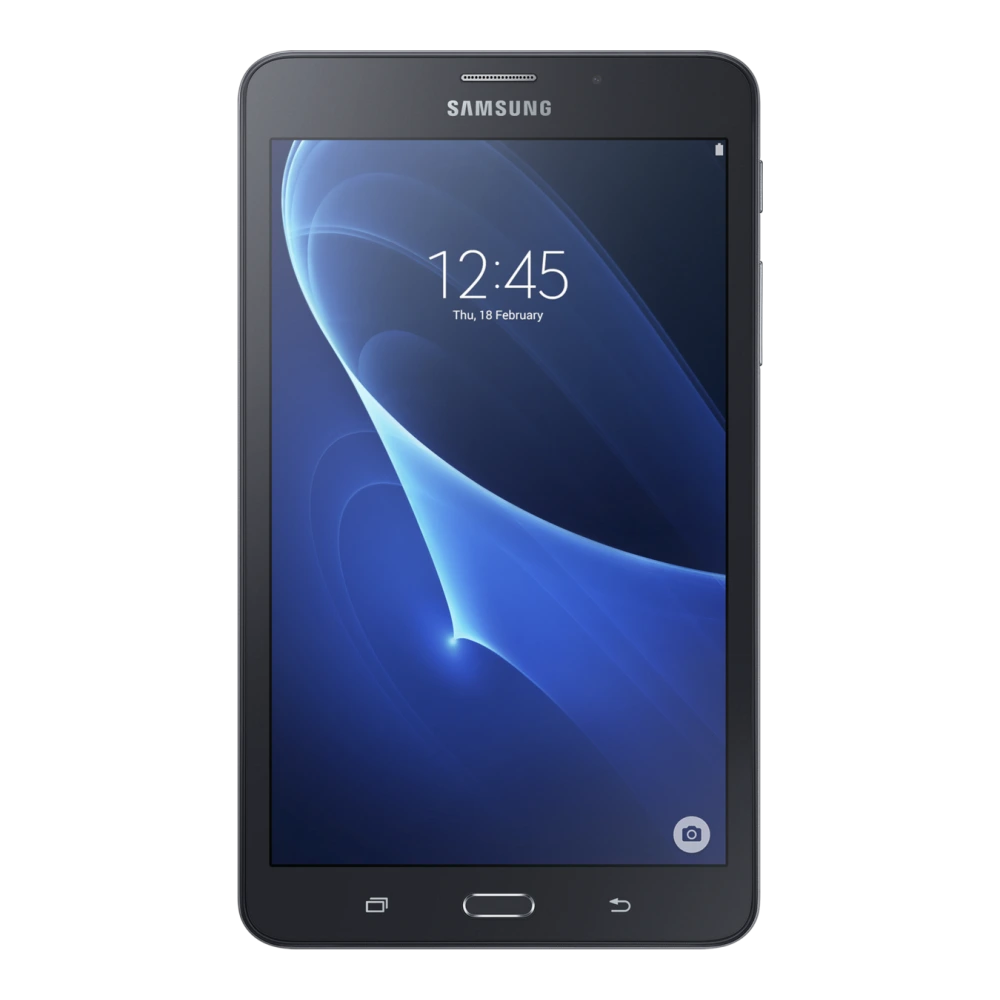
SM-X135G 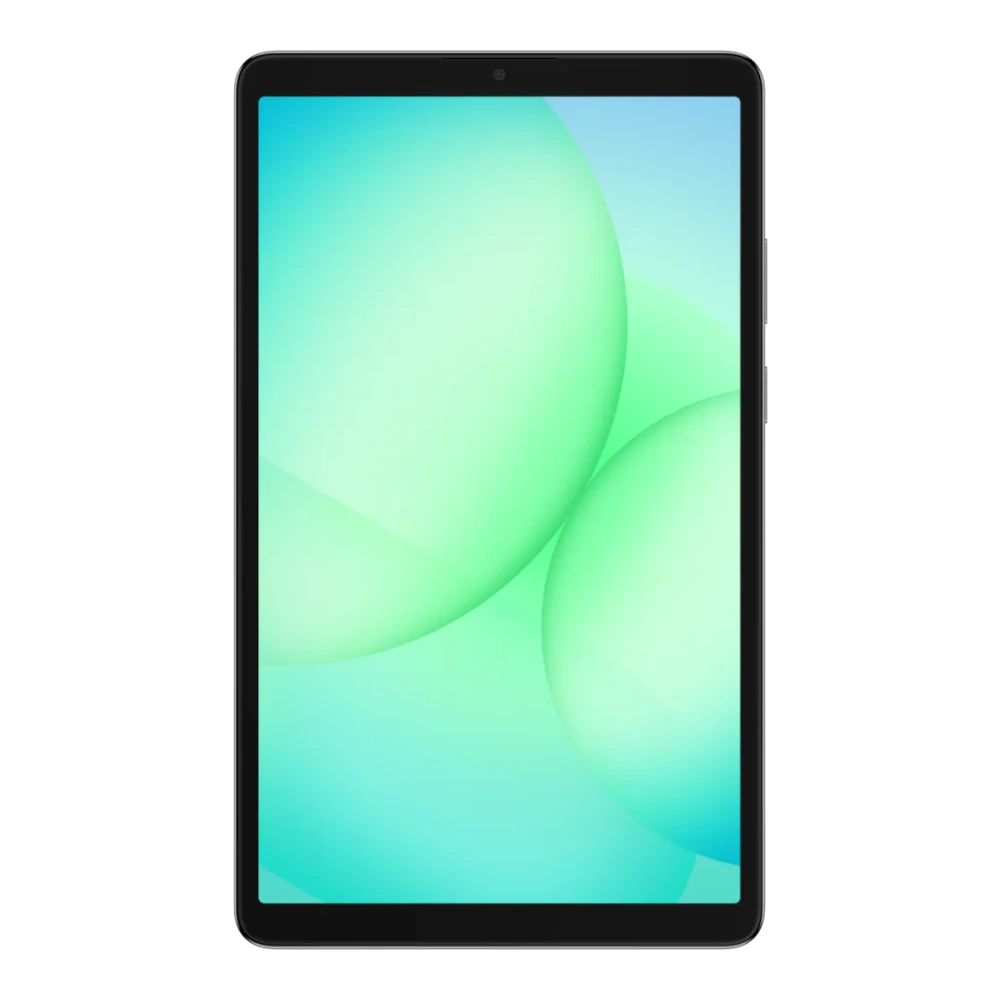
SM-X236B 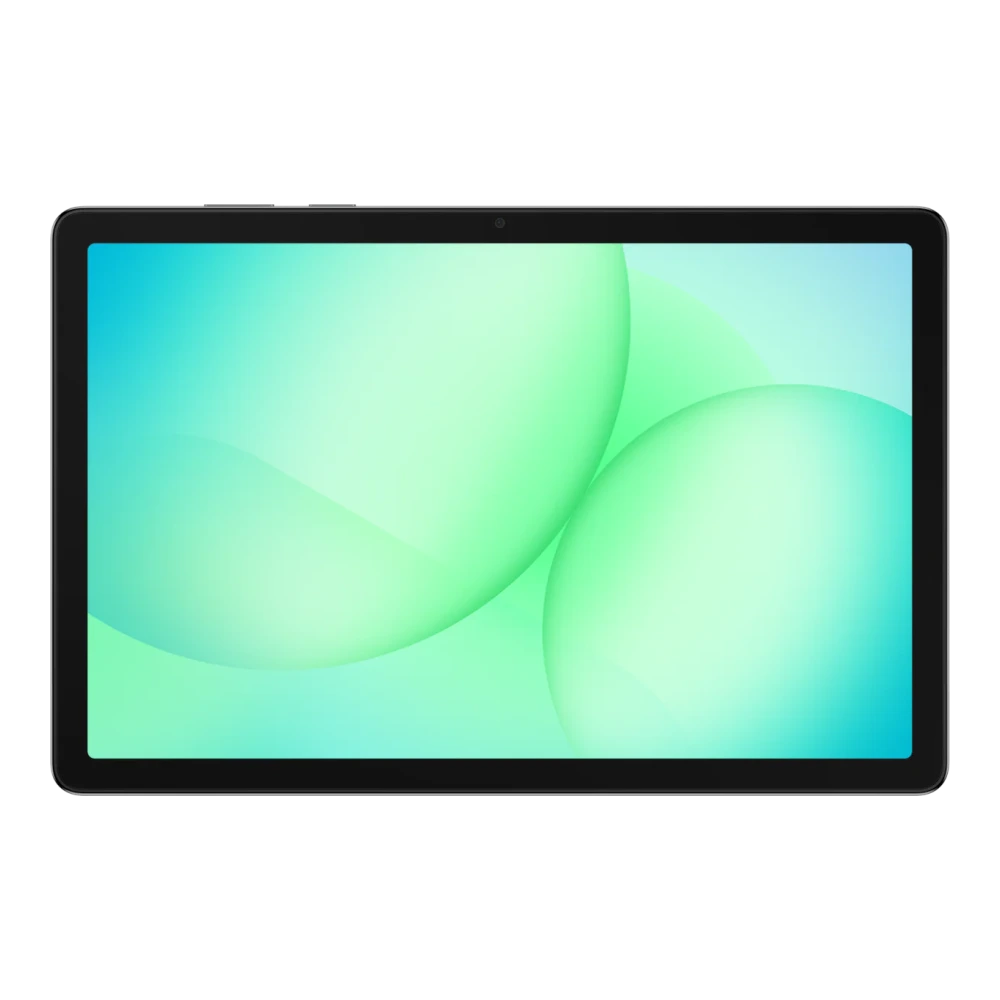
SM-X216B 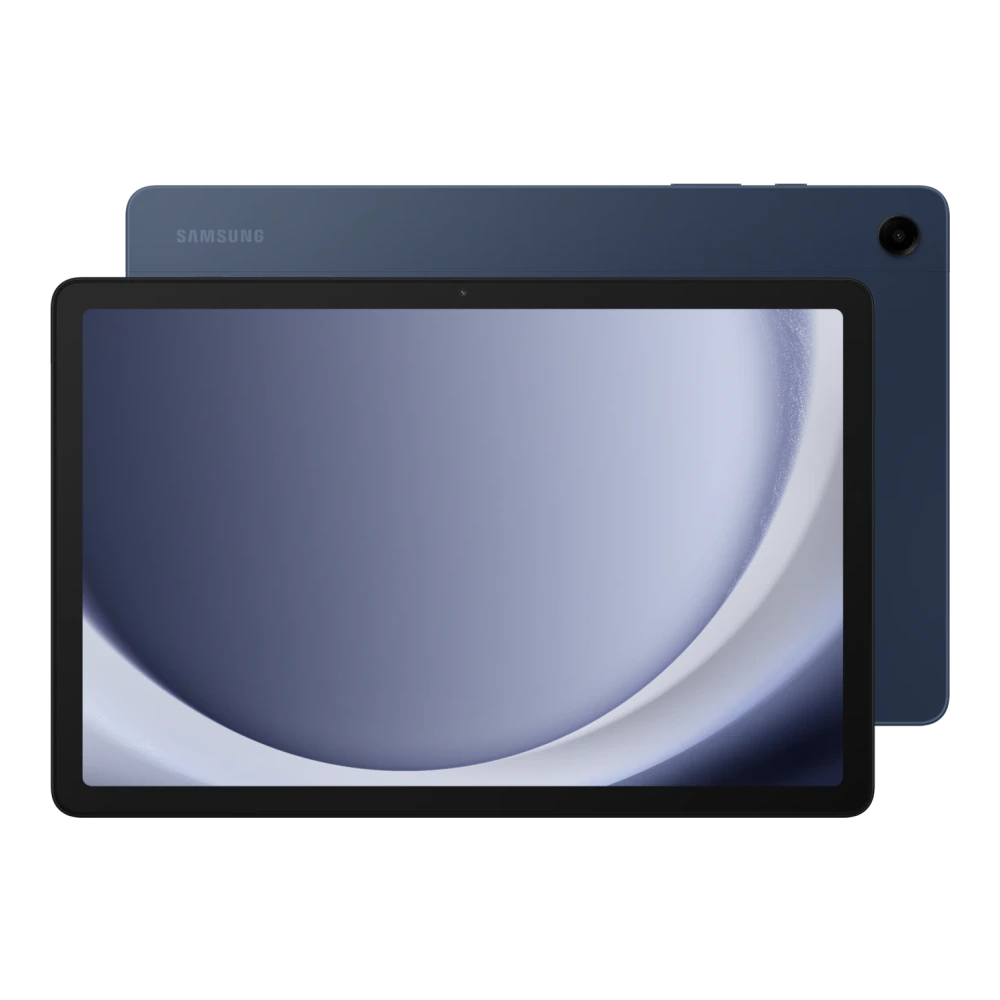
SM-T395 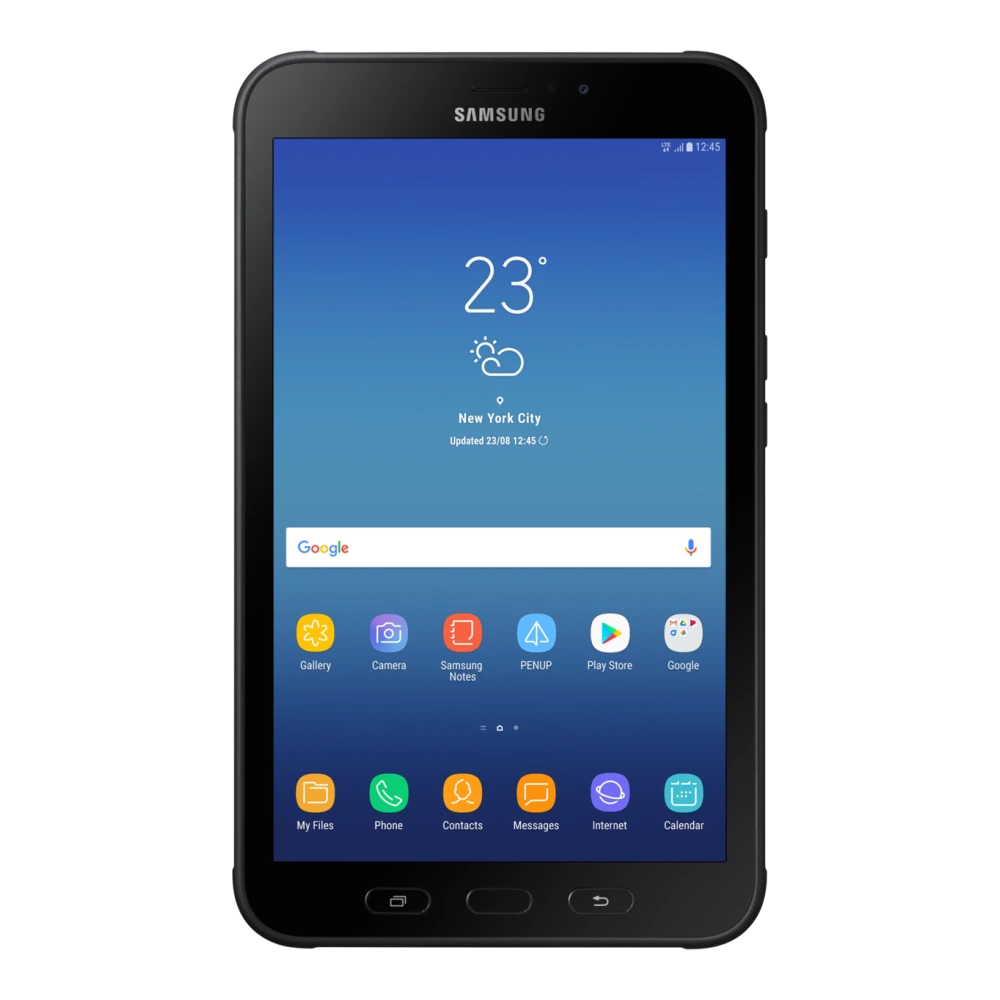
SM-T561 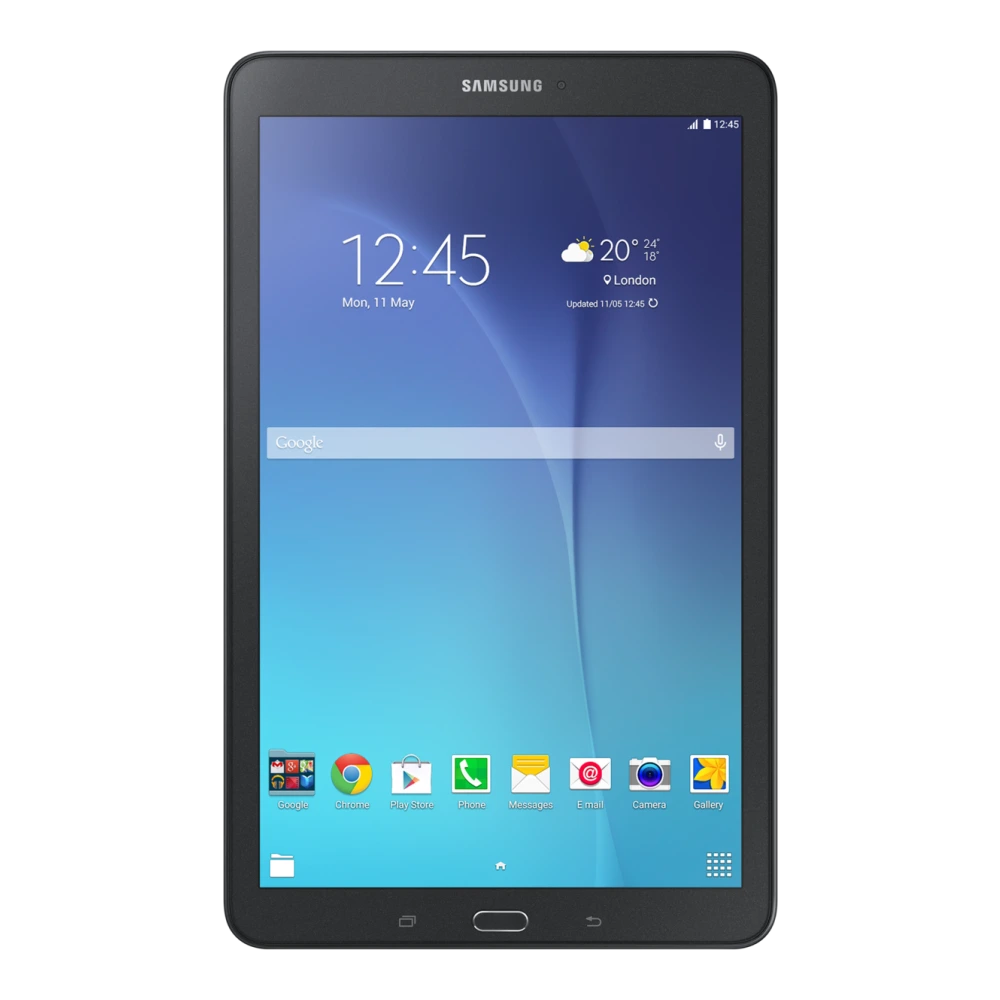
SM-T705 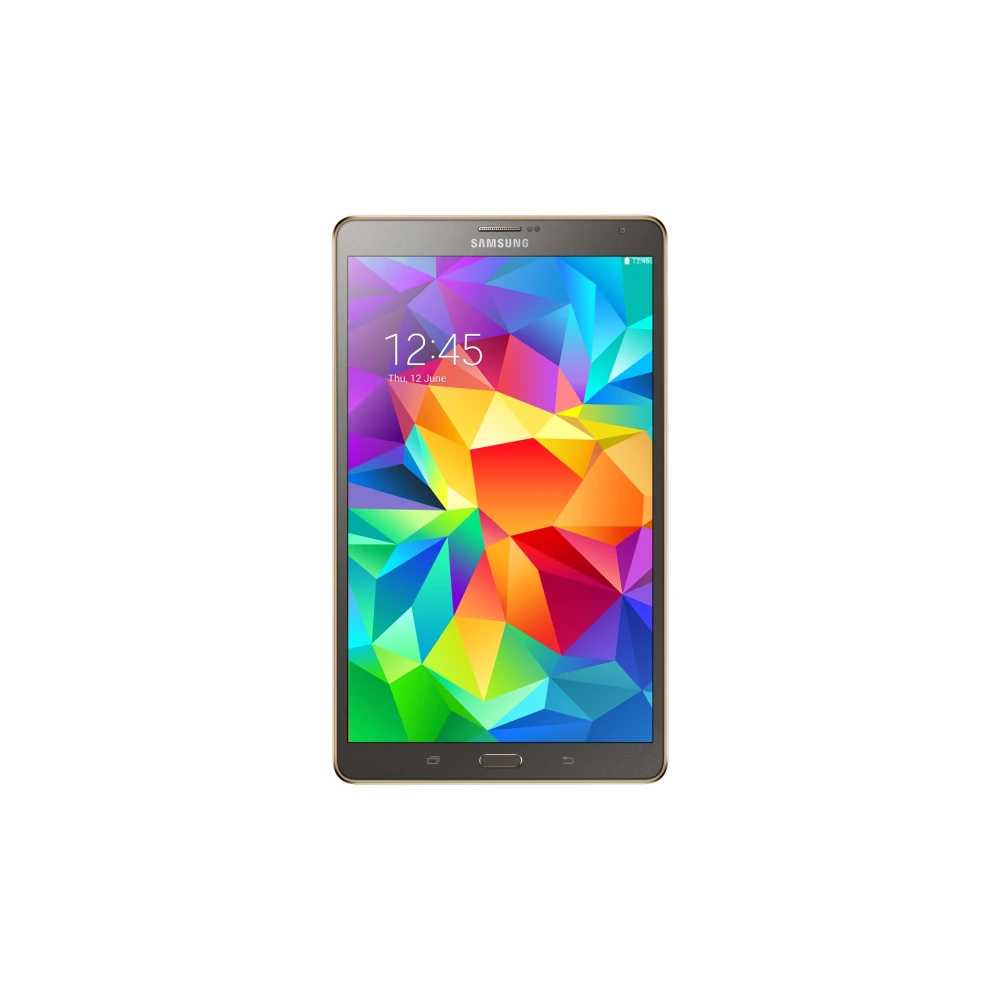
SM-X526B 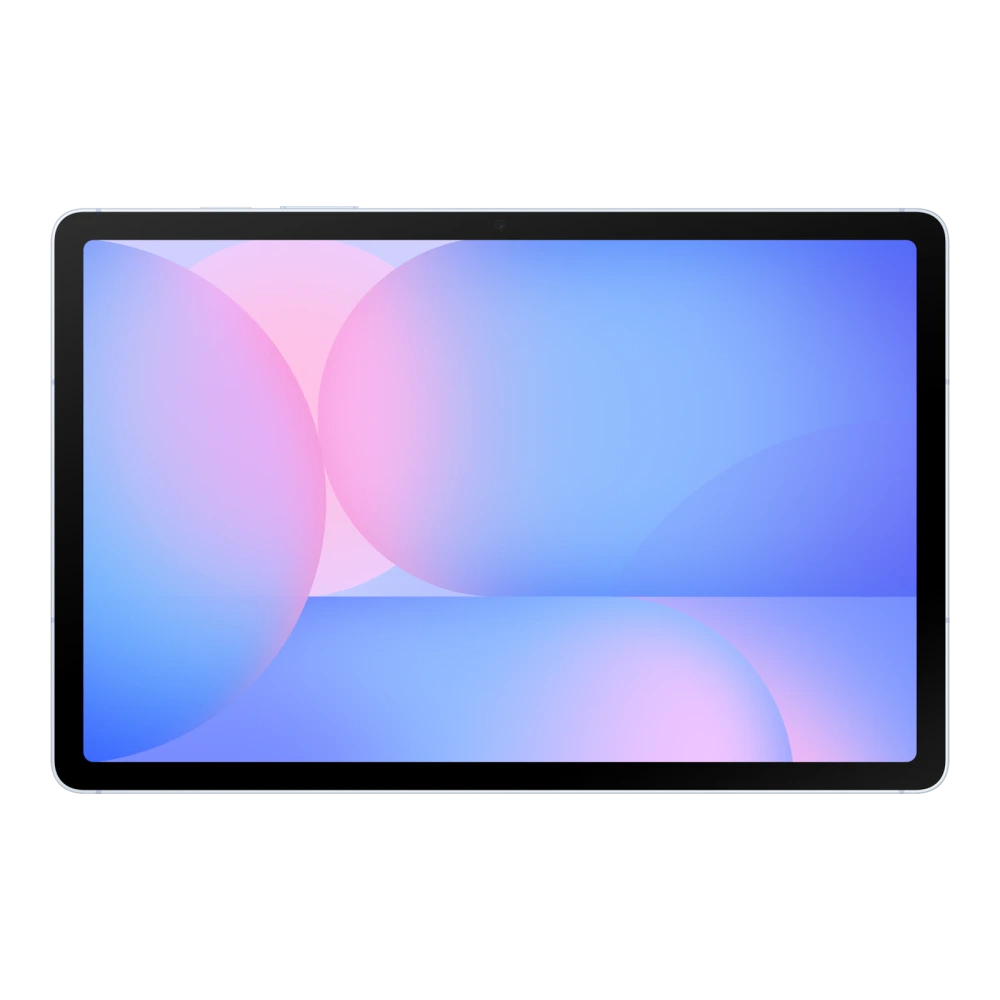
SM-X626B 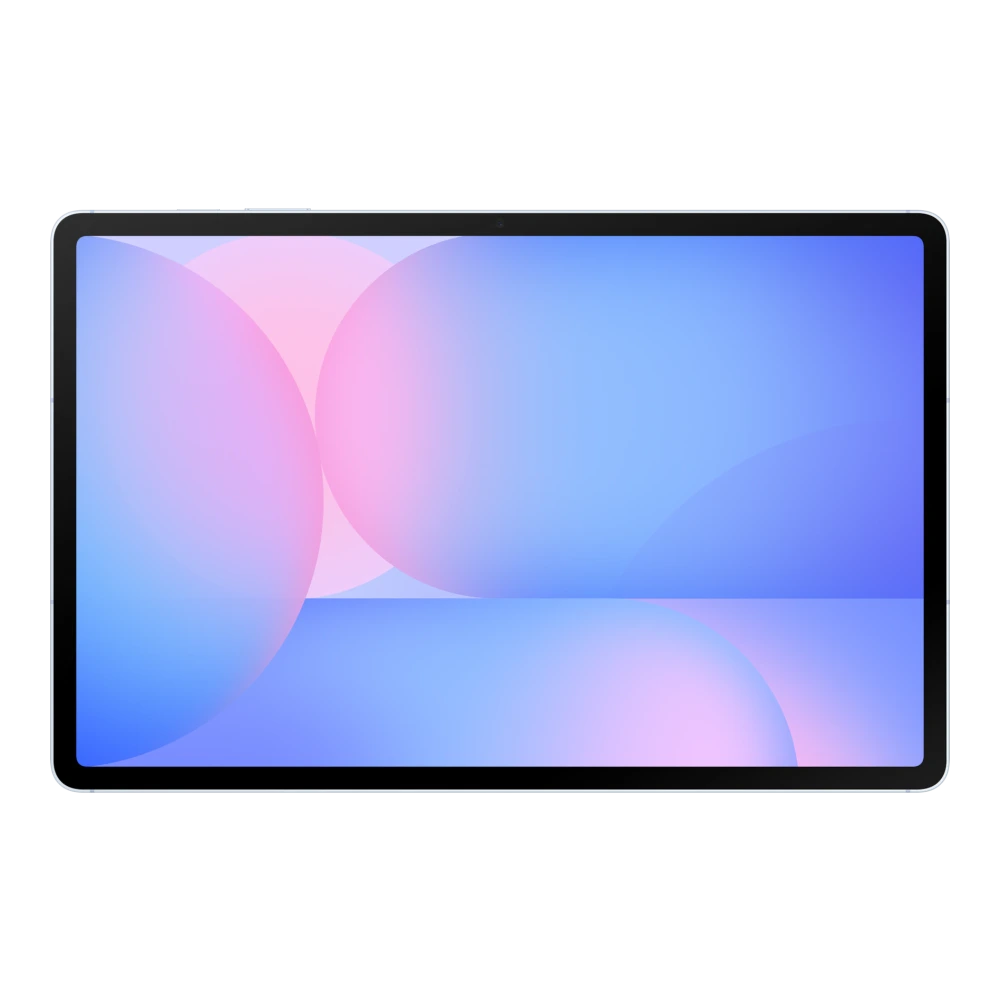
SM-X406B 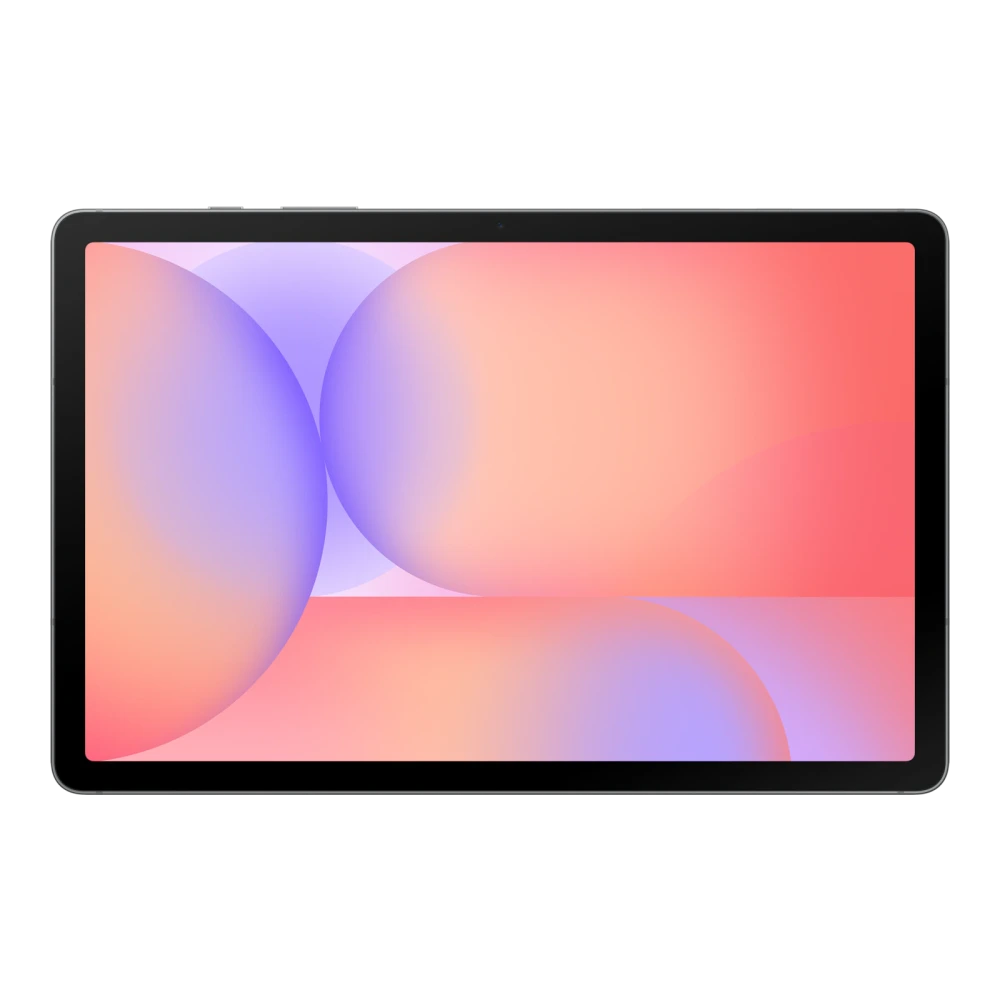
SM-X926B 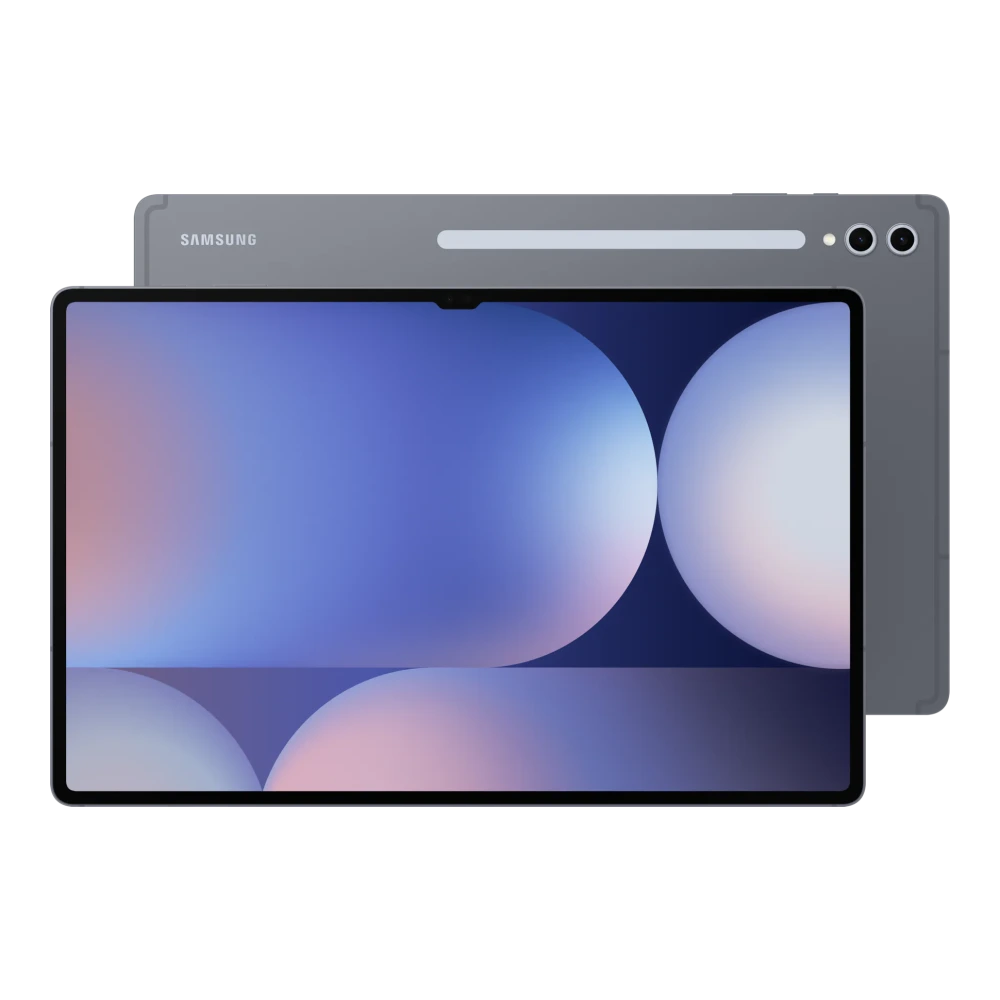
SM-X826B 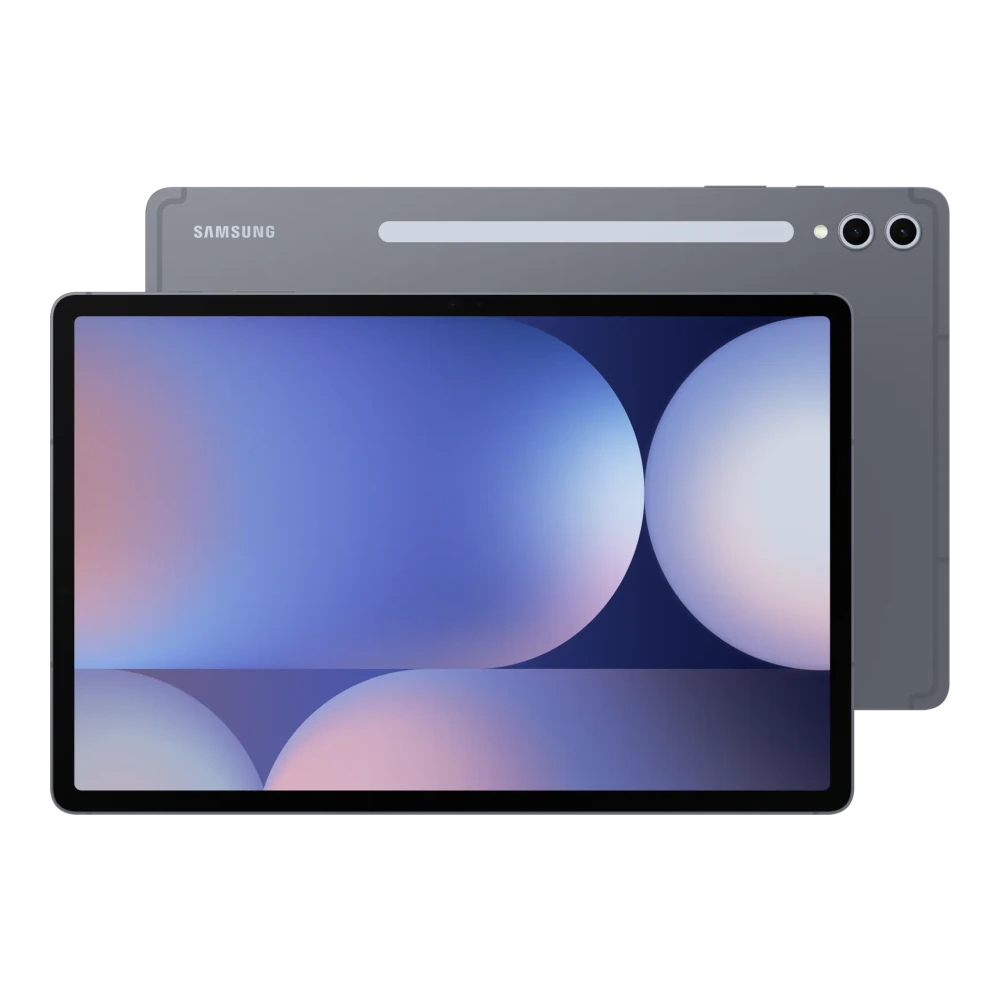
SM-X736B 
SM-X936B 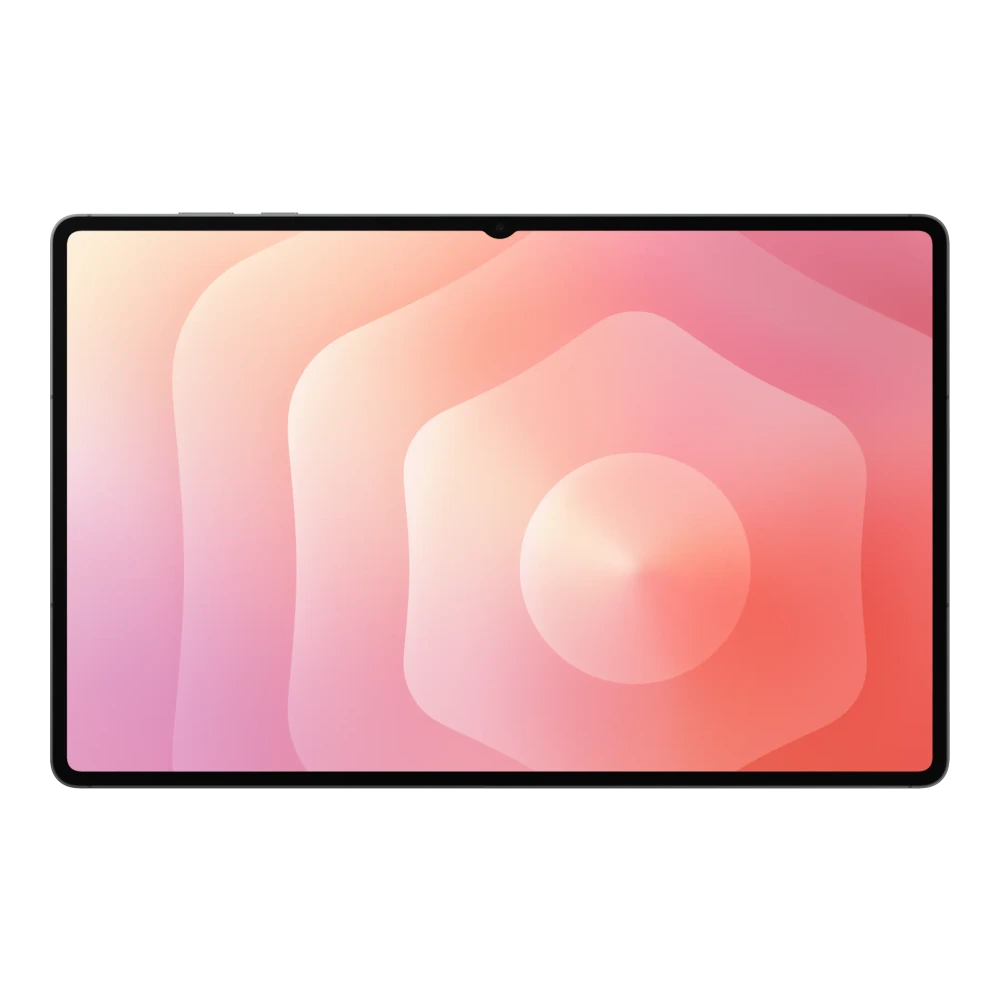
SM-T819Y 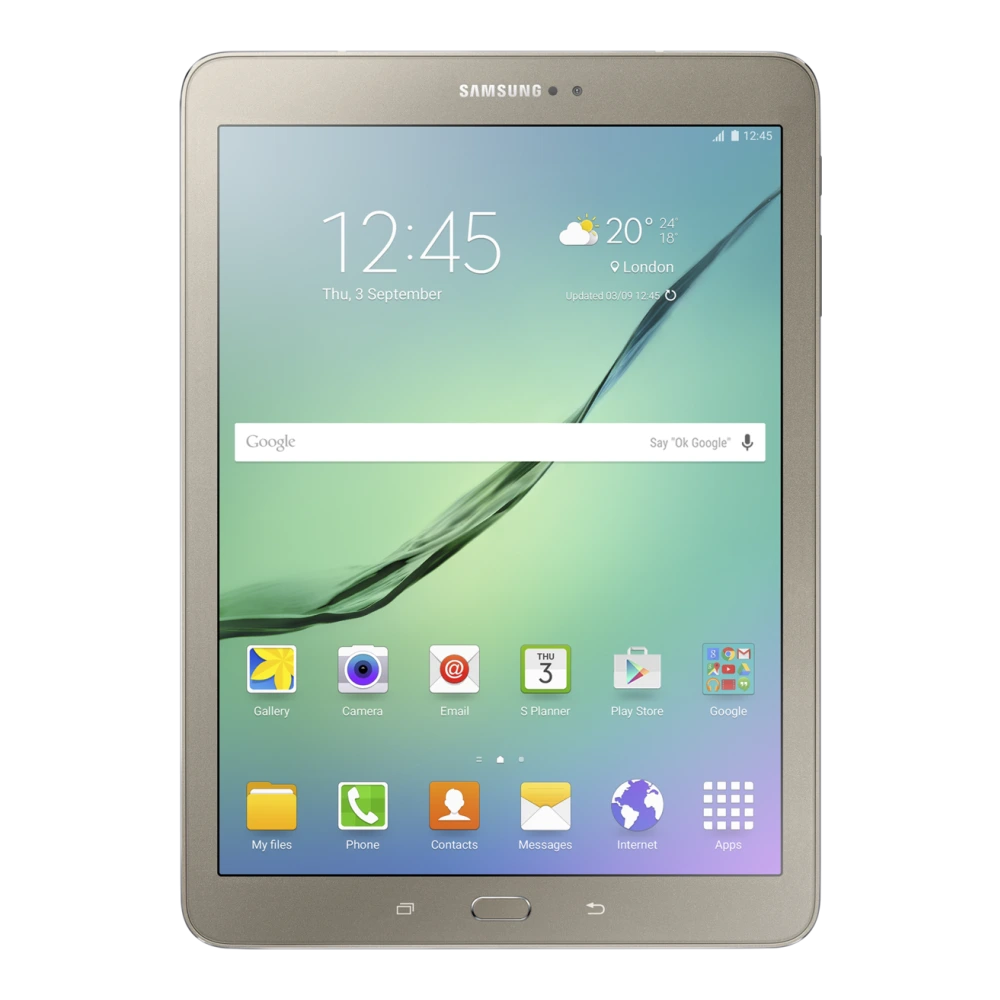
SM-T825 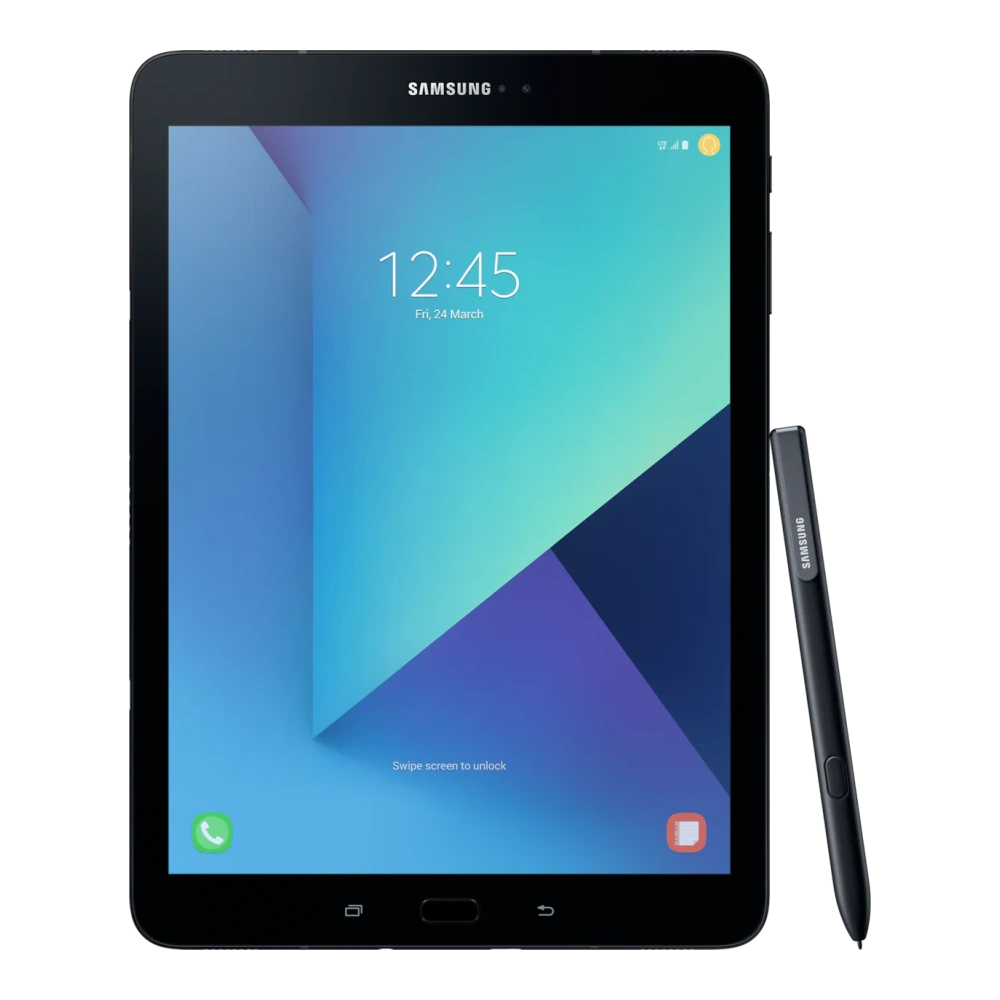
SM-T835 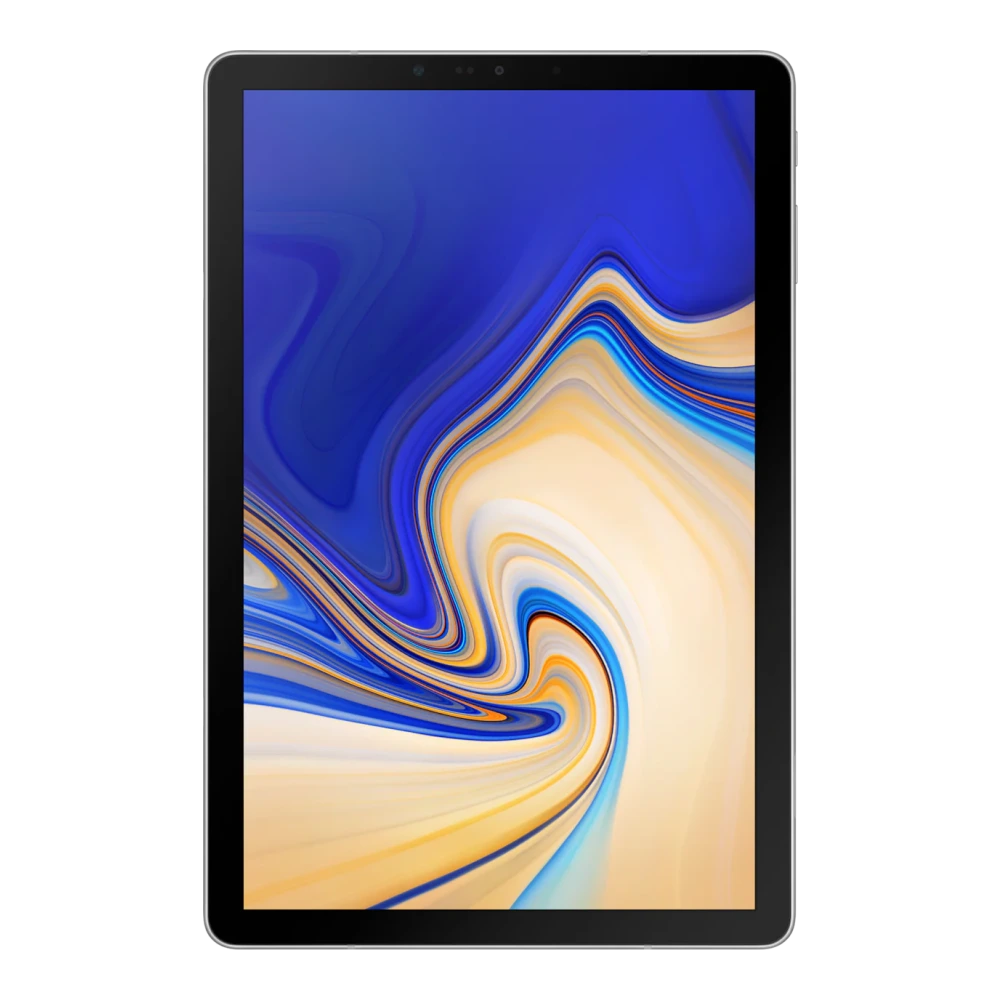
SM-T725 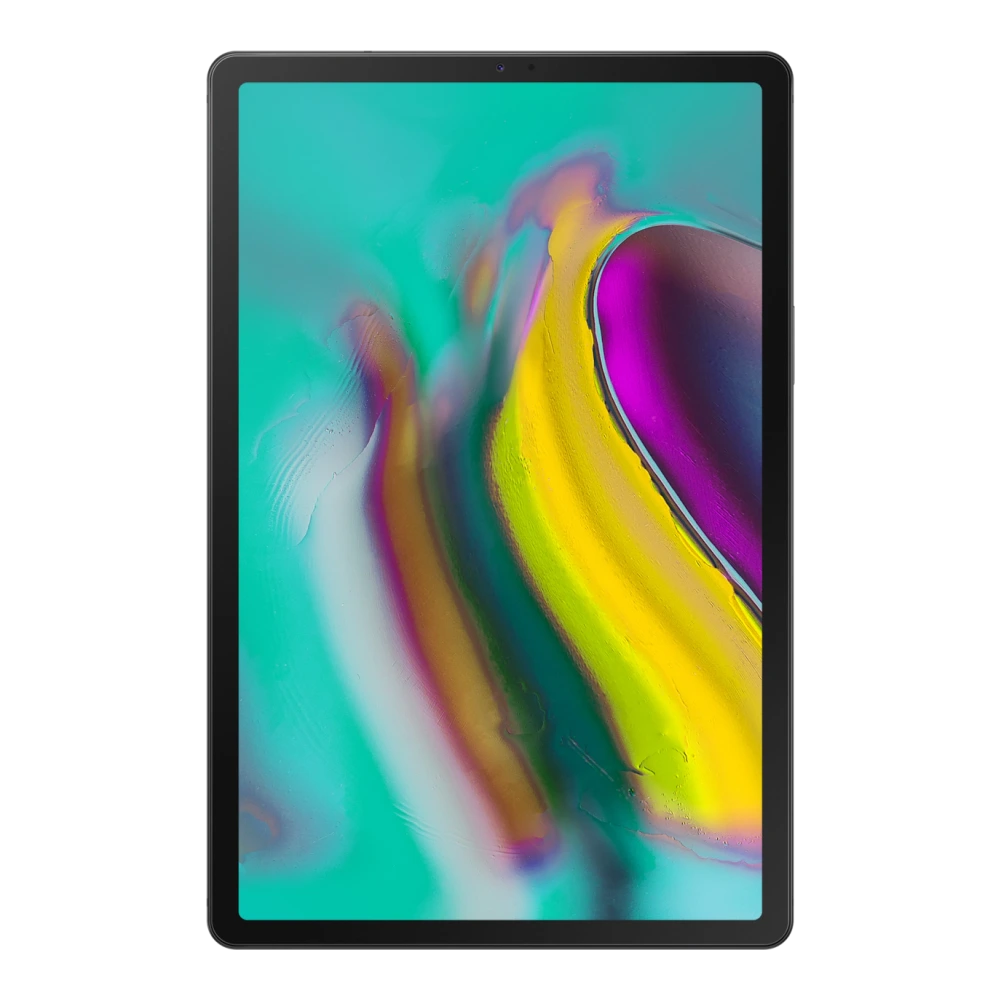
SM-P619 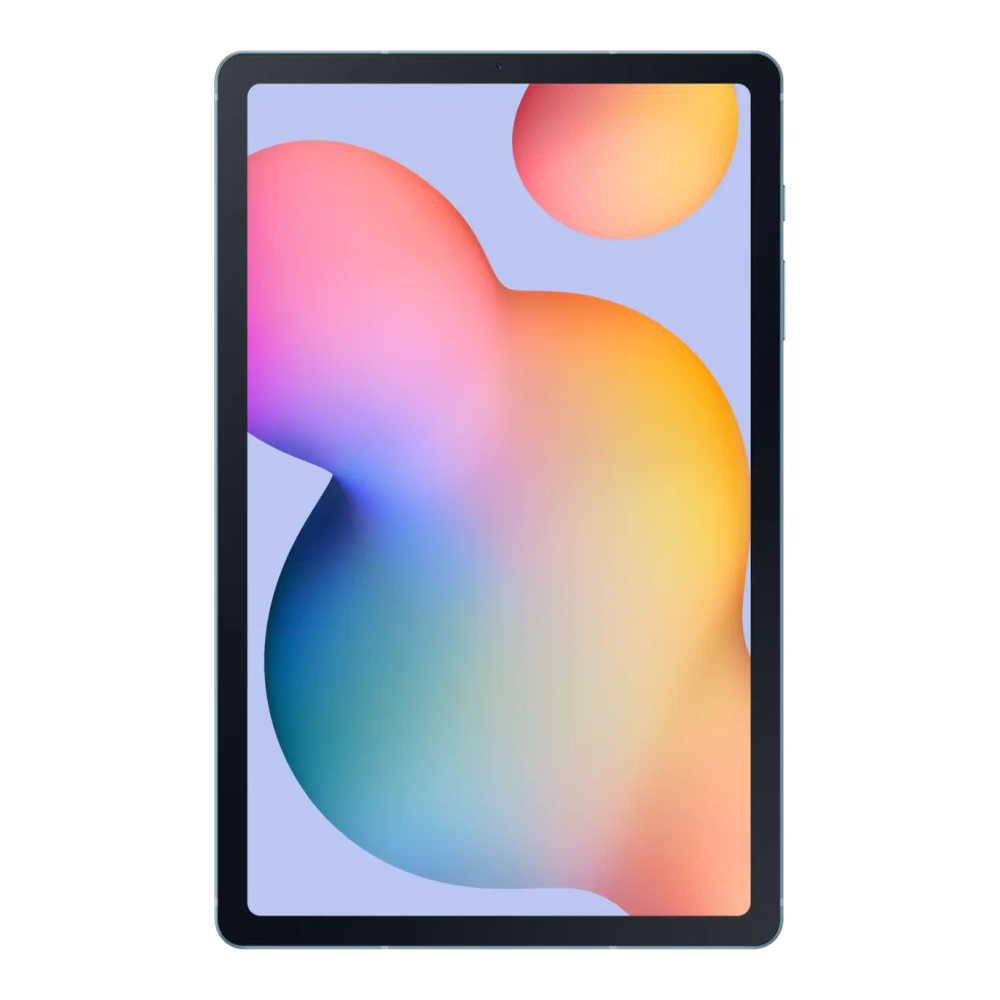
SM-T875 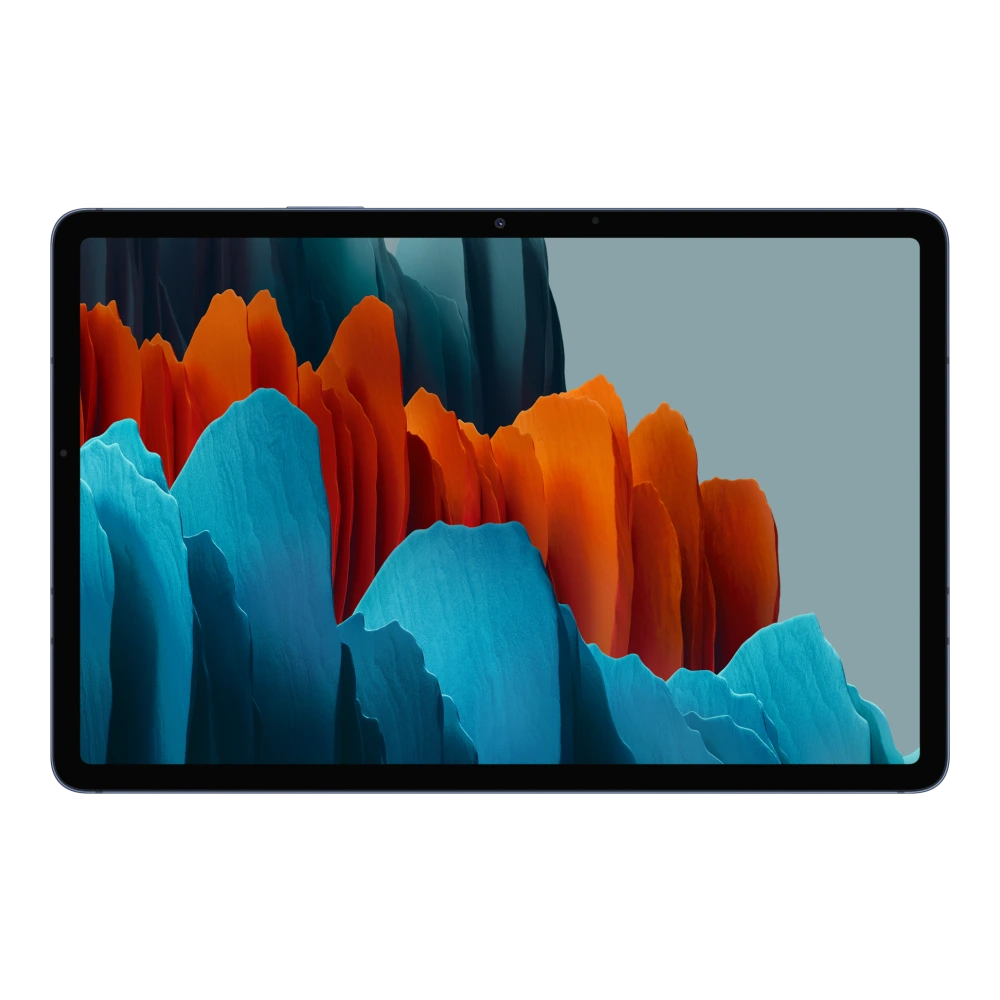
SM-X706B 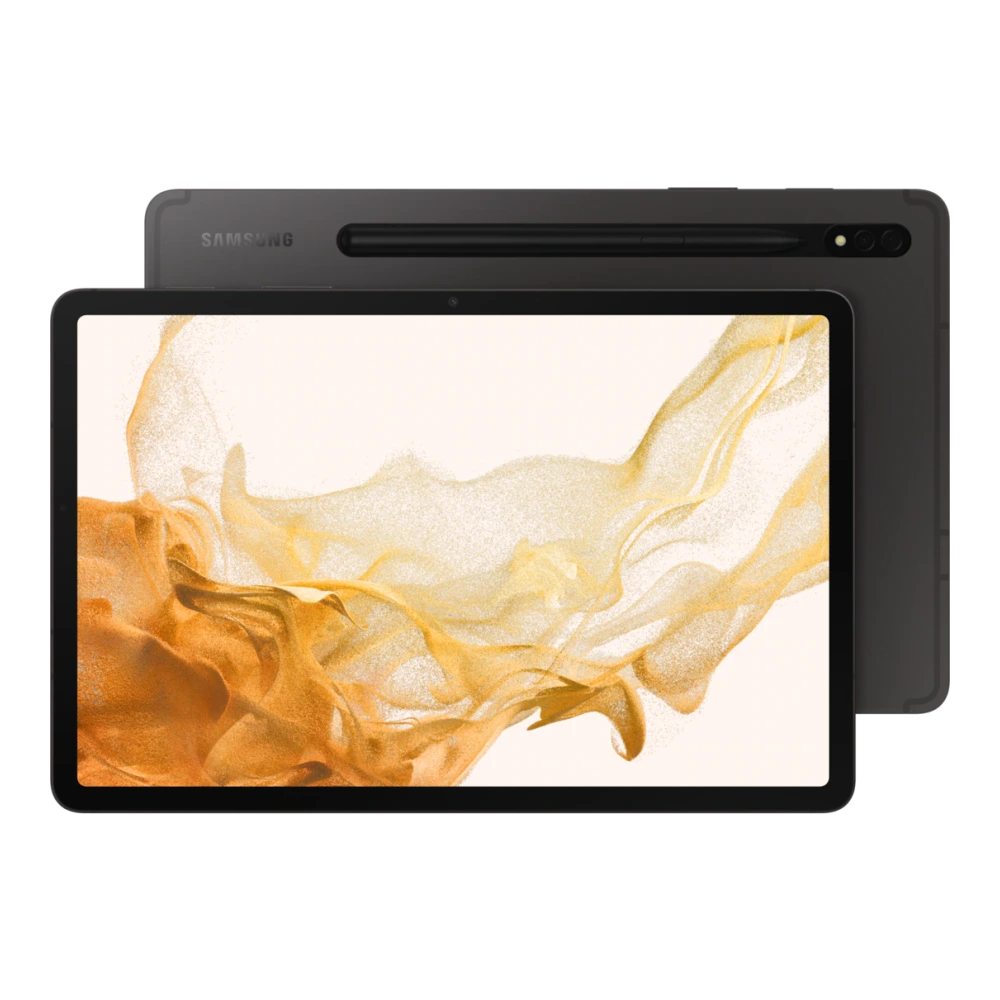
SM-X906B 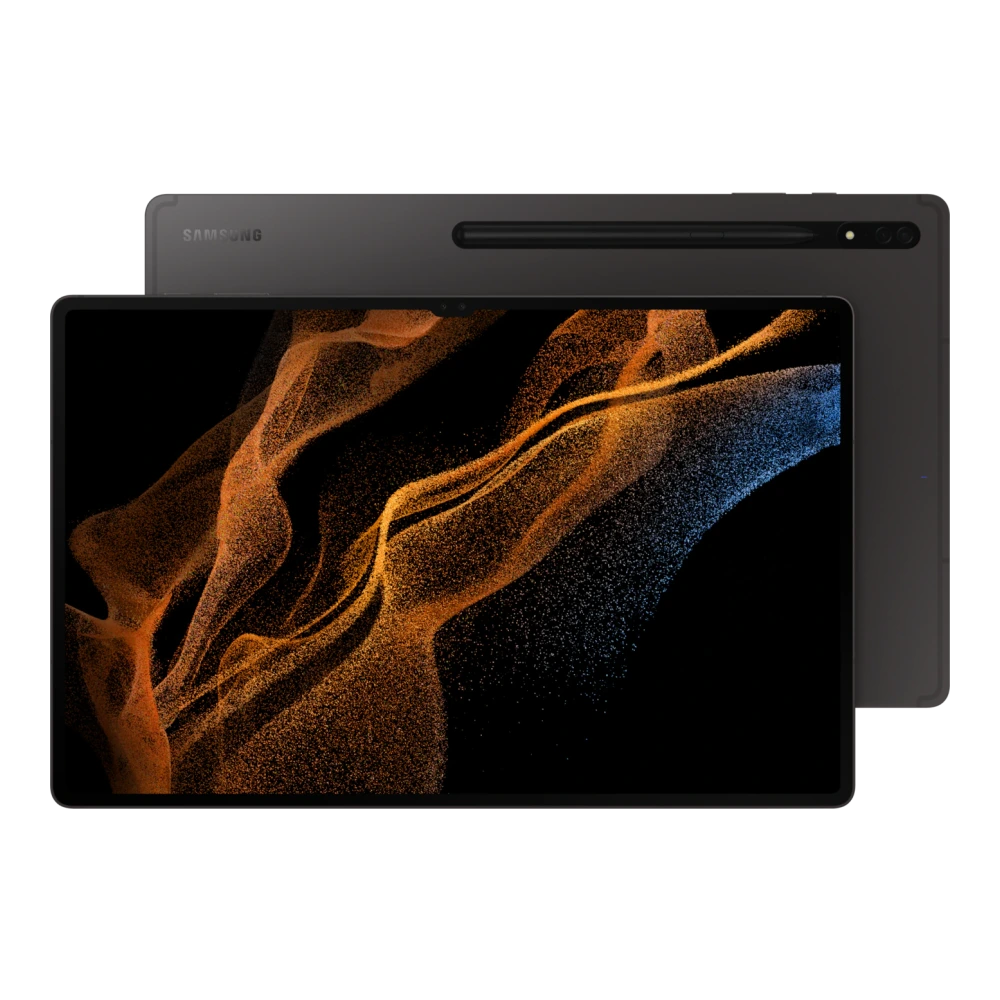
SM-X806B 
SM-X716B 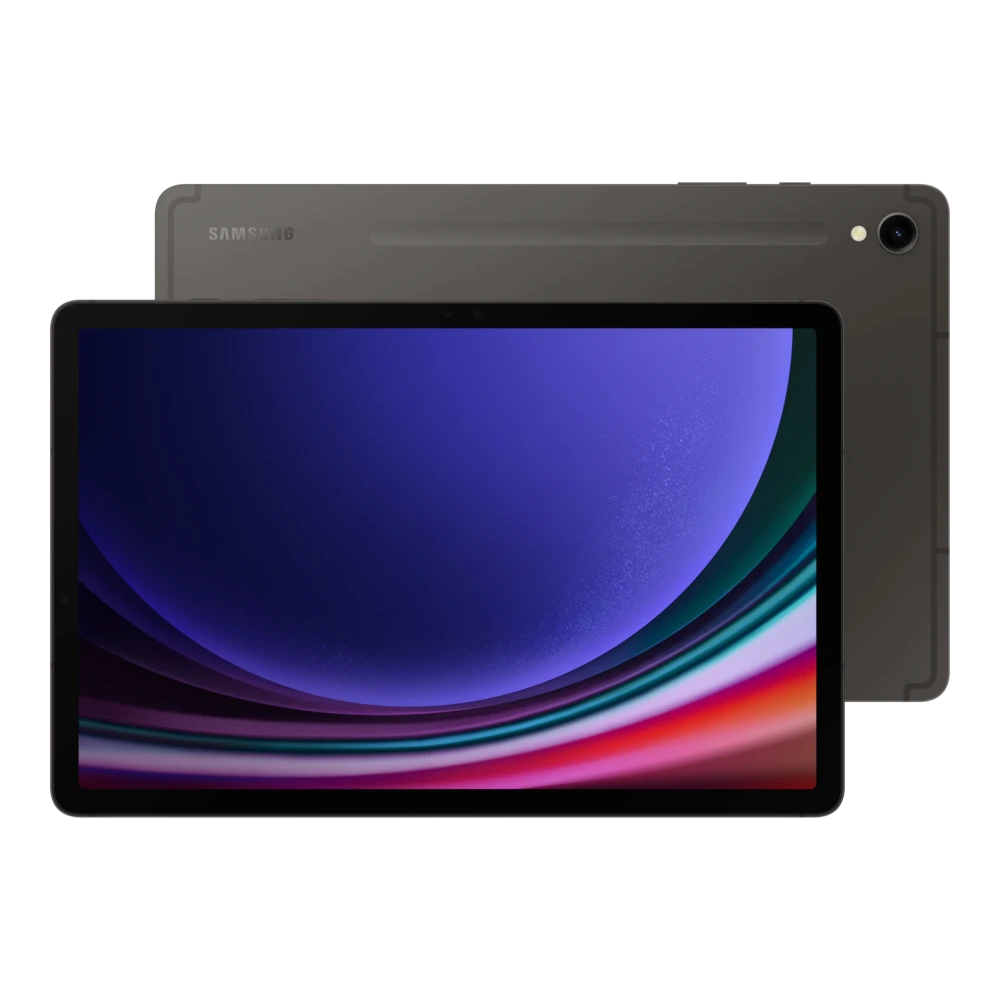
SM-X516B 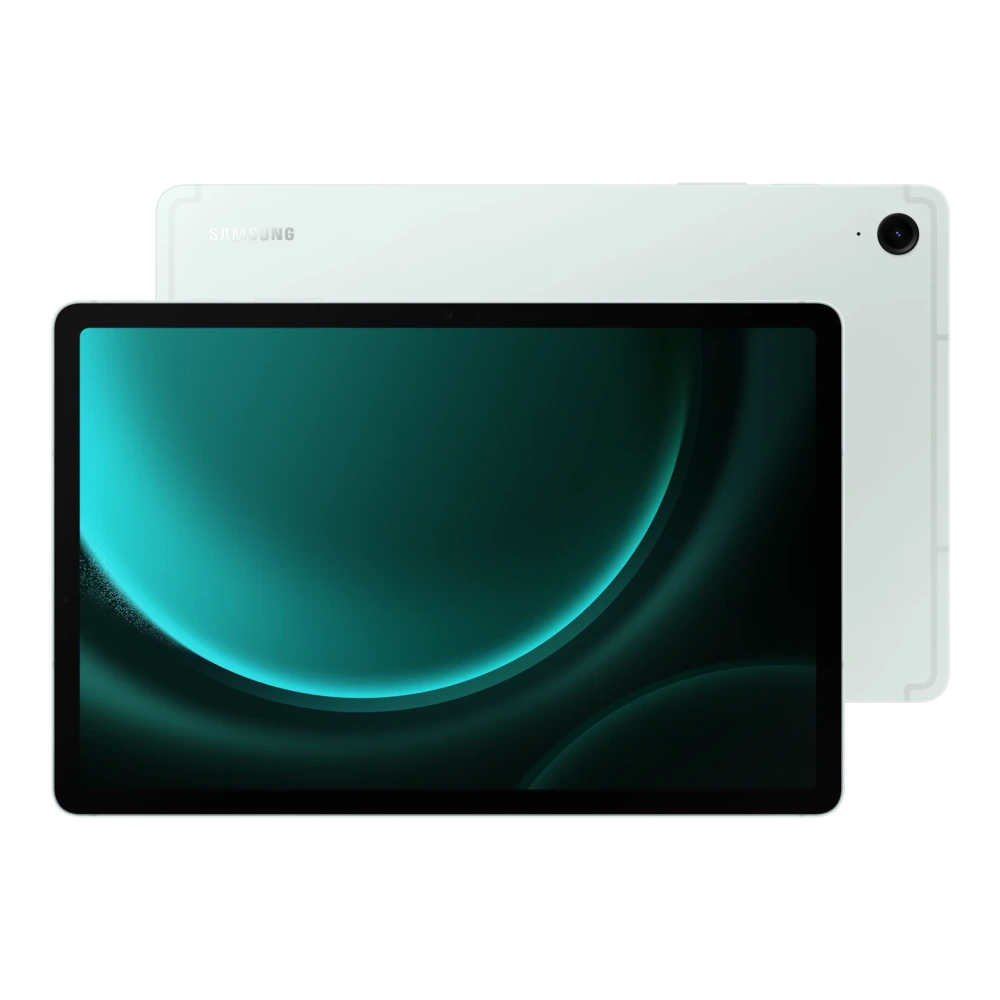
SM-X616B 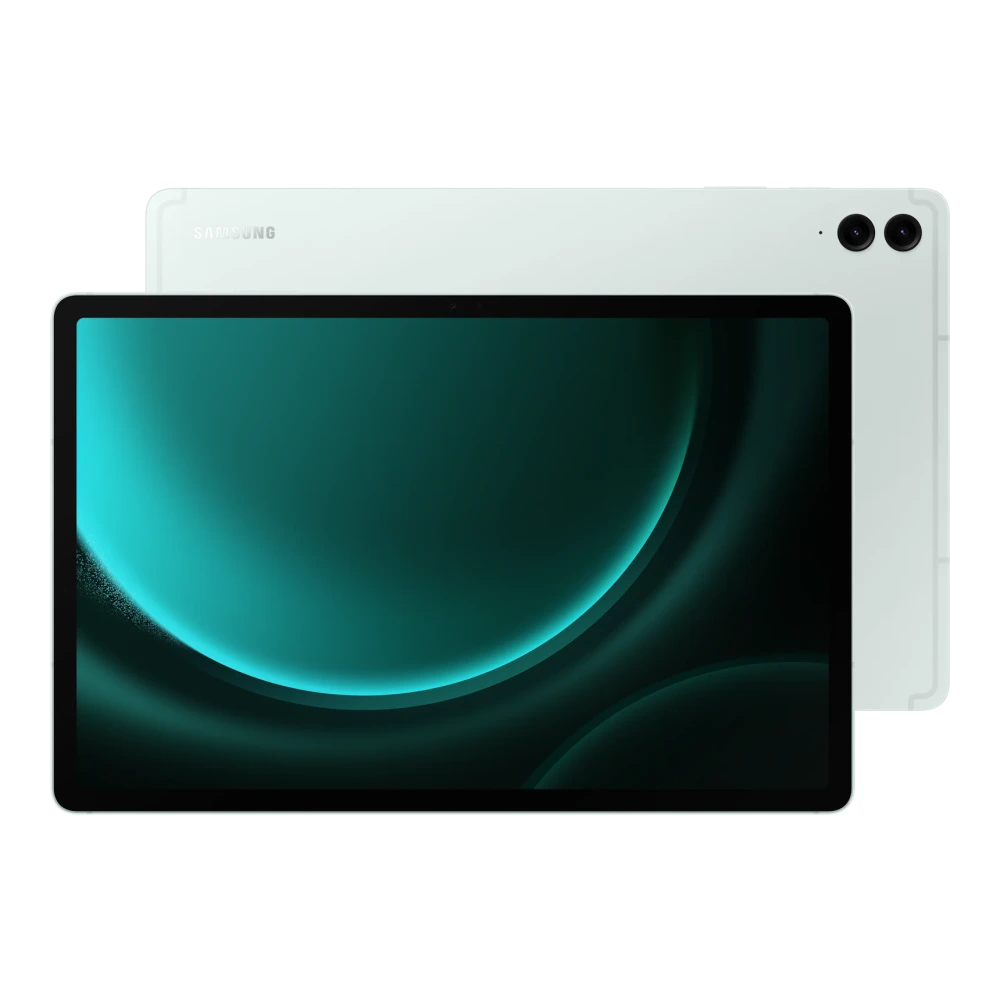
SM-X916B 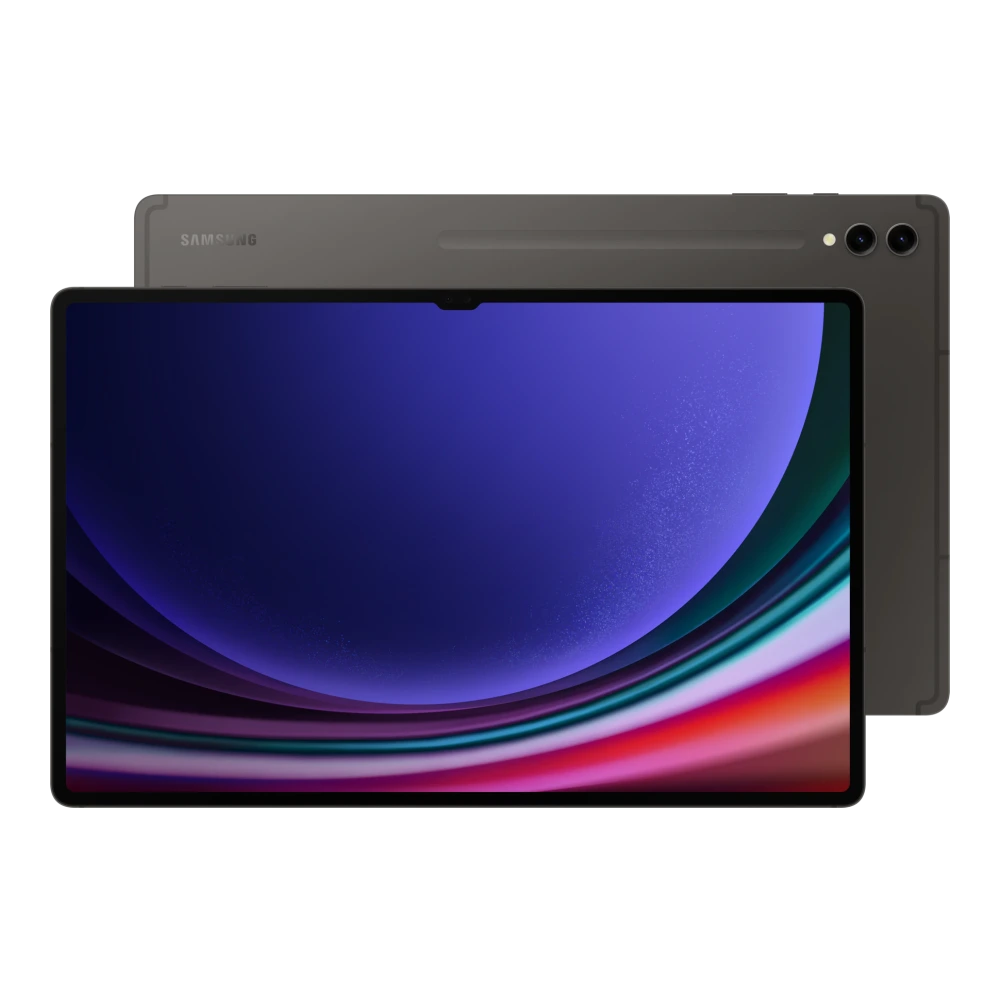
SM-X816B 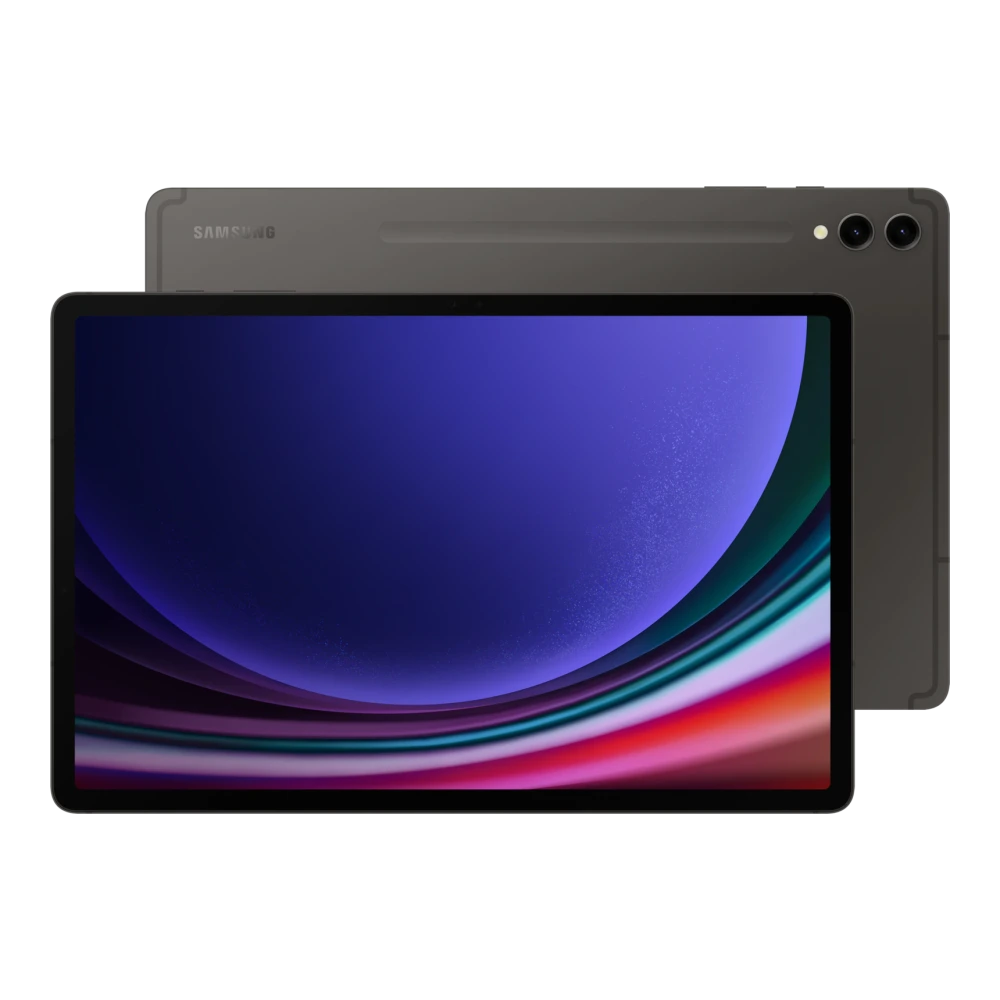
SM-T110
SM-T311 
SM-T365
SM-T865
SM-X306B 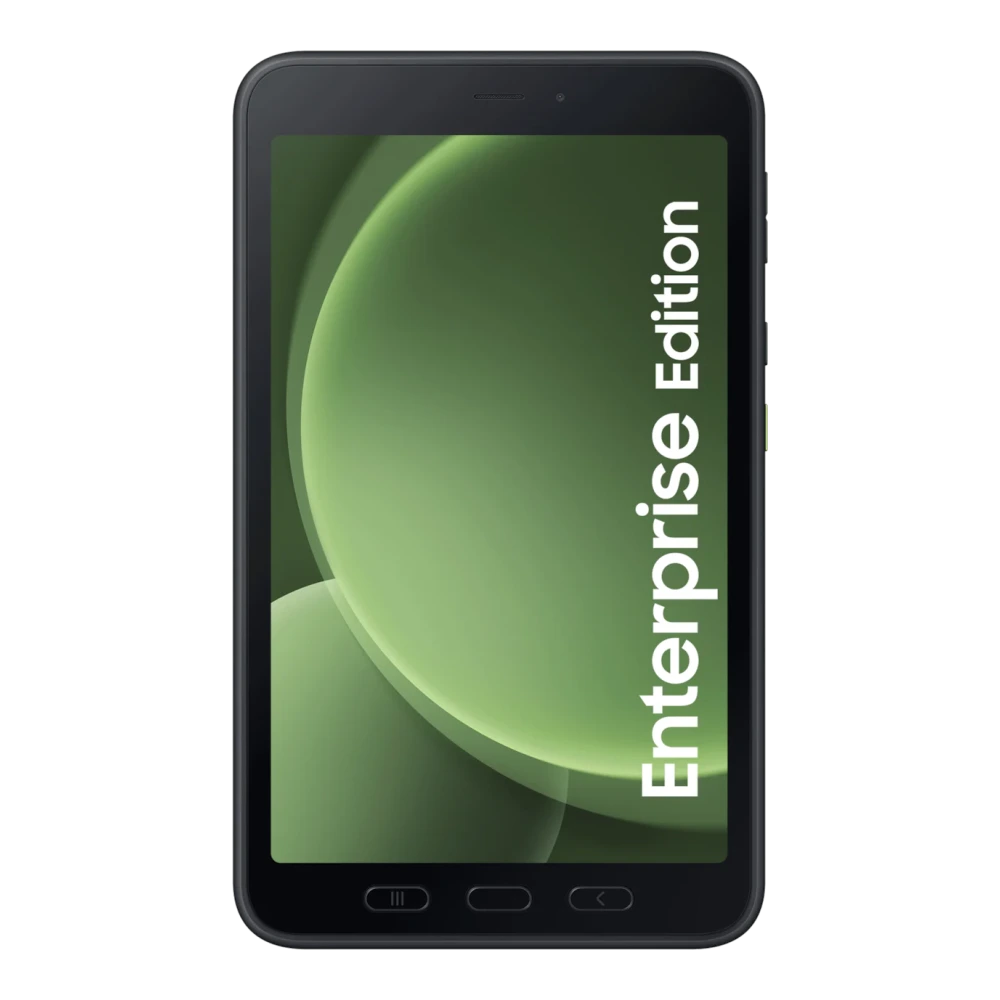
SM-T211 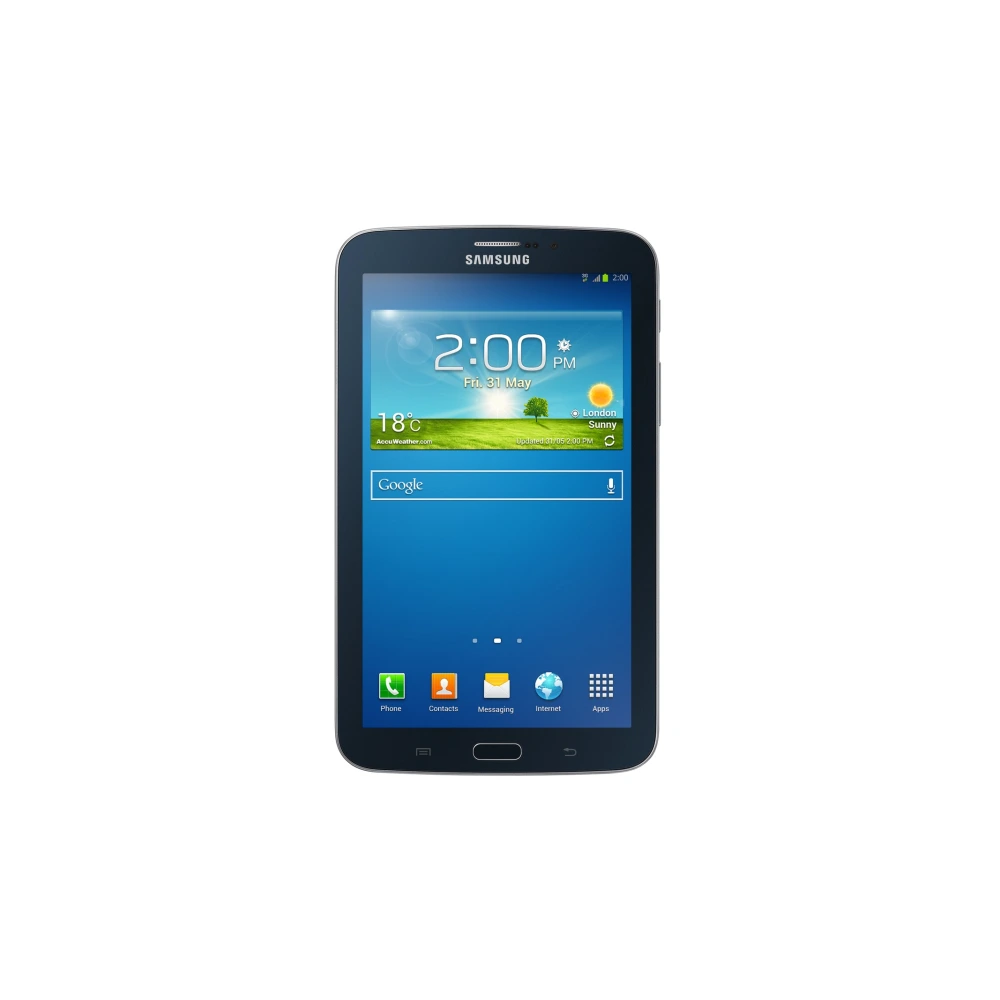
Samsung Galaxy Tab devices exist as two distinct hardware products sharing the same design — not software variants of each other. The Wi-Fi model contains a different motherboard than the LTE/5G model, and crucially the Wi-Fi board has no cellular baseband chip. This means the firmware packages have different file counts: Wi-Fi tabs have 3 files (BL, AP, CSC), LTE/5G tabs have 4 files (BL, AP, CP, CSC). Flashing the LTE/5G firmware onto a Wi-Fi board will fail at the CP binary stage since the hardware simply does not exist to program.
Samsung Galaxy Tab model codes use the same SM- prefix as phones but with different identifiers. Tab S9 Ultra Wi-Fi is SM-X910, while the 5G variant is SM-X916. The Tab A9 Wi-Fi is SM-X110, the LTE is SM-X115. As a general rule, the last digit of the model number for a tablet indicates the connectivity: 0 = Wi-Fi, 2 = LTE, 5 = LTE, 6 = 5G. Verify in Settings → About Tablet → Model Number before downloading.
After flashing a major One UI version upgrade on a Galaxy Tab S series with S Pen, you may find the S Pen pressure sensitivity or tilt detection feels different. This is normal — go to Settings → Advanced Features → S Pen → Air Actions → calibrate to recalibrate the digitizer microcode to the new firmware layer.
Galaxy Tab devices are engineered with distinct hardware architecture. Follow these critical guidelines to ensure successful One UI updates and avoid partition mismatches:
SM-X800 Wi-Fi vs SM-X806 5G).Wi-Fi only and LTE/5G Galaxy Tabs are different physical hardware — not just software variants. The cellular model contains a physical baseband chip that the Wi-Fi model does not. This means their firmware packages have a different number of files:
| Firmware File | Wi-Fi Models (SM-X800, SM-X200, SM-T500…) | LTE / 5G Models (SM-X806, SM-X206, SM-T505…) |
|---|---|---|
| BL — Bootloader | ✅ Included & Required | ✅ Included & Required |
| AP — Android OS (One UI) | ✅ Included & Required | ✅ Included & Required |
| CP — Cellular Modem / Baseband | ❌ NOT present — no cellular hardware on this model | ✅ Included & Required |
| CSC / HOME_CSC — Region Config | ✅ Included & Required | ✅ Included & Required |
How to identify your variant: Check the last digit of your model code — Wi-Fi is typically 0 (SM-X800), LTE is 2 or 6 (SM-X806). Verify in Settings → About Tablet → Model Number before downloading.
| Tablet Issue / Error | Likely Root Cause | Verified Resolution |
|---|---|---|
| Odin fails on CP (Modem) file | Attempting to flash cellular modem on Wi-Fi-only Galaxy Tab motherboard | Wi-Fi tablets (SM-X... / SM-T...) lack modem hardware. Flash firmware specifically built for Wi-Fi model code without cellular CP. |
| Tablet won't enter Download Mode | Modern Galaxy Tabs require active USB PC connection to trigger bootloader | Power off tablet completely. Hold Vol Up + Vol Down simultaneously, connect USB-C cable to an active PC, and release on teal screen. |
| Touchscreen / S Pen unresponsive | Digitizer microcode calibration mismatch after One UI major upgrade | Force restart (Power + Vol Down 10s). In Android Recovery, wipe cache partition. Re-pair S Pen in Settings > Advanced Features > S Pen. |
| Stuck in infinite One UI boot animation | Dirty flash conflict between Android versions when using HOME_CSC | Re-flash in Odin using standard CSC binary instead of HOME_CSC to perform a clean factory format of system and userdata partitions. |
| Smart Switch cannot detect Galaxy Tab | Corrupted Android OS or USB driver interface lockup | Put tablet into Download Mode first, connect to PC, open Smart Switch, and click More > Emergency Software Recovery & Initialization. |
Verified companion utilities for flashing, PC synchronization, and device maintenance.
Windows flashing software to install 4-file factory binaries, restore stock One UI, and unbrick Galaxy Tab models.
Required Windows PC drivers for instant recognition of Galaxy Tab S and Tab A series tablets in Download Mode.
Emergency software recovery, full tablet backups, and clean One UI reinstallations without data loss.
Built-in Galaxy diagnostic suite to test S Pen digitizer accuracy, touchscreen responsiveness, and battery health.