Classic Galaxy
GT-B5330 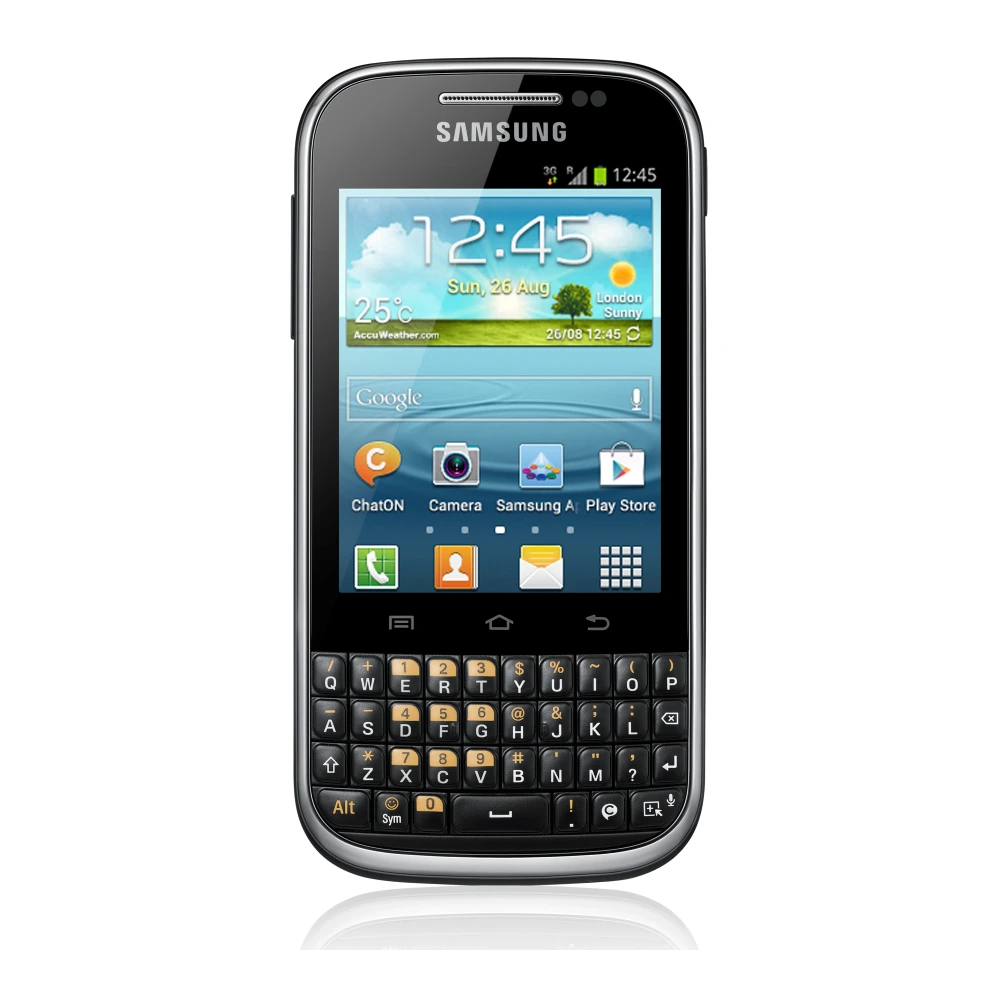
CORBY PRO B5330
Verified PDF Documentation

Browse Samsung Galaxy user-manual, quick-start-guide, and SAR-safety-document listings. Device setup references cover One UI features, camera modes, Smart Switch migration, and eSIM profiles.
GT-B5330
SM-G360FY 
GT-I5801 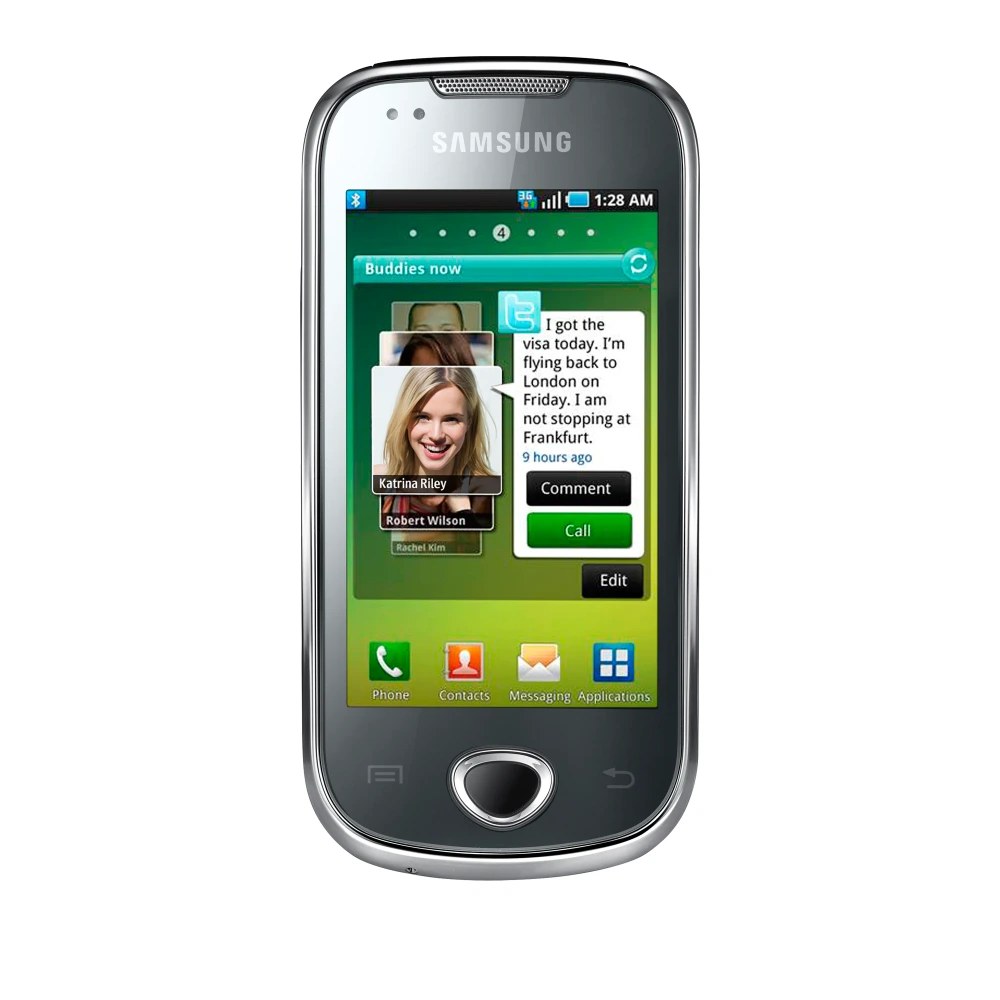
GT-I5503 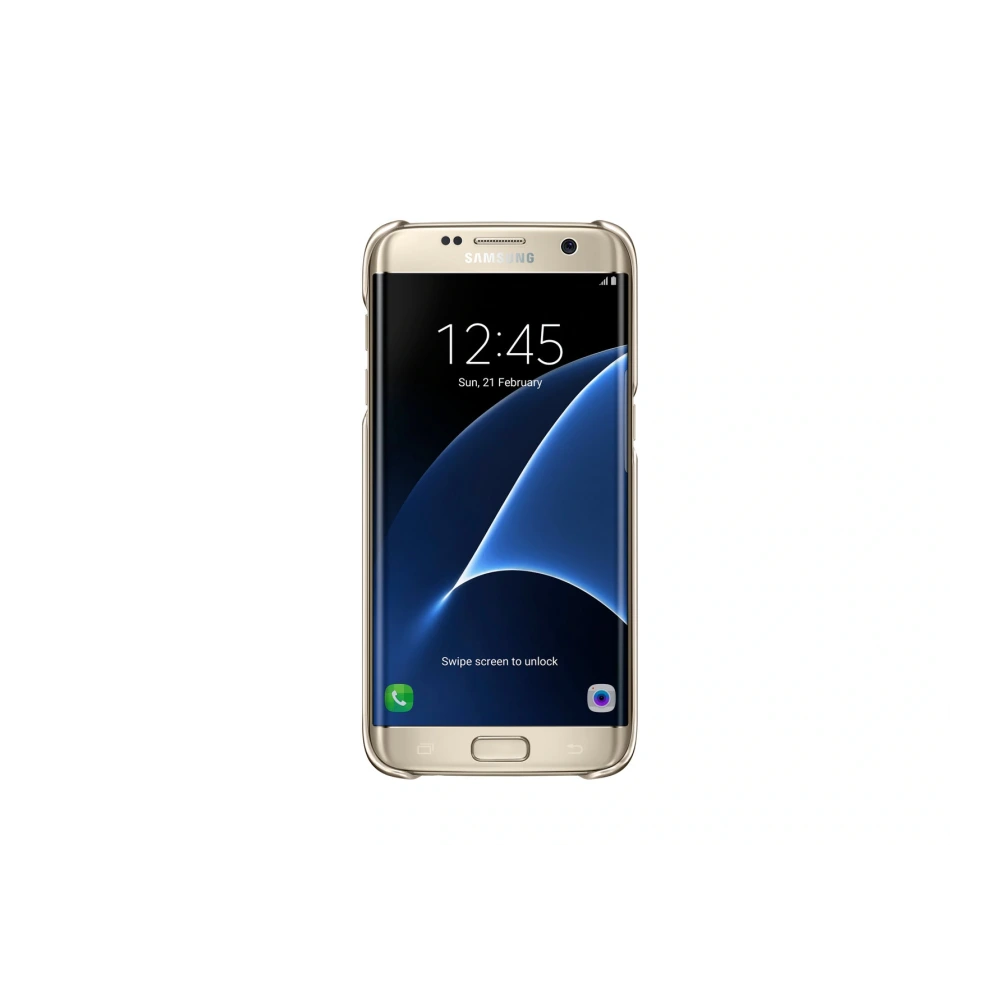
GT-I5500 
SM-A015G
SM-A035F 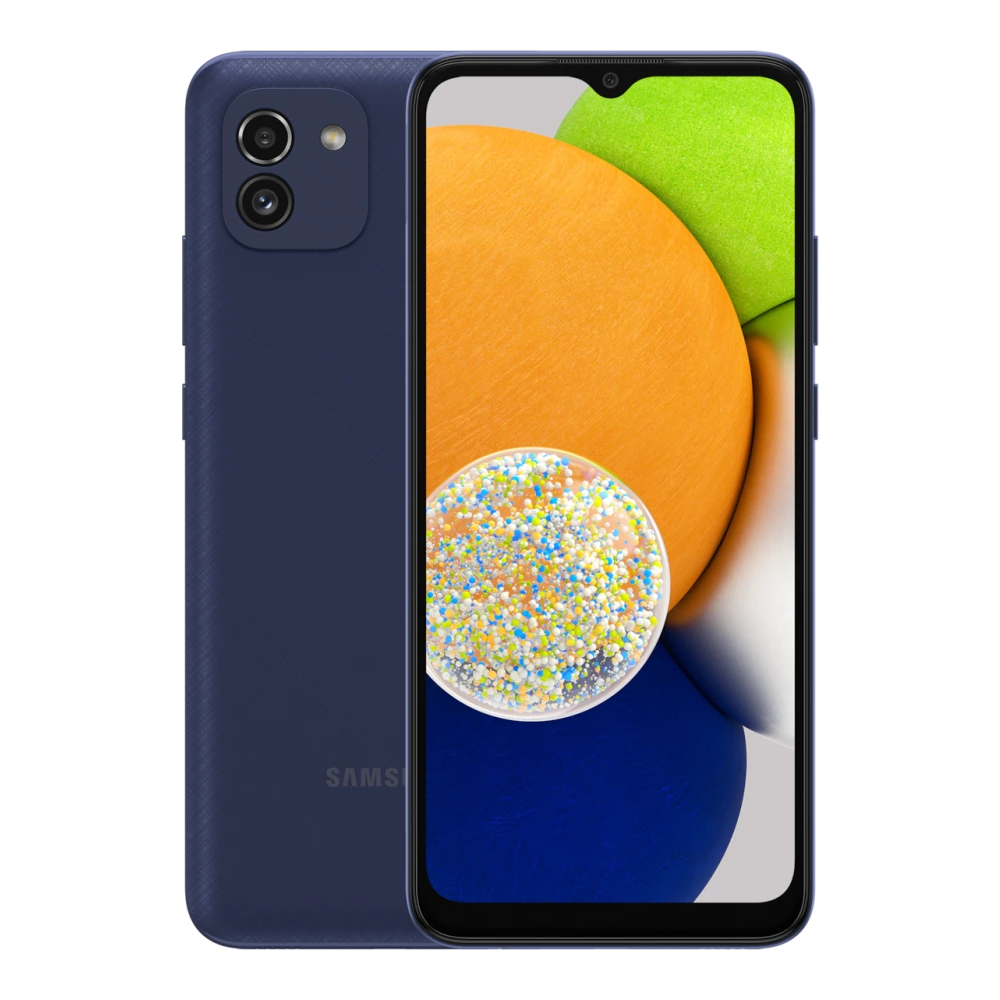
SM-A032F 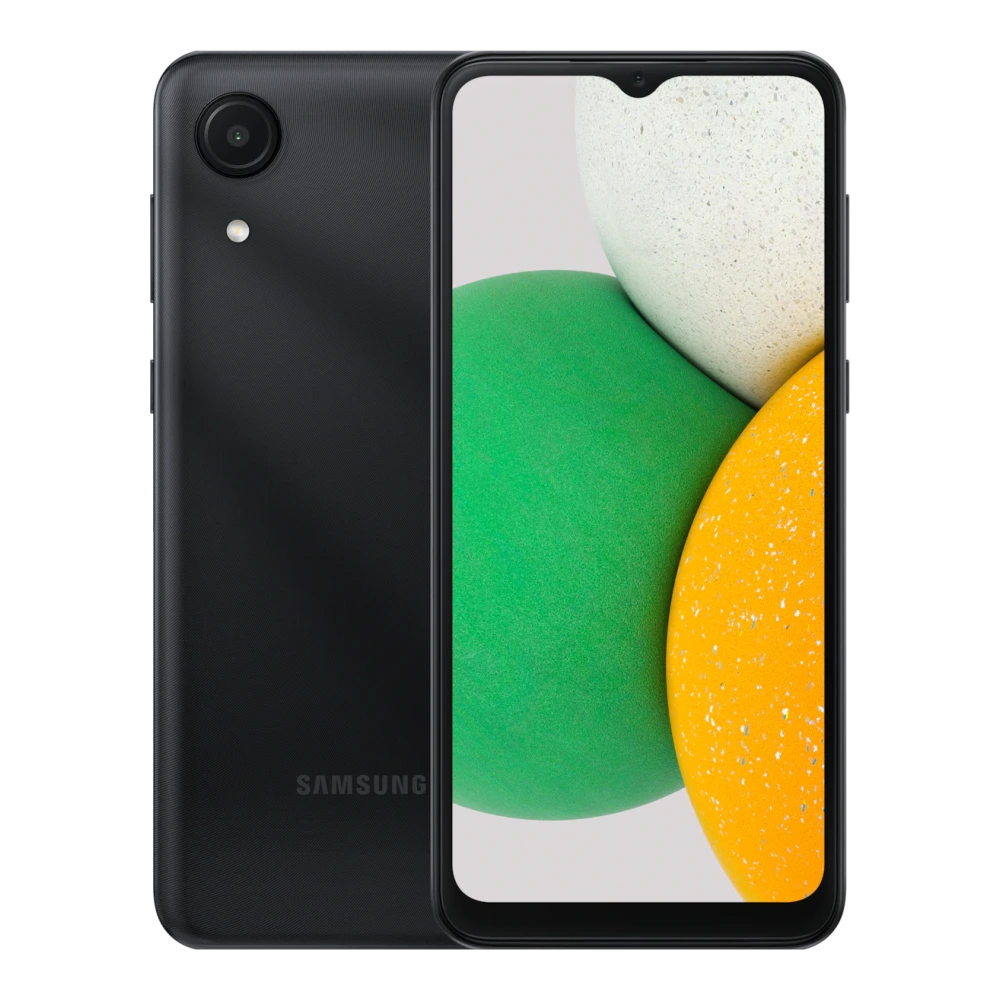
SM-A037F 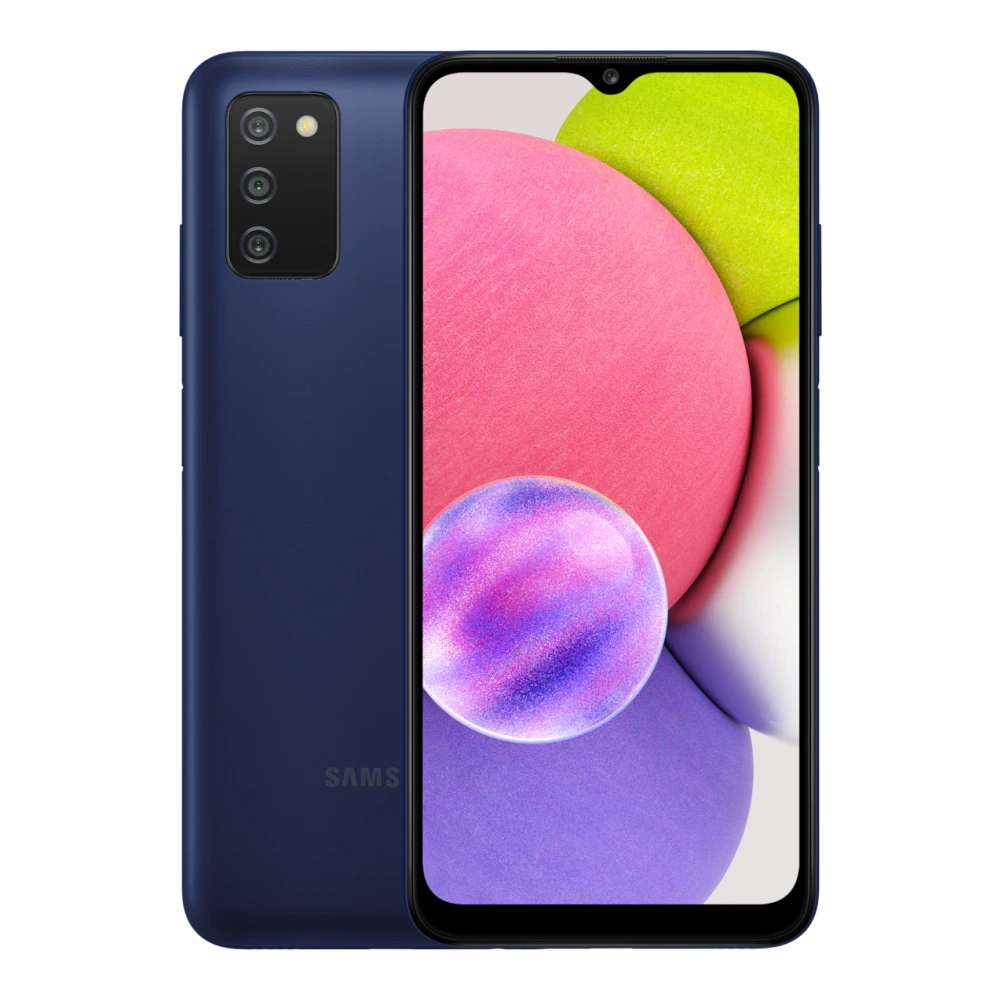
SM-A045F 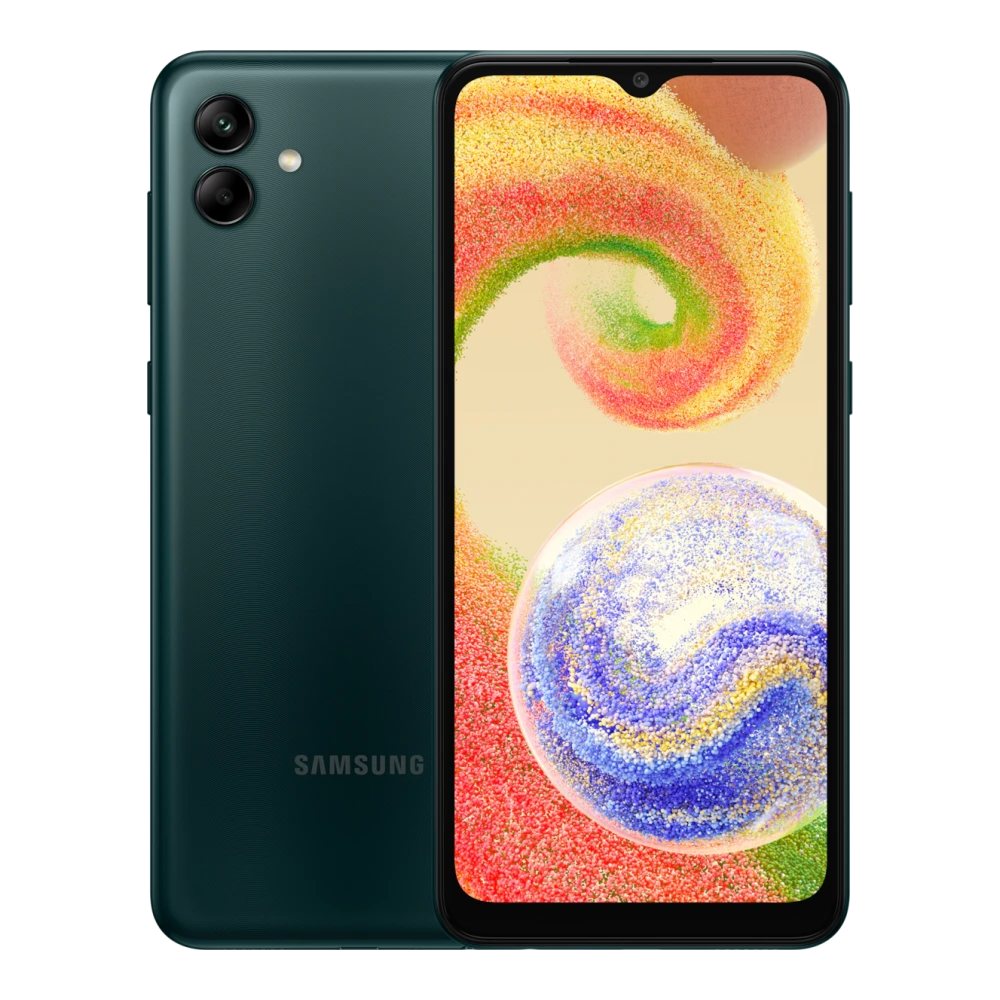
SM-A042F 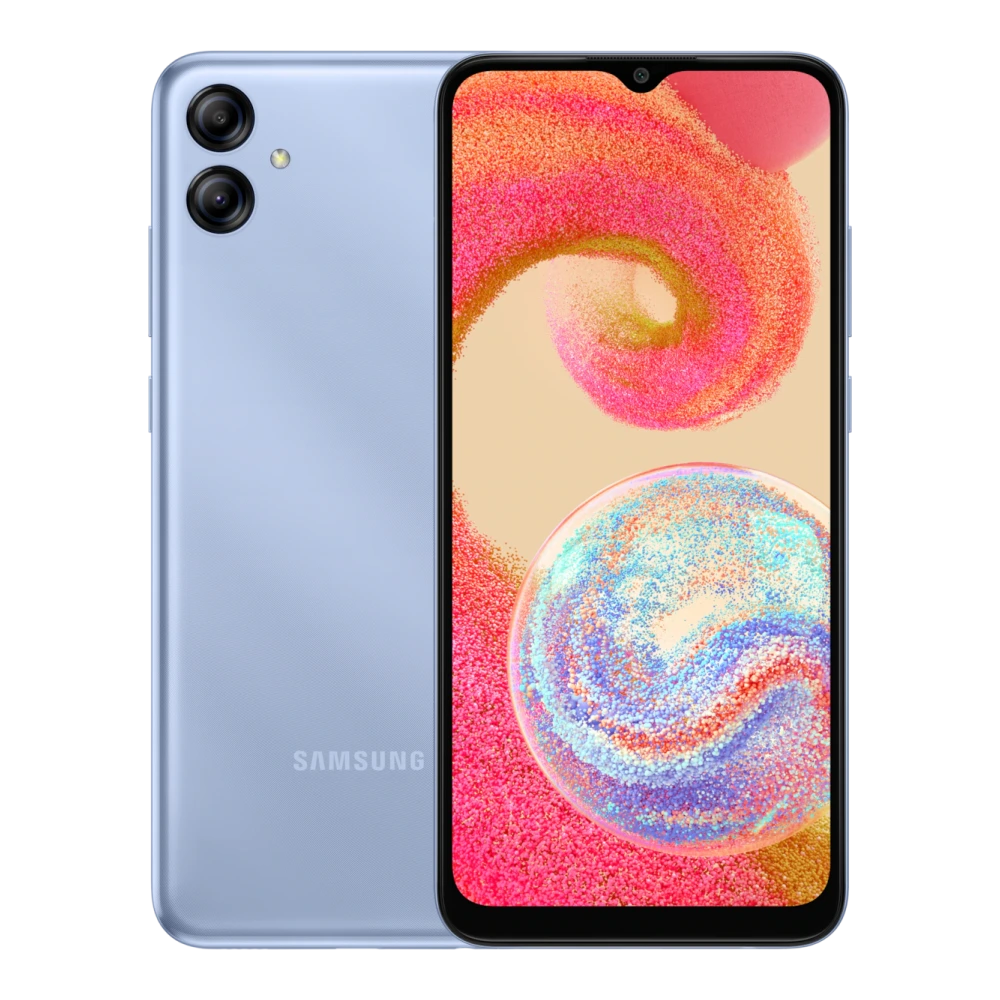
SM-A047F 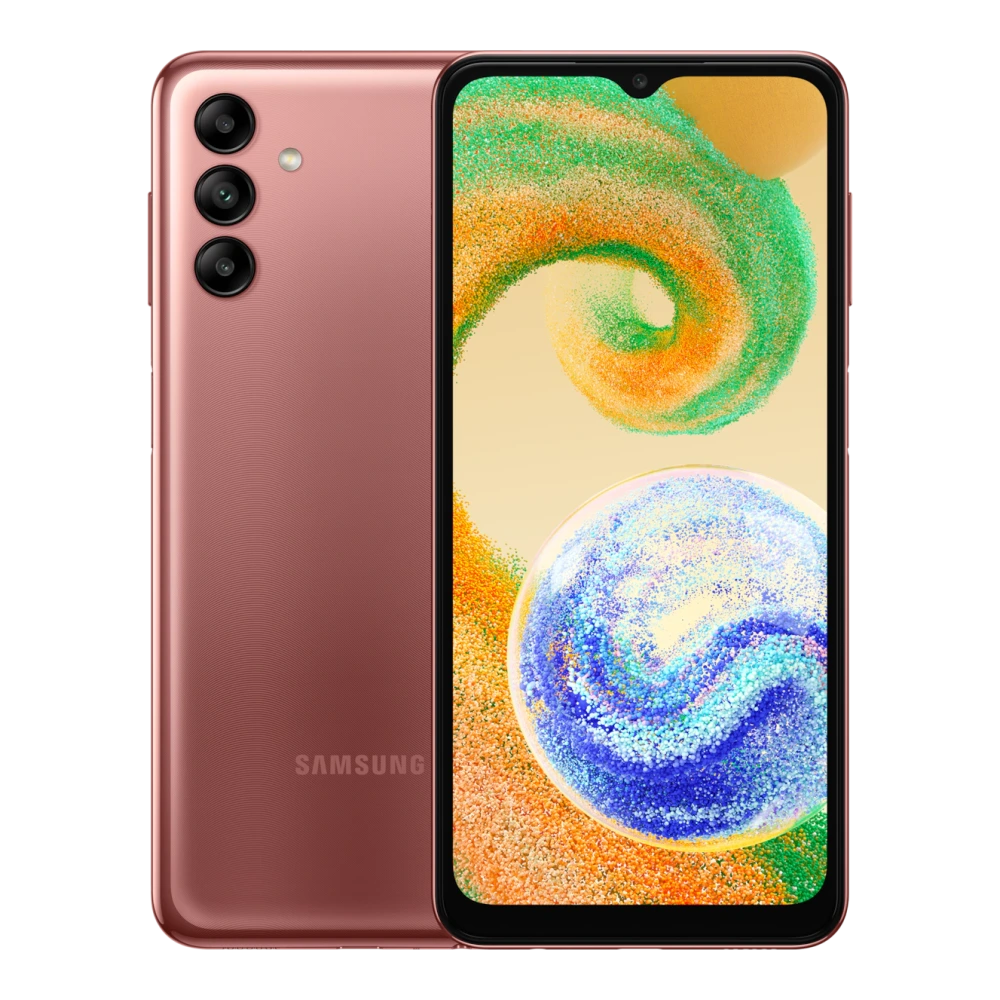
SM-A055F 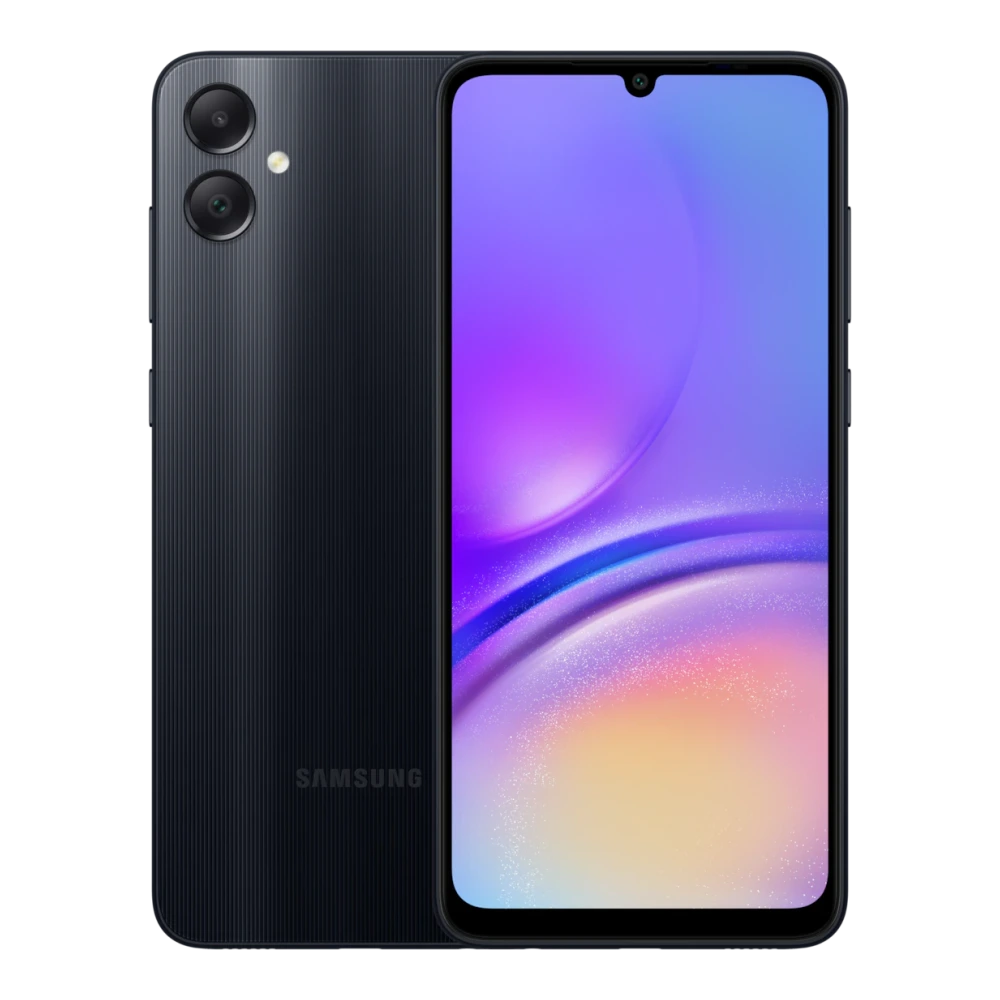
SM-A057F 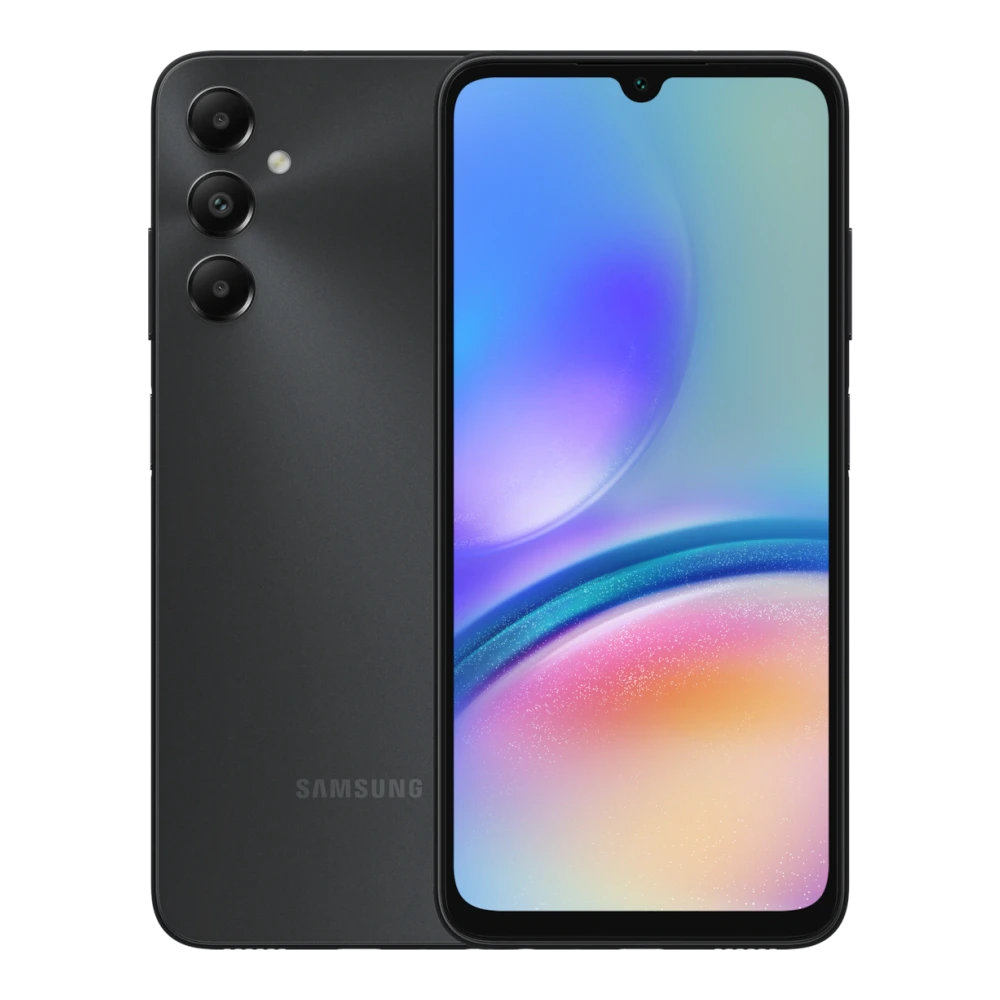
SM-A065F 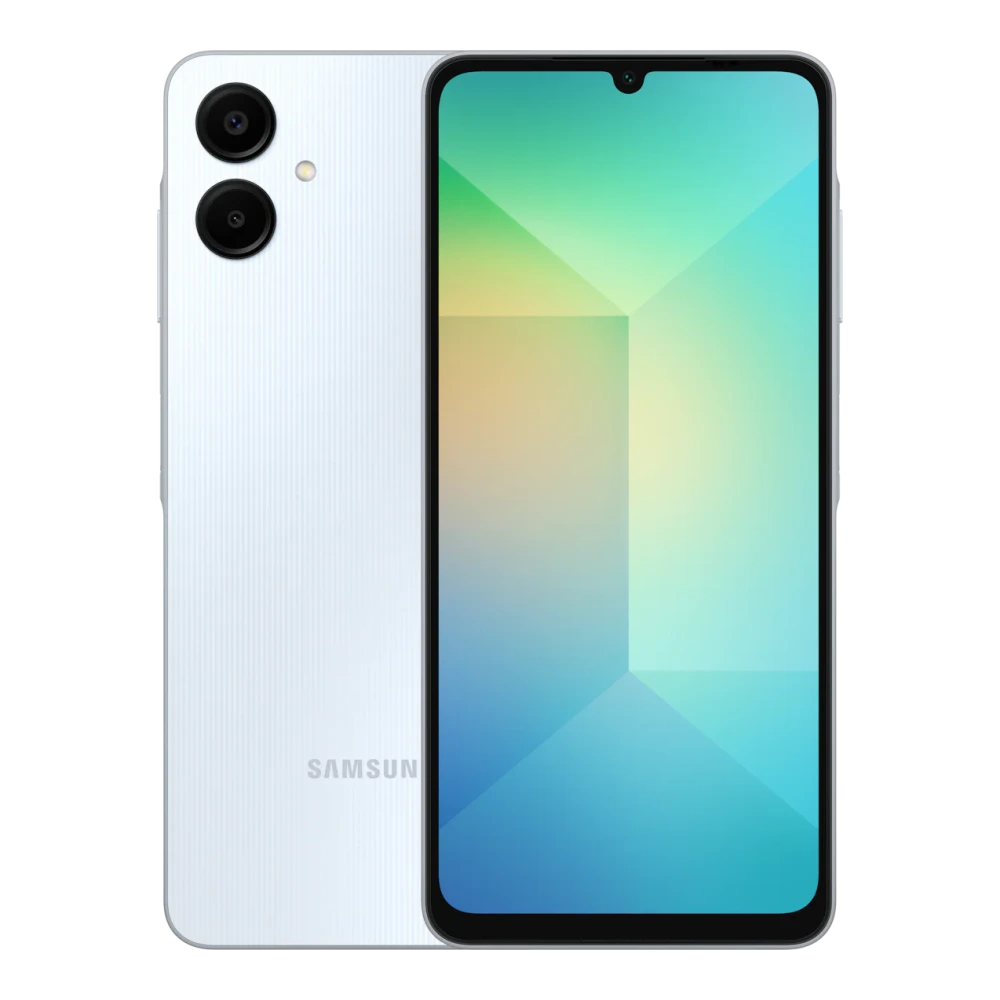
SM-A066B 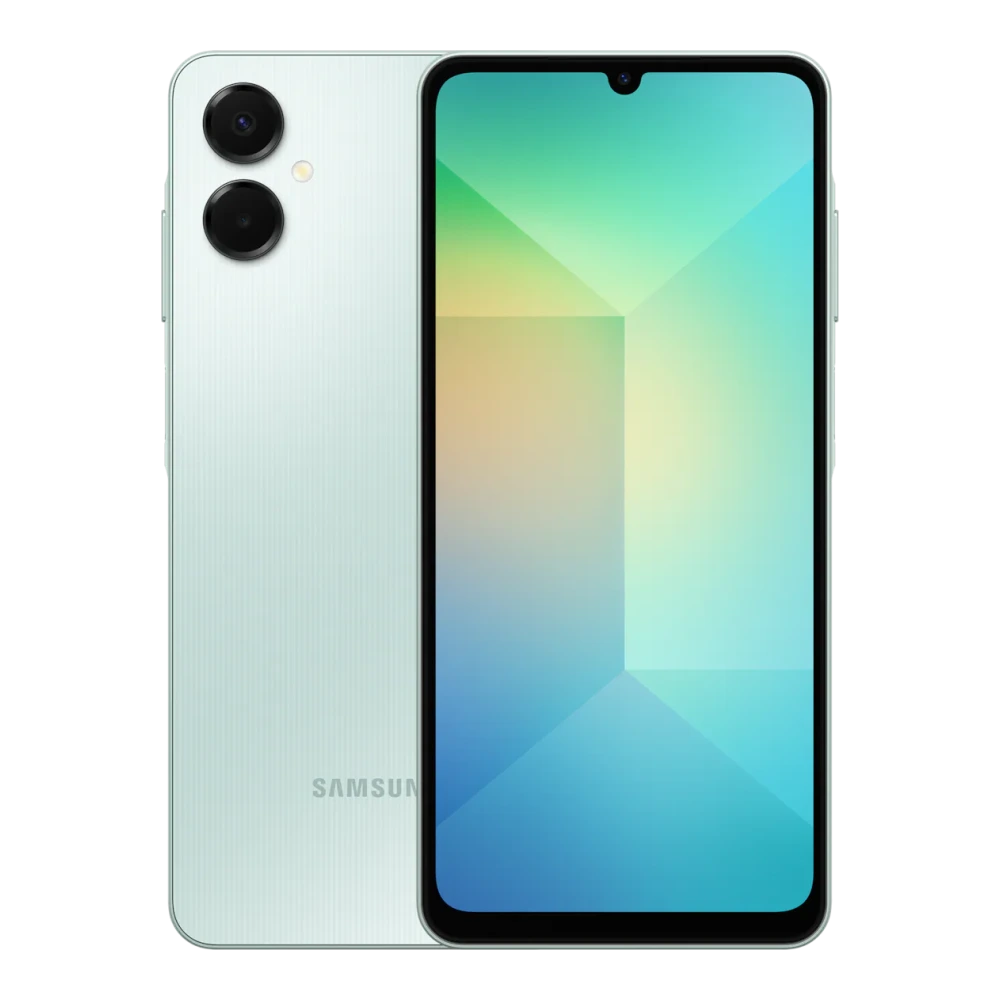
SM-A075F 
SM-A076B 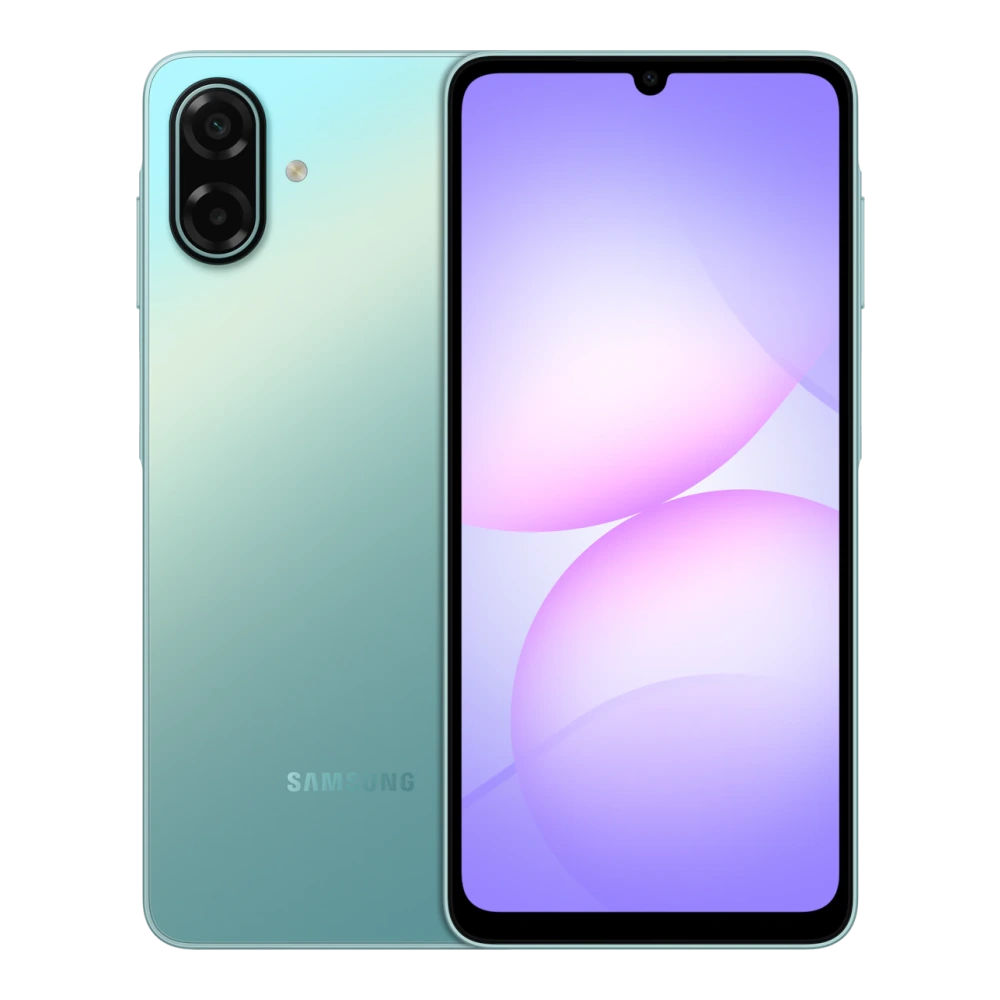
SM-A105F 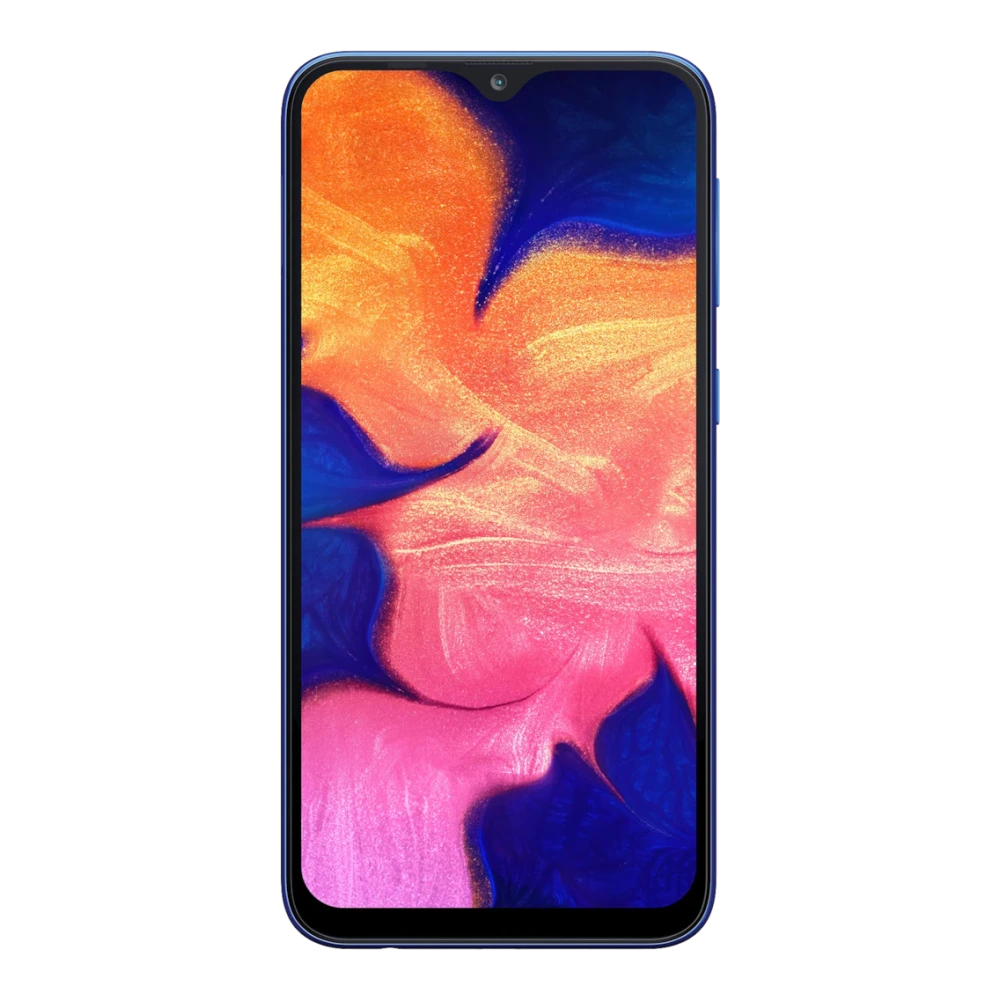
SM-A107F 
SM-A127F 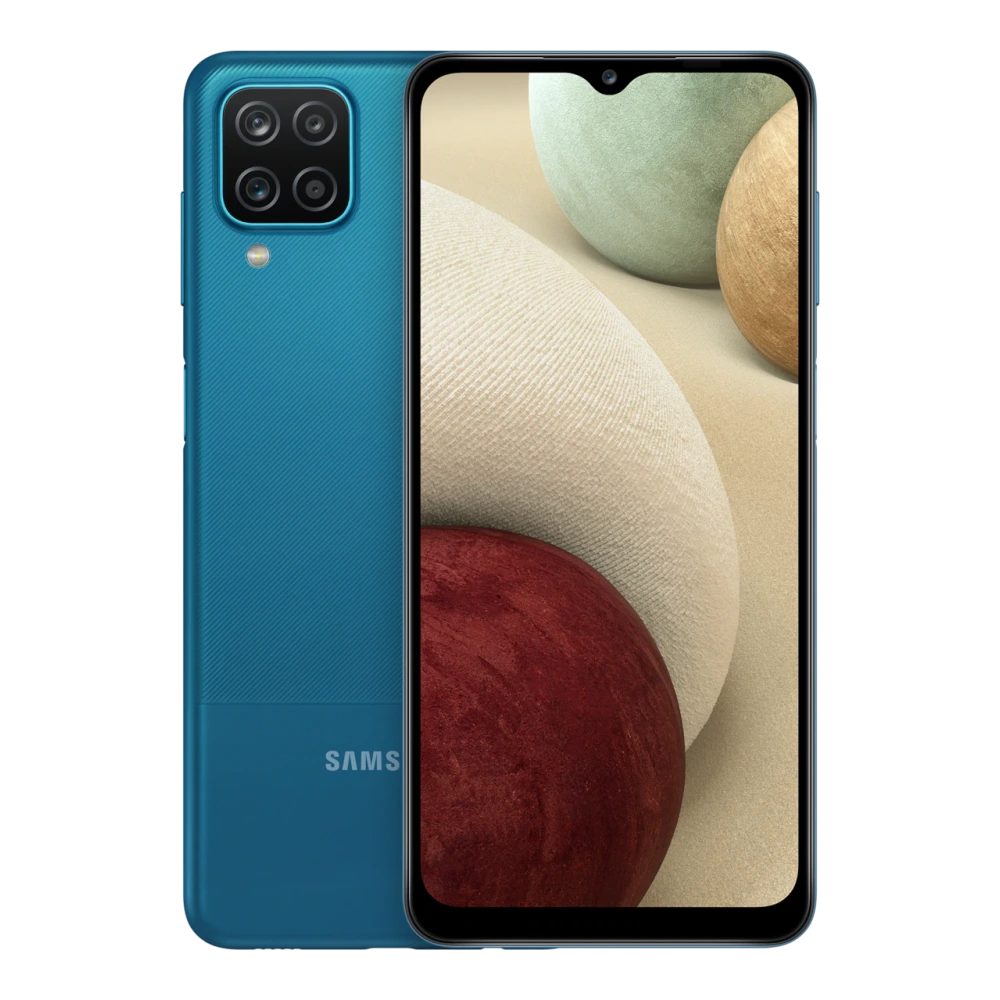
SM-A135F 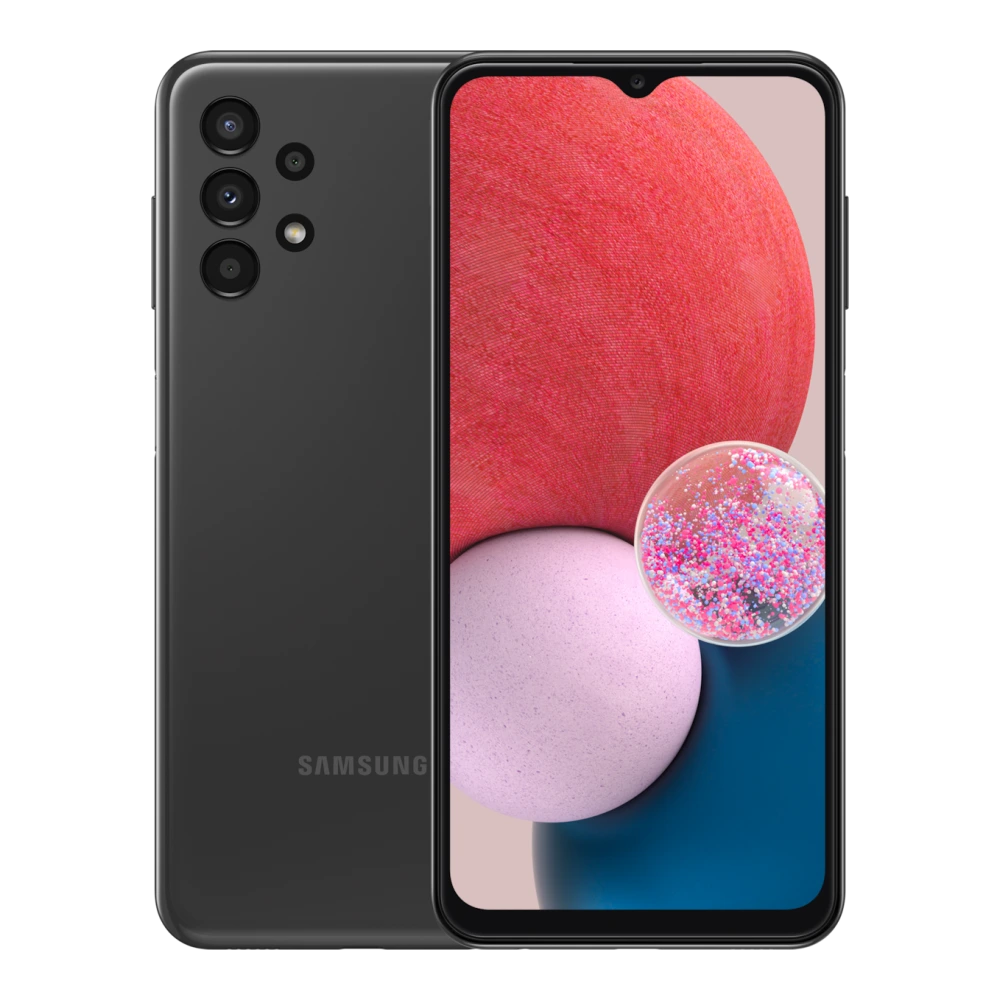
SM-A145F 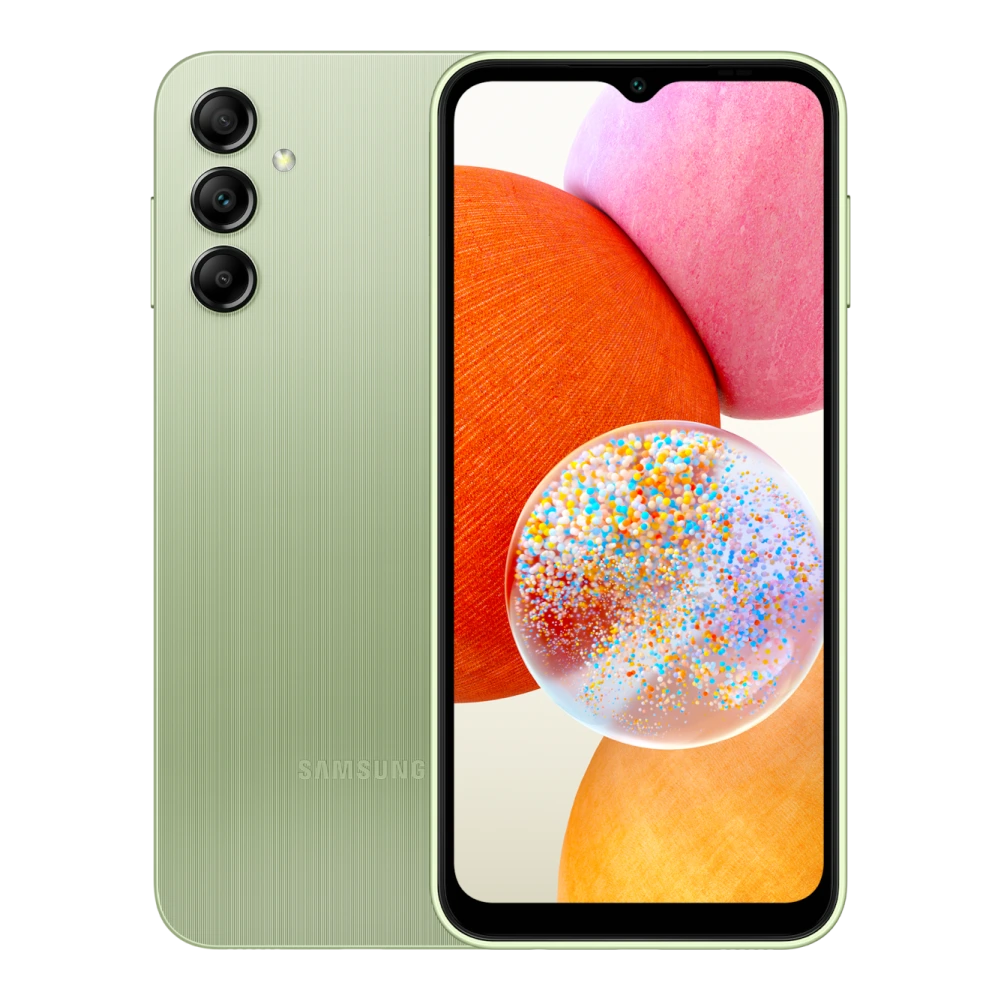
SM-A146B 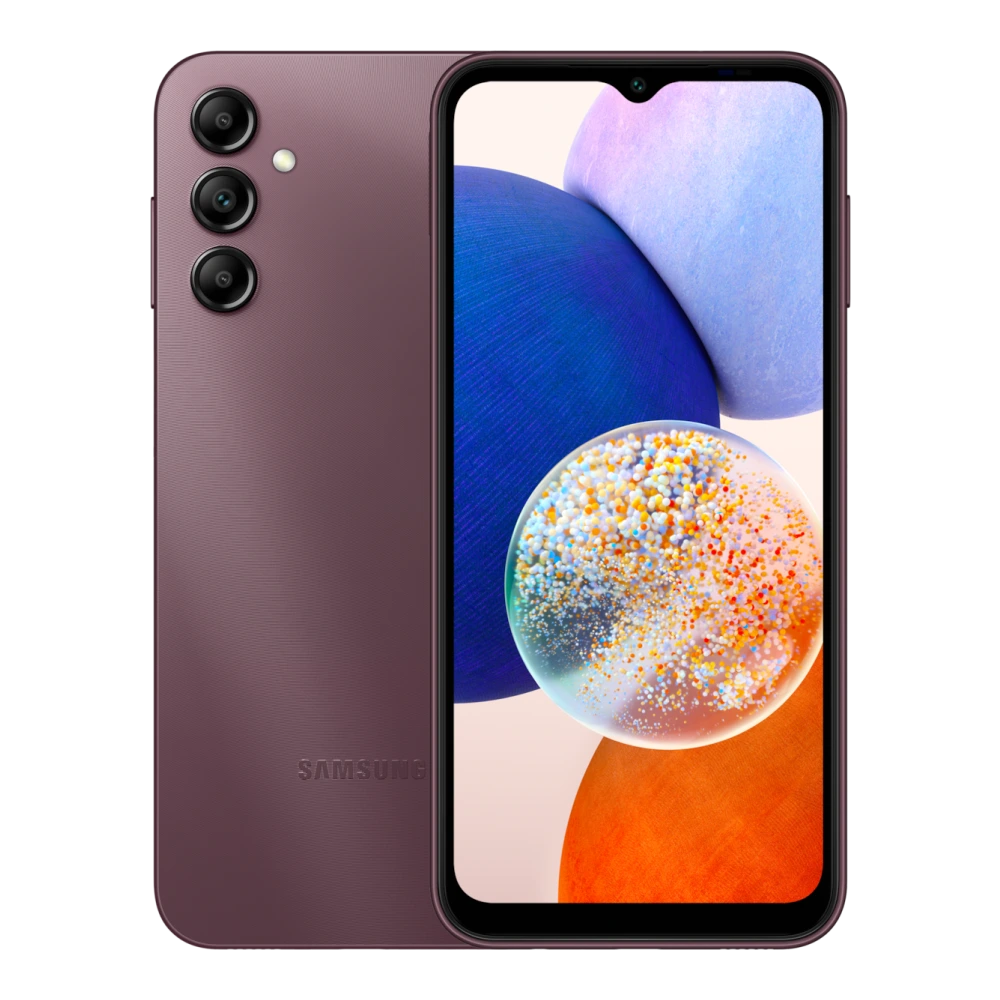
SM-A156E 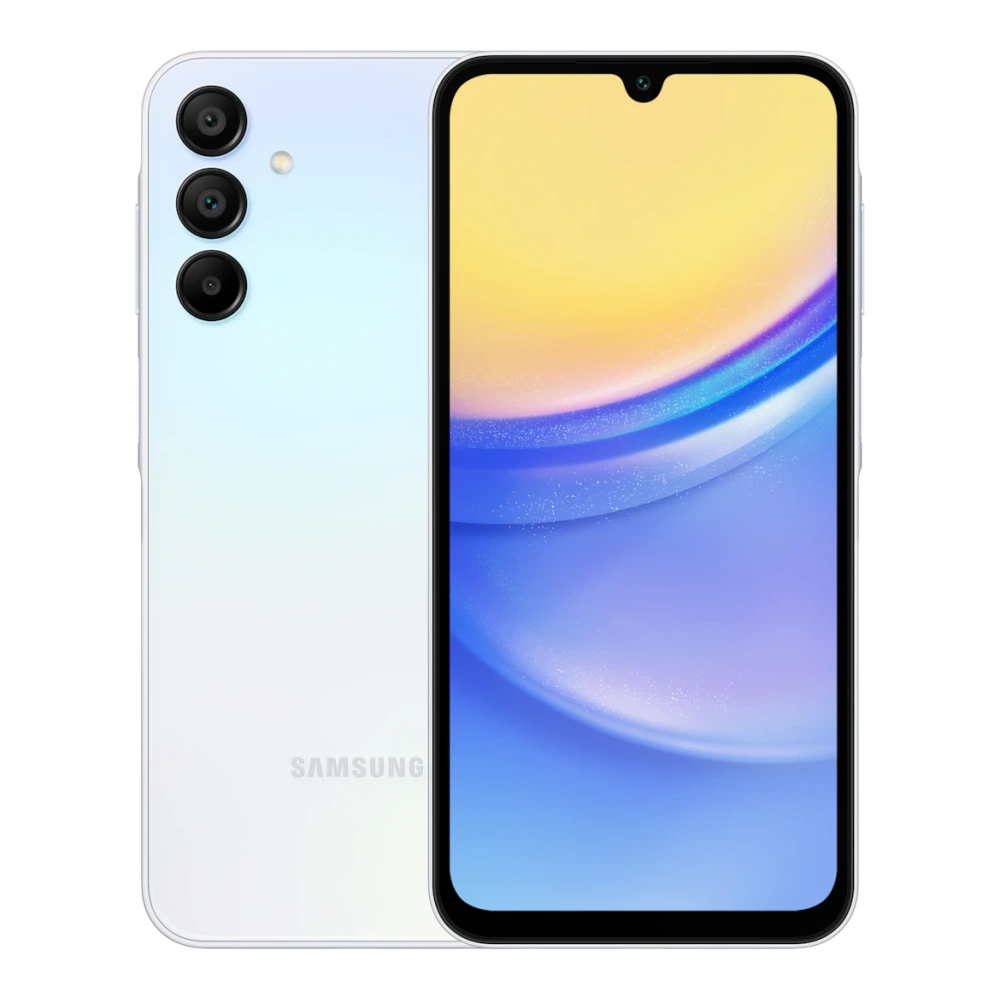
SM-A166P 
SM-A176B 
SM-A260G 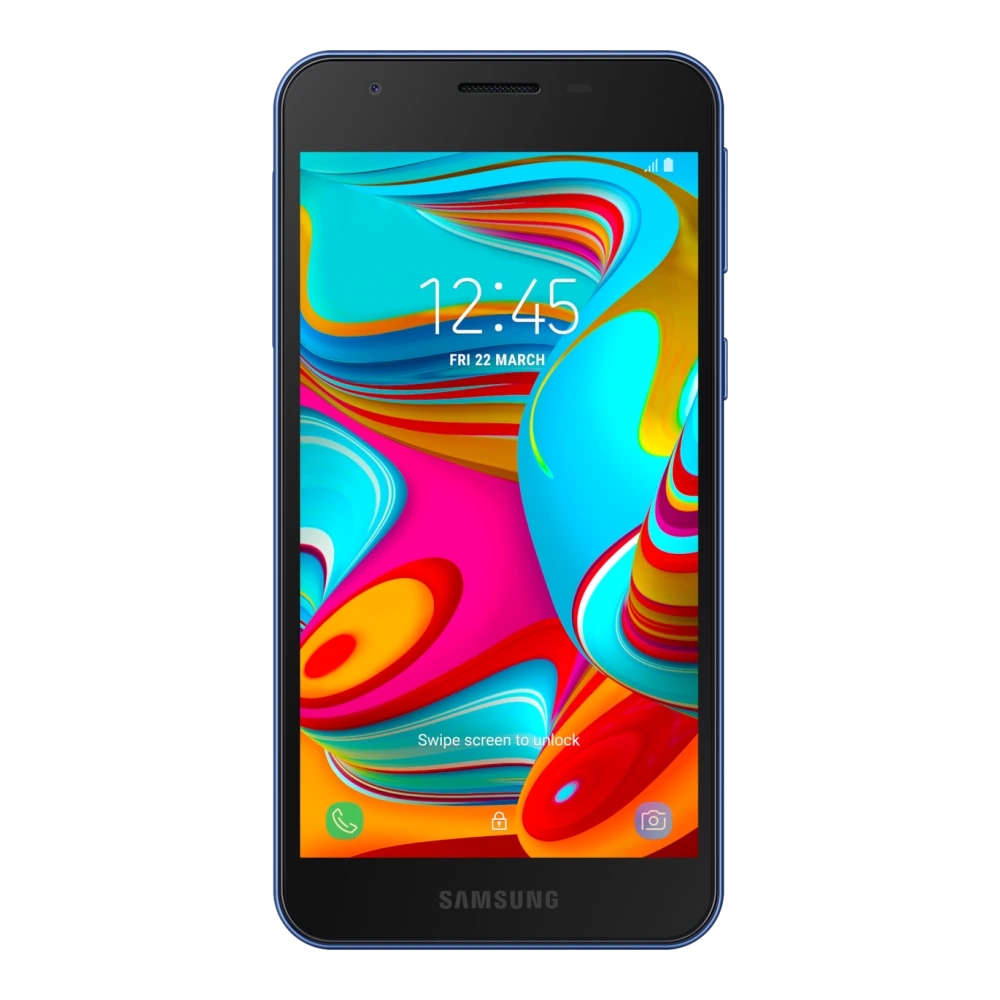
SM-A205F 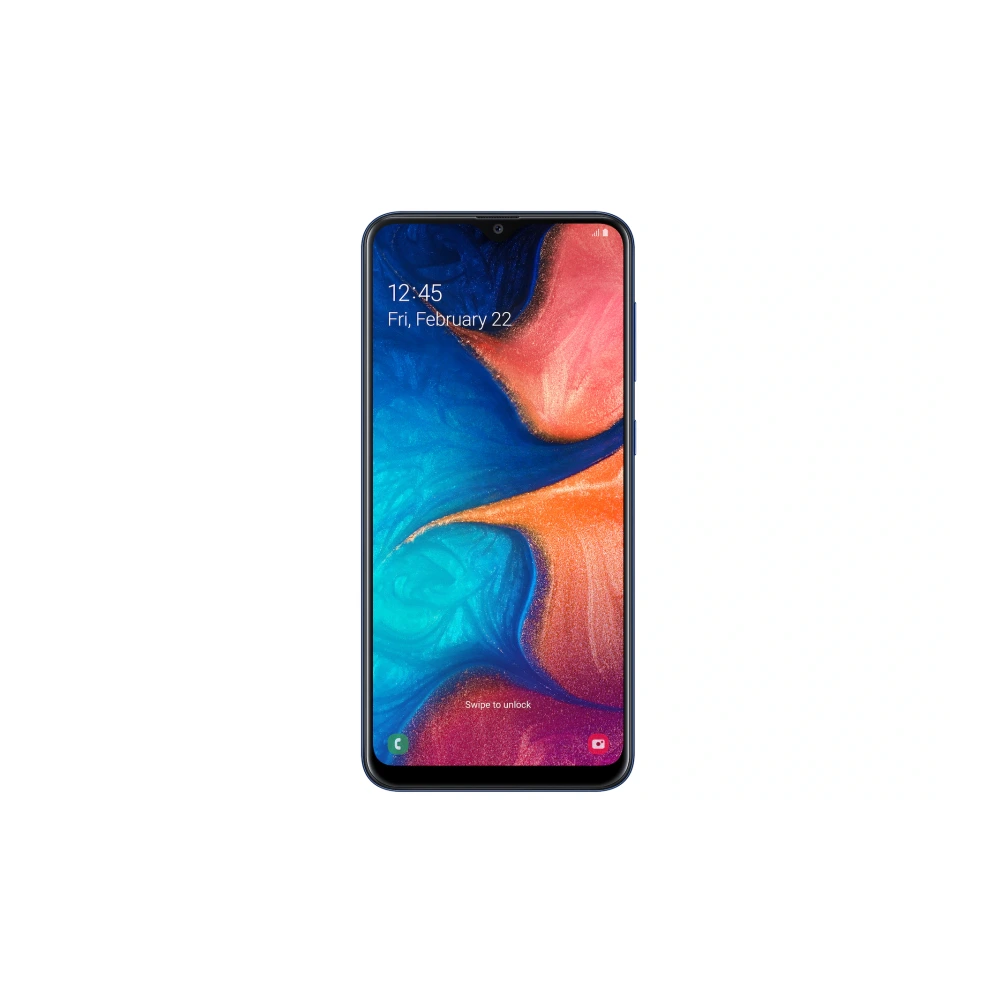
SM-A207F 
SM-A217F 
SM-A225F 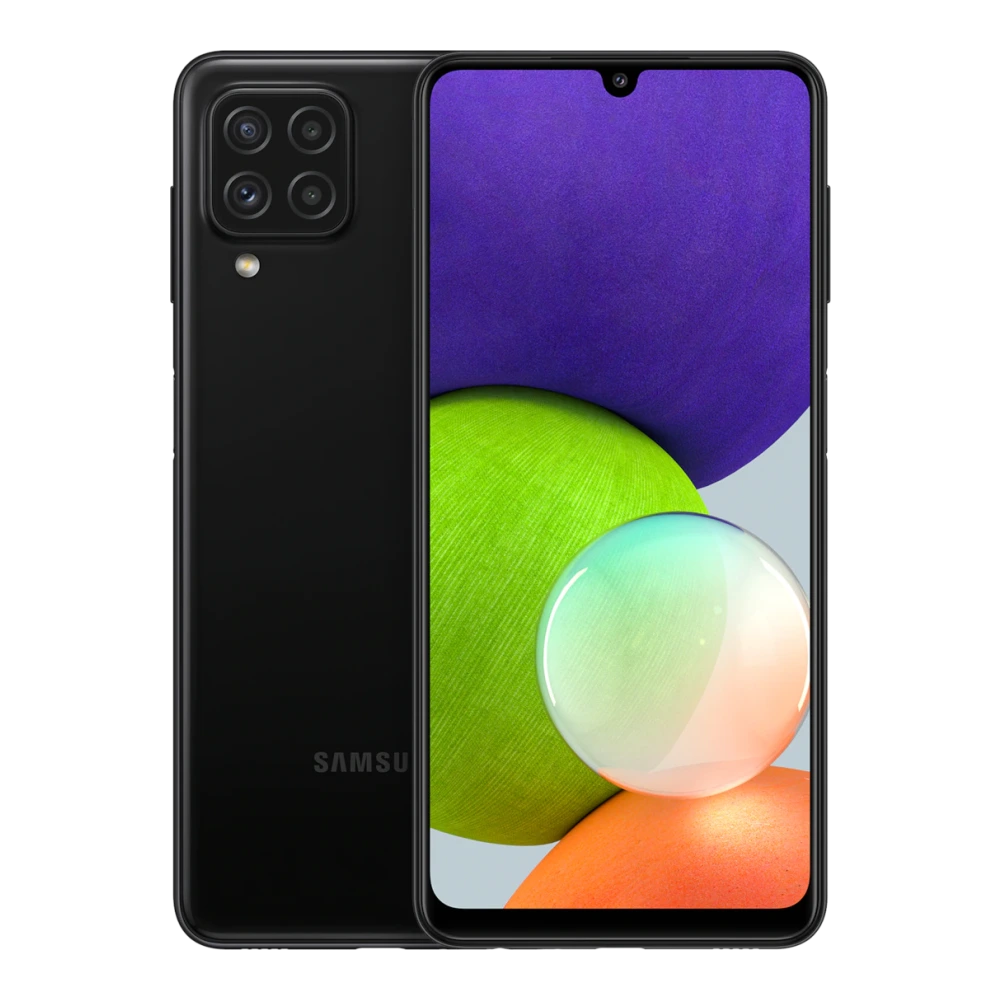
SM-A226B 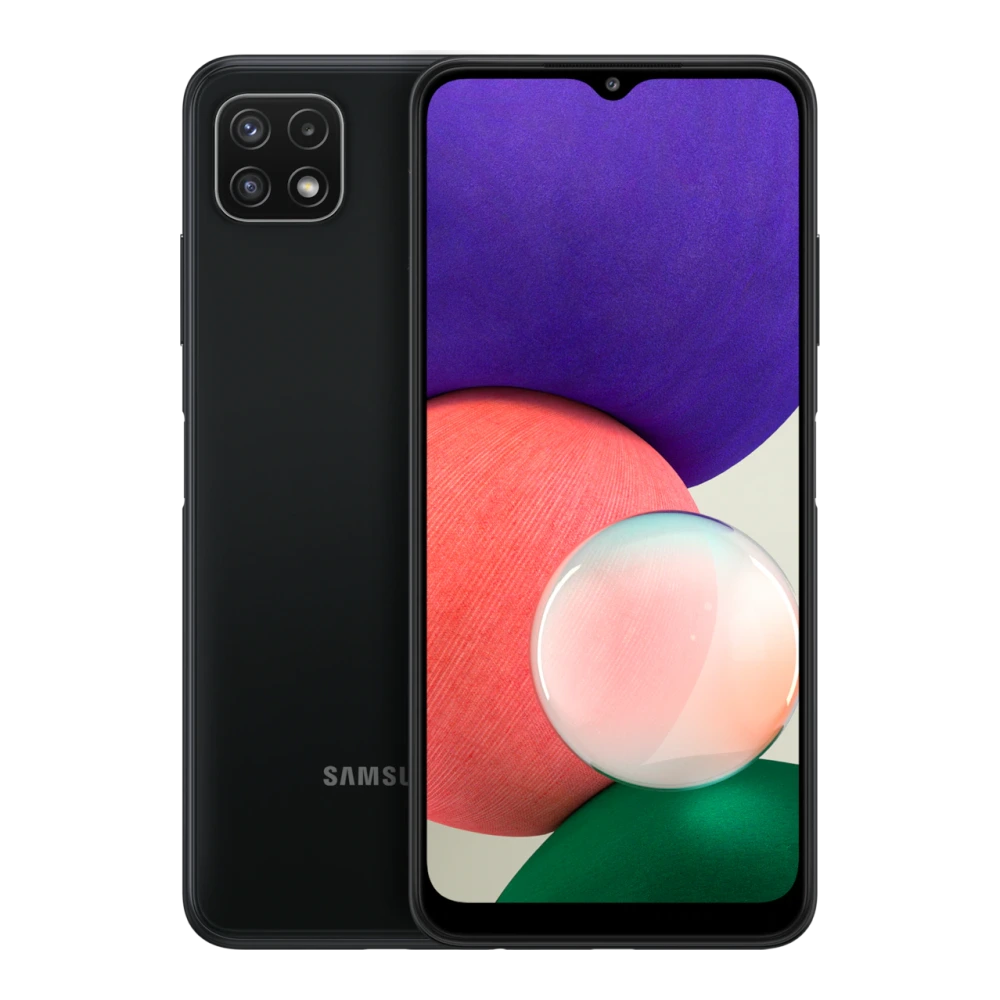
SM-A235F 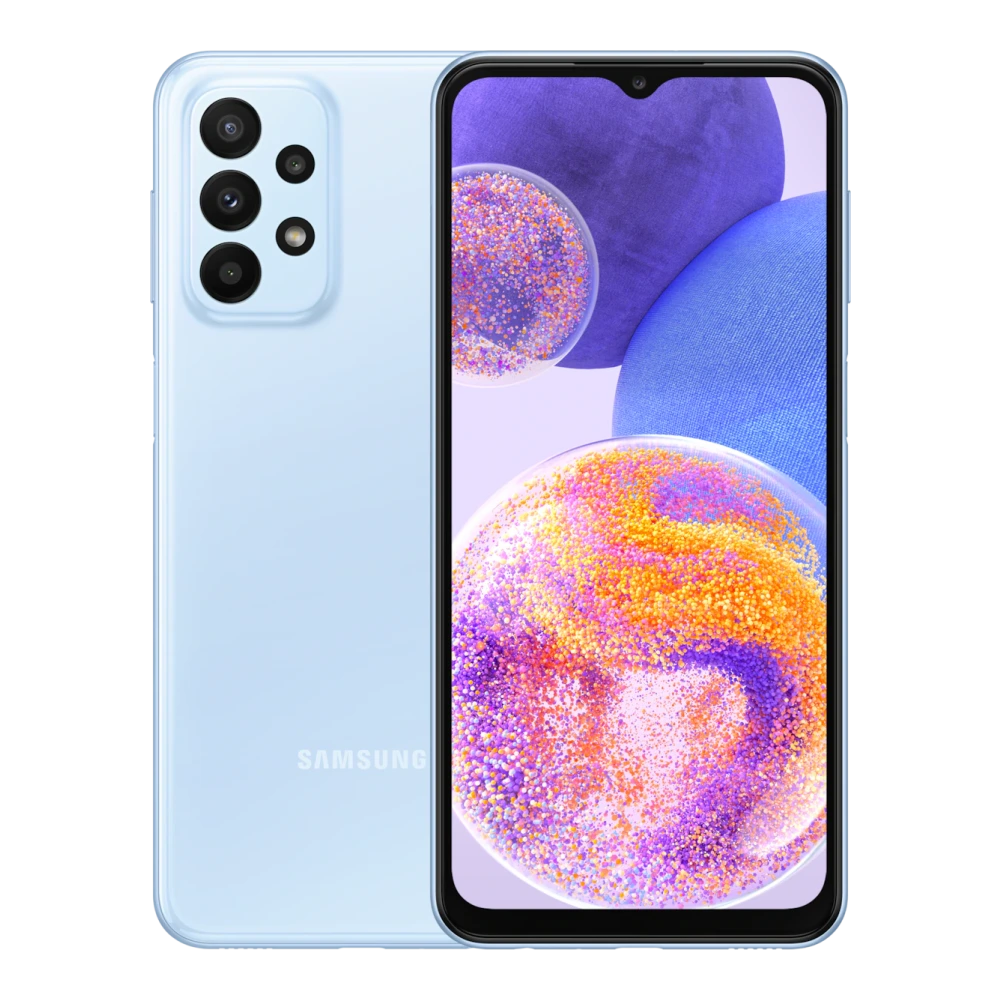
SM-A236E 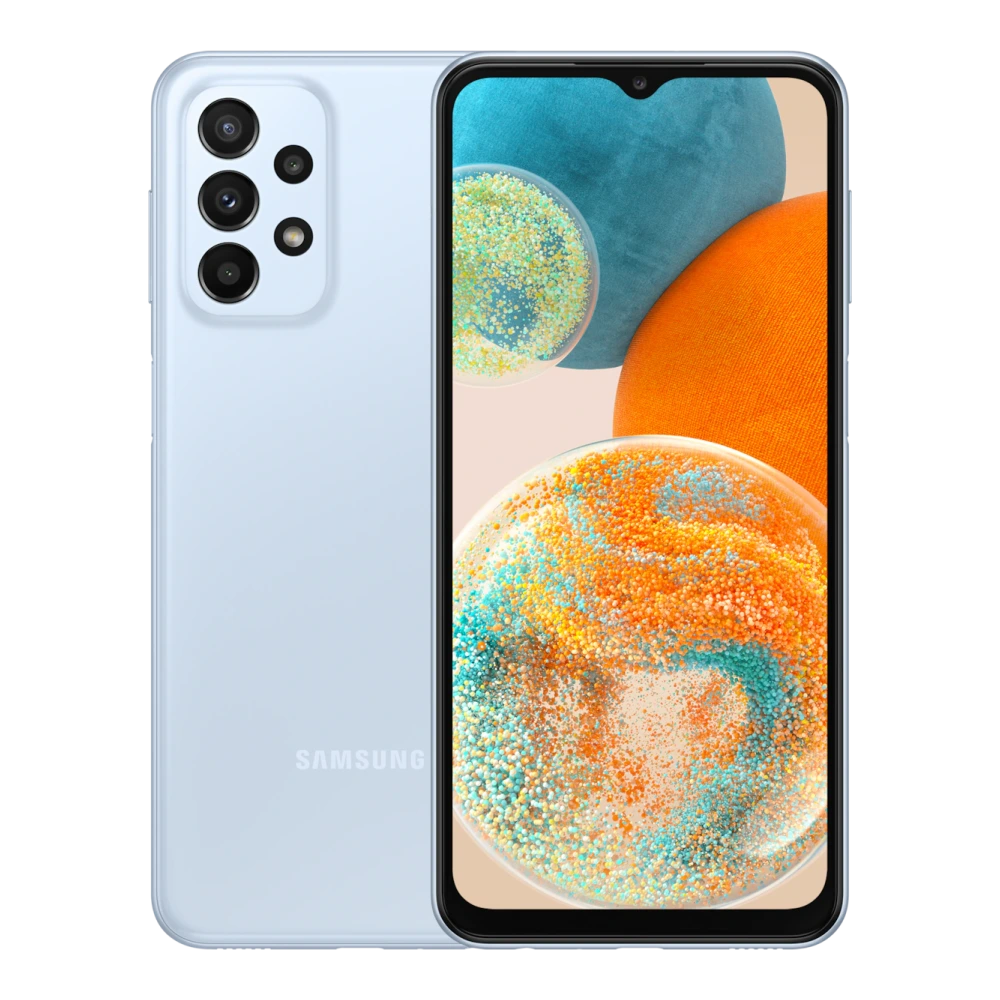
SM-A245F
SM-A266B 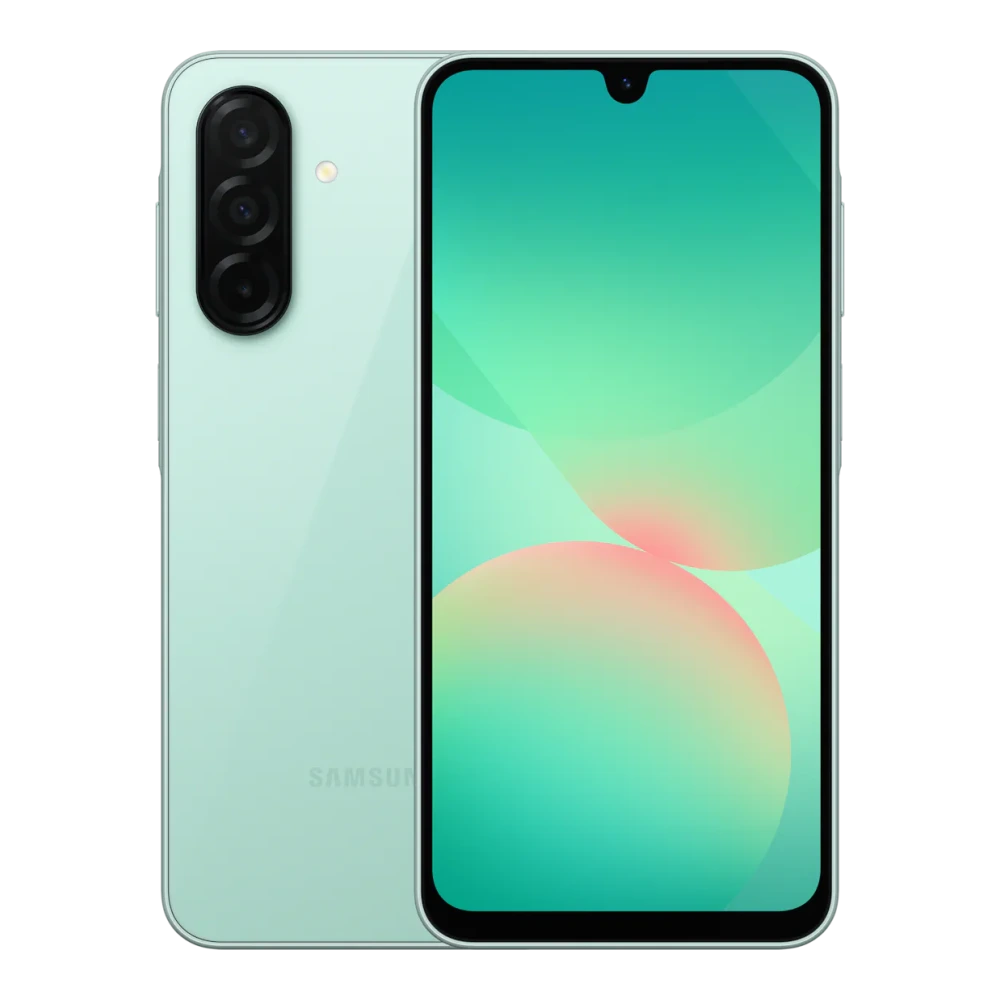
SM-A276B 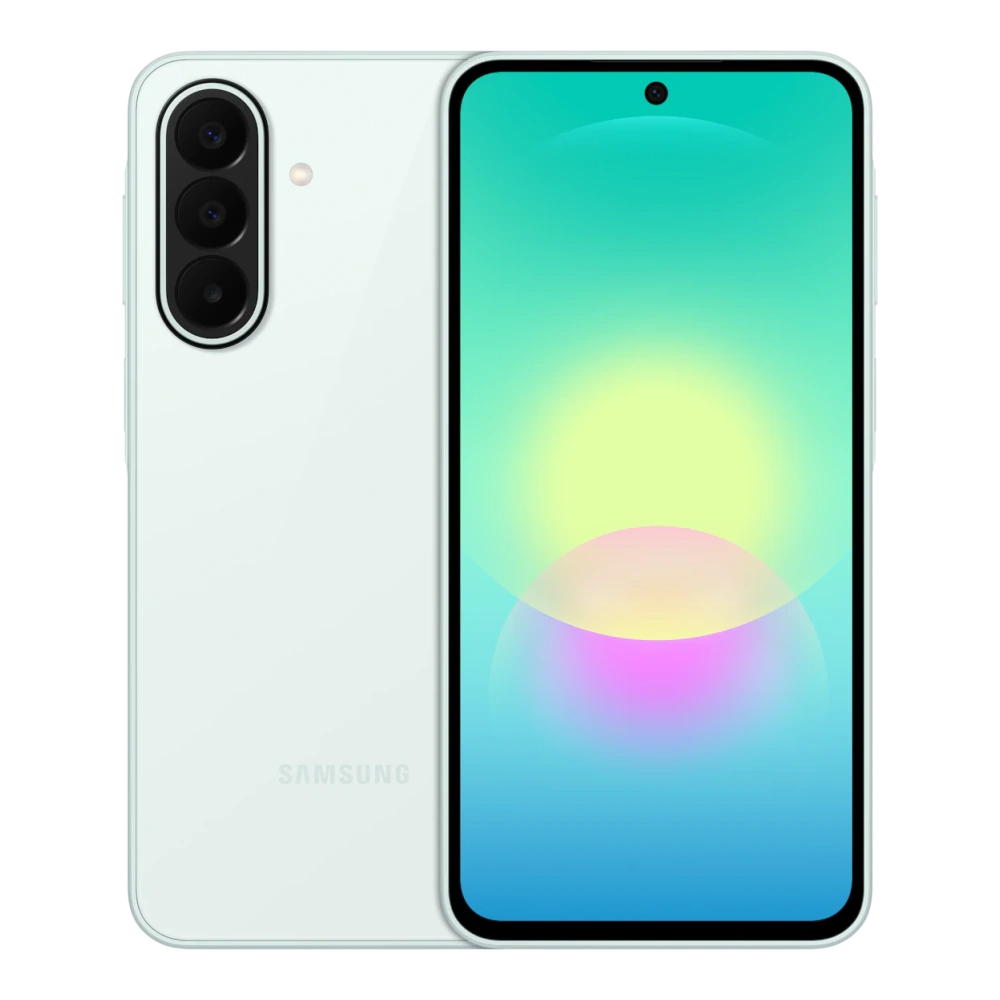
SM-A300H 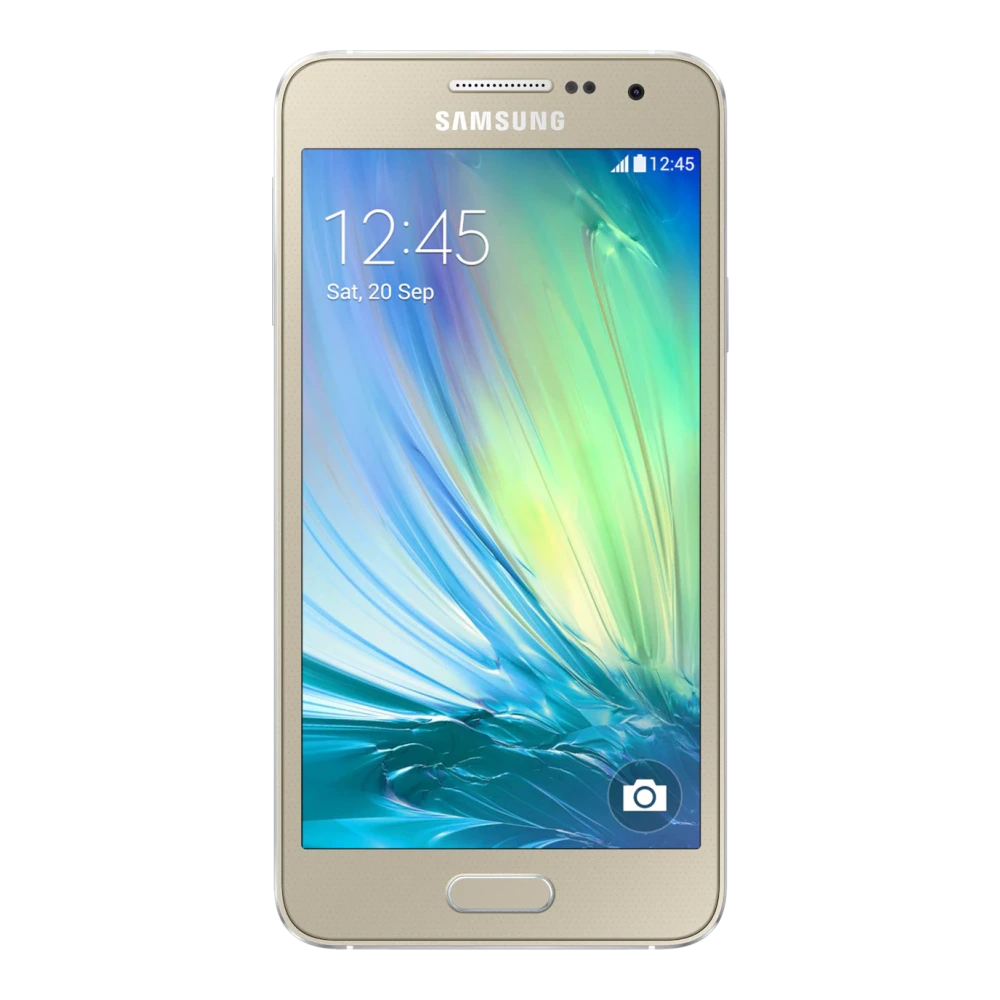
SM-A305F 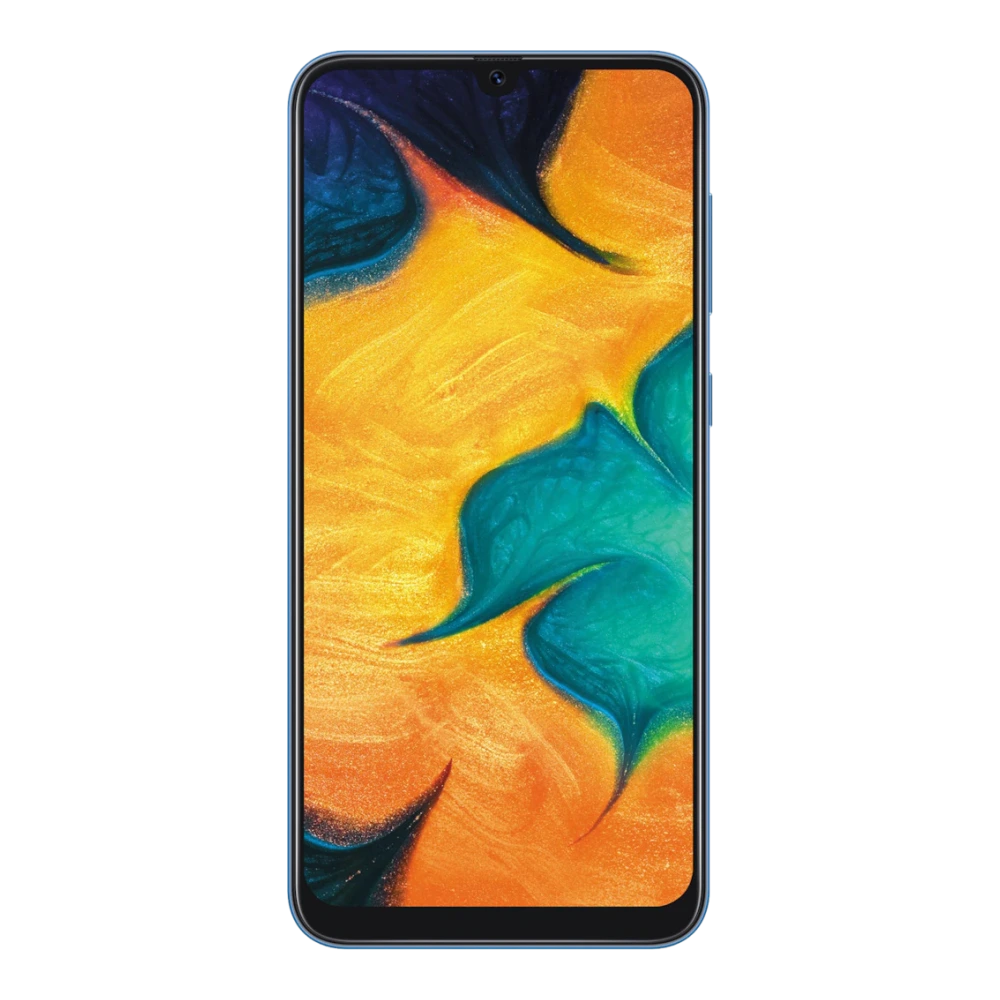
SM-A307FN 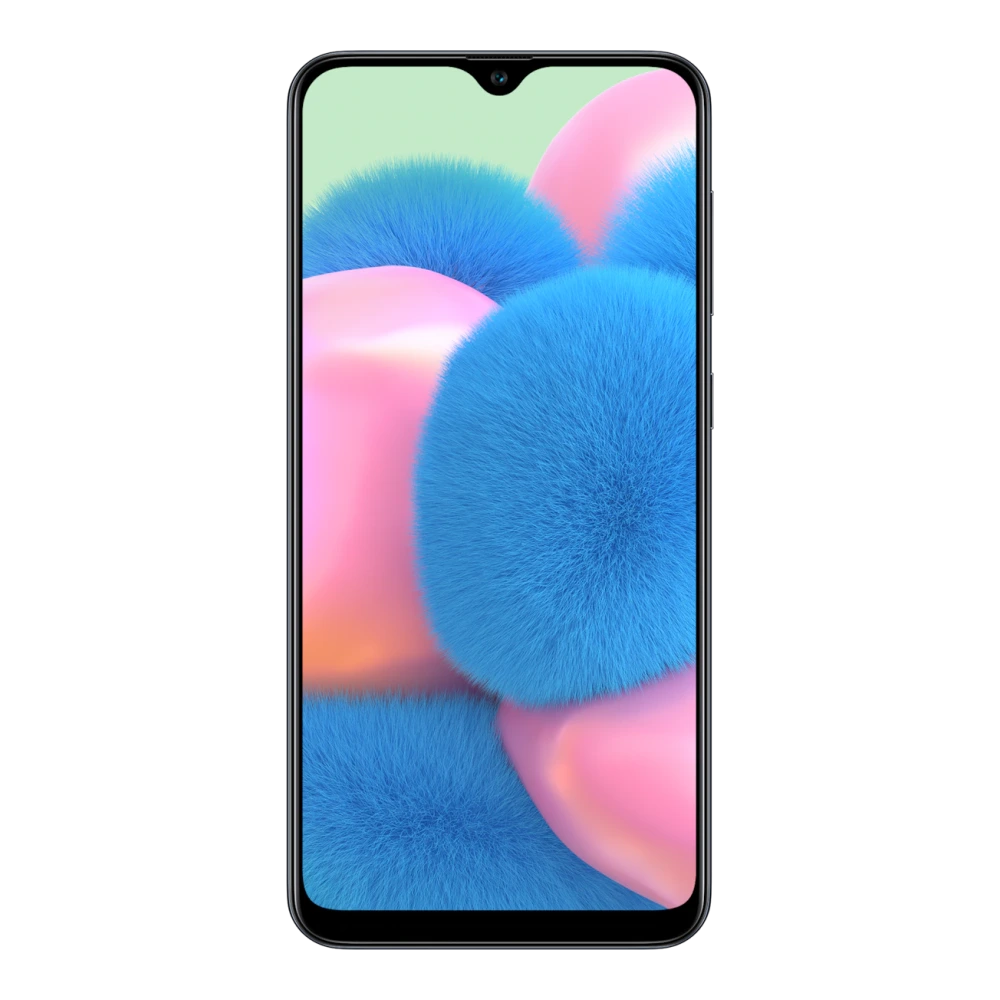
SM-A315F 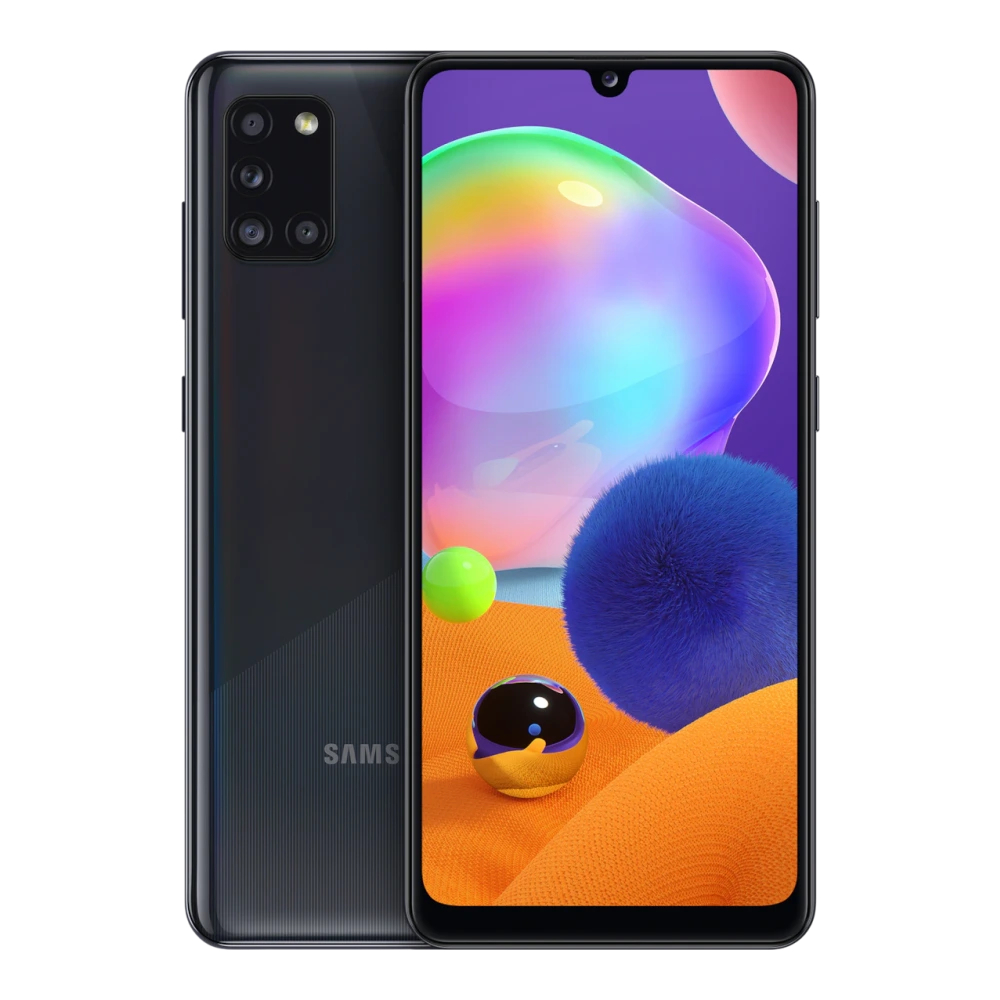
SM-A325F 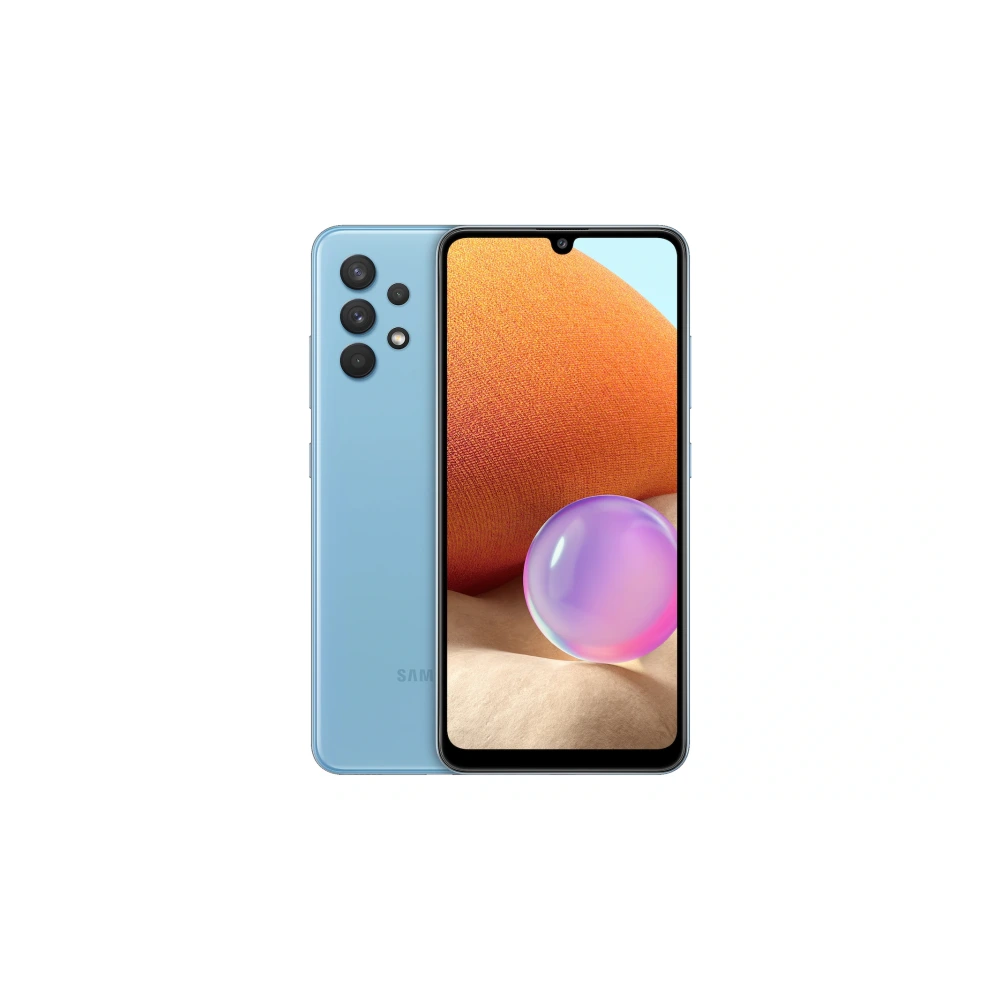
SM-A336E 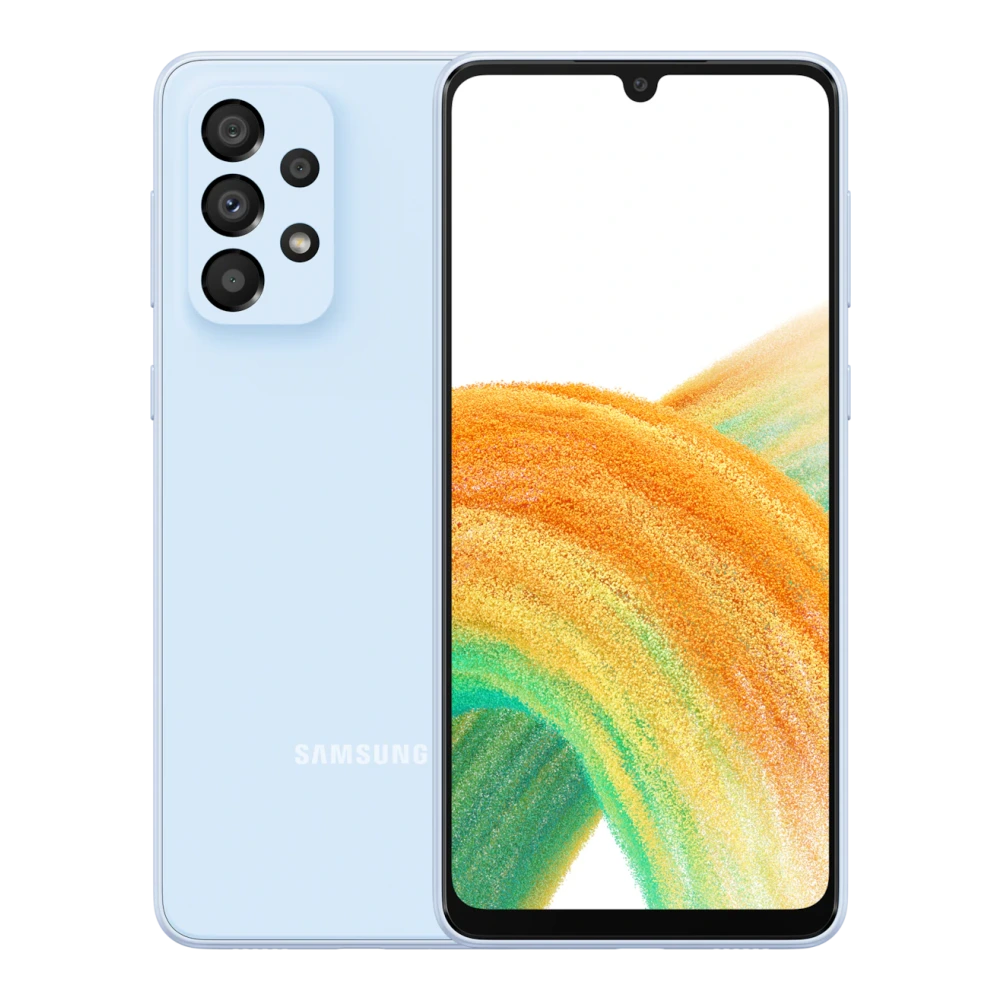
SM-A346E 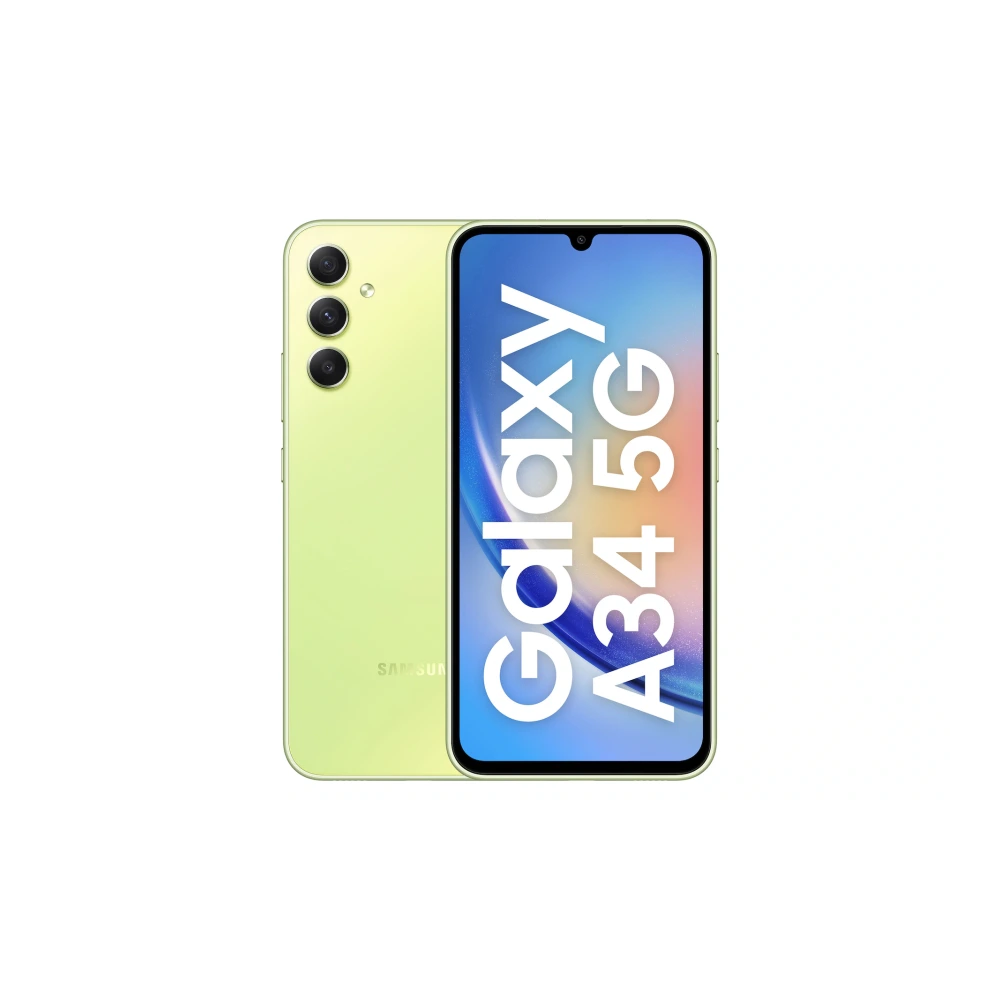
SM-A356E 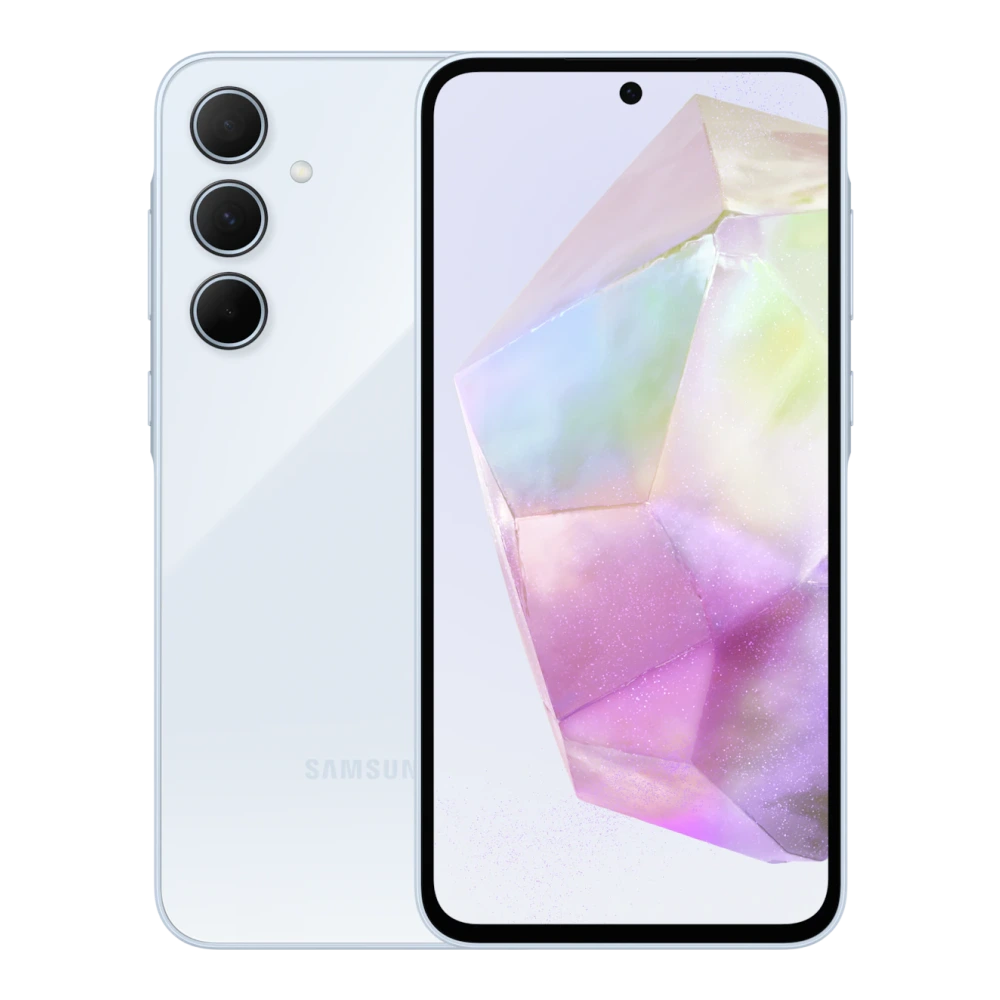
SM-A366E 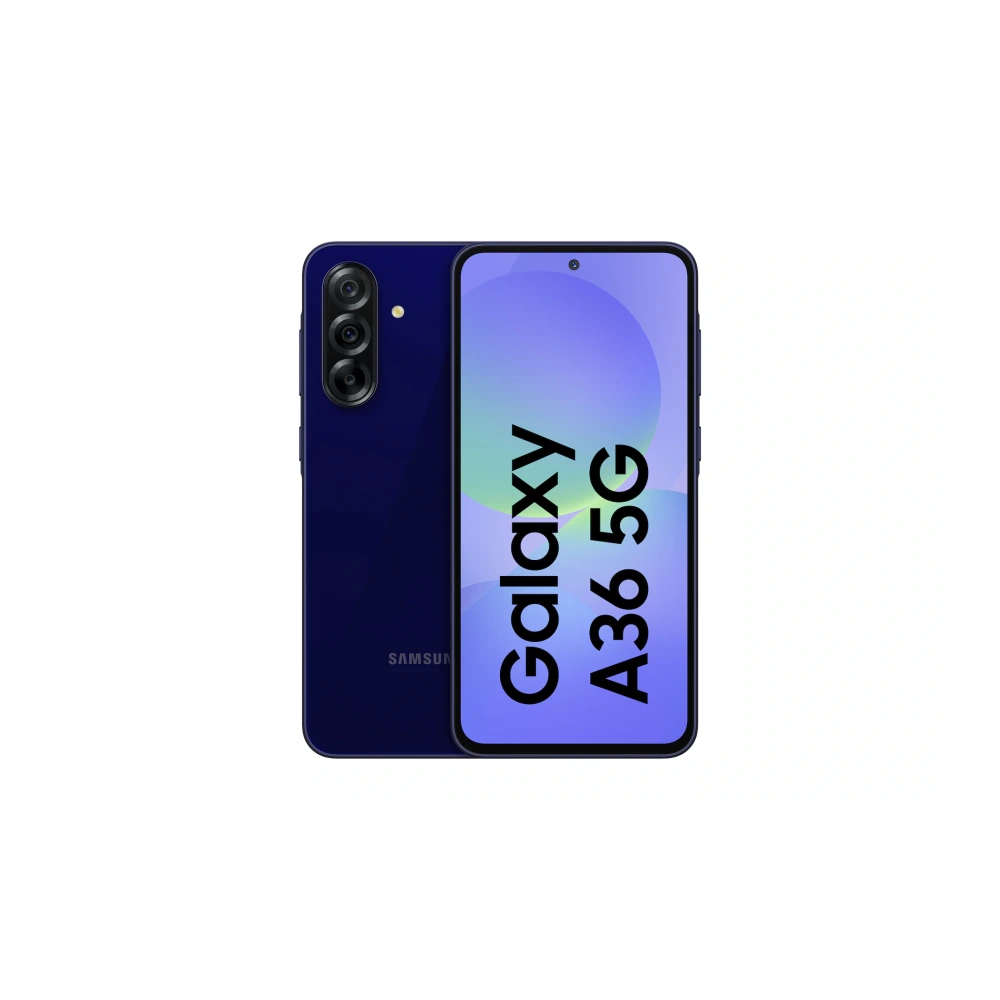
SM-A376E 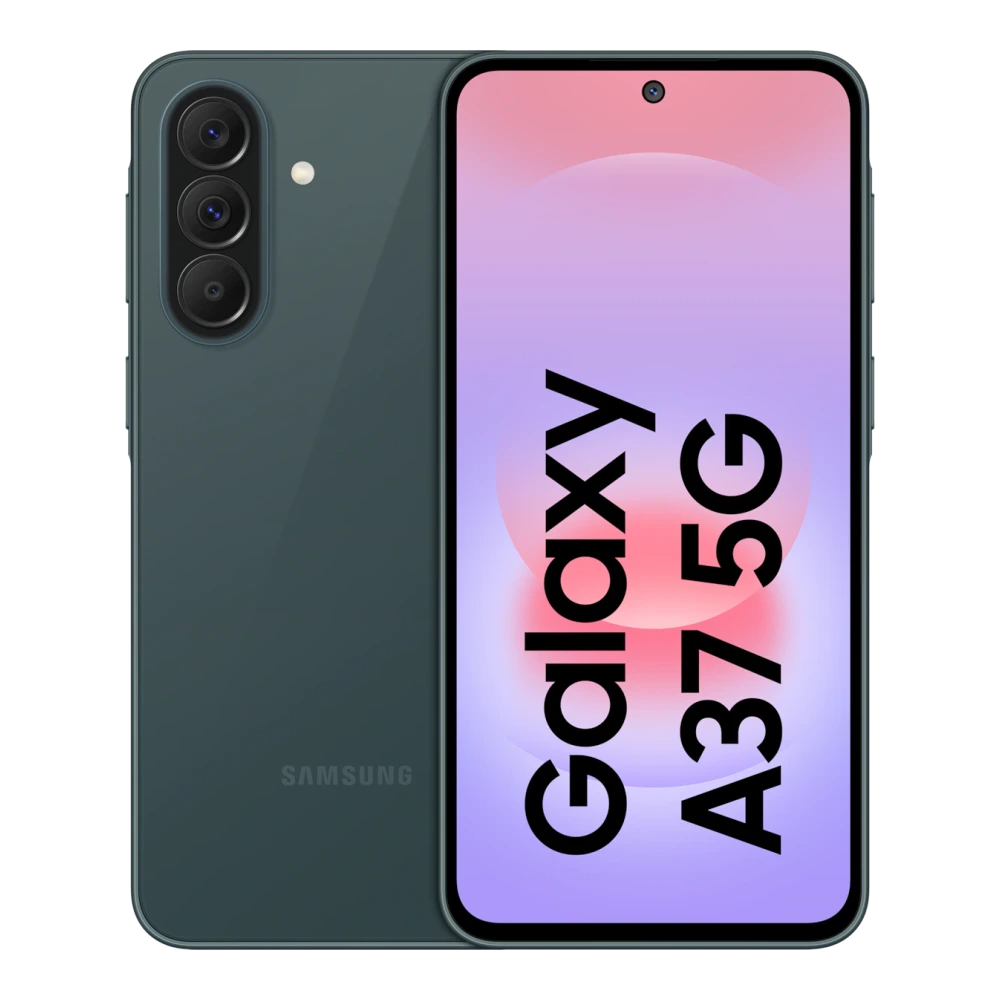
SM-A500H 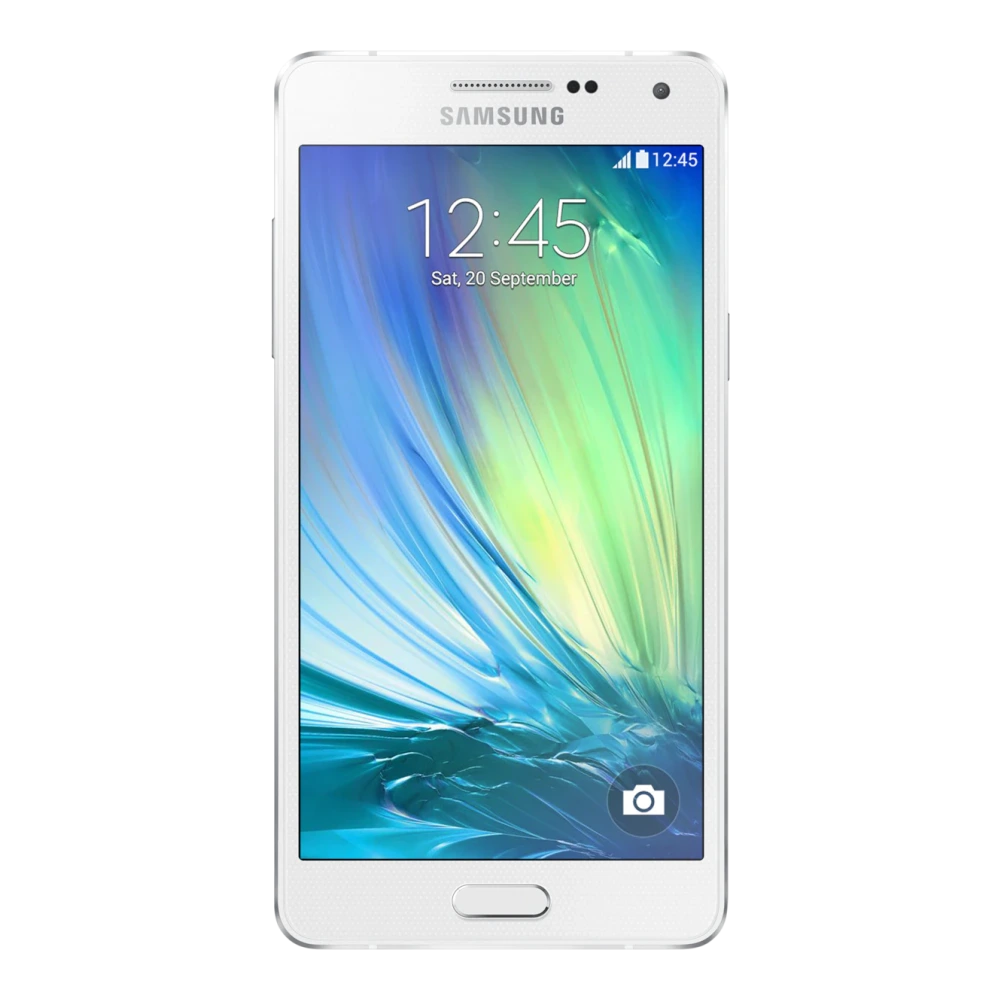
SM-A505F 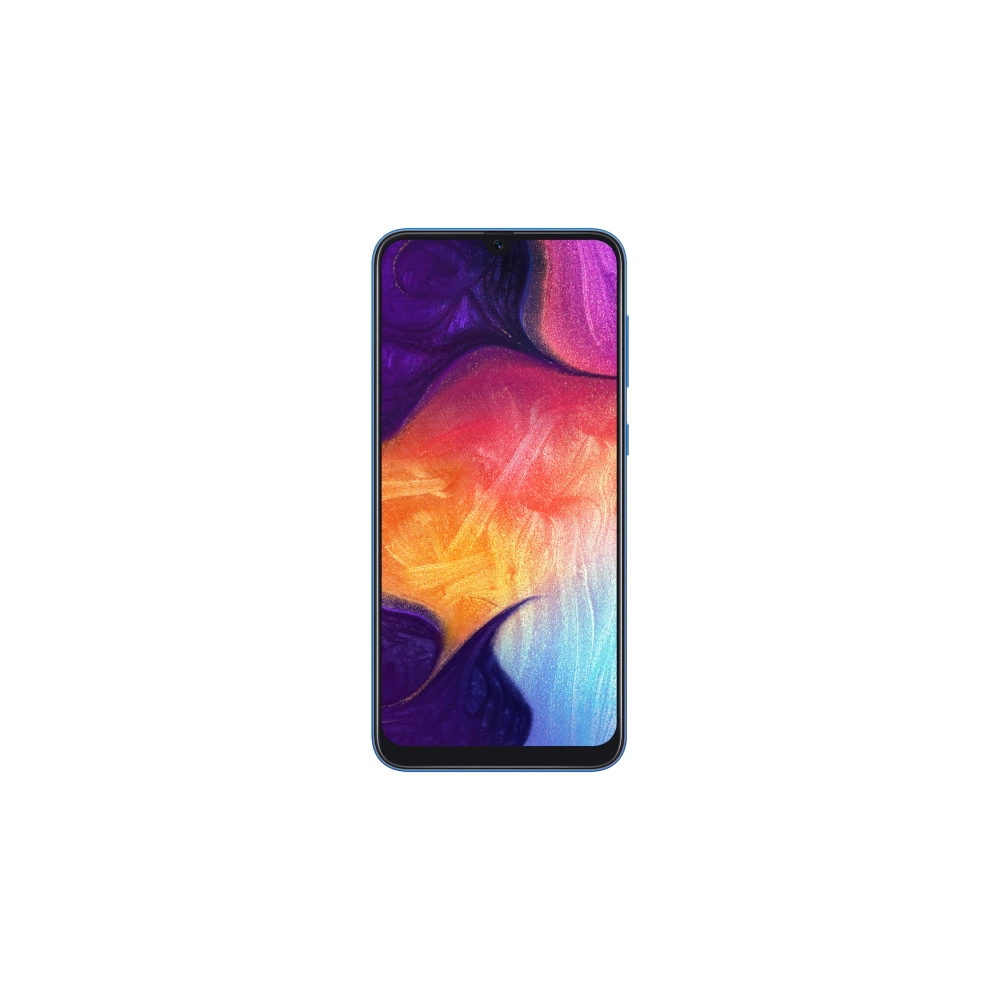
SM-A507FN 
SM-A525F 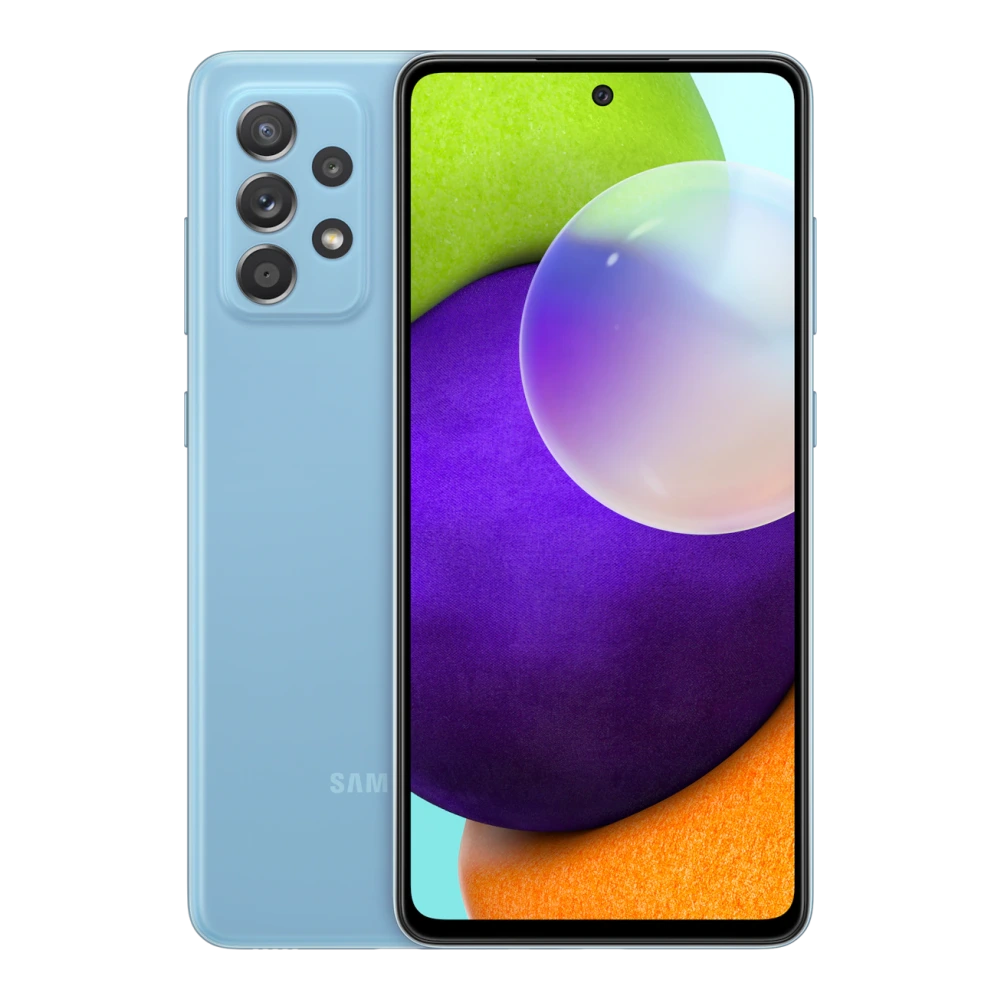
SM-A528B 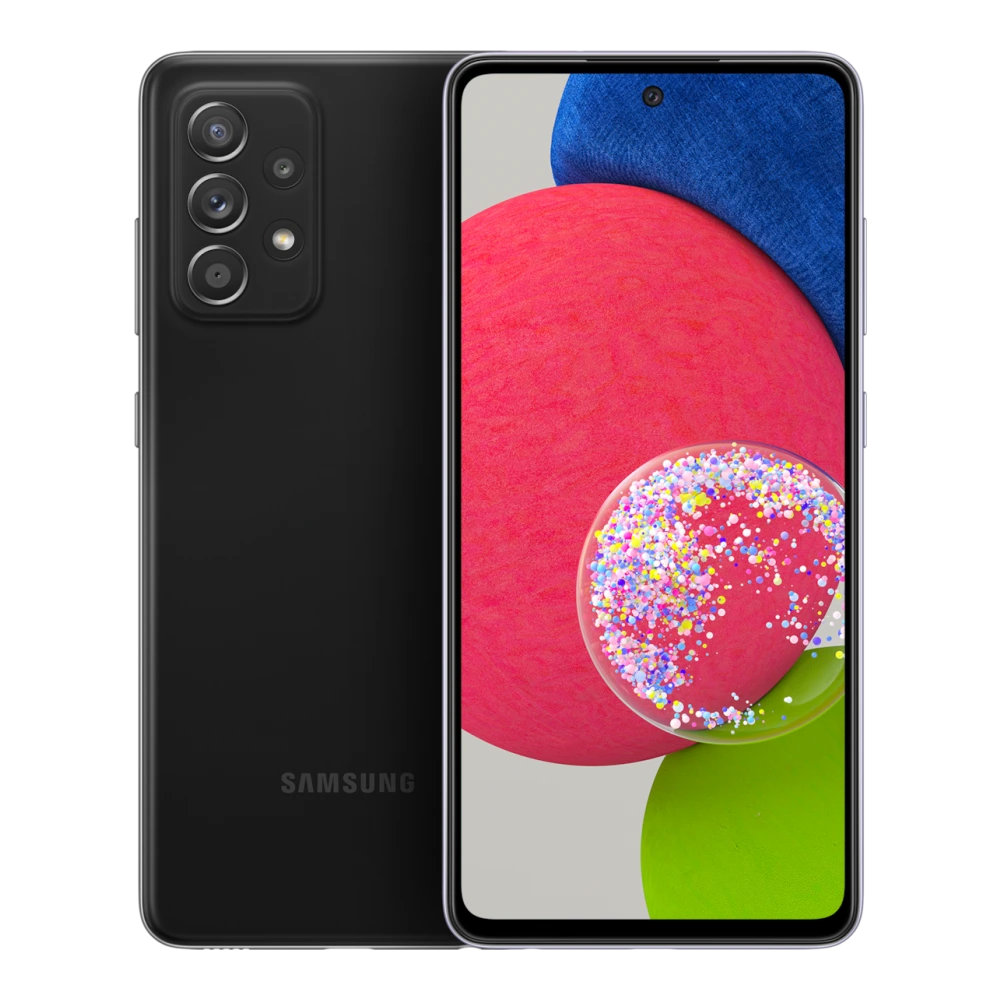
SM-A536E 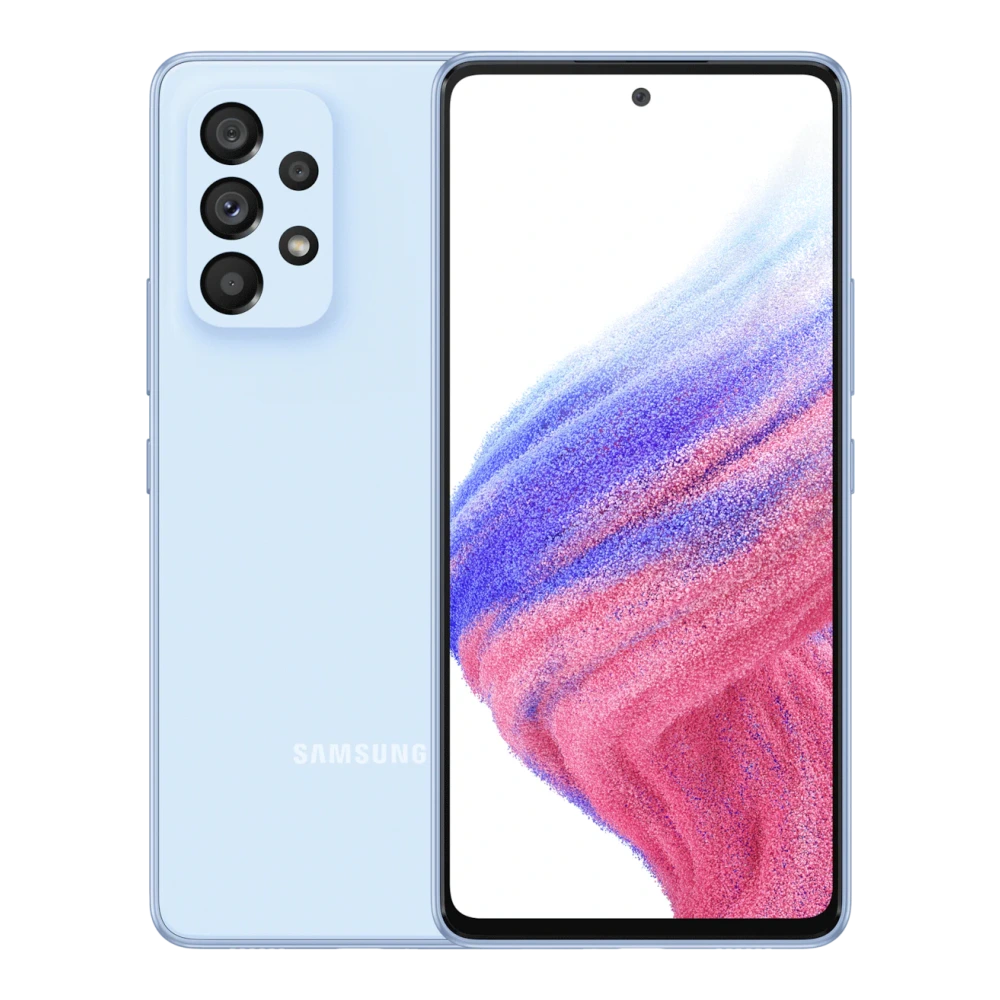
SM-A546E 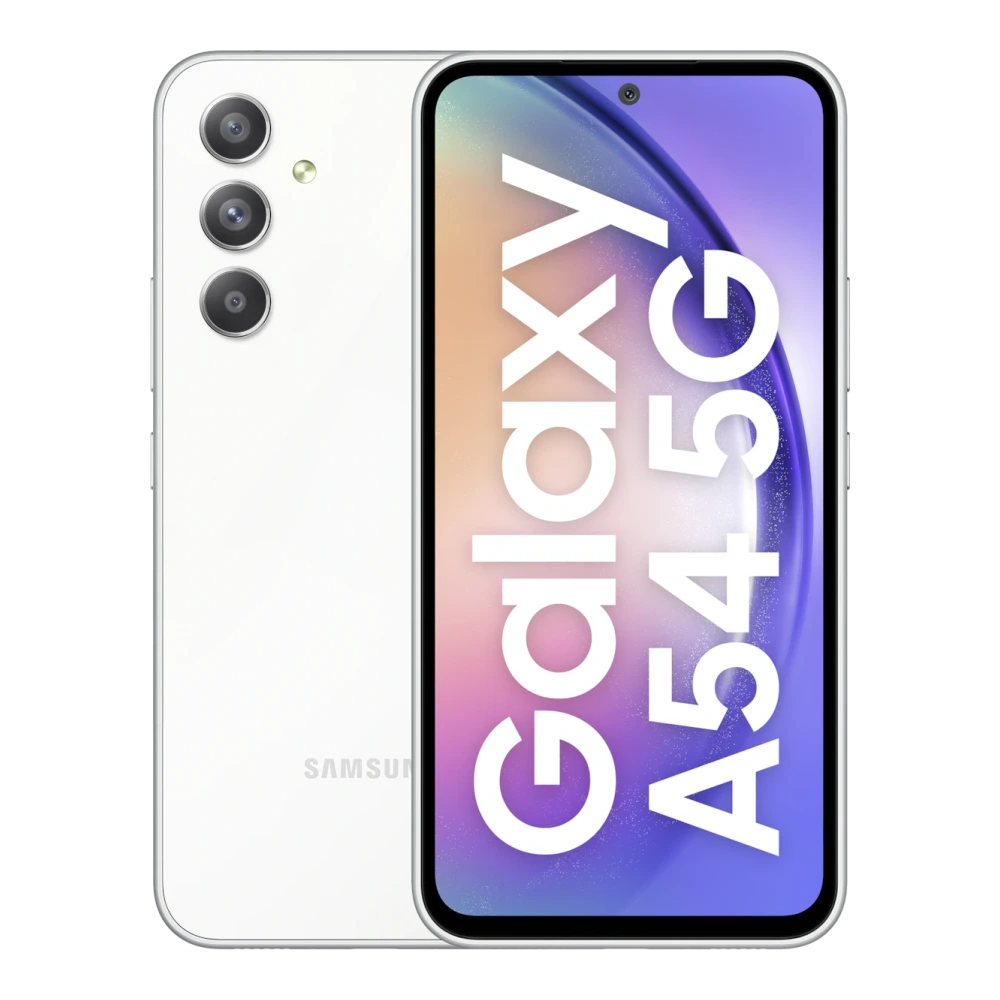
SM-A556E 
SM-A566E 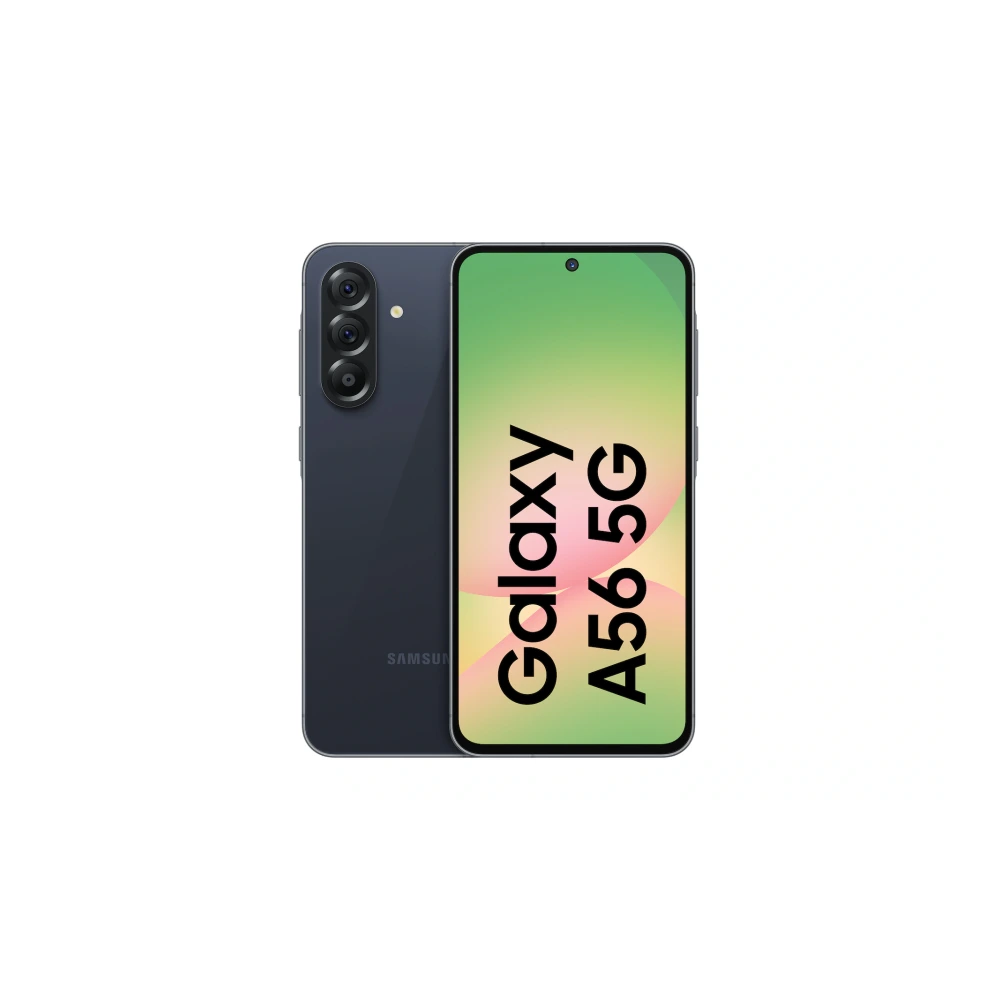
SM-A576B 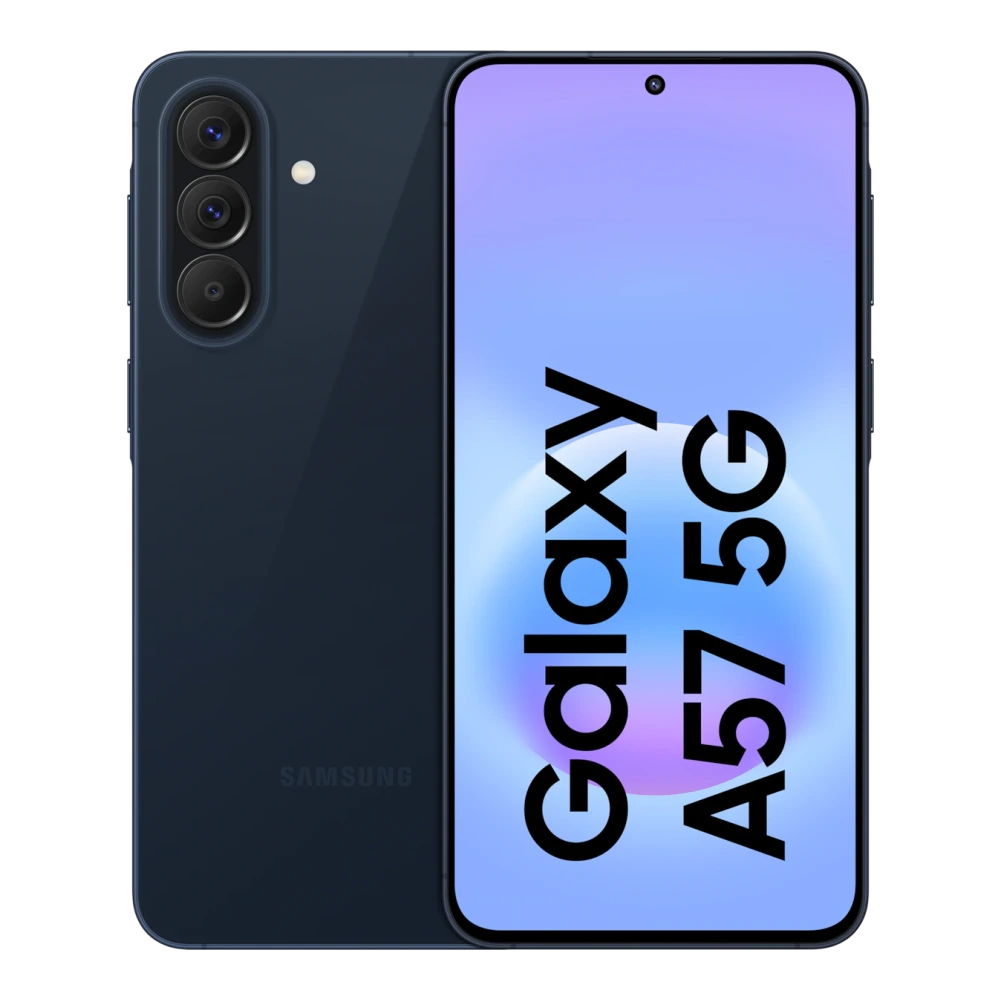
SM-A600G 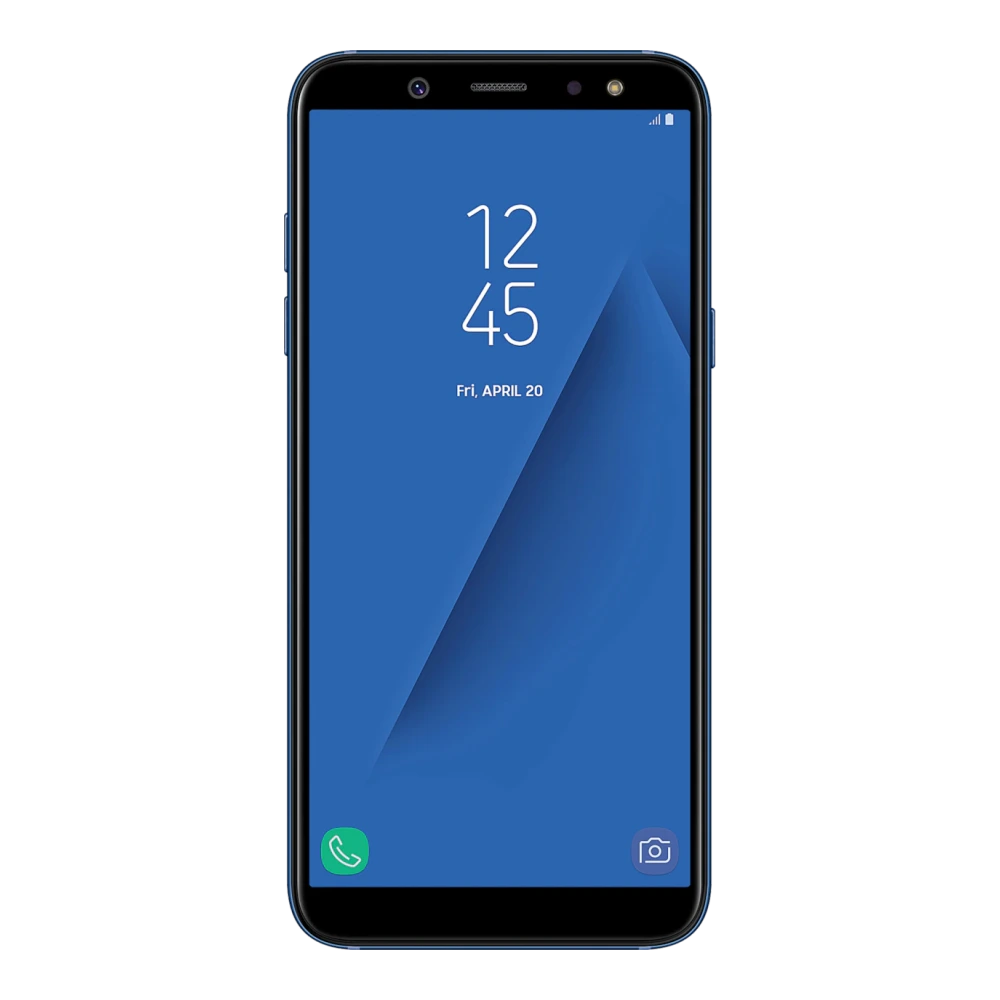
SM-A605G 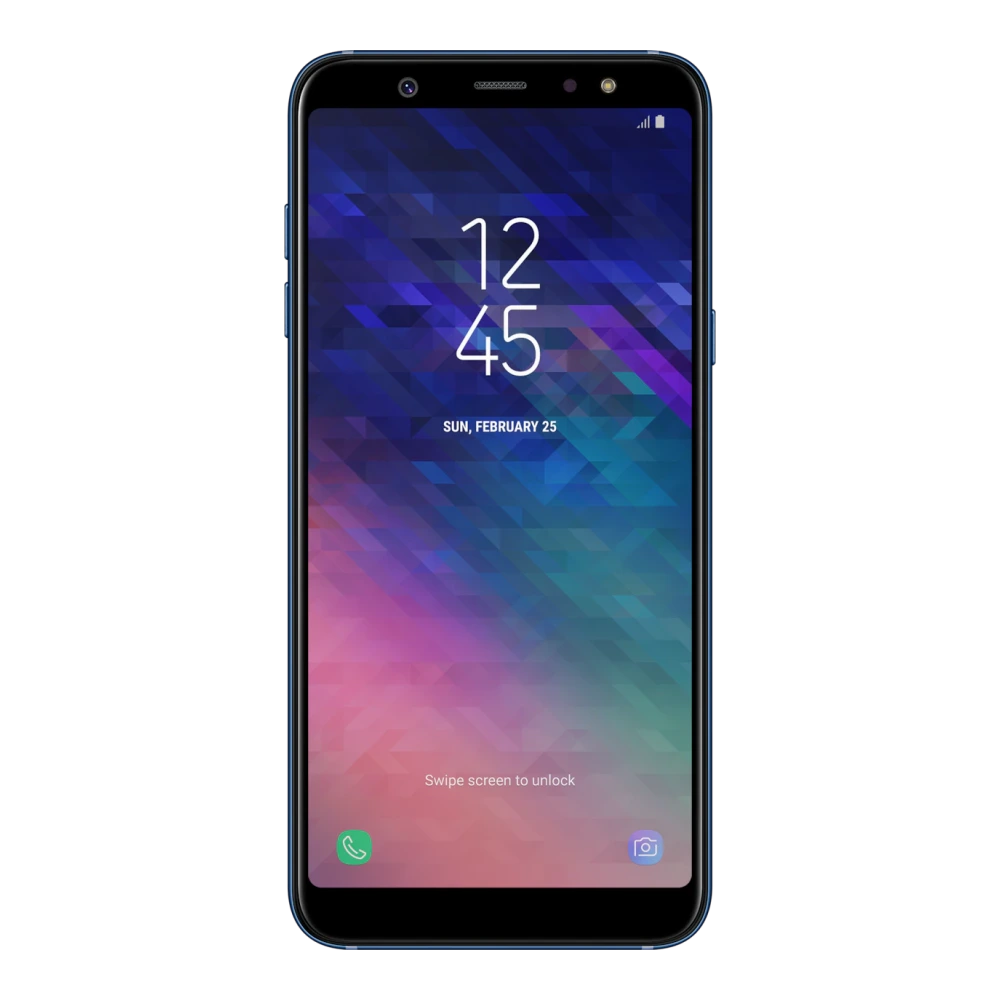
SM-A750F 
SM-A705GM 
SM-A707F 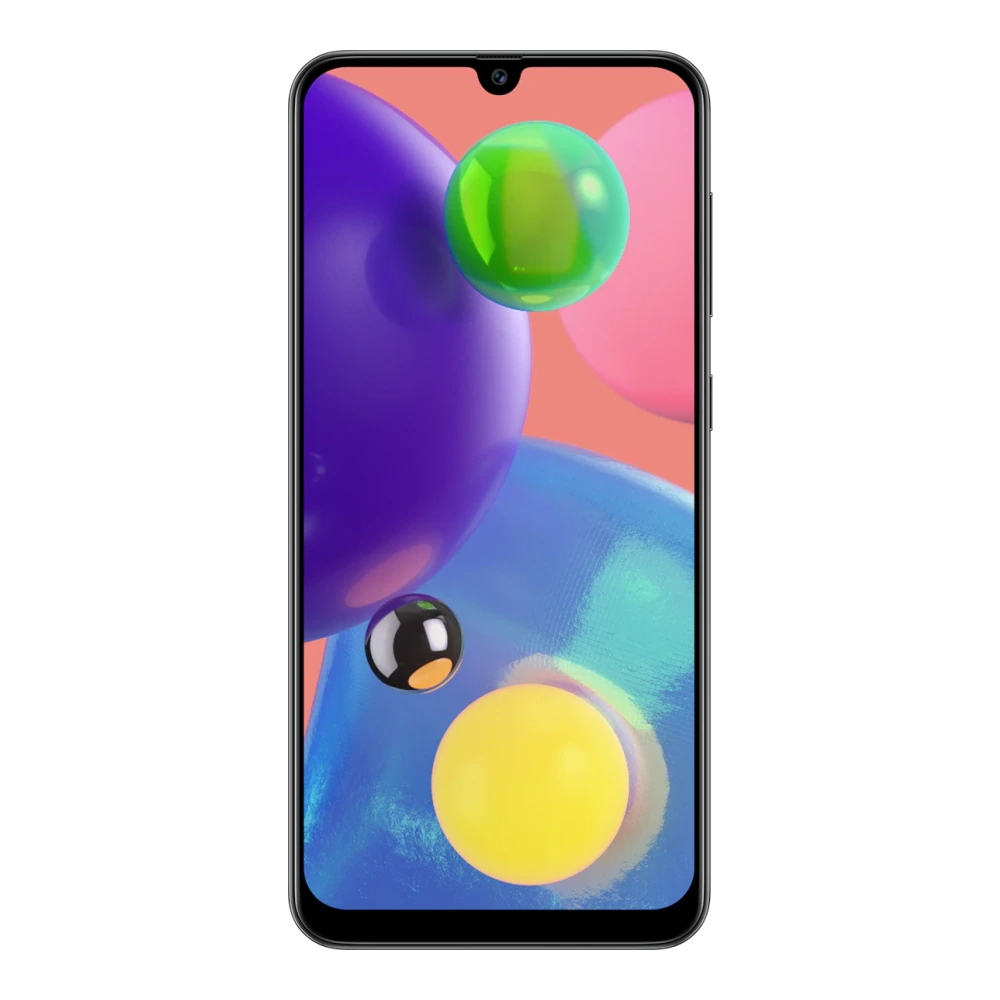
SM-A715F 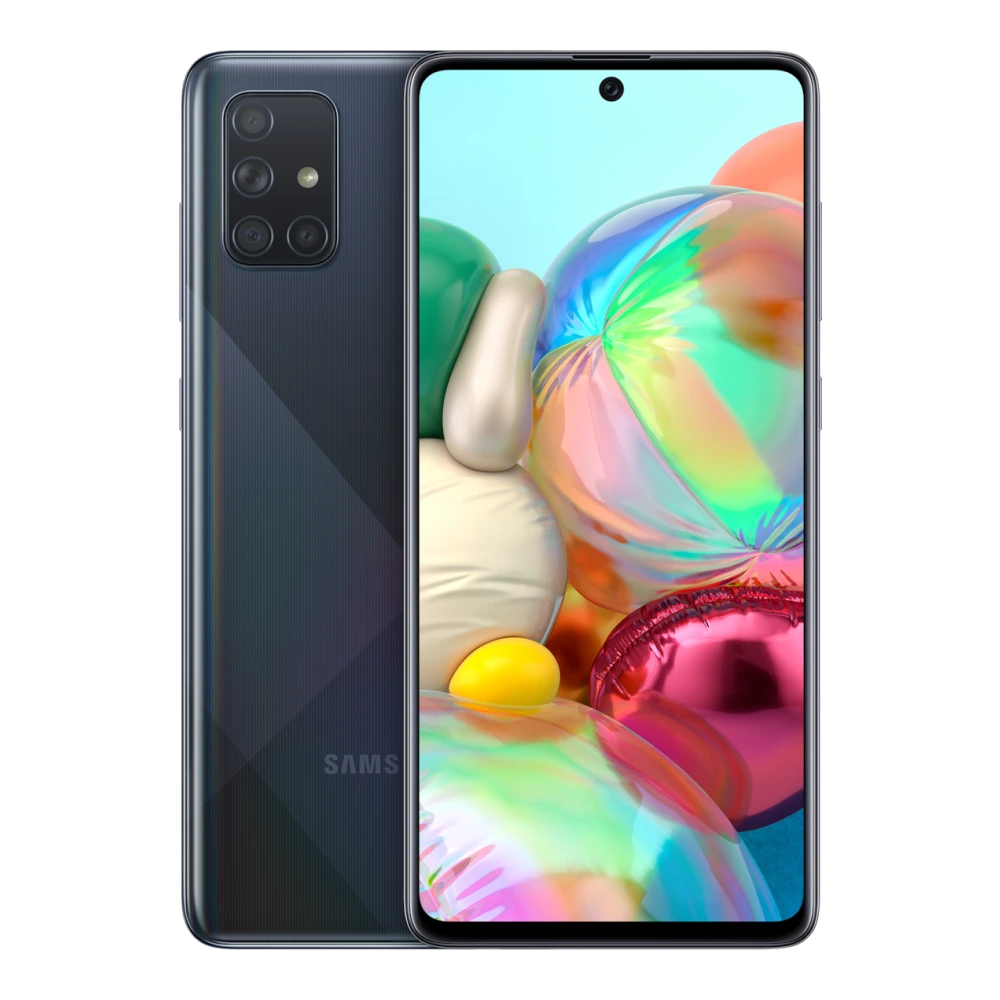
SM-A725F 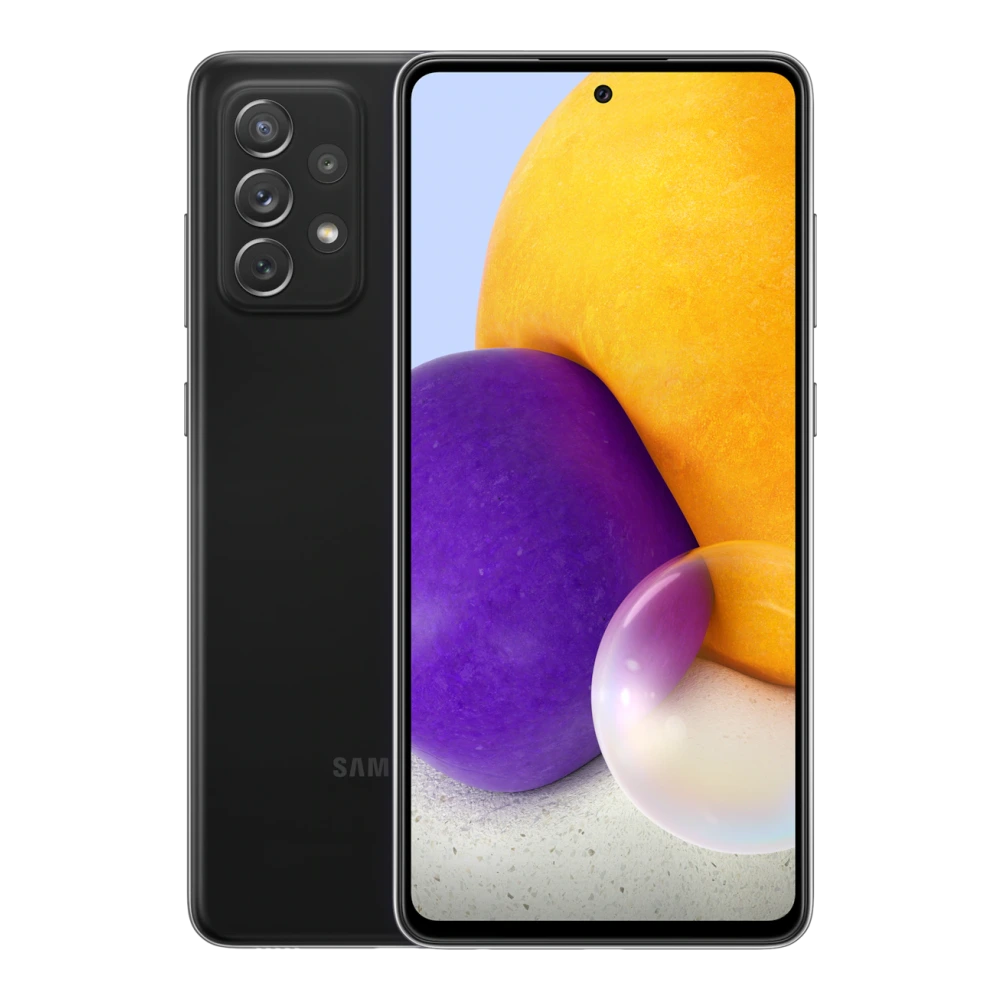
SM-A736B 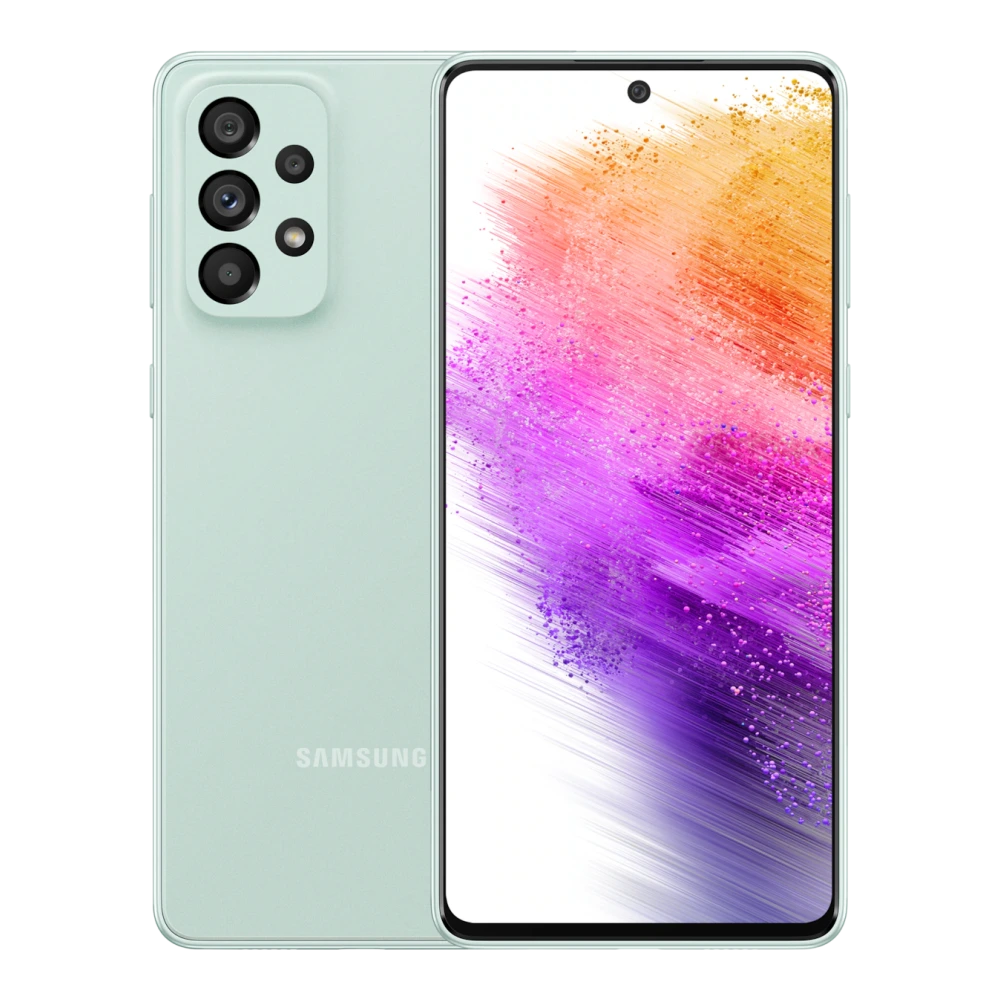
SM-A800I 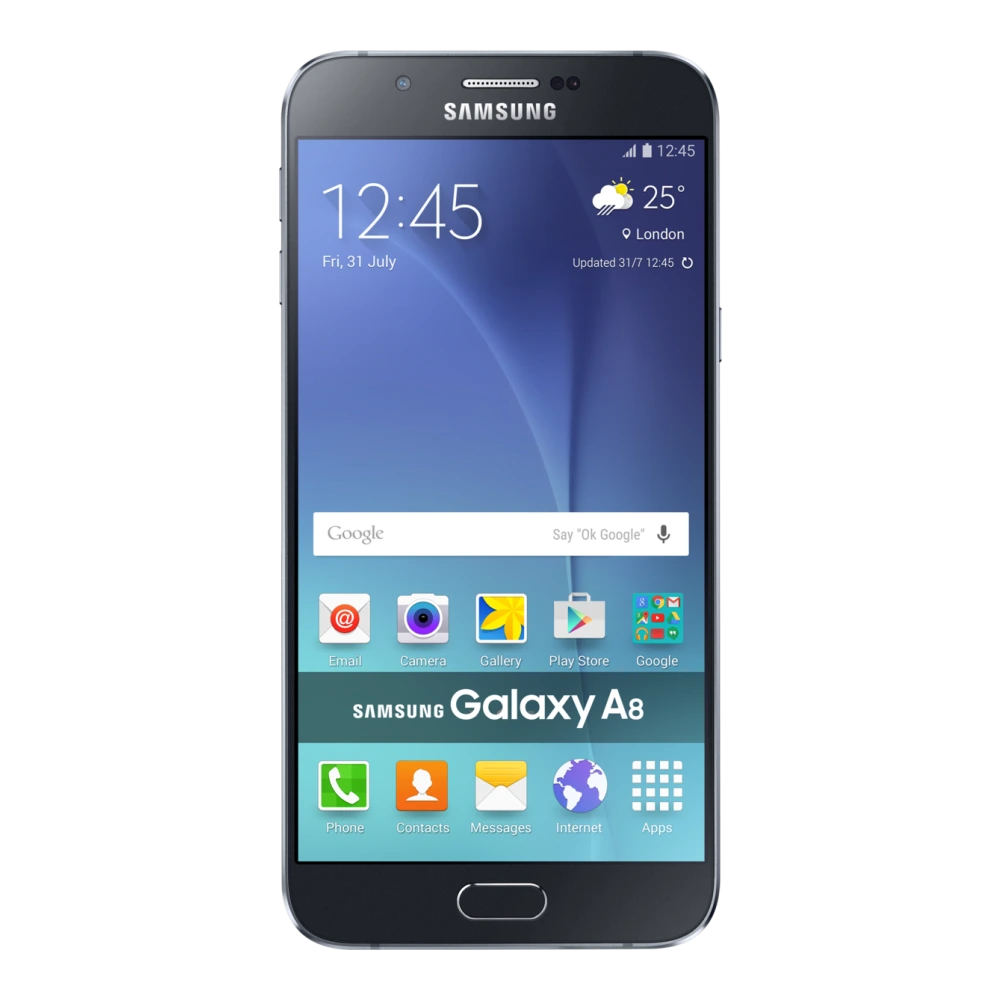
SM-G885F 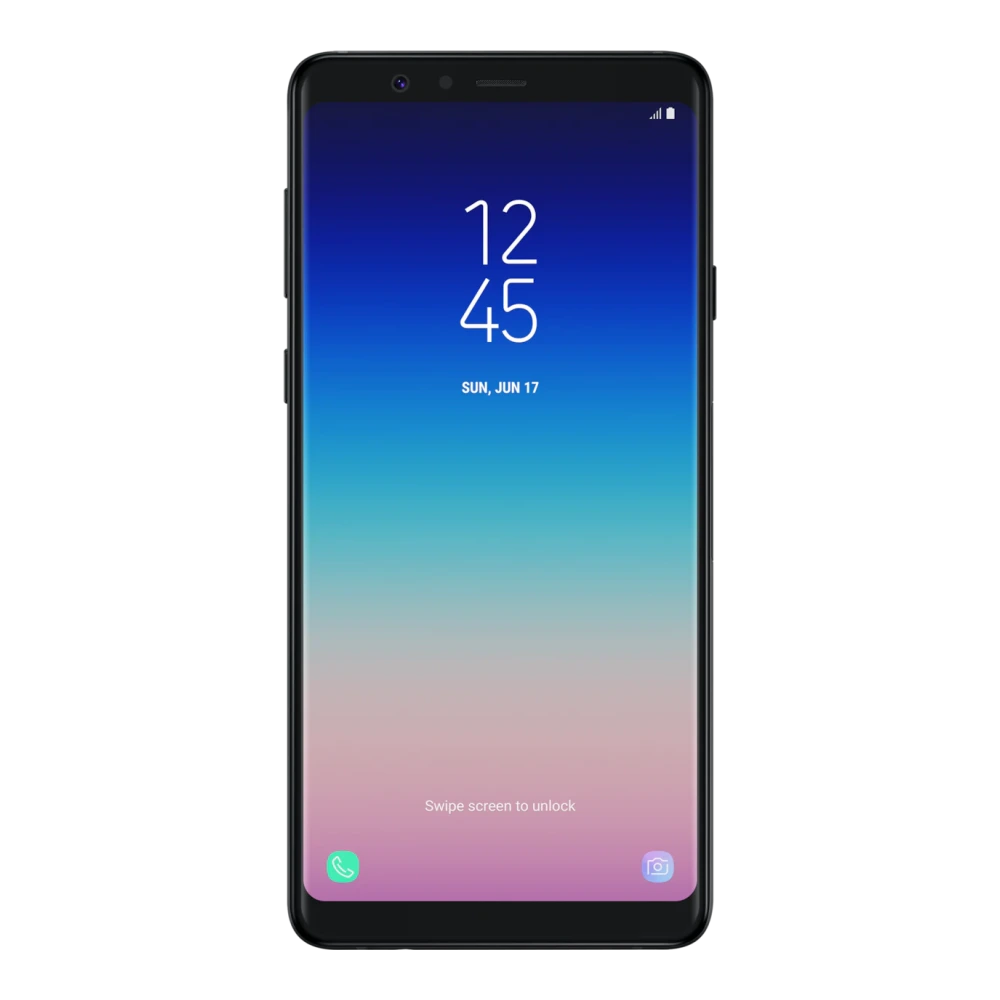
SM-A730F 
SM-A805F 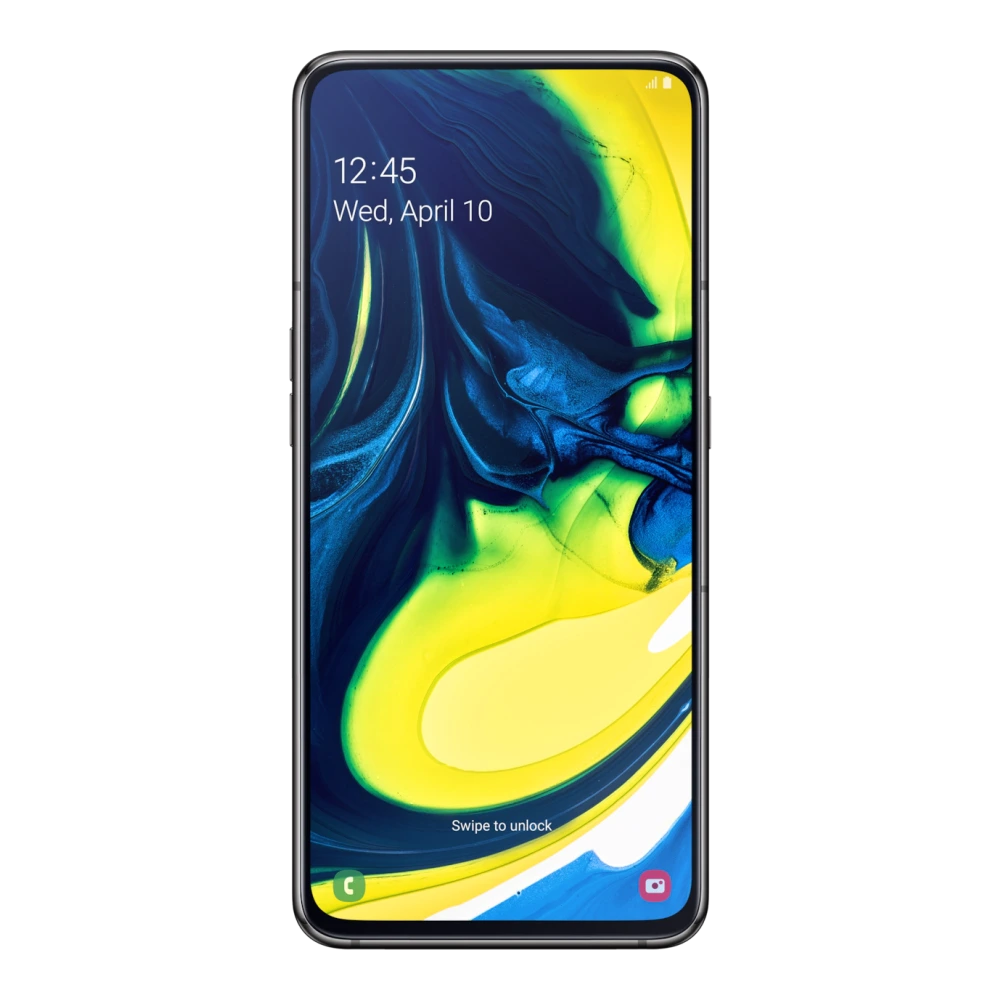
SM-A920F 
SM-A910F 
GT-S5830 
GT-S6802 
GT-S7500 
GT-S5830 
GT-S5830I
SM-G850Y 
NP340XLAA-EXP 


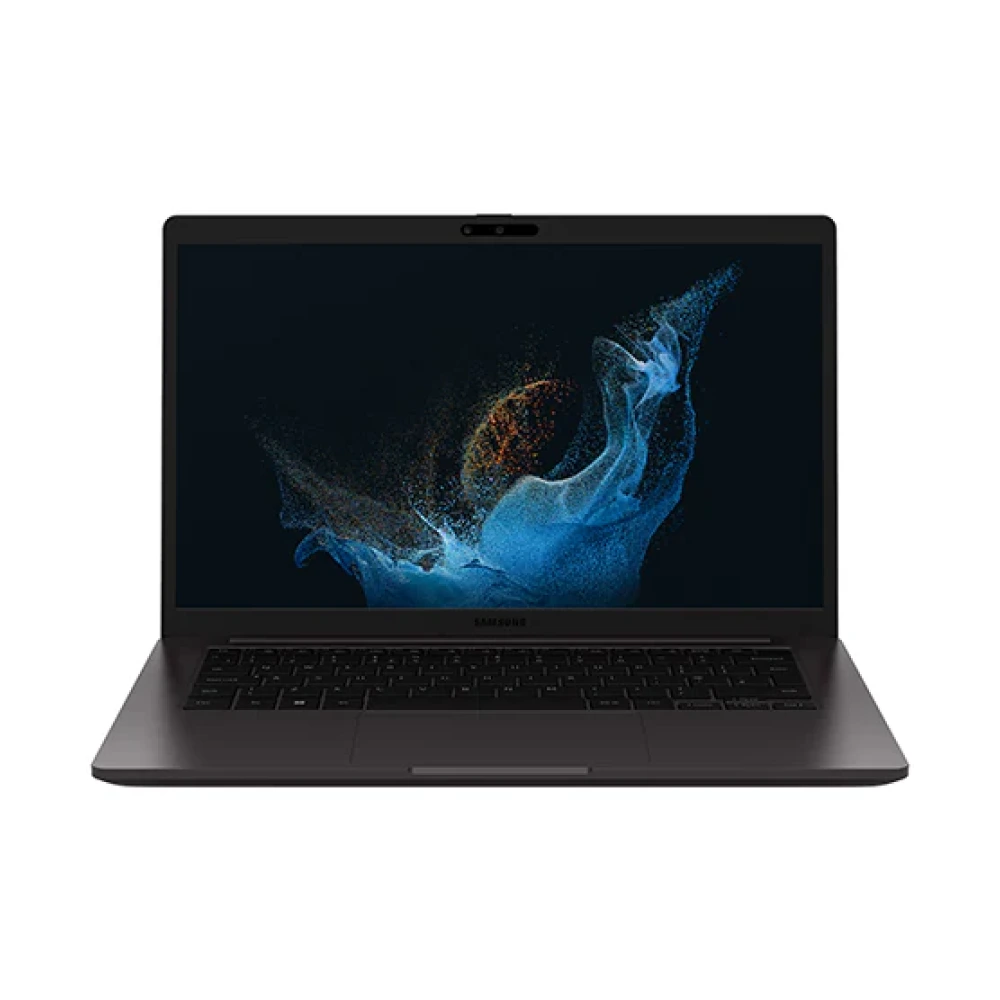
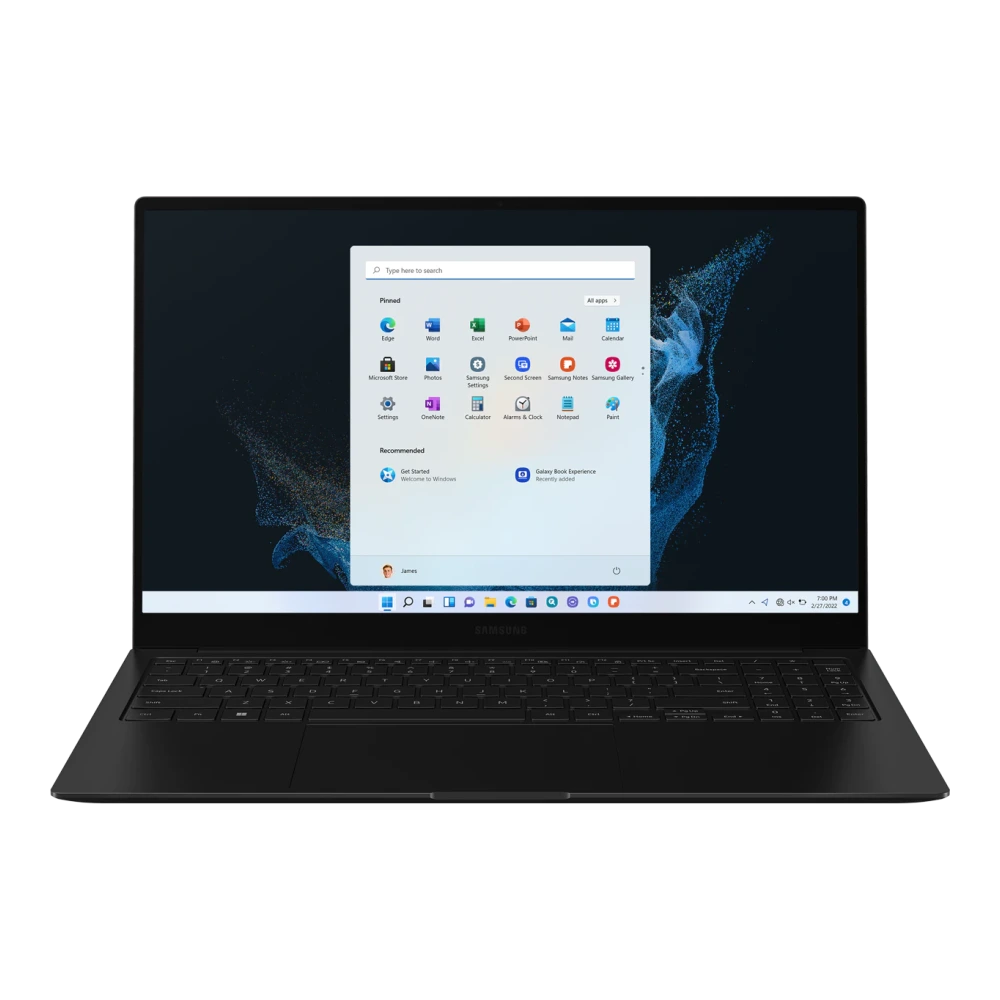

NP934QEDA-EXP 
NP934XEDA-EXP 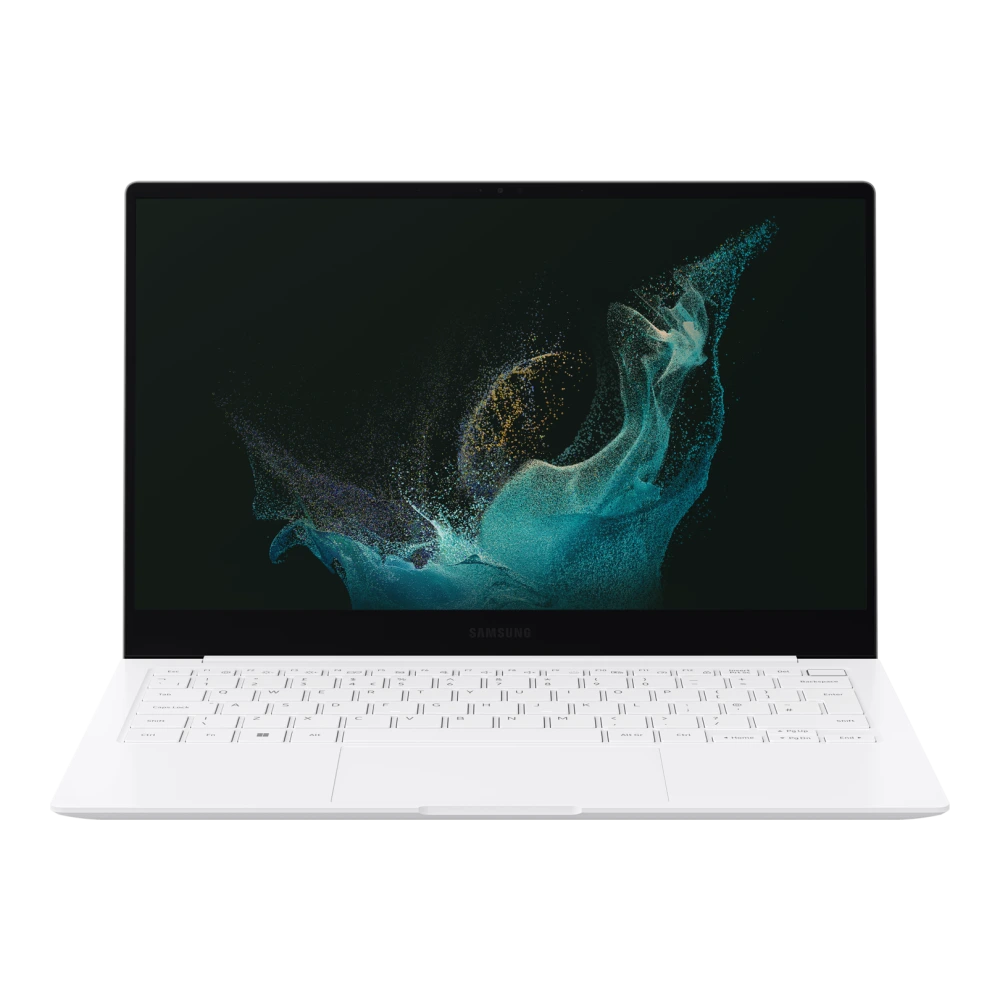
NP554XEDA-EXP 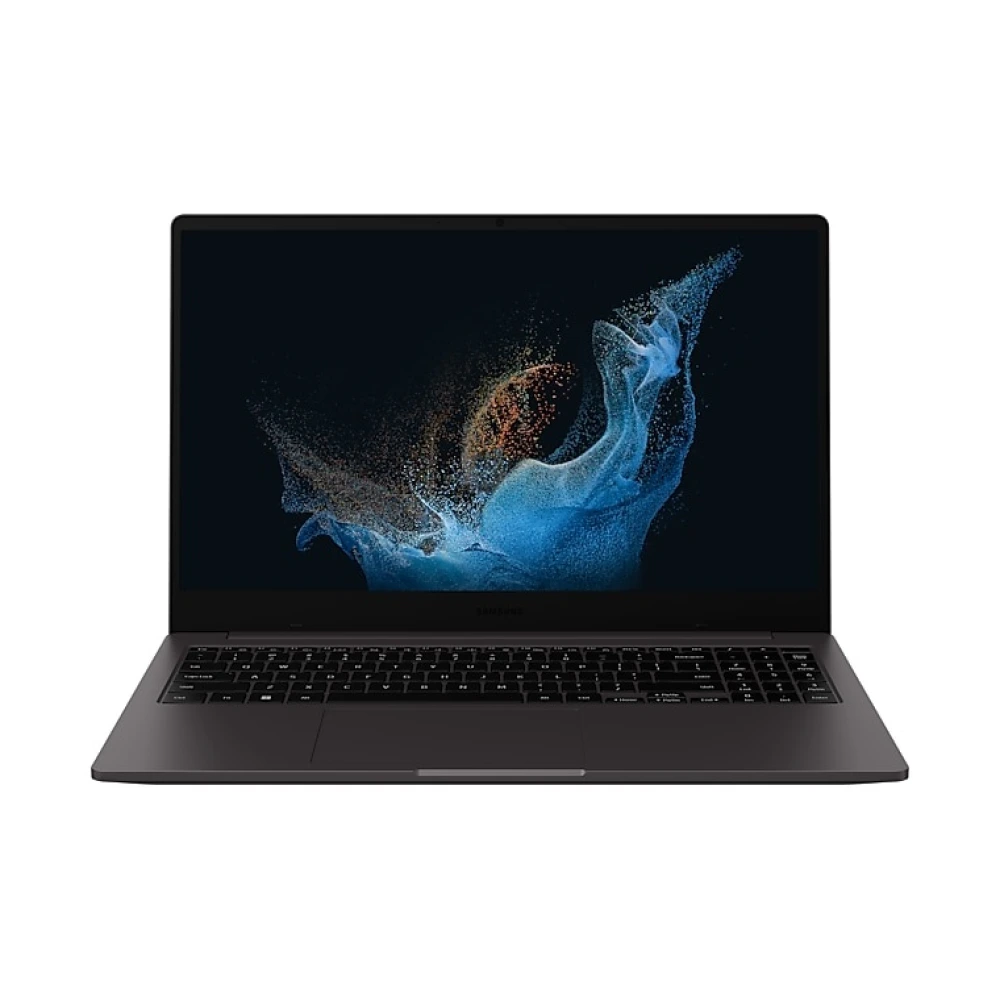
NP750XEEZ-EXP 


NP940XFGA-EXP 
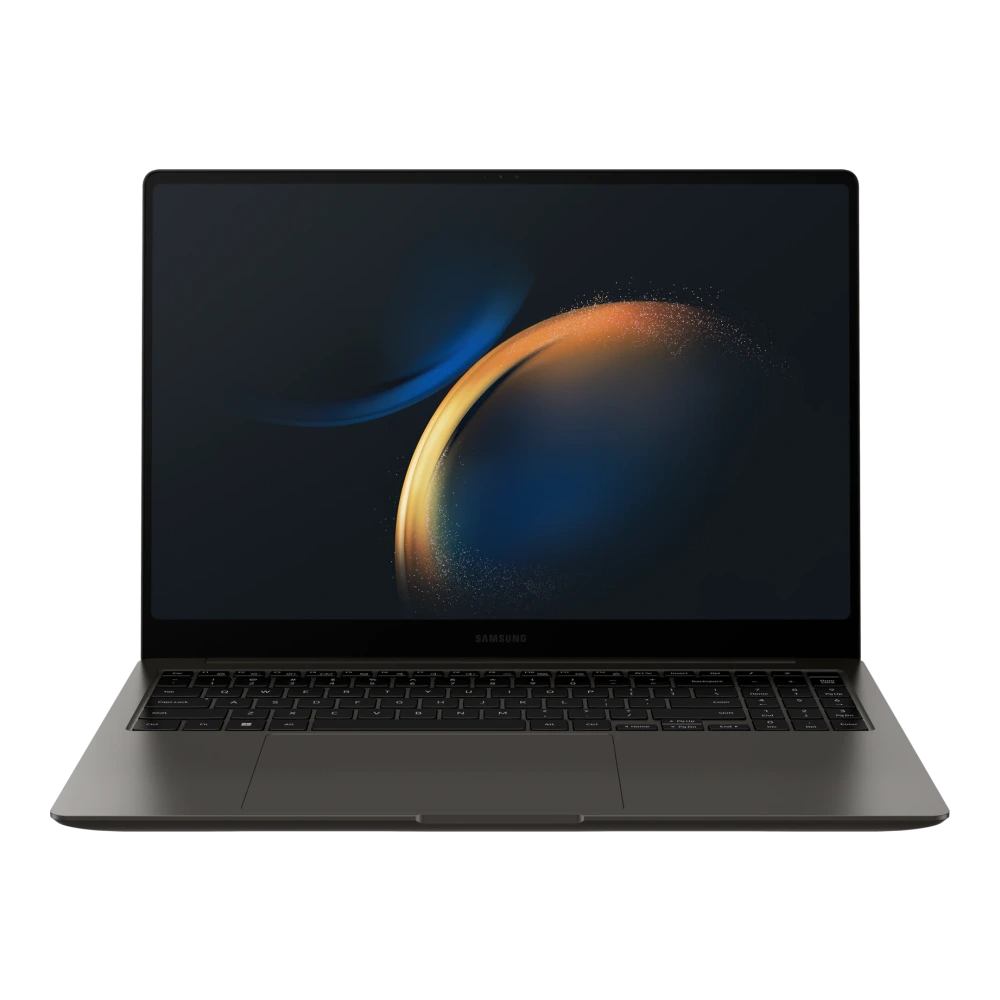
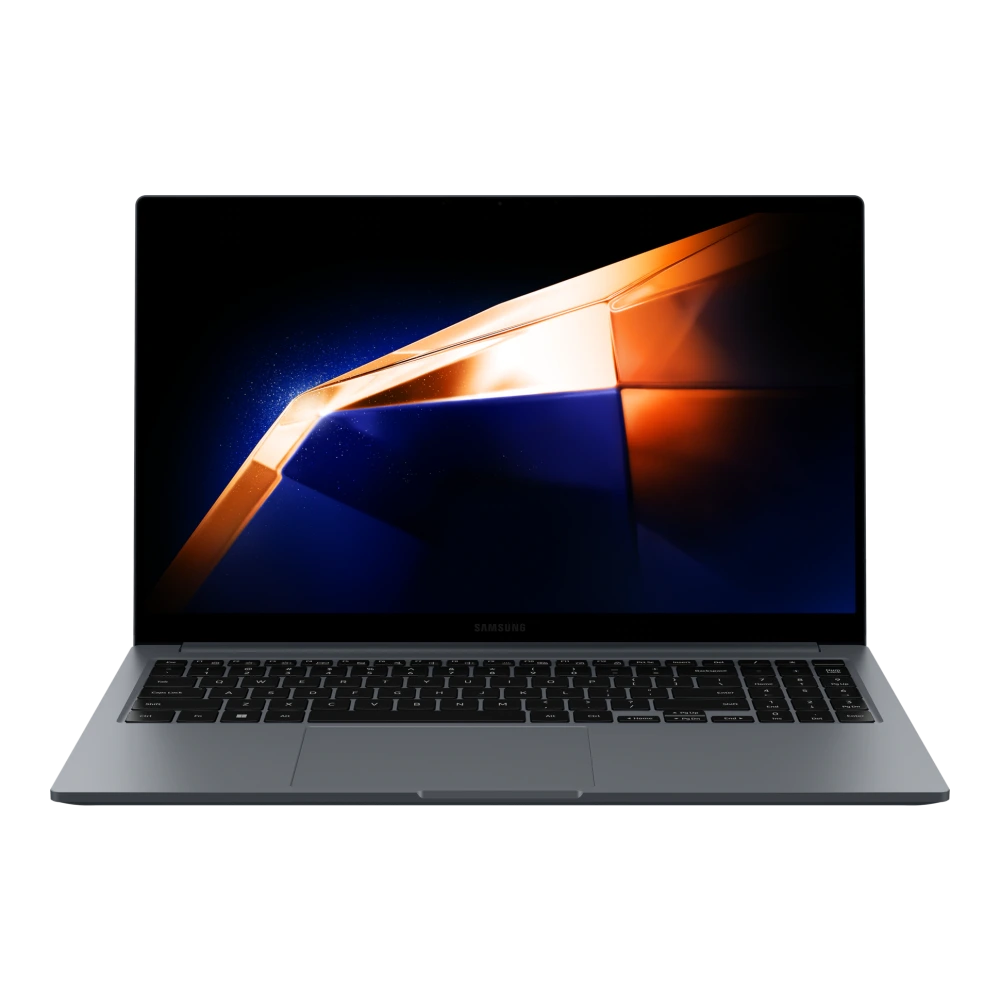
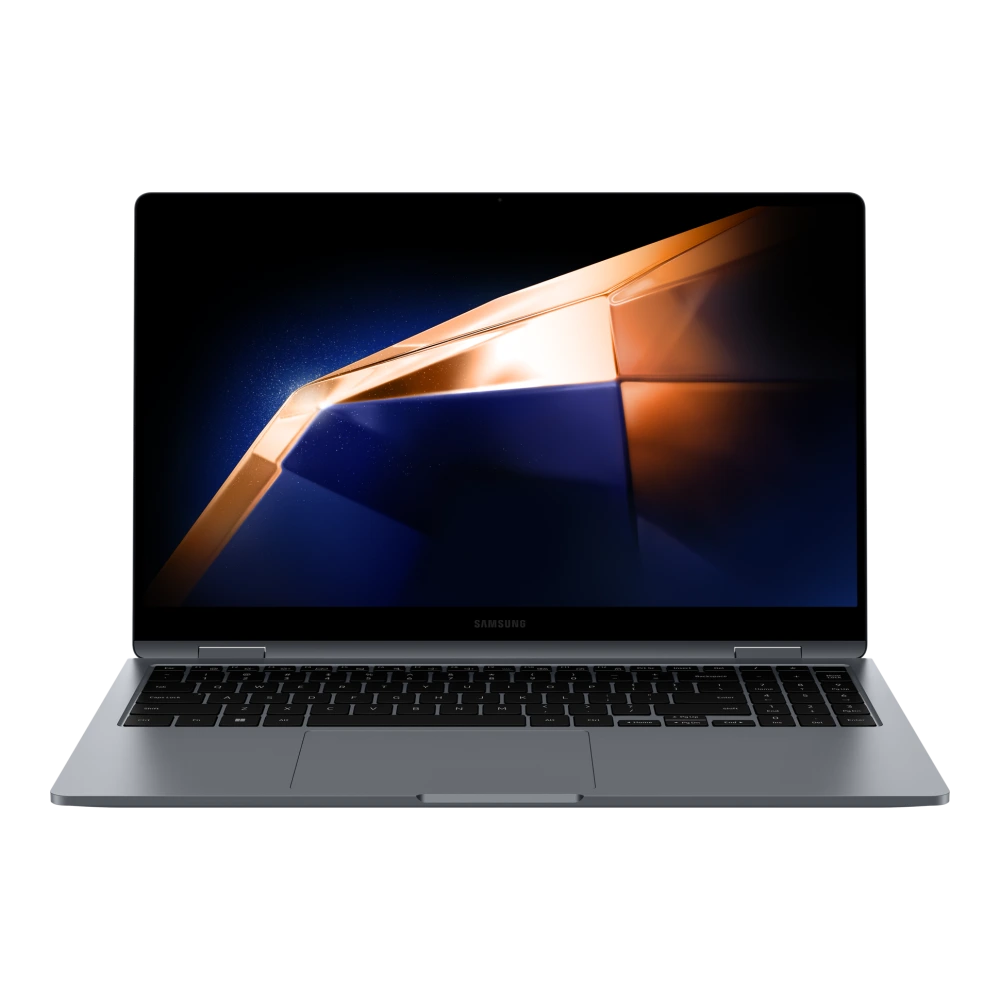


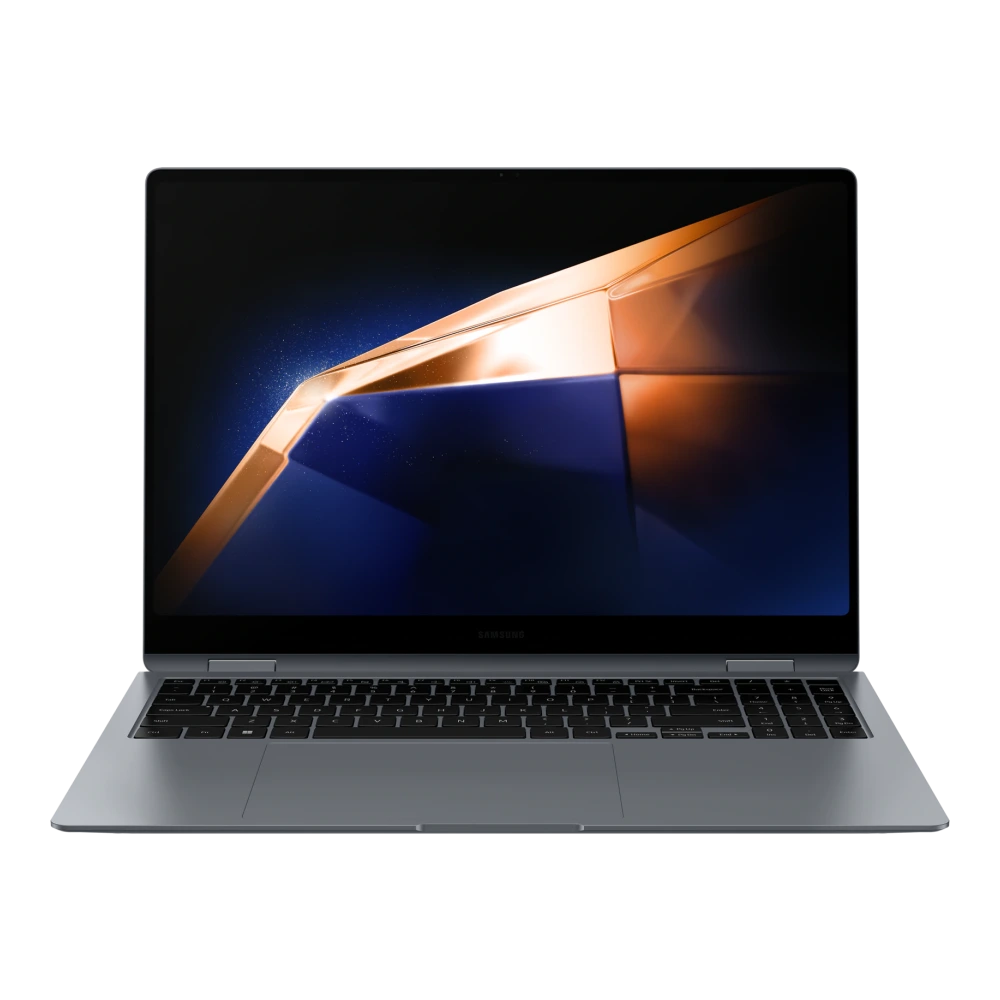
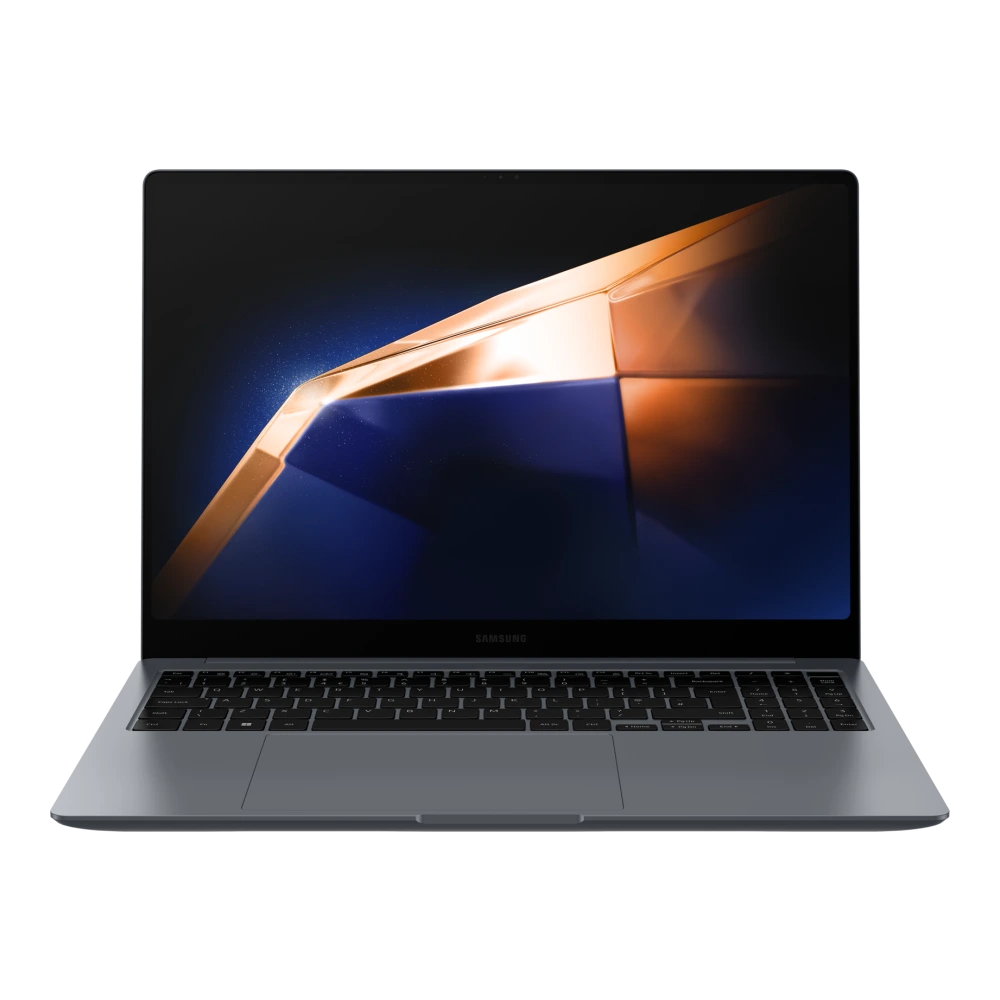
NP754XGKA-BIZ 
NP750XGJA-EXP 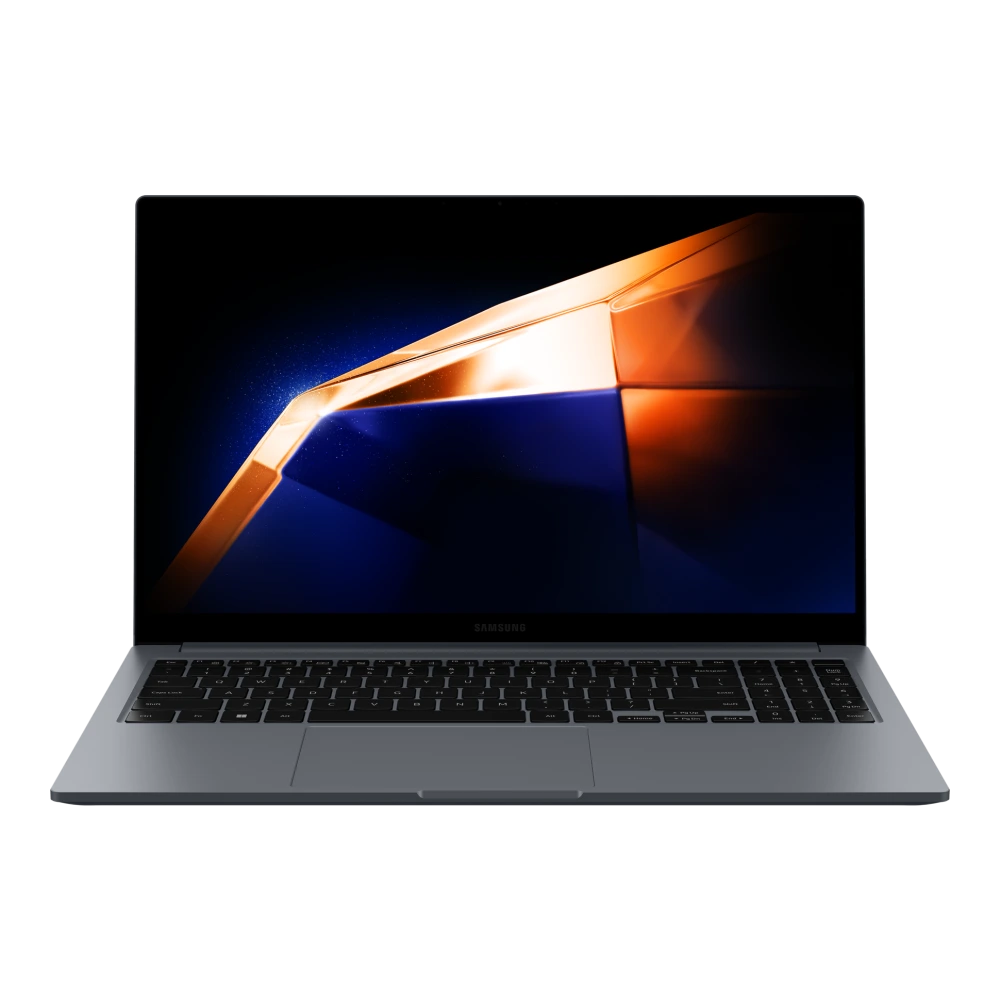

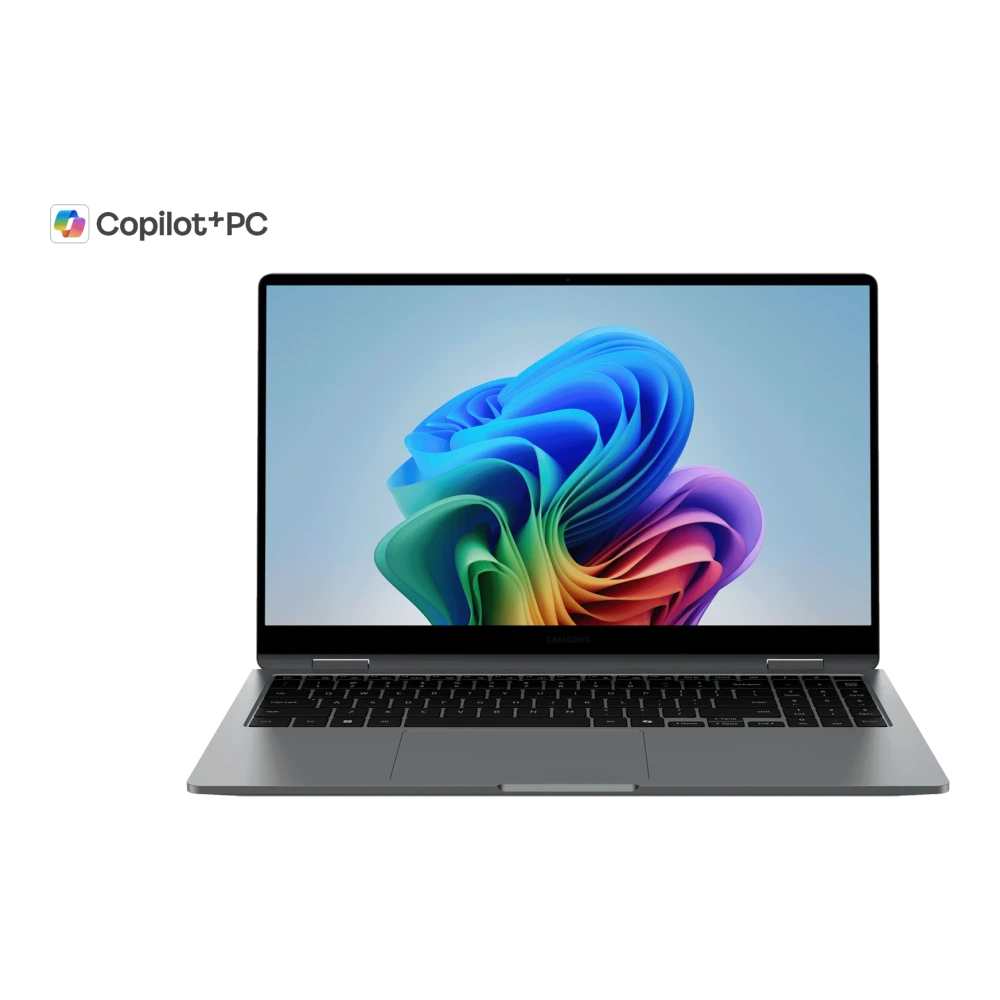
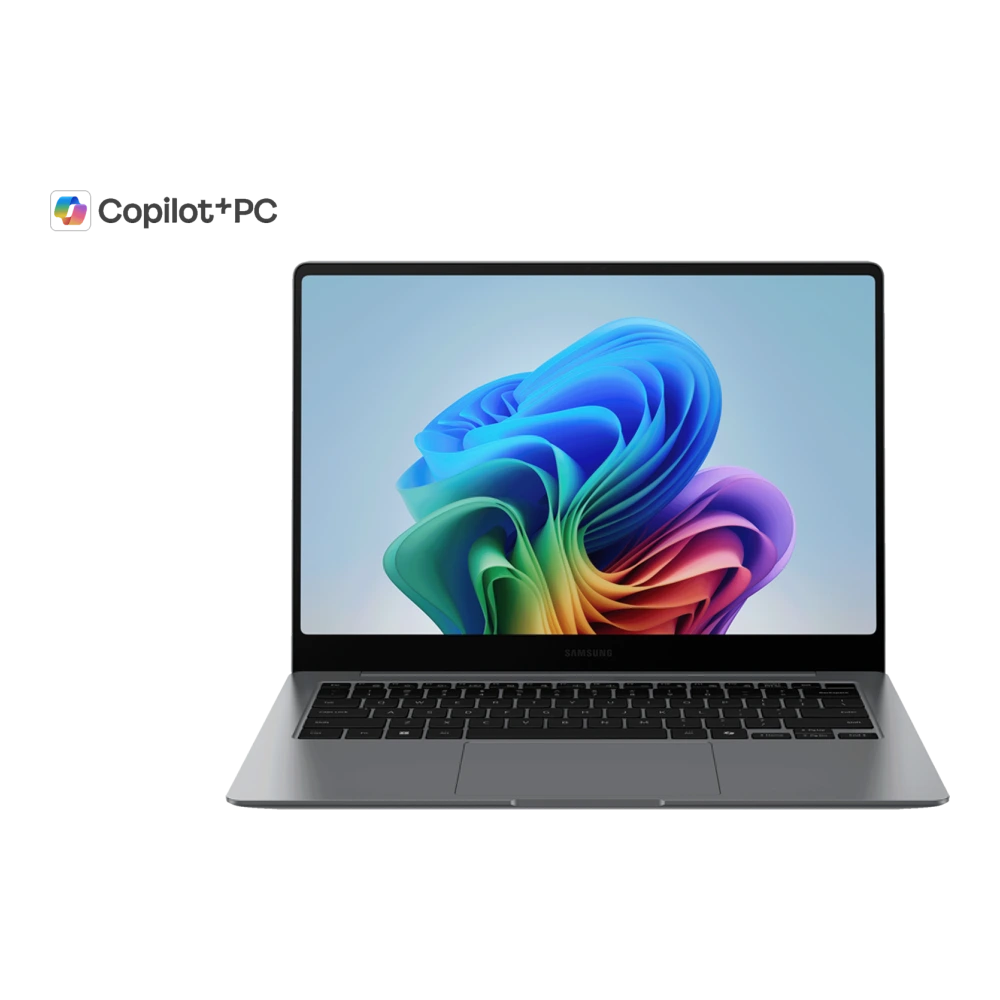
NP960XHAA-EXP 
NP750XHDA-EXP 
NP940XJGH-EXP 
NP960UJHE-EXP 
NP740VJGG-EXP 
NP740VJGF-EXP 
NP760VJGF-EXP 
SM-C701F 
SM-C900F 
SCH-I500 
SM-G361H 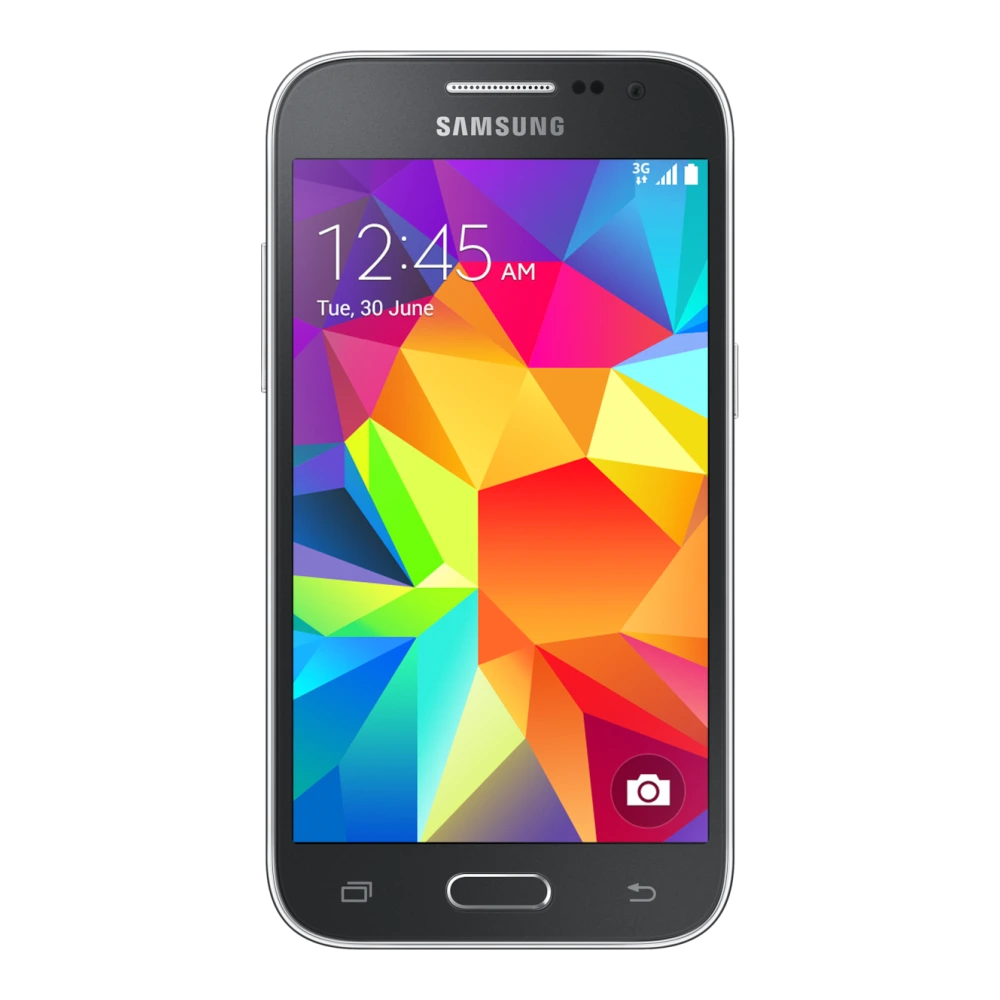
SM-E025F 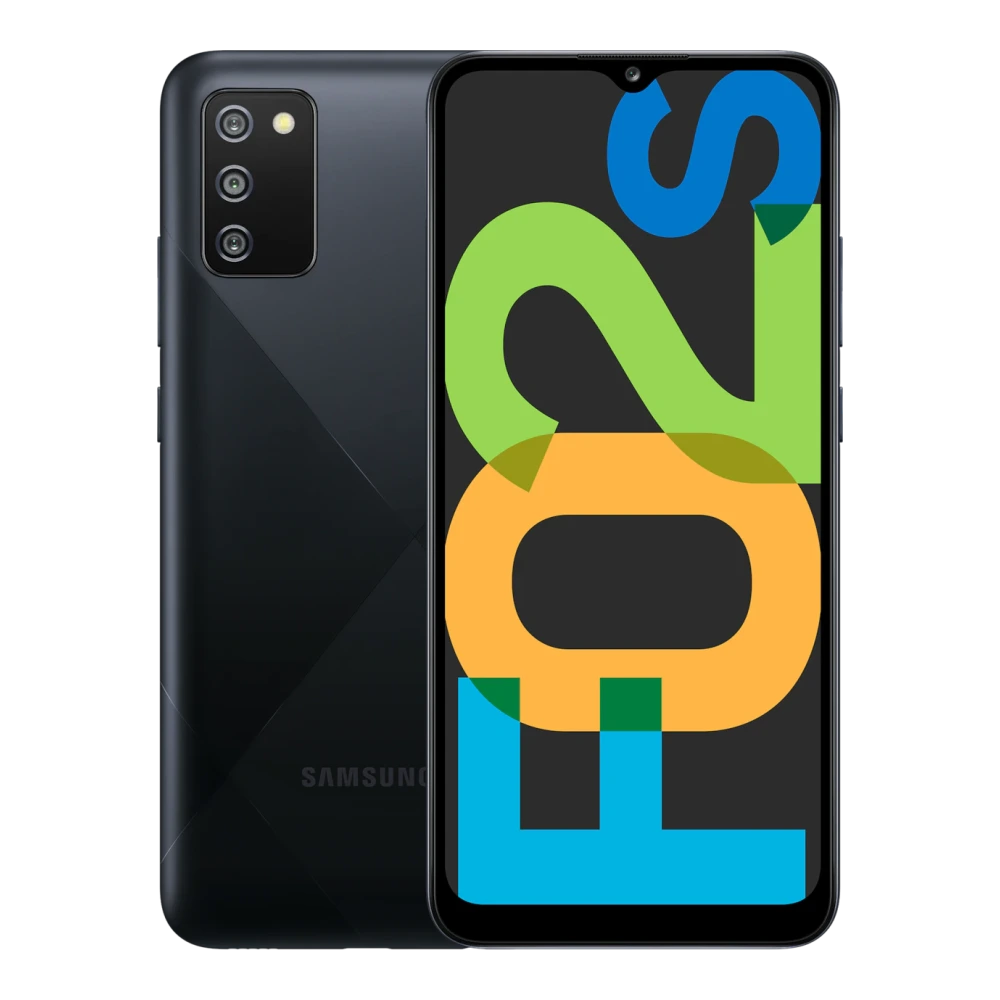
SM-E045F 
SM-E055F 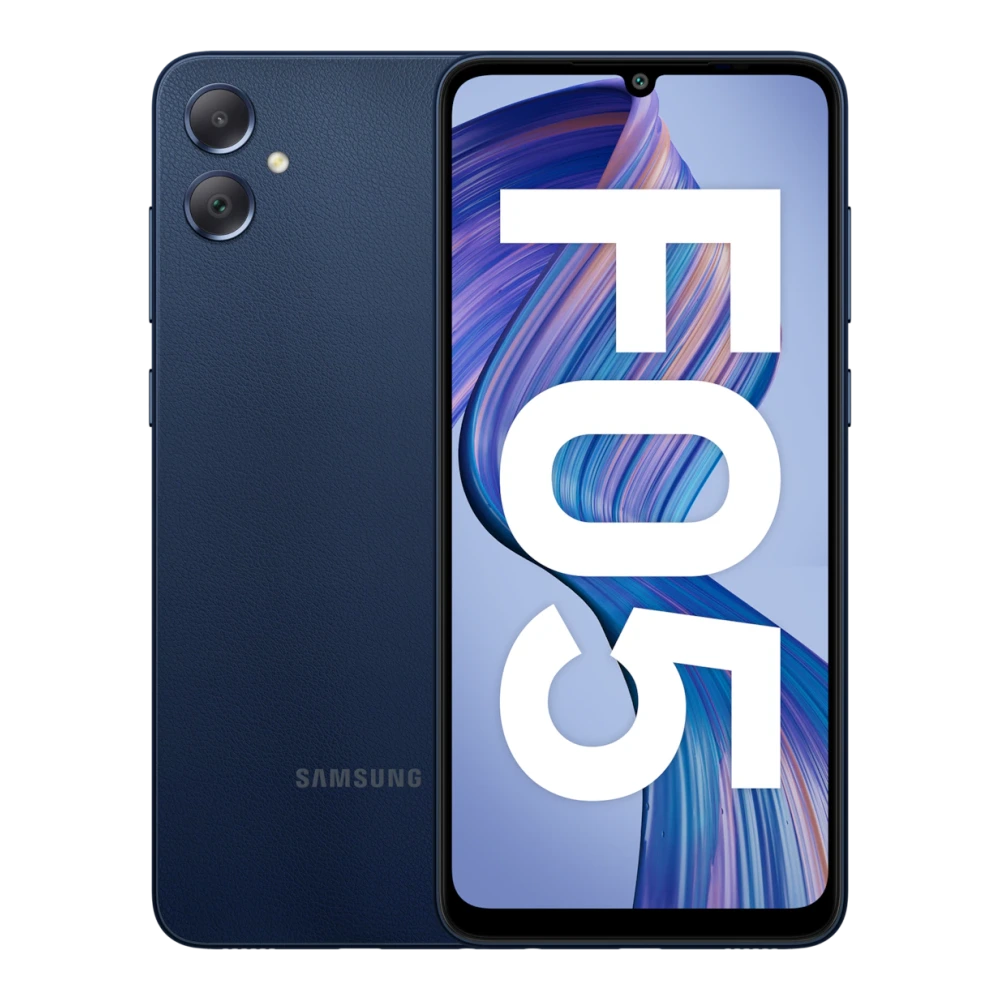
SM-E066B 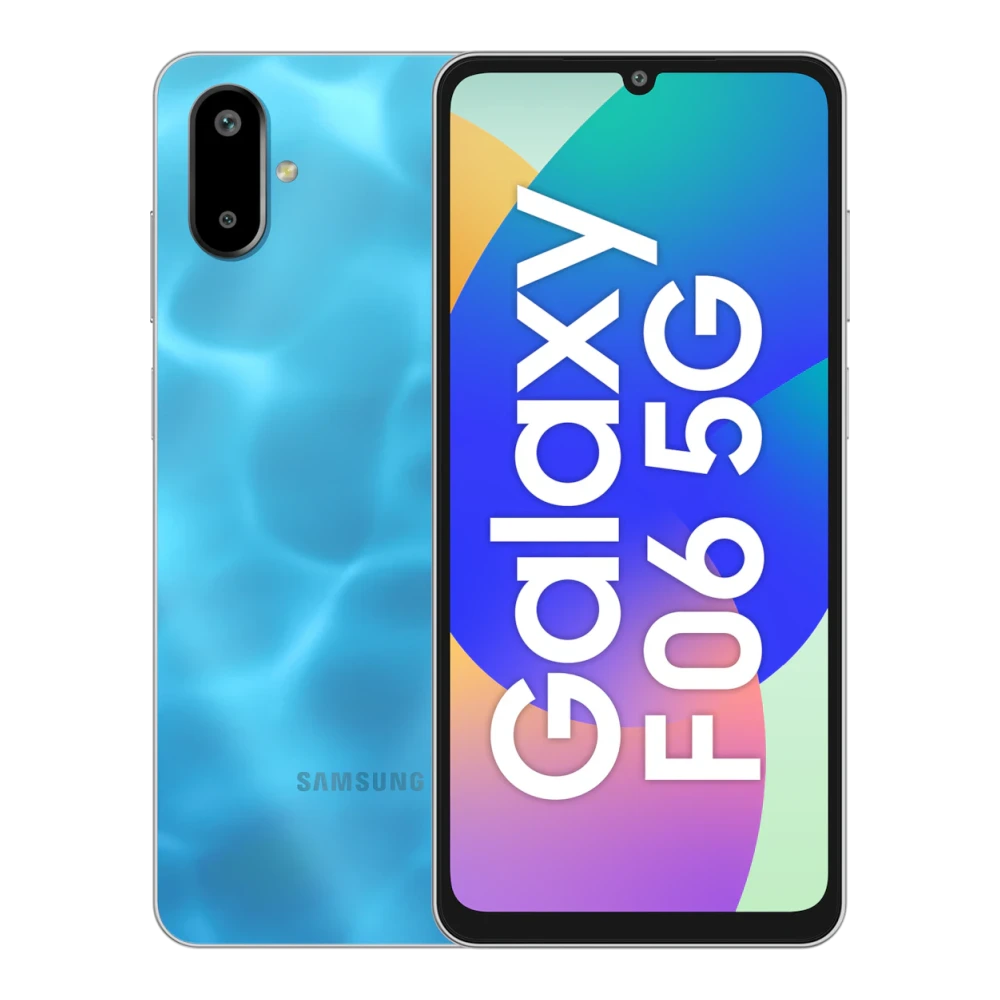
SM-E075F 
SM-F127G 
SM-E135F 
SM-E145F 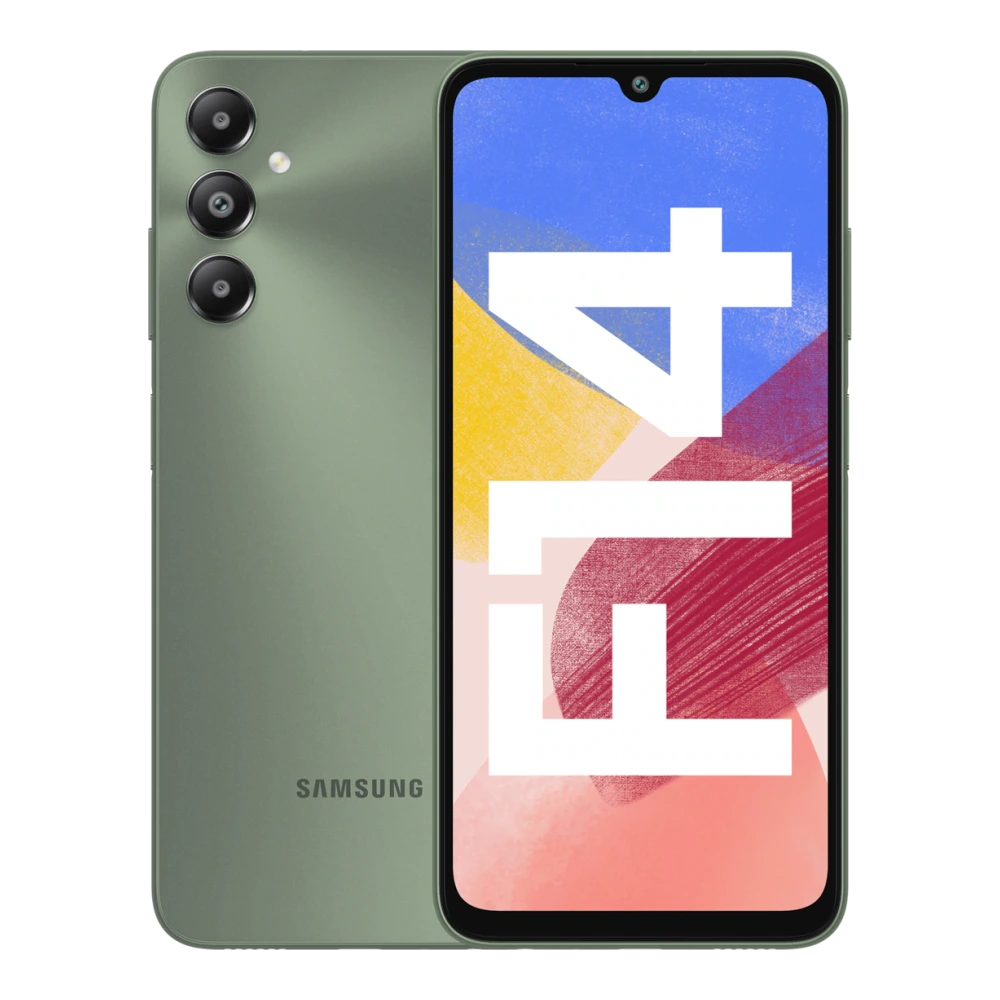
SM-E146B 
SM-E156B 
SM-E166P 
SM-E176B 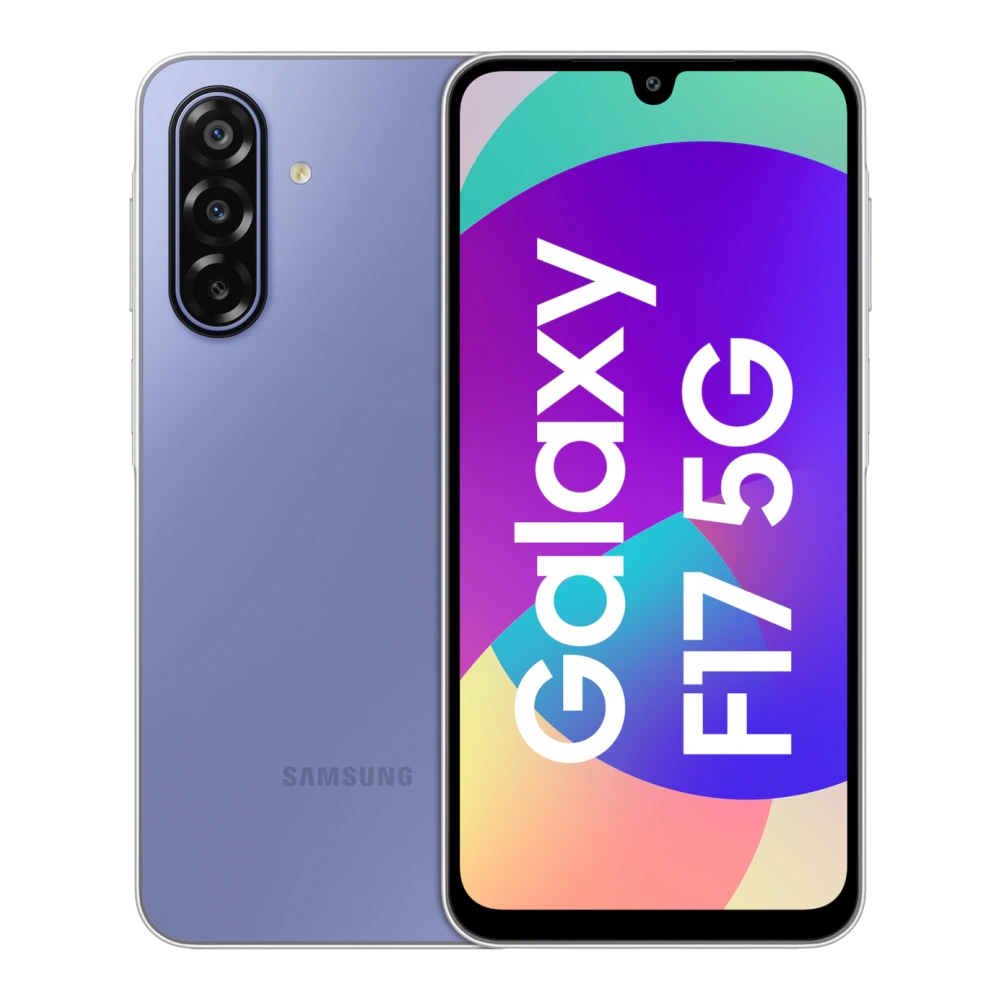
SM-E225F 
SM-E236B 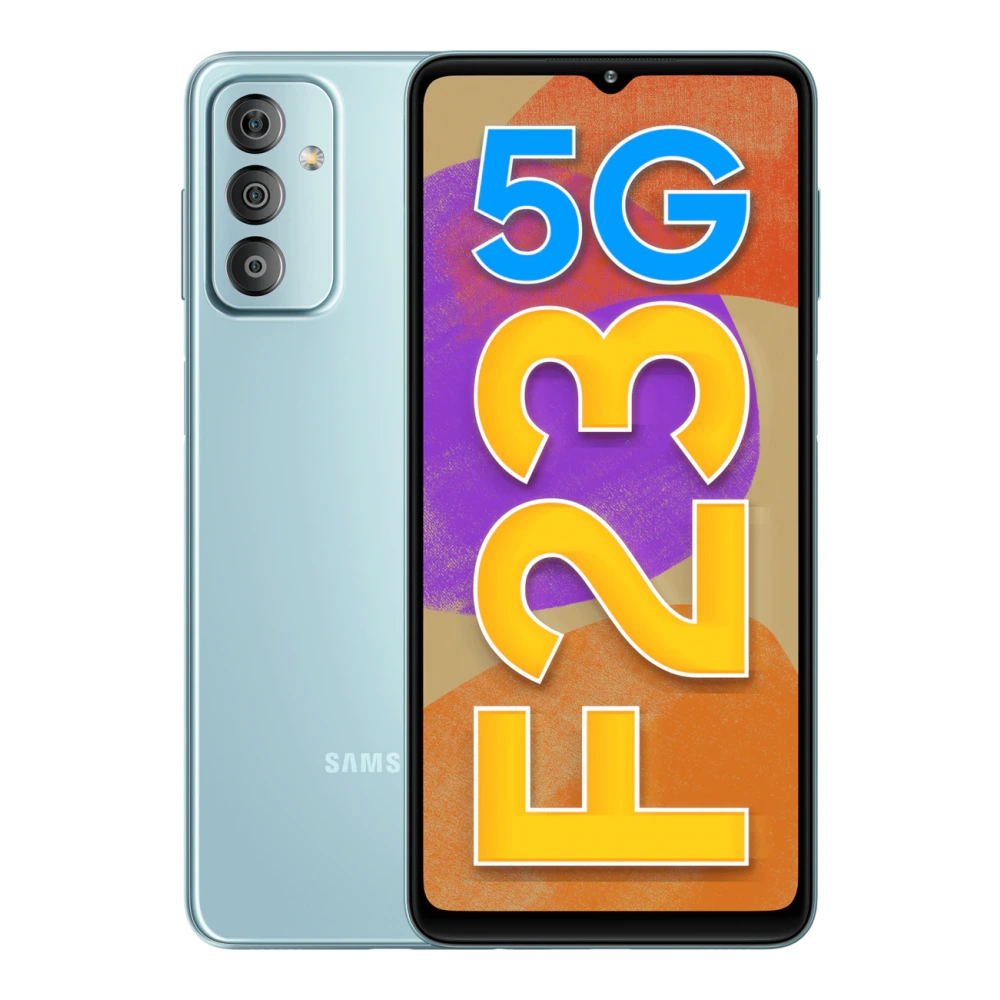
SM-E346B 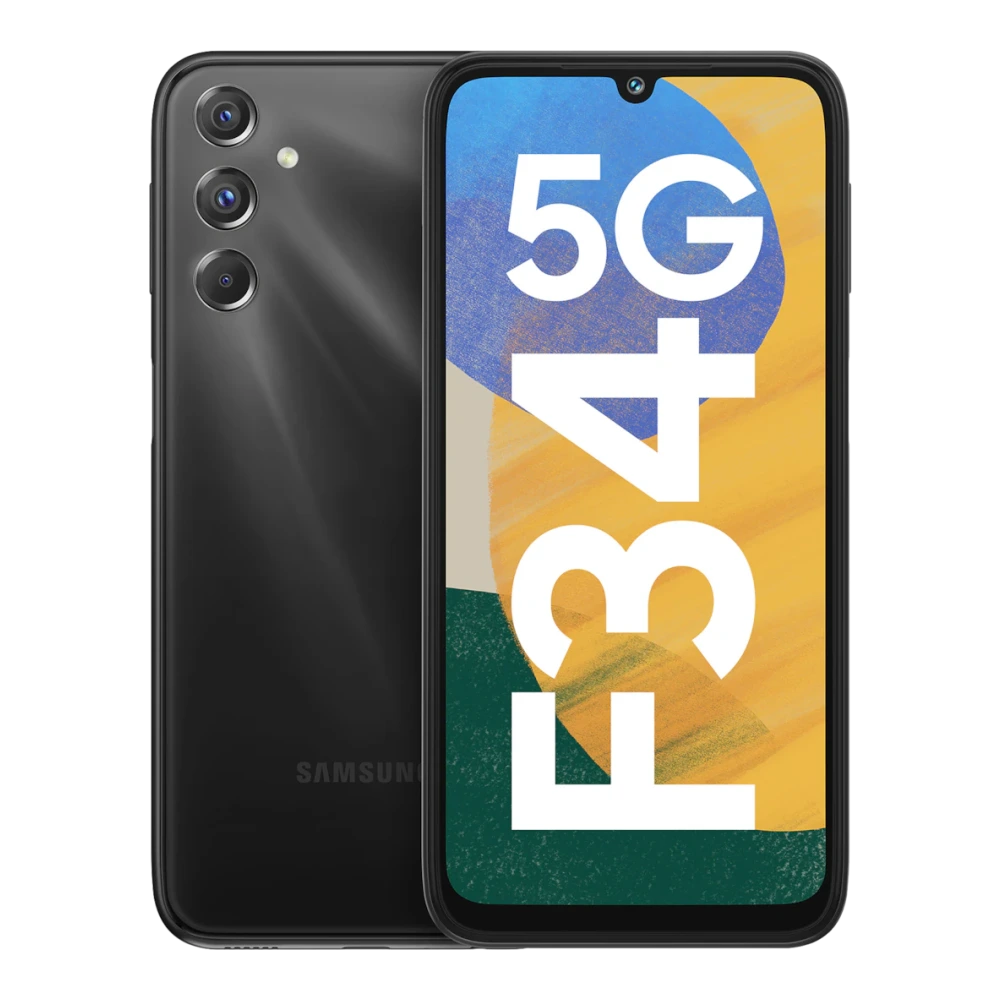
SM-E366B 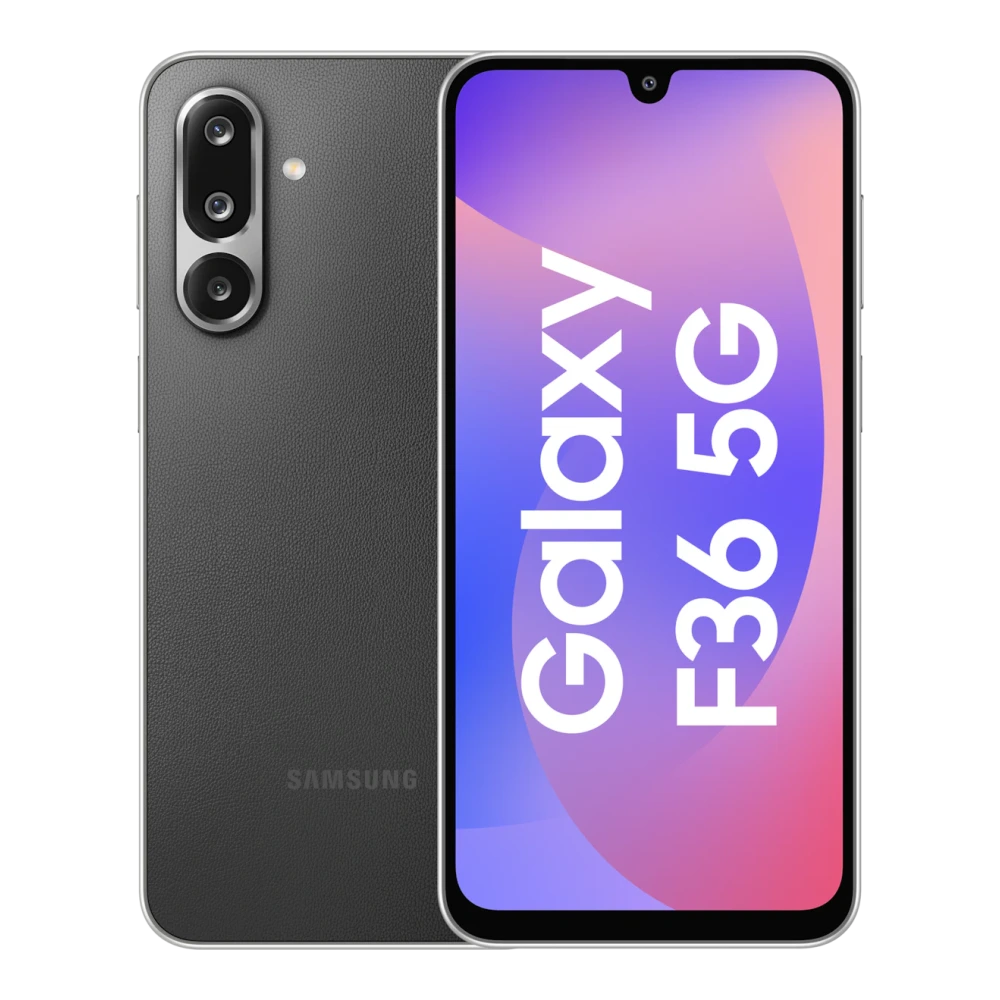
SM-F415F 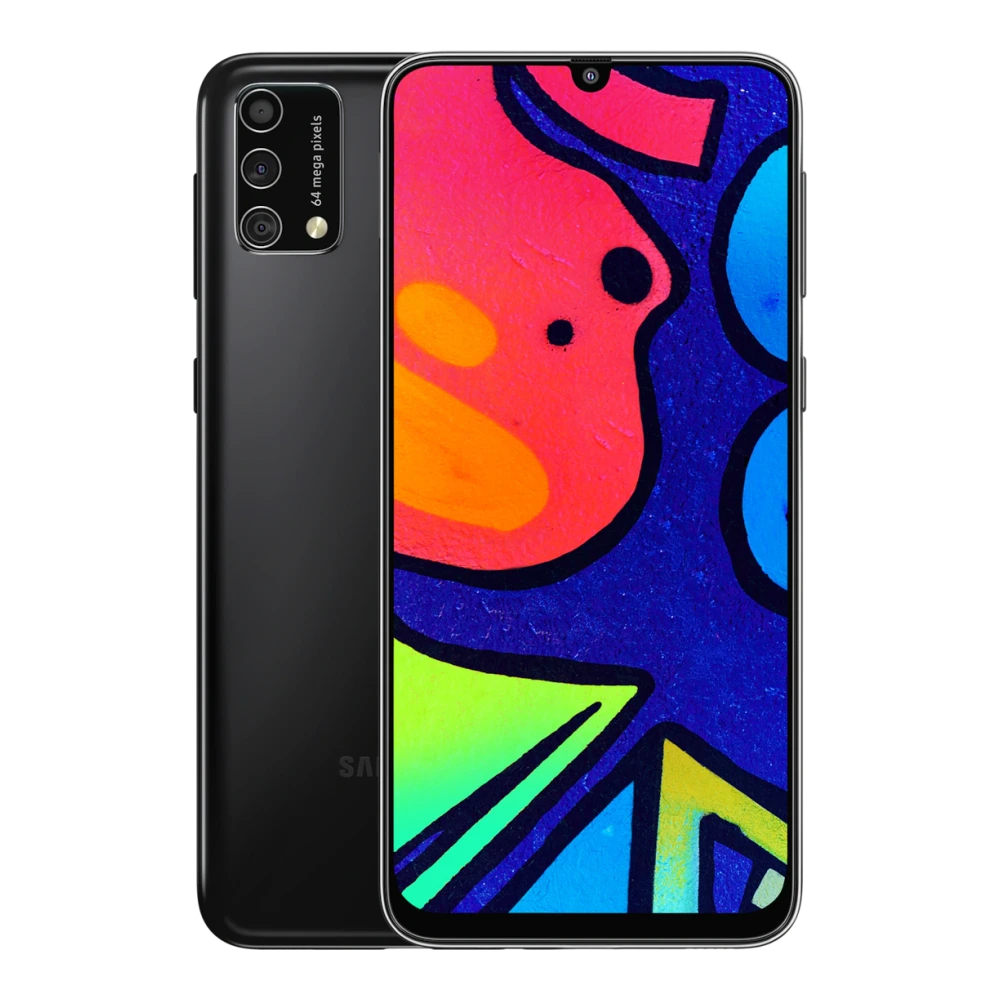
SM-E426B 
SM-E546B 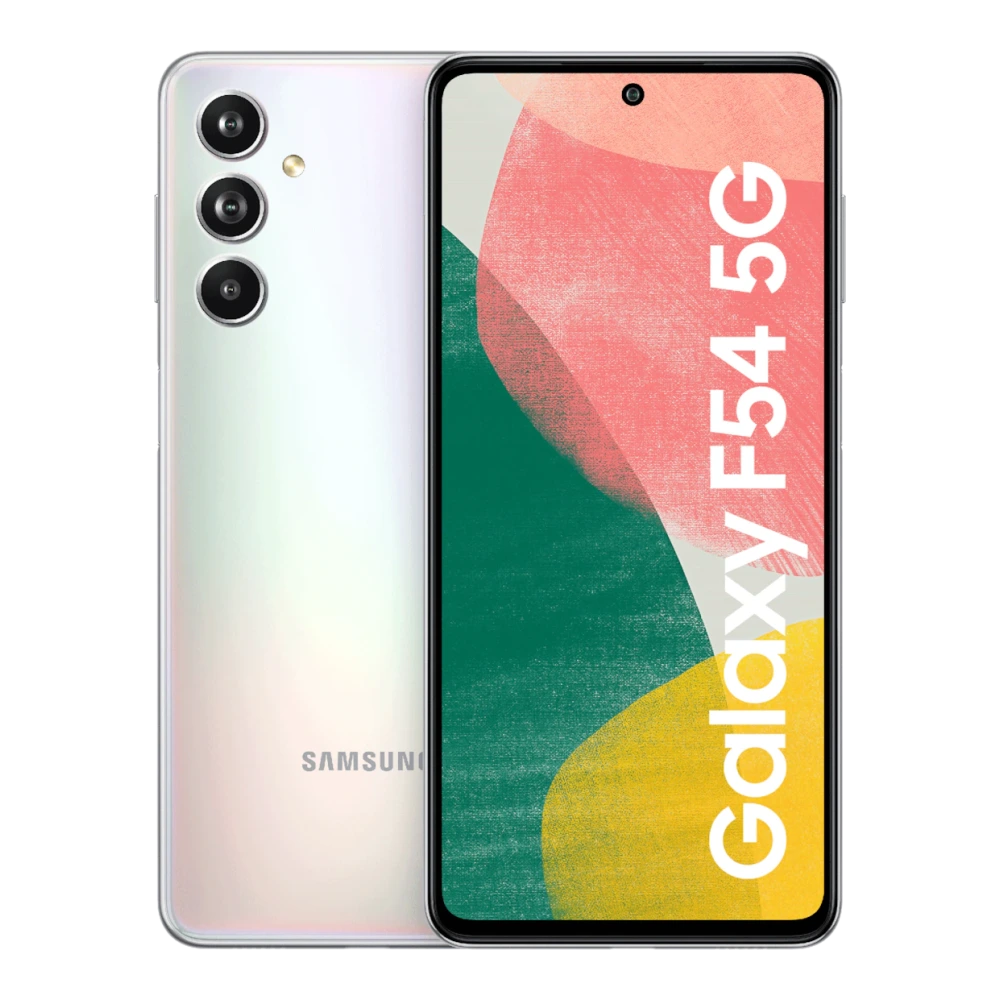
SM-E556B 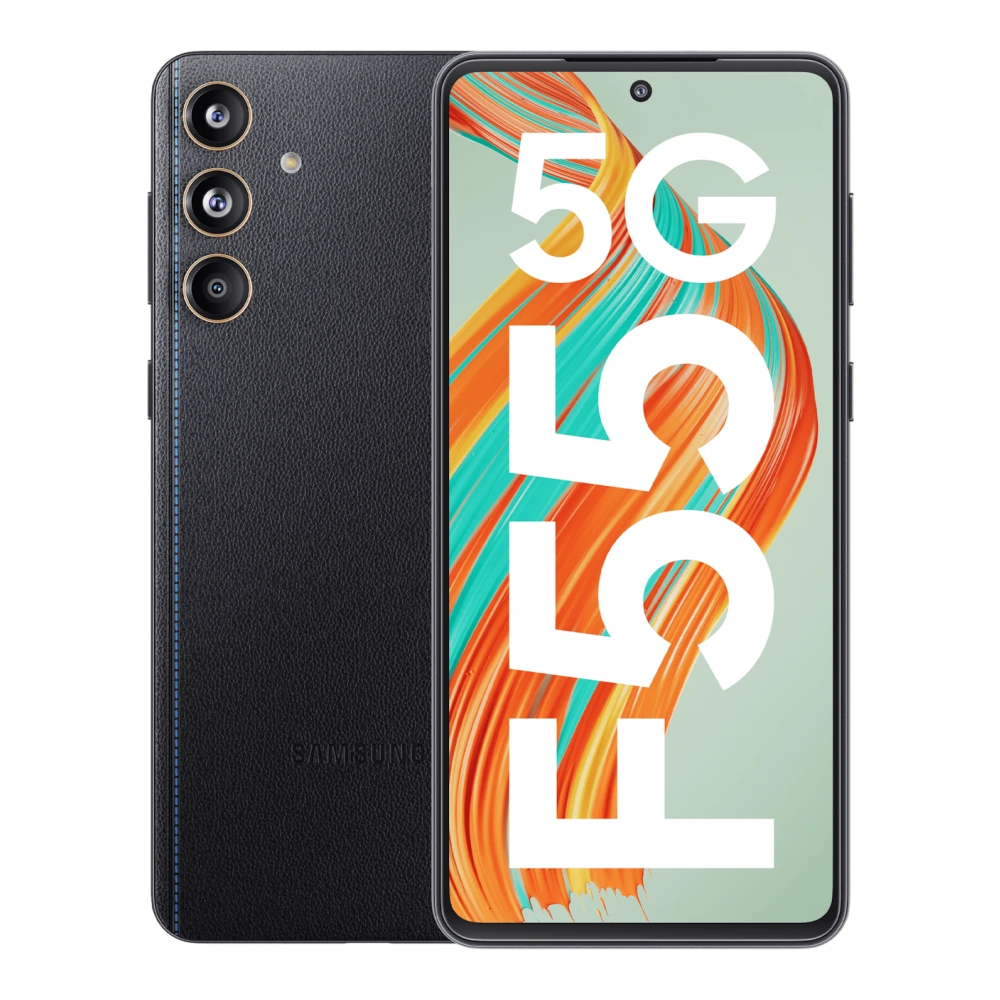
SM-E566B 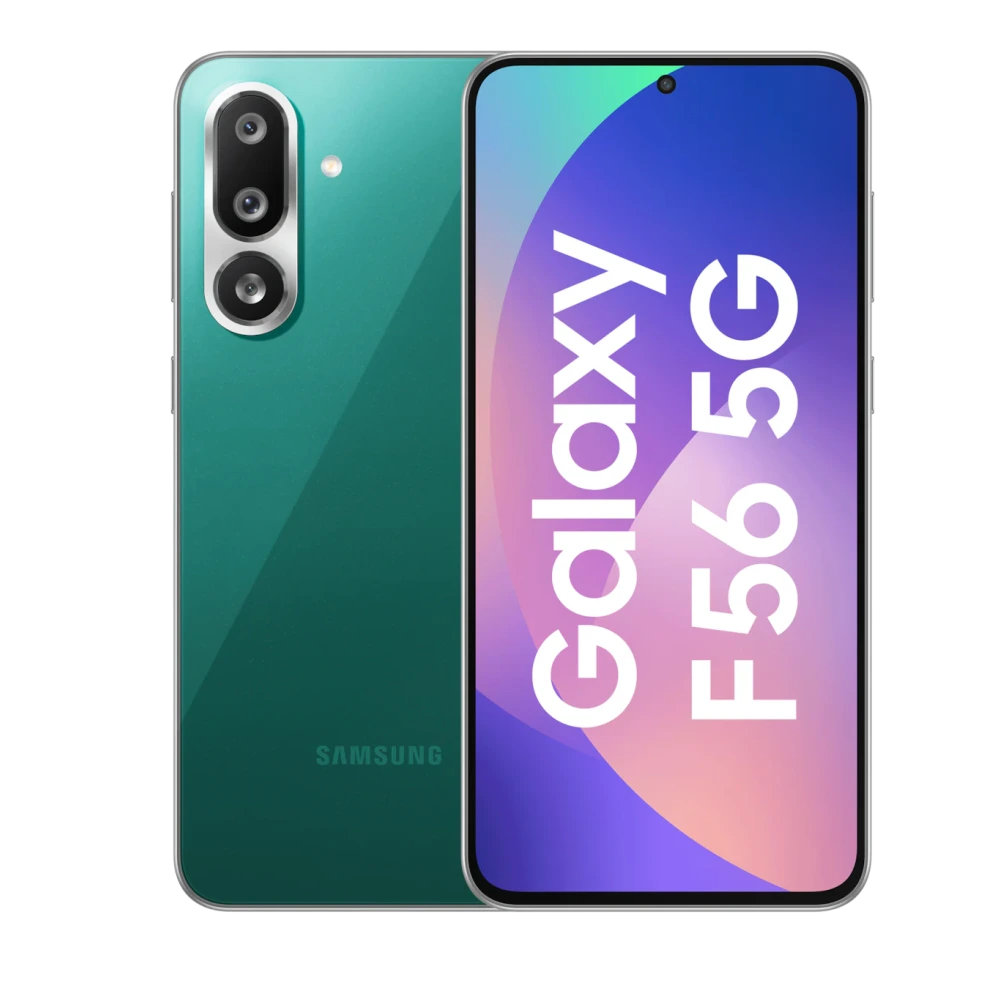
SM-E625F 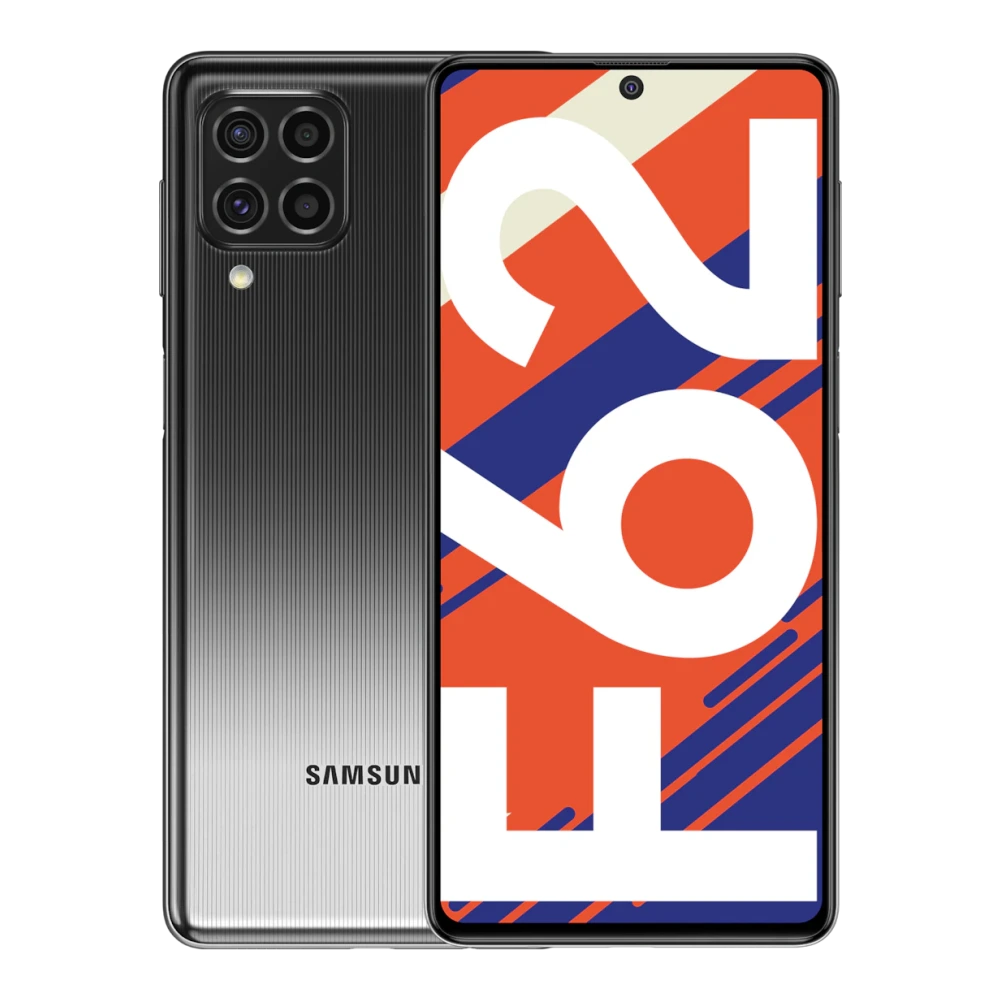
SM-E476B 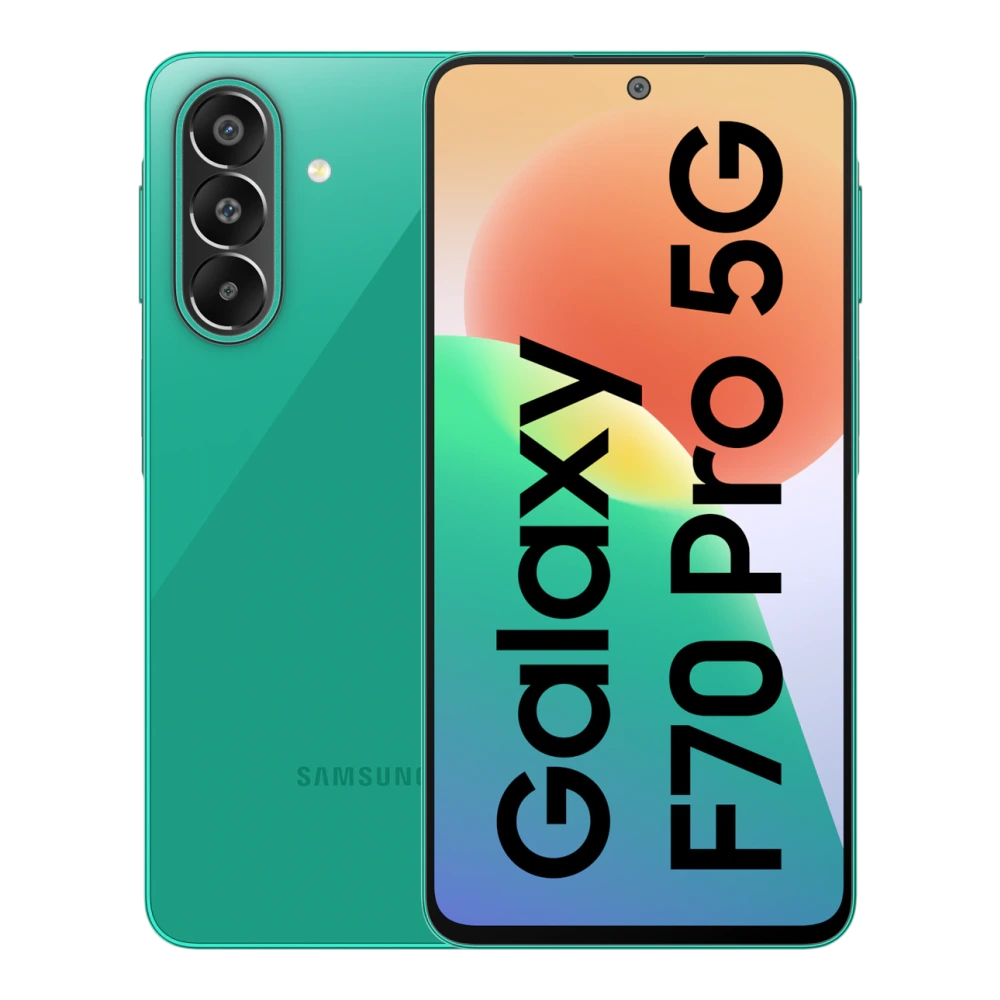
SM-E076B 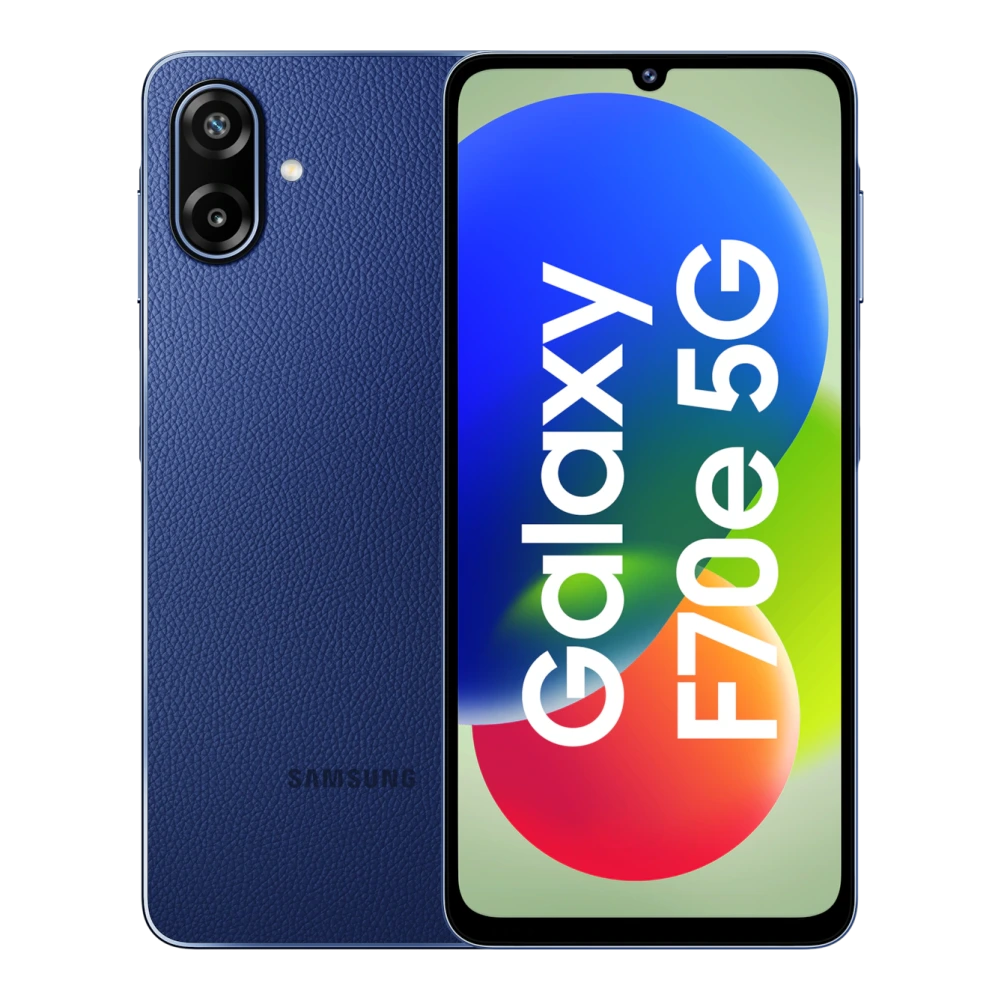
GT-S6812 
GT-S5670 
SM-F900F 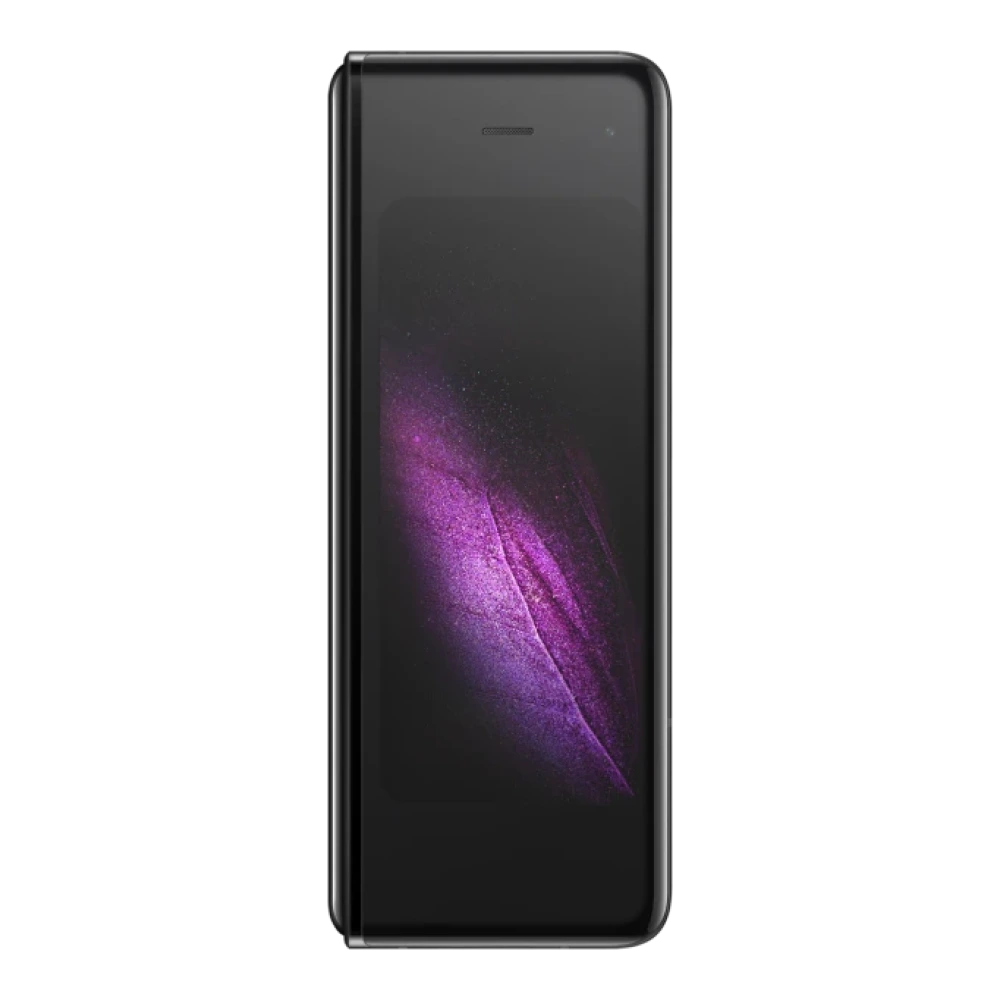
GT-I9230 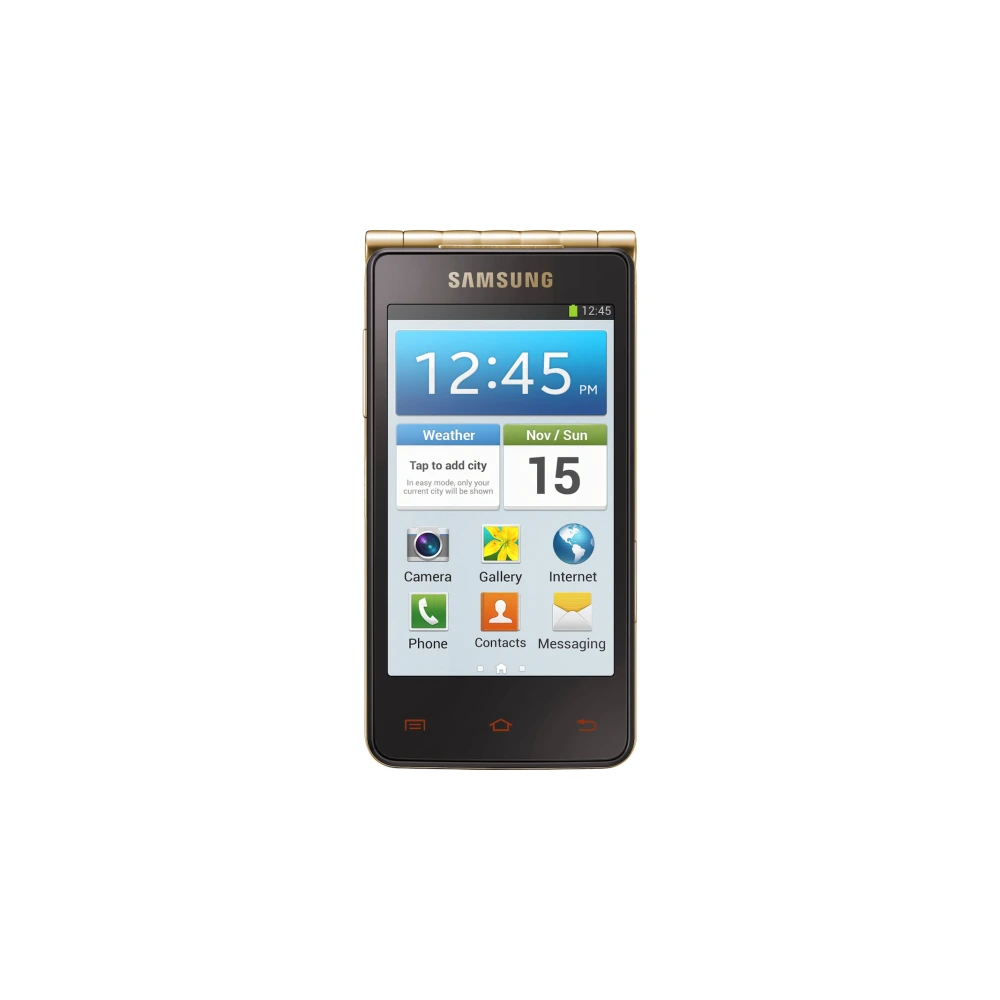
GT-I9082 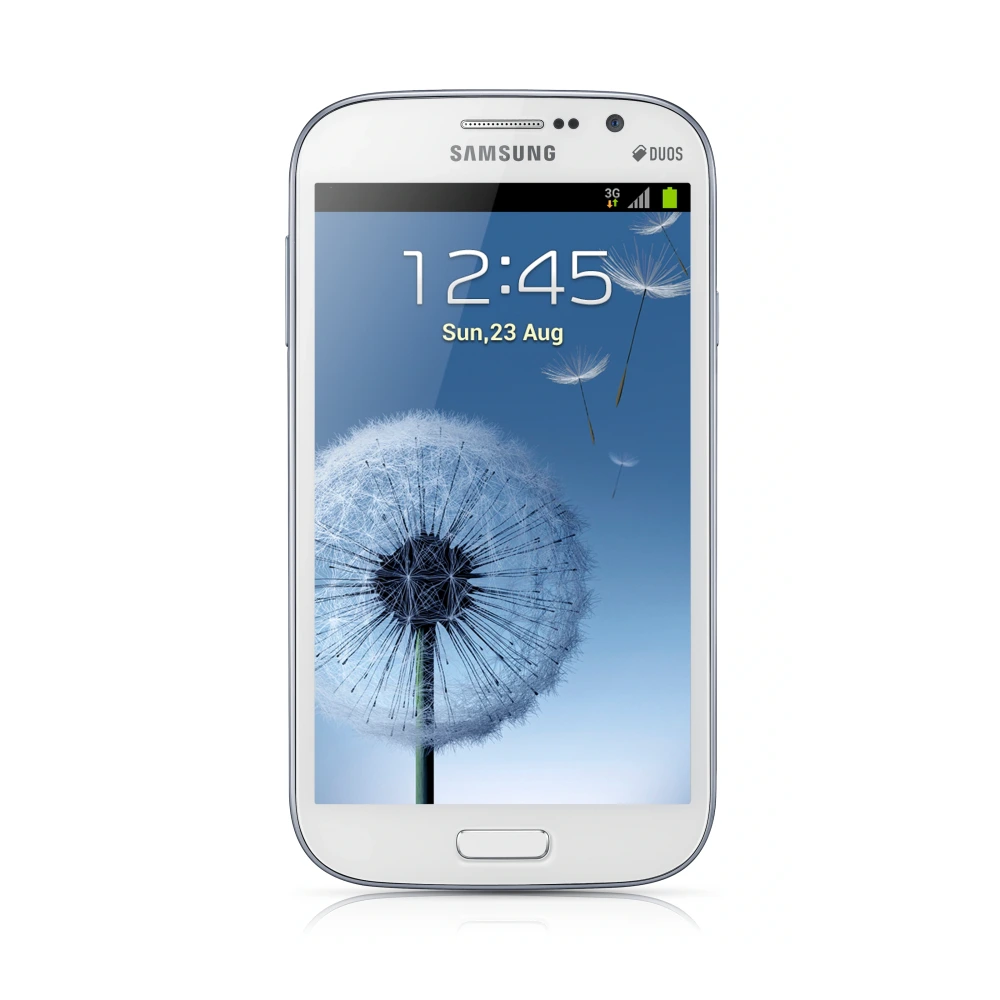
SM-G531H 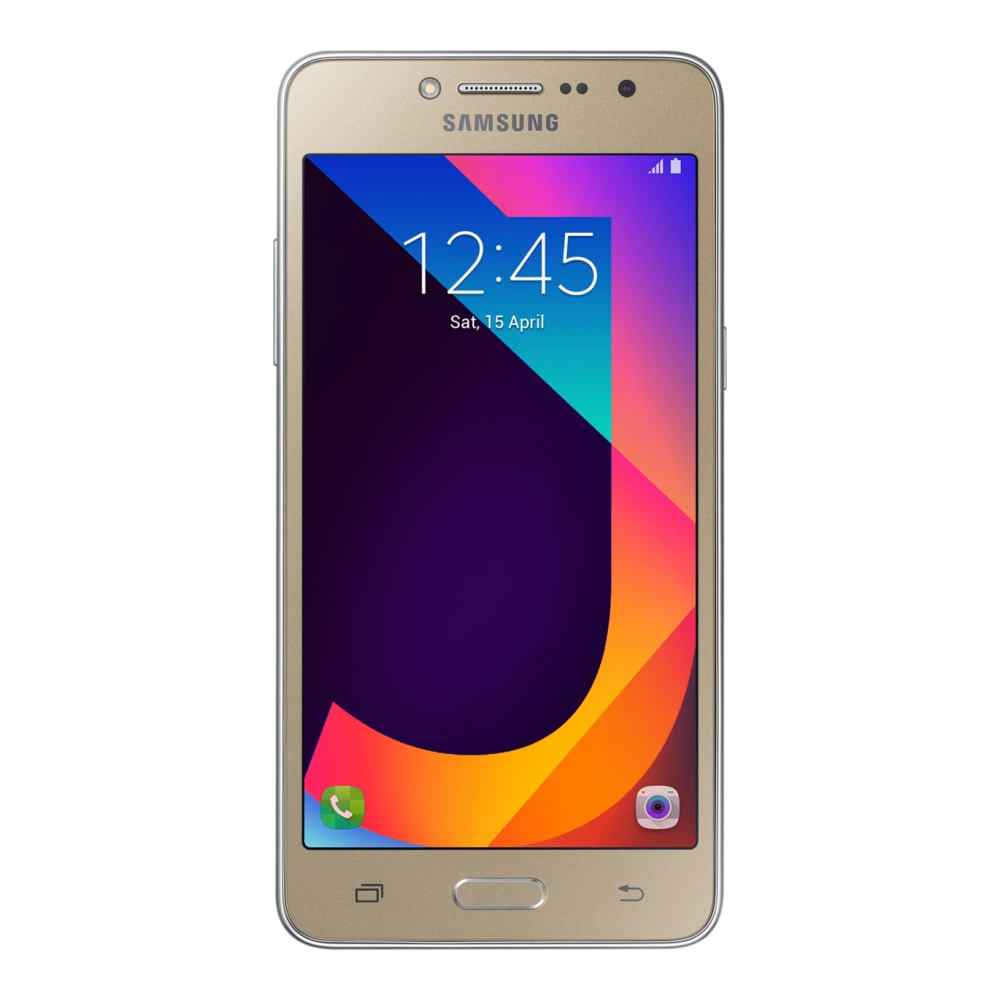
GT-I8552 
GT-I7500 
SM-J500F 
SM-T285YD 
SM-J120G 
SM-J110H 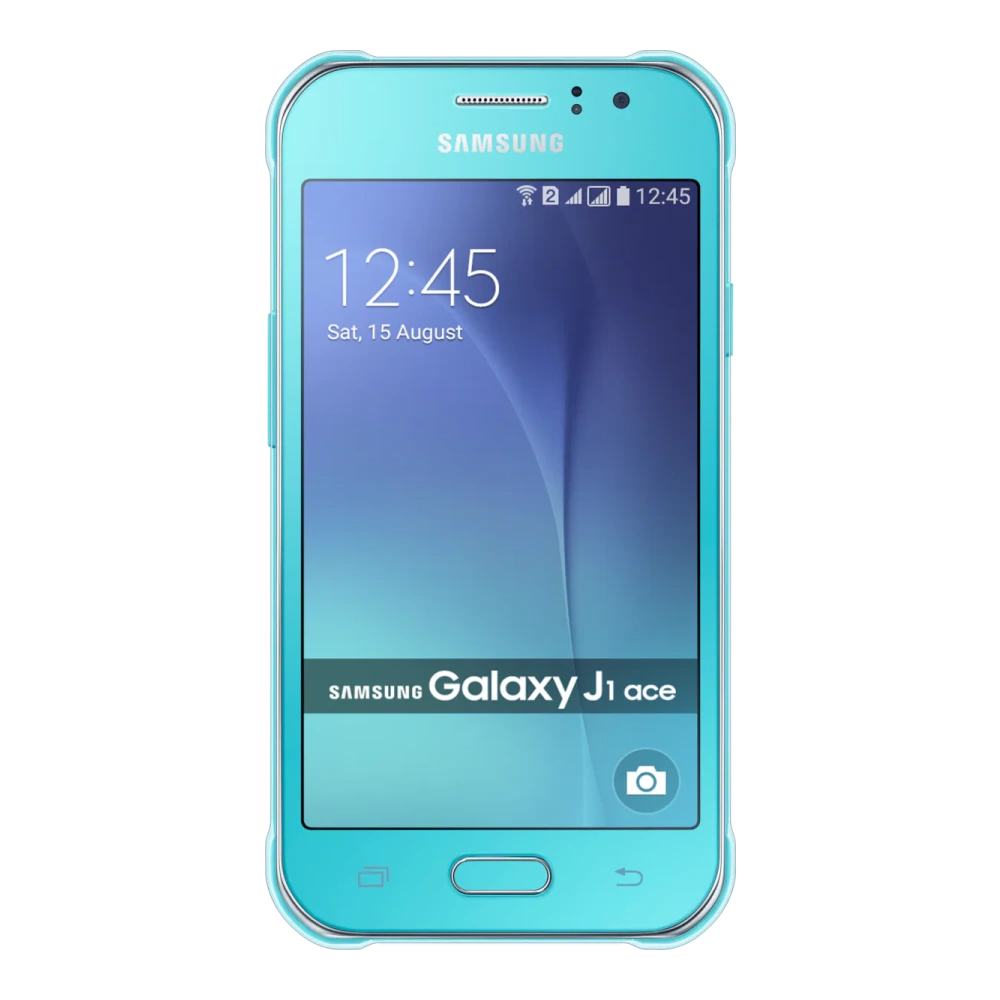
SM-J100G 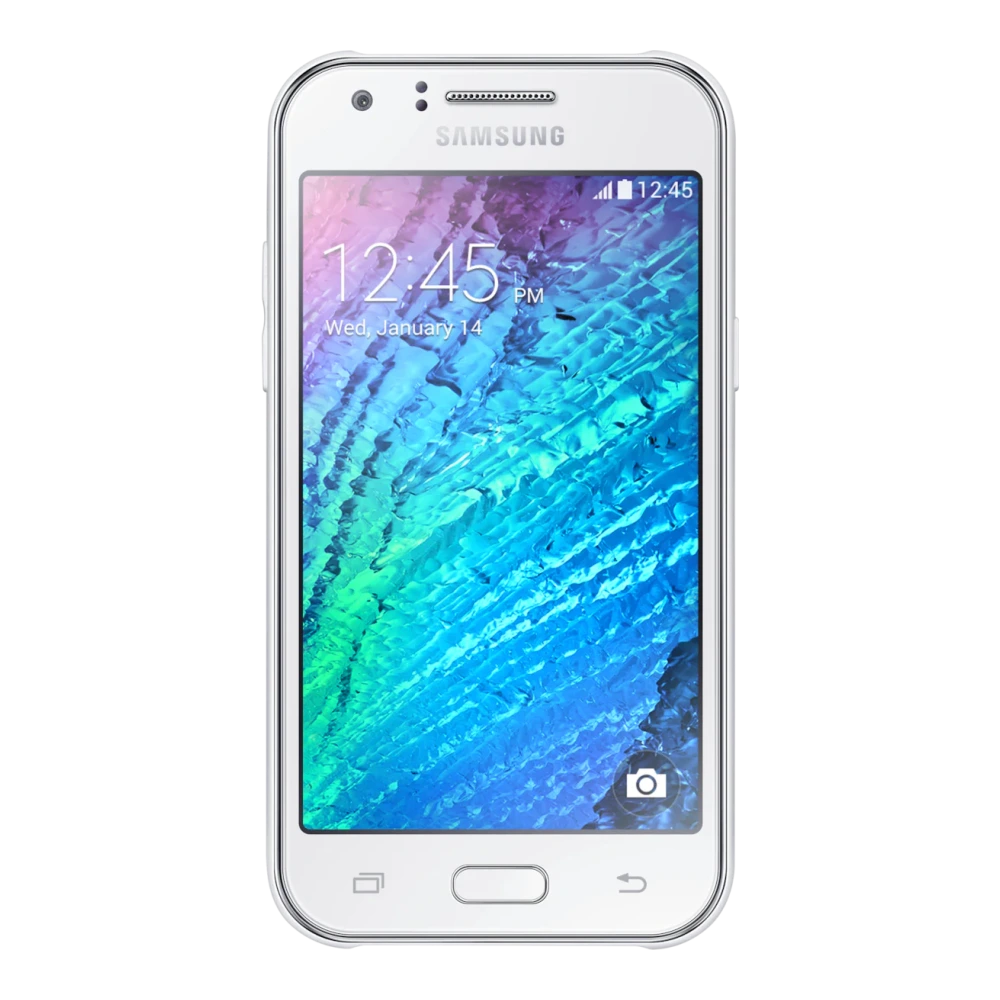
SM-J250F 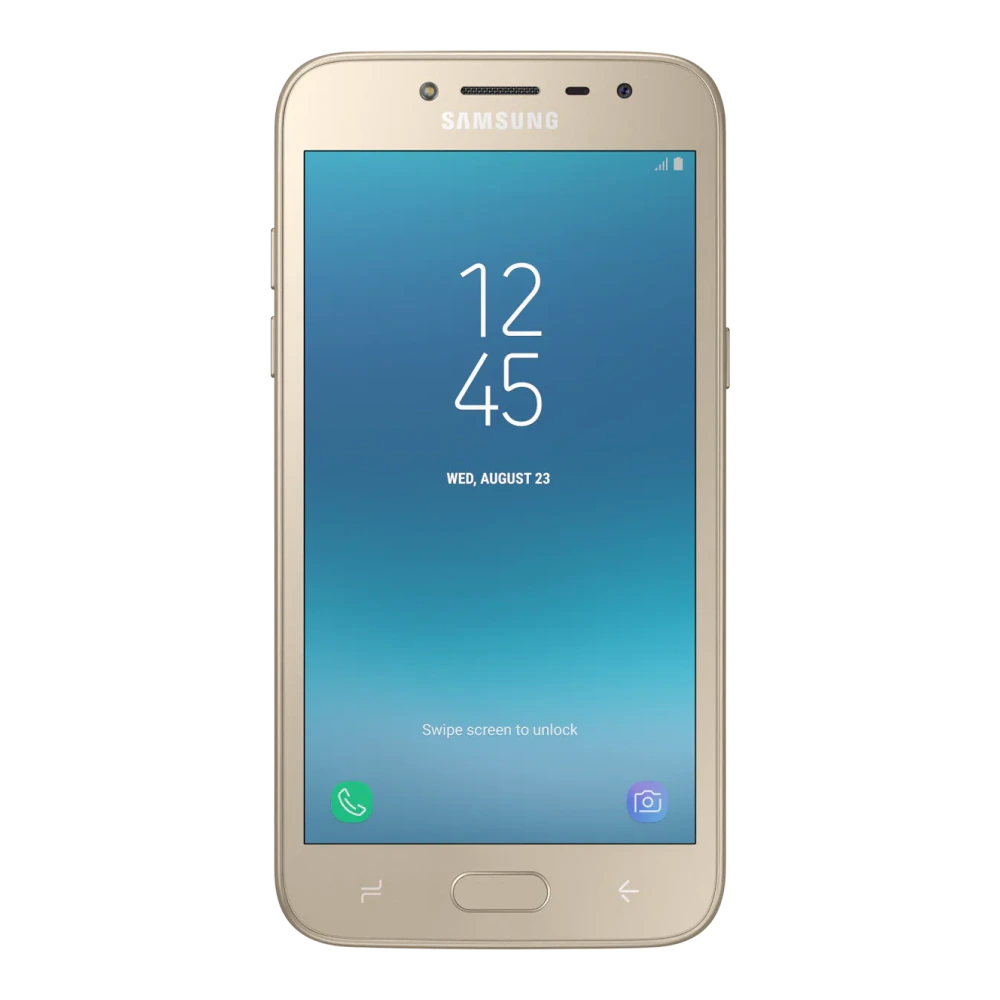
SM-J200G 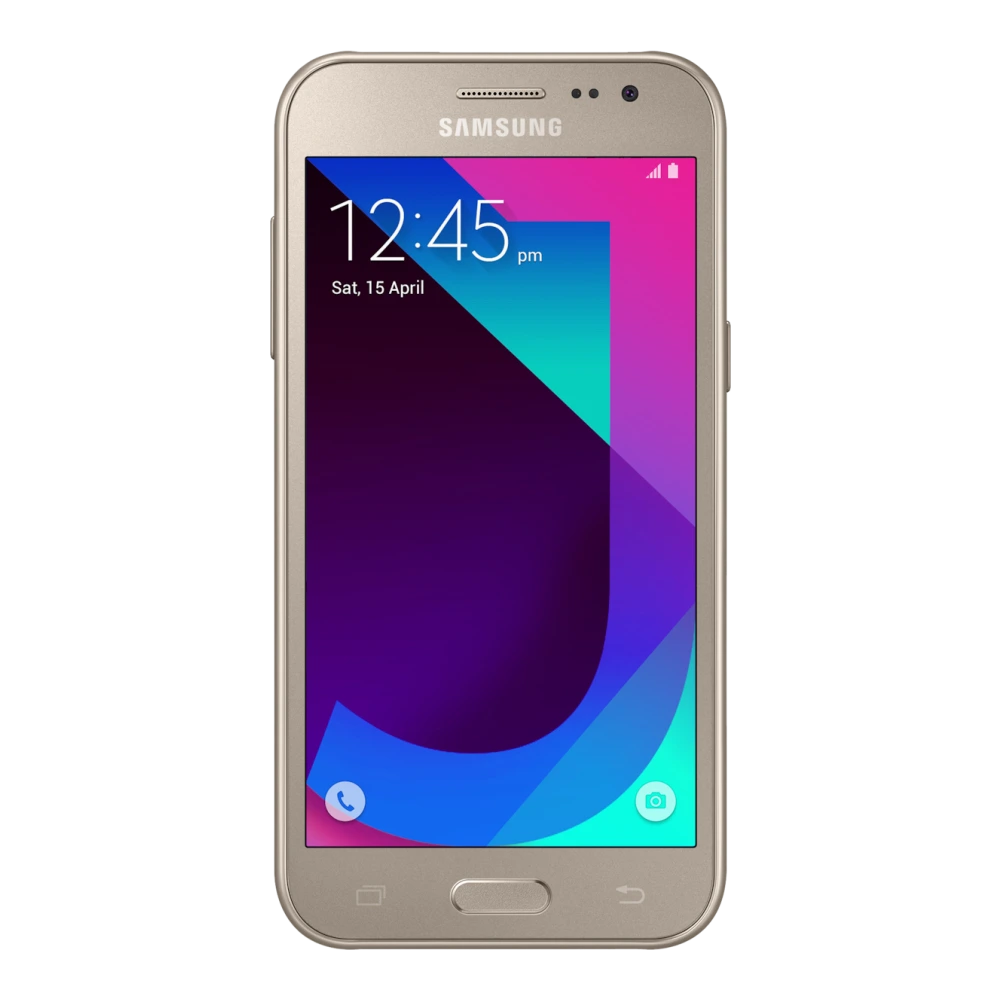
SM-G532G
SM-J260G 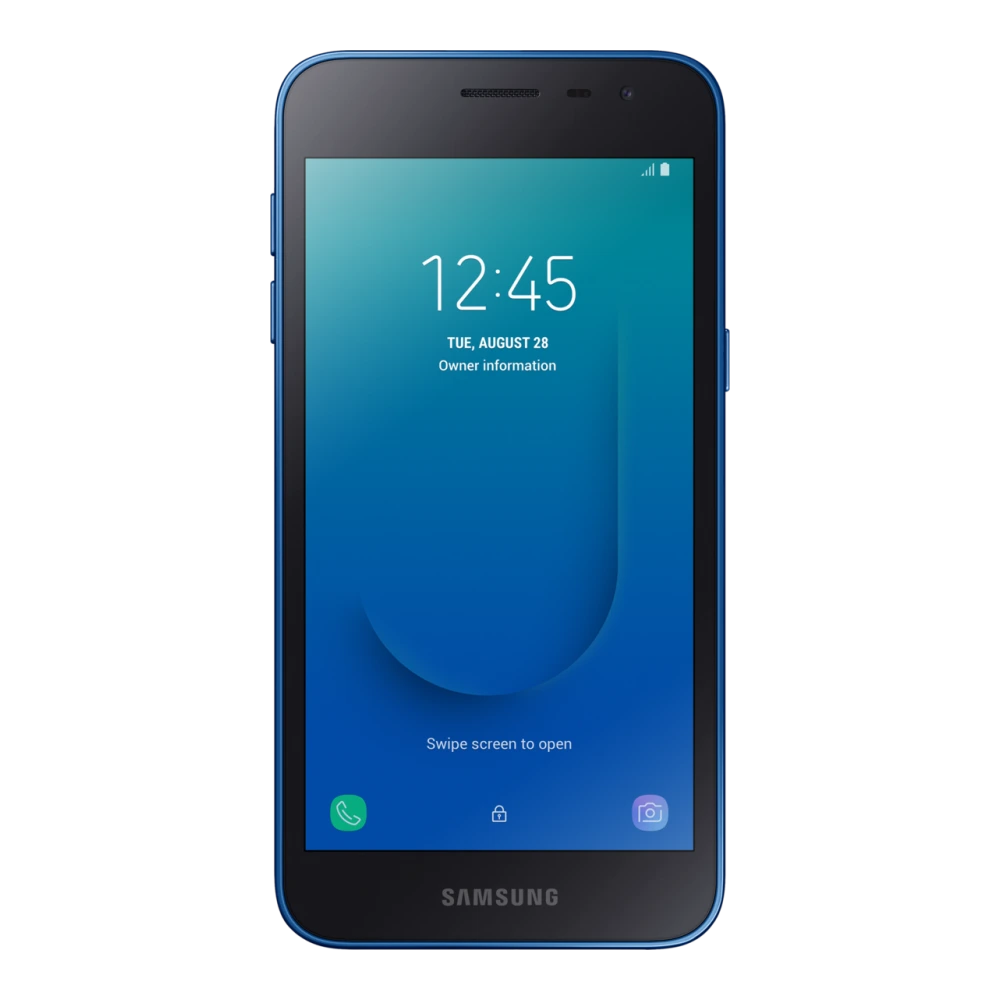
SM-J320F 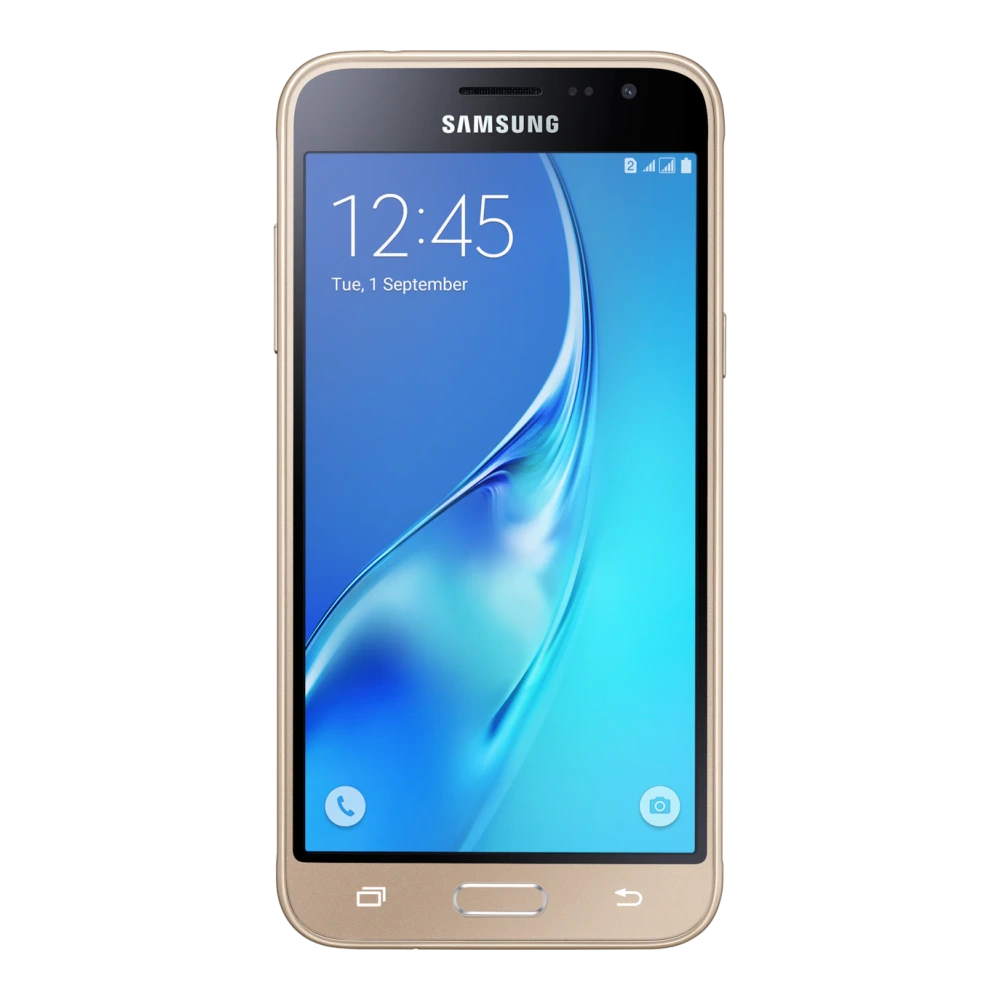
SM-J400F 
SM-J415F 
SM-G570F 
SM-J600G 
SM-J610F 
SM-J700F 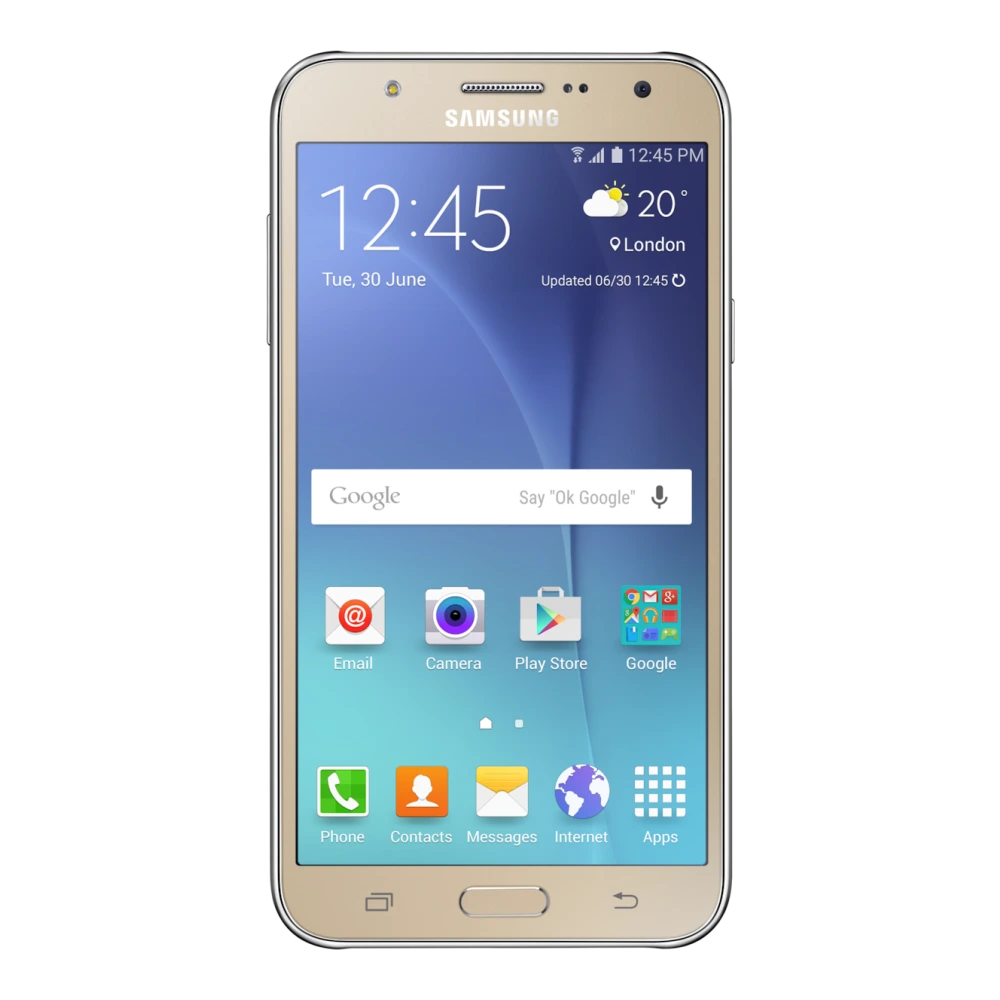
SM-J720F 
SM-G615F 
SM-J701F 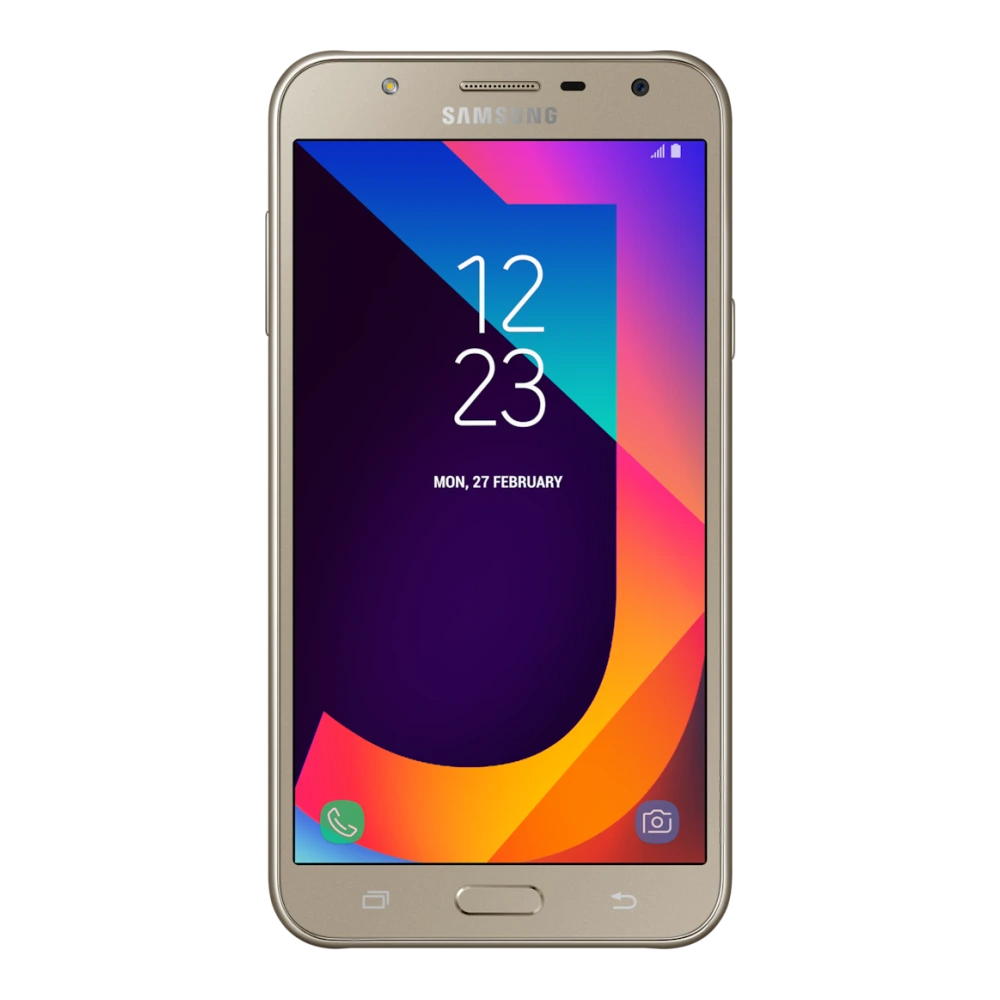
SM-G610F 
SM-G611FF 
SM-J730GM 
SM-J810G 
SM-M015G 
SM-M013F 
SM-M017F 
SM-M022G 
SM-M025F 
SM-M045F 
SM-M055F 
SM-M066B 
SM-M075F 
SM-M105F 
SM-M107F 
SM-M115F 
SM-M127G 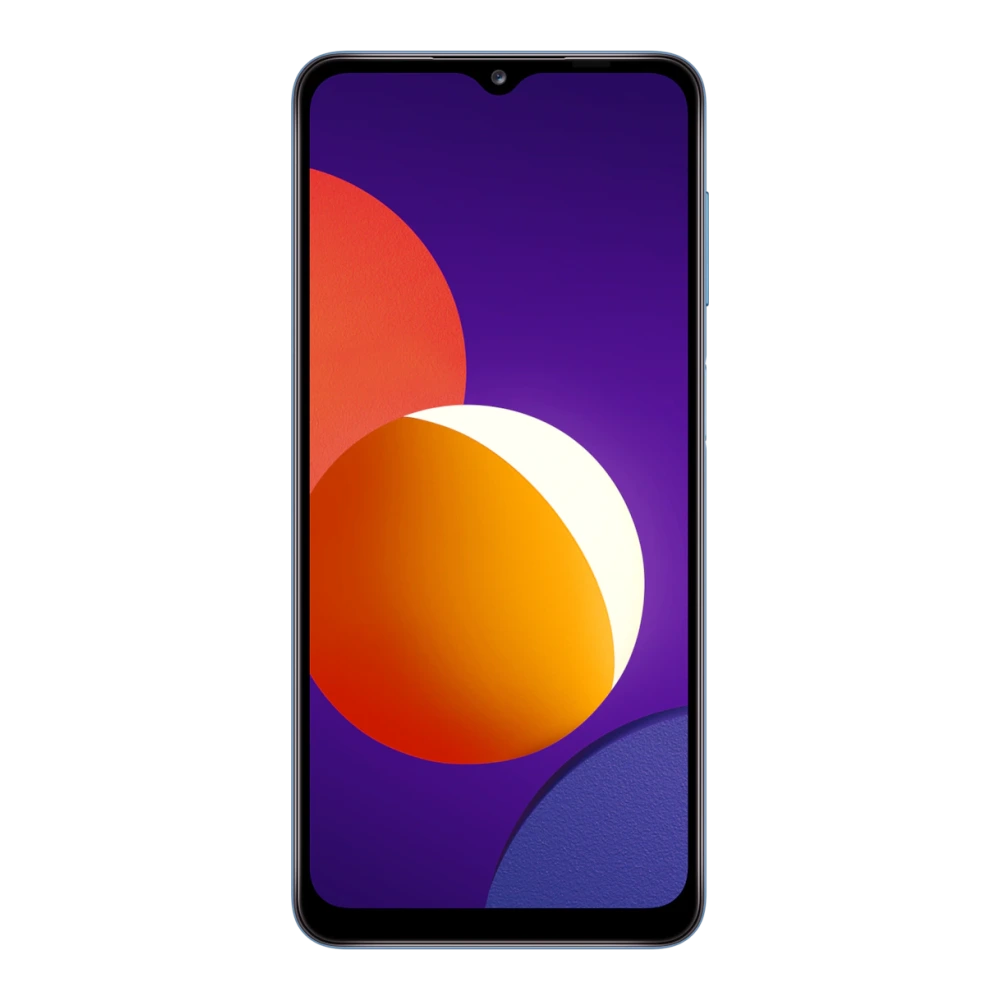
SM-M135FU 
SM-M136B 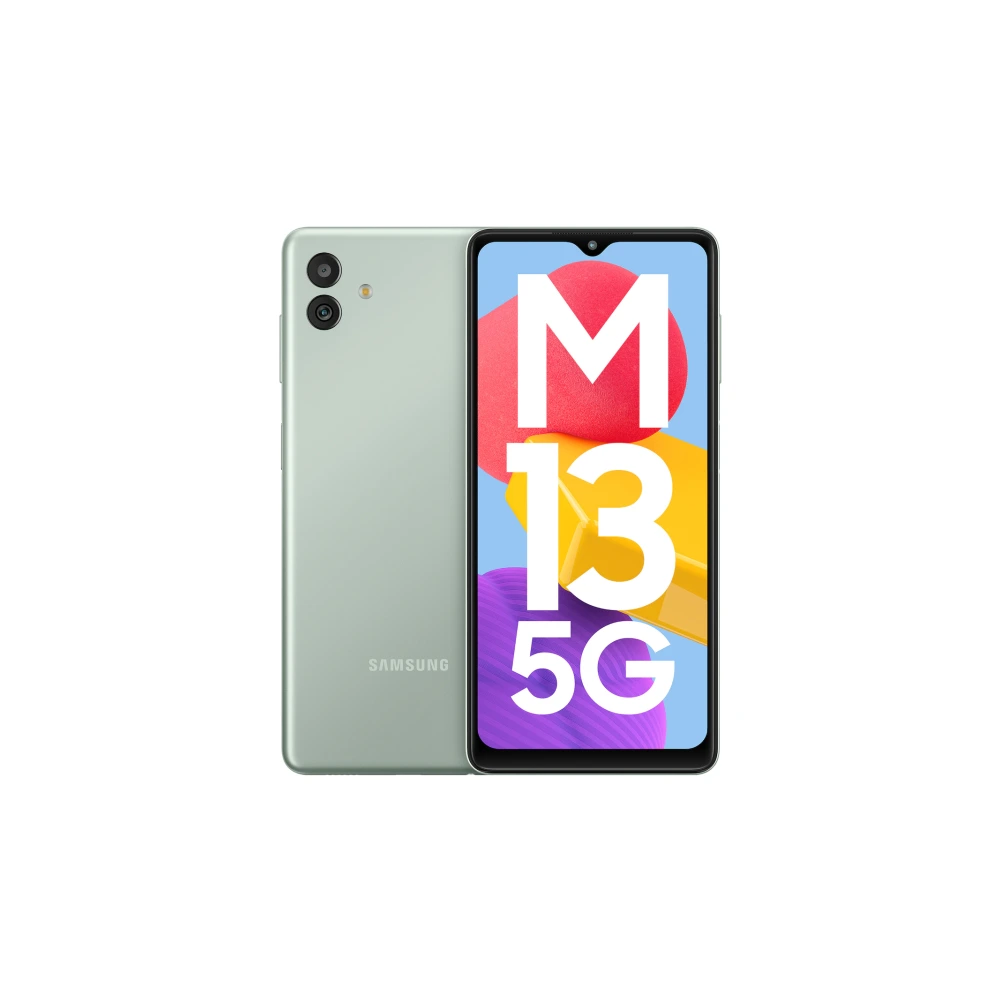
SM-M145F 
SM-M146B 
SM-M156B 
SM-M166P 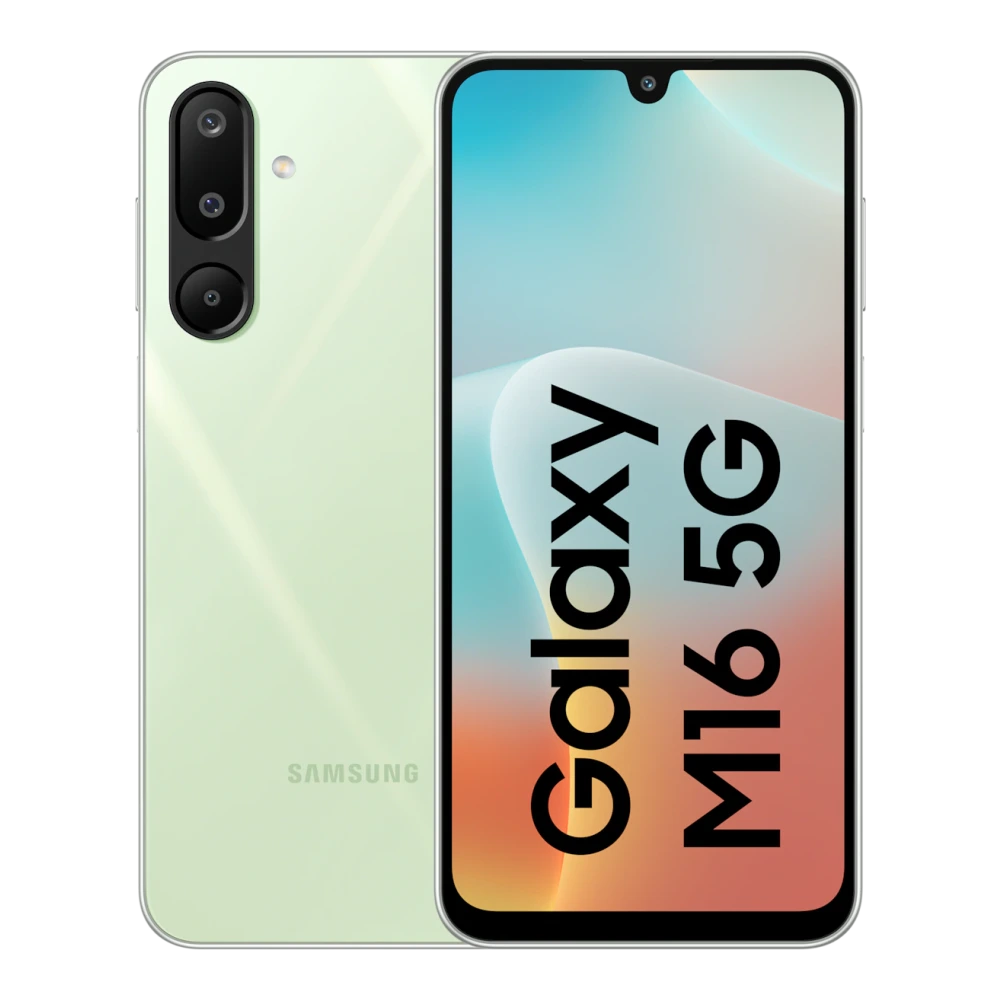
SM-M176B 
SM-M076B 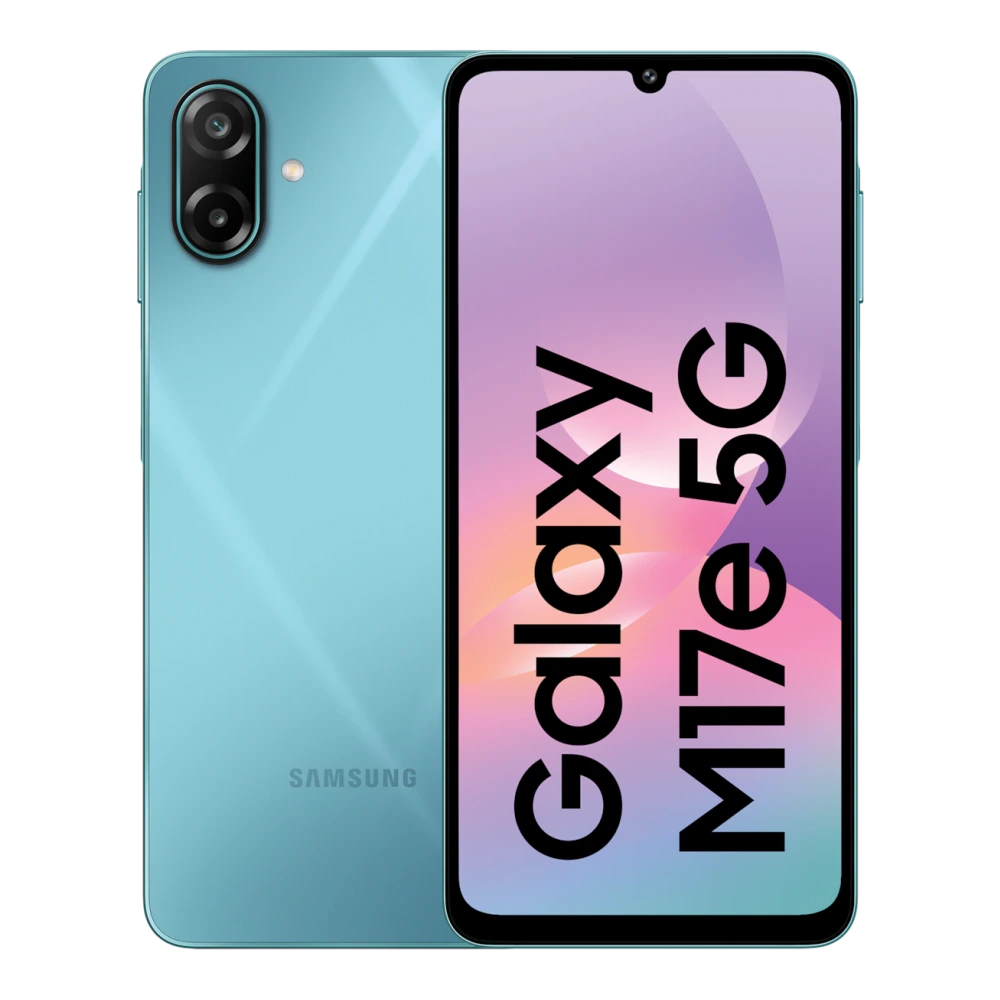
SM-M205F 
SM-M215F 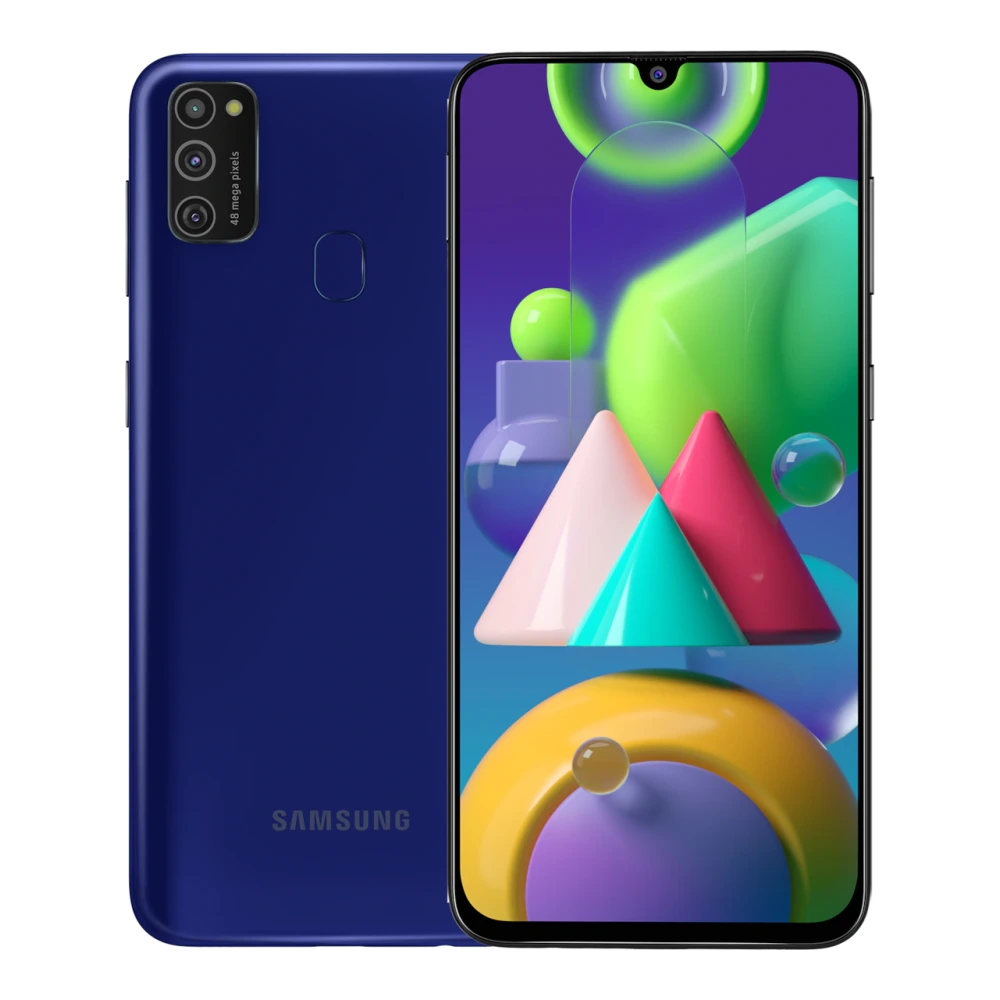
SM-M215G 
SM-M305F 
SM-M307F 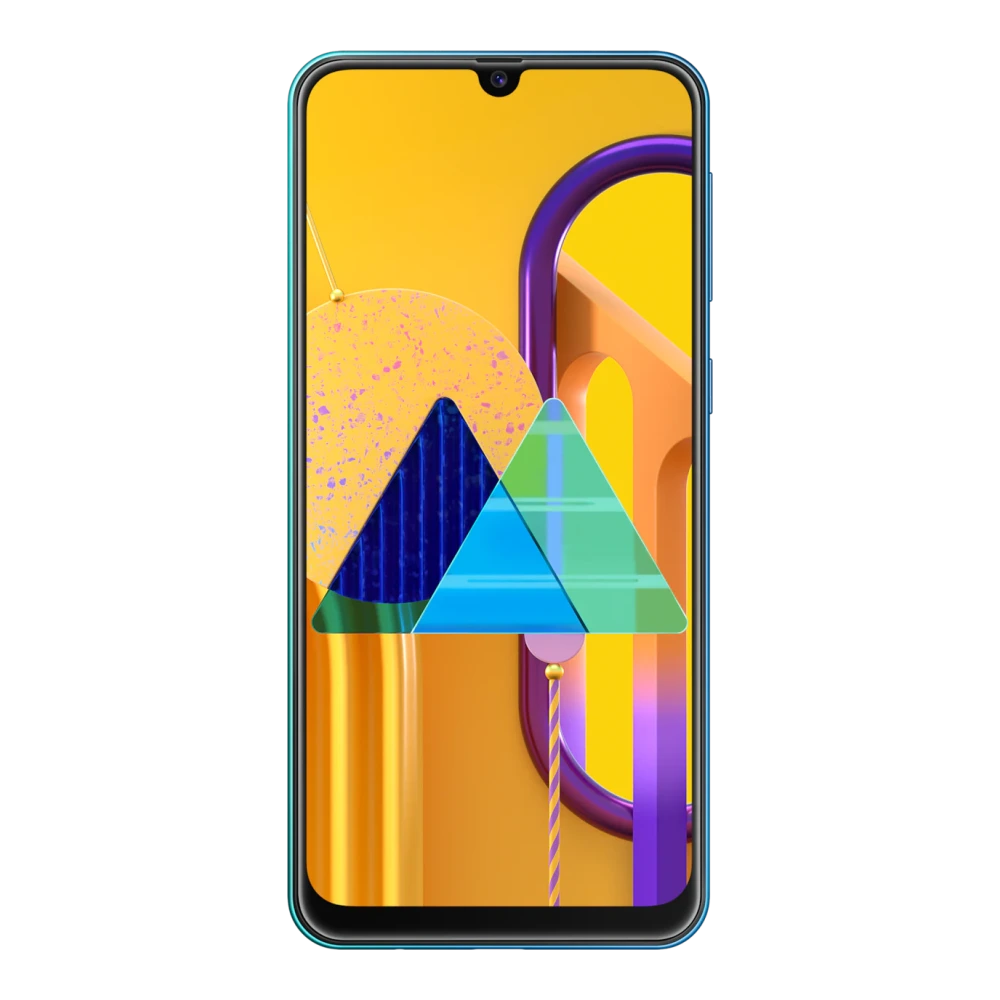
SM-M315F 
SM-M317F 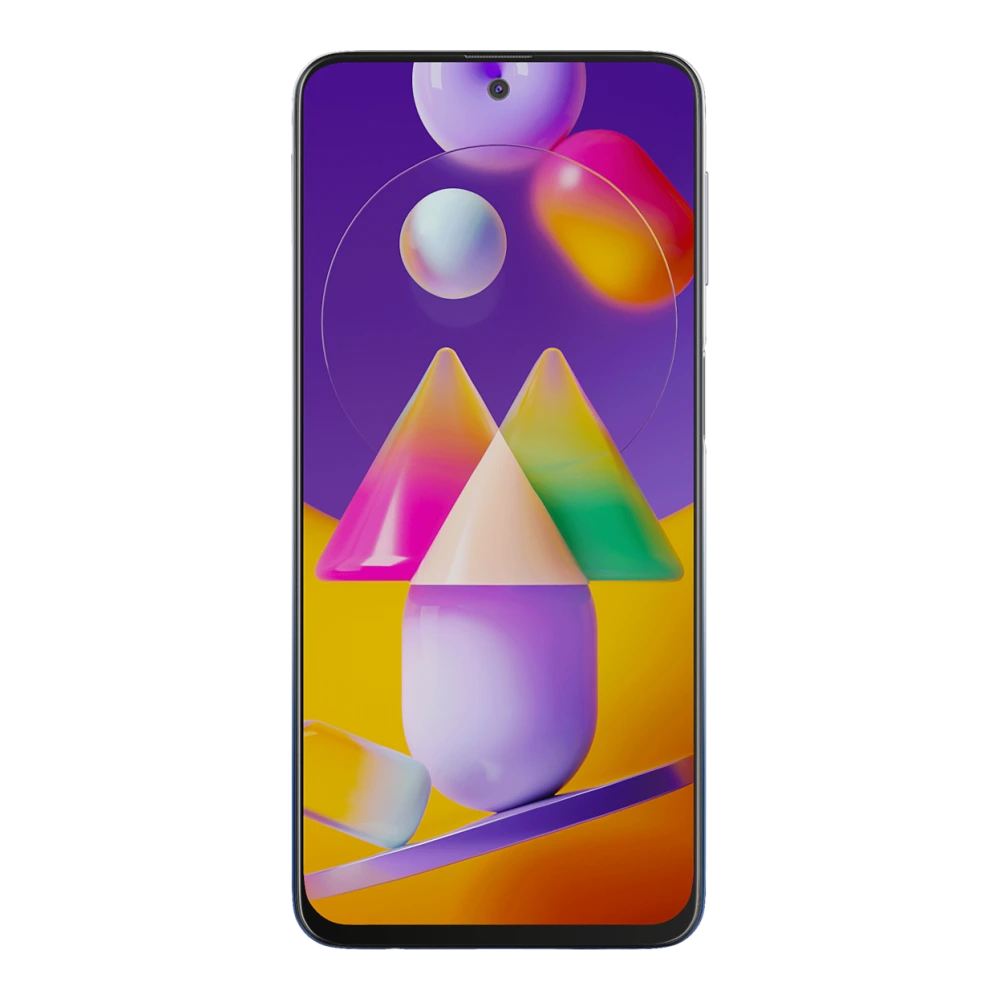
SM-M325F 
SM-M326B 
SM-M336BU 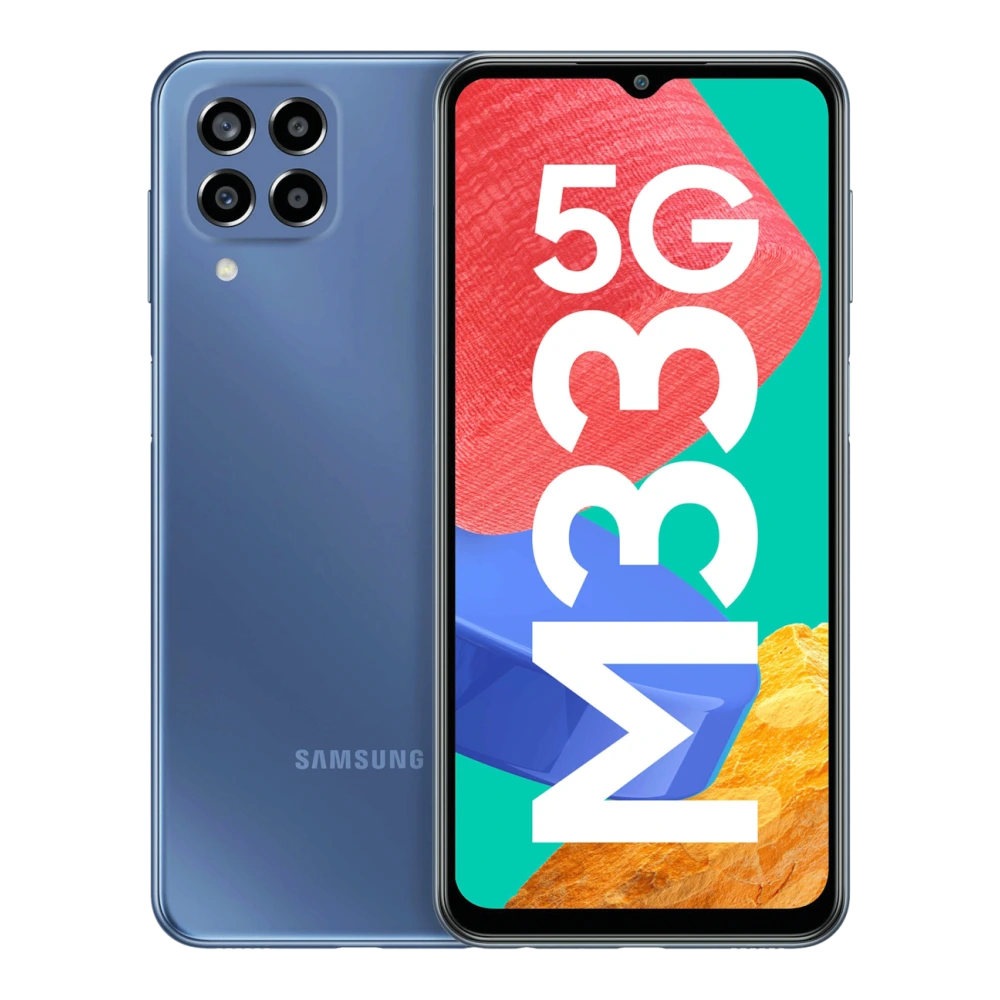
SM-M346B 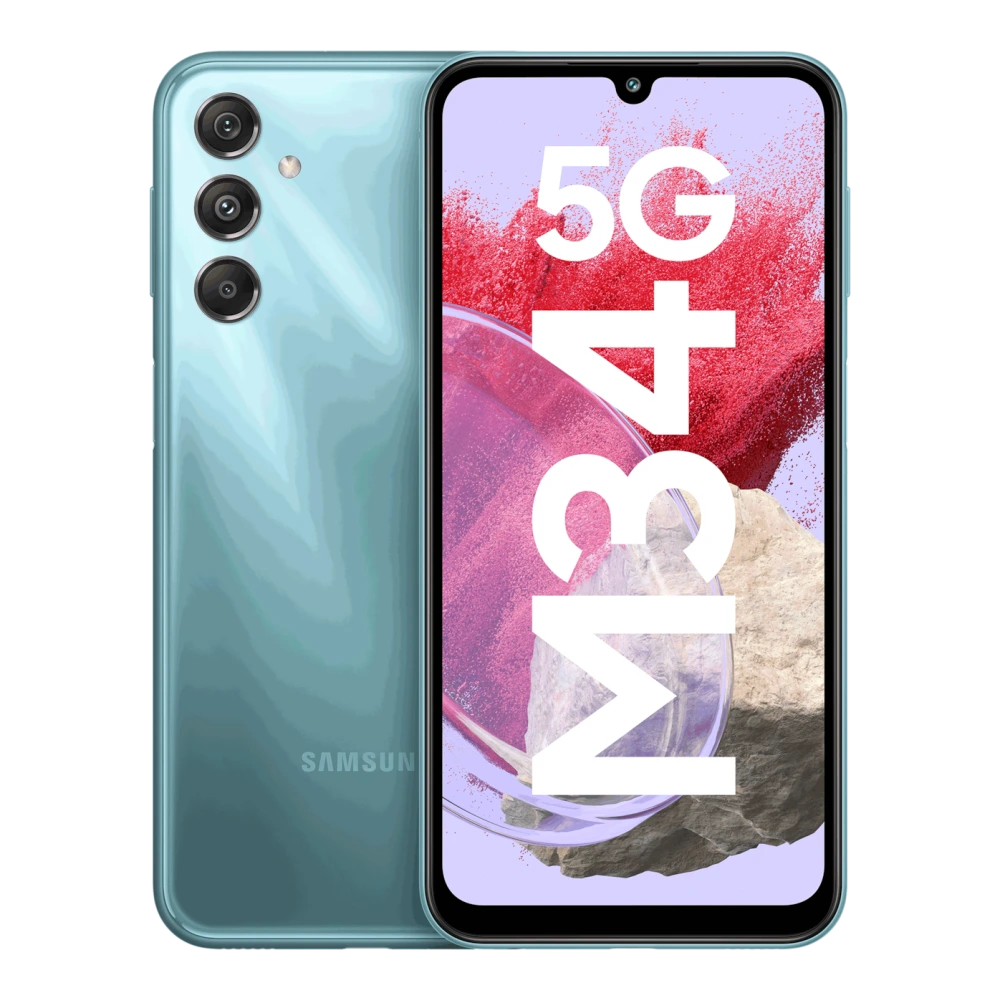
SM-M356B 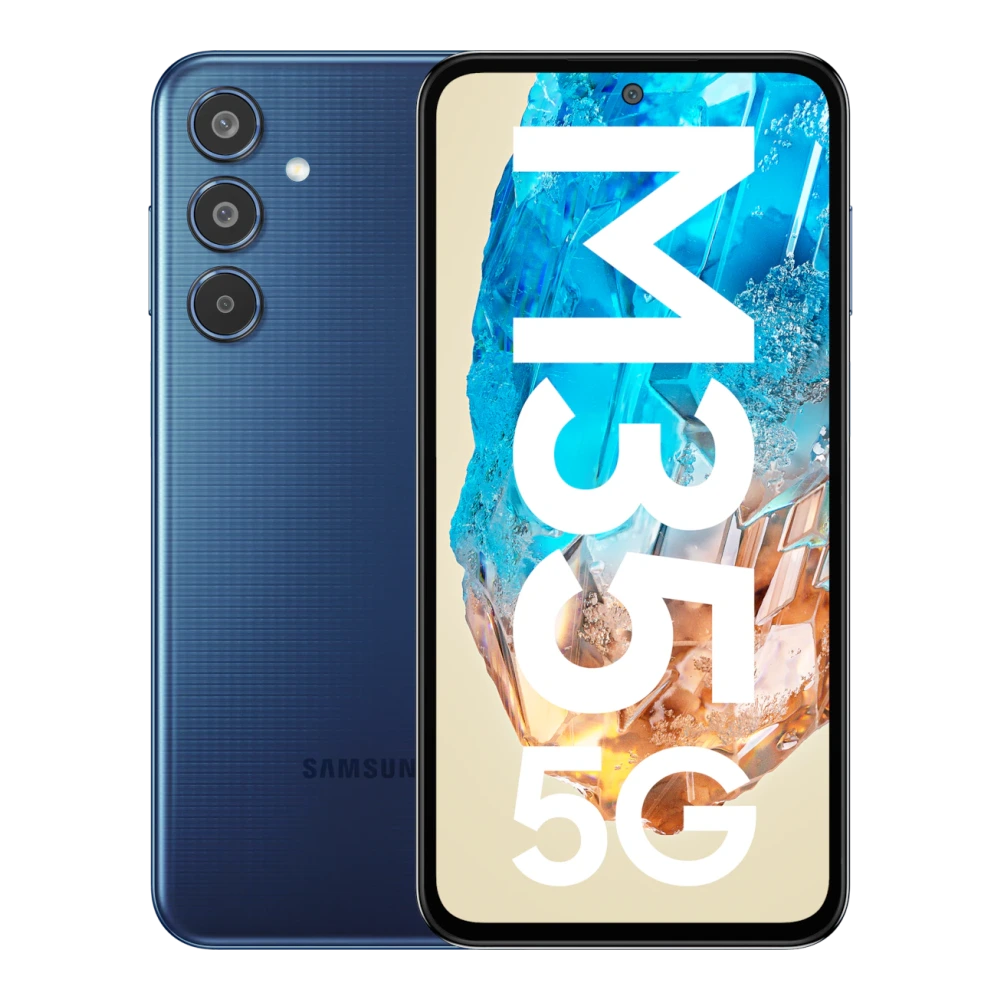
SM-M366B 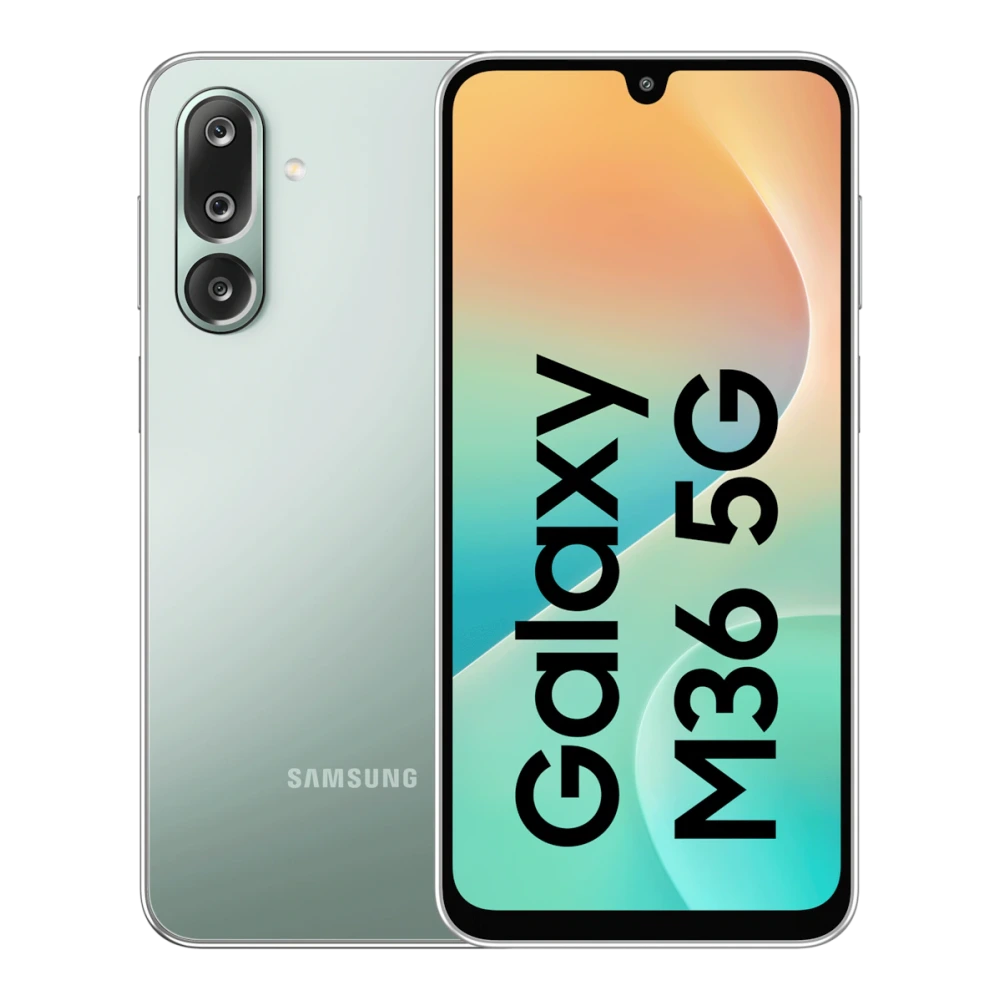
SM-M405F 
SM-M426B 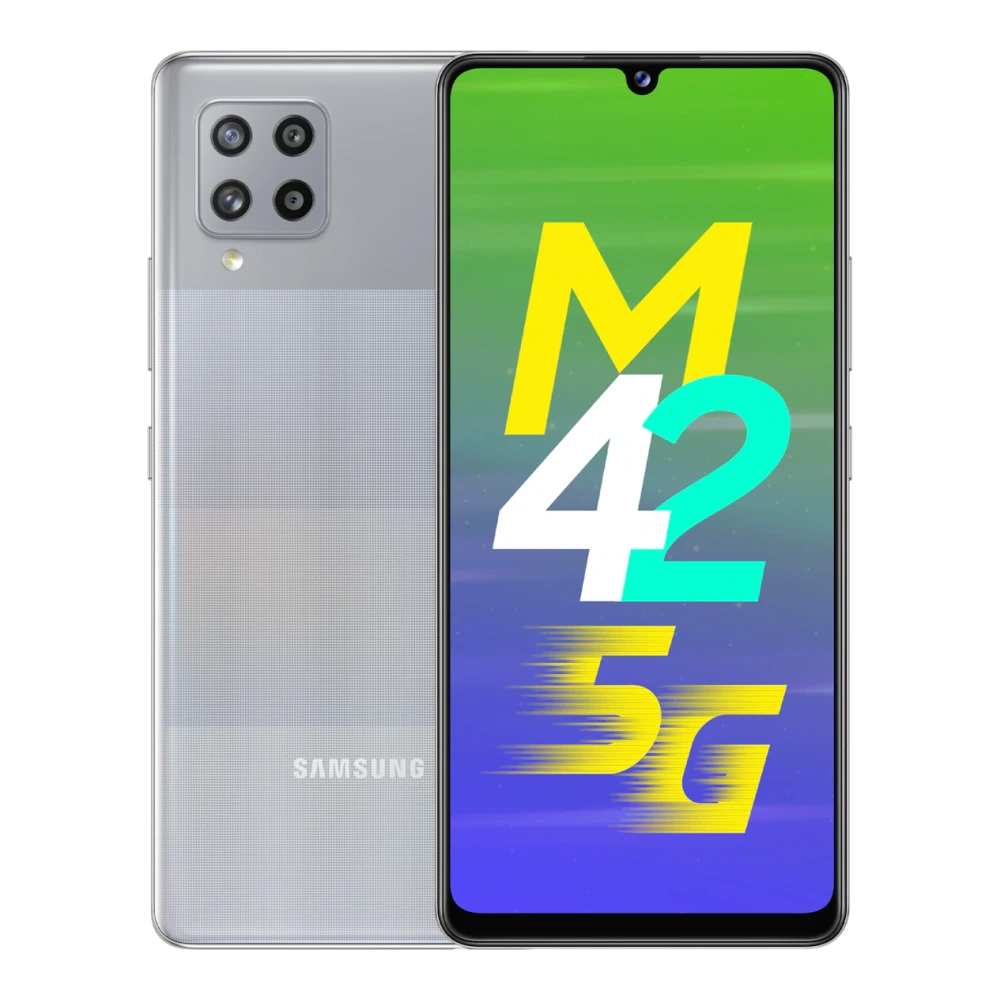
SM-M476B 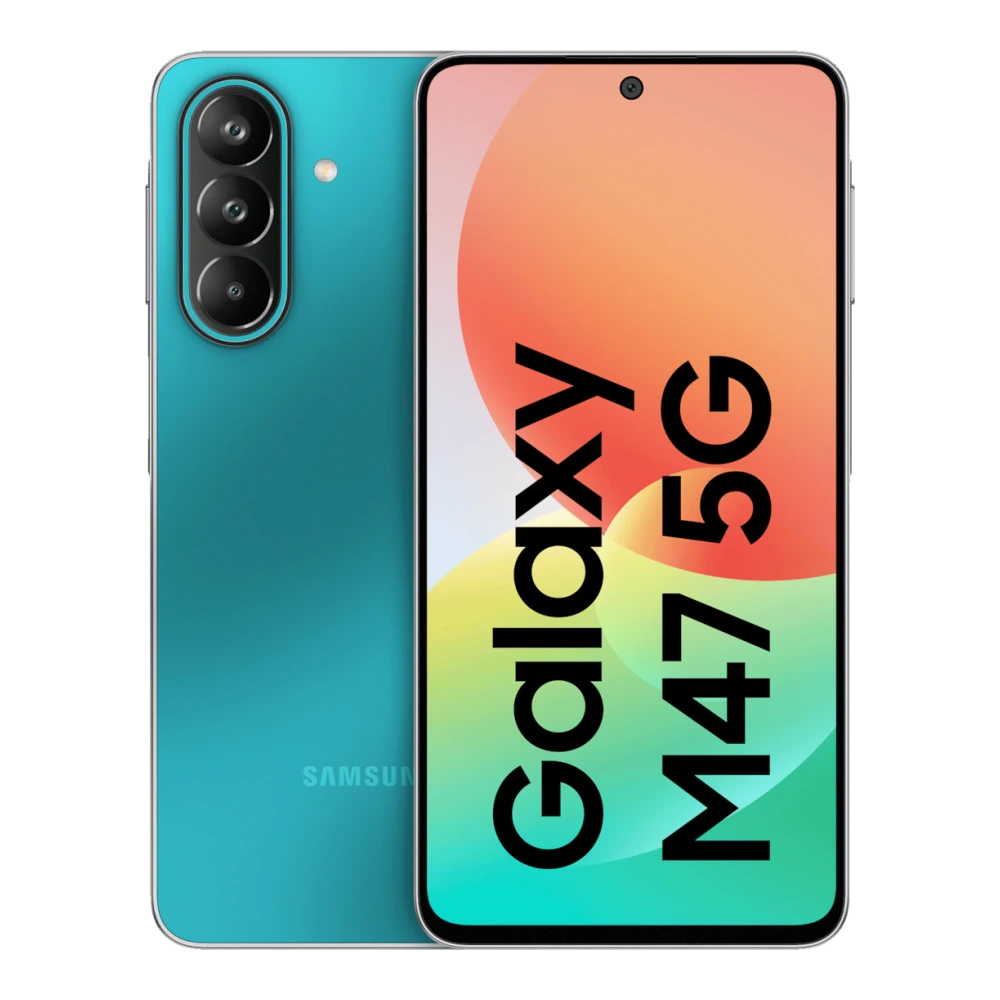
SM-M515F 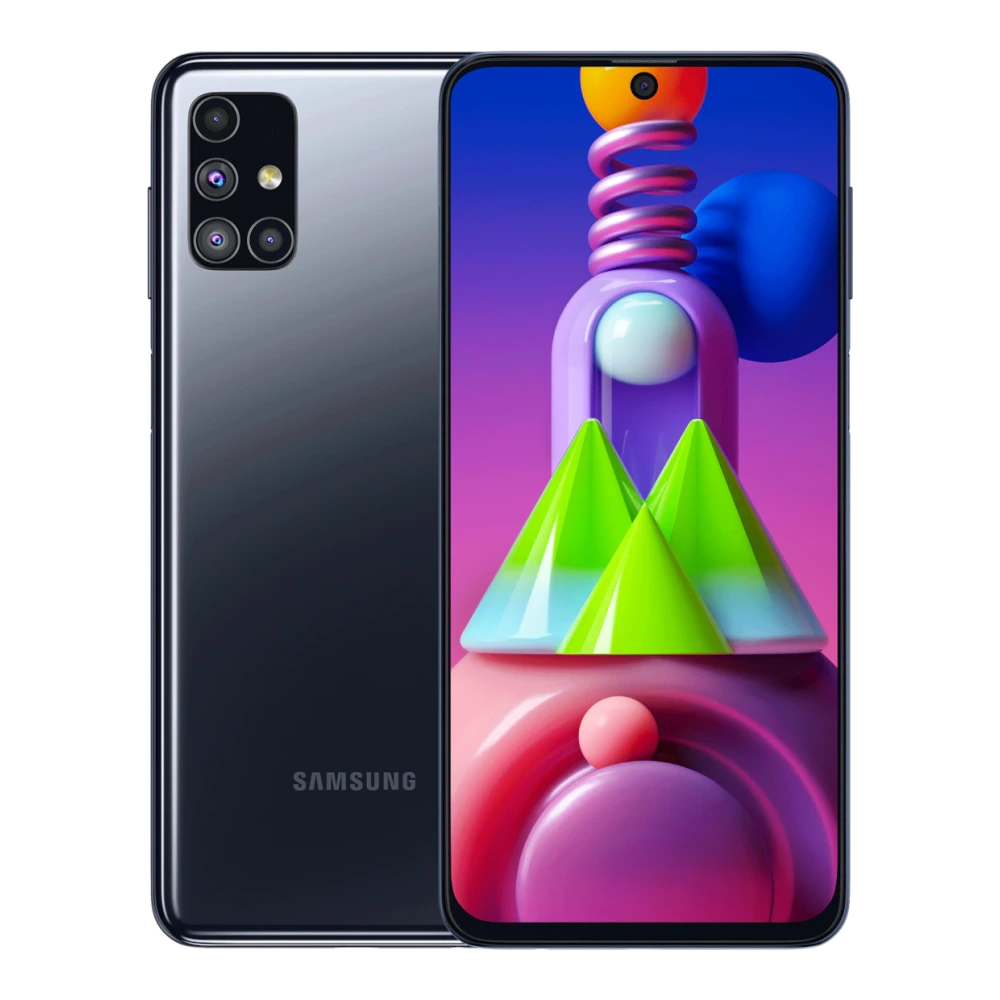
SM-M526B 
SM-M536B 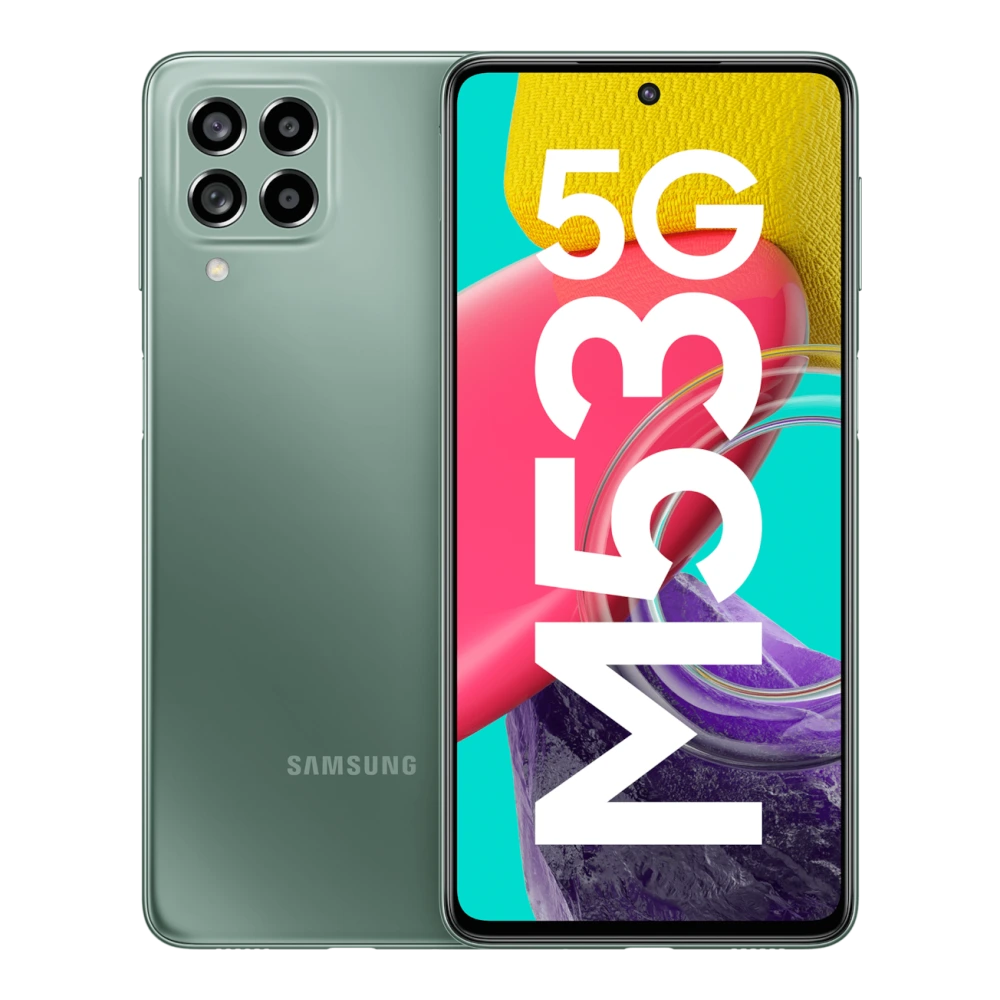
SM-M556B 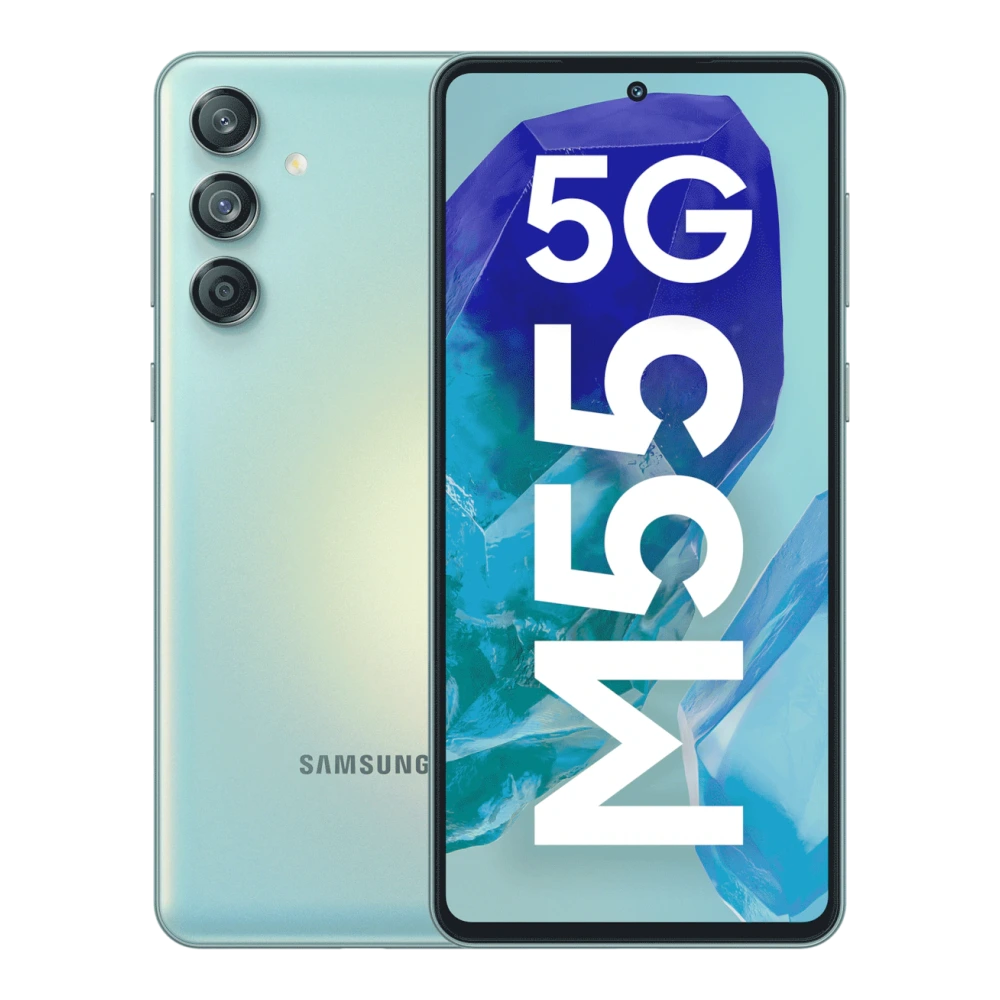
SM-M558B 
SM-M566B 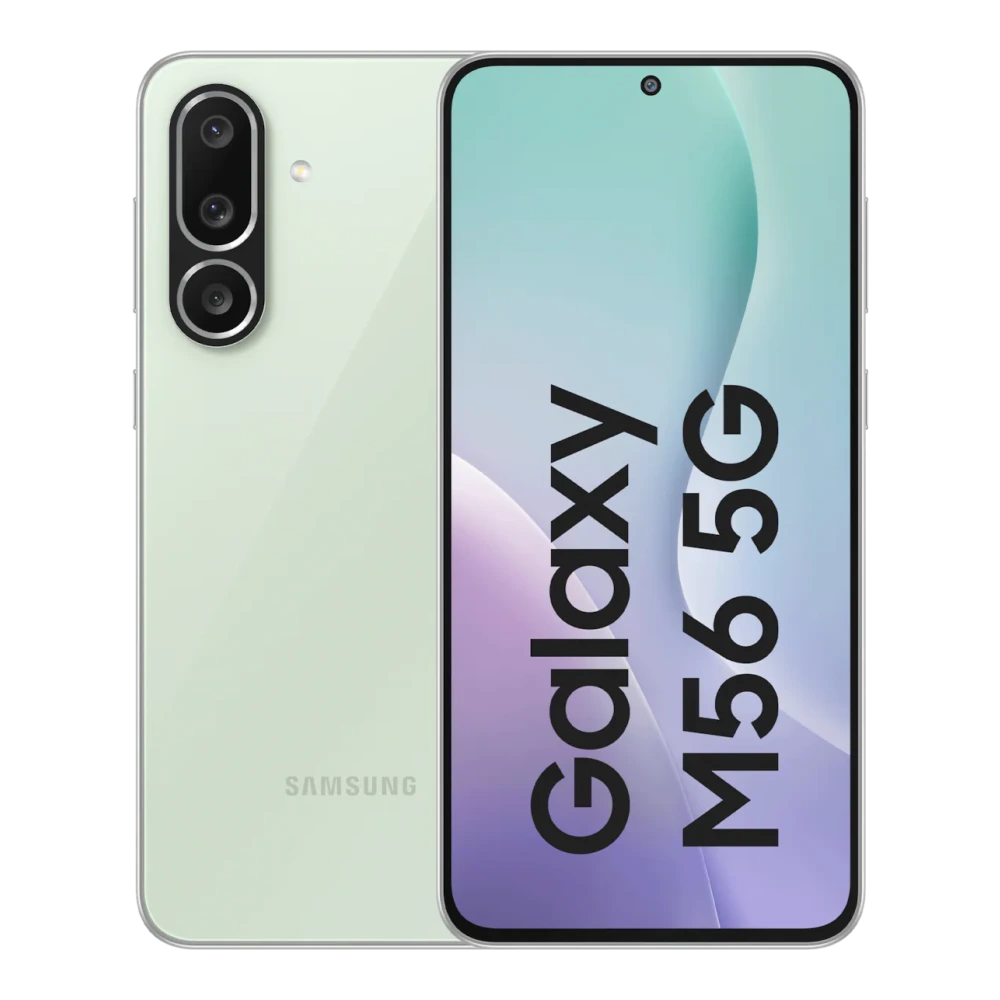
GT-N8000 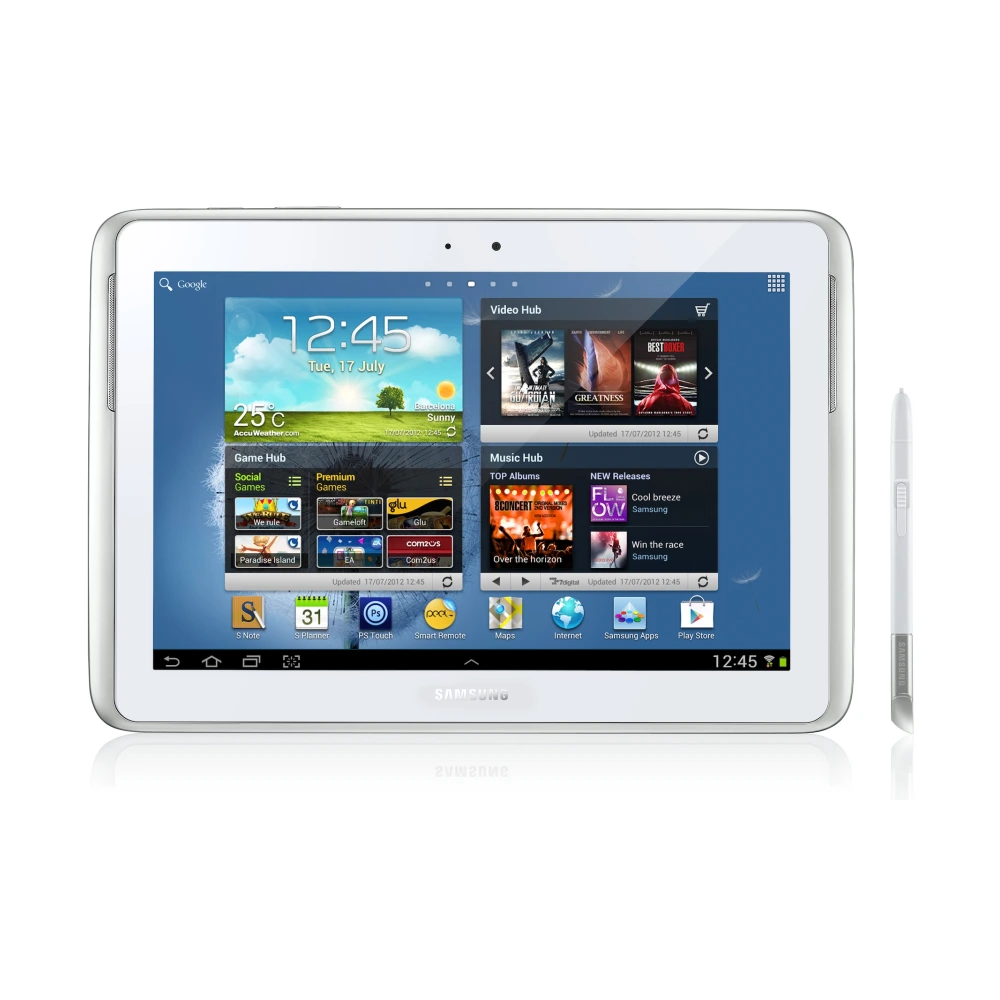
SM-P601 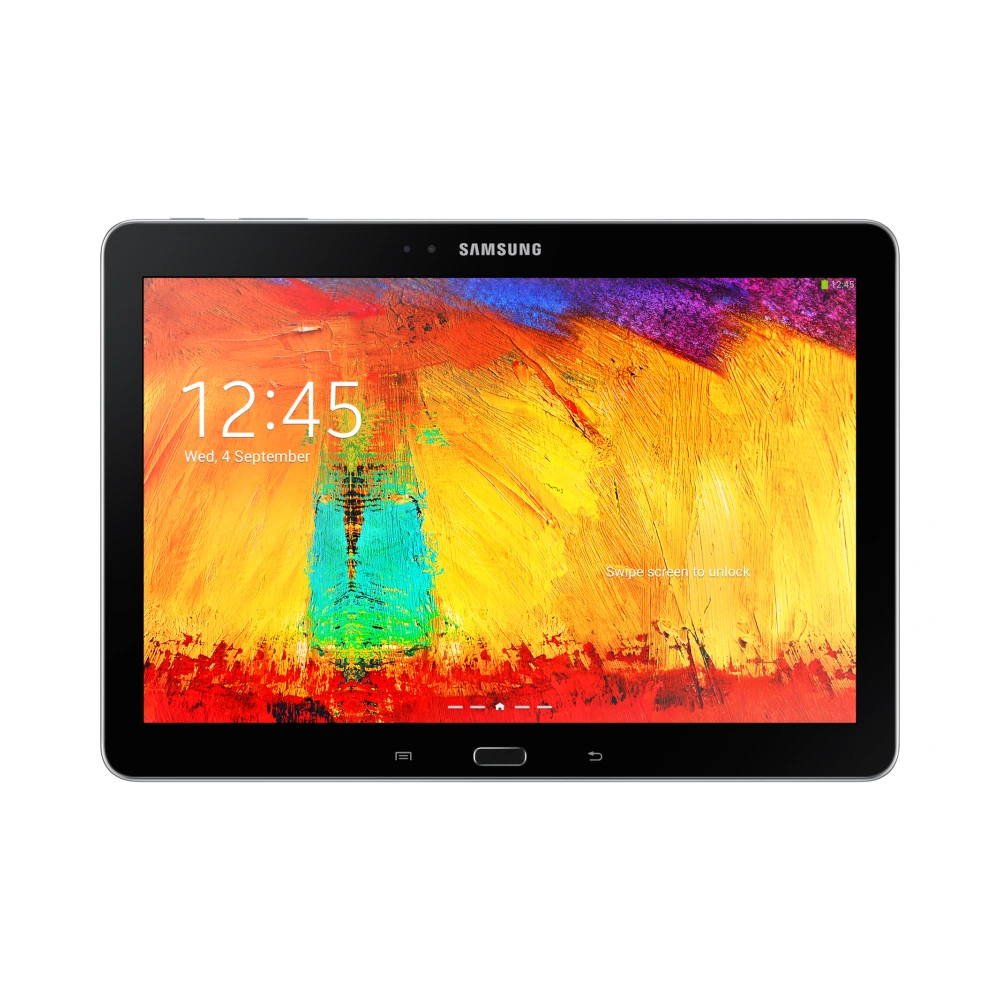
SM-N910G 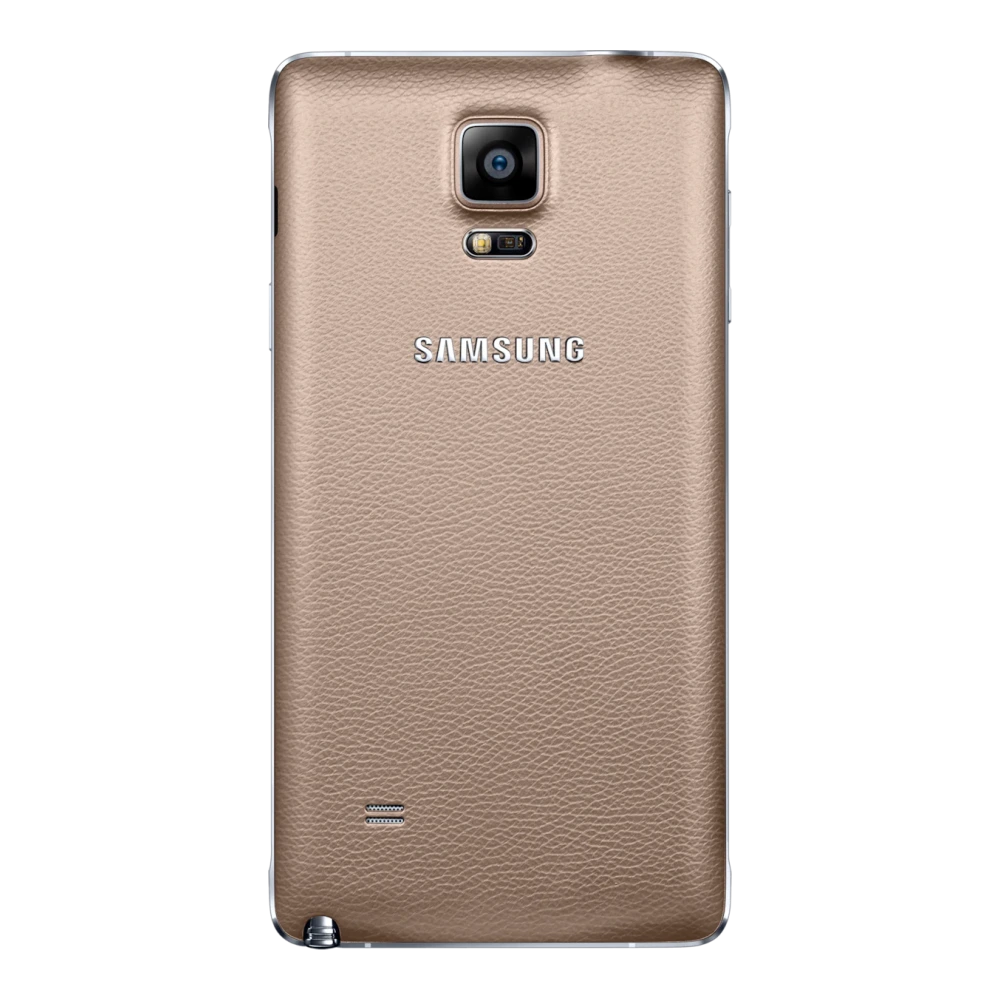
SM-N915G 
SM-N900 
GT-N7000
SM-N970F 
SM-N770F 
SM-N975F 
SM-N980F 
SM-N986B 
SM-N9208 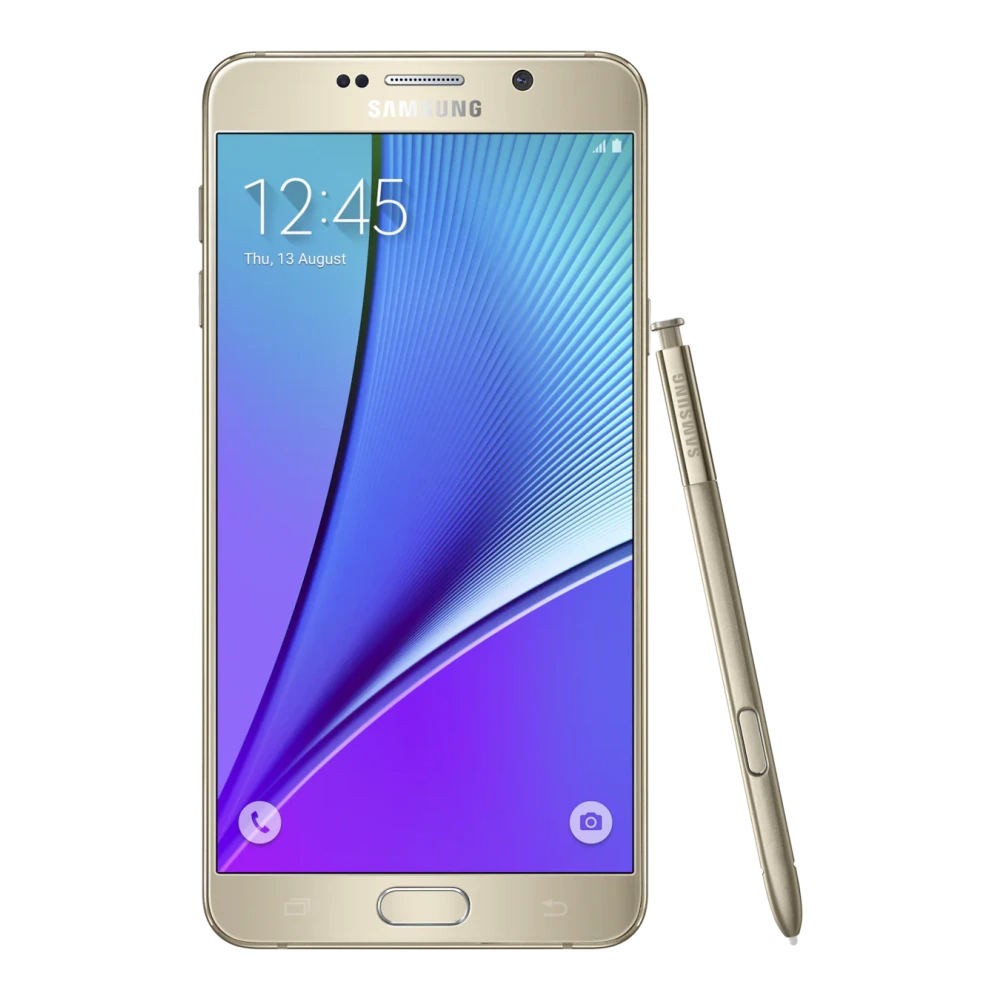
SM-N950F 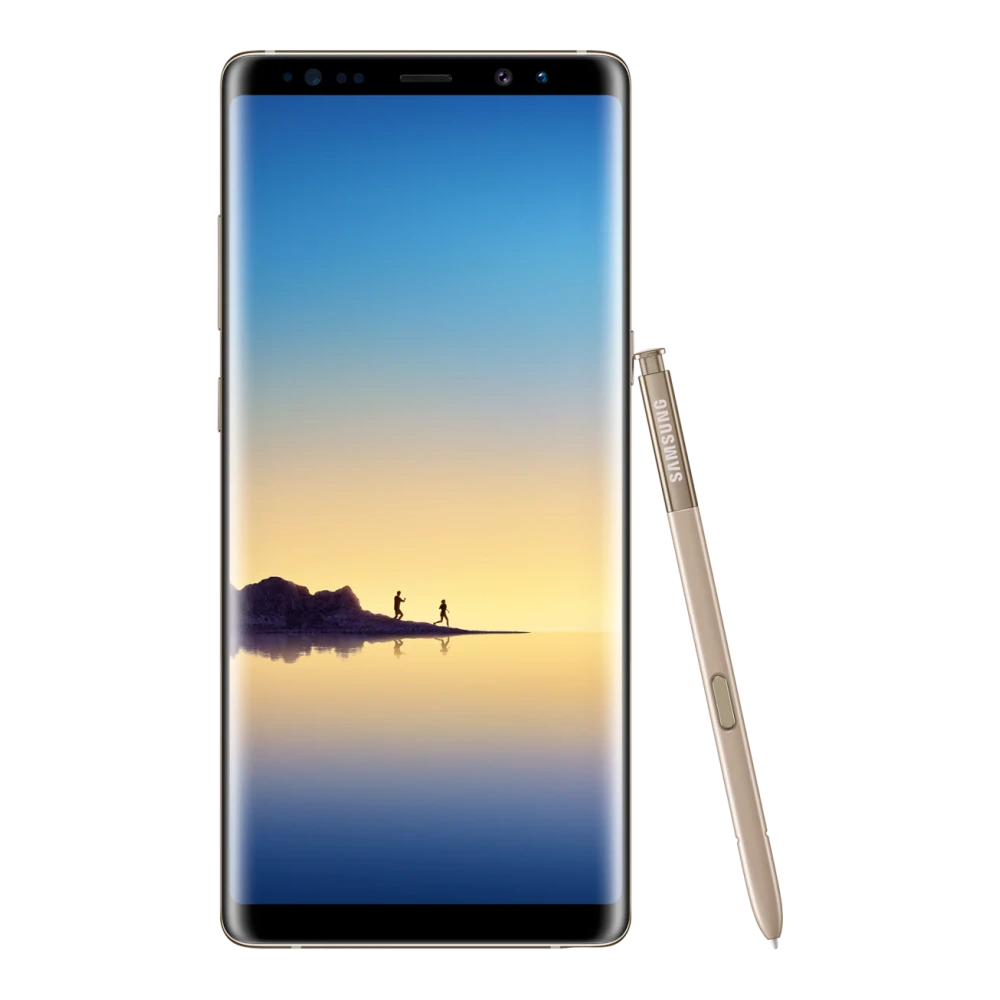
SM-G615FU 
SM-G550FY 
SM-J600GF 
SM-G600FY 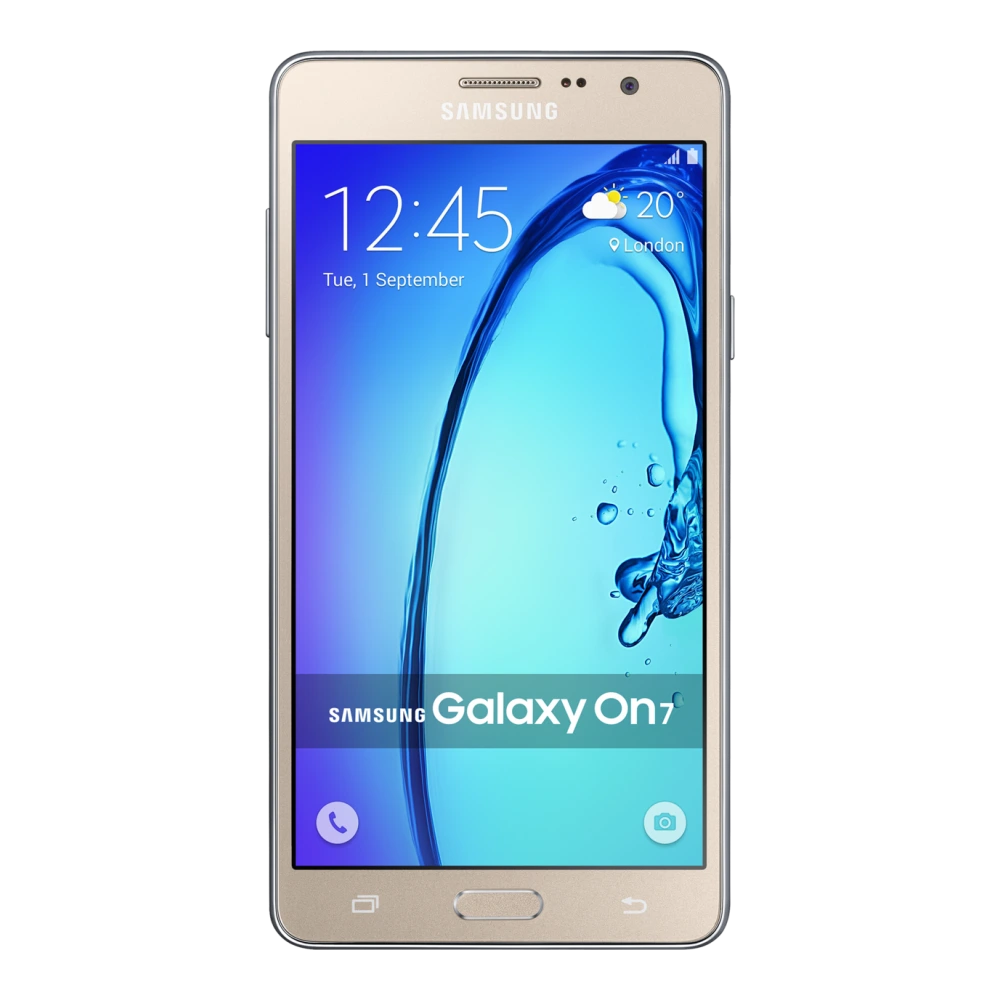
SM-G611F 
SM-J810GF 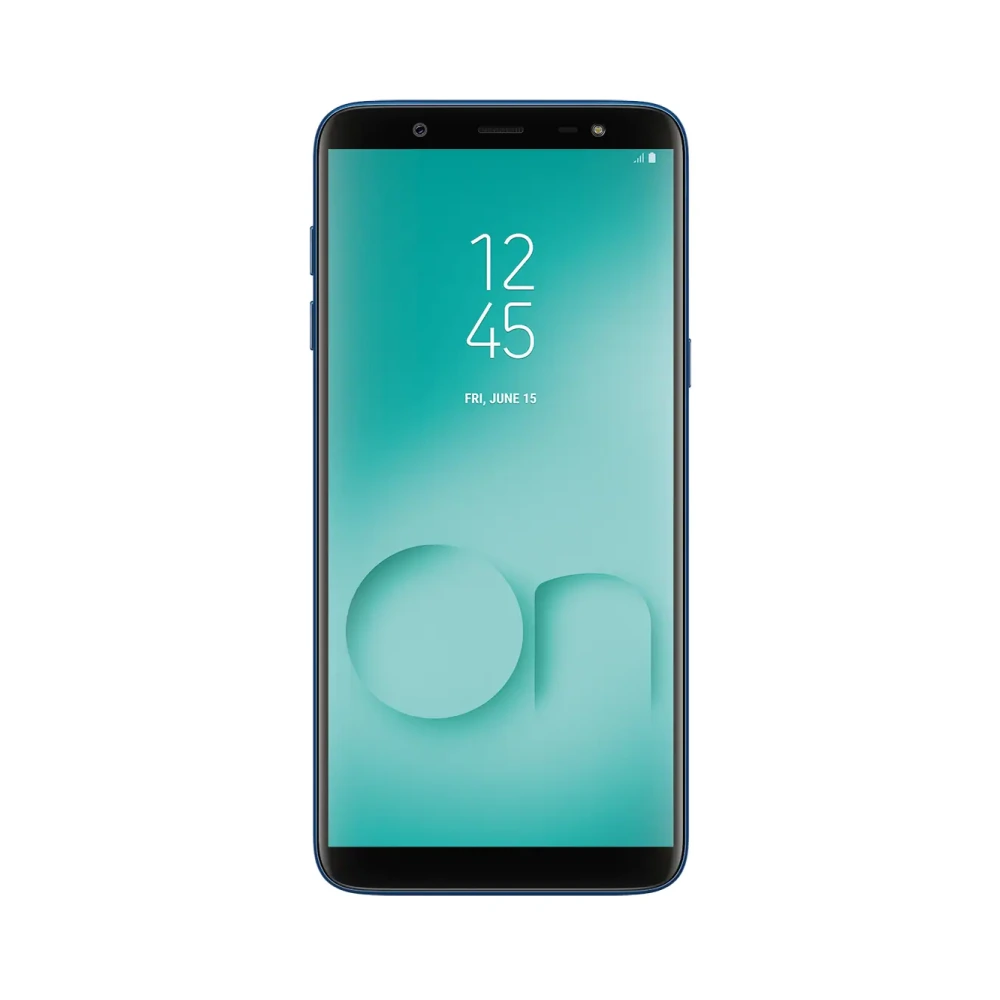
GT-S5300 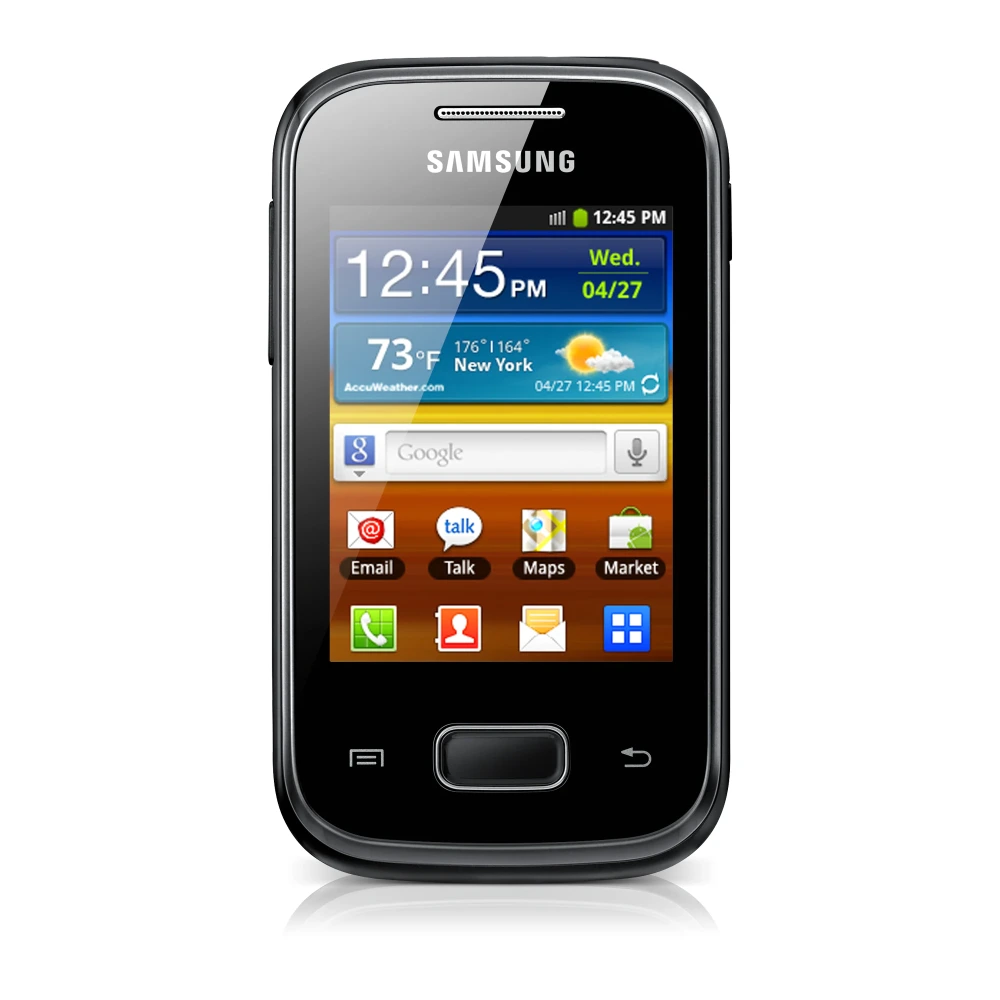
SCH-I559 
GT-S5570
GT-S5570I
GT-B7510 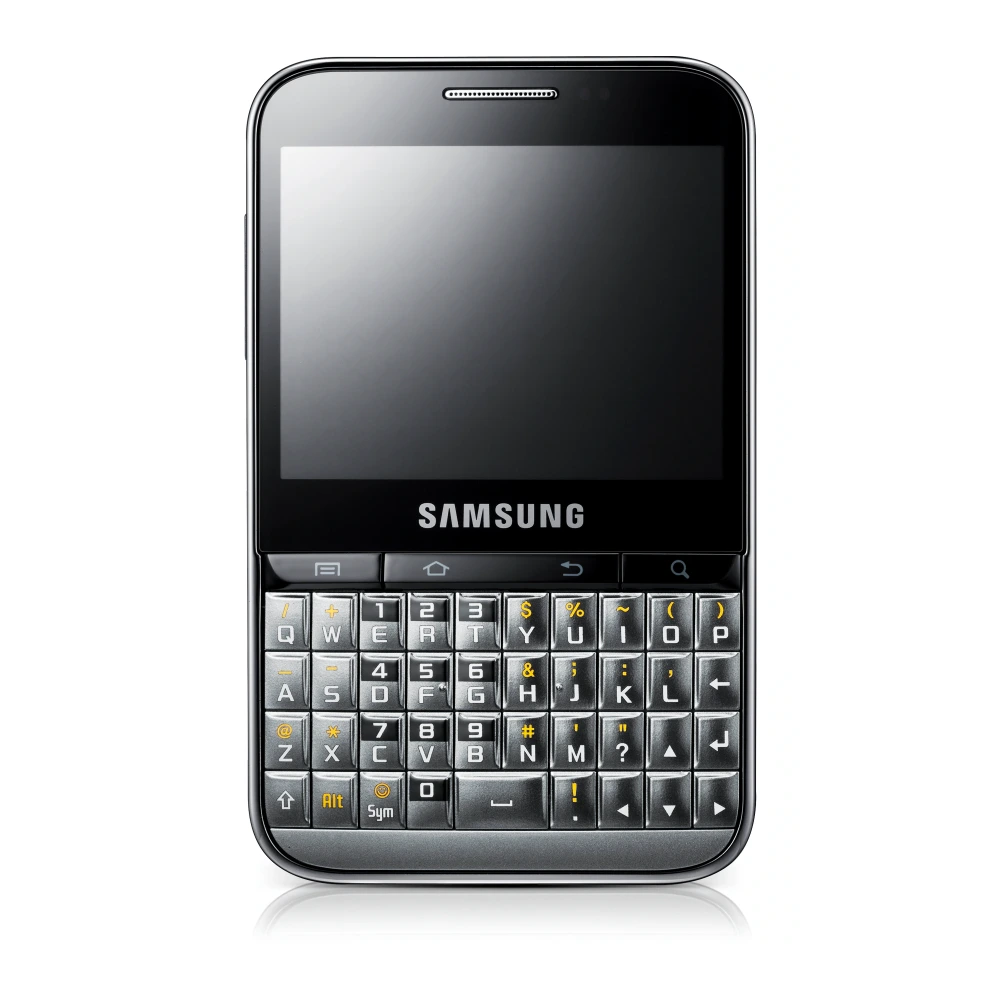
GT-I9103 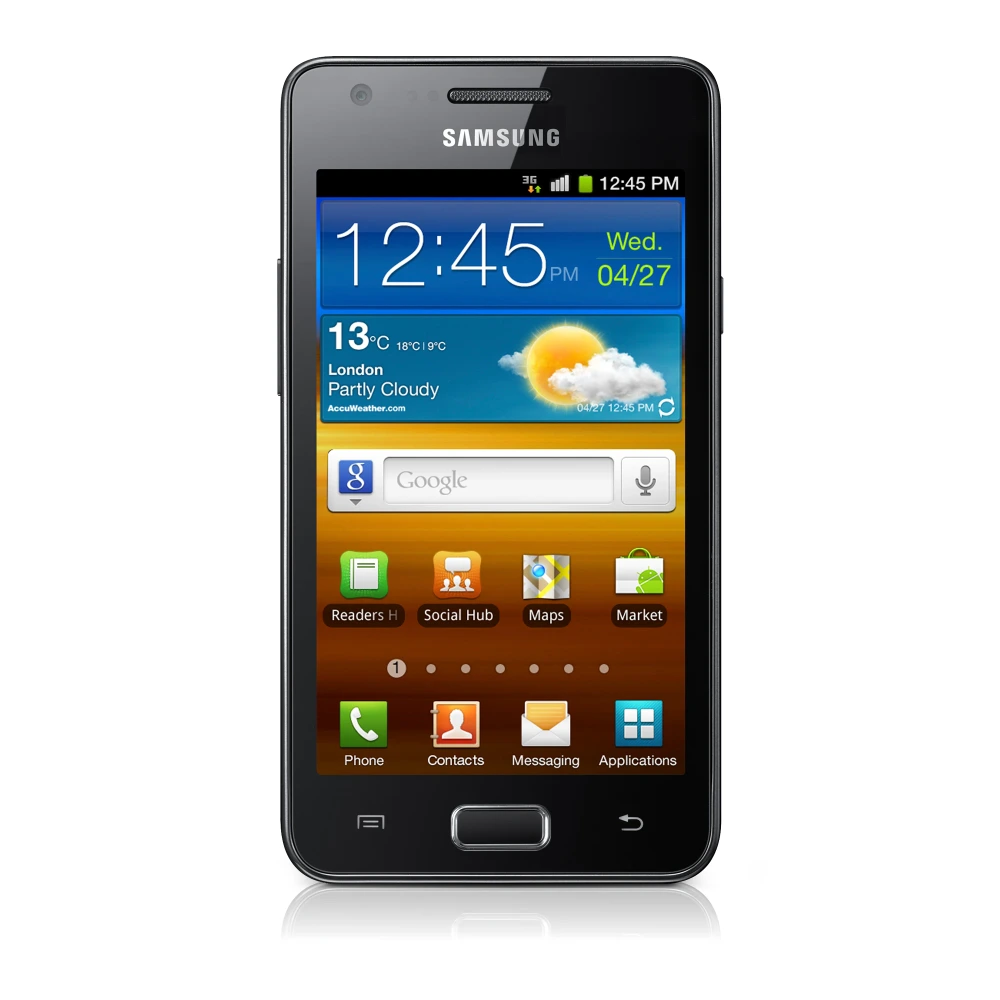
GT-S7562 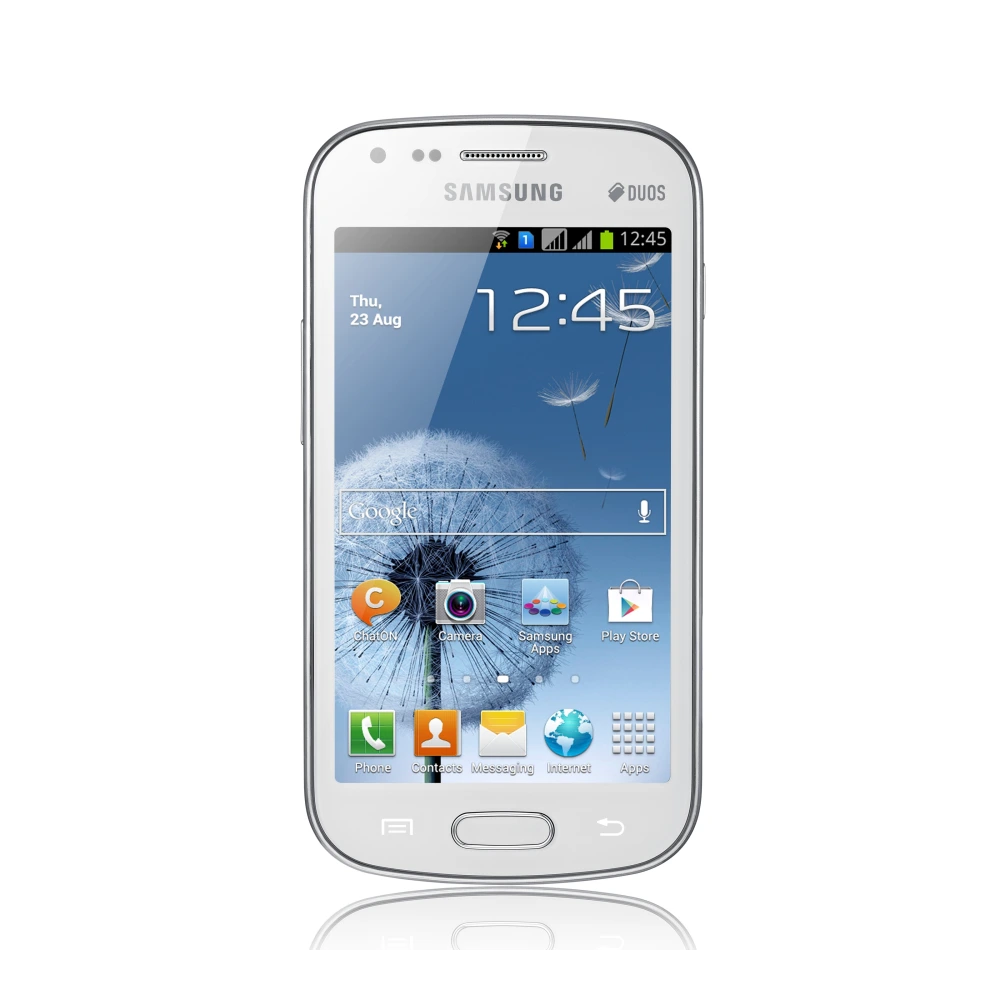
GT-I9000 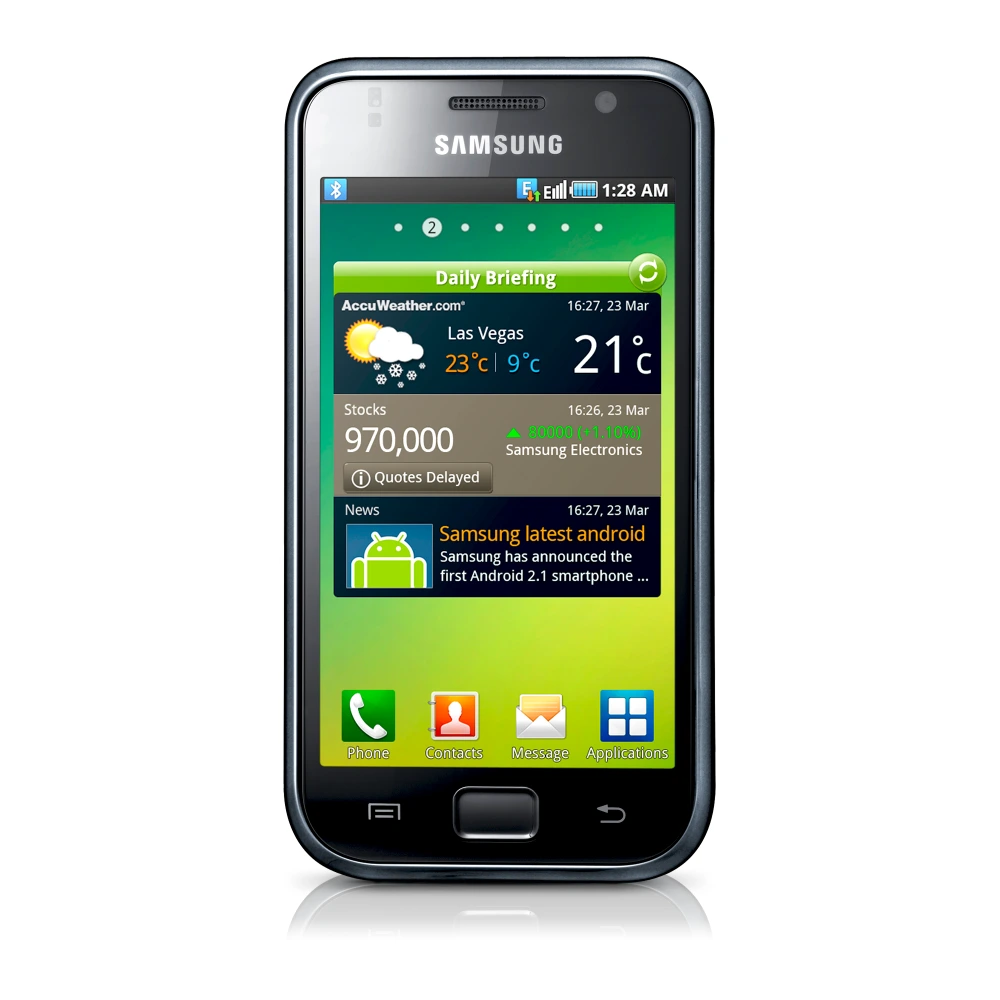
GT-I9001 
GT-I9001 
SM-G973F 
SM-G770F 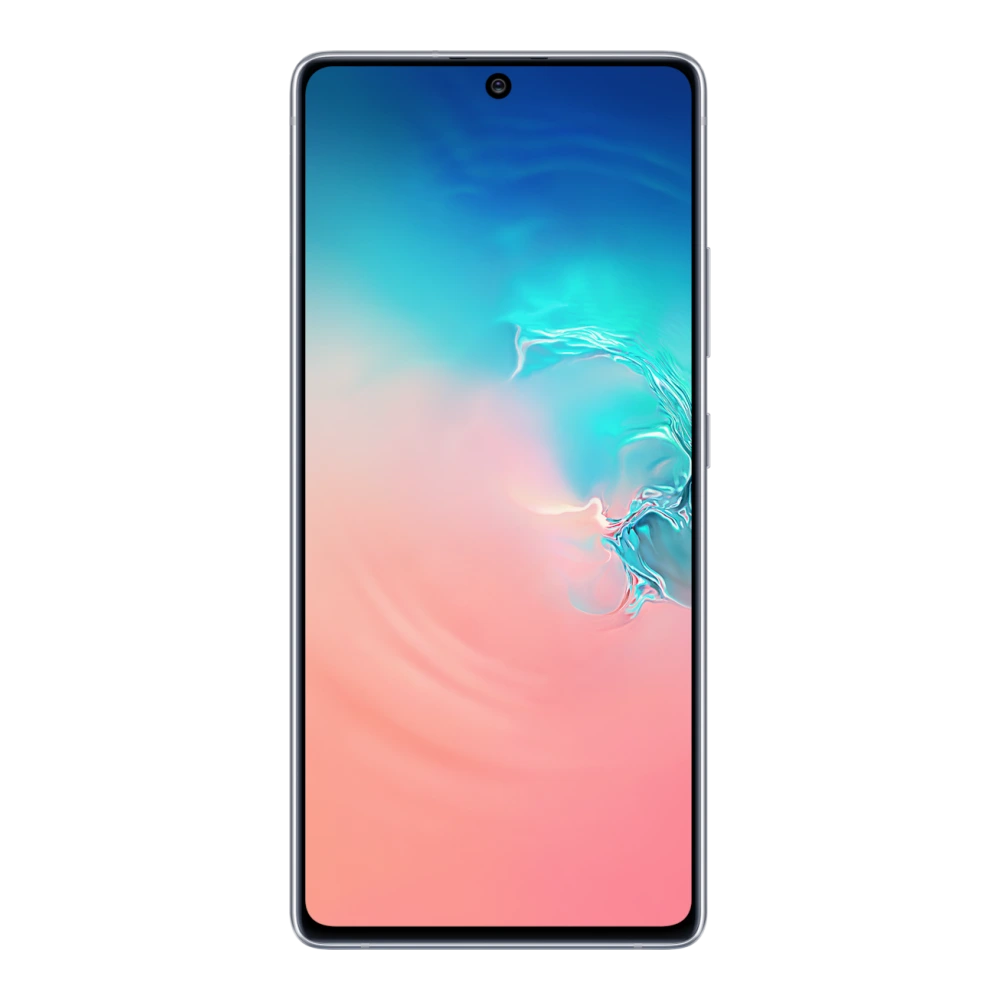
SM-G975F 
SM-G970F 
SM-G981B 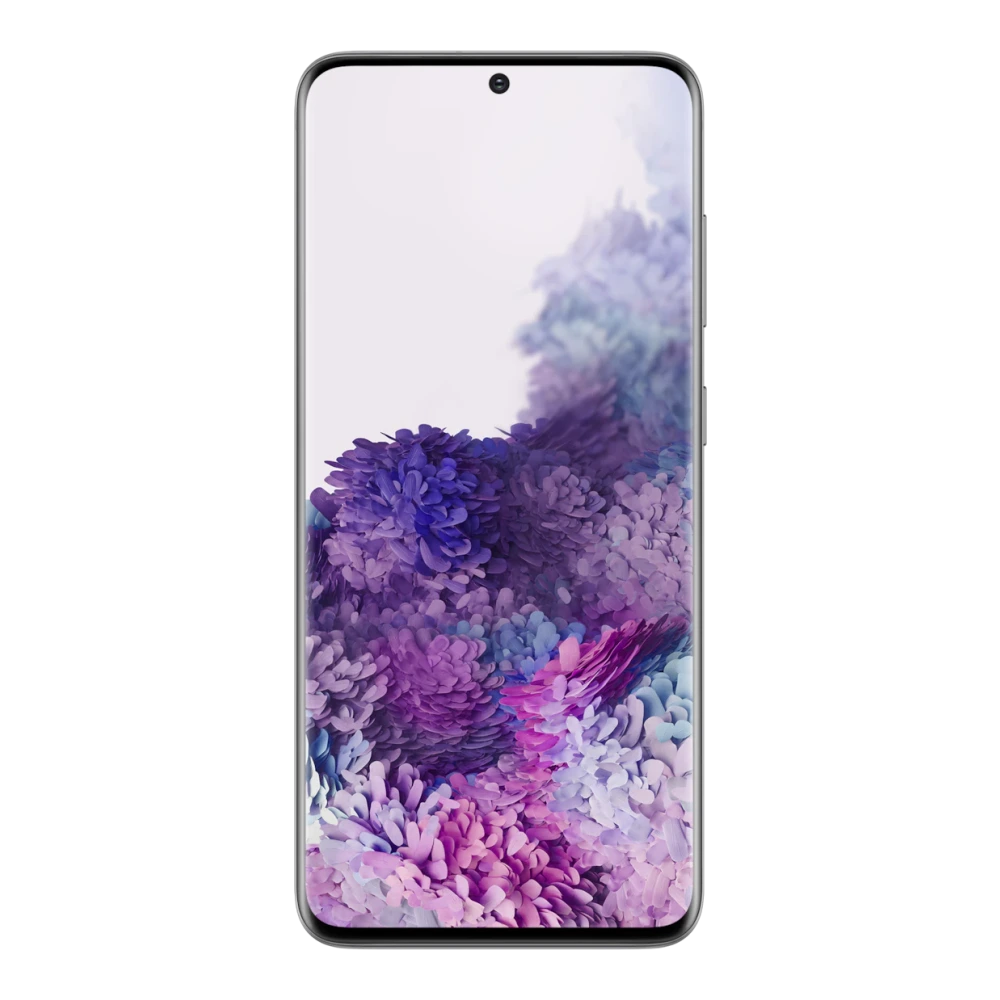
SM-G780F 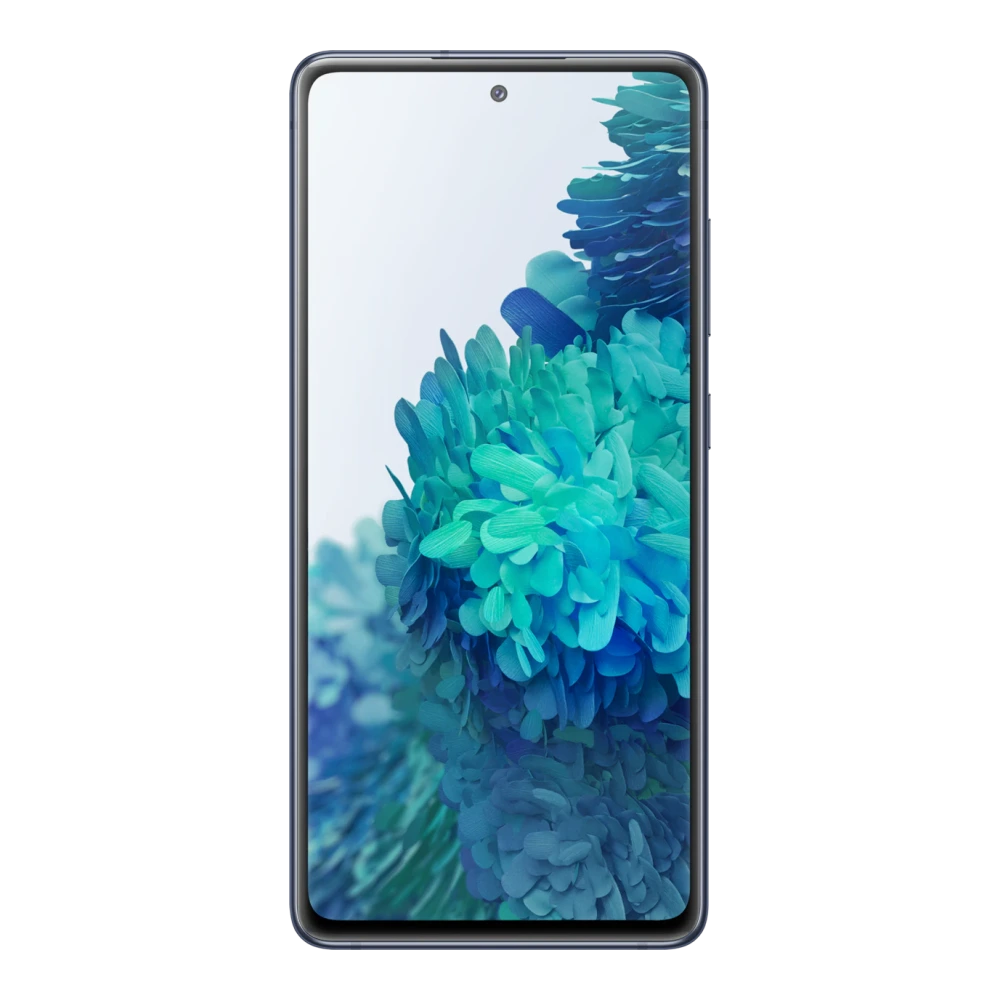
SM-G781B 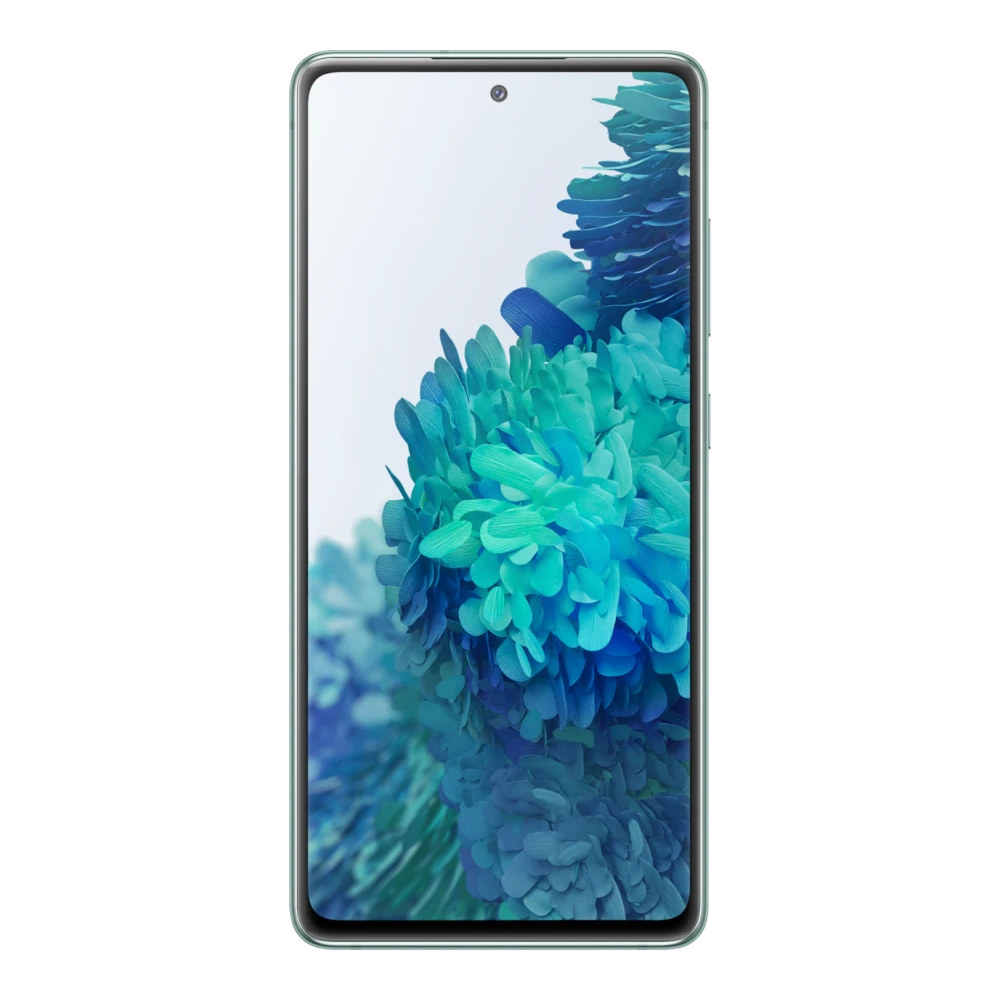
SM-G988B 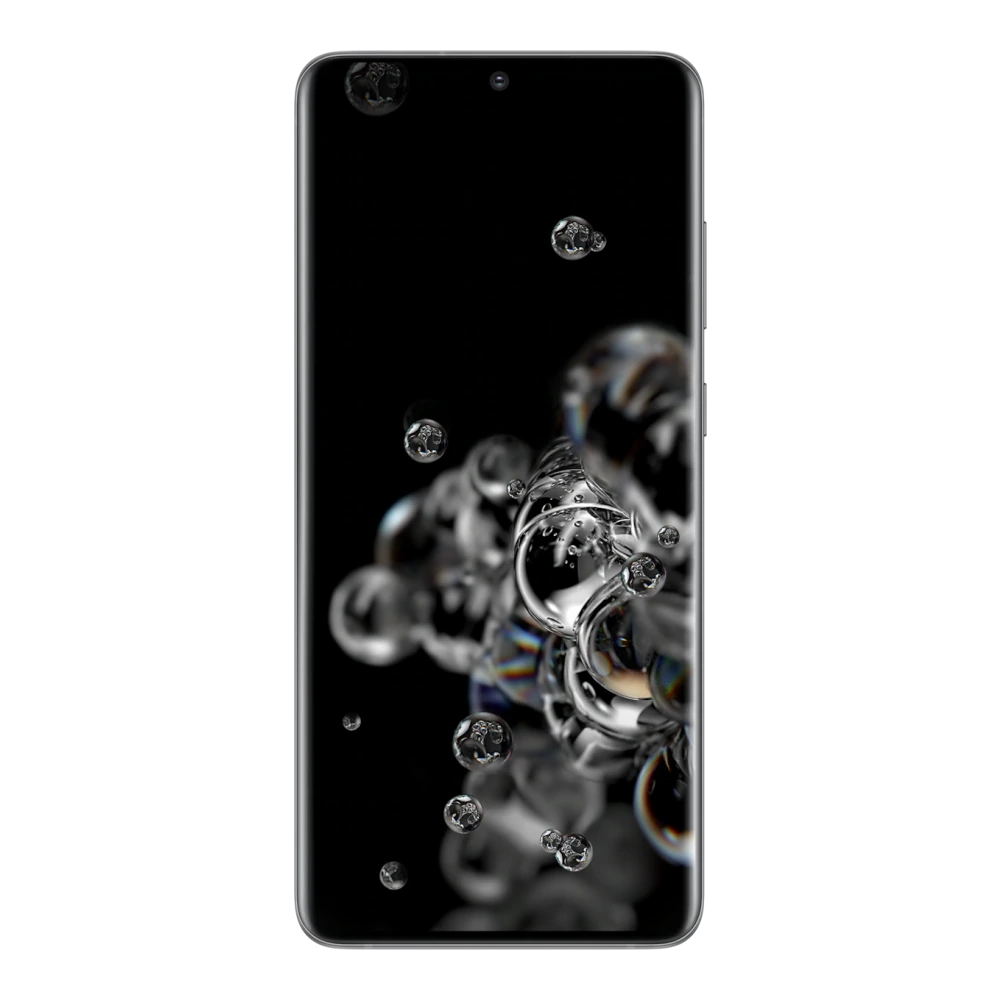
SM-G985F 
SM-G991B 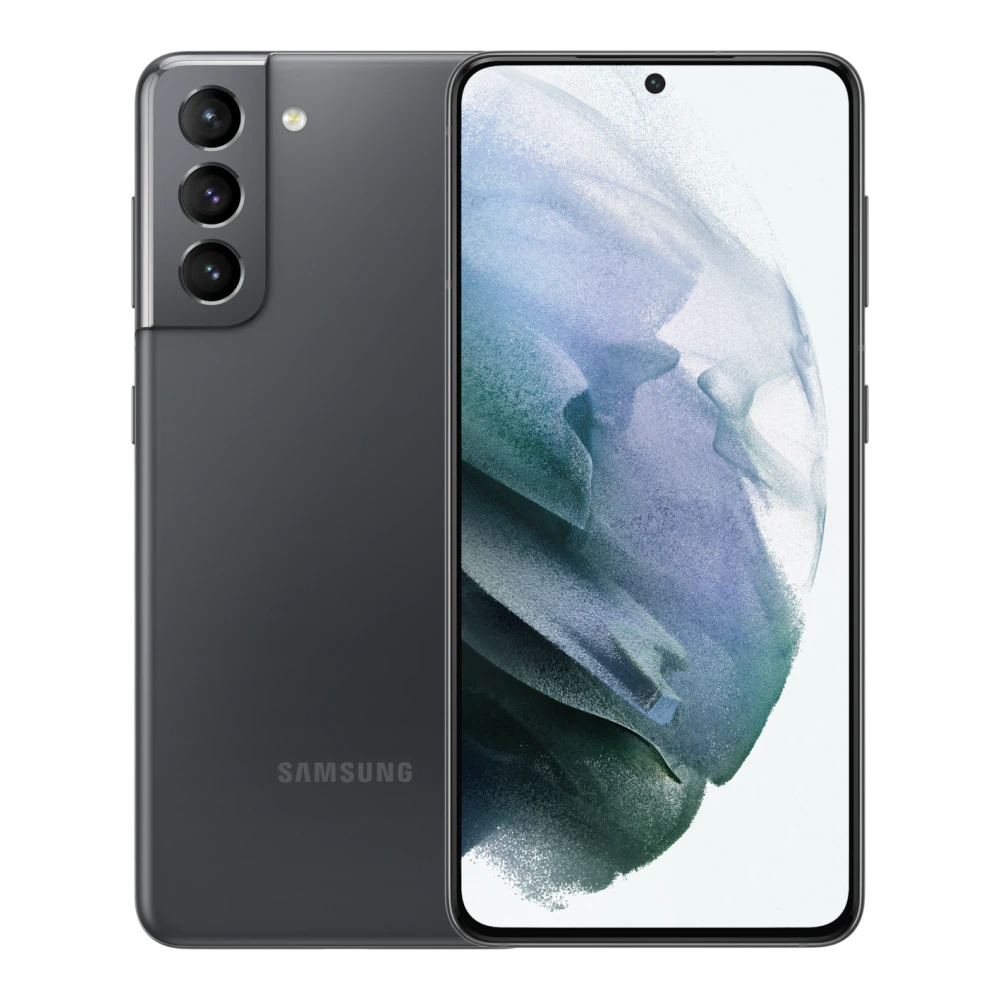
SM-G990B2 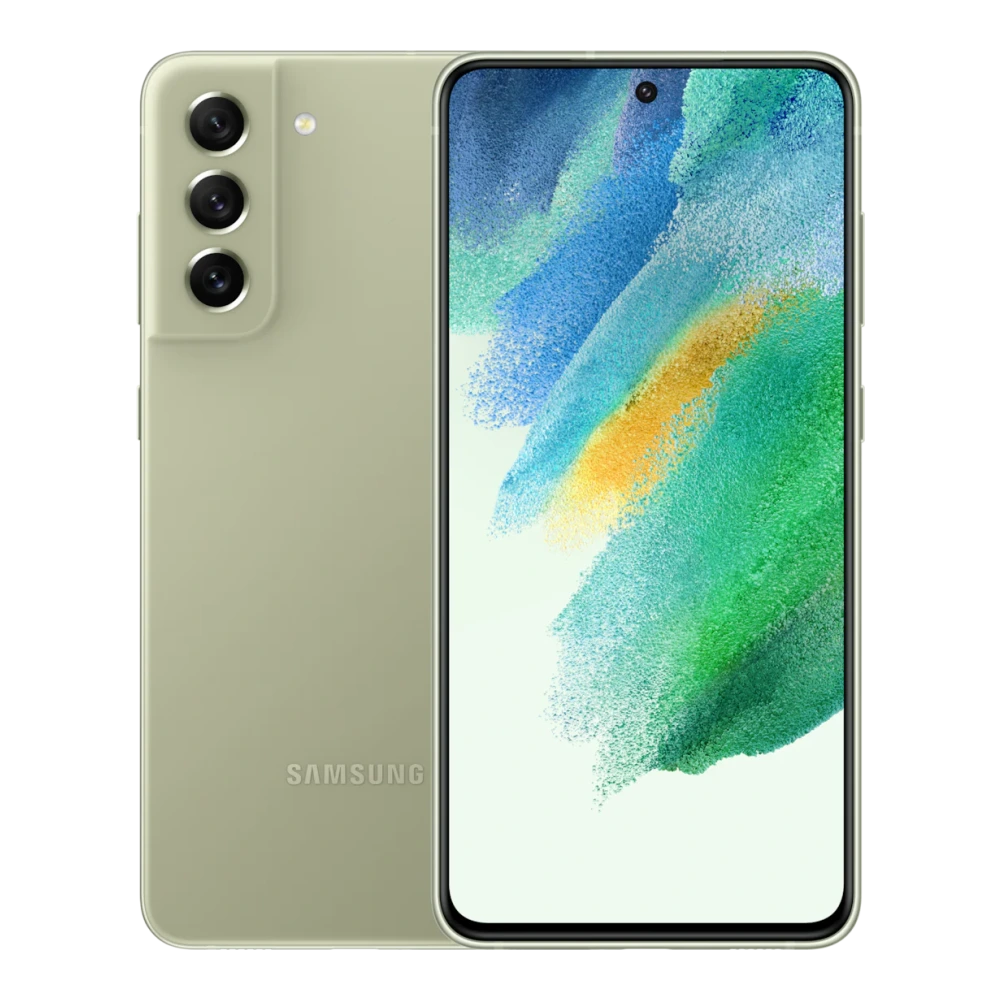
SM-G998B 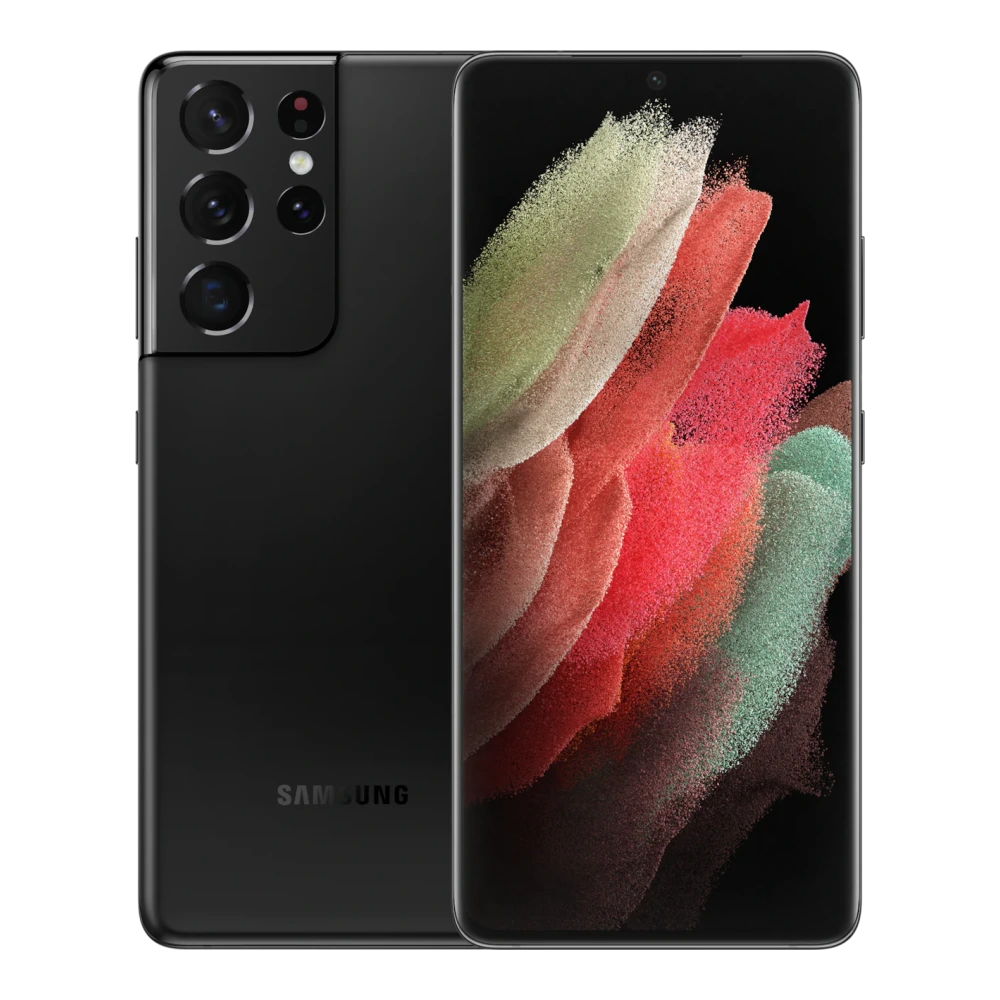
SM-G996B 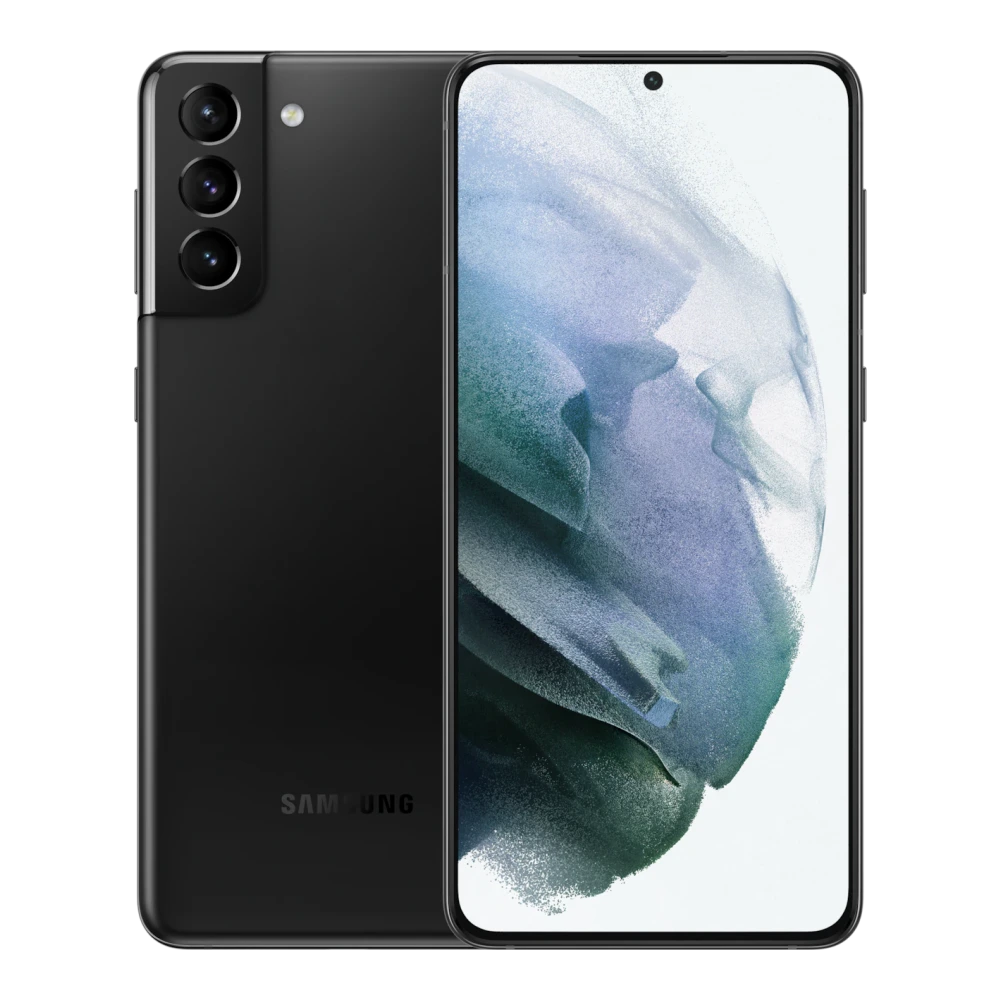
SM-S901E 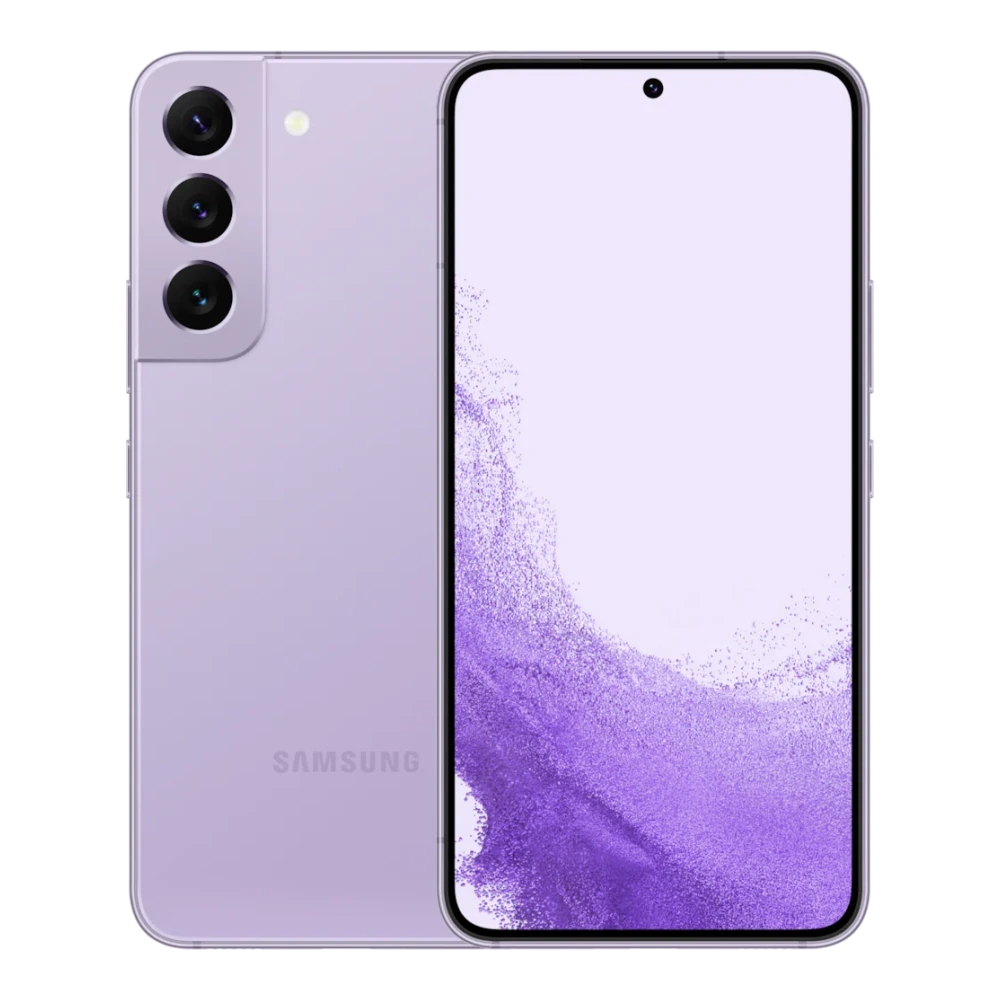
SM-S908E 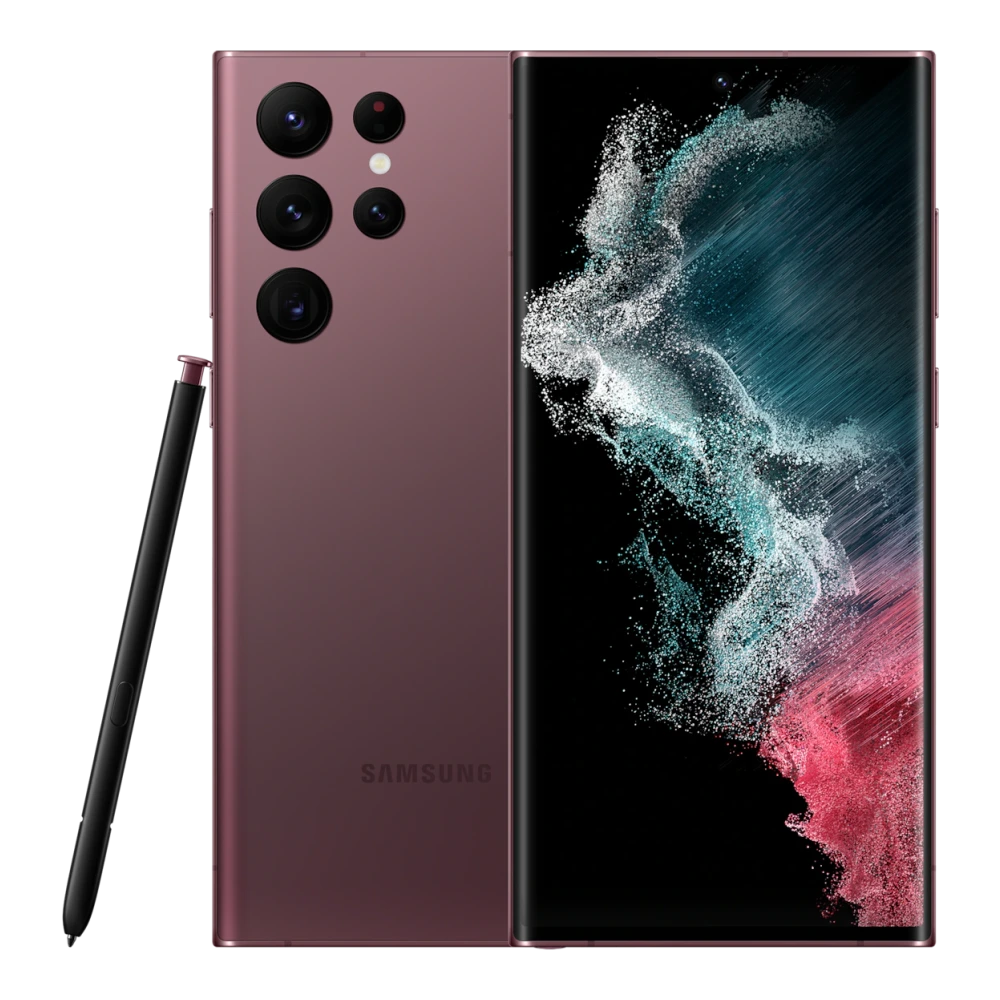
SM-S906E 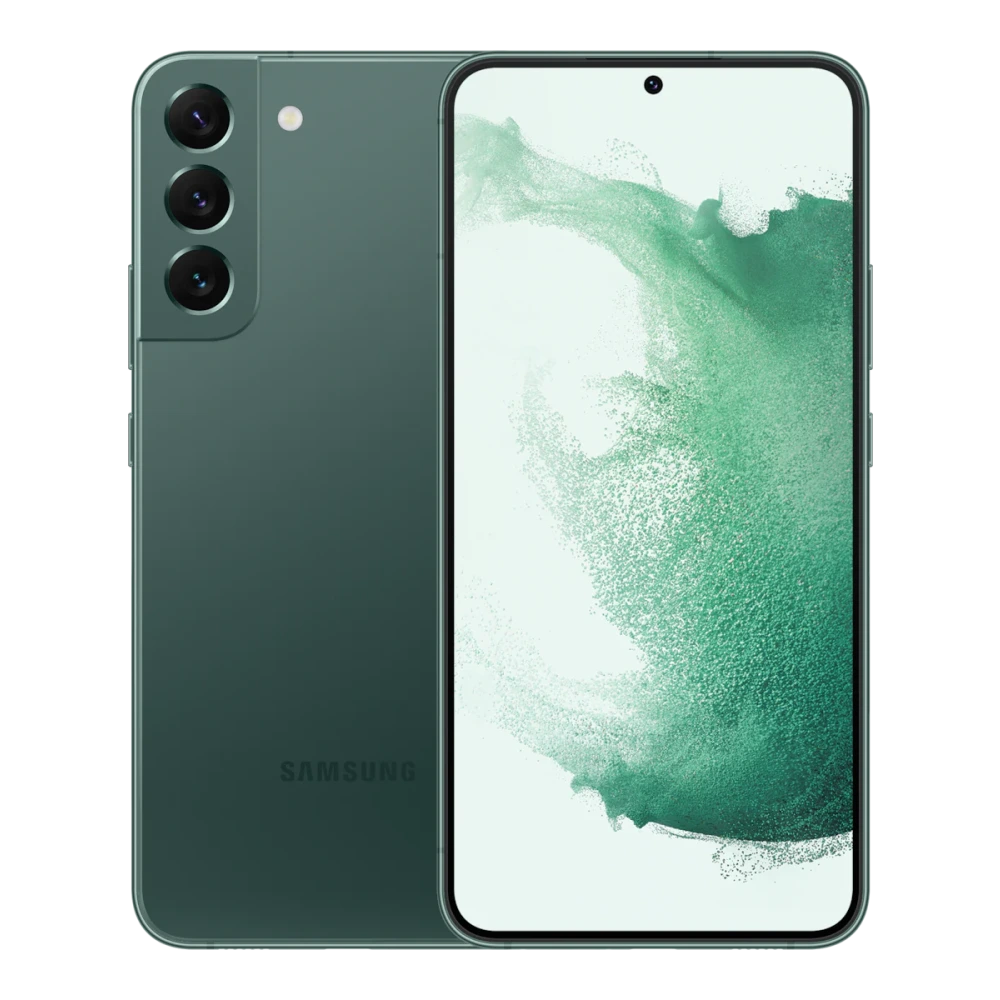
SM-S911B 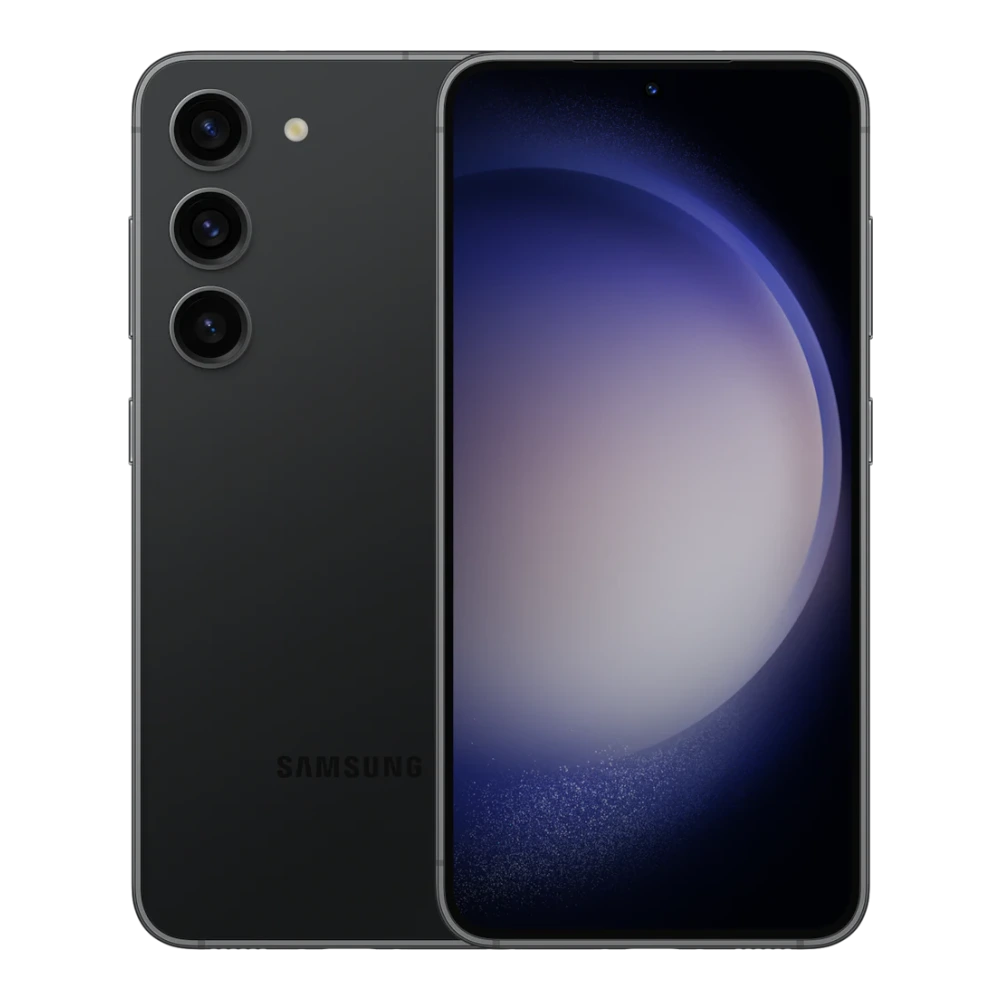
SM-S918B 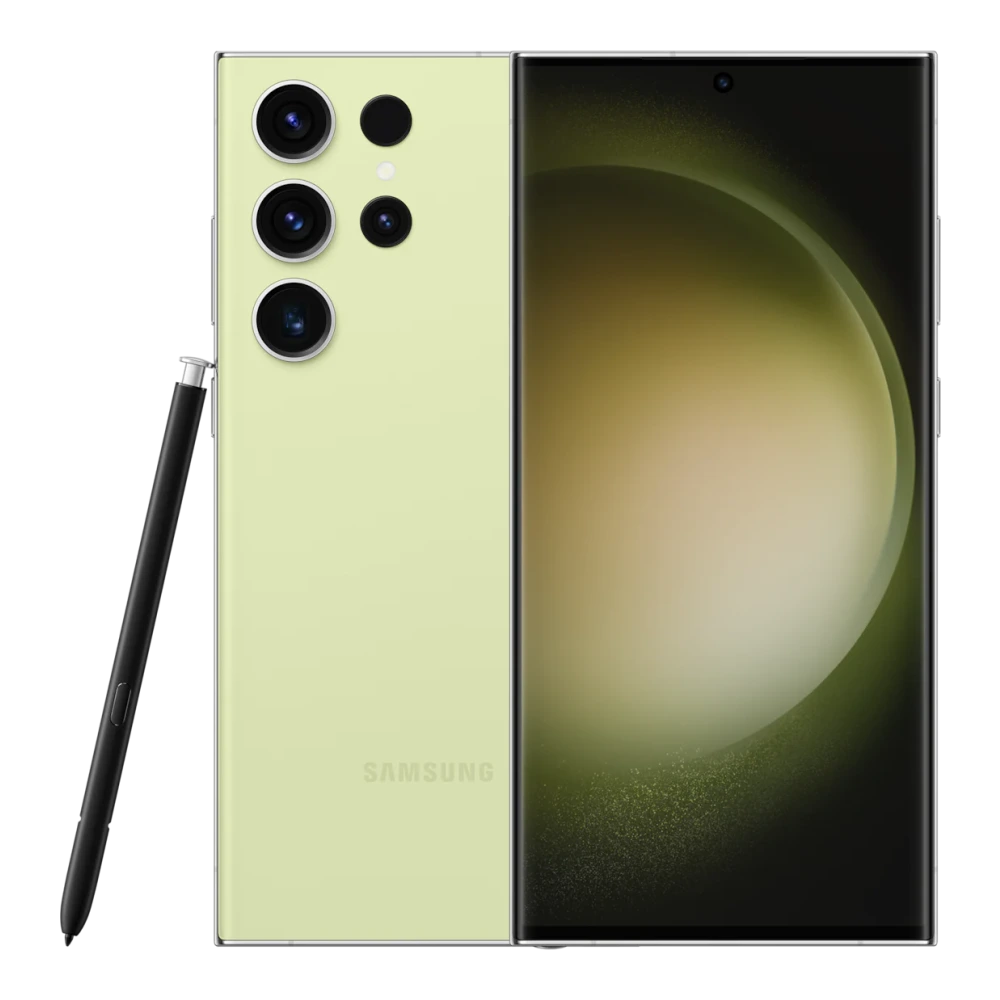
SM-S916B 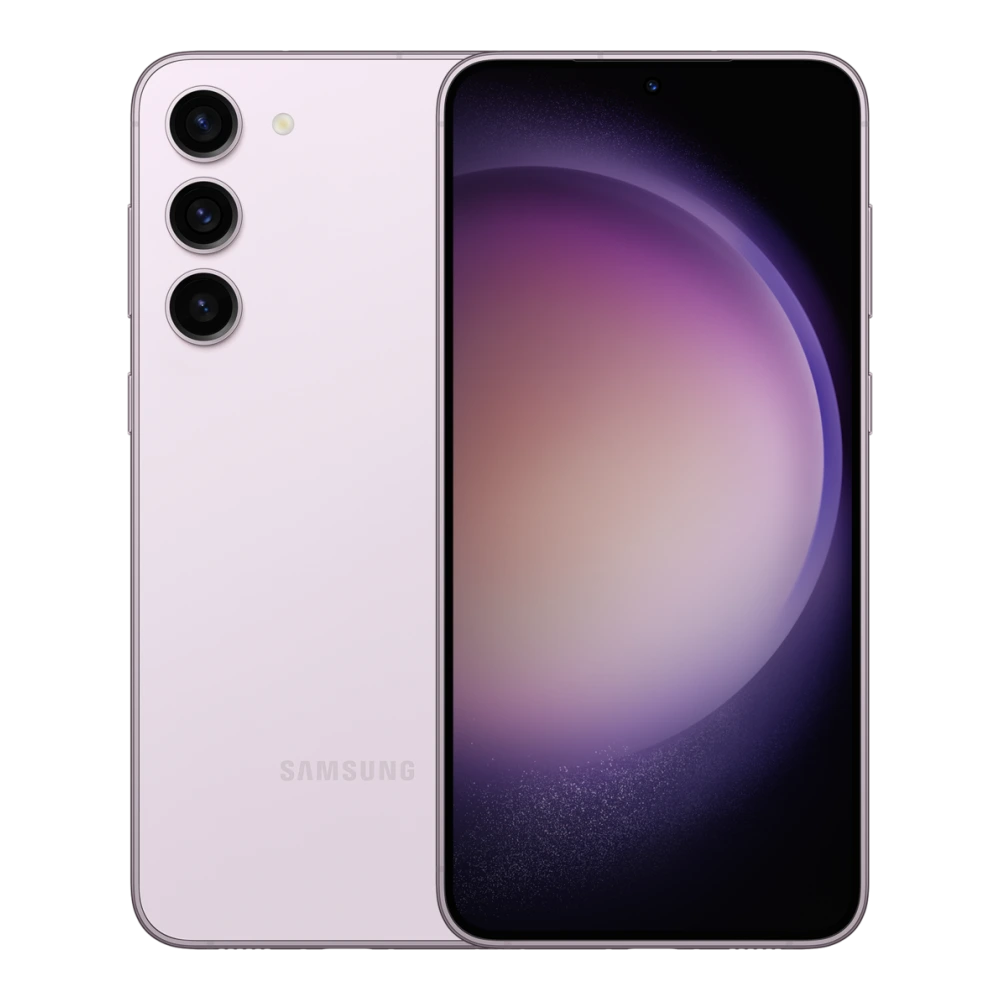
SM-S921E 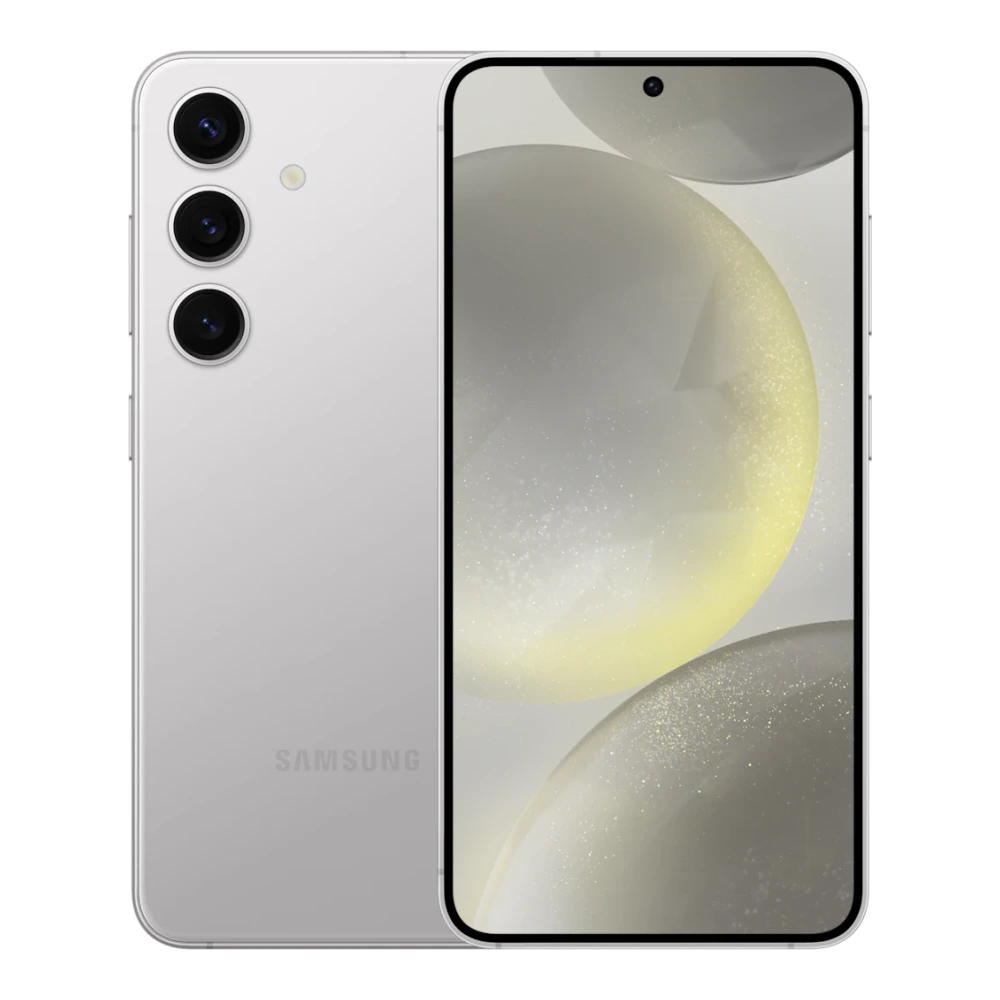
SM-S721B 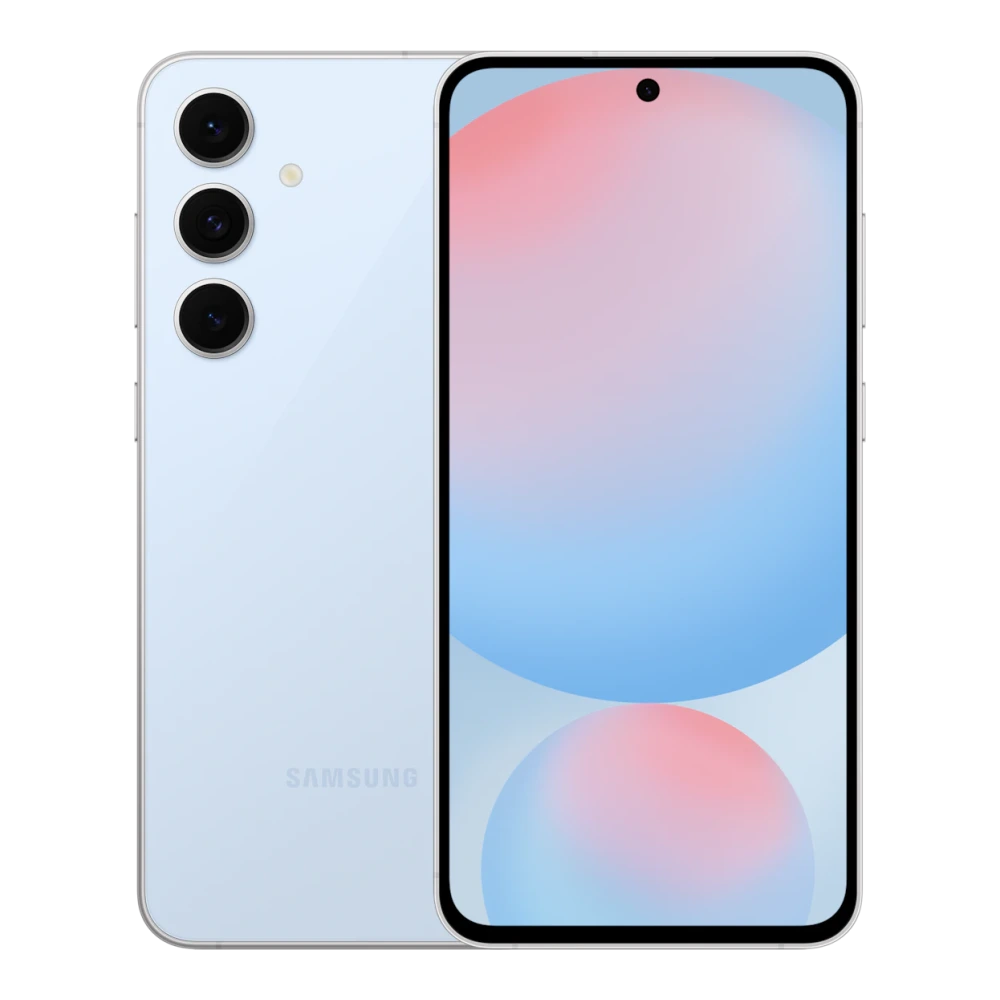
SM-S928B 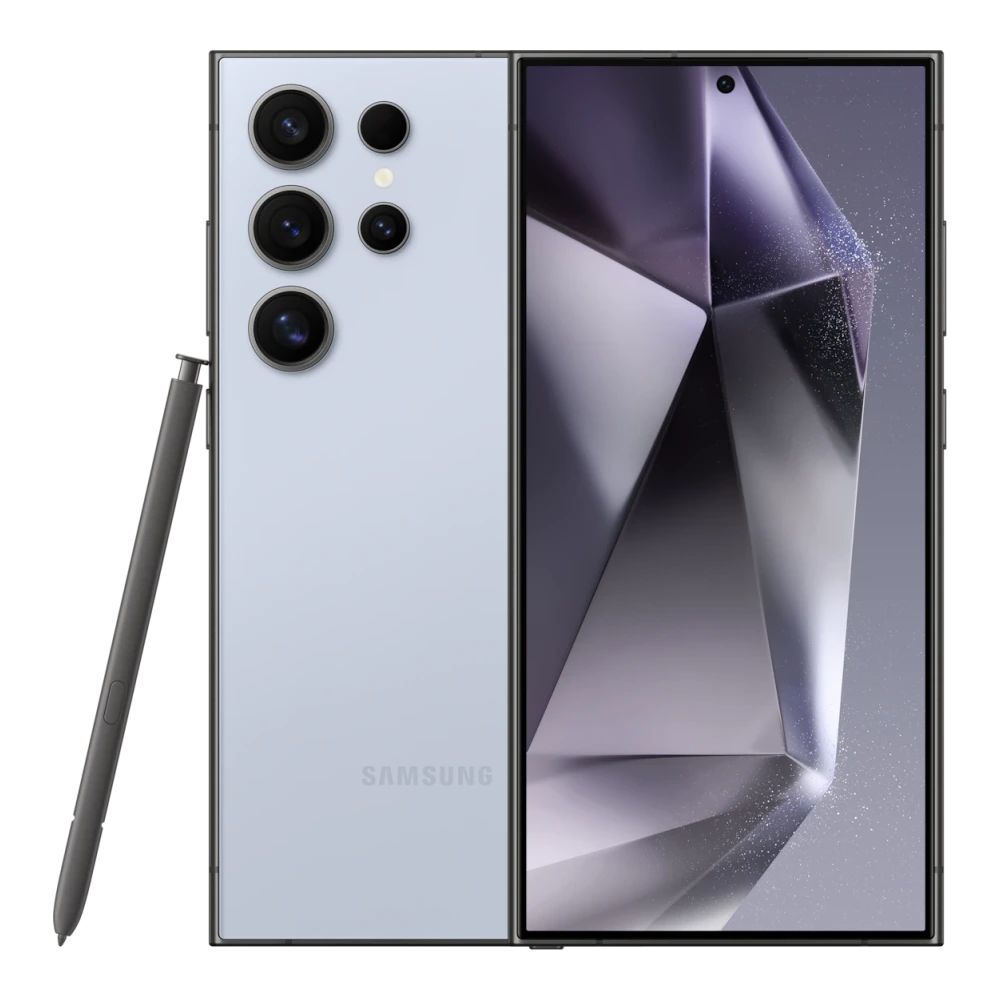
SM-S926B 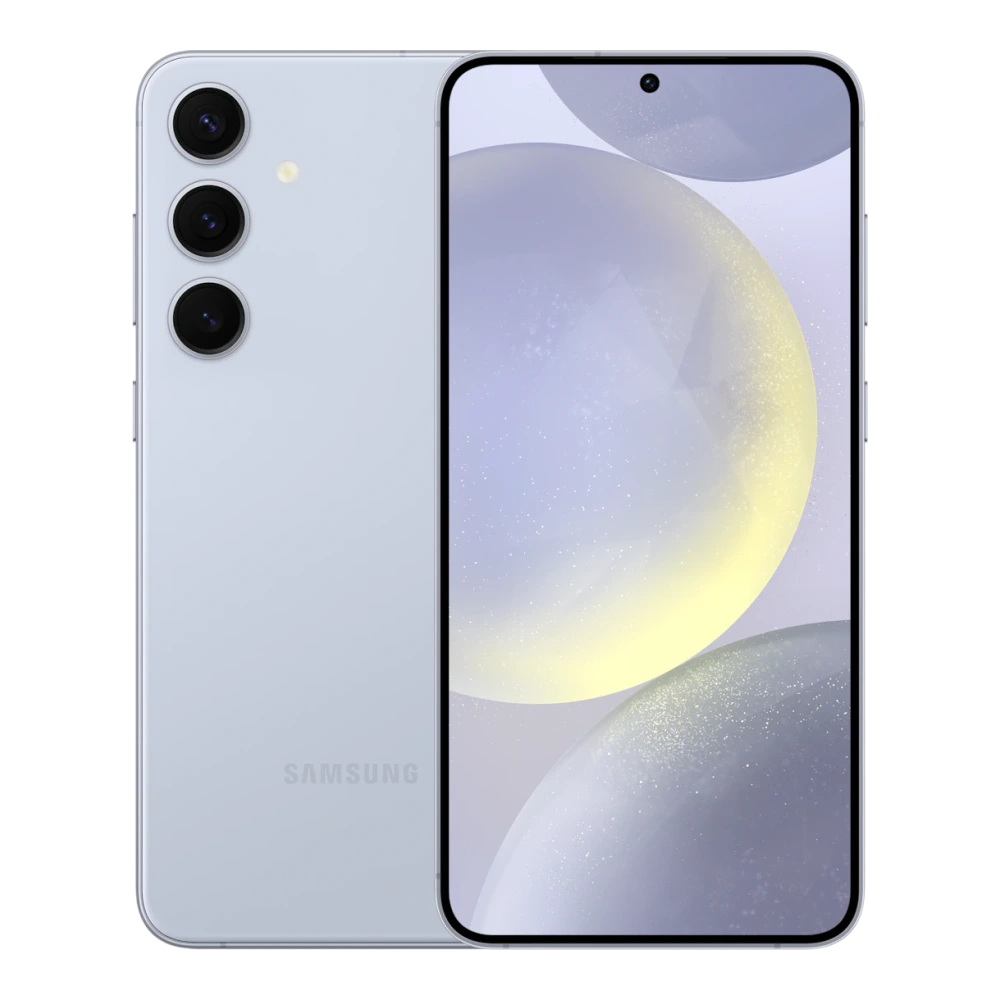
SM-S931B 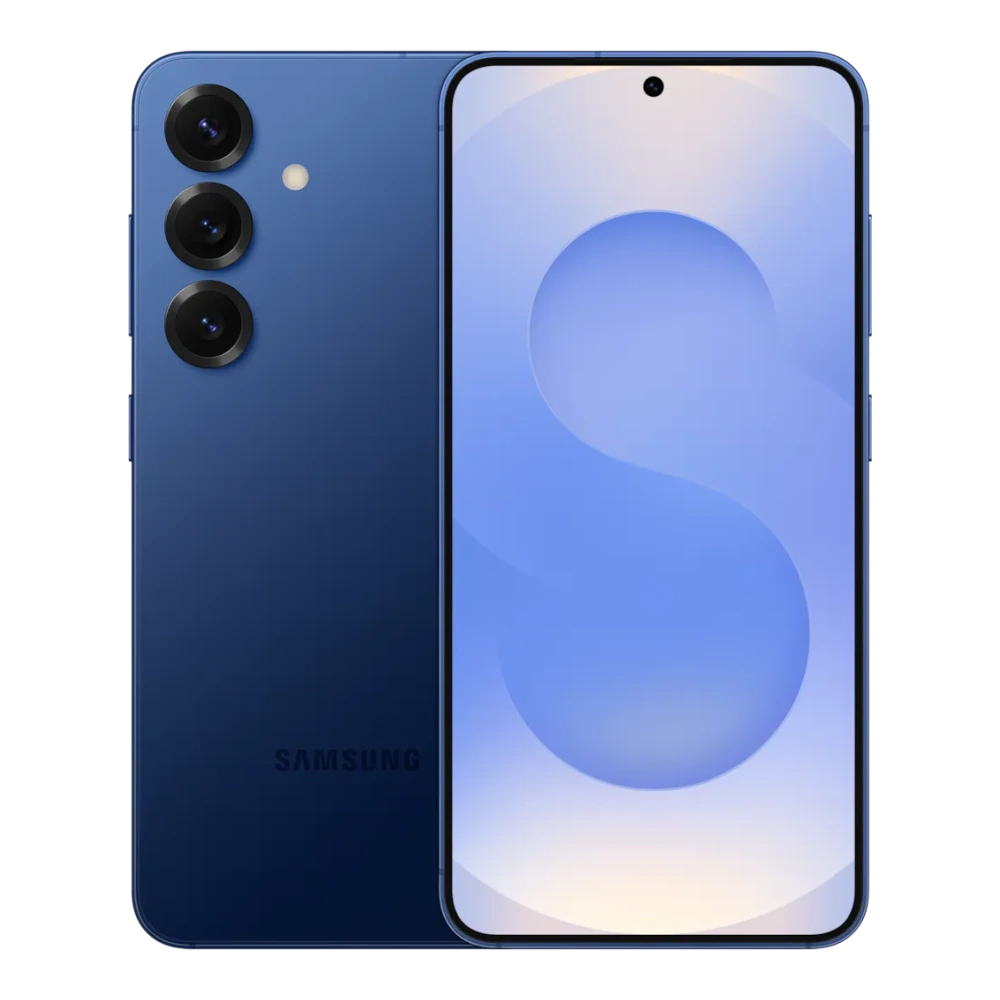
SM-S937B 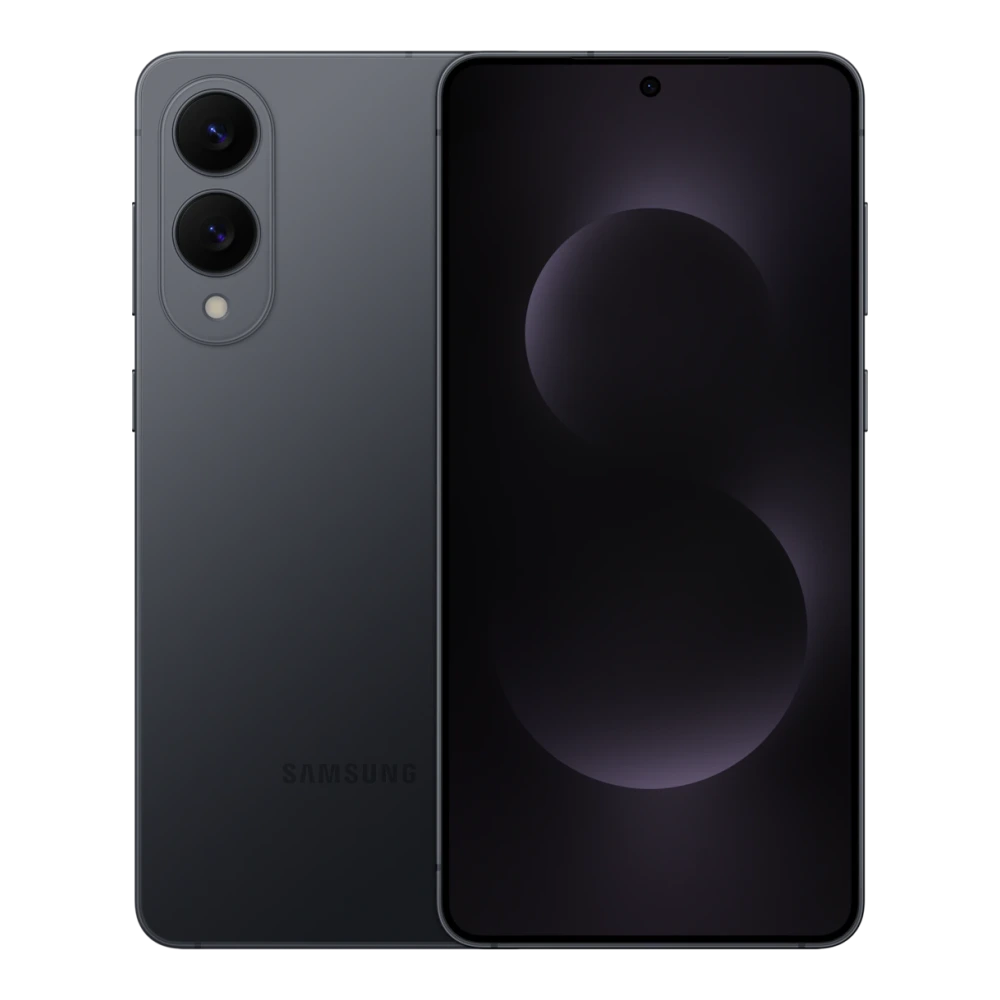
SM-S731B 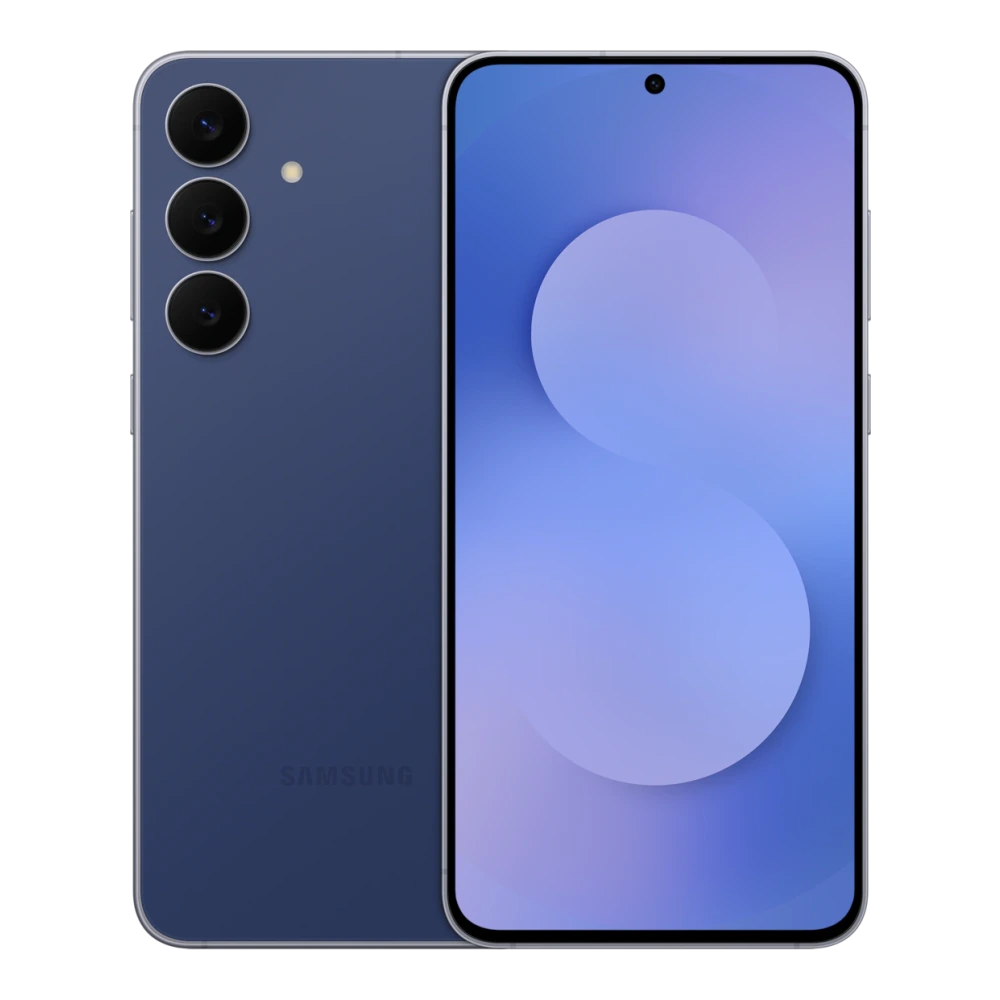
SM-S938B 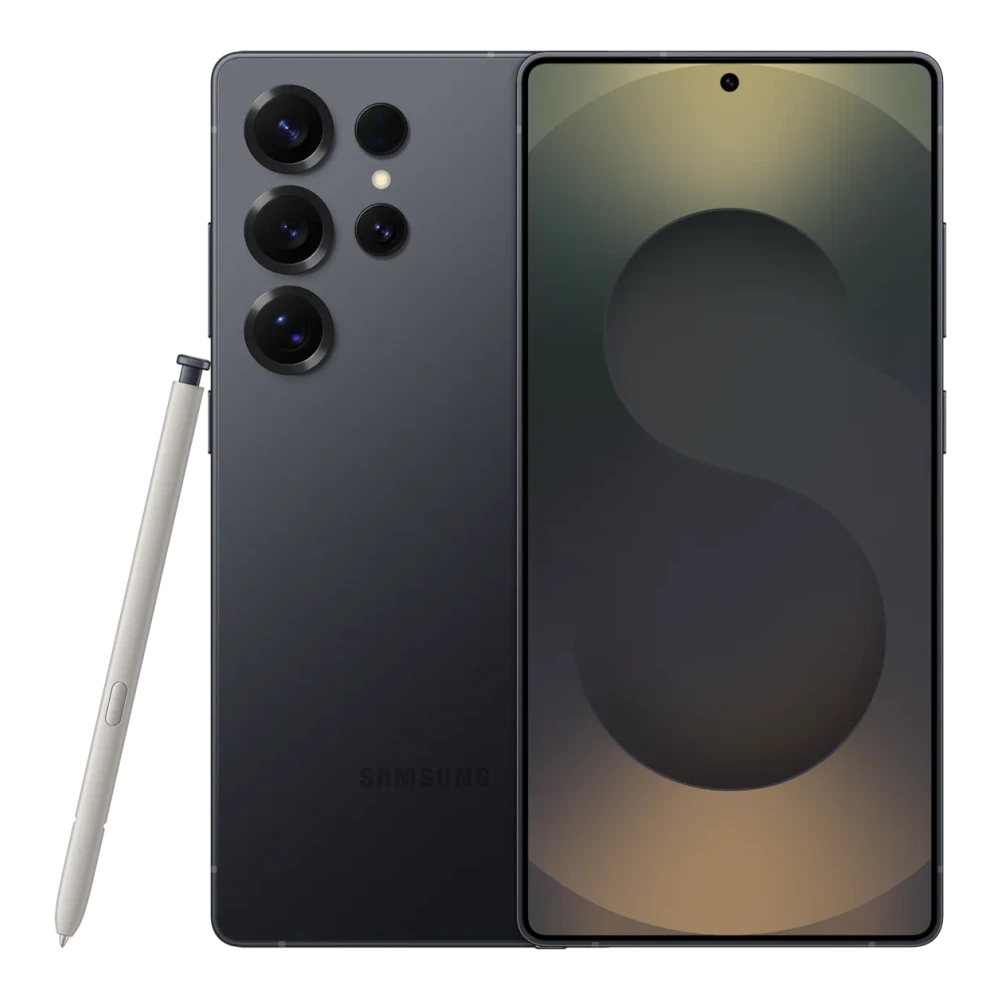
SM-S936B 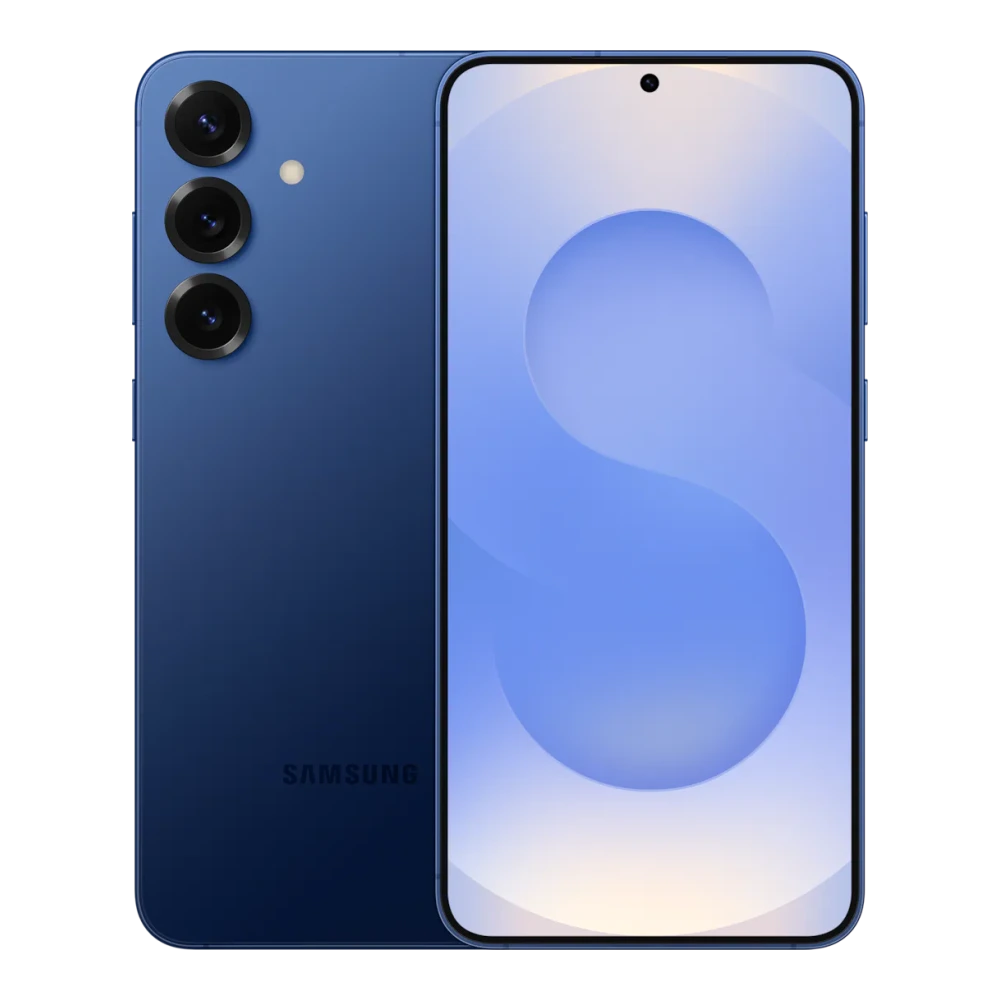
SM-S942B 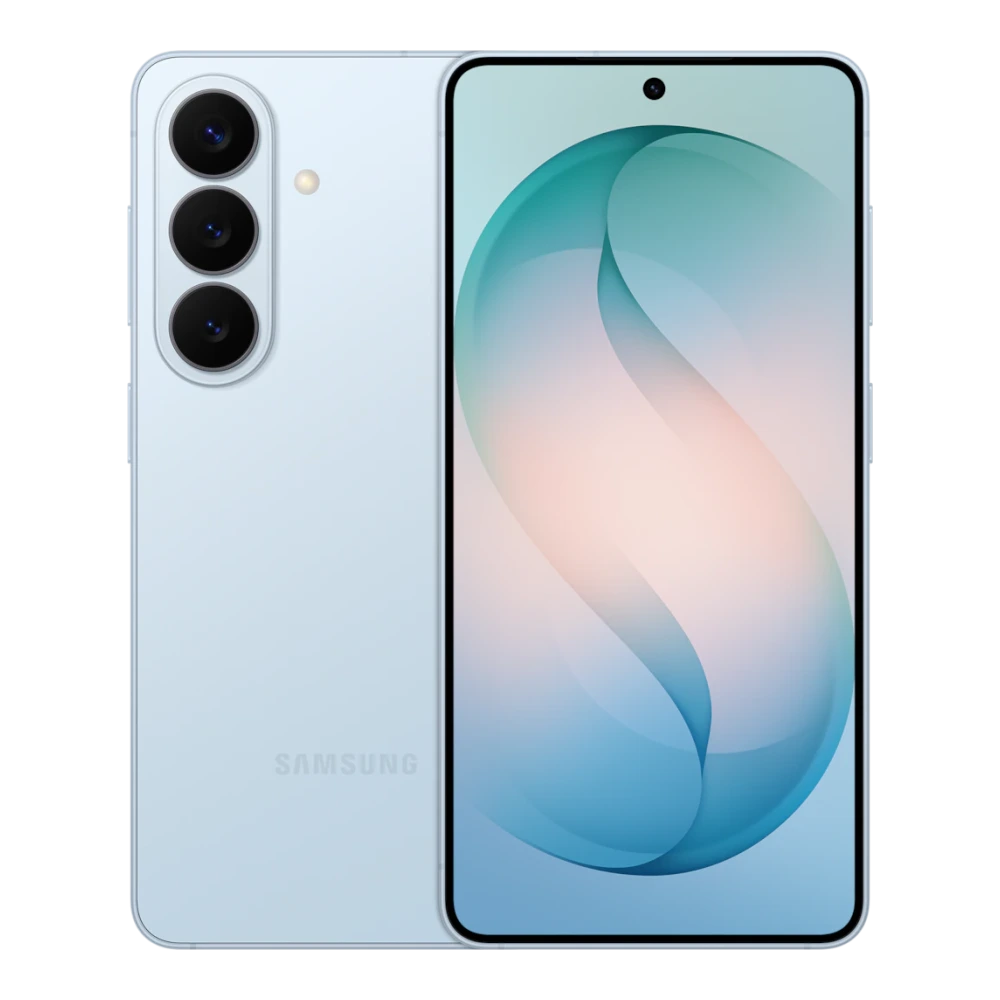
SM-S741B 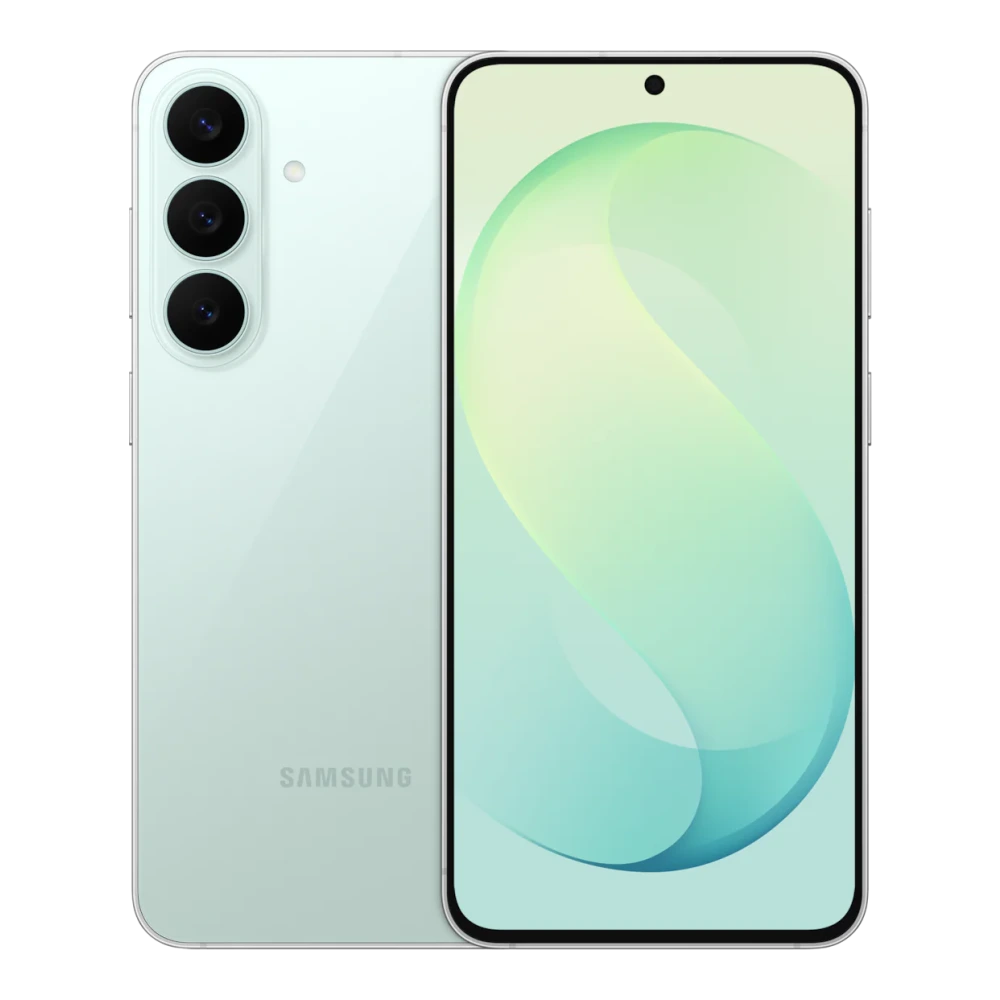
SM-S948B 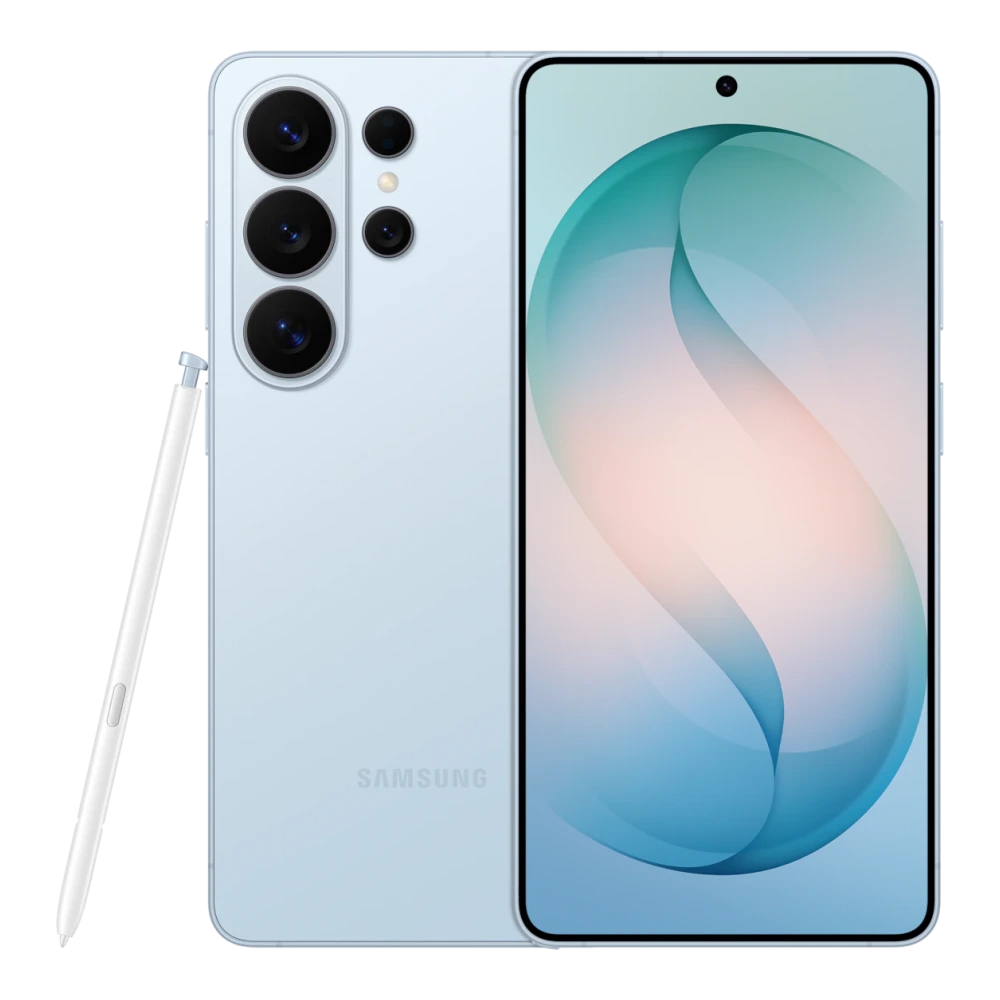
SM-S947B 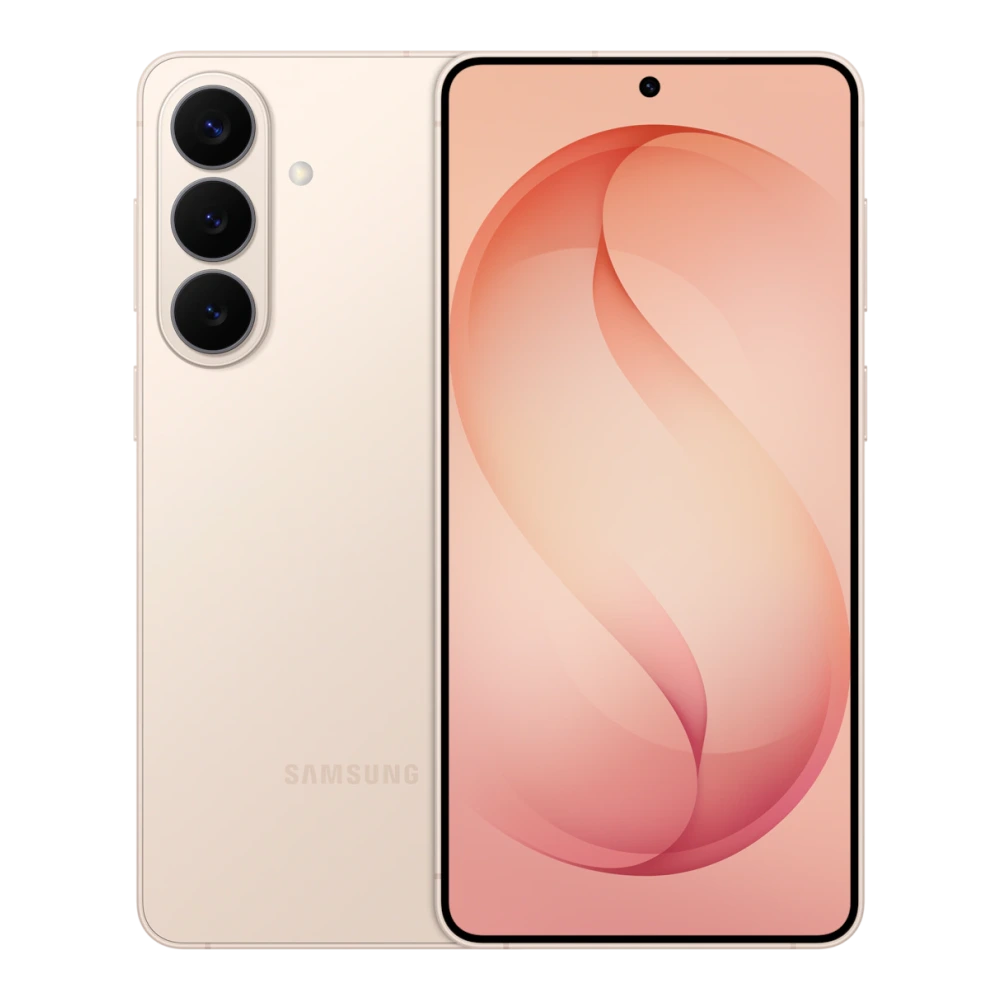
GT-I9500 
SM-G900H 
SM-G920I 
SM-G925I 
SM-G928G 
SM-G930FD 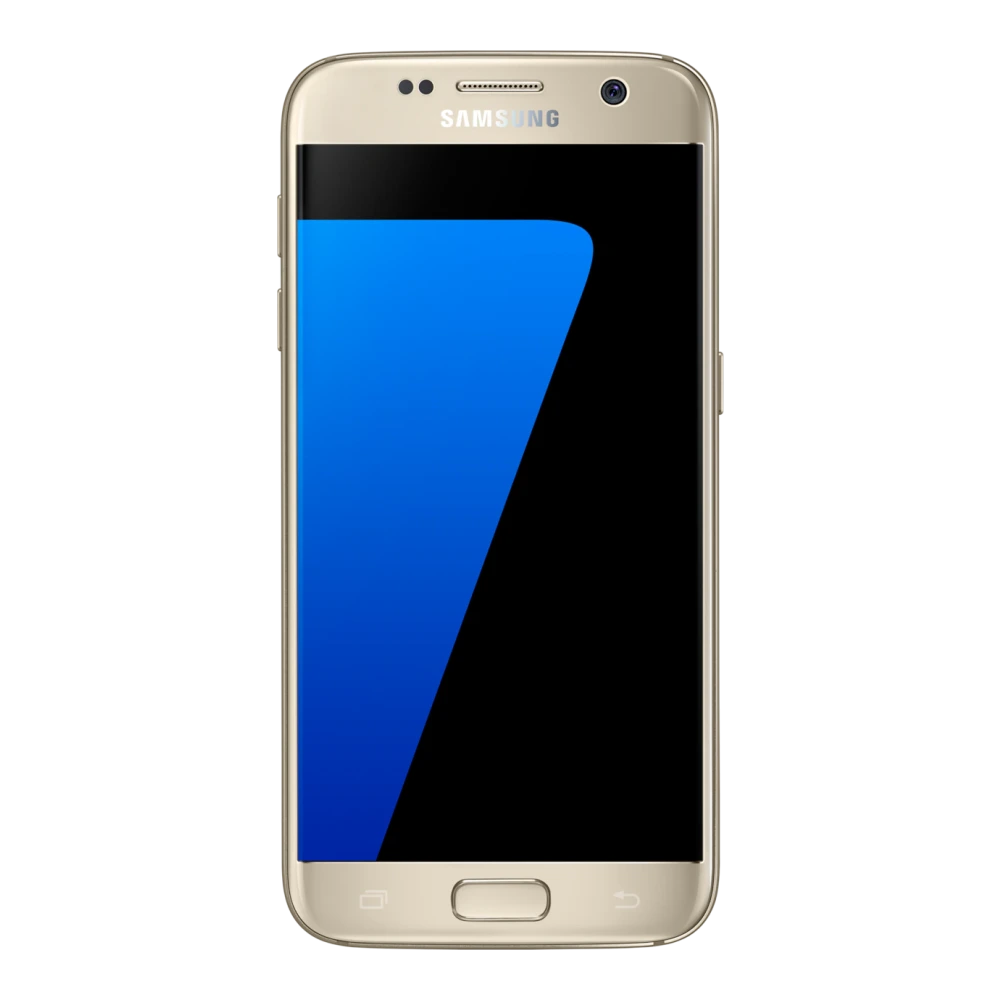
SM-G950FD 
SM-G955FD 
SM-G960F 
SM-G965F 
GT-I9100
GT-I9100G
GT-I9300
GT-I9003
GT-I5700 
SM-T111 
SM-T116NY 
SM-T231 
SM-T385 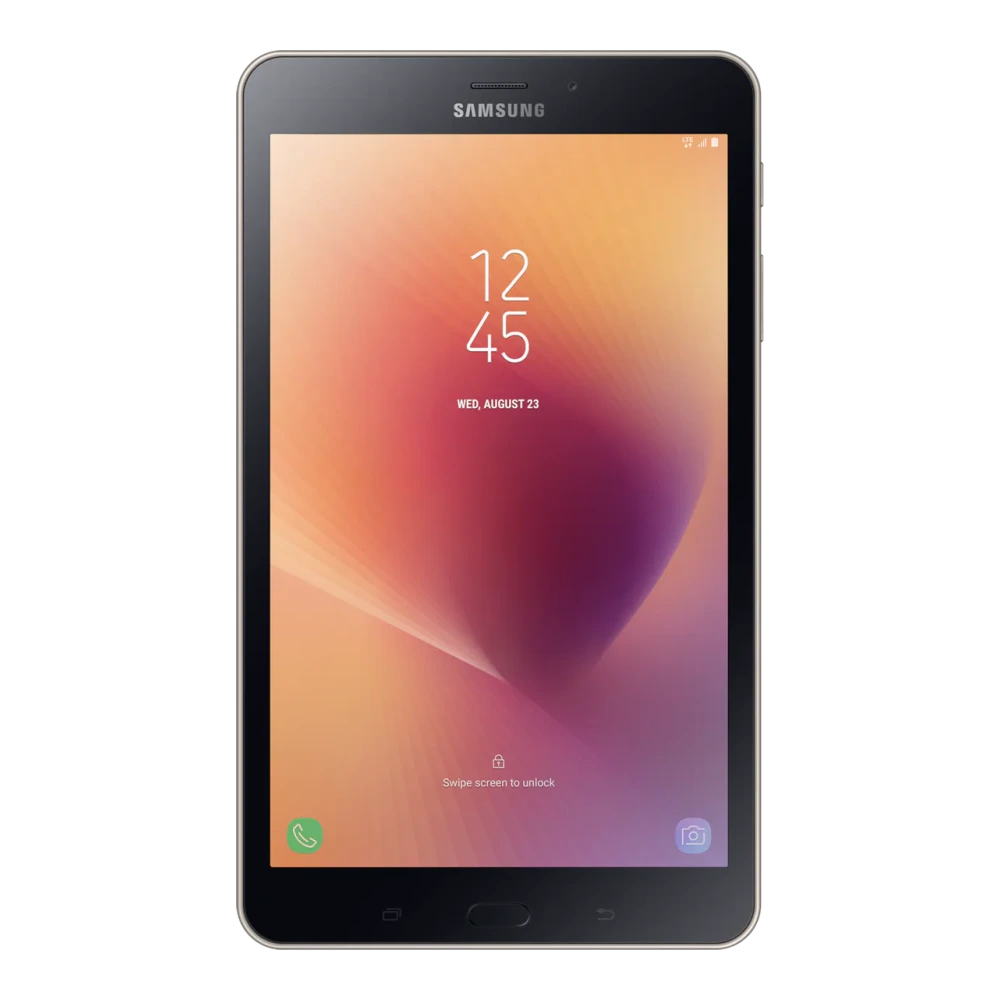
SM-T510 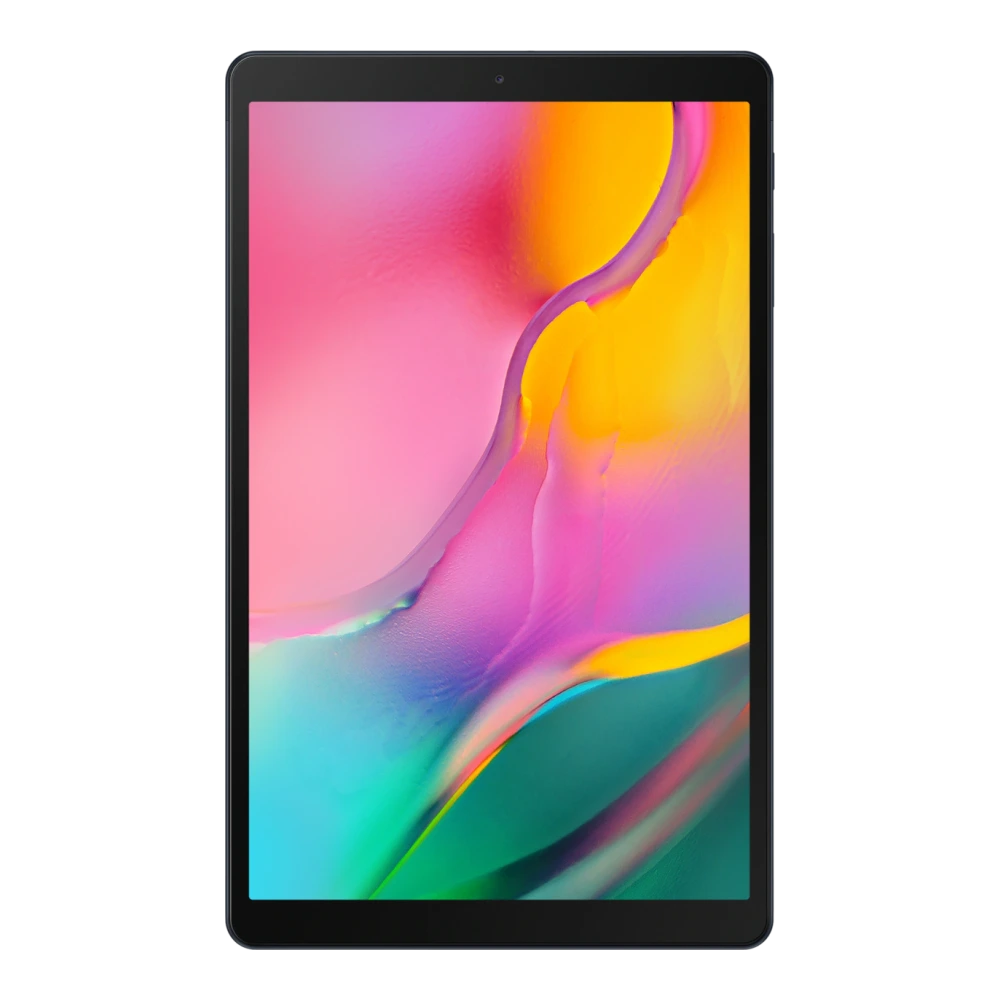
SM-T595 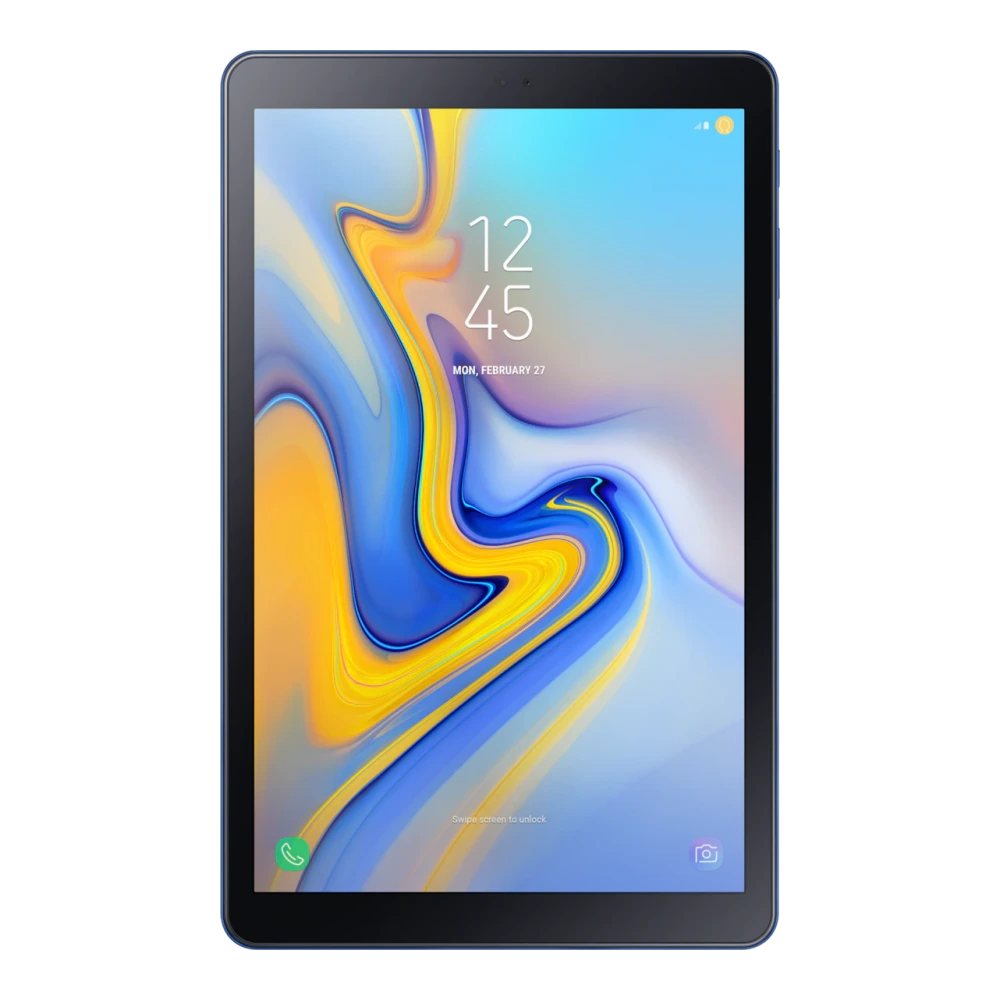
SM-T285 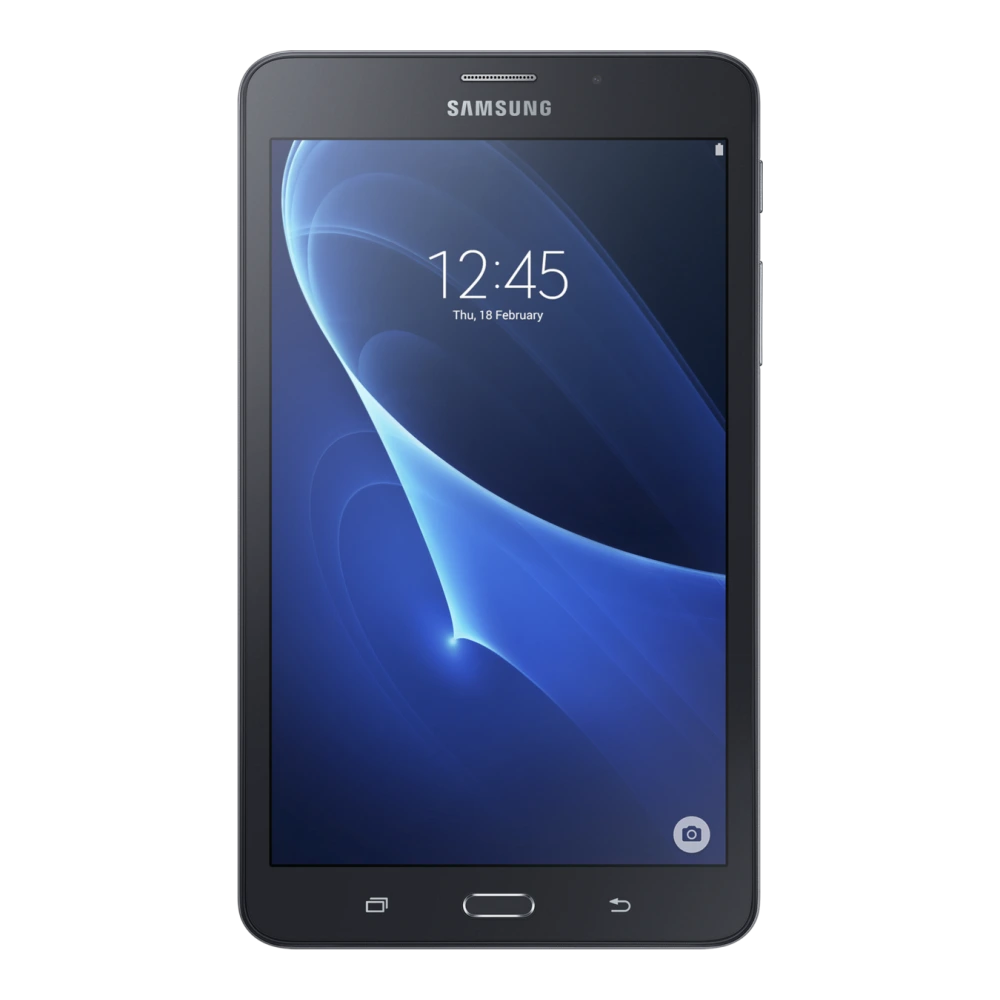
SM-T290 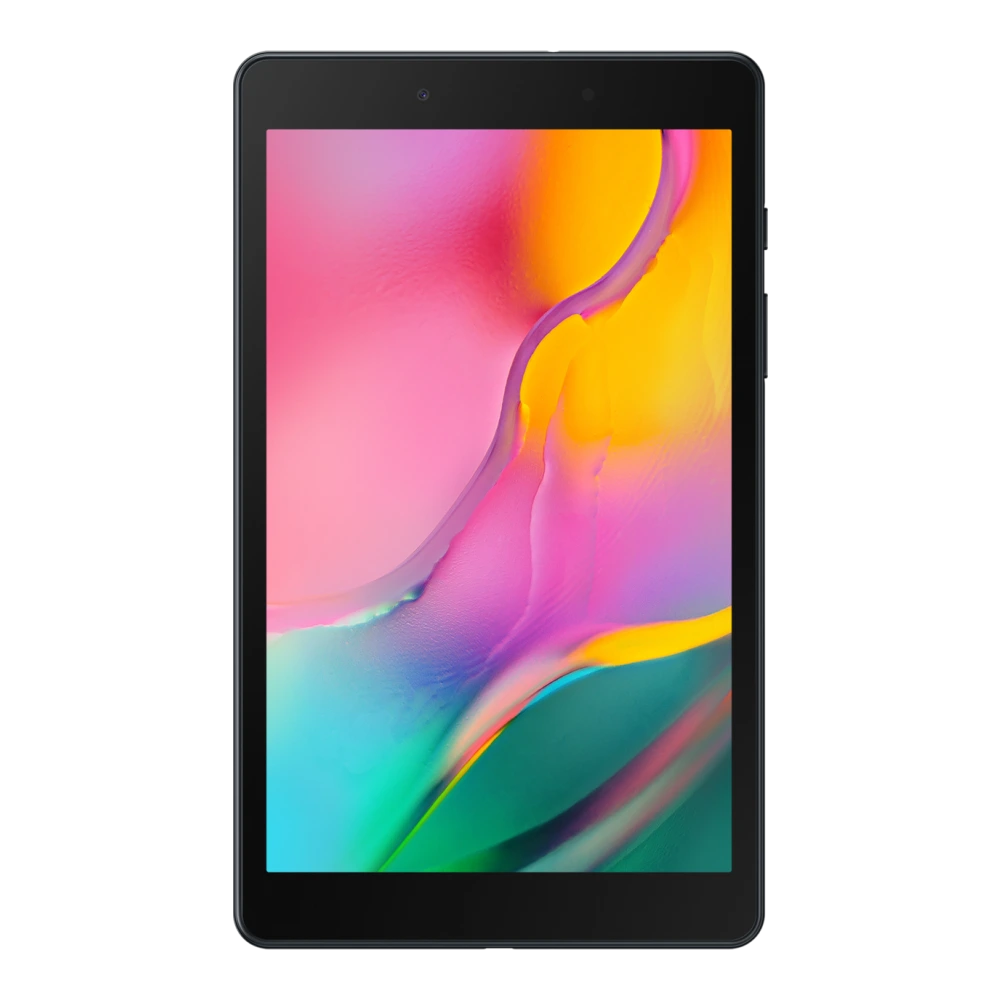
SM-X135G 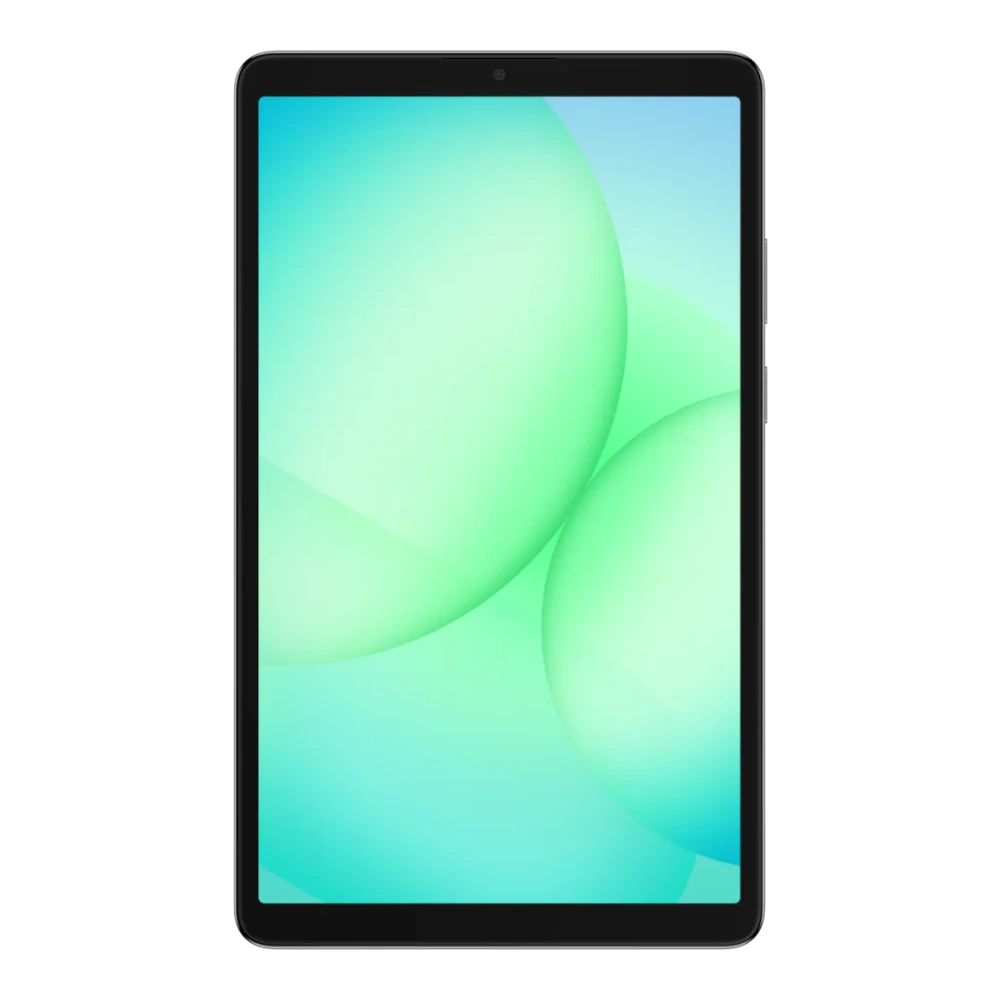
SM-X230 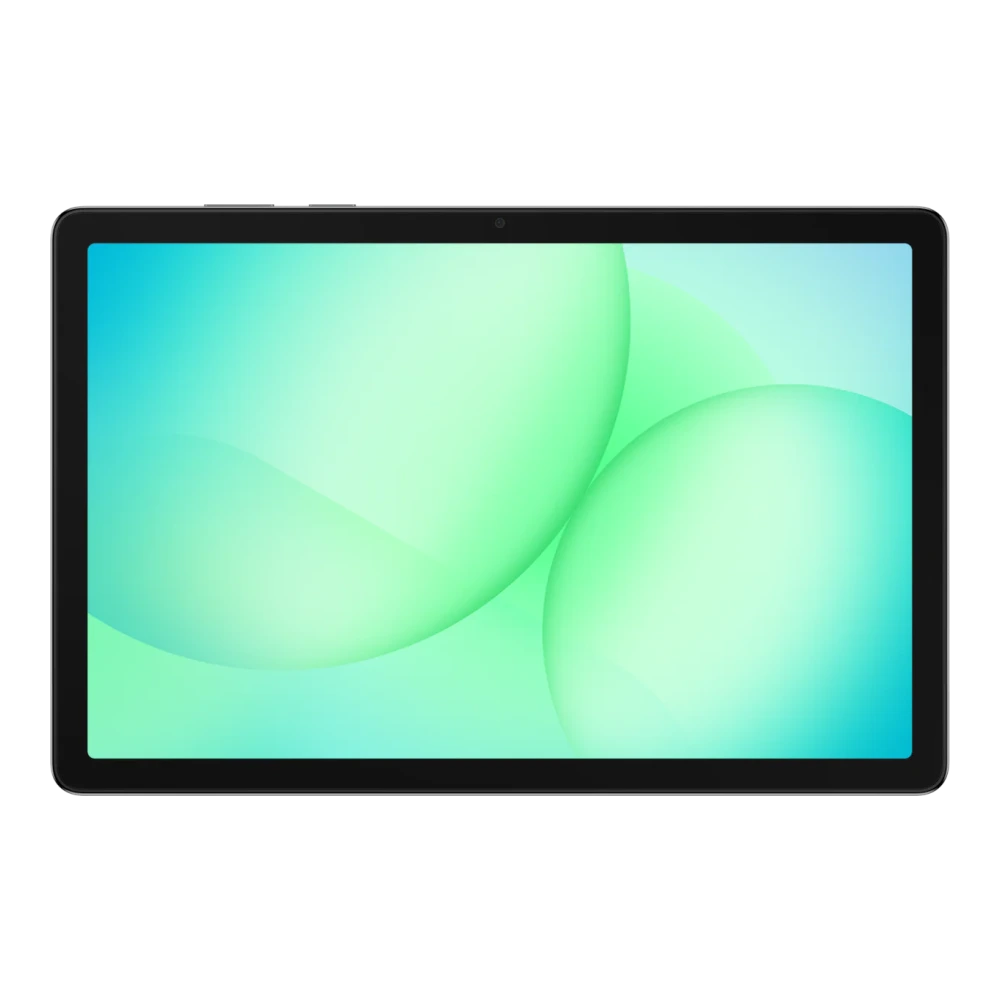
SM-X236B 
SM-T500 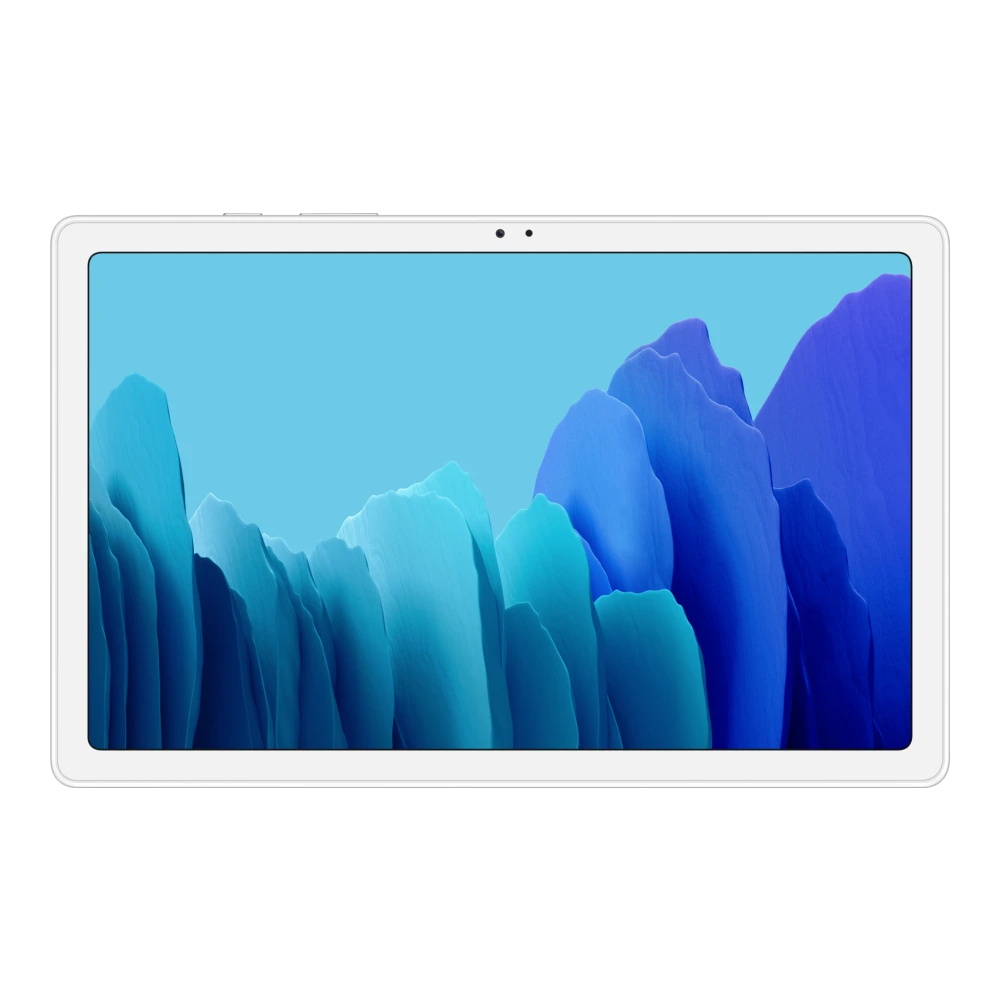
SM-T220 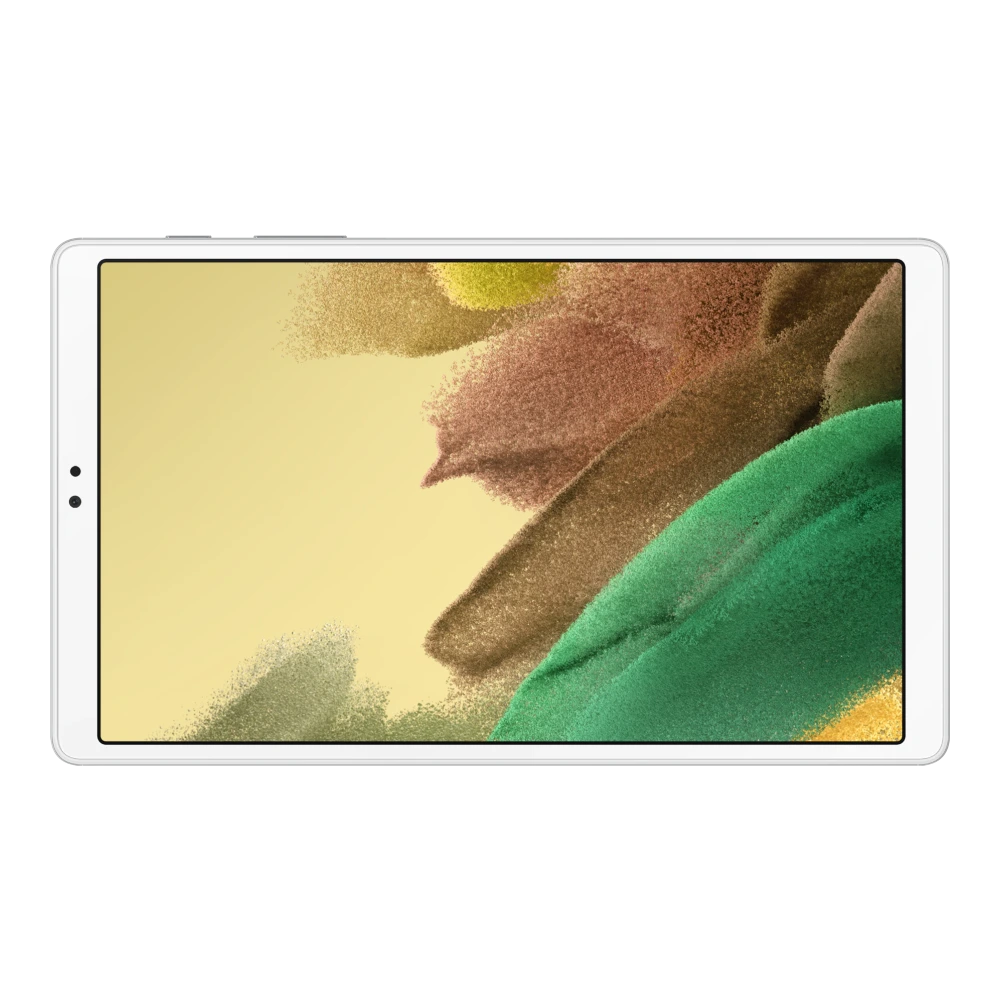
SM-X200 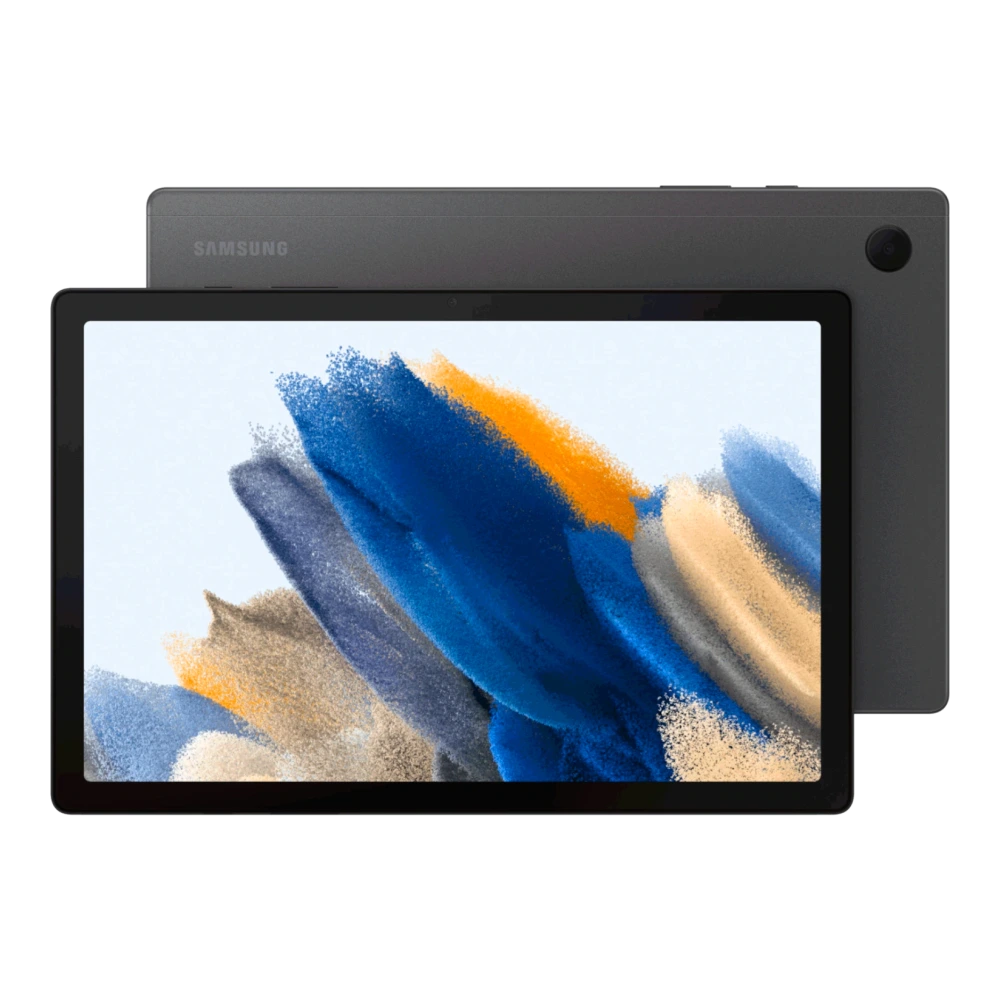
SM-X115 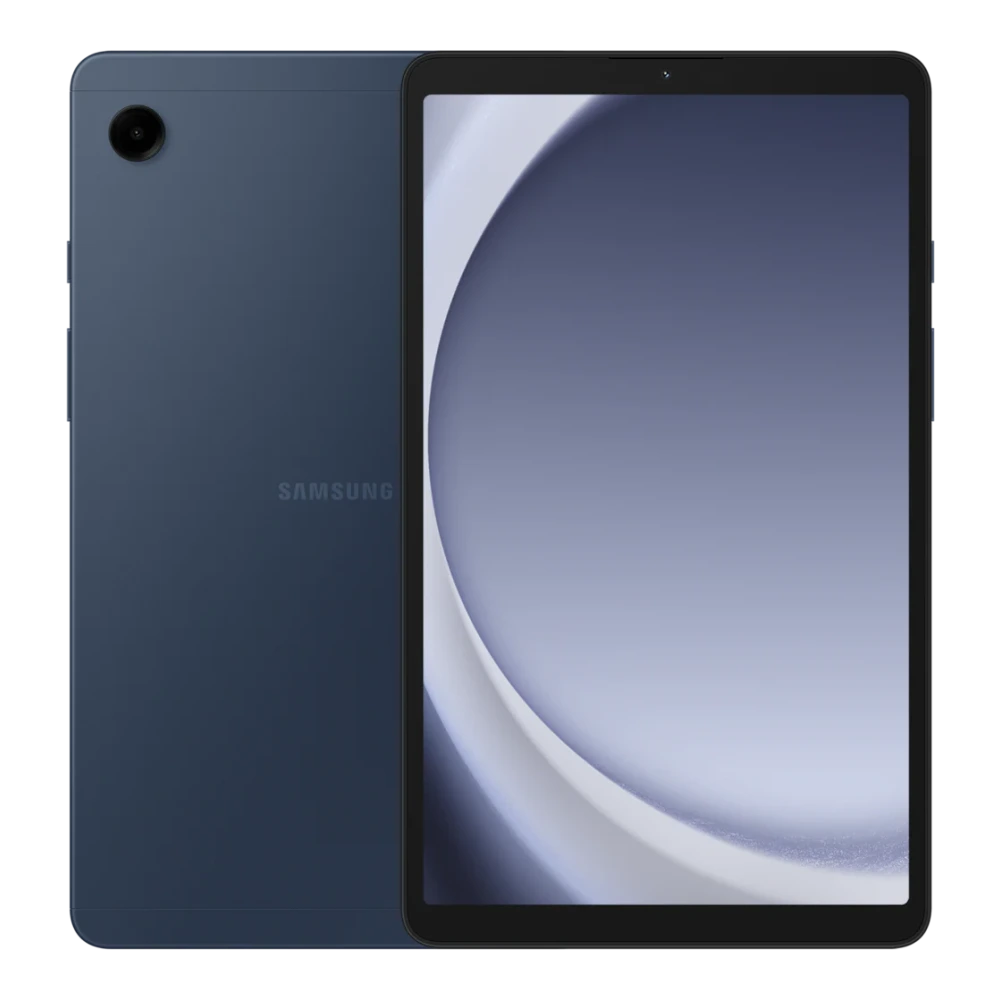
SM-X210 
SM-X216B 
SM-T395 
SM-T561 
SM-T705 
SM-X520 
SM-X526B 
SM-X620 
SM-X626B 
SM-X400 
SM-X406B 
SM-X920 
SM-X926B 
SM-X820 
SM-X826B 
SM-X730 
SM-X736B 
SM-X930 
SM-X936B 
SM-T819Y 
SM-T825 
SM-T835 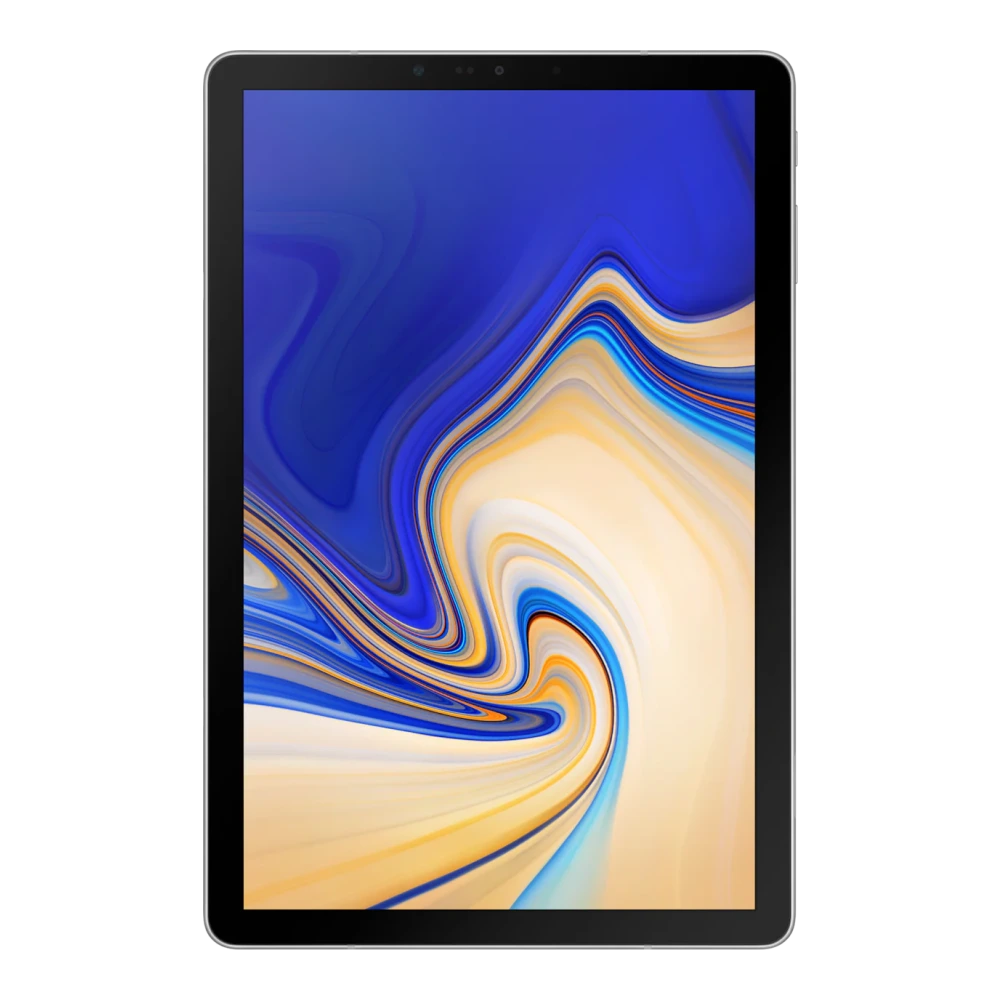
SM-T725 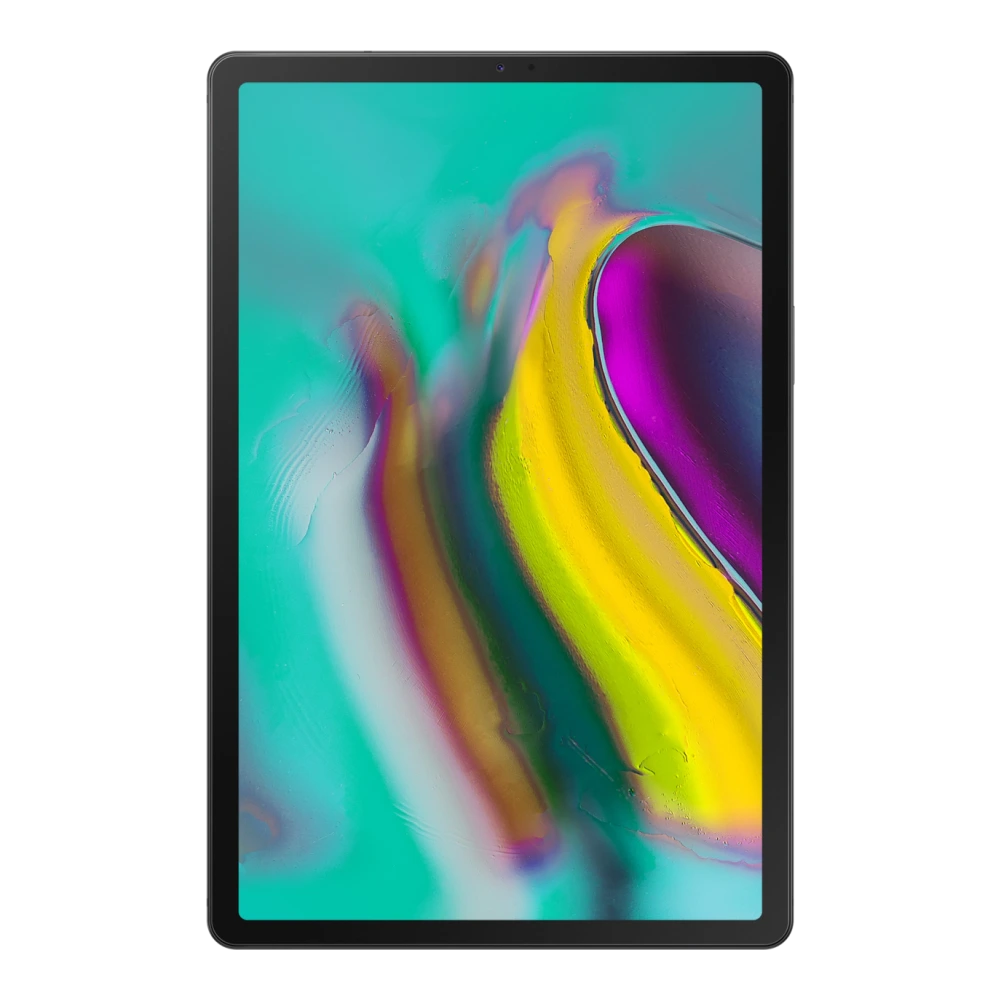
SM-P619 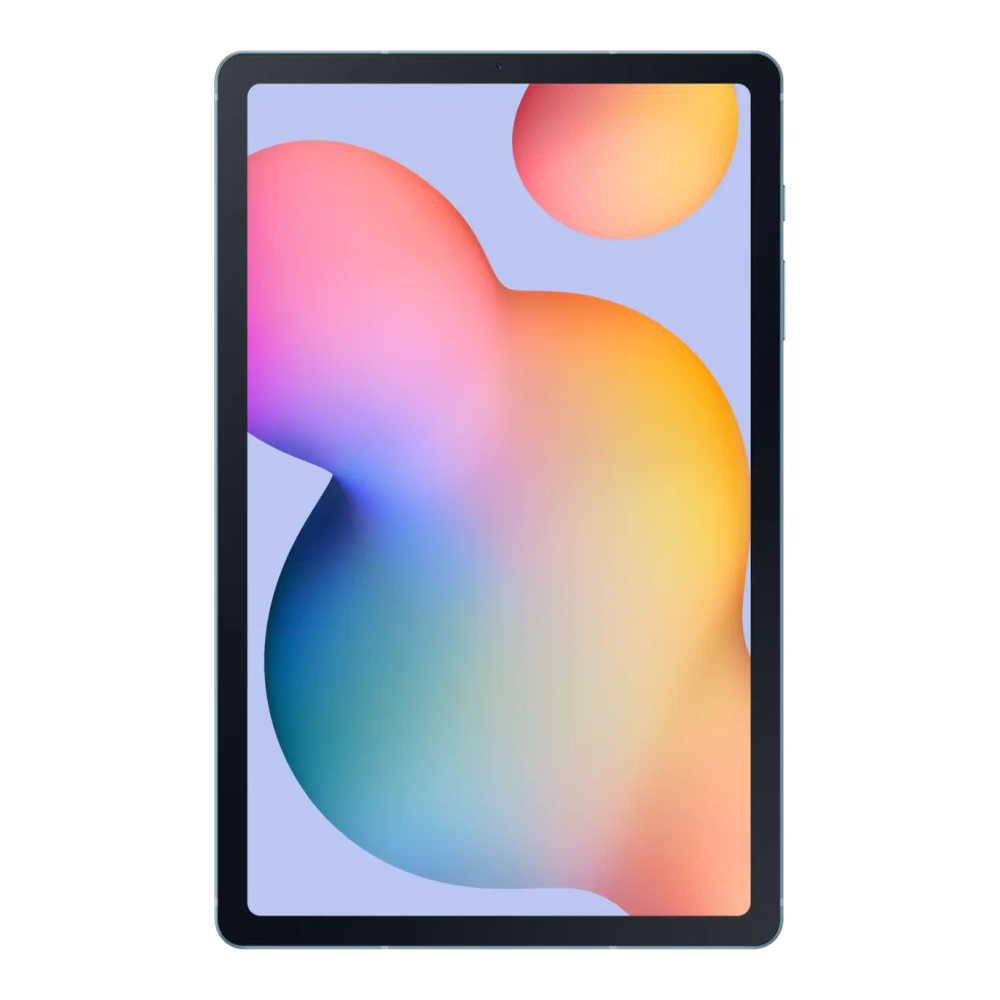
SM-P613 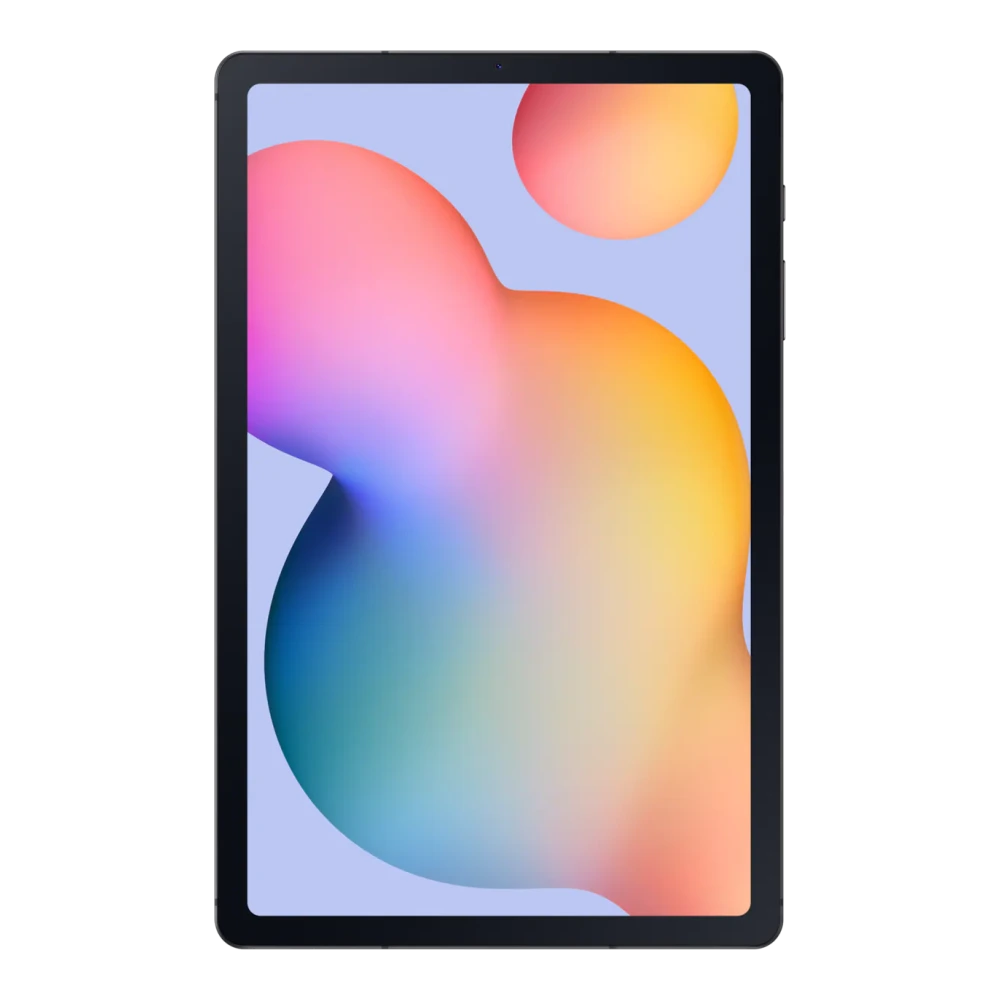
SM-T875 
SM-T733 
SM-T970 
SM-X700 
SM-X706B 
SM-X900 
SM-X906B 
SM-X800 
SM-X806B 
SM-X710 
SM-X716B 
SM-X510 
SM-X516B 
SM-X610 
SM-X616B 
SM-X910 
SM-X916B 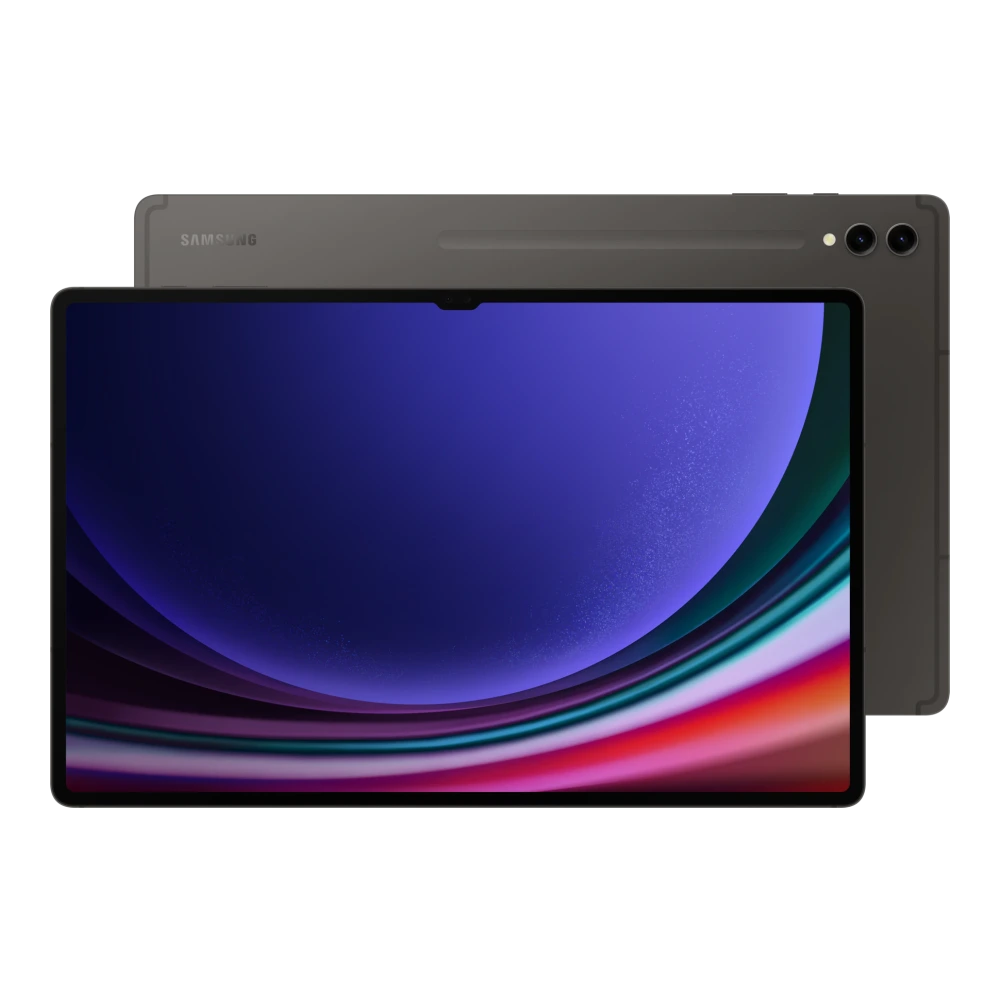
SM-X810 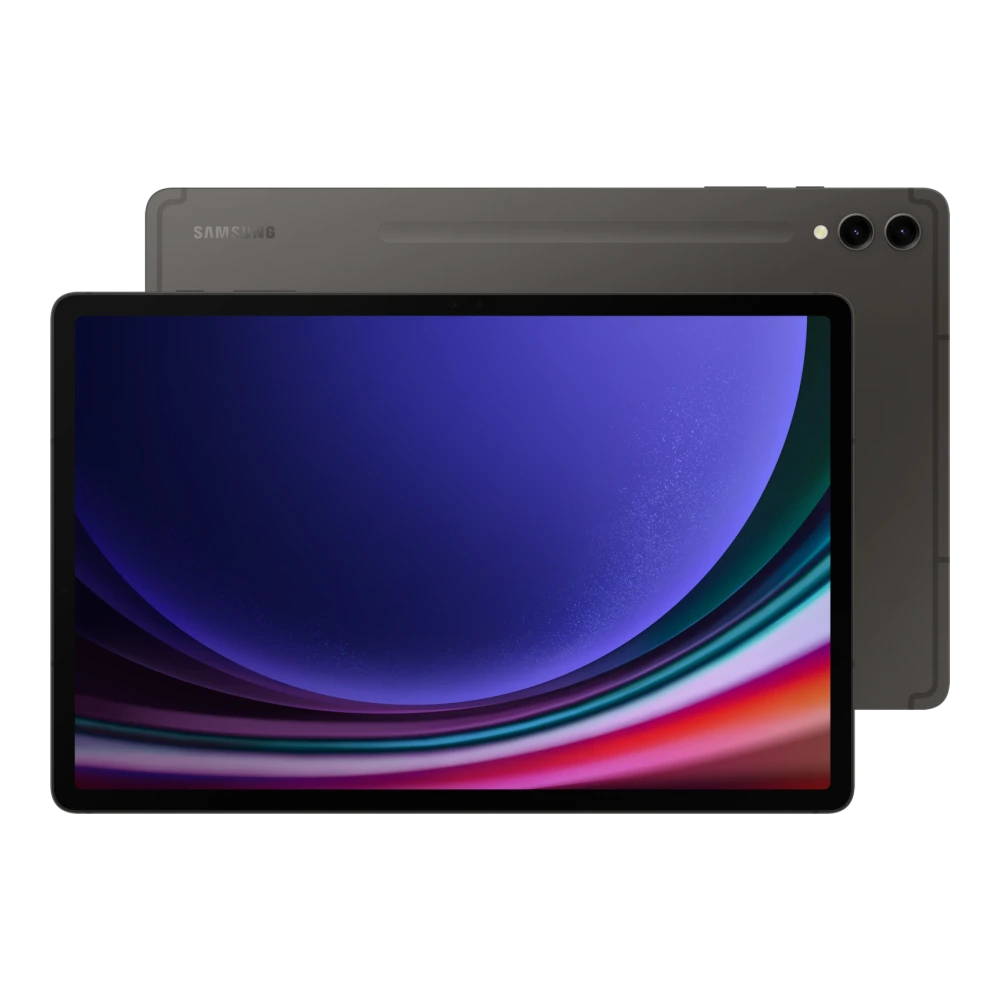
SM-X816B 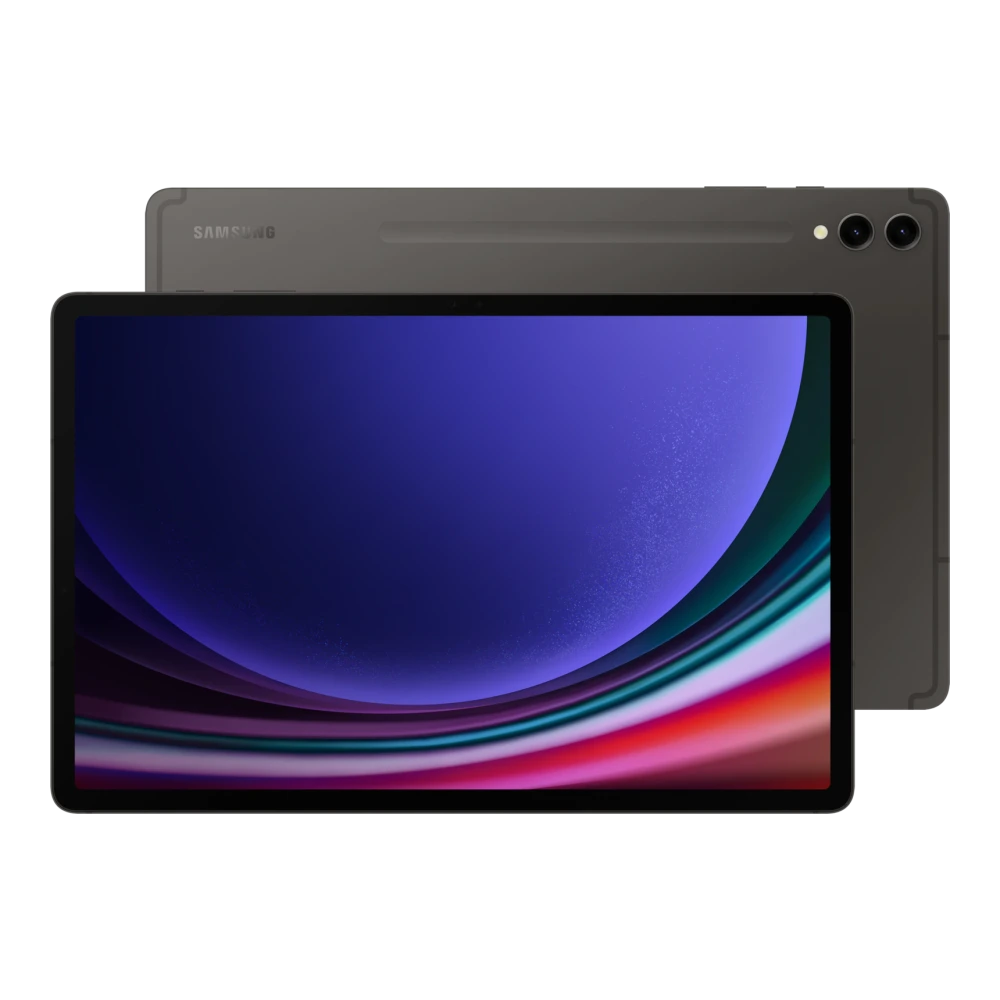
SM-G556B 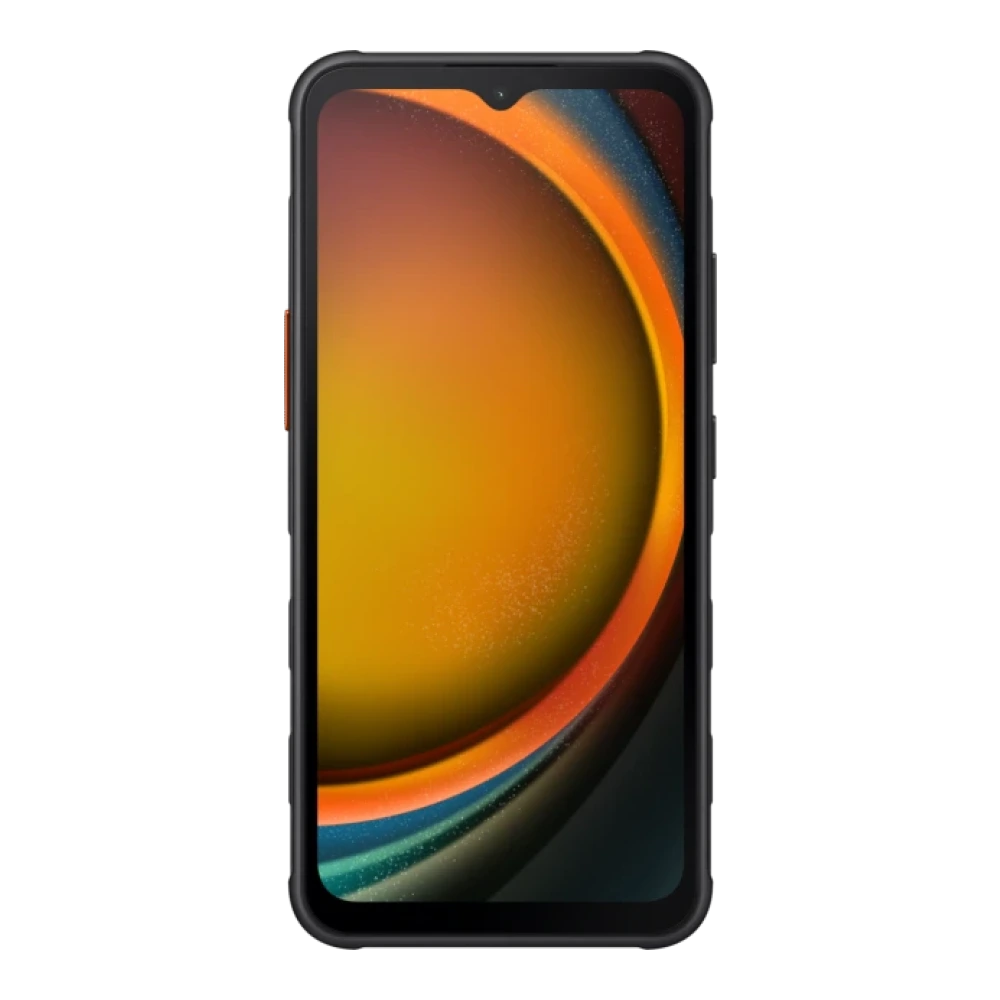
GT-S5360 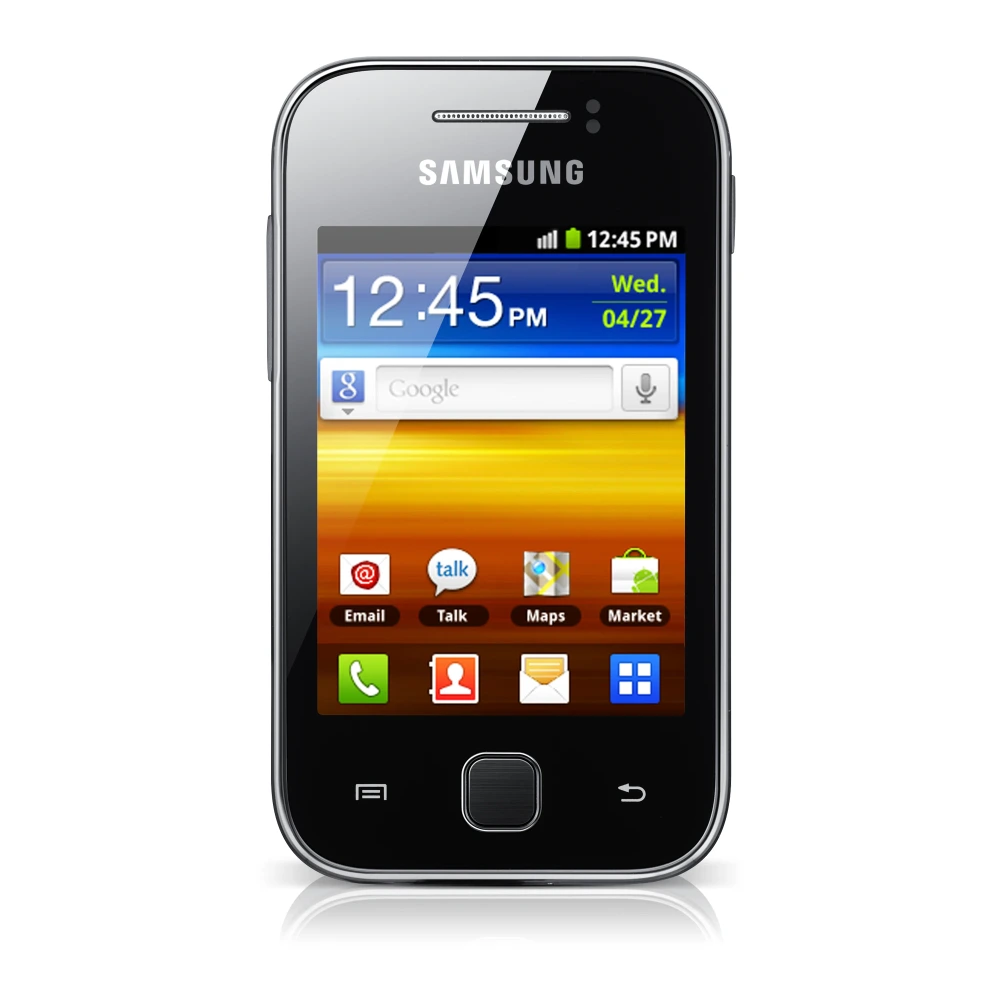
GT-S6102 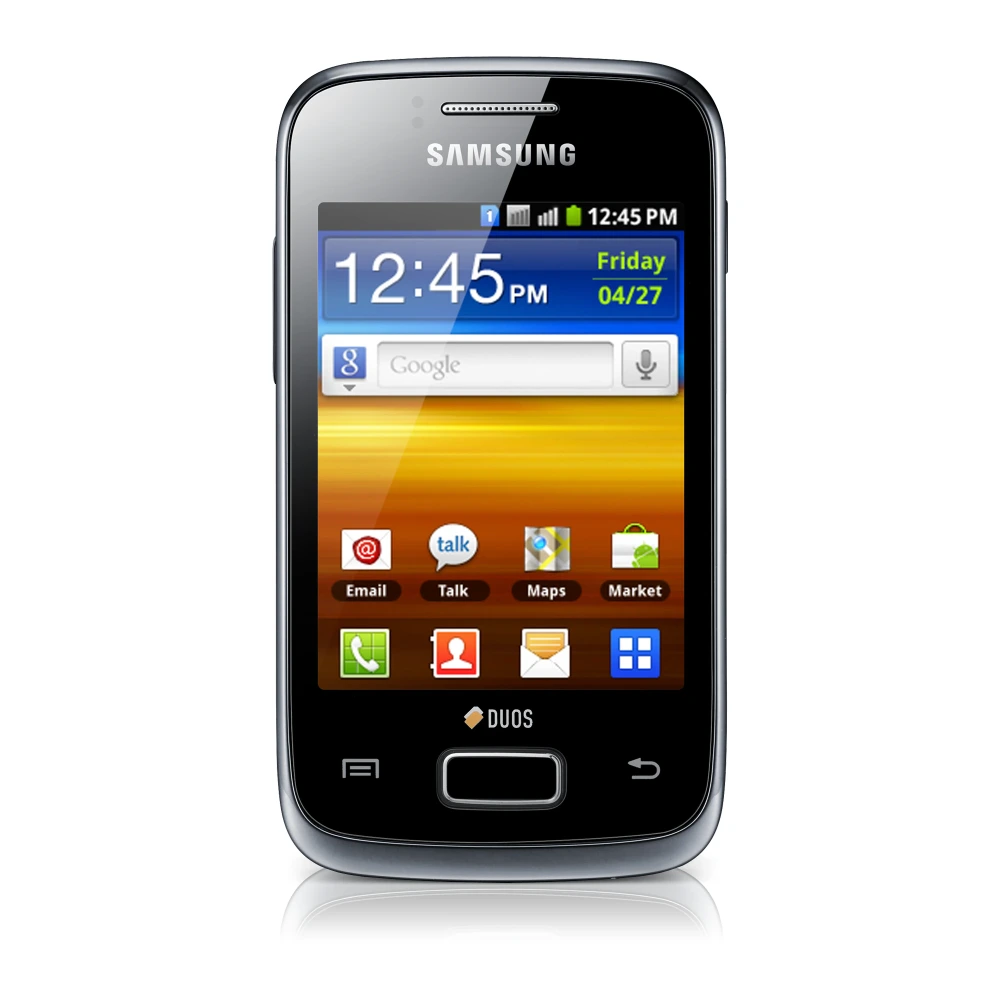
GT-S5302 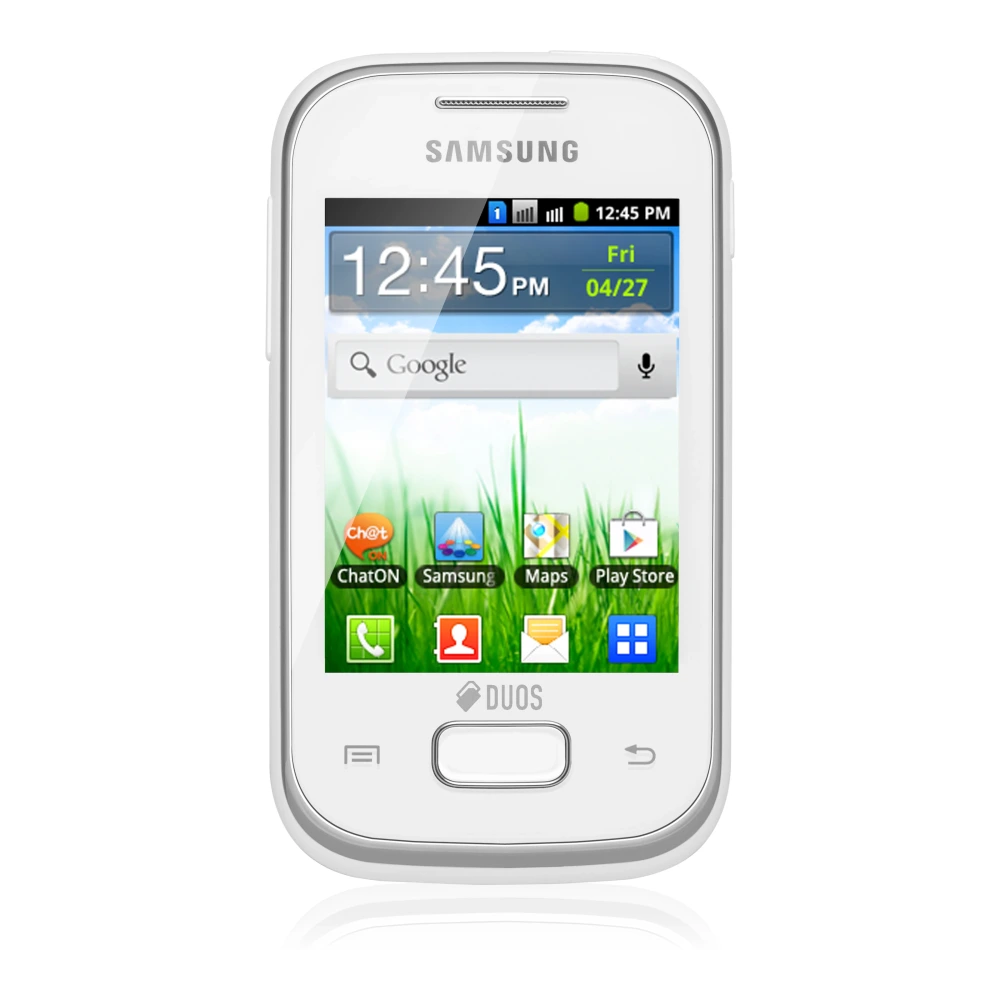
GT-B5512 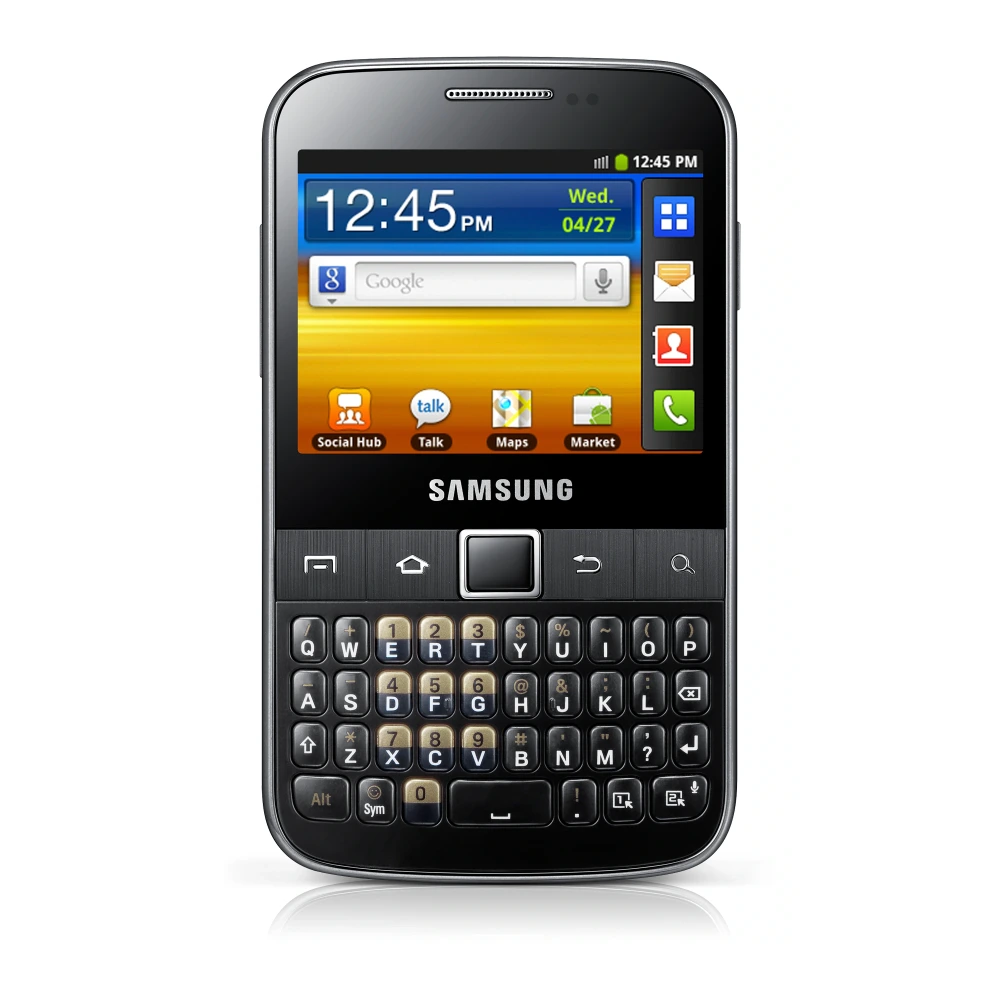
GT-S6312 
SM-F700F 
SM-F711B 
SM-F721B 
SM-F731B 
SM-F741B 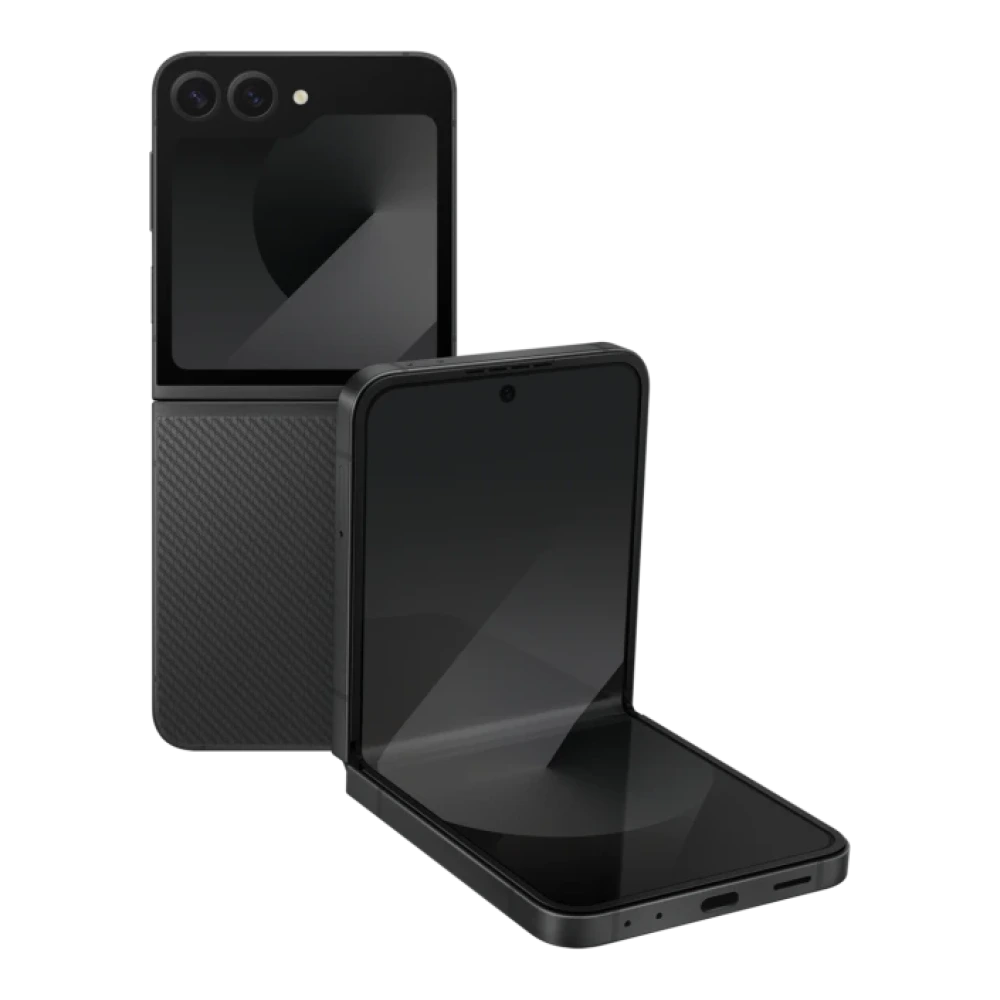
SM-F766B 
SM-F761B 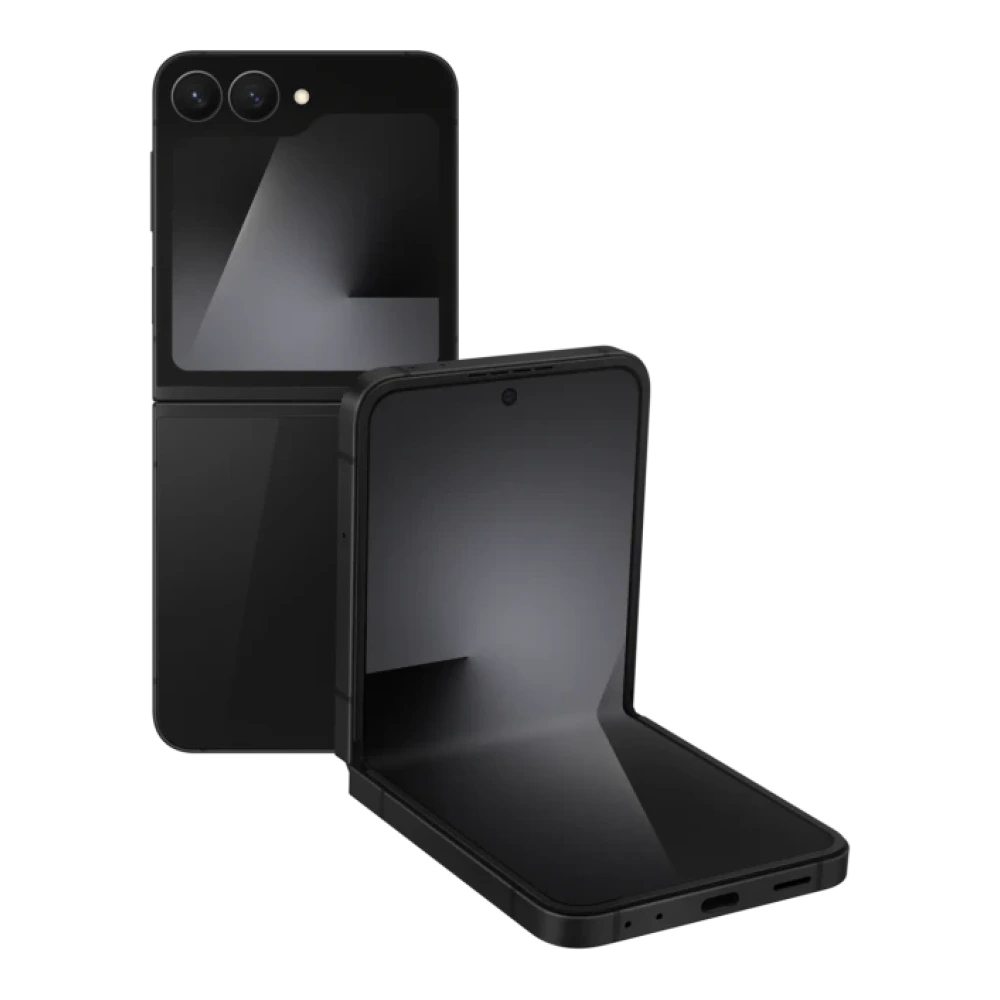
SM-F776B 
SM-F916B 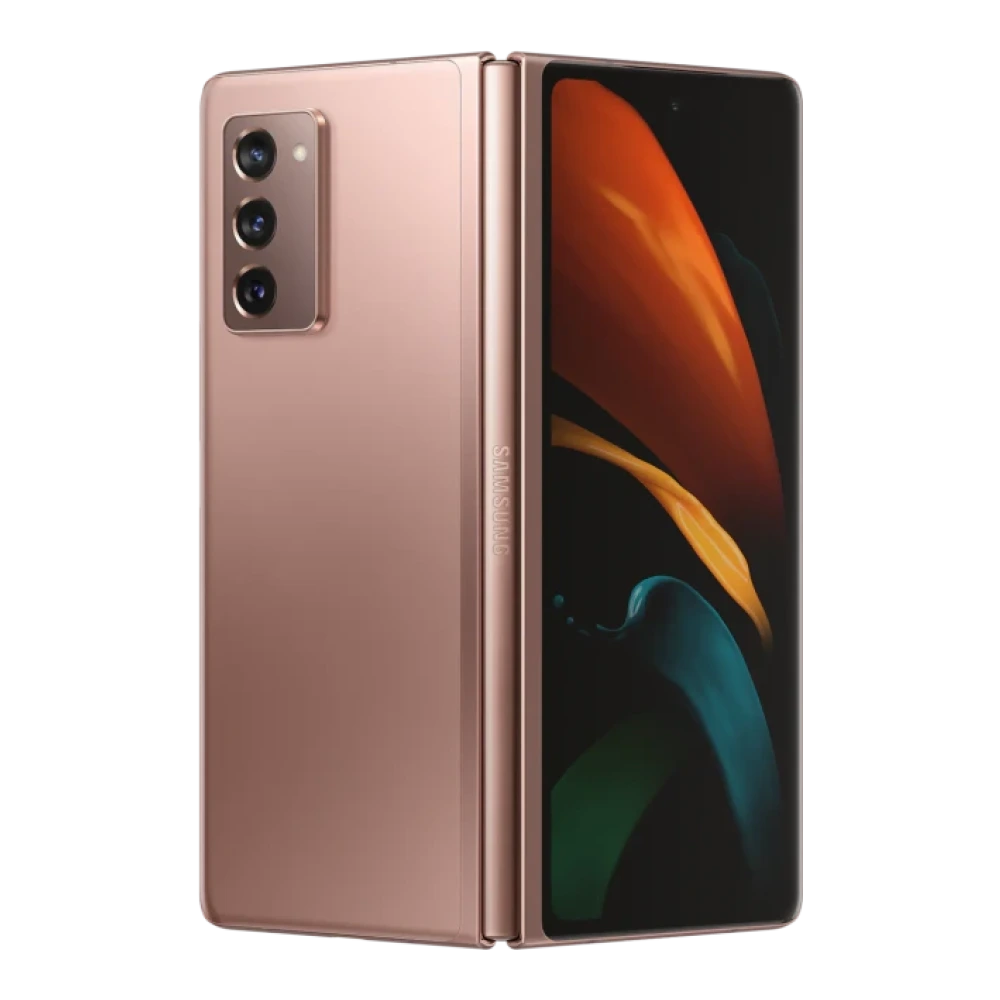
SM-F926B 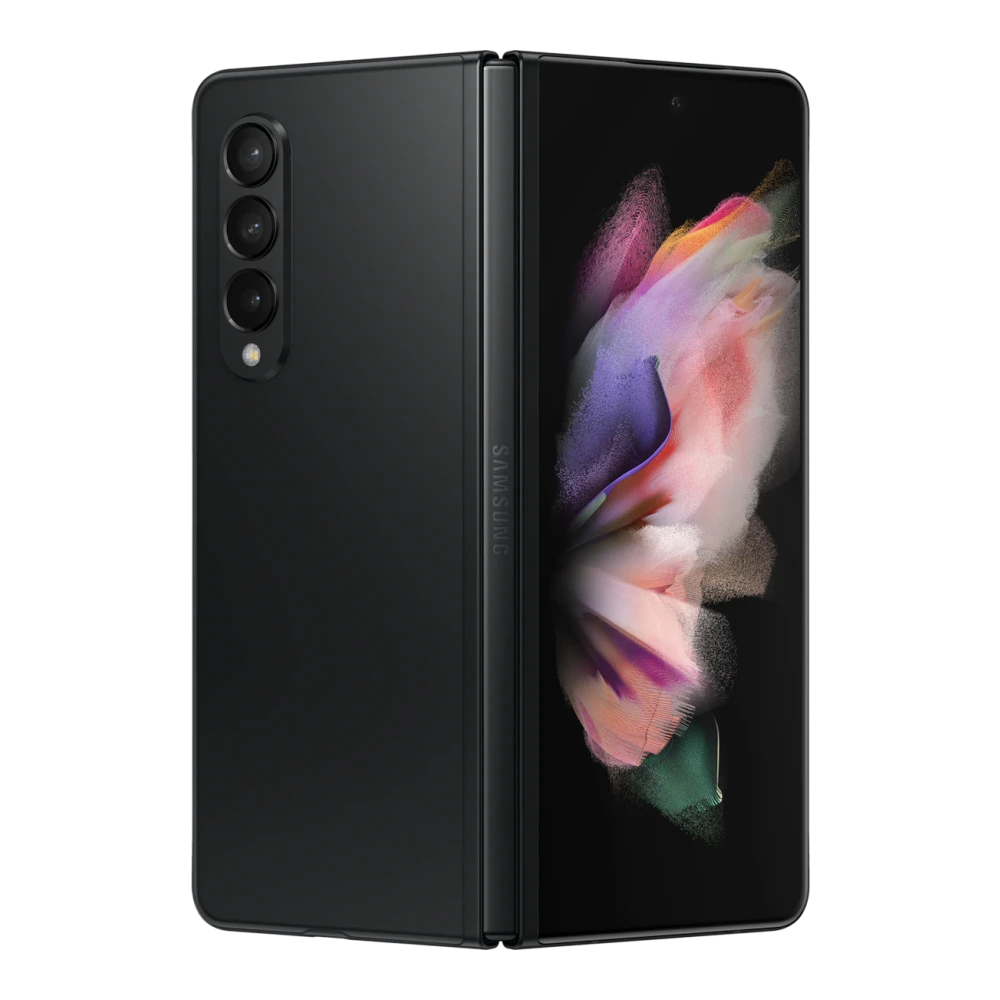
SM-F936B 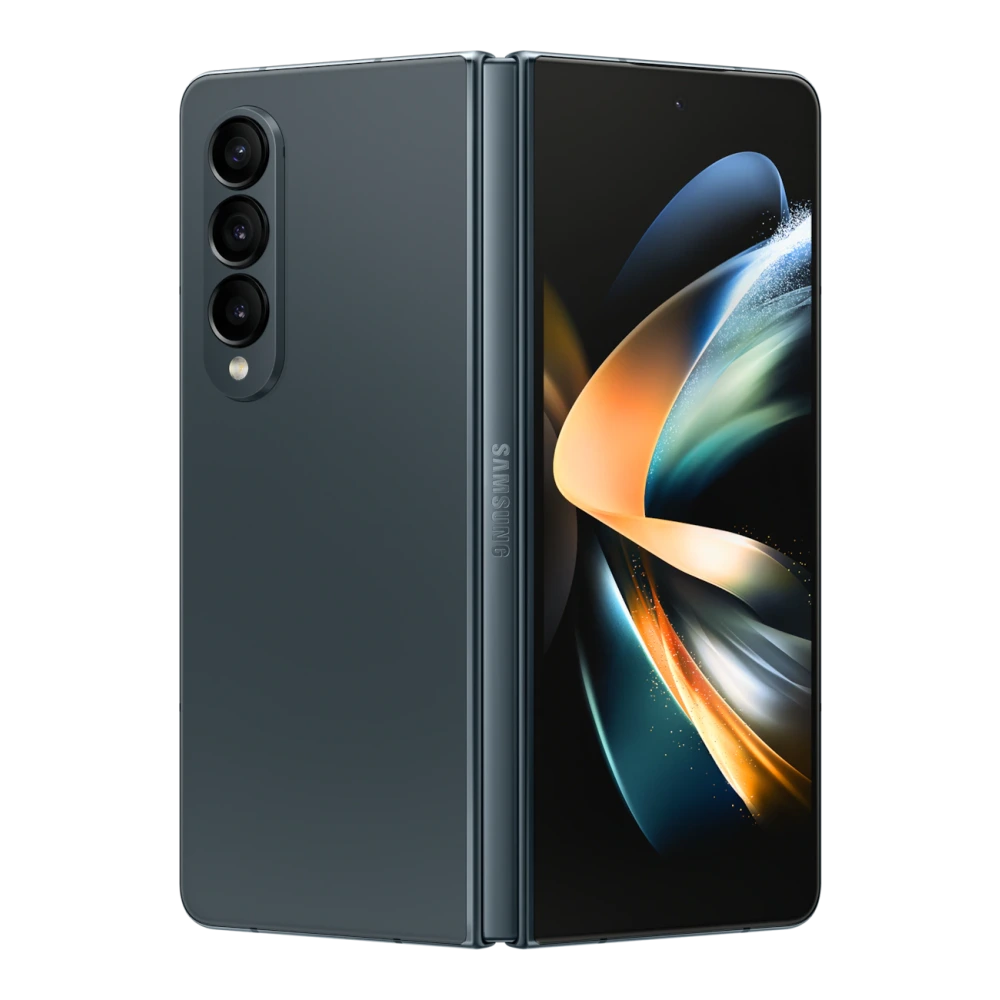
SM-F946B 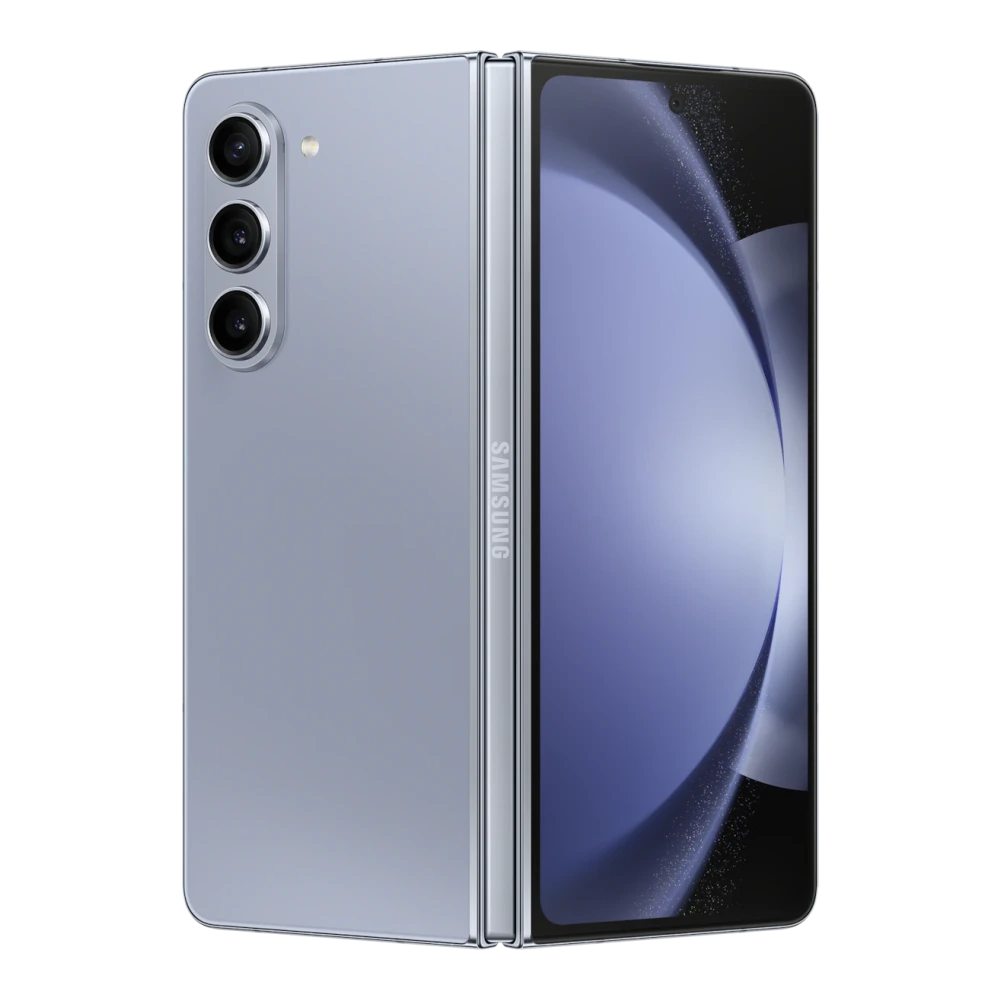
SM-F956B 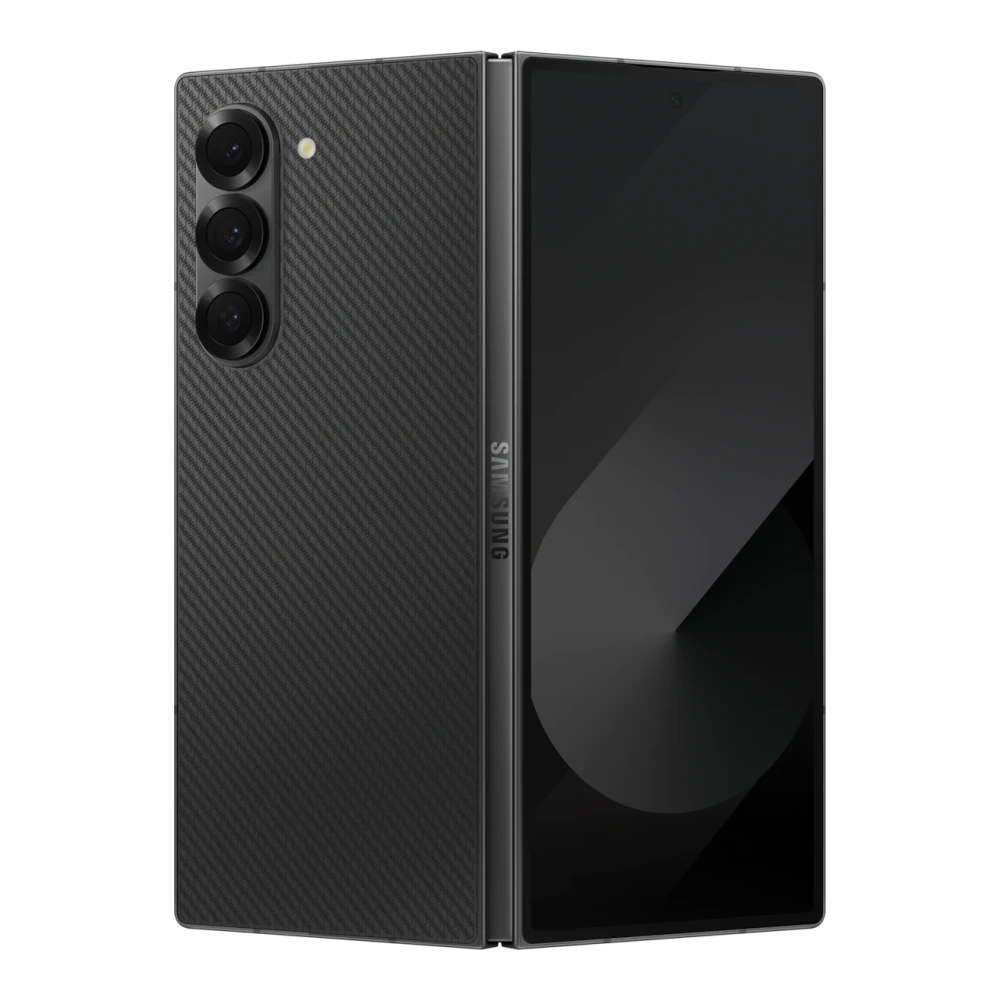
SM-F966B 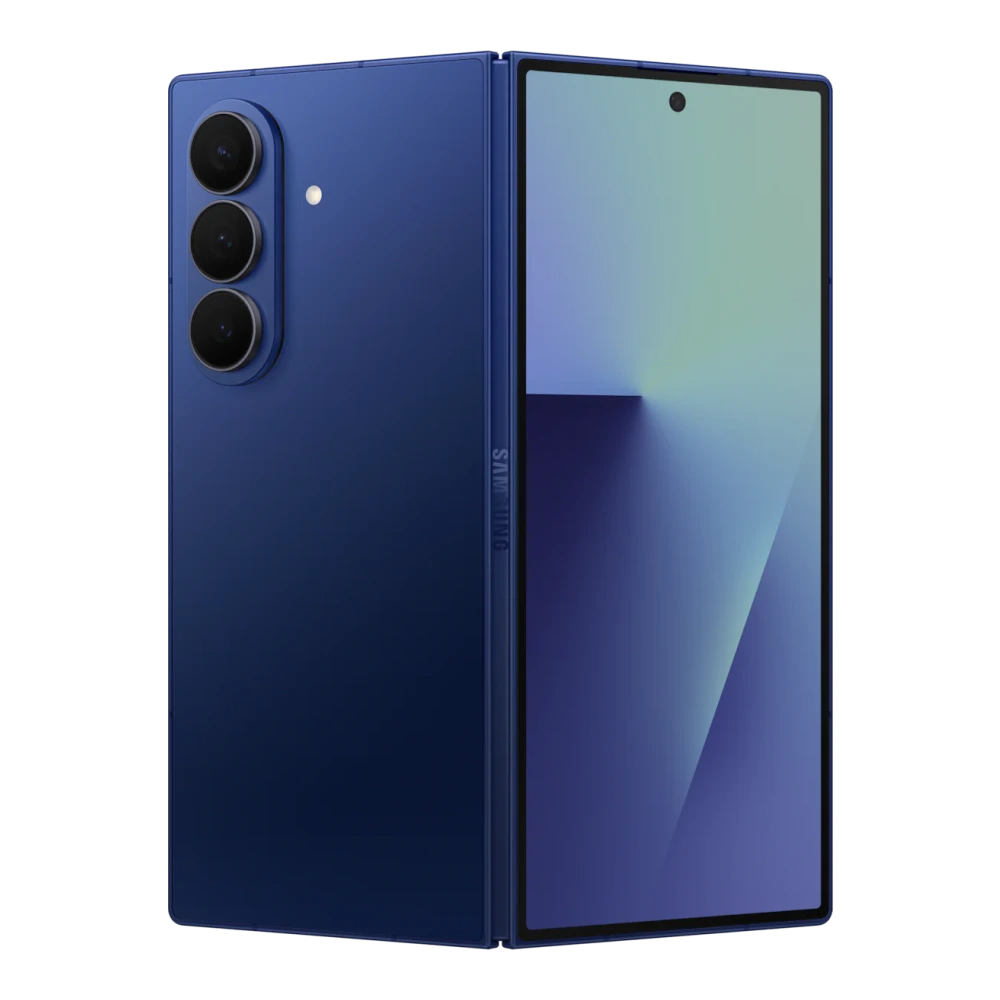
SM-F971B 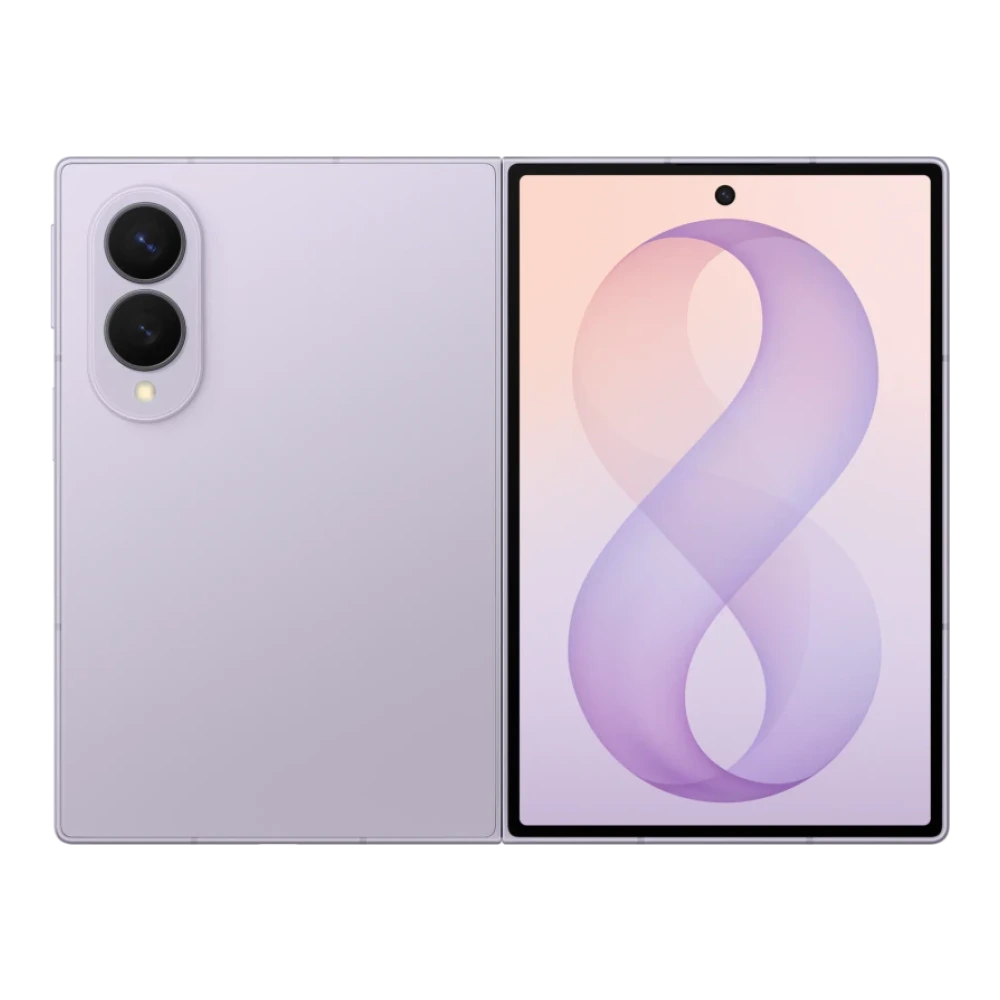
SM-Z200F 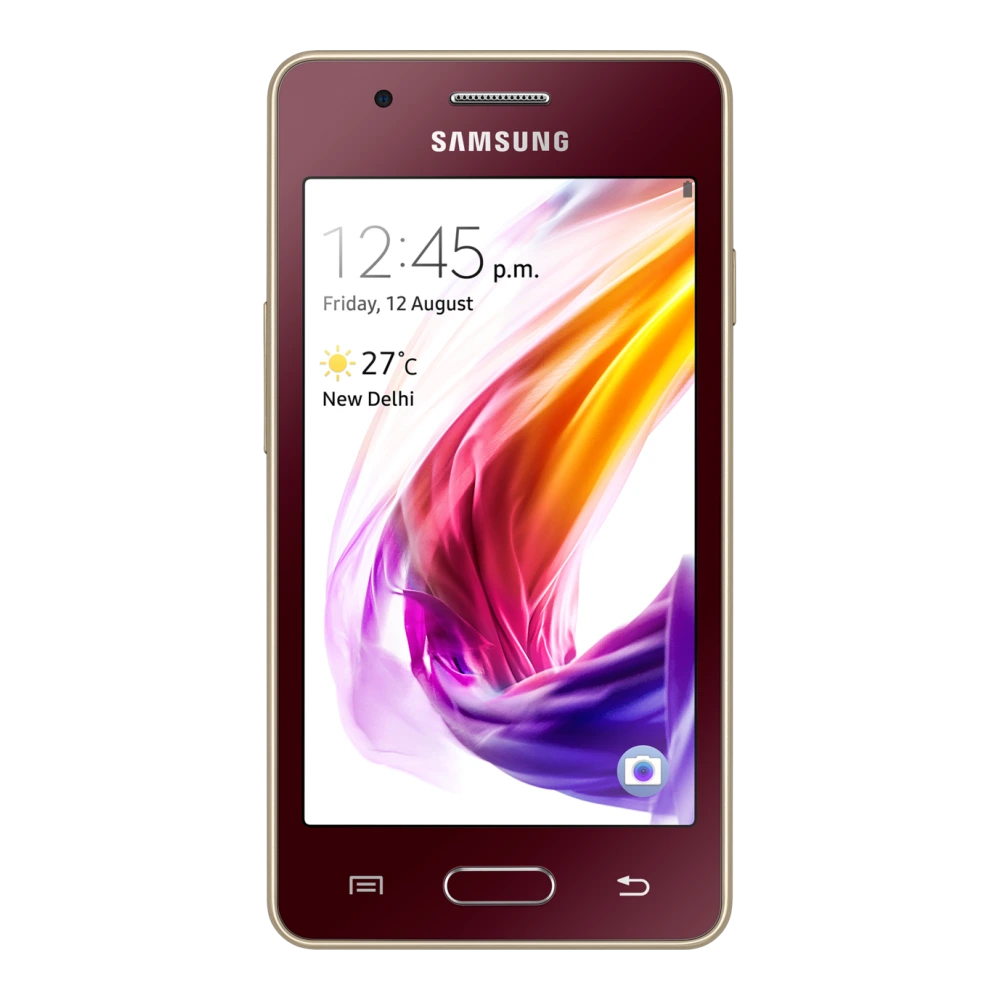
GT-I5800 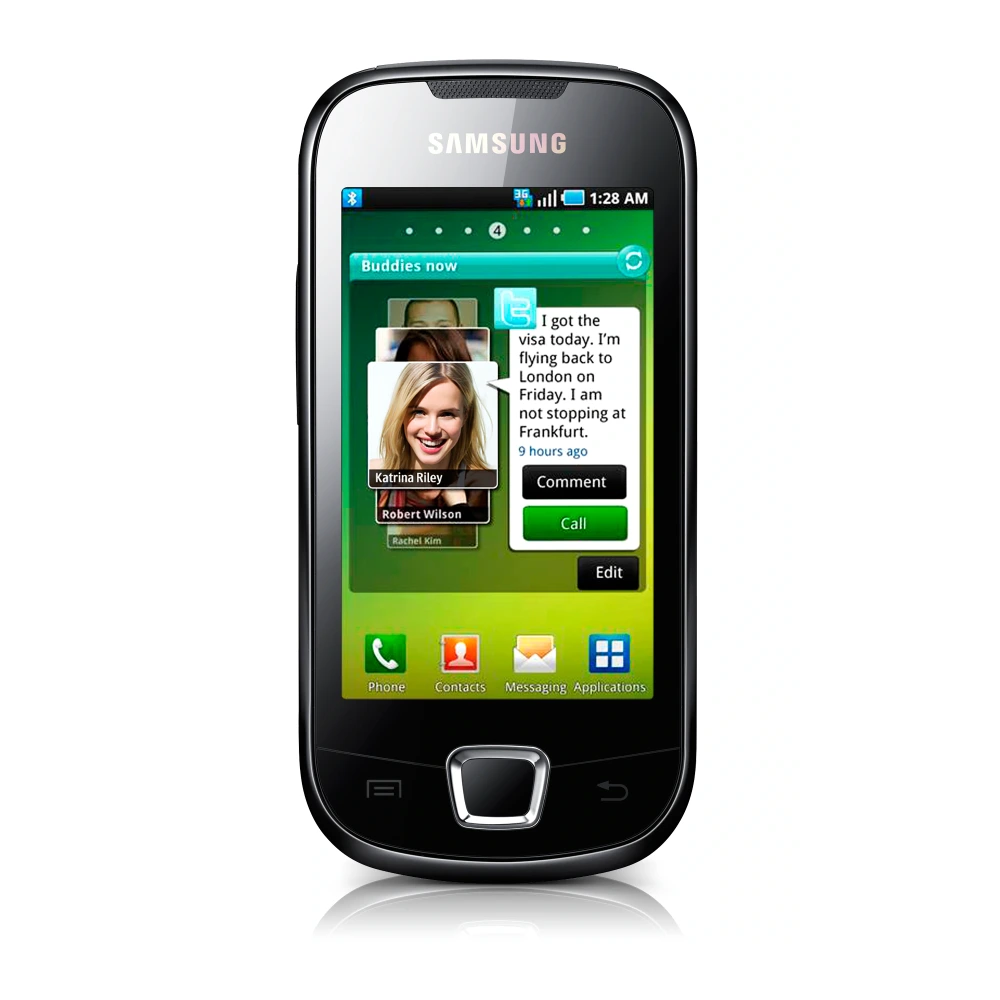
GT-I9023 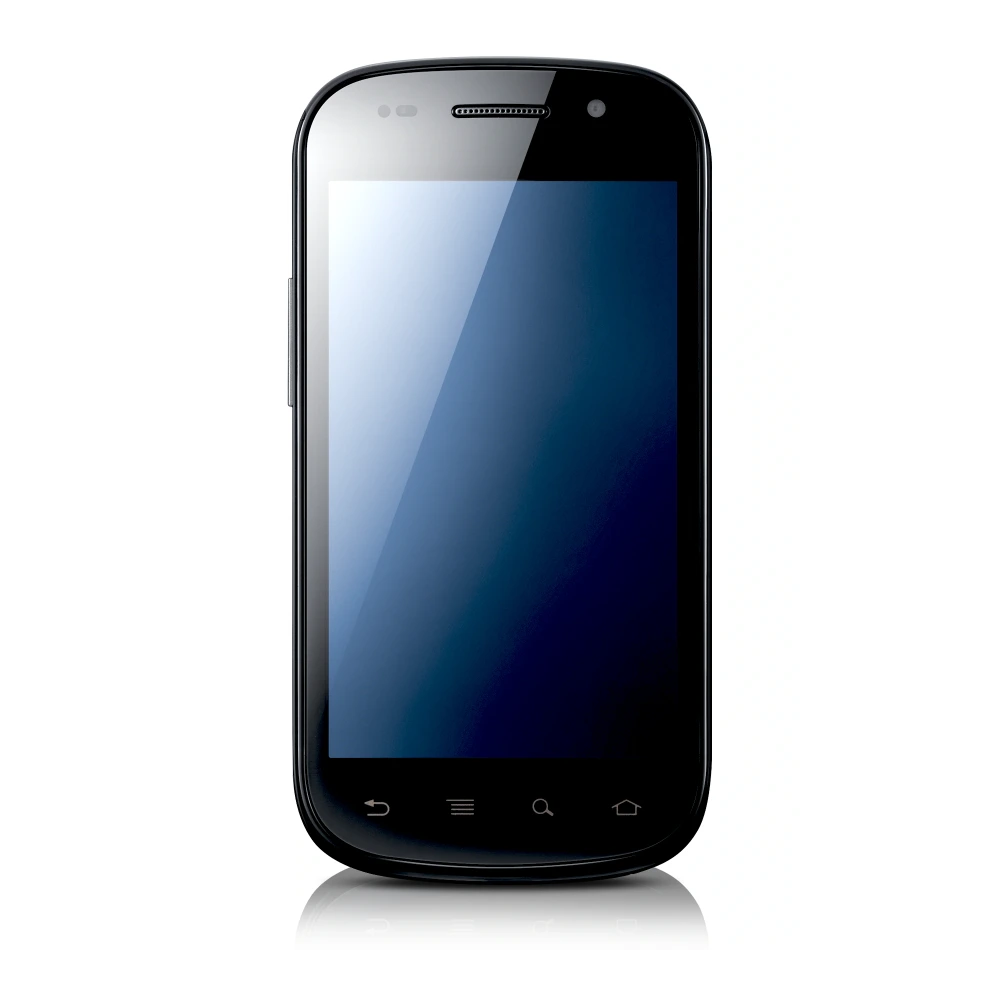
SM-G7202
SM-G531F 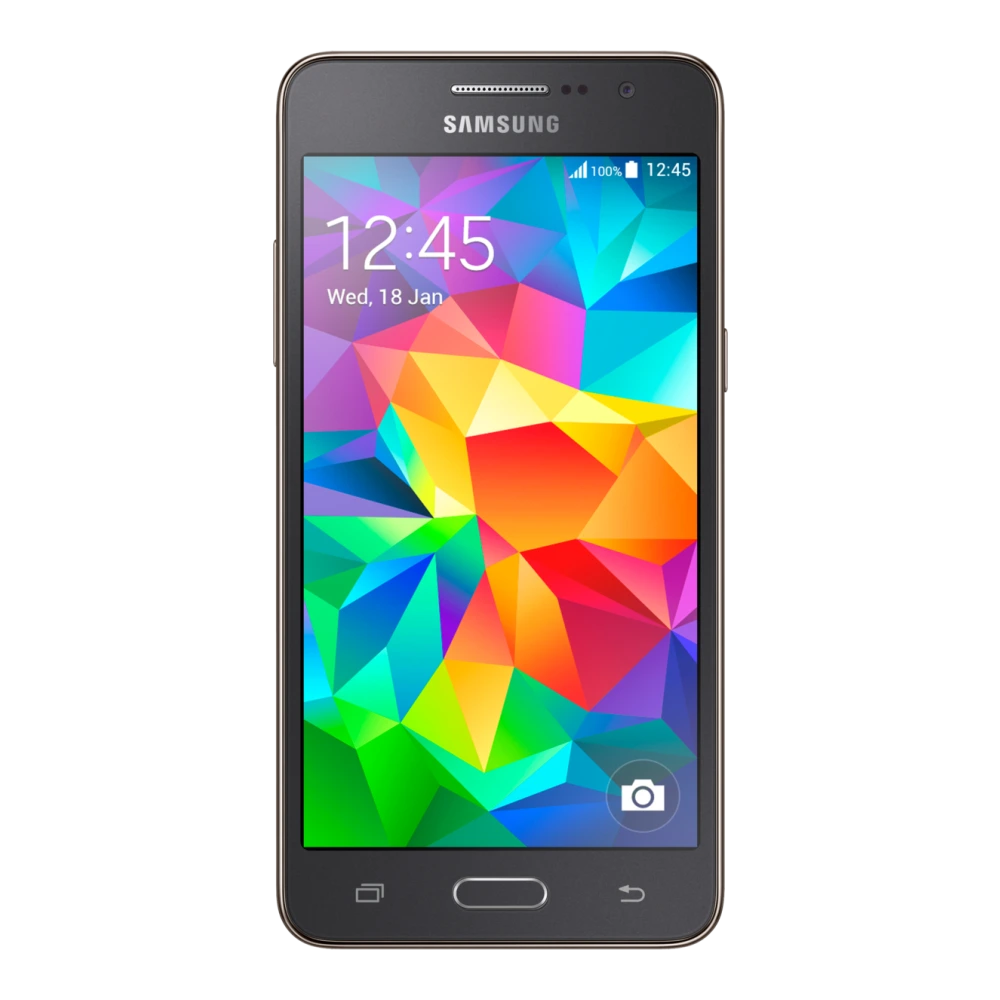
GT-B5510
GT-B6520 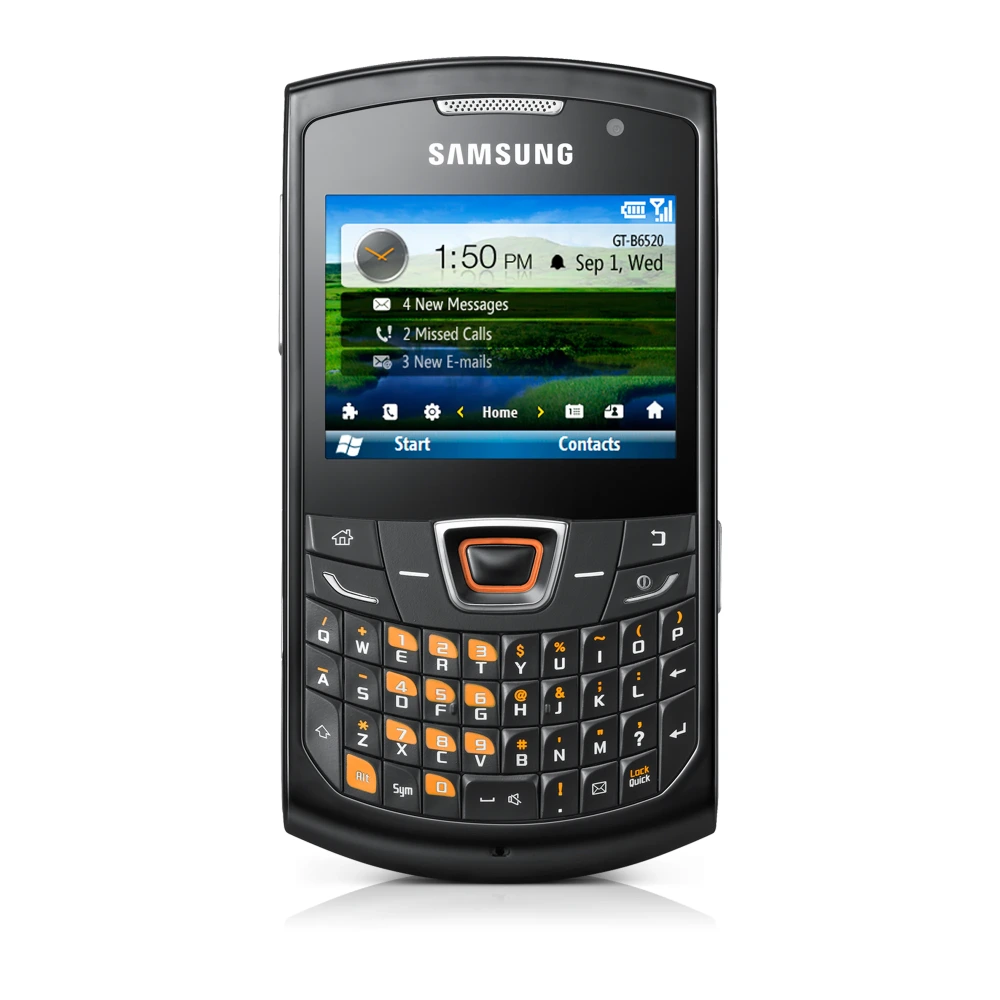
GT-B7330
GT-B7610 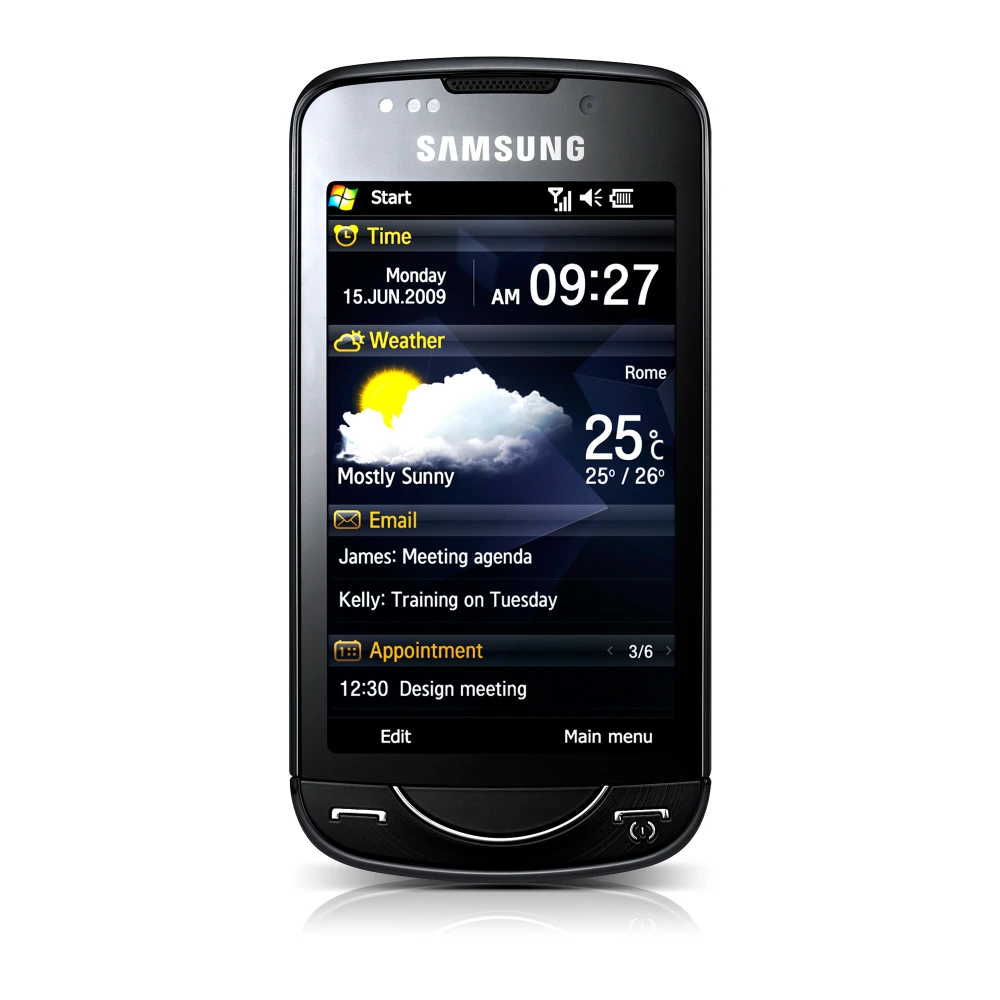
GT-B7620 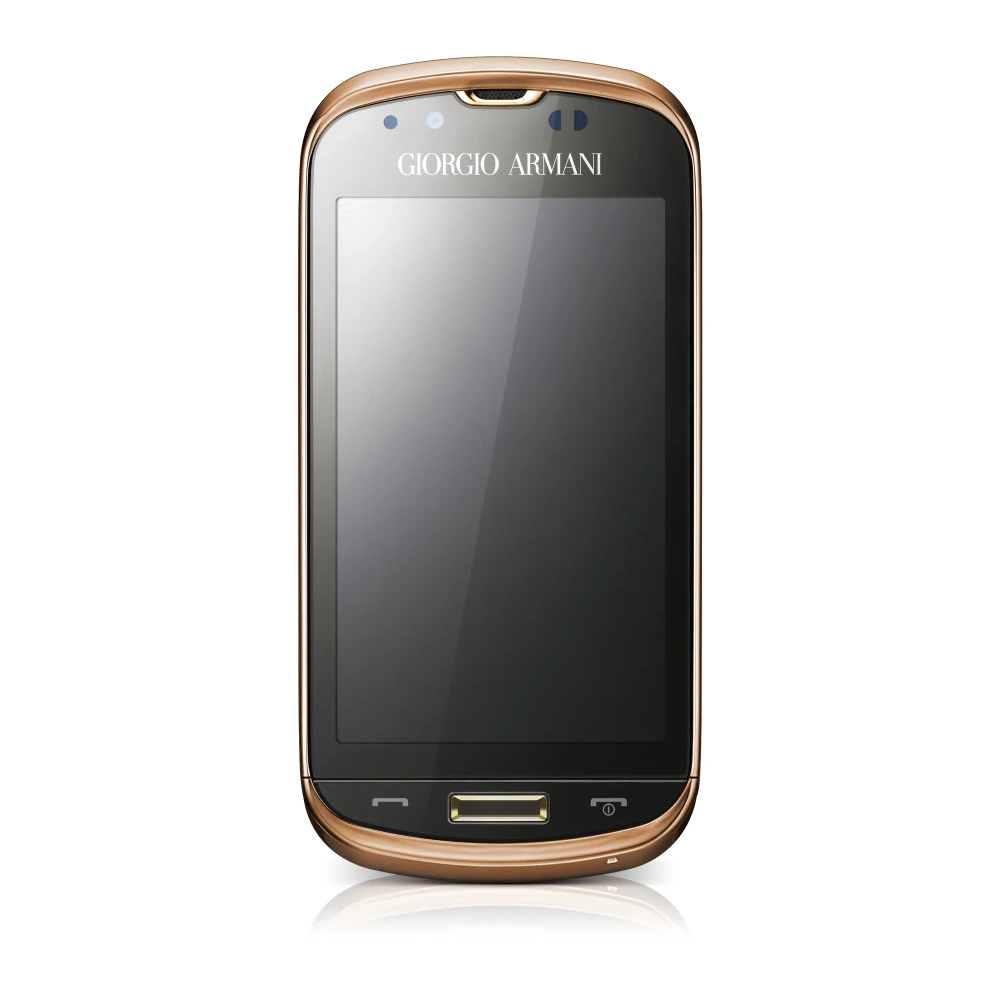
GT-C6625
GT-I5510 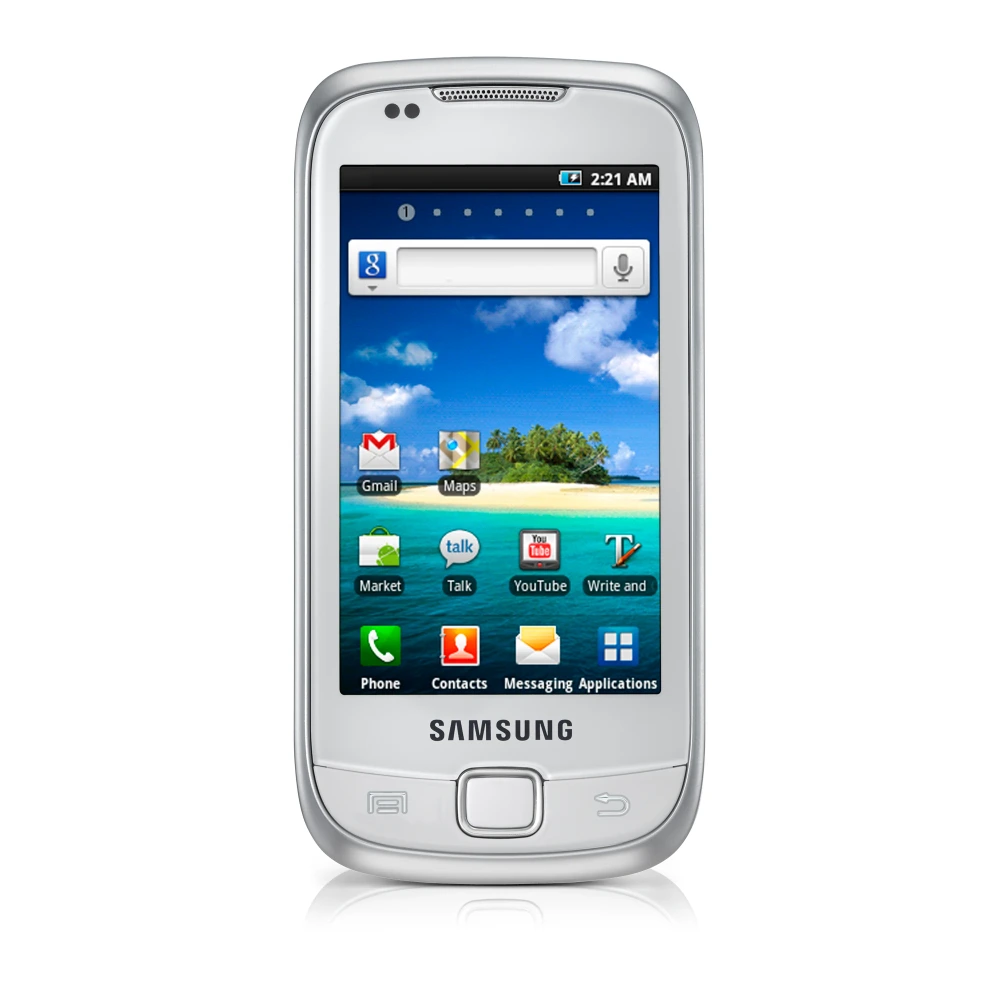
GT-I7110
GT-I8000 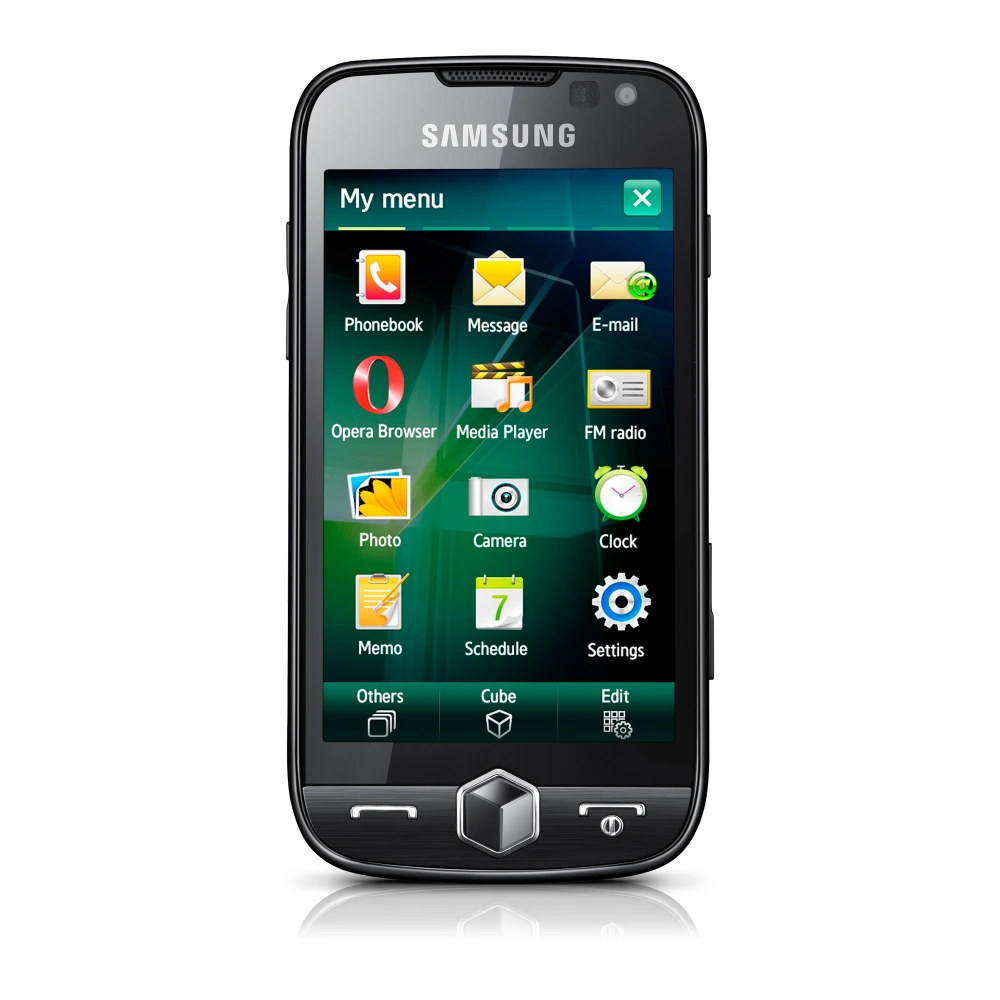
GT-I8000 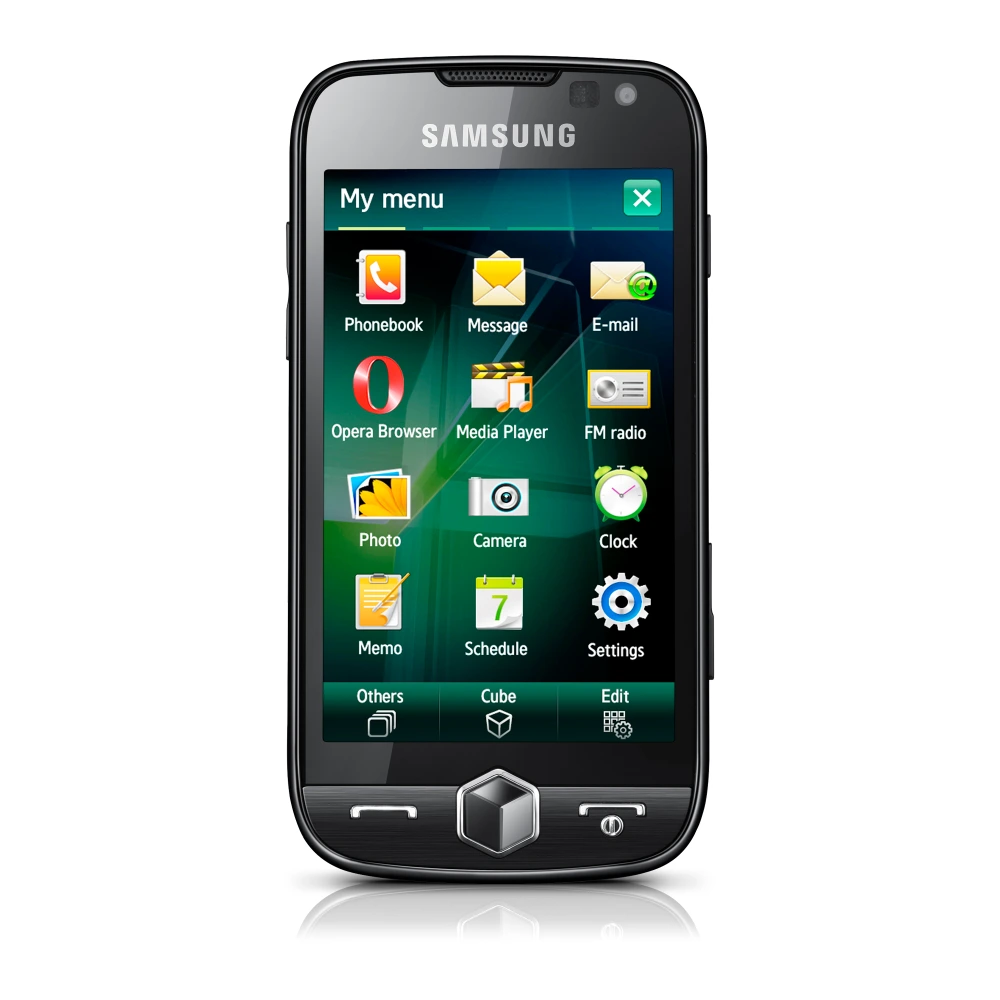
GT-I8262 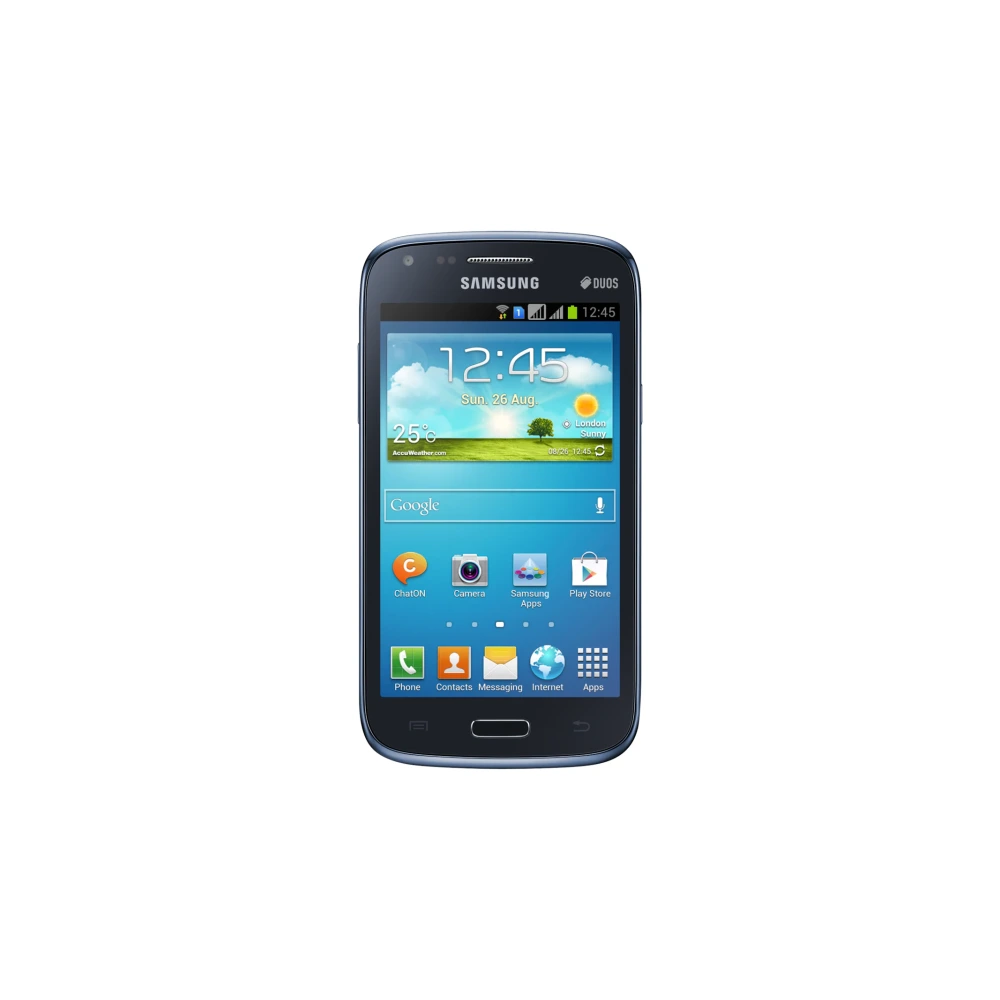
GT-I8510 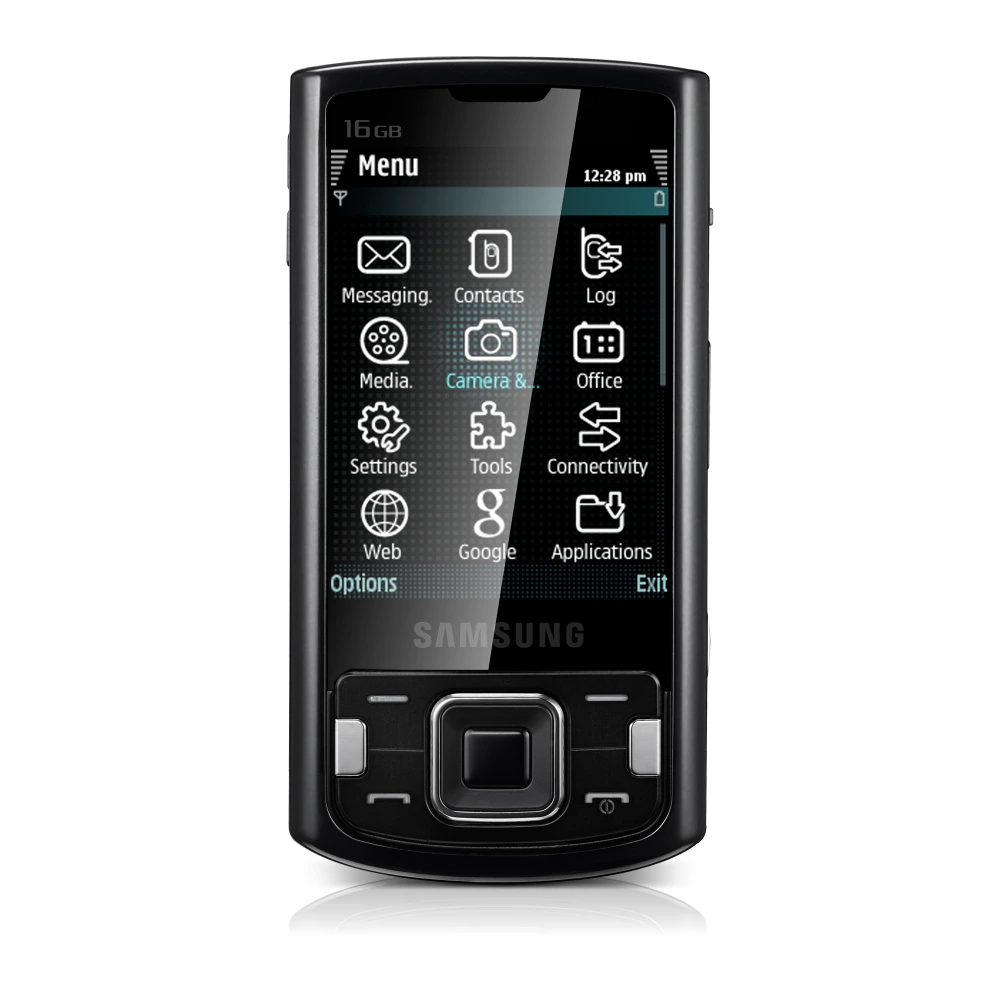
GT-I8510 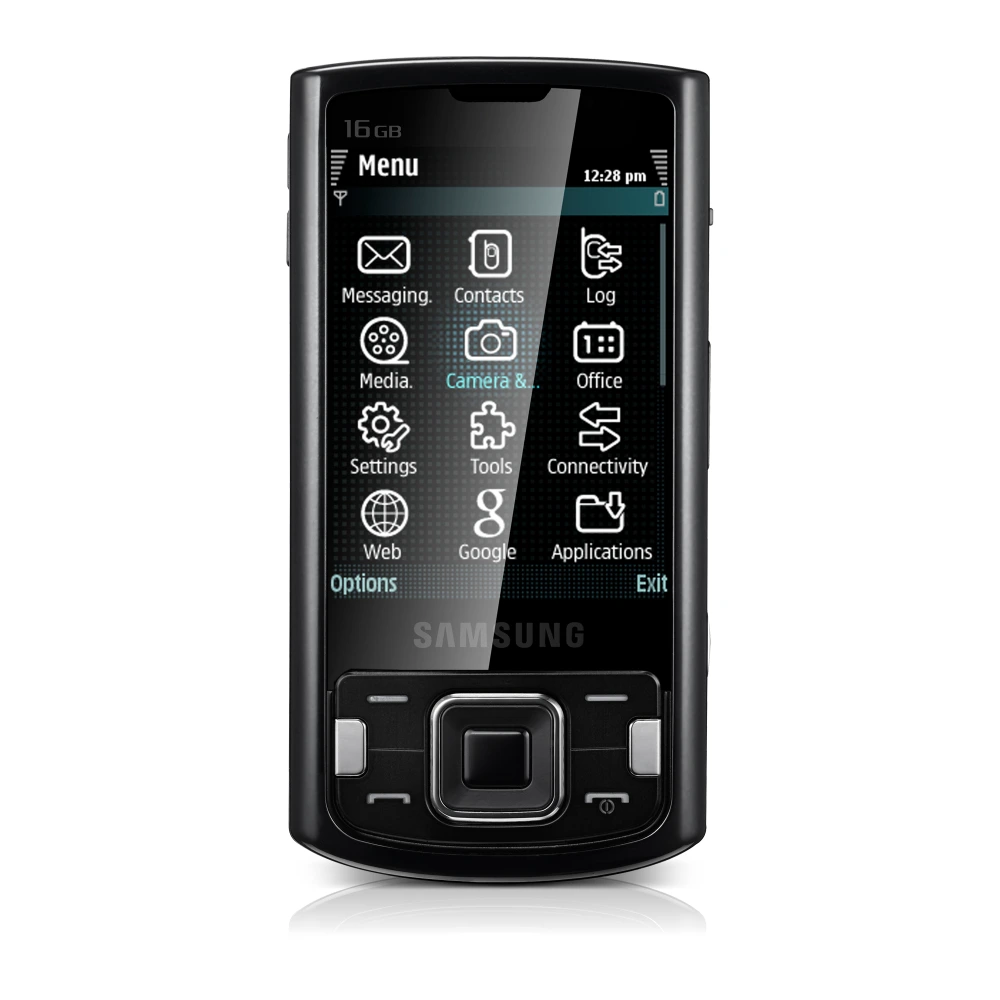
GT-I8530 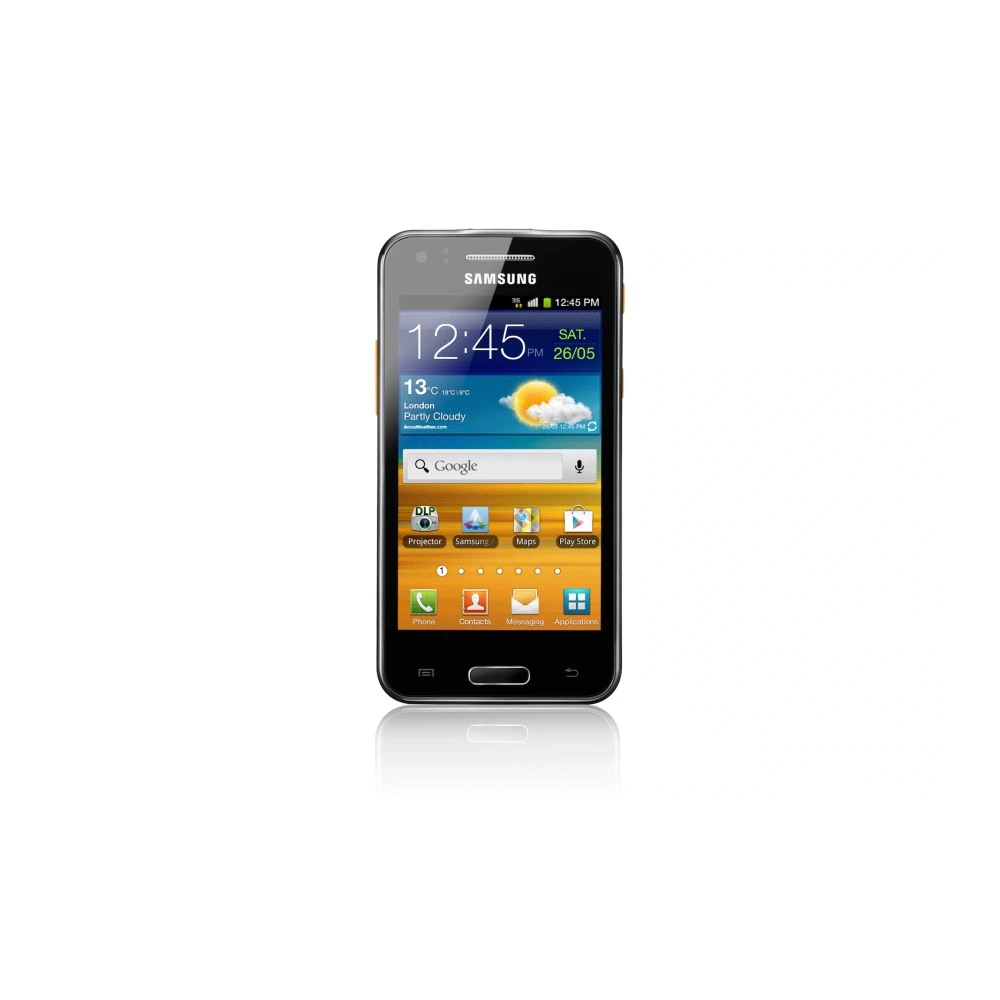
GT-I8910 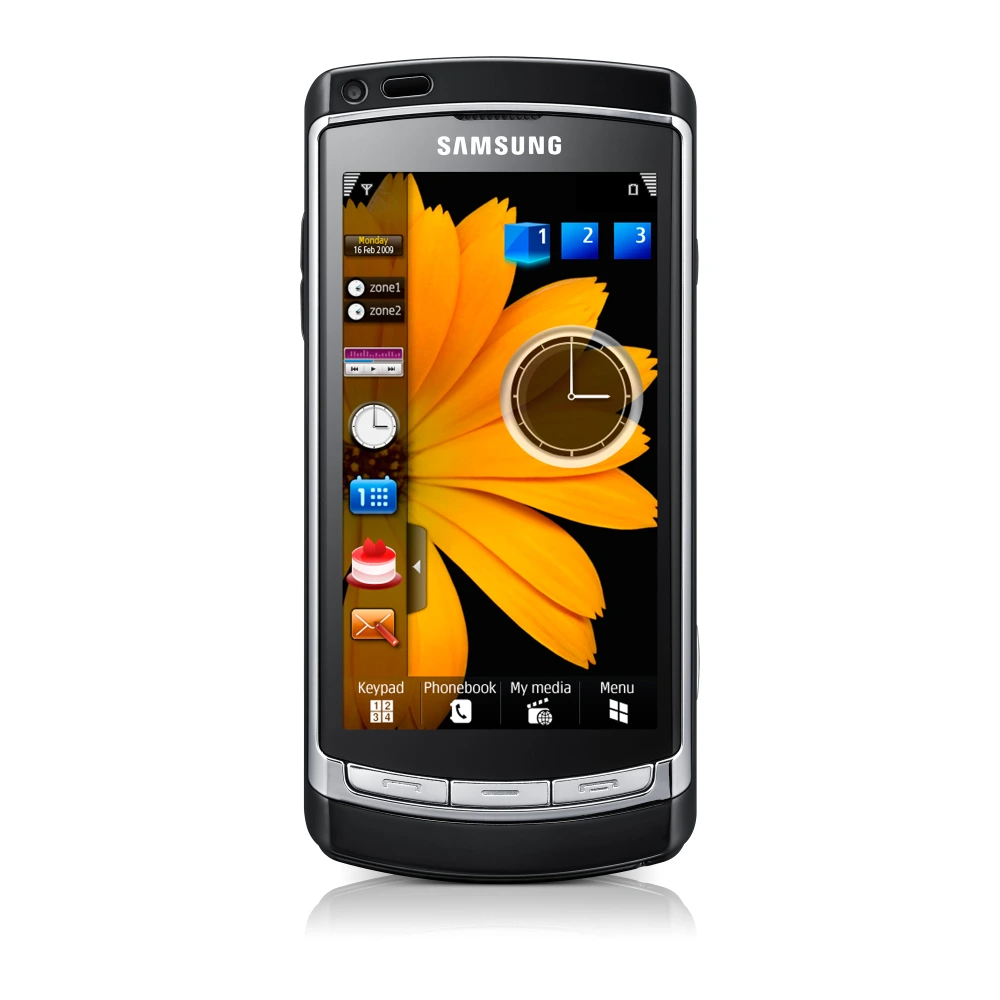
GT-I9000 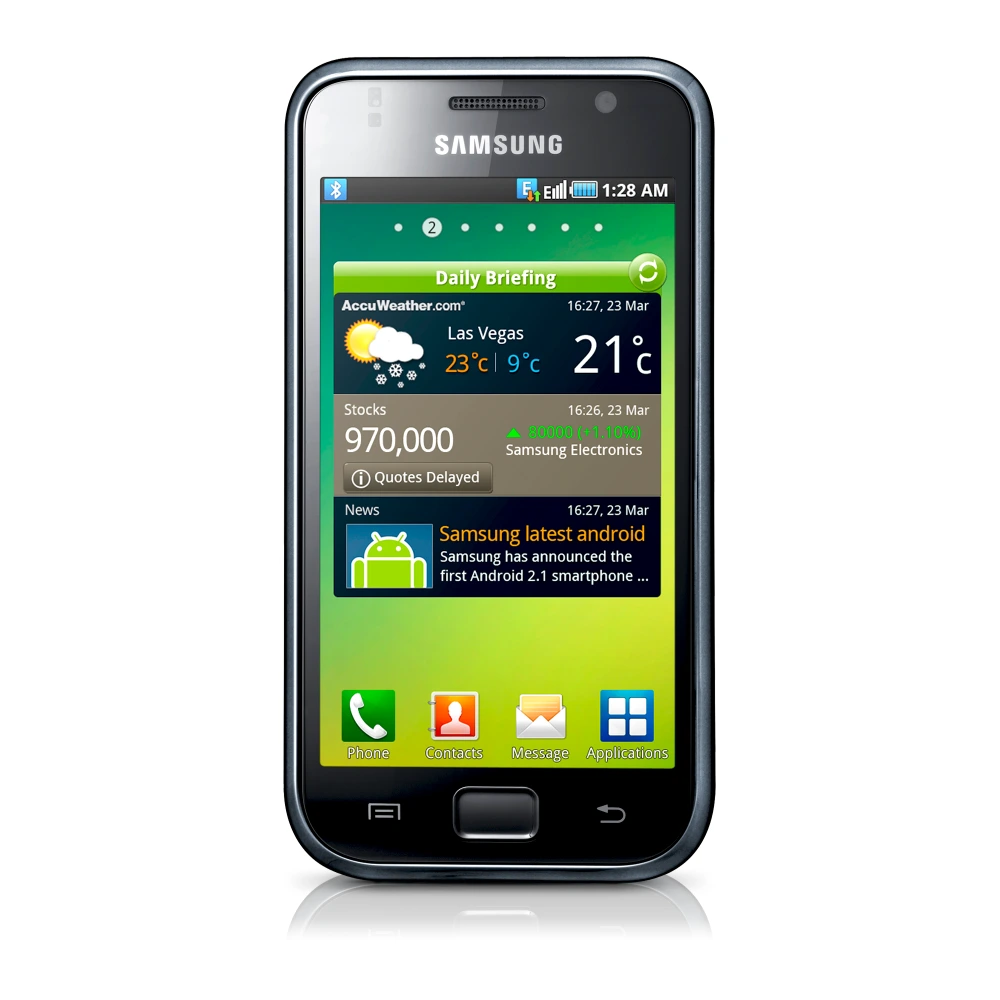
GT-I9003
GT-I9003
GT-I9003
GT-I9060
GT-I9060I
GT-I9070
GT-I9100G
GT-I9105
GT-I9152 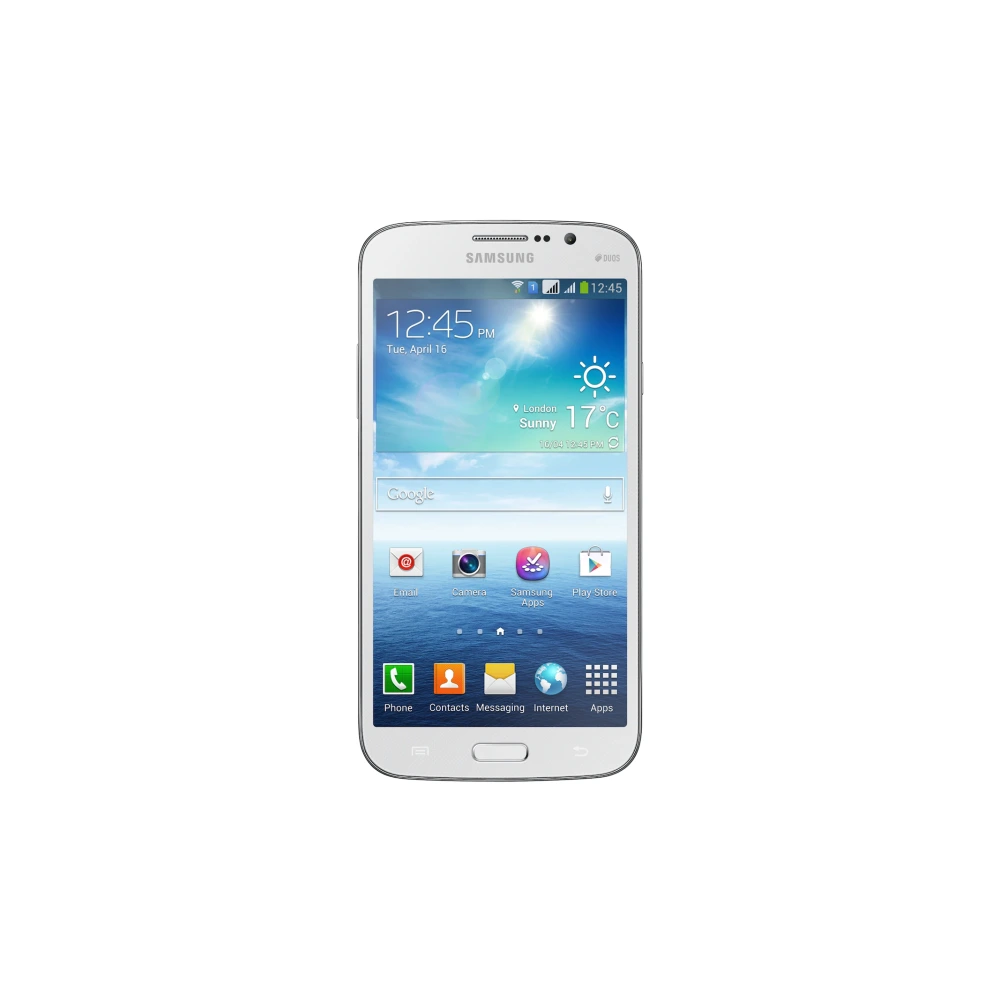
GT-I9192 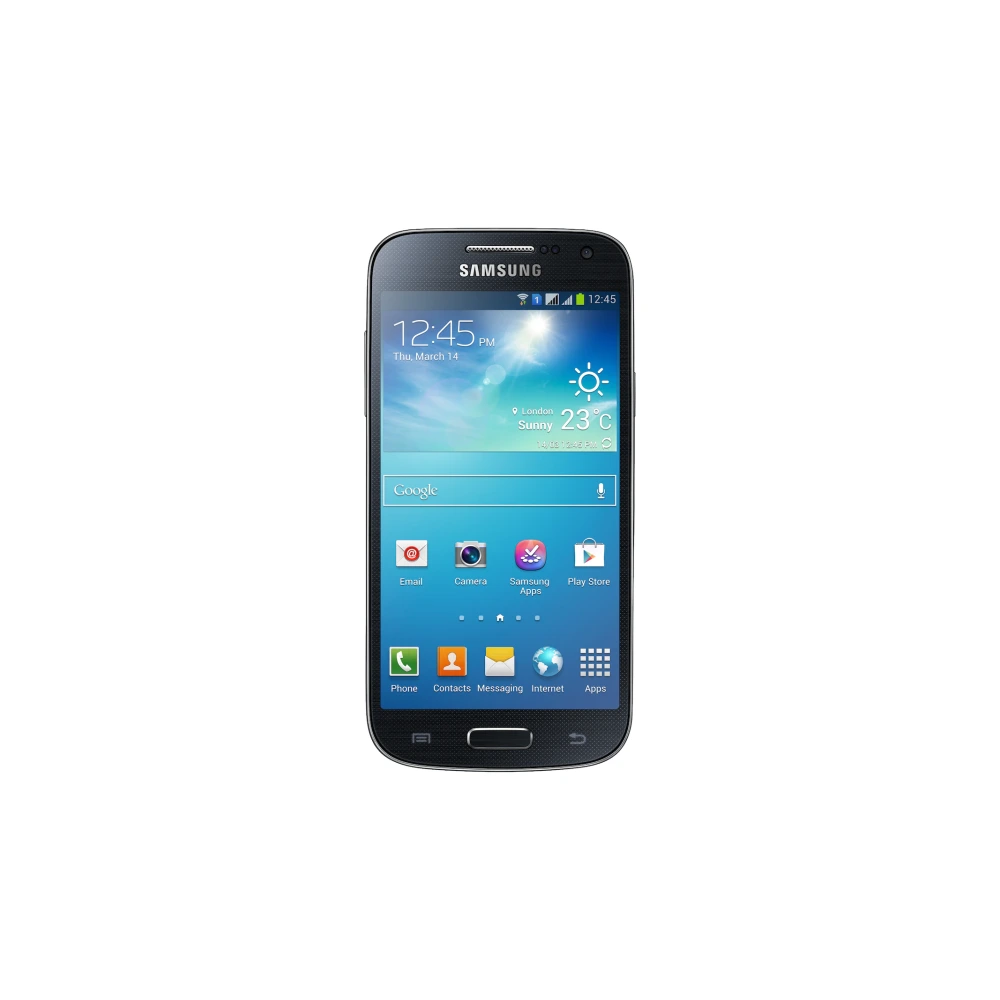
GT-I9200
GT-I9300I
GT-N5110
GT-N7100
GT-P1000
GT-P1010
GT-P3100
GT-P3110
GT-P5100
GT-P5200
GT-P6200 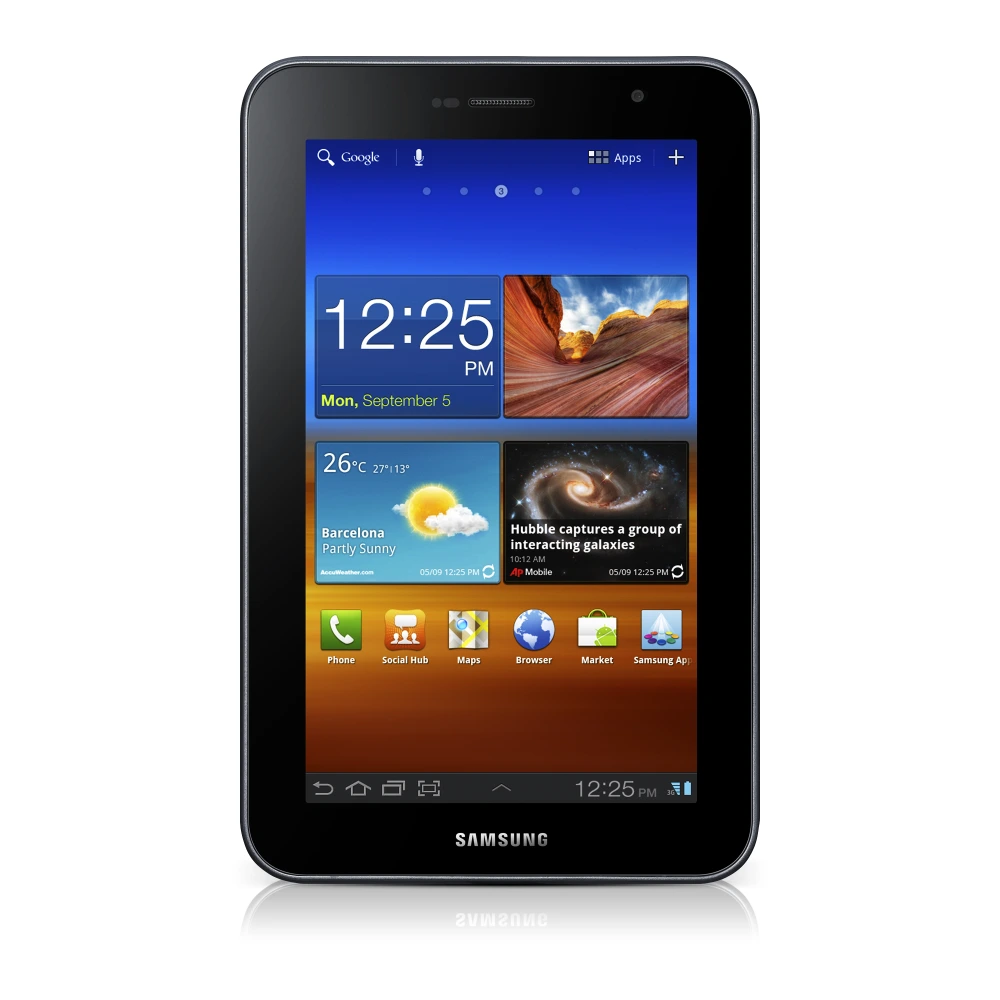
GT-P6800 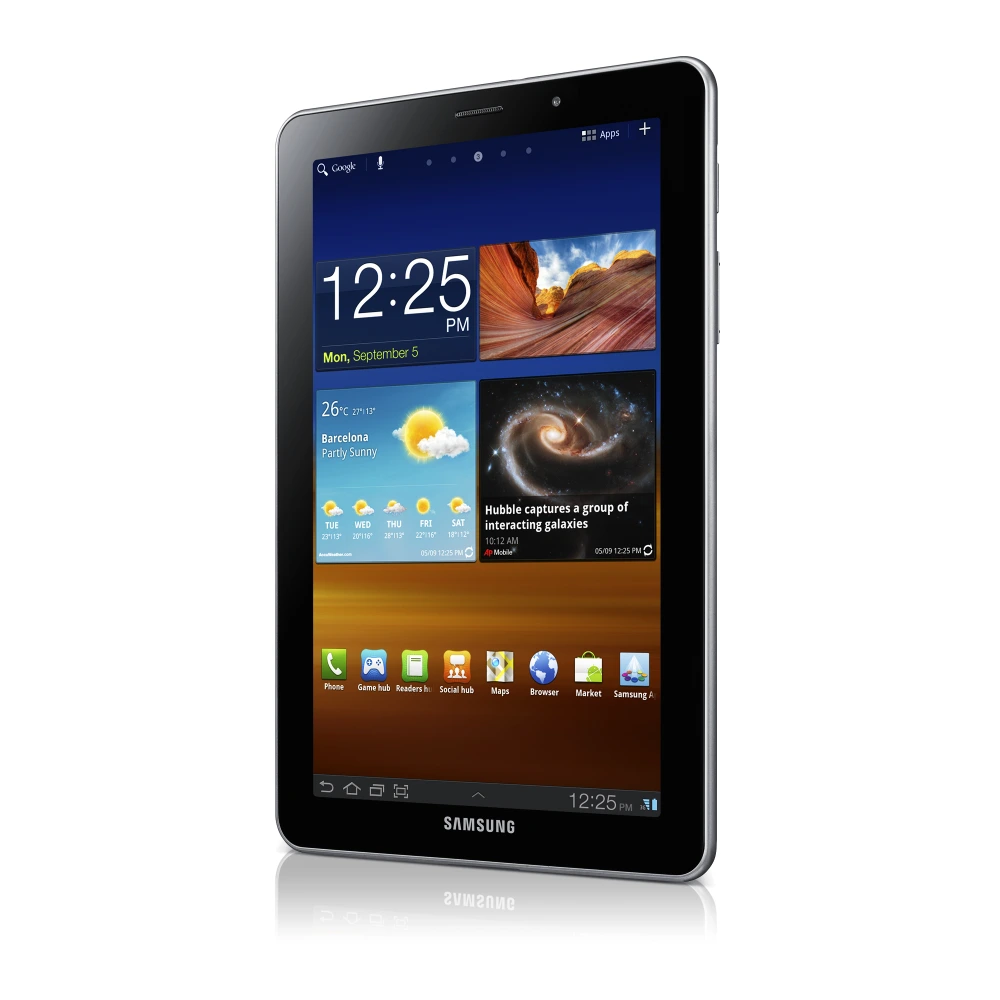
GT-P7100
GT-S5253 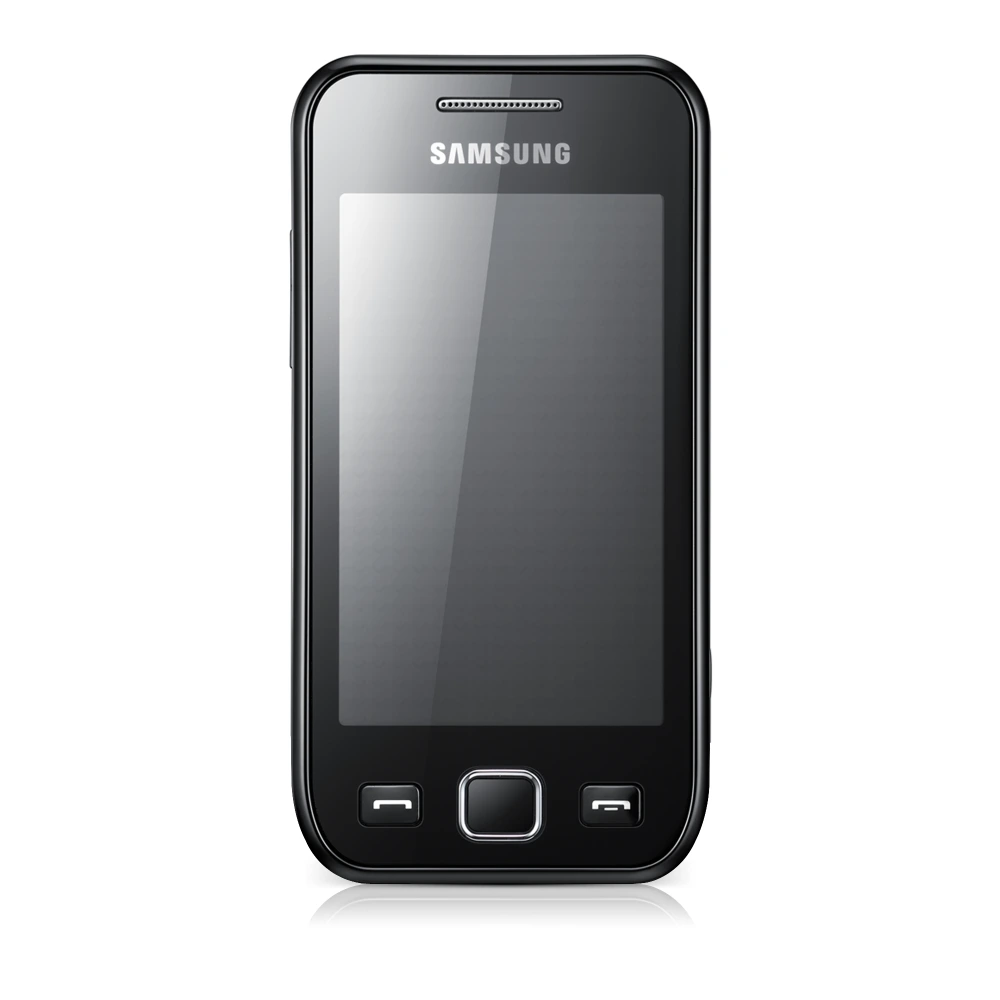
GT-S5282 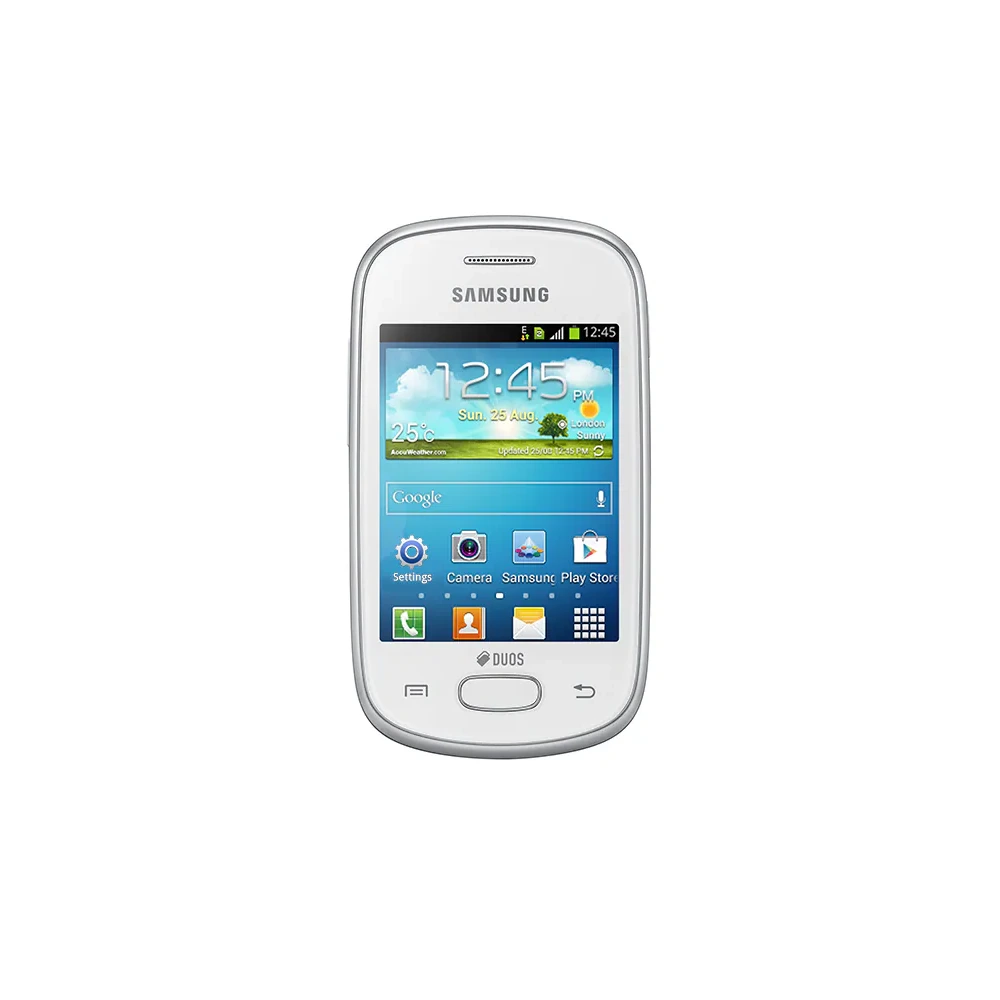
GT-S5312
GT-S5660
GT-S6012
GT-S6500D
GT-S7262 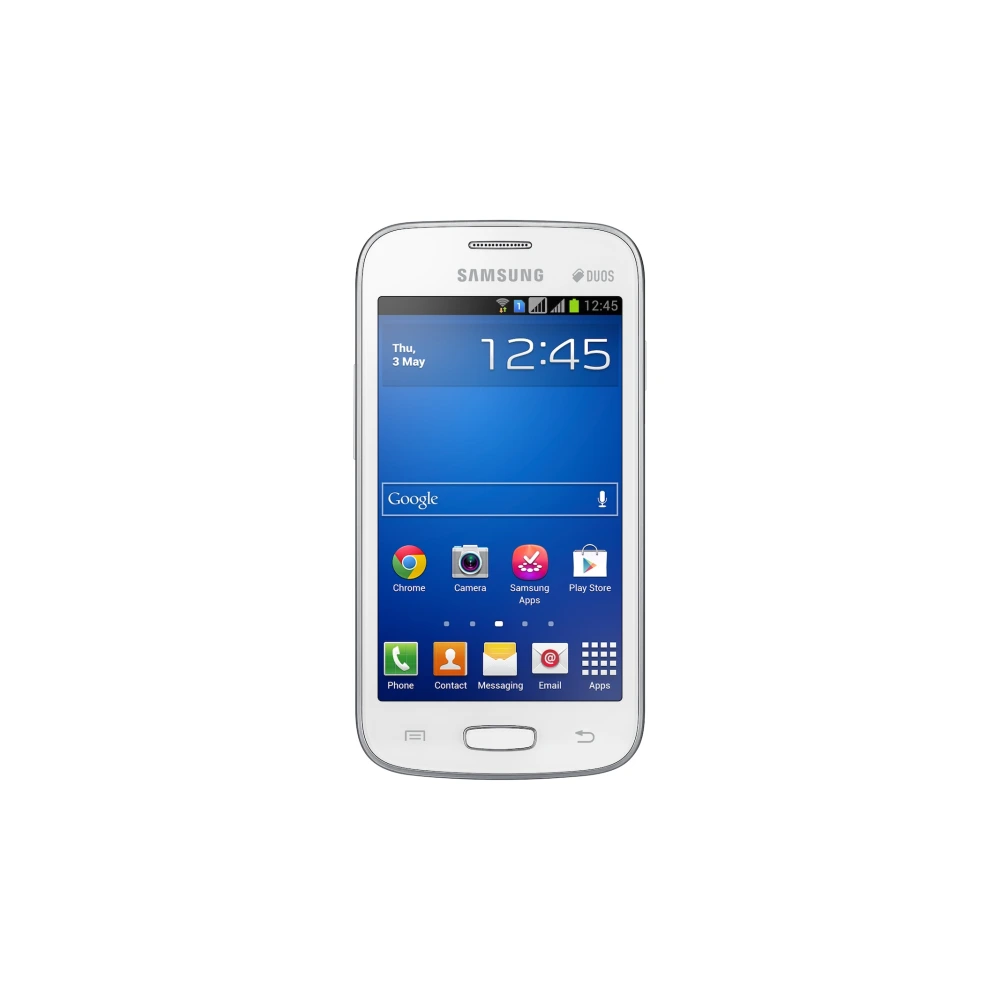
GT-S7392 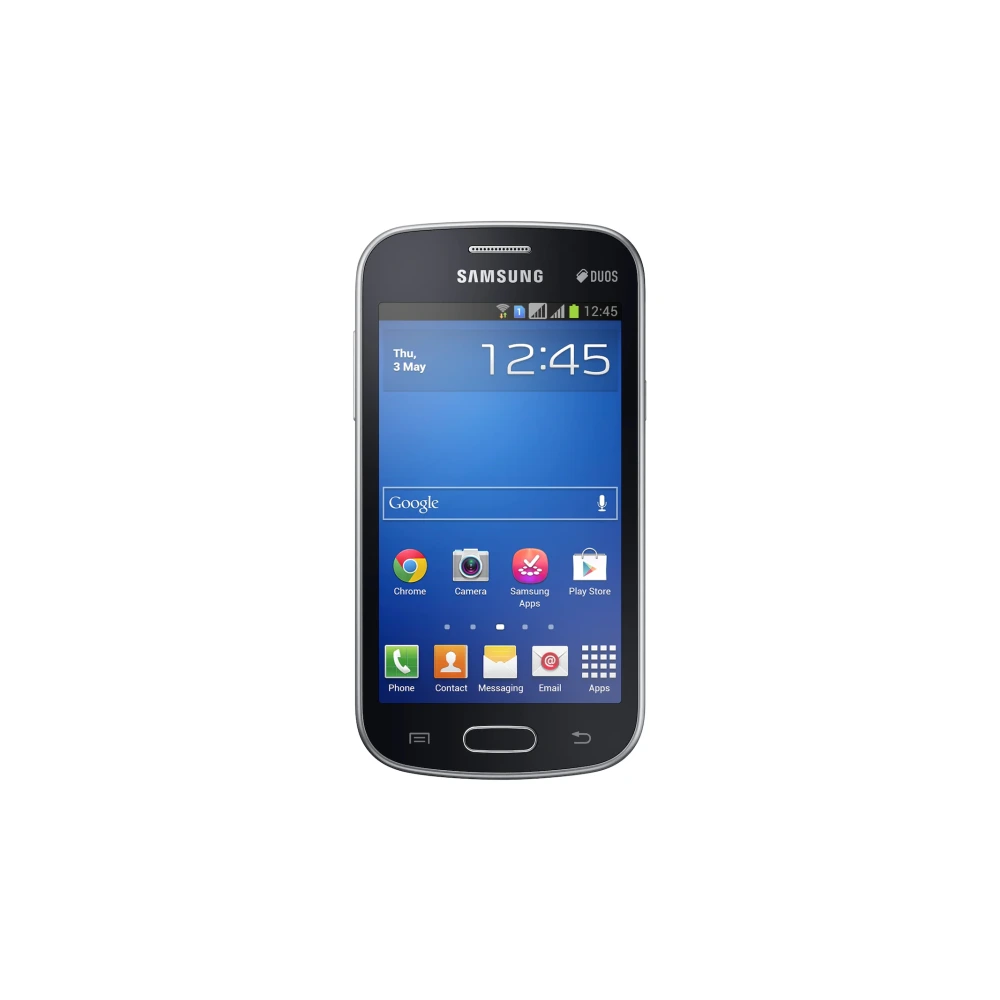
GT-S7530 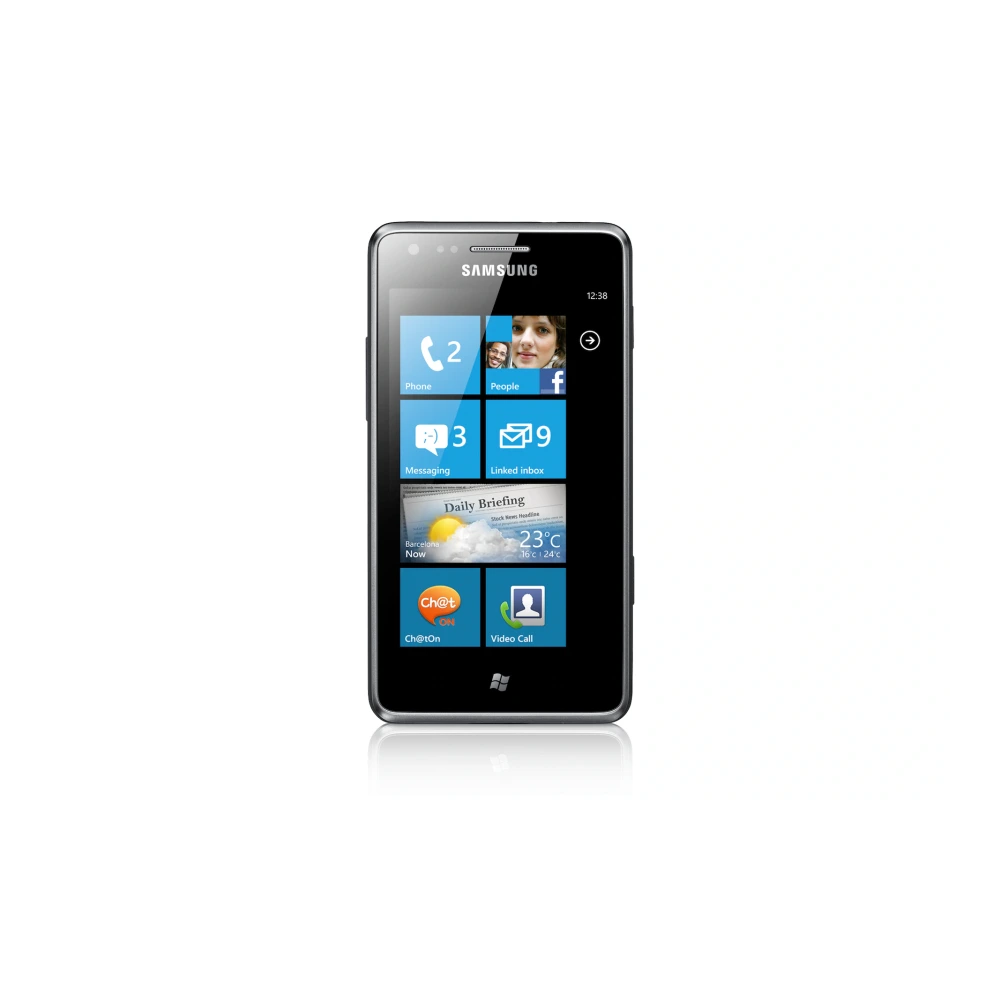
SGH-I710
NP270E4V-K02BD 
NP270E5J-S01IN
NP300E5C-A0CIN 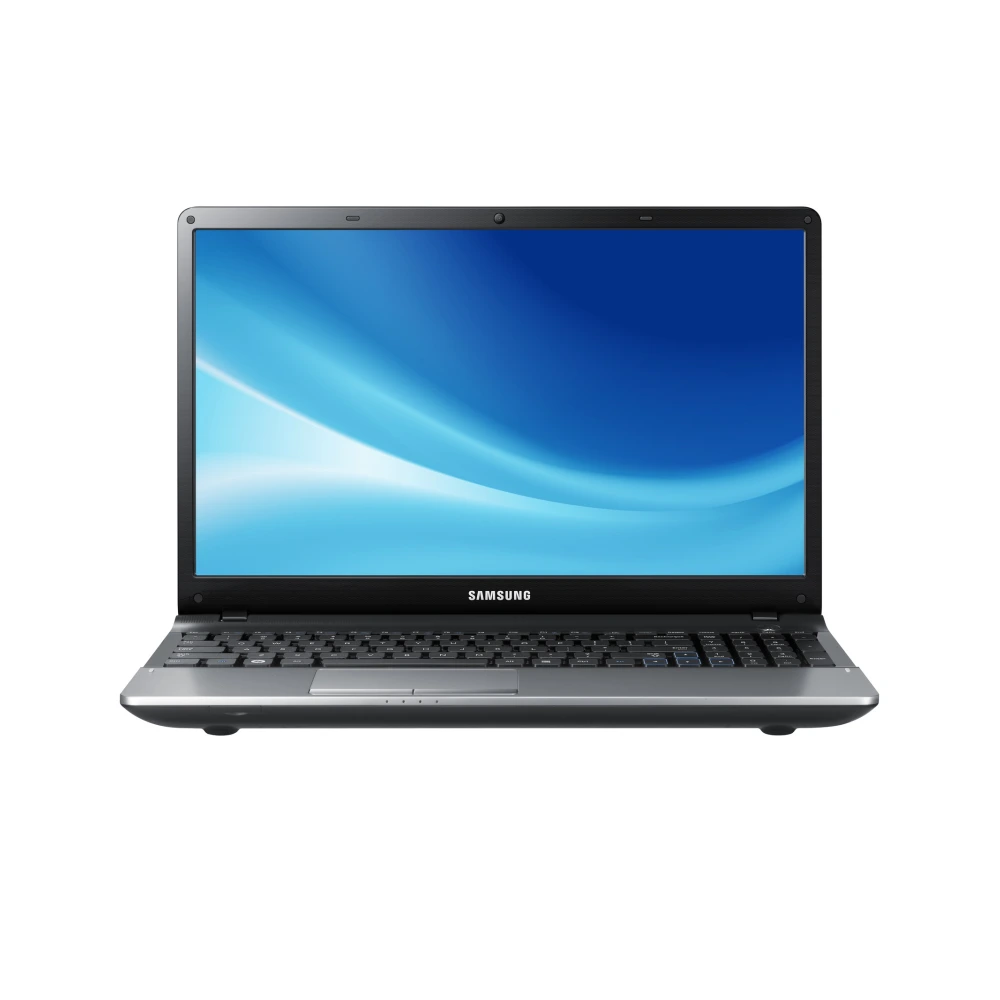
NP300E5X-A0BIN 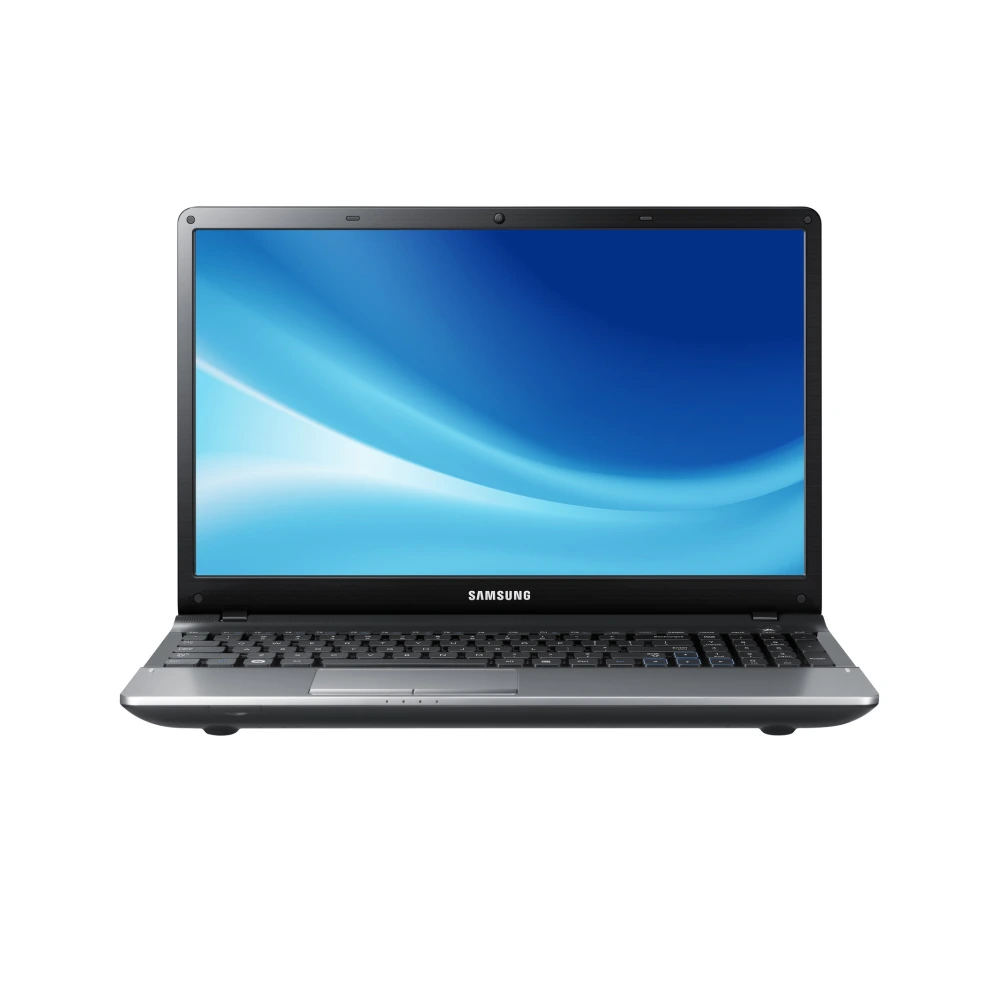
NP350V4X-S02BD
NP355E5X-A02IN 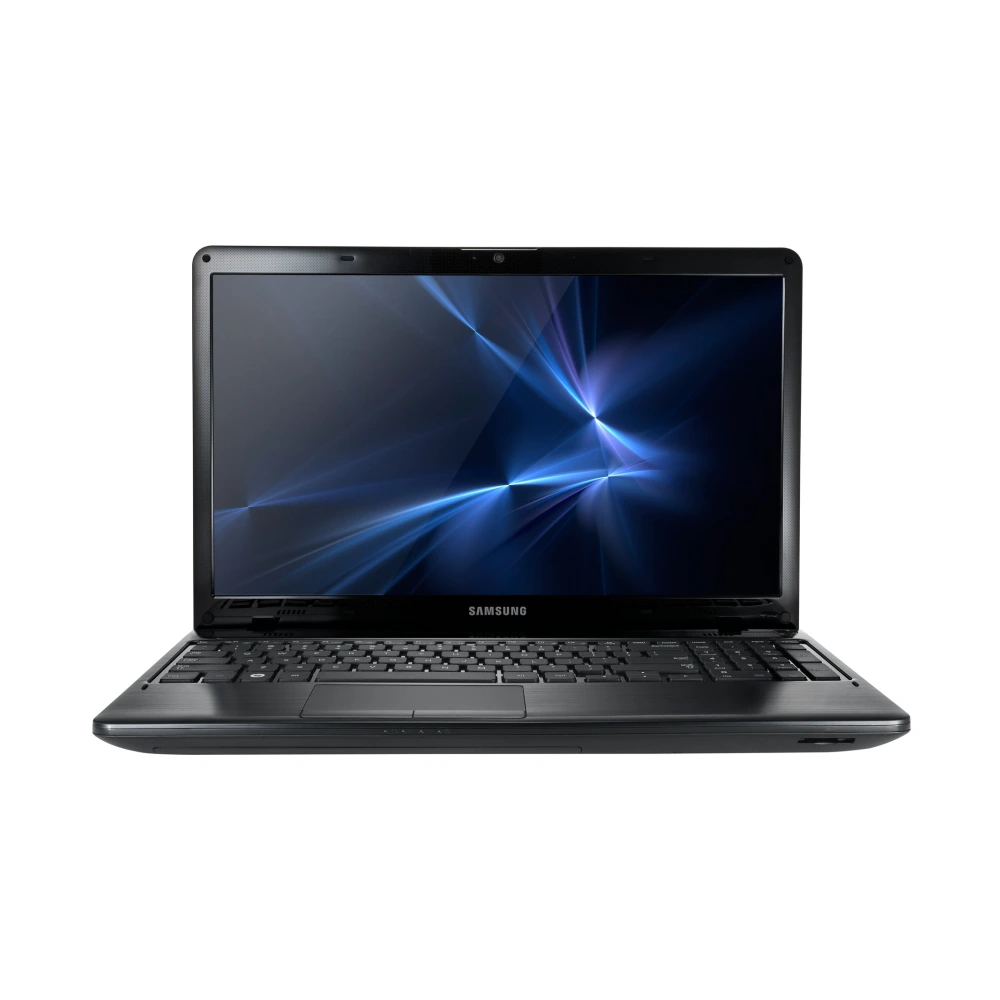
NP370E5L-S06IN
NP470R4E-K01LK
NP550P5C-S0AIN
NP730XBEI-EXP
NP750BBCE-EXP
NP761XBEE-EXP
NP880Z5E-X03IN
NP900X3C-A02BD
NP900X3E-K01LK
NP900X3H-S03IN
NP900X5T-S01IN
NP905S3GI-EXP
NP930QDBA-EXP
NP930XDBA-EXP
NP940Z5L-S01IN
NP950XDBA-EXP
GT-I8910 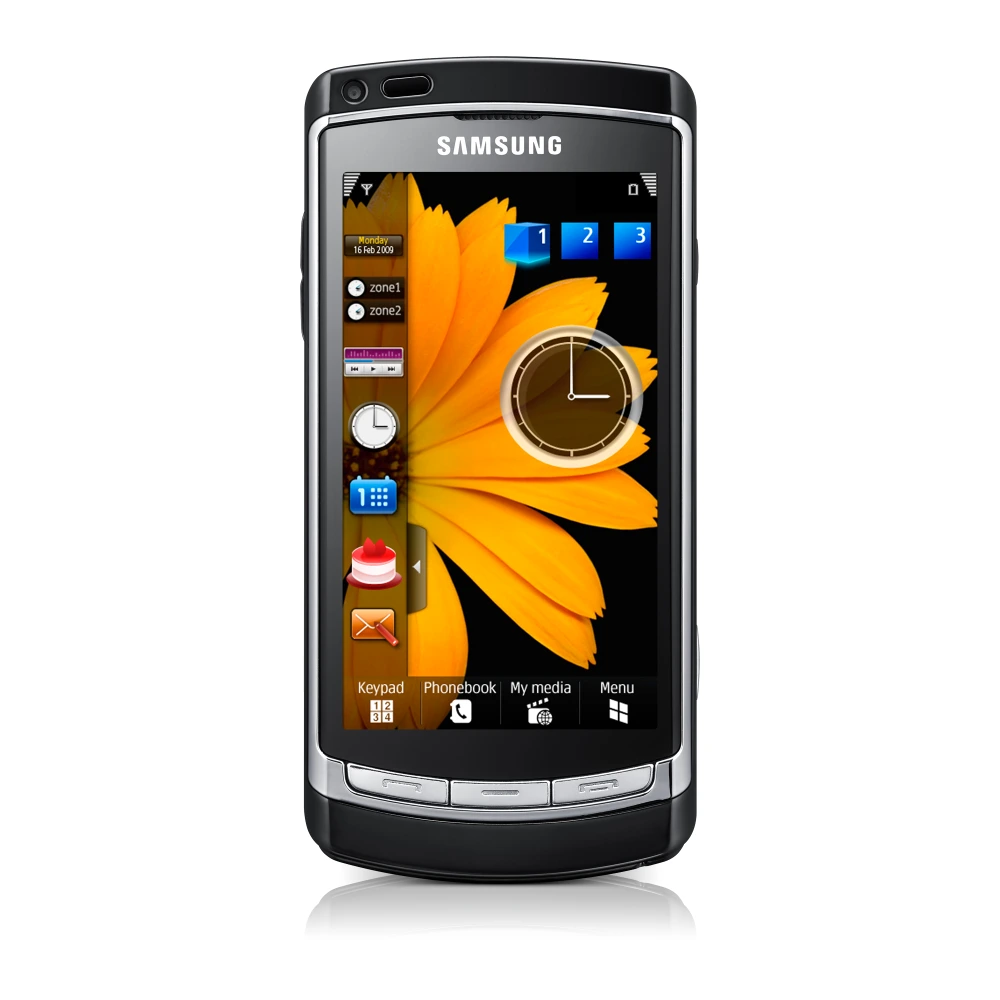
SGH-I900 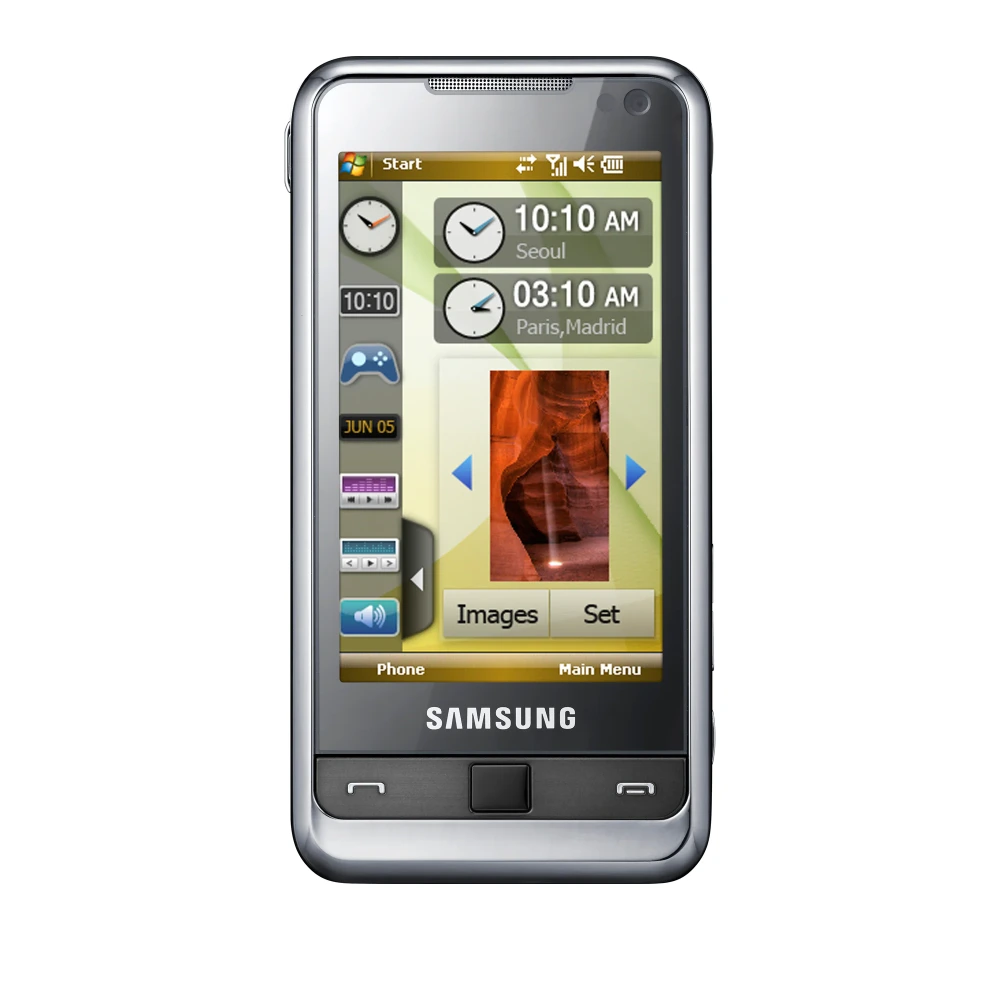
SGH-I900C
GT-I8000 
GT-B7300
GT-B7320 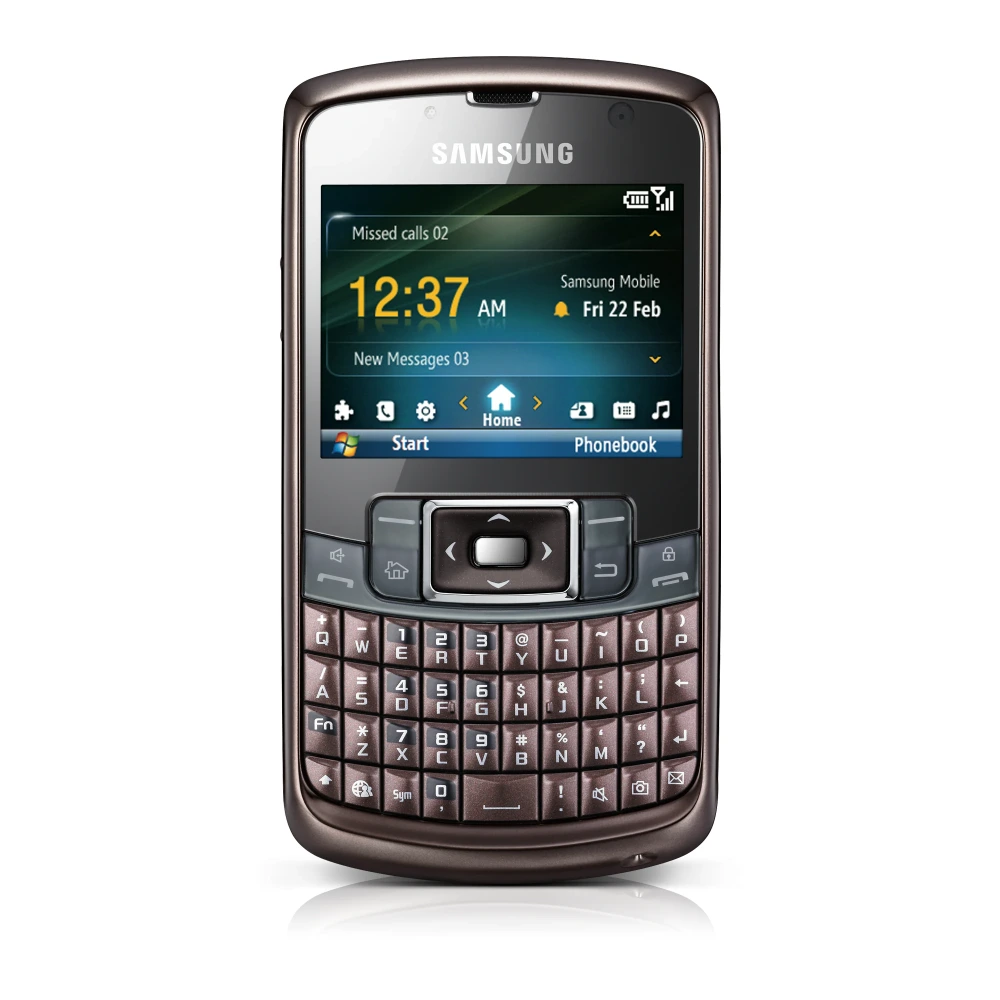
GT-I8350 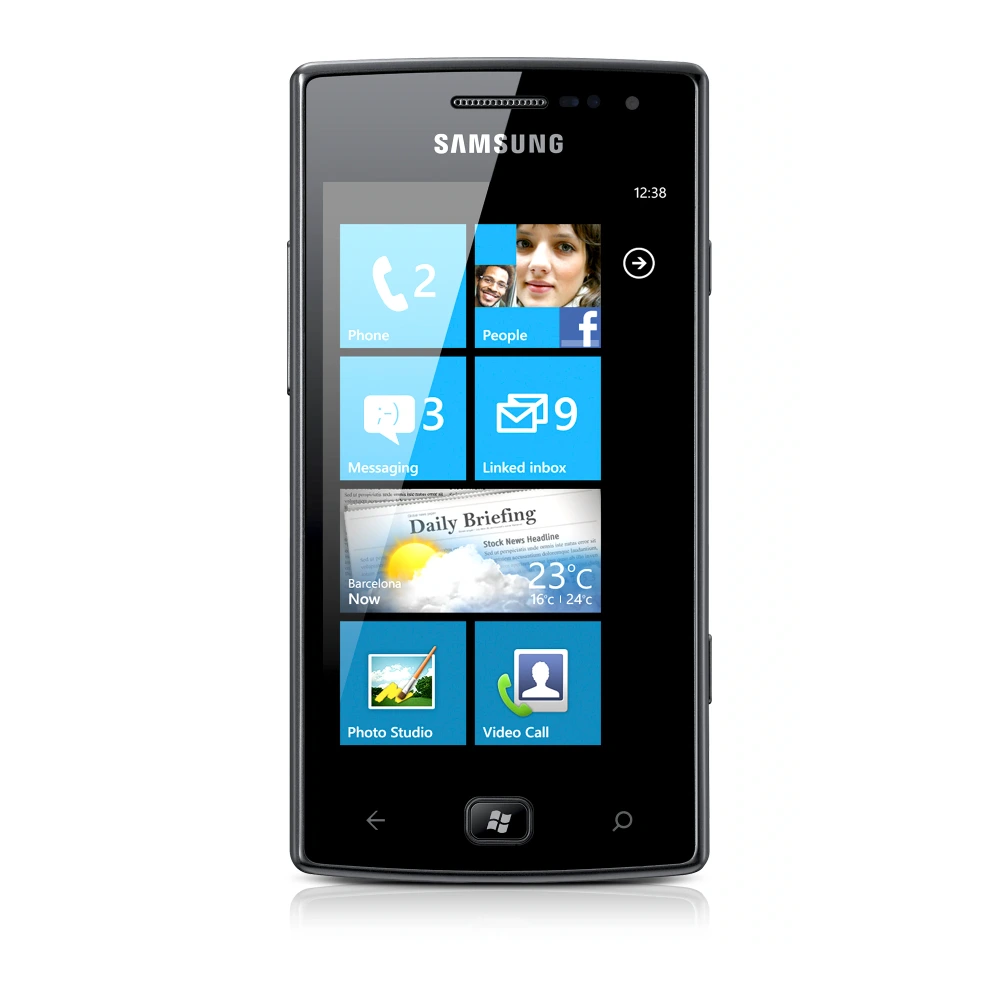
SM-G935FD 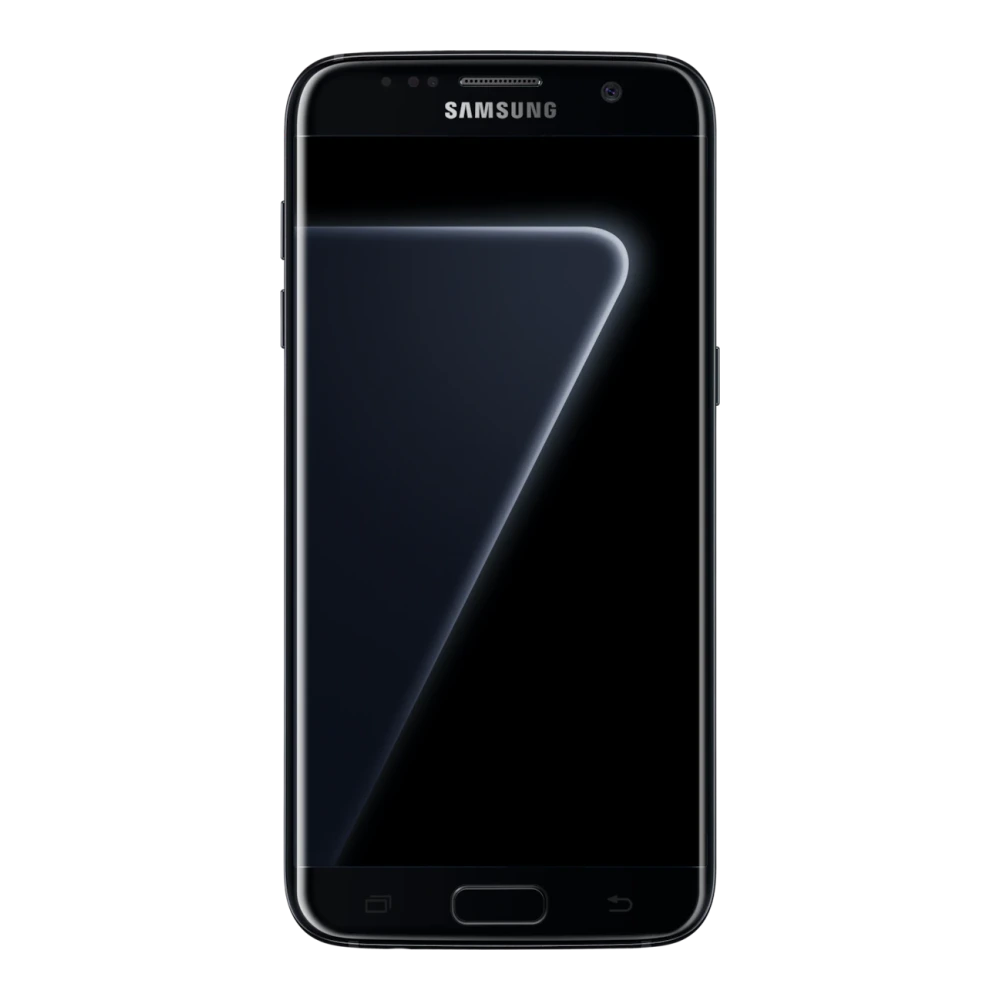
SAMSUNG-USB-DRIVER 
STORAGE-TOOL 
DC-TOOLKIT 
MAGICIAN-SW 
CARD-UFD 
NVME-DRIVER 
SMART-SWITCH 
SM-Z300H 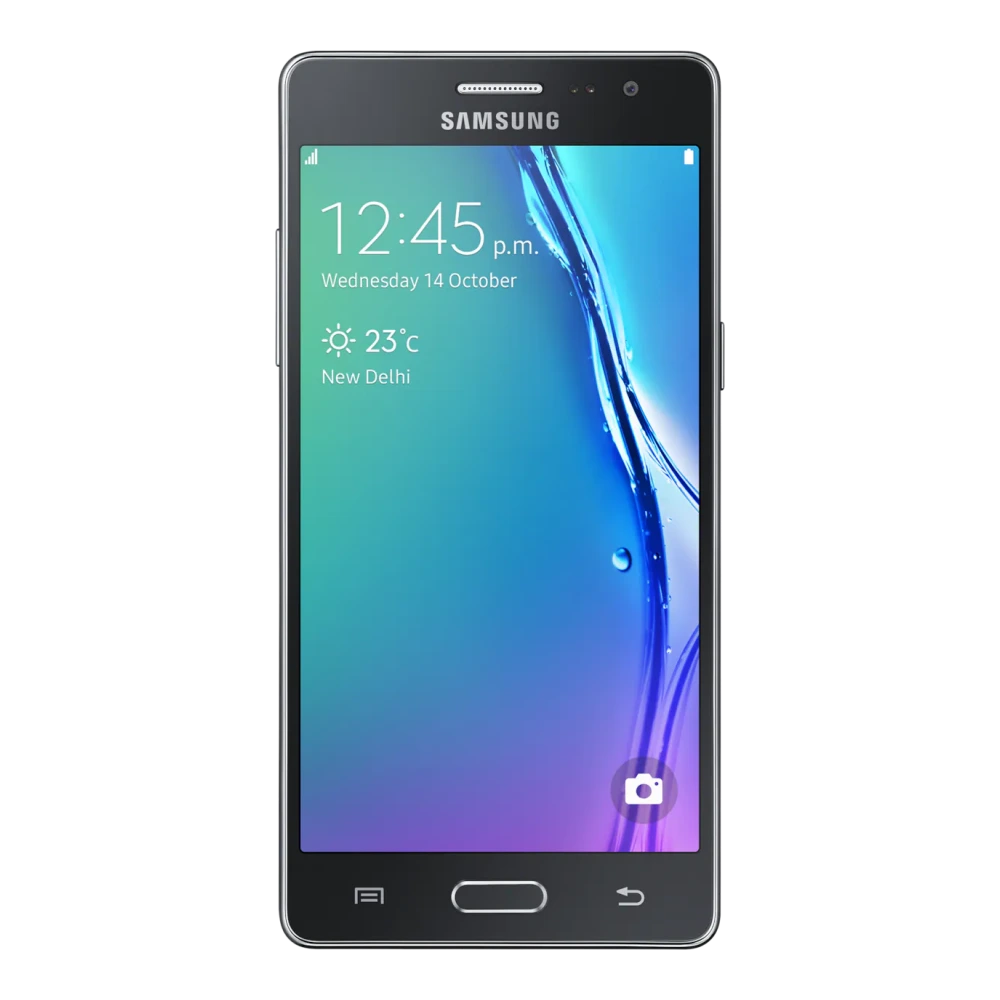
SM-Z400F 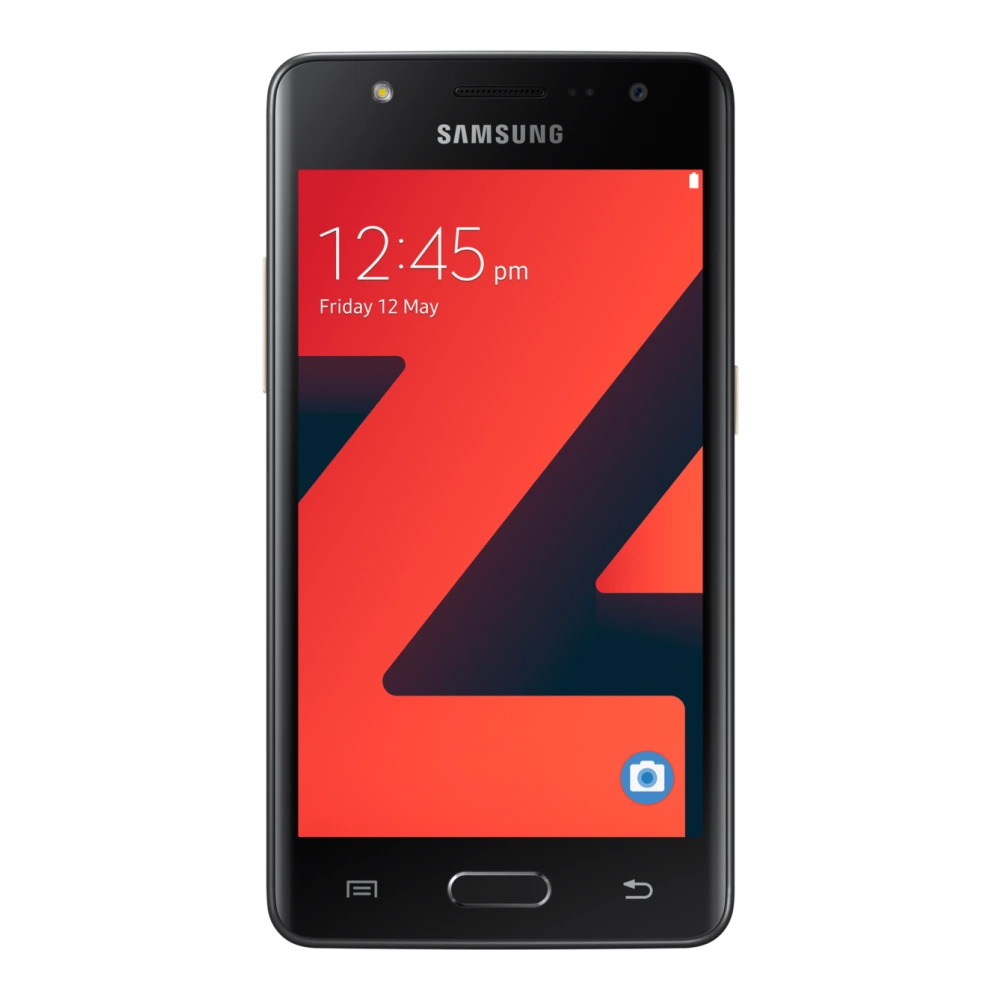
SGH-G810
SGH-I200 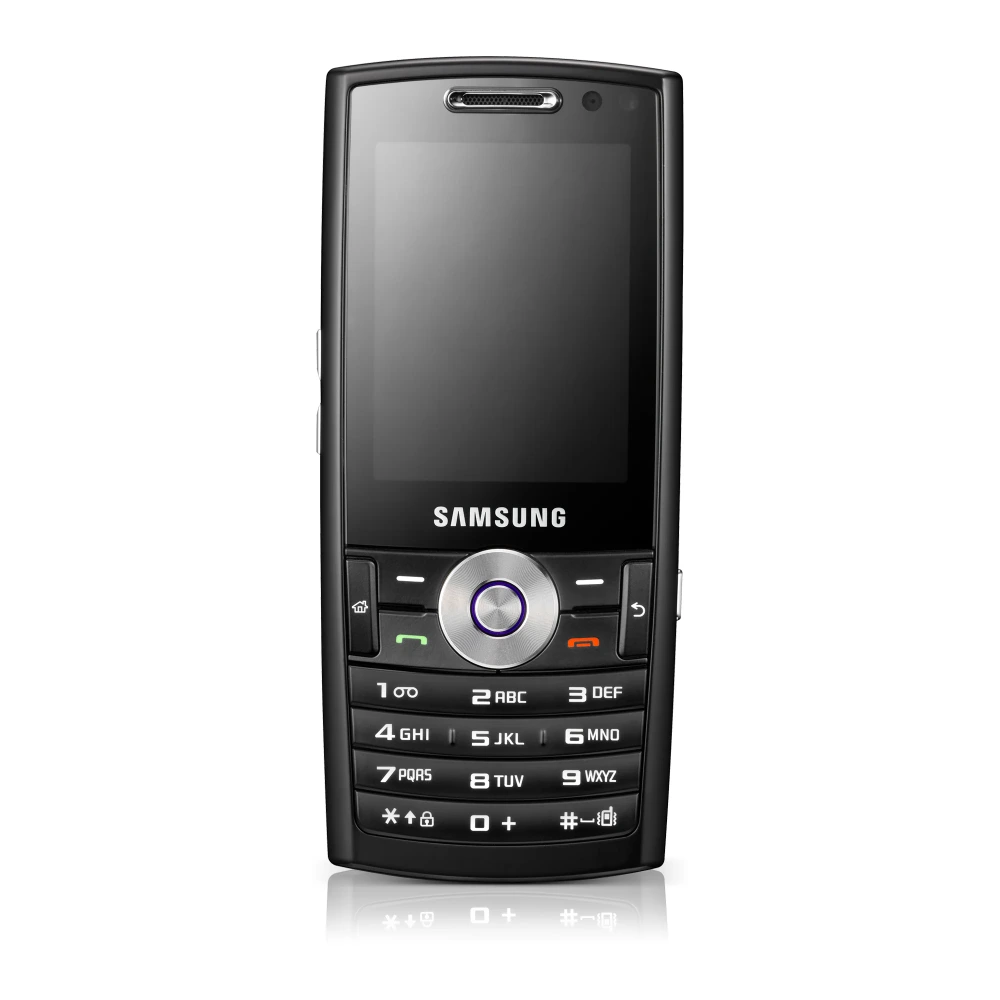
SGH-I320N
SGH-I550
SGH-I550W
SGH-I600
SGH-I780 
SGH-L870
SM-A300G
SM-C101 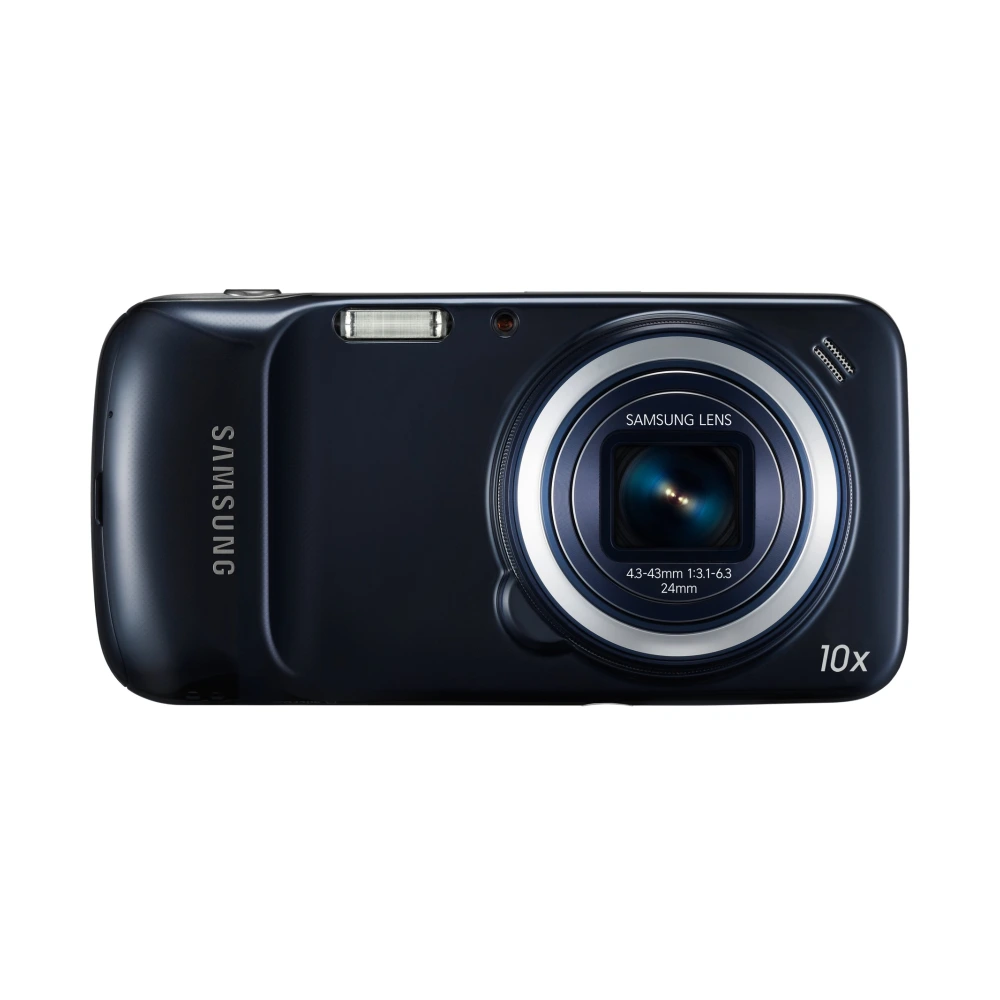
SM-C111 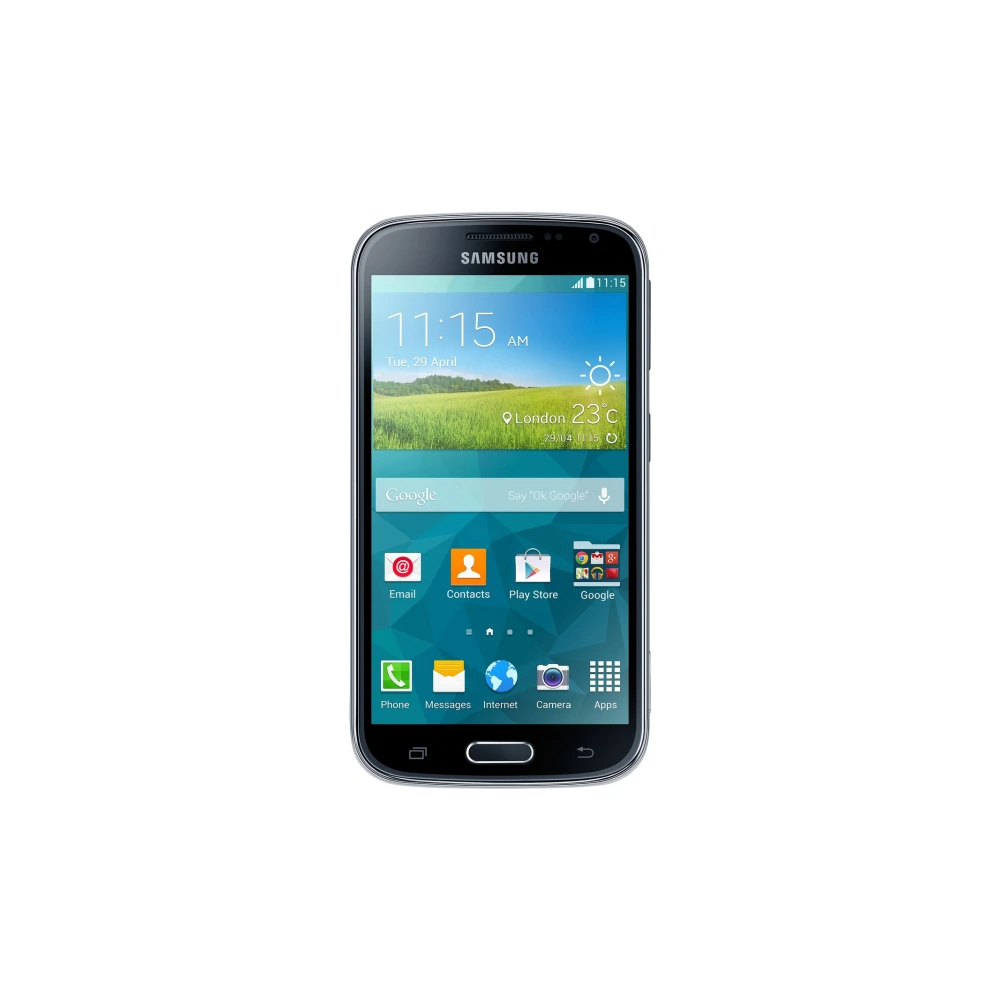
SM-G130E 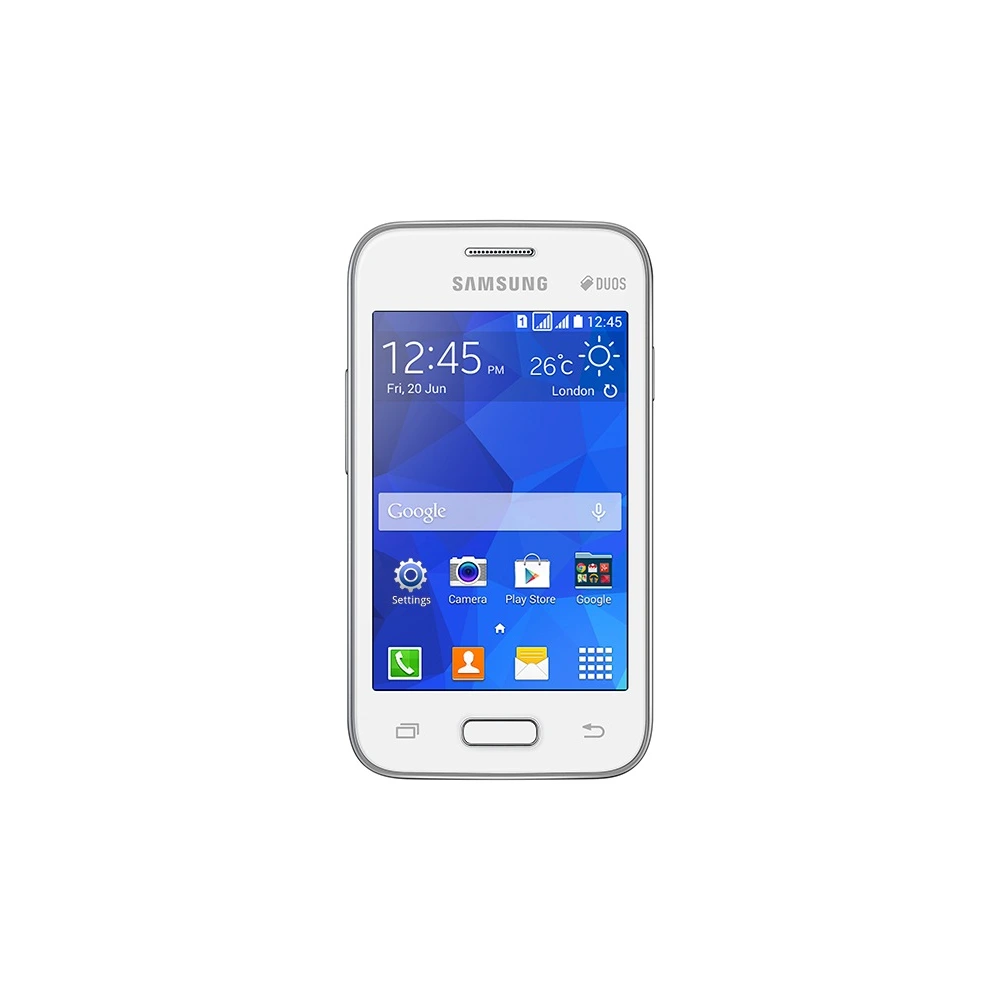
SM-G313H 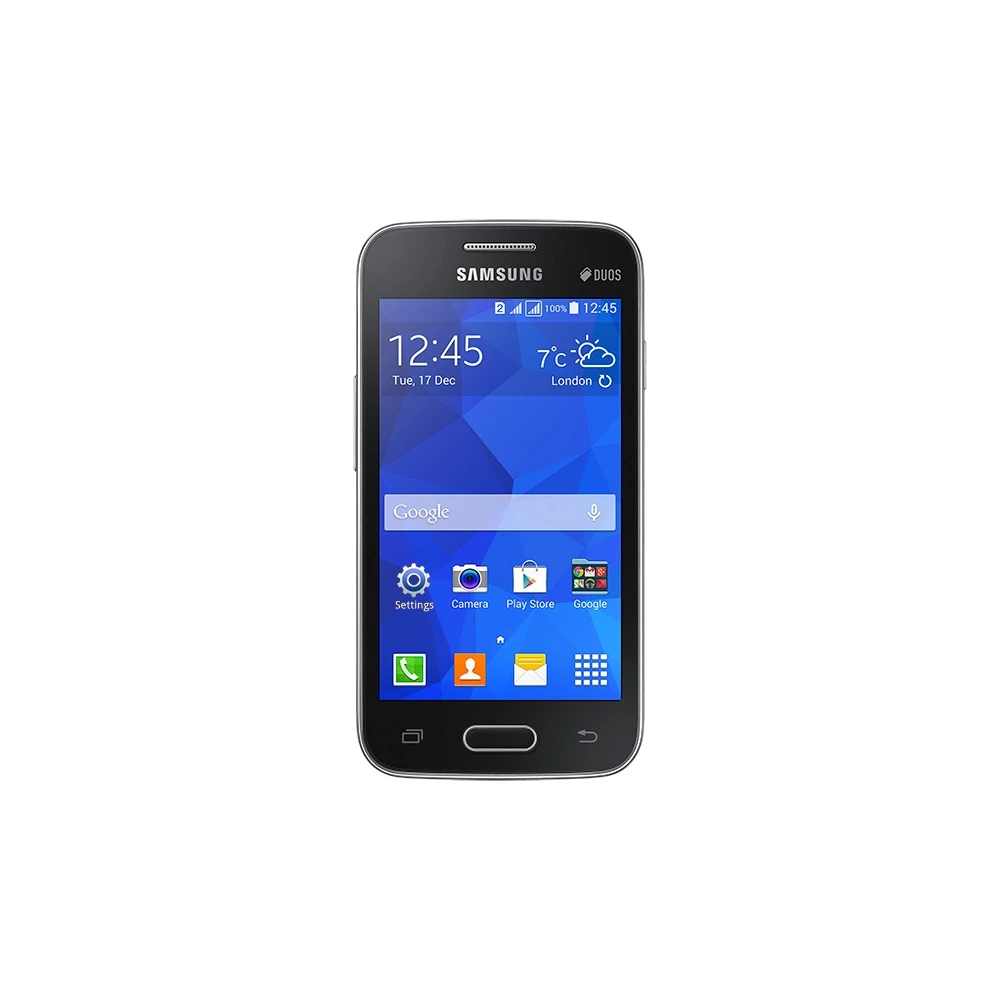
SM-G313HU
SM-G313HZ
SM-G316HU
SM-G355H 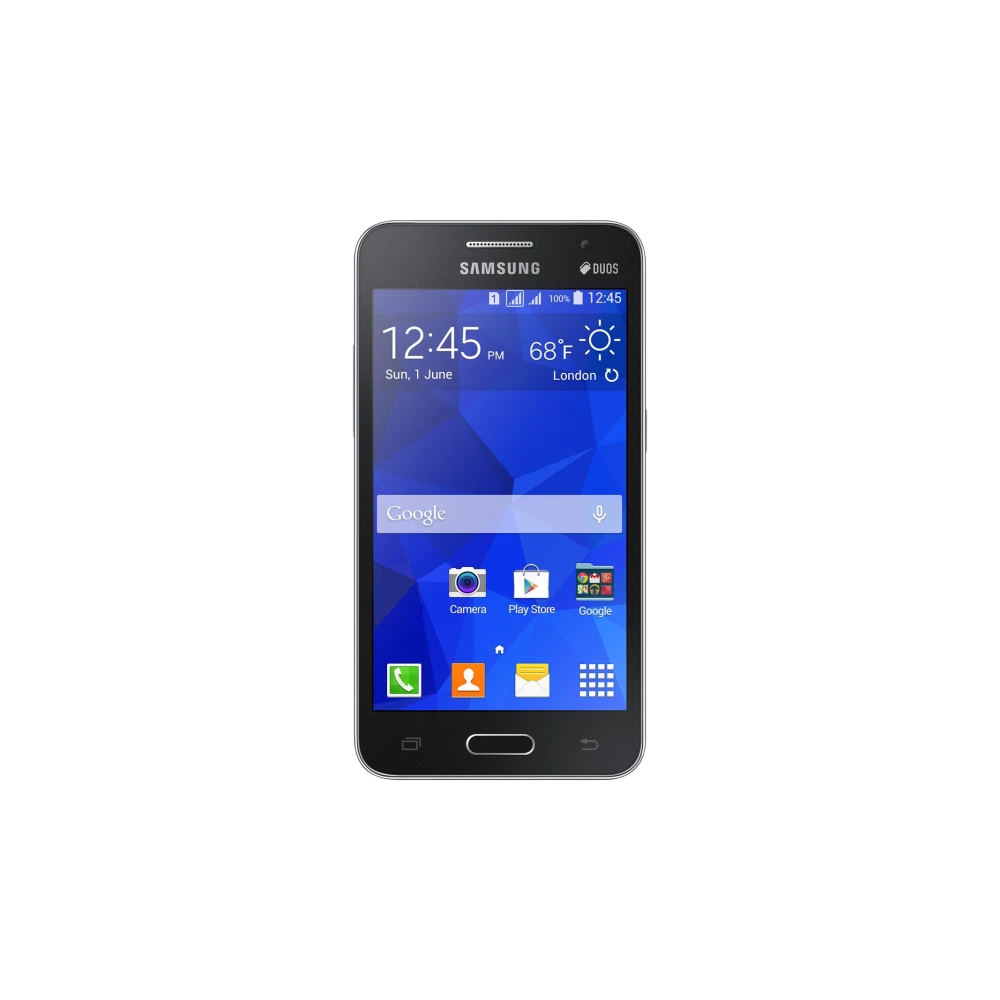
SM-G7102
SM-G750H
SM-G800H 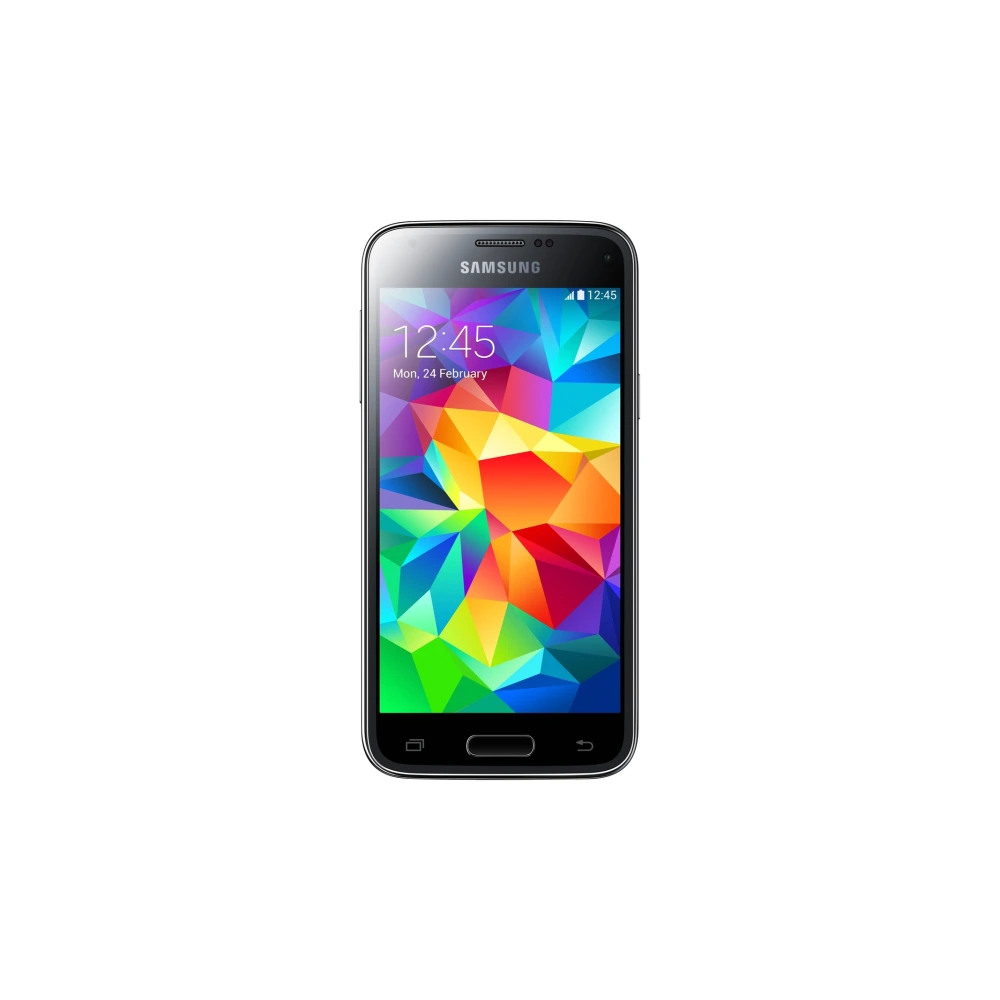
SM-G900I 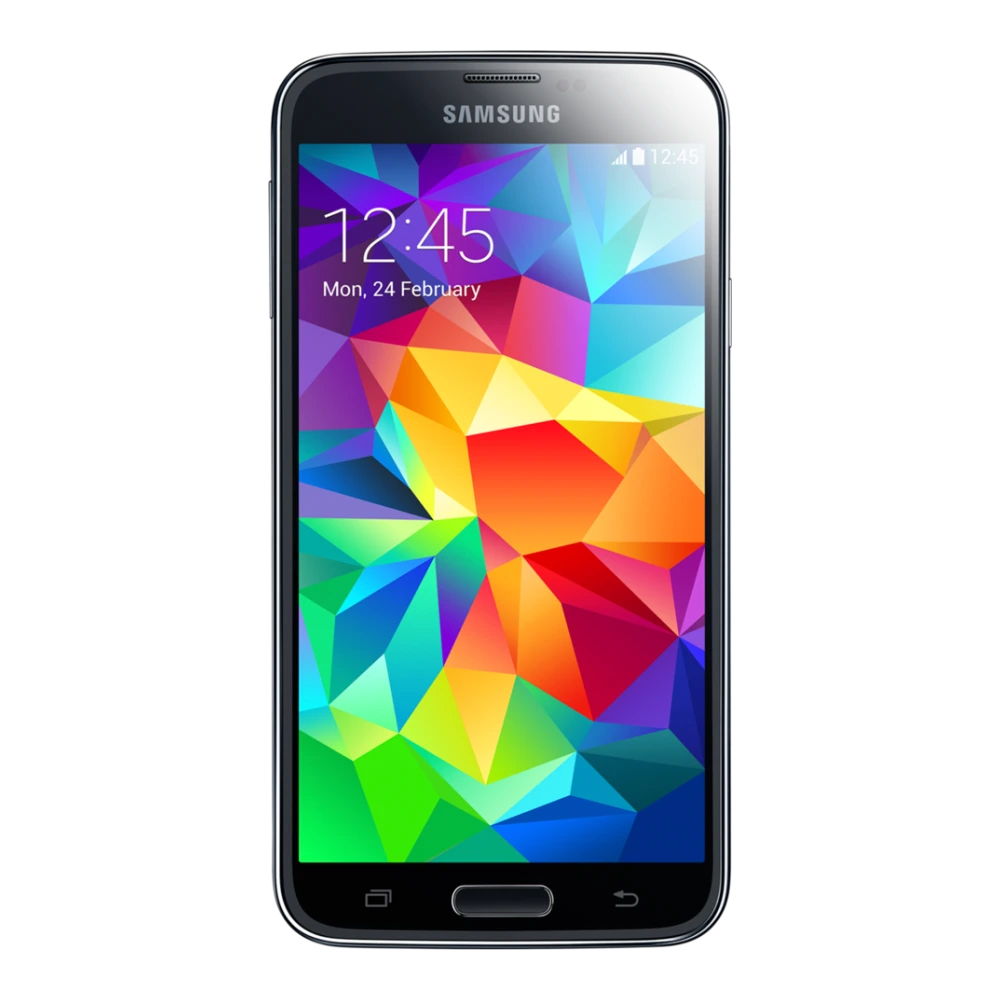
SM-J106H
SM-J500H
SM-N750 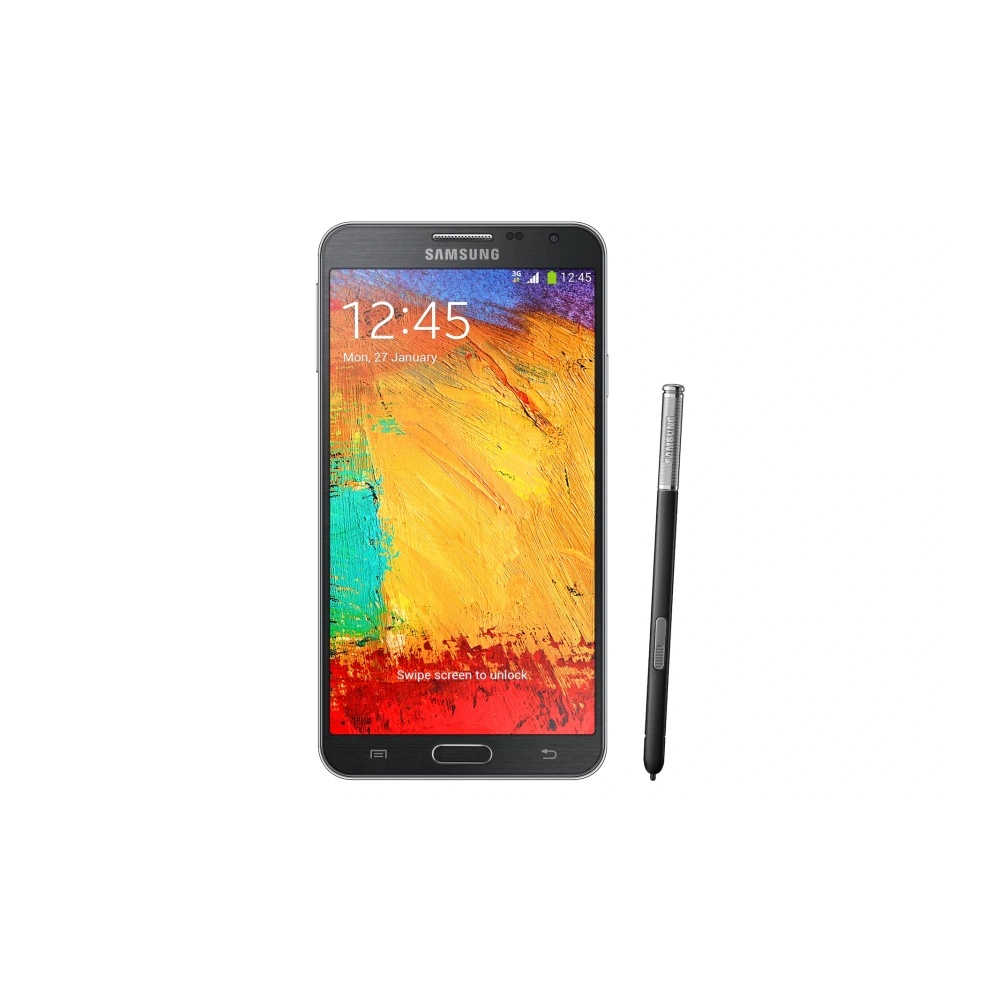
SM-N9005
SM-P901
SM-T110
SM-T116NU
SM-T310 
SM-T311
SM-T365
SM-T585
SM-T730
SM-T800 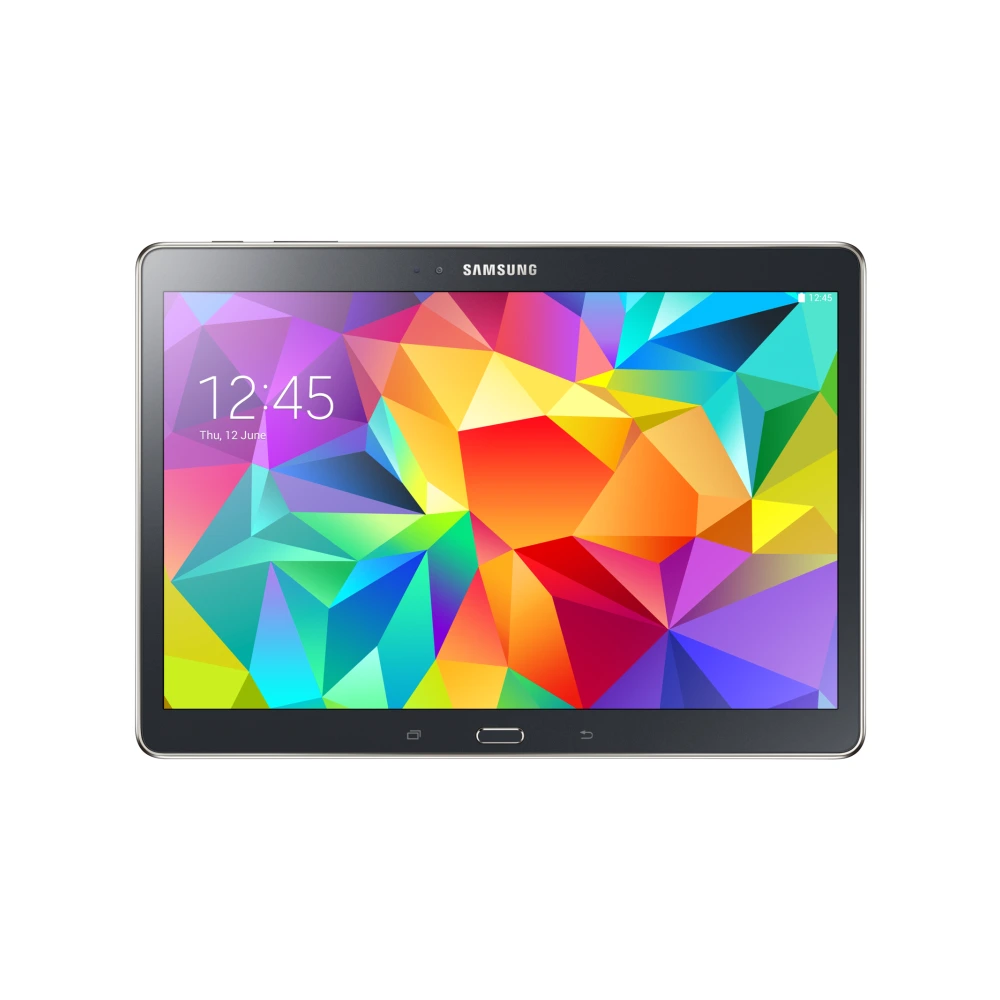
SM-T860
SM-T865
SM-T976B
SM-X306B 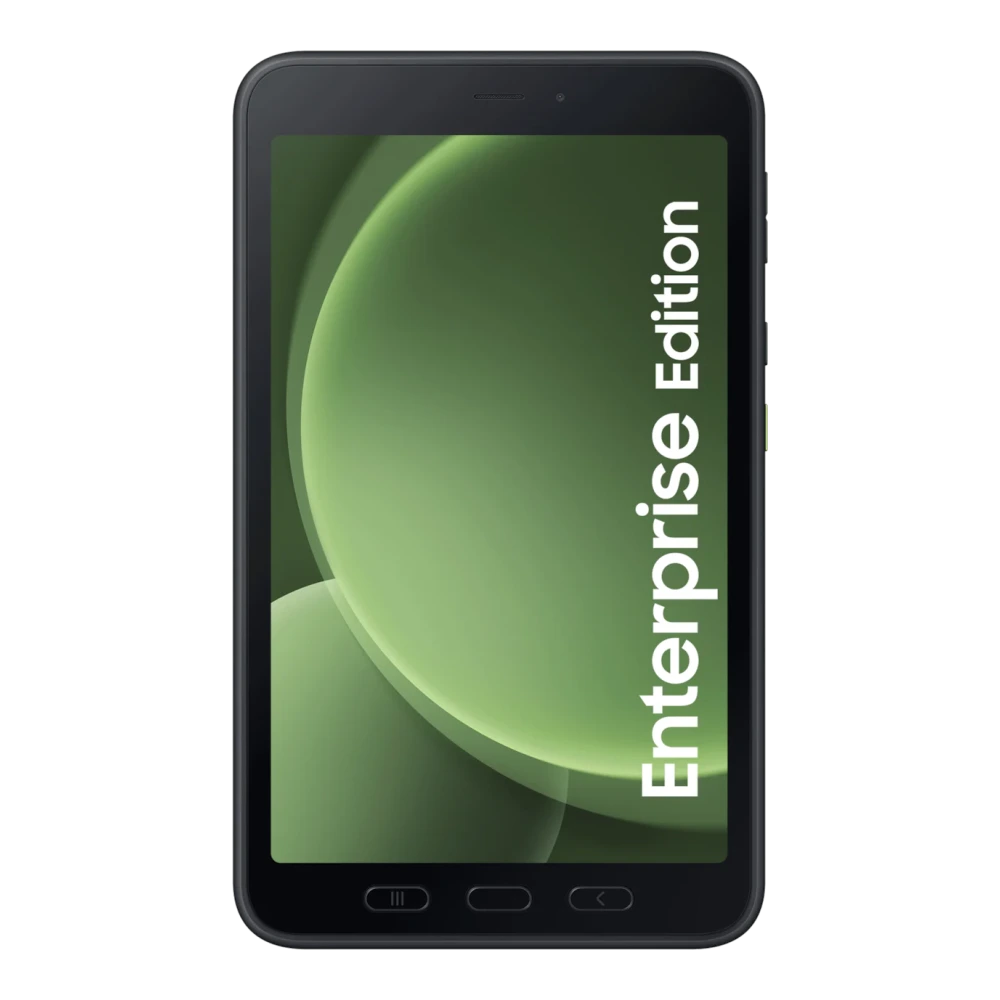
SM-Z130H
GT-N5100 
SM-T211 
SM-T210 
GT-P7500 
GT-P7300 
GT-S5250 
GT-S5330 
GT-S5753E 
GT-S7233E 
GT-S8500 
GT-S8530
GT-S8600 
GT-S7250D 
GT-S5380K 
XE500T1C-A01BD Samsung Galaxy smartphone user manuals serve as the complete technical reference for One UI — documenting every menu path, feature toggle, and setting that Samsung's engineers built into the device. The manuals cover everyday features like camera Pro mode, Bixby Routines, and Samsung Pay, but also rarely-documented details like hidden accessibility options, advanced fingerprint sensitivity settings, and the precise steps for emergency SOS configuration in each country.
Galaxy S series manuals include dedicated sections for Samsung DeX (wired and wireless desktop mode), Samsung Wallet (payment card setup, digital ID, and boarding passes), and Knox security (secure folder, private mode, and certificate management). Galaxy Z Fold manuals separately document the Taskbar, Flex Mode Panel, and multi-window gestures specific to the foldable form factor.
Galaxy A and M series manuals, while shorter than flagship documents, cover all market-specific features including regional VoLTE bands, carrier-specific services, and regional emergency calling procedures — information that is not documented anywhere else for budget-tier Samsung devices.
All Samsung Galaxy smartphones running One UI include comprehensive operating instructions, data migration utilities, and certified radiation limits:
Download verified 4-file factory stock firmware (BL, AP, CP, CSC), One UI updates, Tizen TV binaries, and SSD bootable ISOs.
Comprehensive step-by-step tutorial on flashing Samsung stock firmware with Odin v3.14.4 without tripping Knox or voiding warranty.
Desktop backup, restore, and emergency software recovery tool for Windows and macOS computers.